Windows Guides
Simple, step-by-step answers for your Windows, with real screenshots and the exact Windows 11 version.
 Illustration
What do you need help with?
View all topicsFix a Windows problem
Quick solutions for the most common issues.
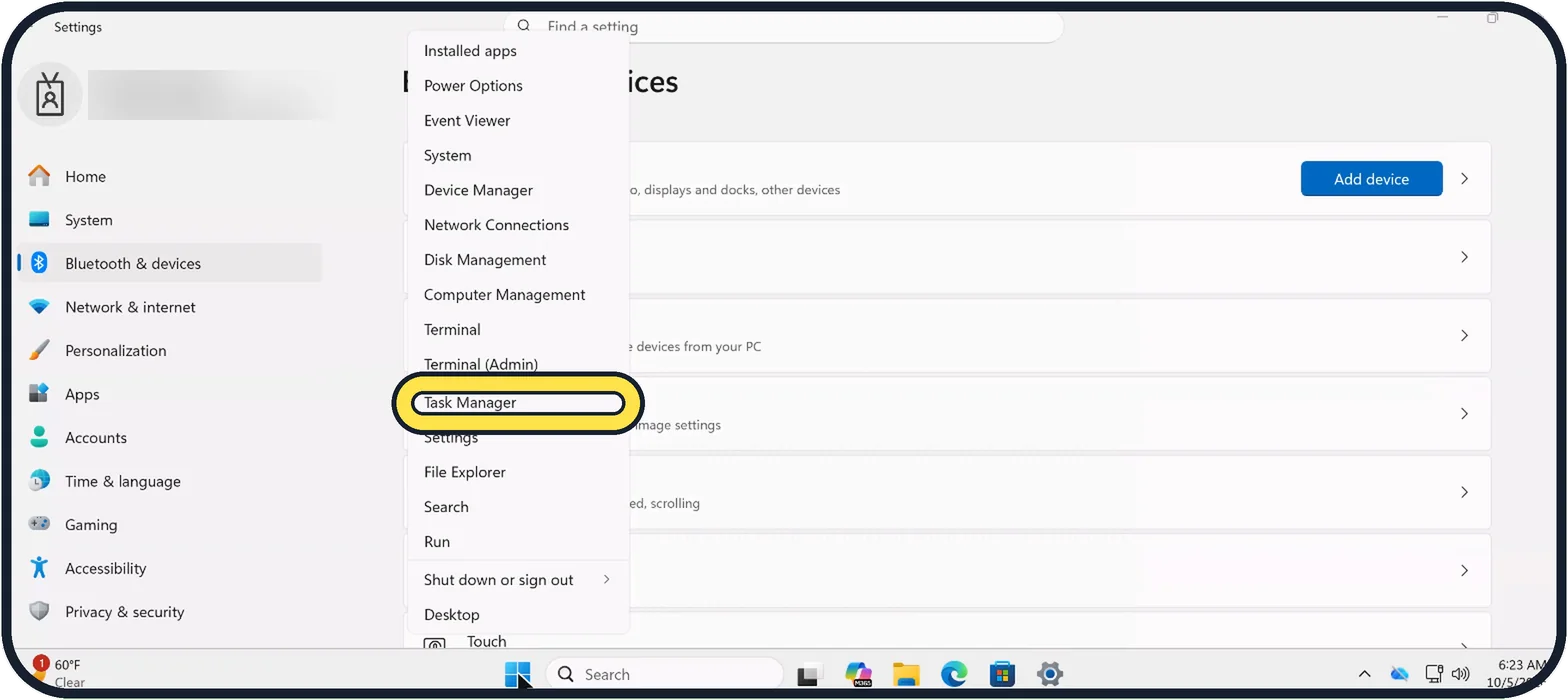
- How to close a frozen program on Windows 11›
- Windows 11 PC slow or disk at 100%›
- Ethernet not working on Windows 11›
- File Explorer preview pane not working on Windows 11›
- Internet works in one browser but not another on Windows 11›
- Microsoft Store apps not working on Windows 11›
- Mouse scrolling too fast or the wrong way on Windows 11›
- No sound on Windows 11›
Latest Windows guides
View all Windows guides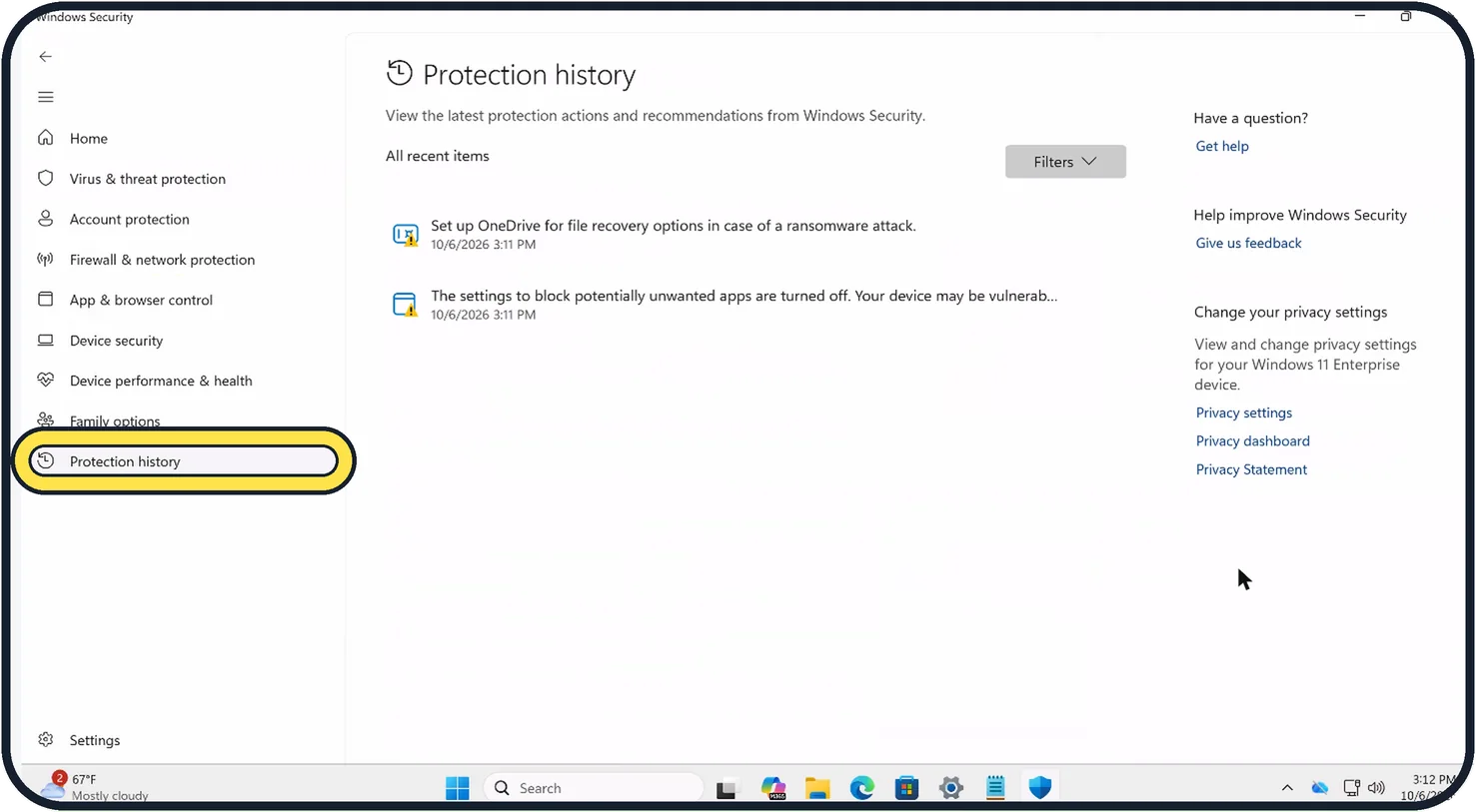 Windows Security or Smart App Control blocked an app? What to doOpen Windows Security and click Protection history to see what was blocked. A file Microsoft…
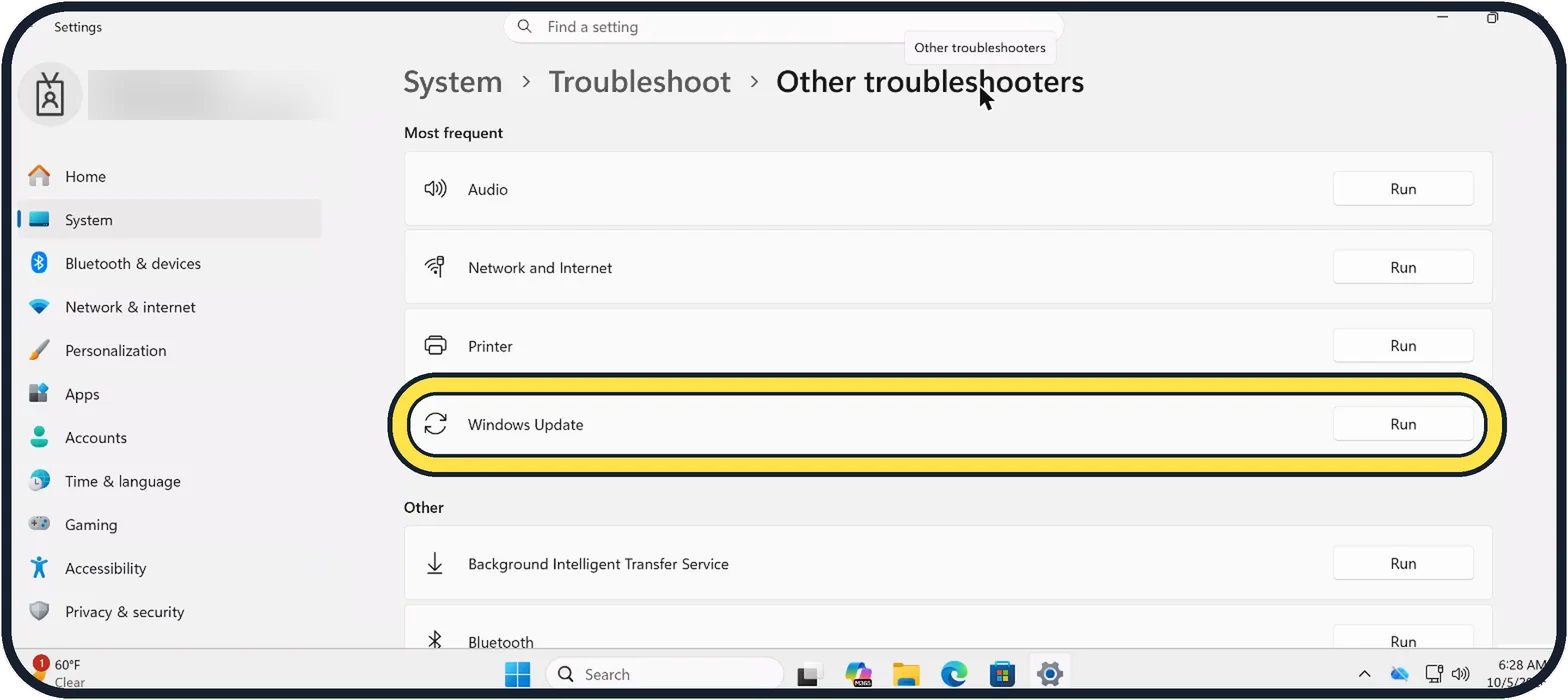 Windows 11 update failed or stuck? 10 fixes to tryRun the Windows Update troubleshooter under Settings, System, Troubleshoot, Other…
 Windows 11 screen has a yellow or pink tint? How to fix itA yellow or orange tint is usually Night light: open Settings, System, Display, Night light…
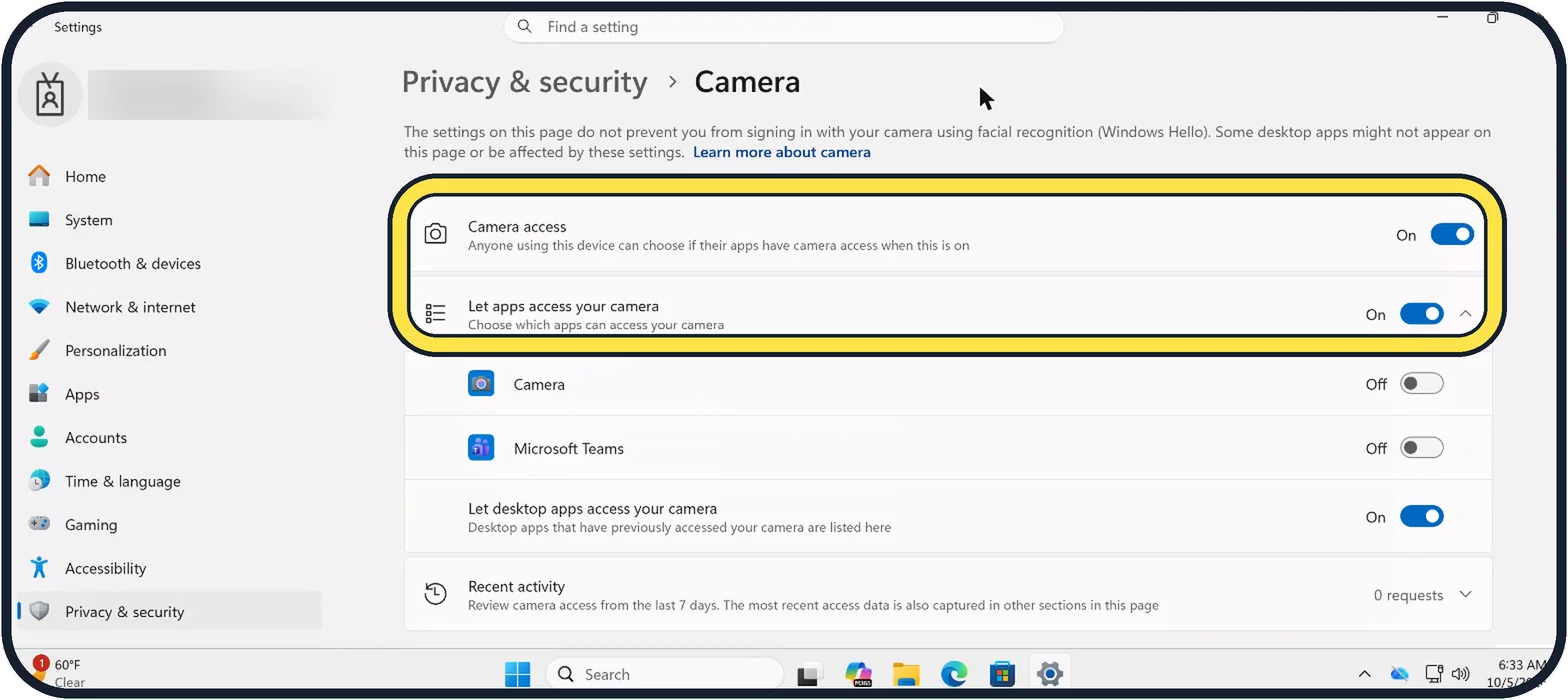 Windows 11 camera not working? 9 fixes to tryCheck for a camera switch, key or sliding cover on the laptop. Then open Settings, Privacy &…
Windows 11 25H2
All Windows guides by topic
Troubleshooting
18 guidesHow to close a frozen program on Windows 11
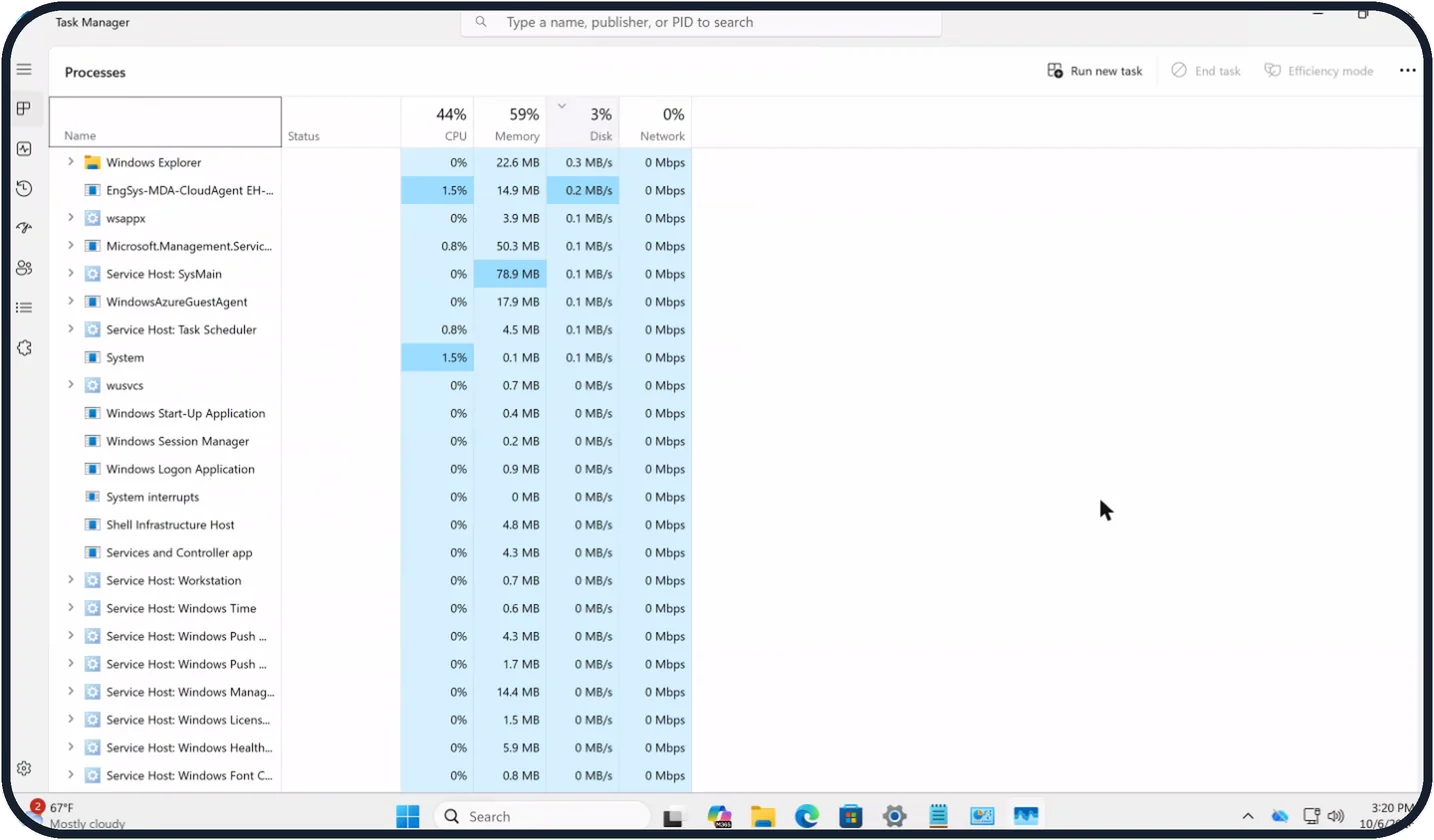
Press Ctrl + Shift + Esc to open Task Manager, click the program that is not responding and click End task. If the whole PC is frozen, hold the power button for about…
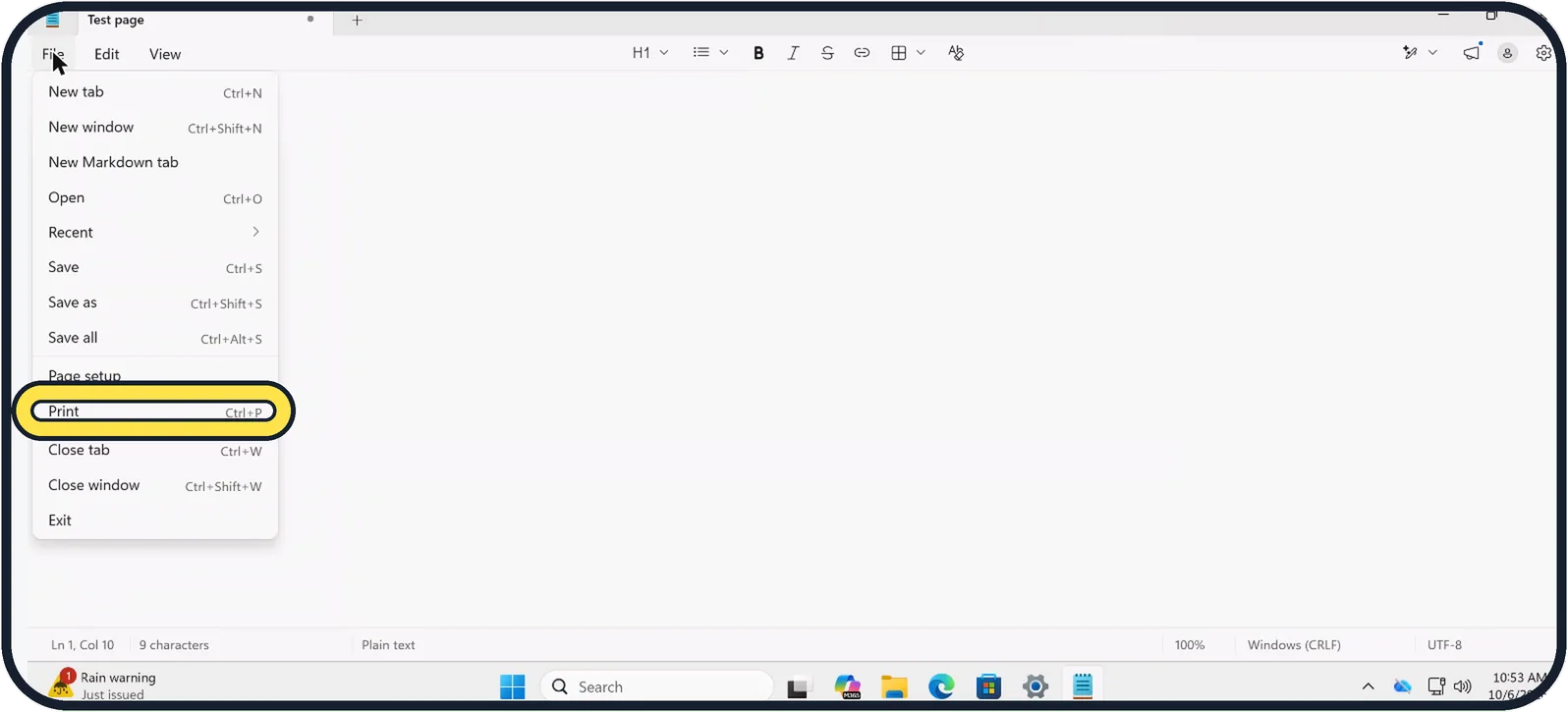
Print to PDF not showing the save window on Windows 11? Fix
After you click Print with Microsoft Print to PDF chosen, Windows opens a separate Save Print Output As window. If you do not see it, check the taskbar or press Alt +…
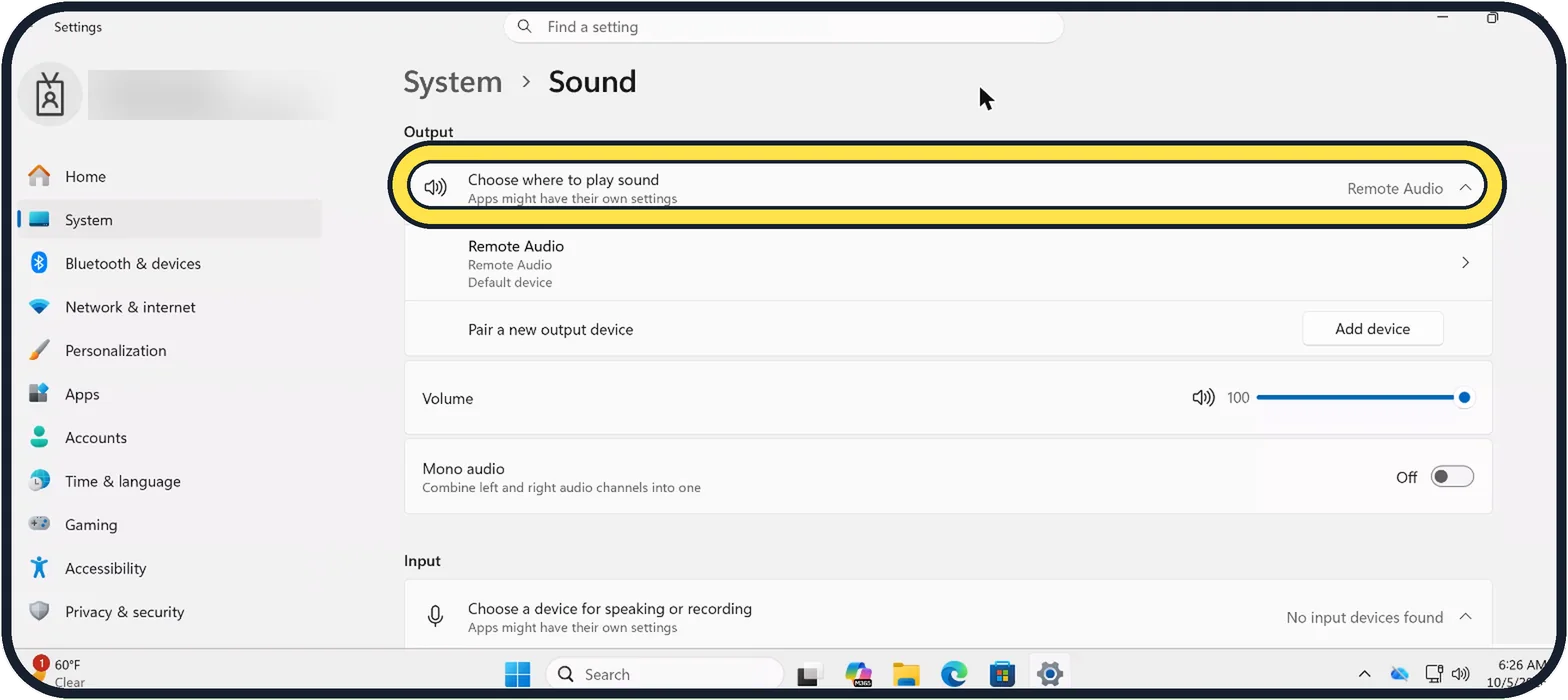
No sound on Windows 11? 8 fixes, including two known bugs
Open Settings, System, Sound and check that the right device is chosen under Choose where to play sound and the volume is not at 0. Then click Output devices next to…
Windows 11 screen has a yellow or pink tint? How to fix it
A yellow or orange tint is usually Night light: open Settings, System, Display, Night light and click Turn off now. Odd or pink colours usually come from a colour…
Windows Security or Smart App Control blocked an app? What to do
Open Windows Security and click Protection history to see what was blocked. A file Microsoft Defender quarantined can be restored there and then allowed. Smart App…
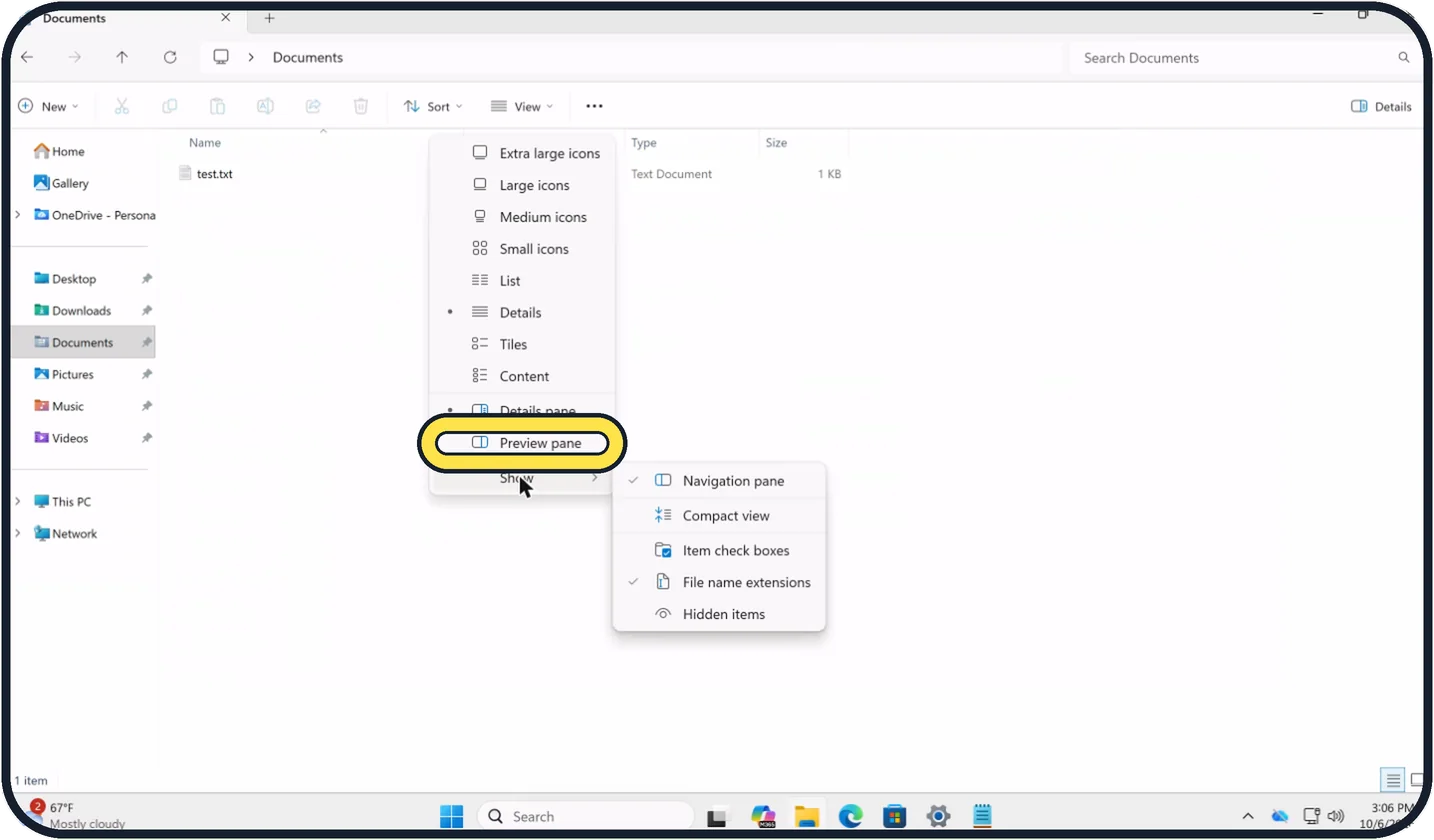
File Explorer preview pane not working on Windows 11? Fixes
Turn the pane on with View, Preview pane, and select one file. If it says the file could harm your computer, the file came from the internet: since the security updates…
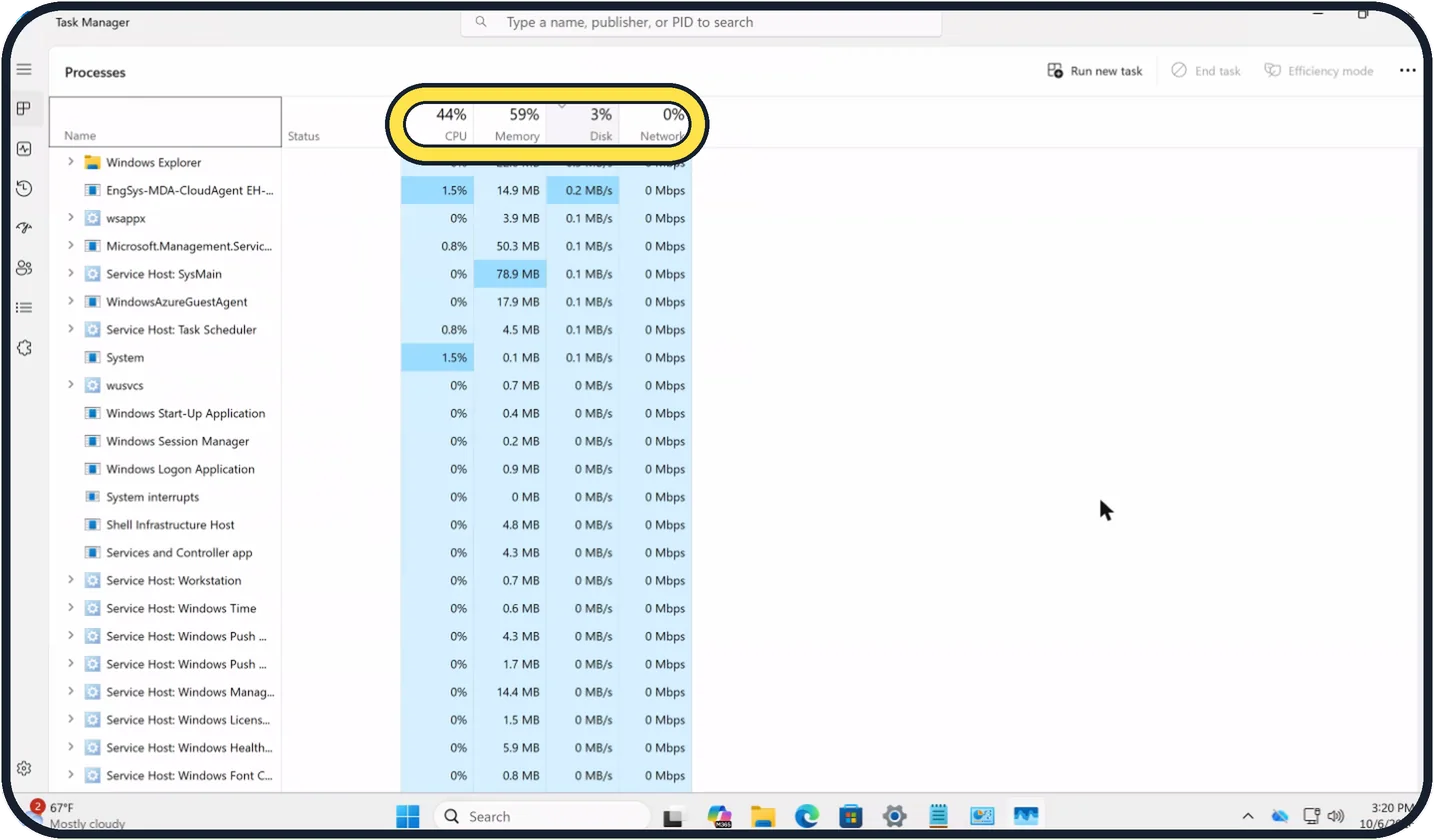
Windows 11 PC slow or disk at 100%? What to check first
Press Ctrl + Shift + Esc to open Task Manager and click the Disk or CPU column to see which app is busy. Then turn off startup apps you do not need under Startup apps…
Taskbar Search box or icons missing on Windows 11? Get them back
Right-click an empty part of the taskbar and choose Taskbar settings. Under Taskbar items, set Search to Search box and switch Task view and Widgets on. If the whole…
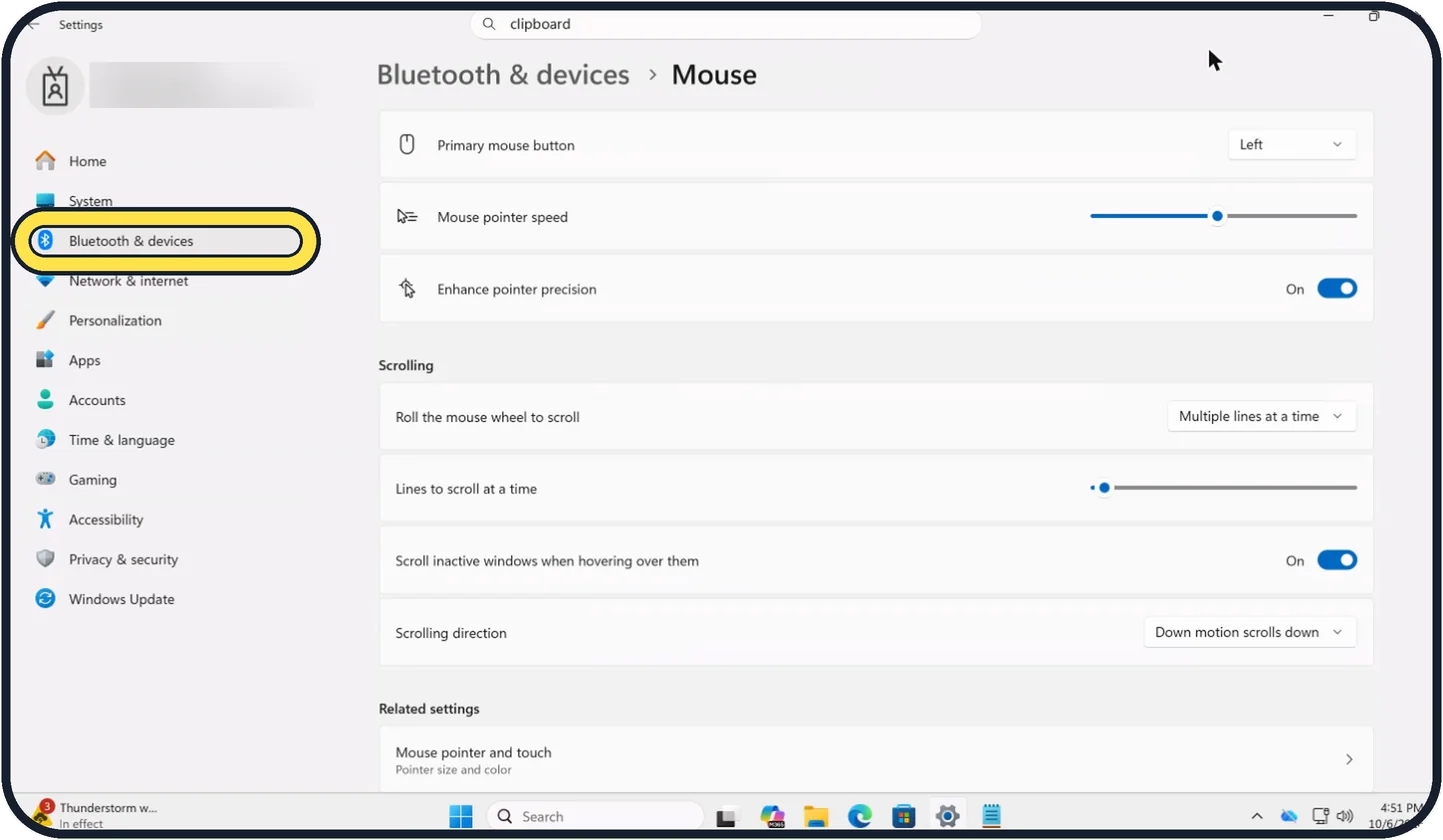
Mouse scrolling too fast or the wrong way on Windows 11? Fix it
Open Settings, Bluetooth & devices, Mouse. Under Scrolling, move the Lines to scroll at a time slider and check Scrolling direction. Pointer speed and the primary…
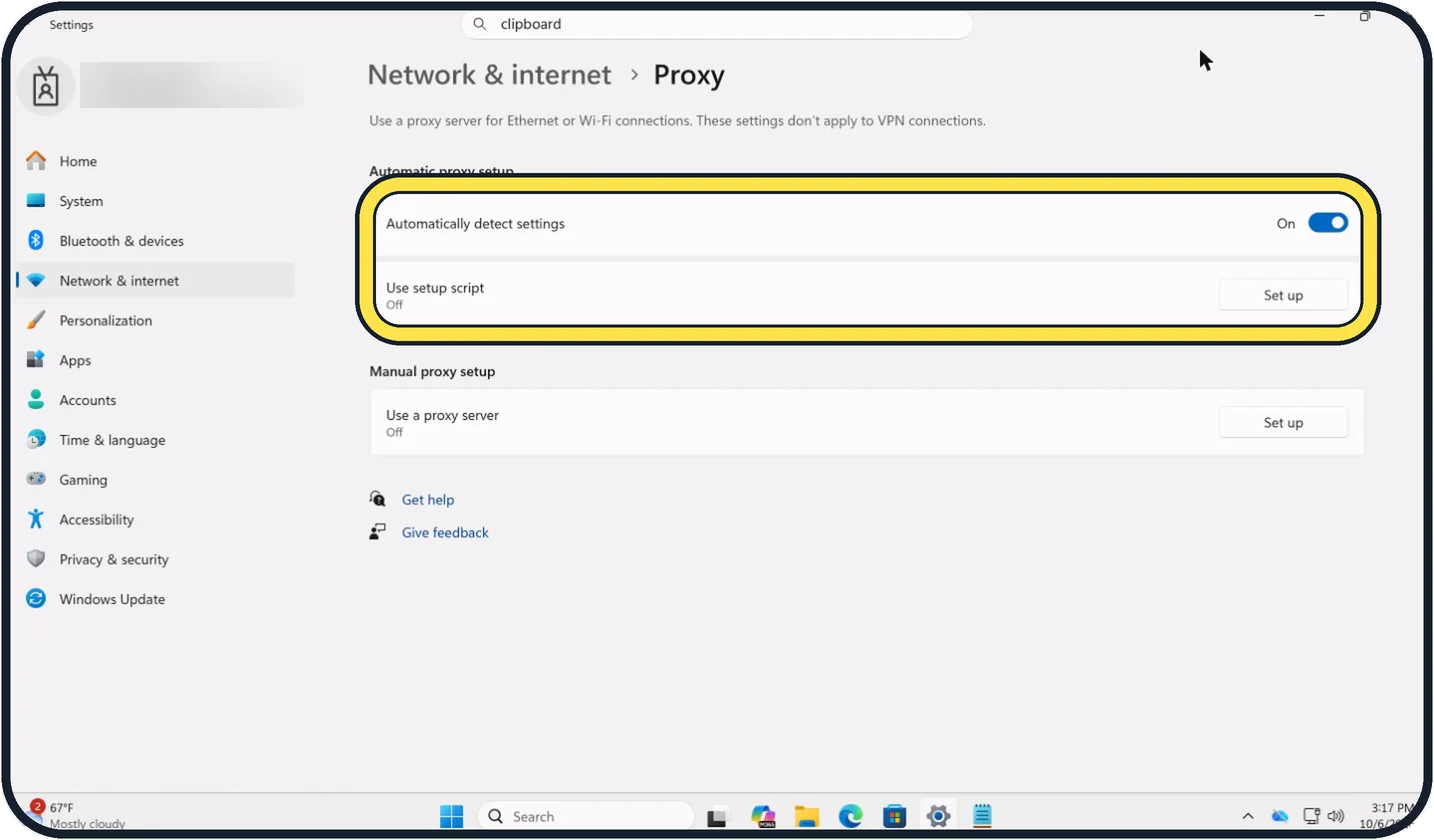
Internet works in one browser but not another on Windows 11?
If one browser loads pages and another does not, your connection is fine and the cause is a setting. Check Settings, Network & internet, Proxy for a proxy or setup…
Windows 11 update failed or stuck? 10 fixes to try
Run the Windows Update troubleshooter under Settings, System, Troubleshoot, Other troubleshooters. Check the internet connection, free space and the clock, restart and…
Windows 11 camera not working? 9 fixes to try
Check for a camera switch, key or sliding cover on the laptop. Then open Settings, Privacy & security, Camera and switch on Camera access, Let apps access your camera…
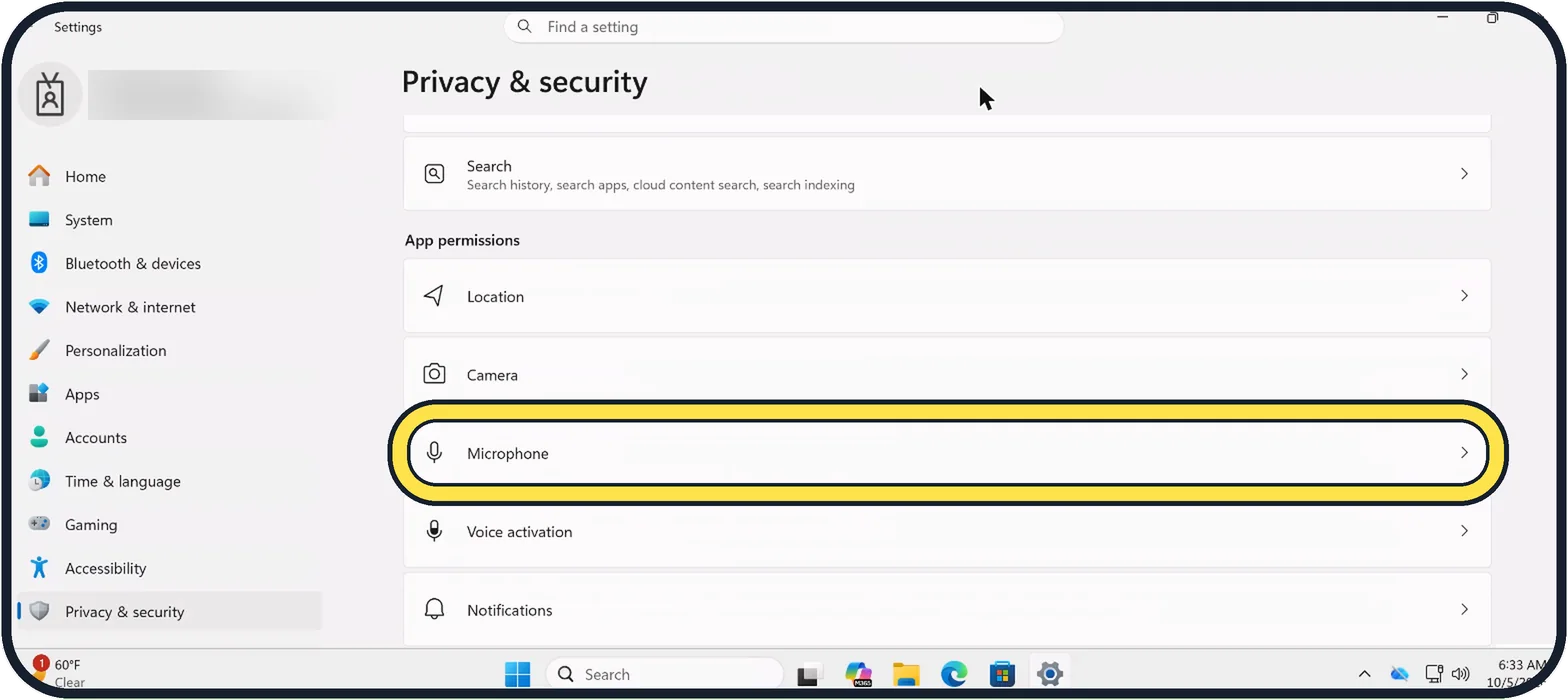
Windows 11 microphone not working? 6 fixes to try
Open Settings, Privacy & security, Microphone and switch on Microphone access and Let apps access your microphone. Then open Settings, System, Sound, choose your…
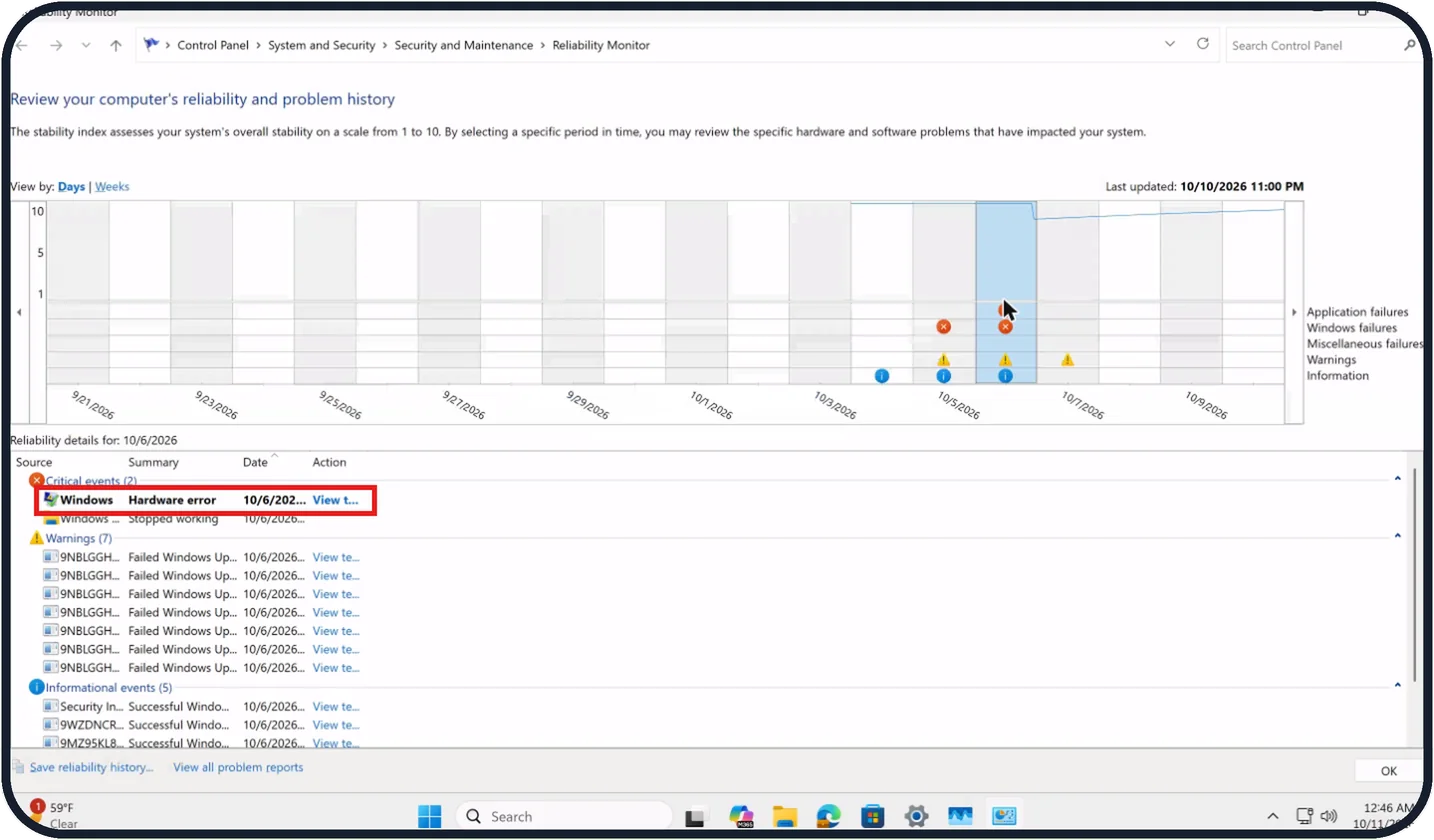
Windows 11 blue screen? 7 fixes for stop code errors
Shut the PC down and unplug any hardware you added recently, then start it again. If the blue screen returns, look up the crash in Reliability Monitor, start Windows in…
Windows 11 screen flickering? How to find the cause and fix it
Press Windows + Ctrl + Shift + B to restart the graphics driver. If it still flickers, press Ctrl + Shift + Esc to open Task Manager. If Task Manager flickers too, the…
Microsoft Store apps not working on Windows 11? 7 fixes to try
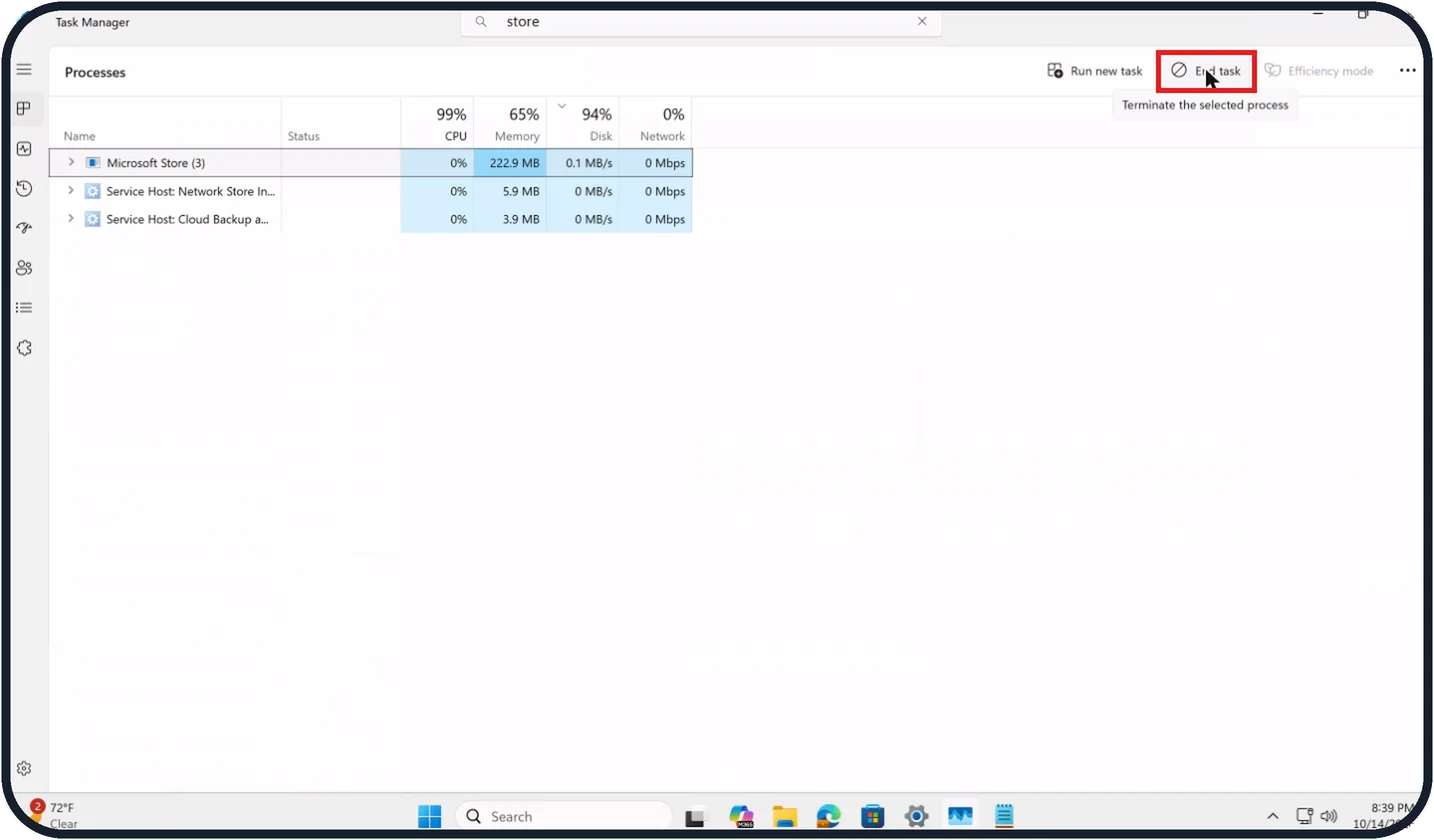
Restart the app and install Windows updates. In the Microsoft Store, open Downloads and click Check for updates. If one app still fails, go to Settings, Apps, Installed…
Ethernet not working on Windows 11? 6 fixes to try
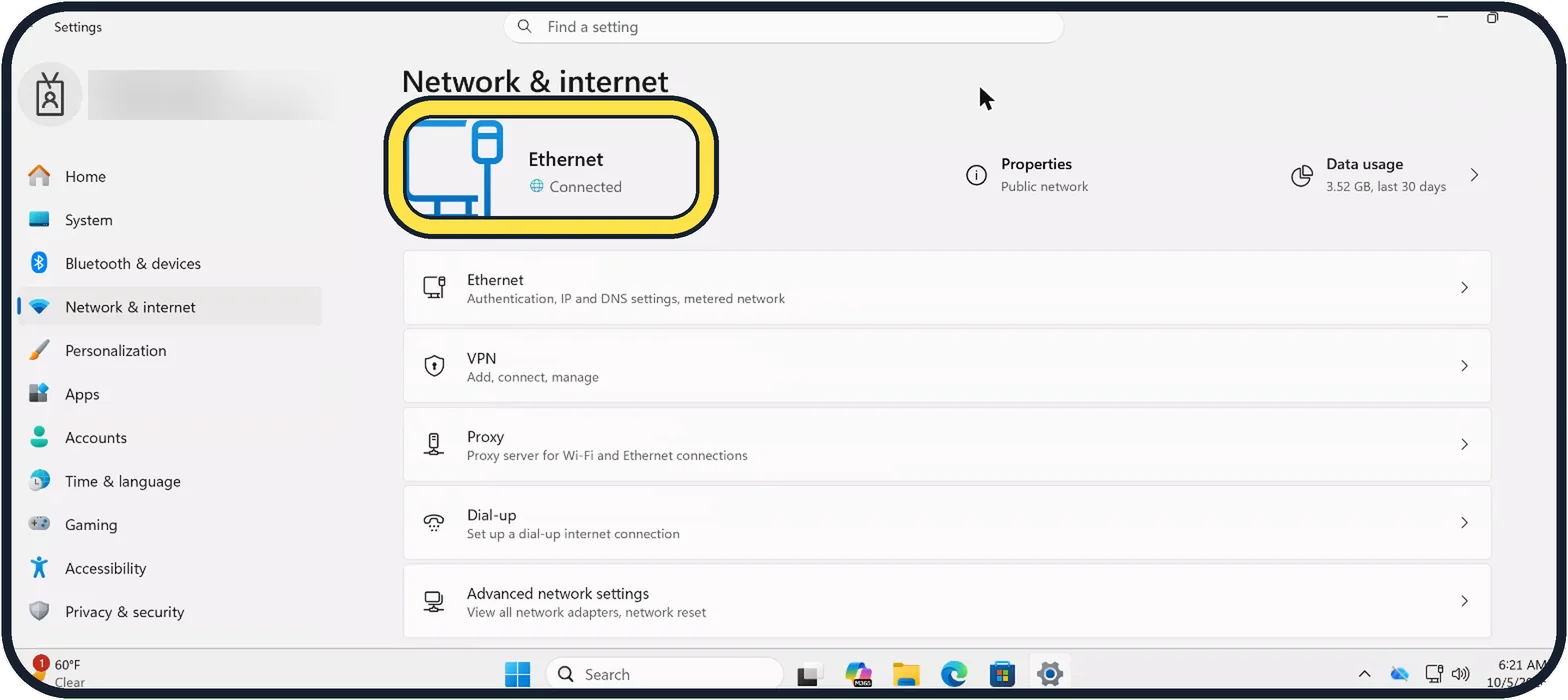
Check that the cable clicks into place at both ends and sits in a LAN port of the router, not the port for the modem. Try another cable. Then unplug the router and…
Print job stuck in the queue on Windows 11: 4 fixes to try
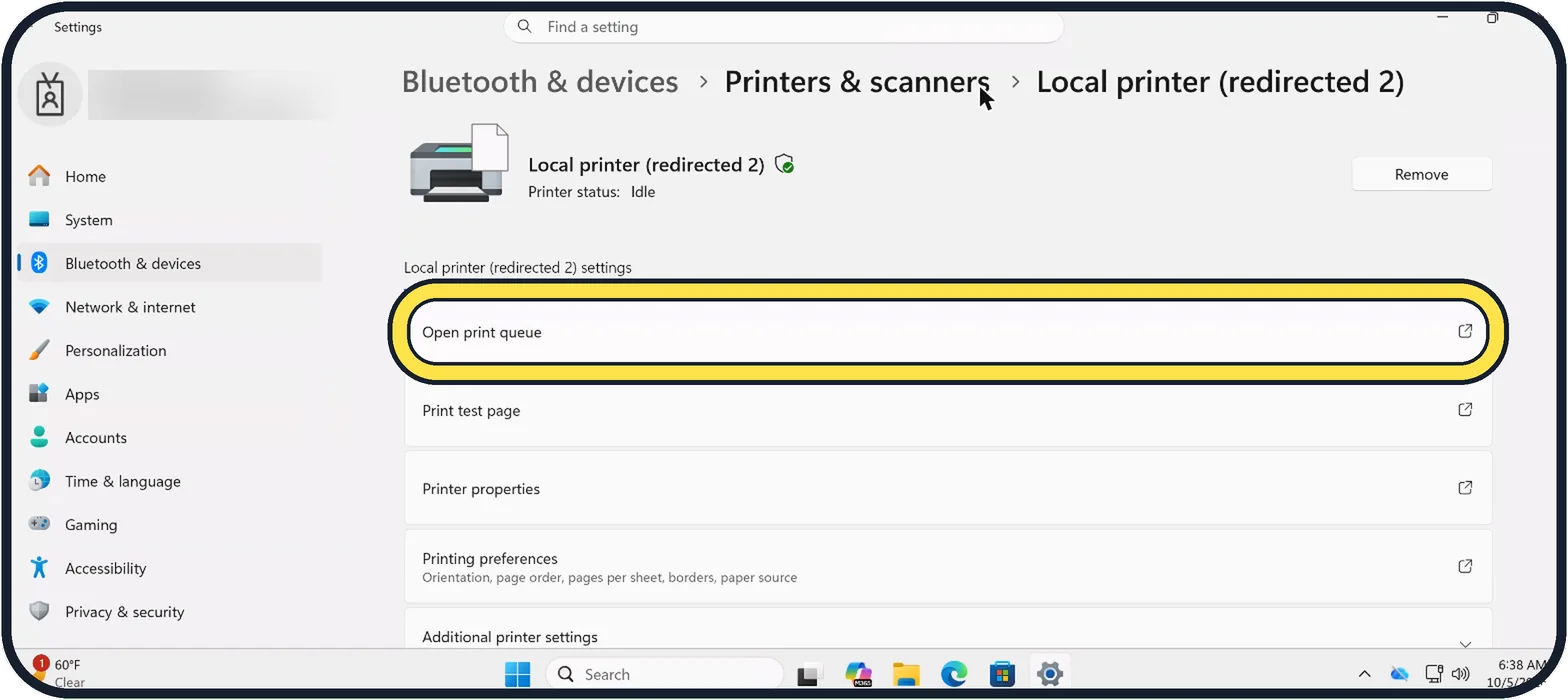
Open Settings, Bluetooth & devices, Printers & scanners, select the printer and click Open print queue. Right-click each job and choose Cancel. If a job will not go…

Privacy & Security
5 guidesHow to check if your PC has TPM 2.0 on Windows 11
Open Windows Security, click Device security, then Security processor details. Specification version shows 2.0 if your PC has TPM 2.0. Or right-click Start, choose Run…
How to check if your drive is encrypted with BitLocker on Windows 11
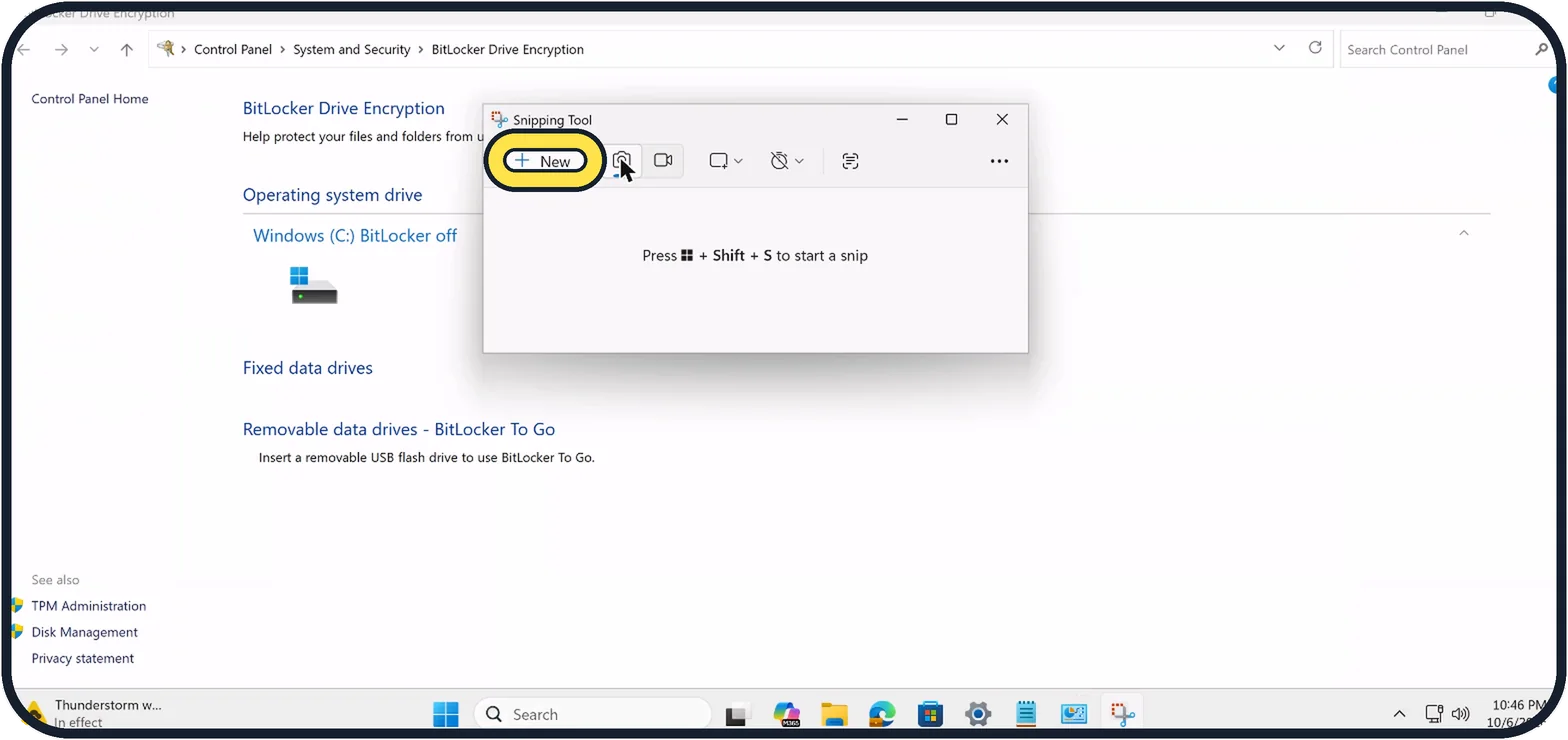
Open Start, type BitLocker and open Manage BitLocker. Next to Windows (C:) it says BitLocker on or BitLocker off. In Settings, Privacy & security, a Device encryption…
How to scan a Windows 11 PC for viruses with Windows Security
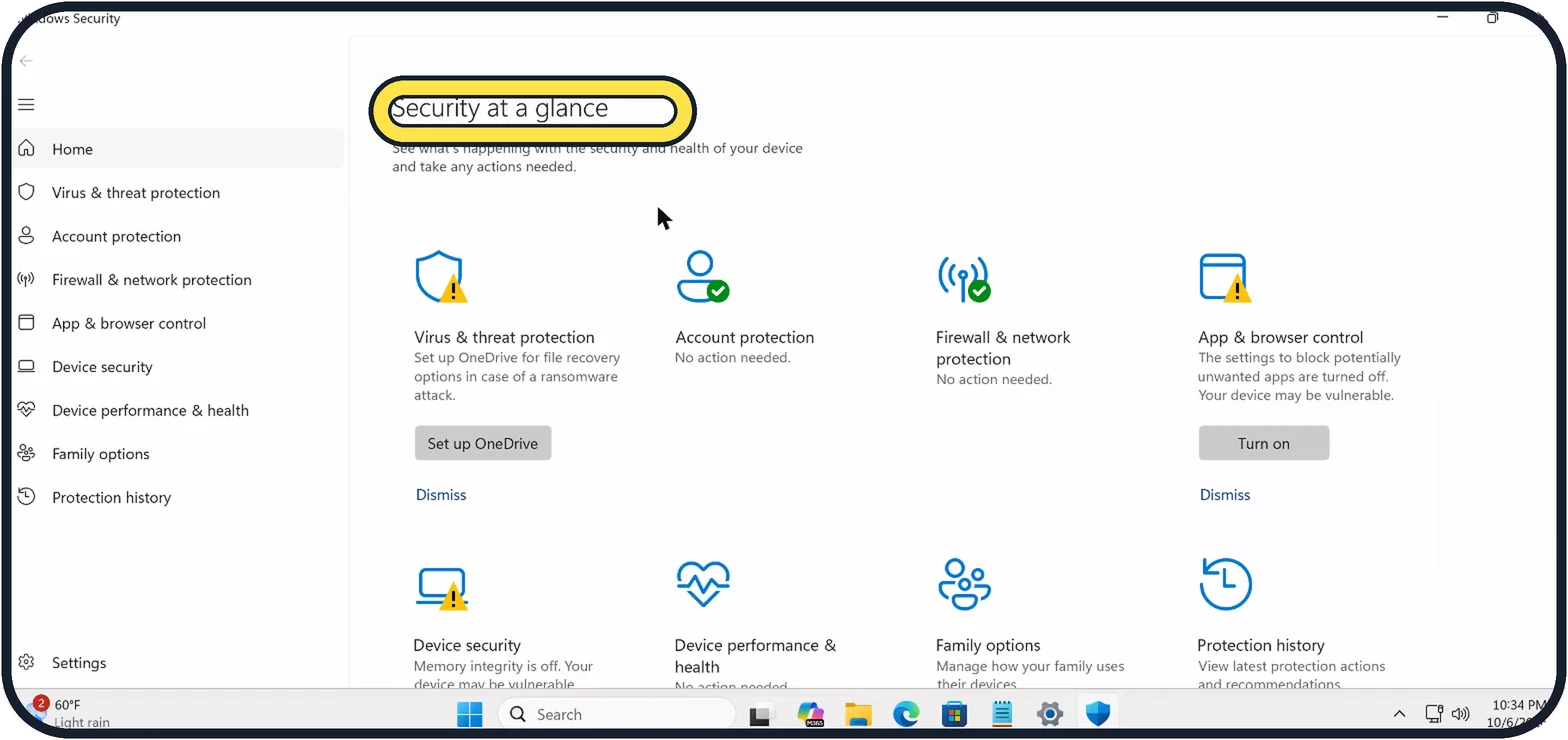
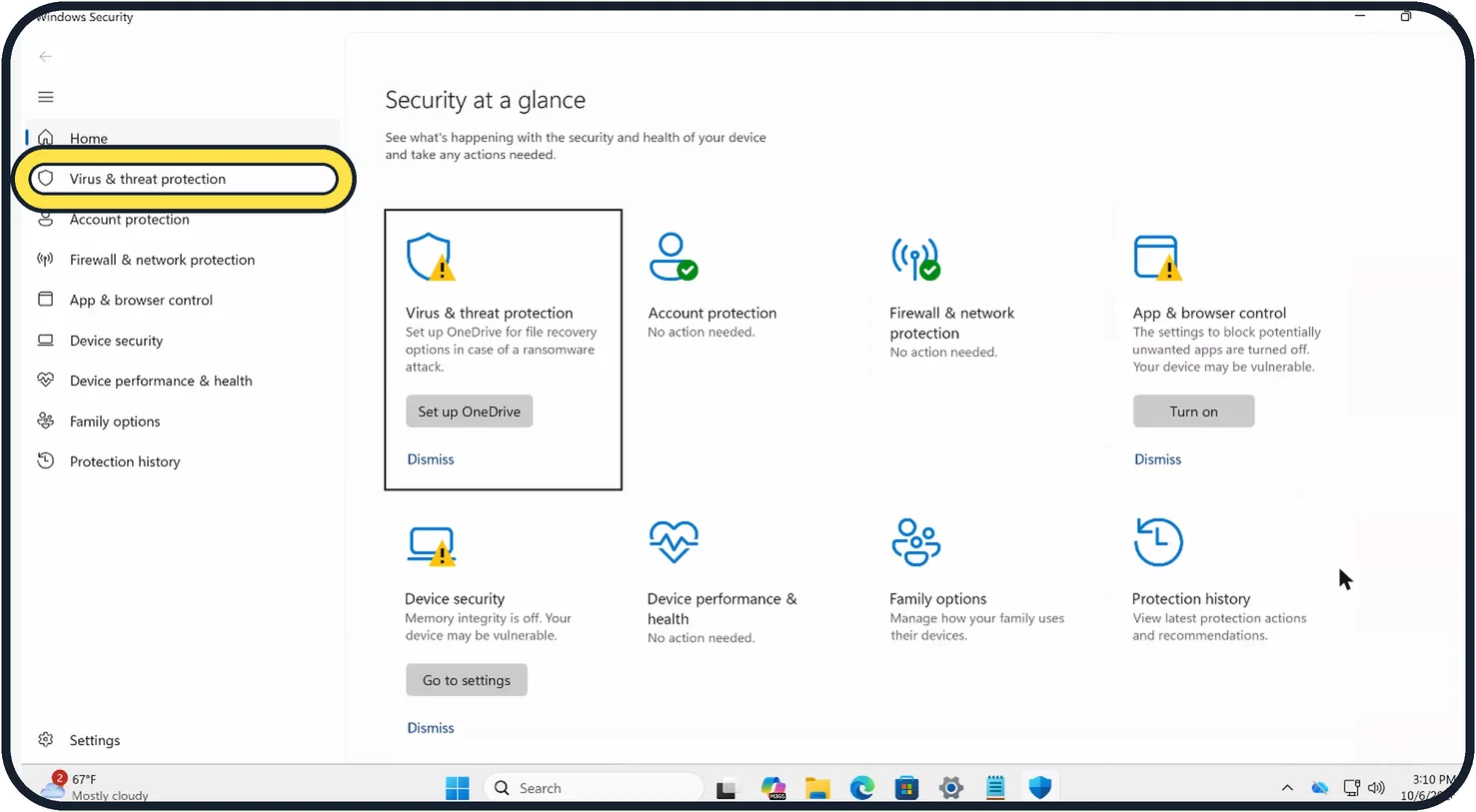
Open Start, type Windows Security and open the app. Click Virus & threat protection, then Quick scan. For a thorough check, click Scan options and choose Full scan, or…
How to turn on Find my device on Windows 11
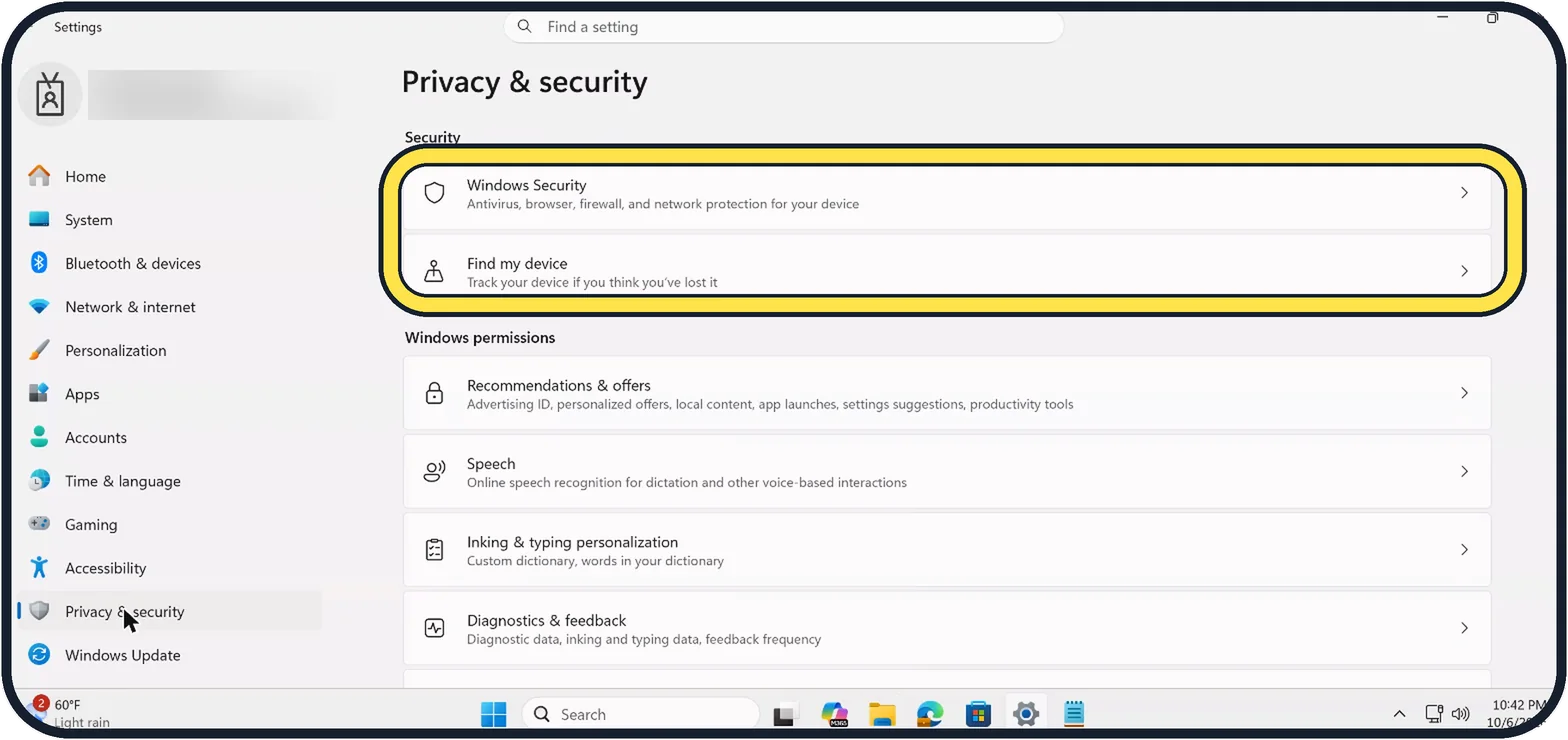
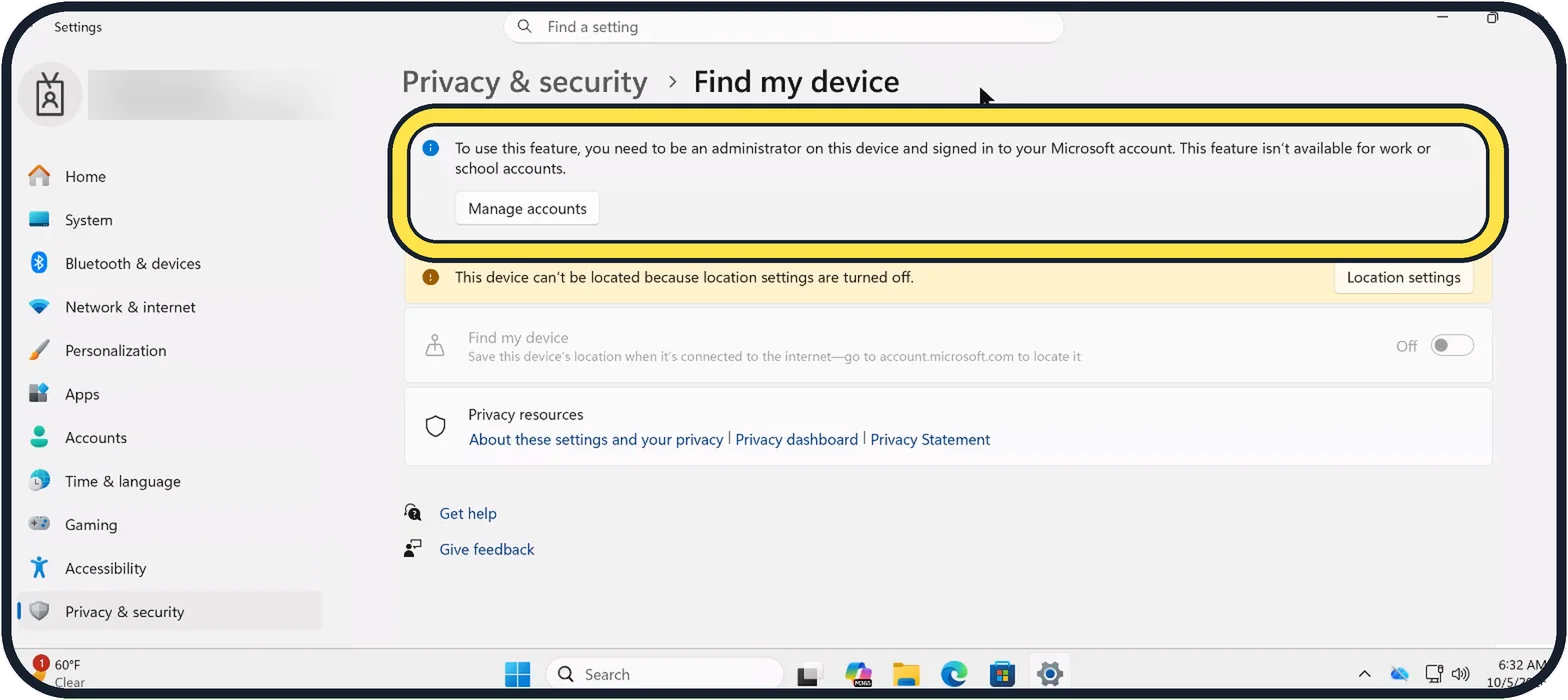
Open Settings, click Privacy & security and then Find my device, and switch it on. It needs a Microsoft account with administrator rights and location services switched…
How to find your IP address on Windows 11
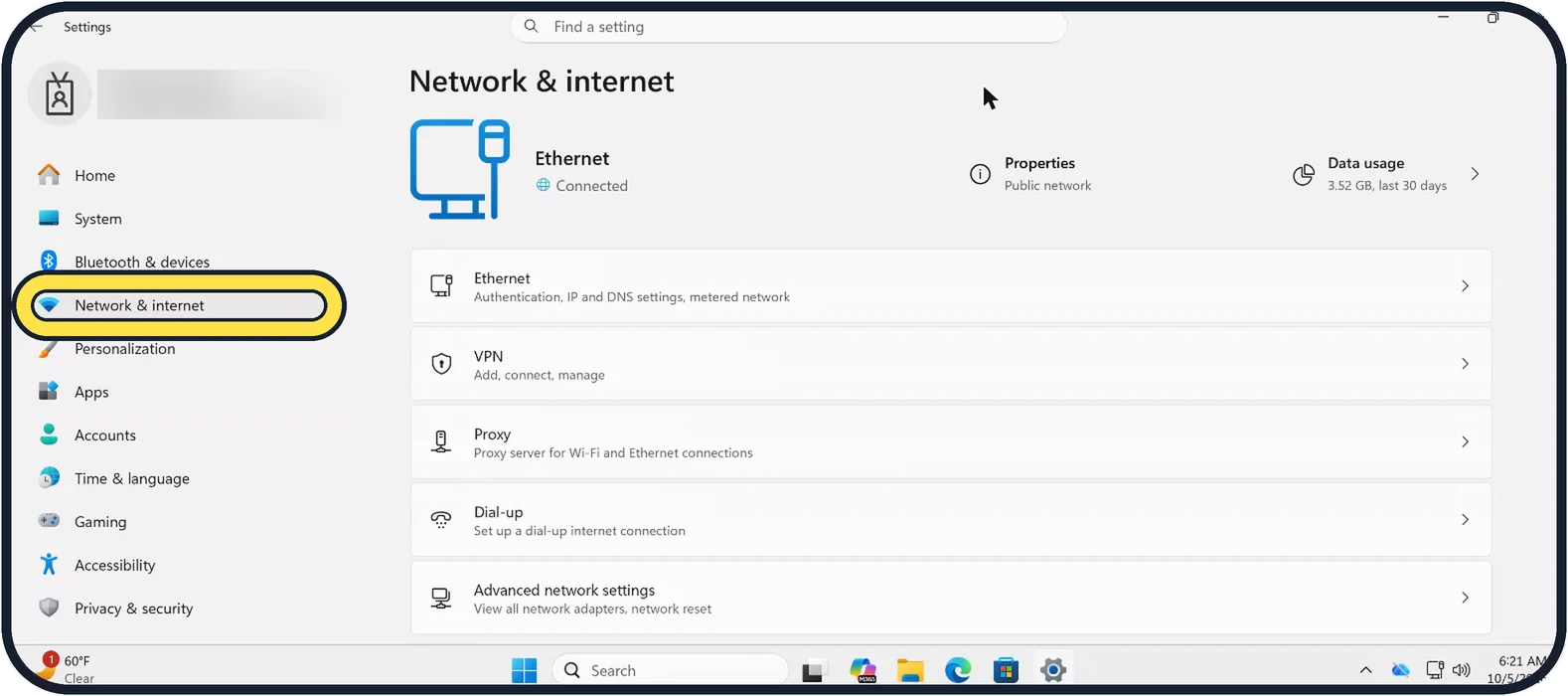
Open Settings, click Network & internet and click Properties next to the name of your connection at the top. The address of the PC in your home network is shown next to…
Camera, Photos & Screenshots
4 guidesHow to take a screenshot on Windows 11
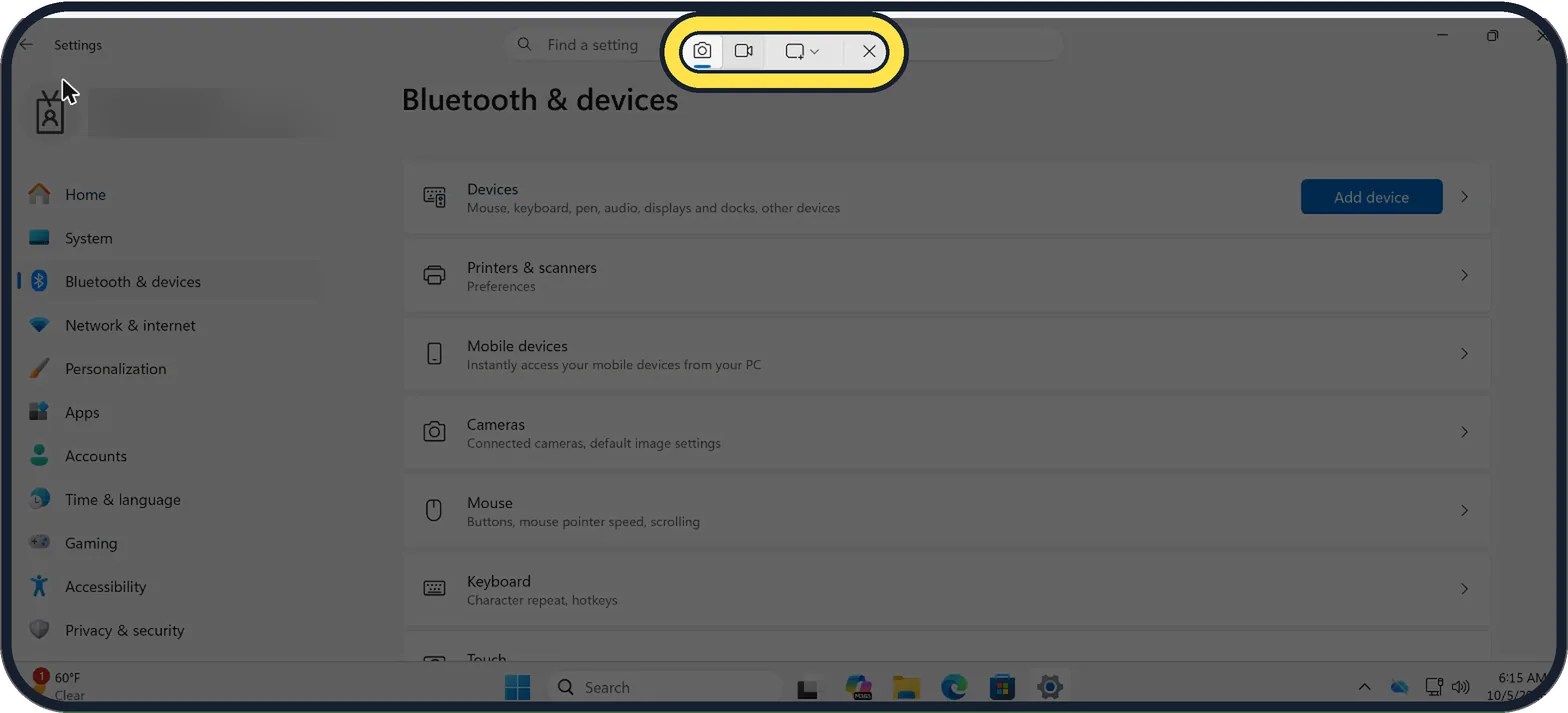
Press Windows + Shift + S, drag over the area you want, and the picture is copied and saved. Press the PrtSc key for the same tool, or Windows + PrtSc to save the whole…
How to record your screen on Windows 11
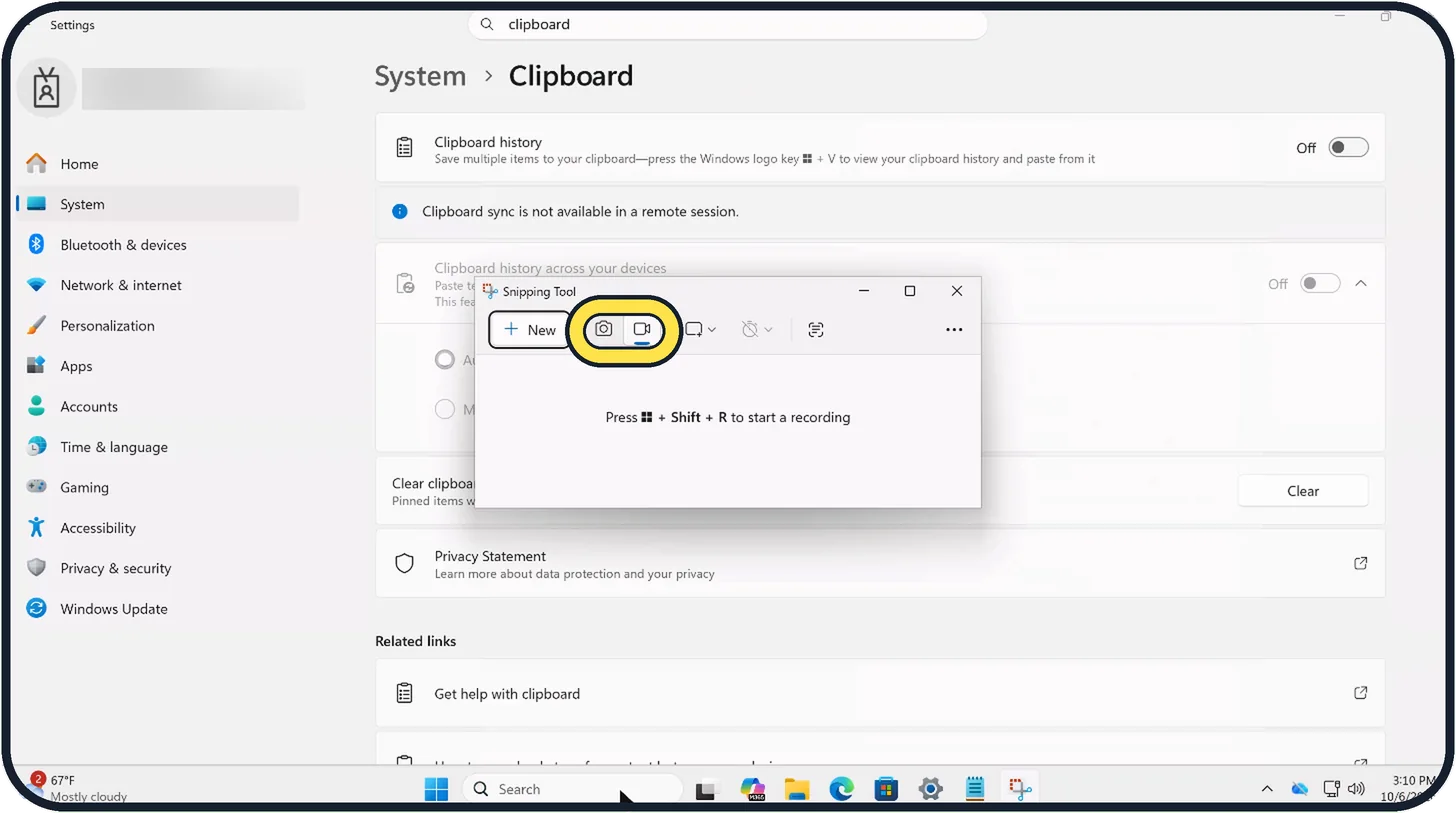
Open Snipping Tool, switch to the video camera button and click New, or press Windows + Shift + R. Drag a box around what you want to record and click Start, then Stop…
How to copy text from a screenshot on Windows 11 with Snipping Tool
Take a snip with Snipping Tool, then click Scan text in the toolbar of the snip. The text is highlighted; click Copy all text and paste it anywhere. Quick redact hides…
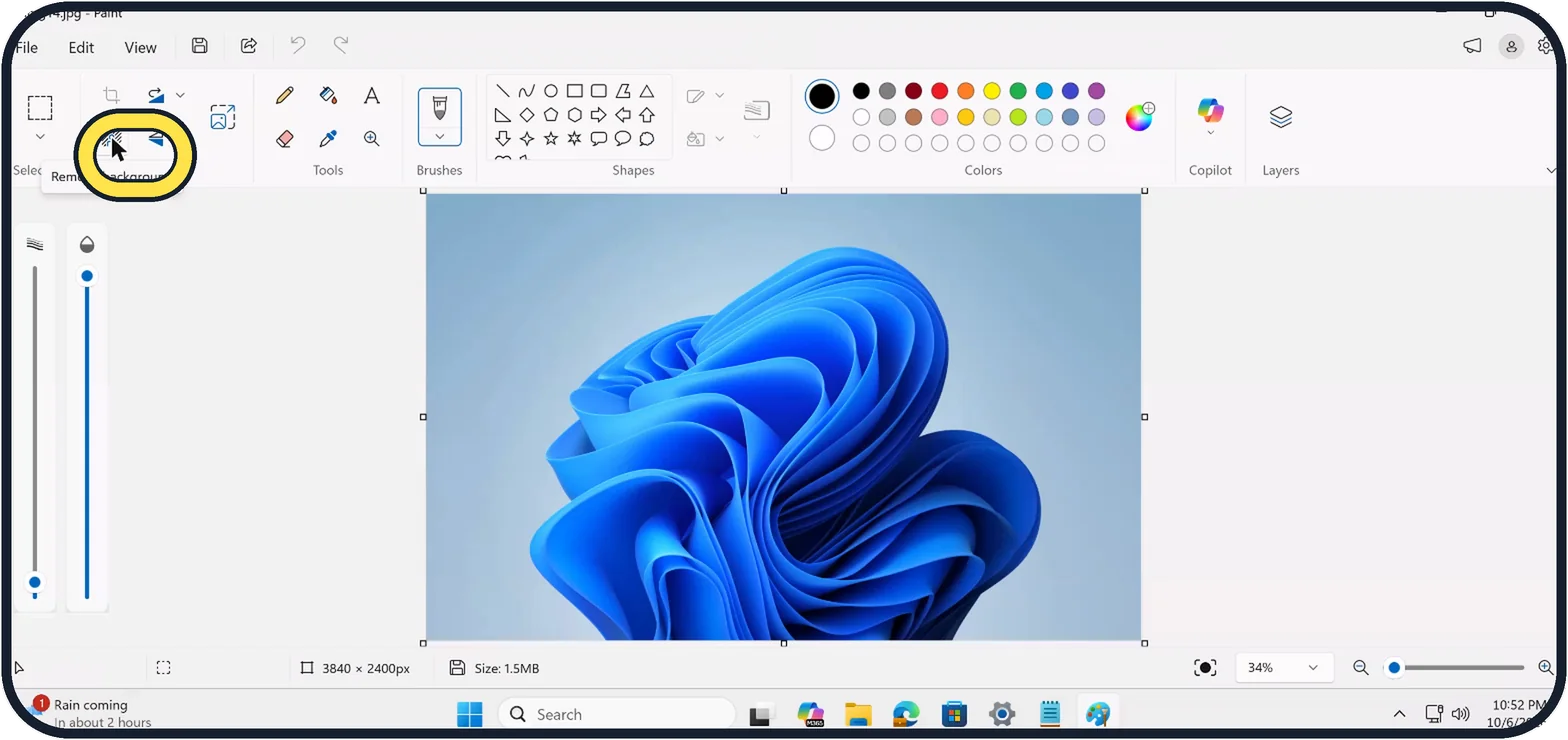
How to remove the background from a picture in Paint on Windows 11
Open the picture in Paint and click Remove background in the Image group. Paint cuts out the main subject in a few seconds. Save it with File, Save as, PNG picture to…
Display & Accessibility
8 guidesHow to turn on Night light on Windows 11
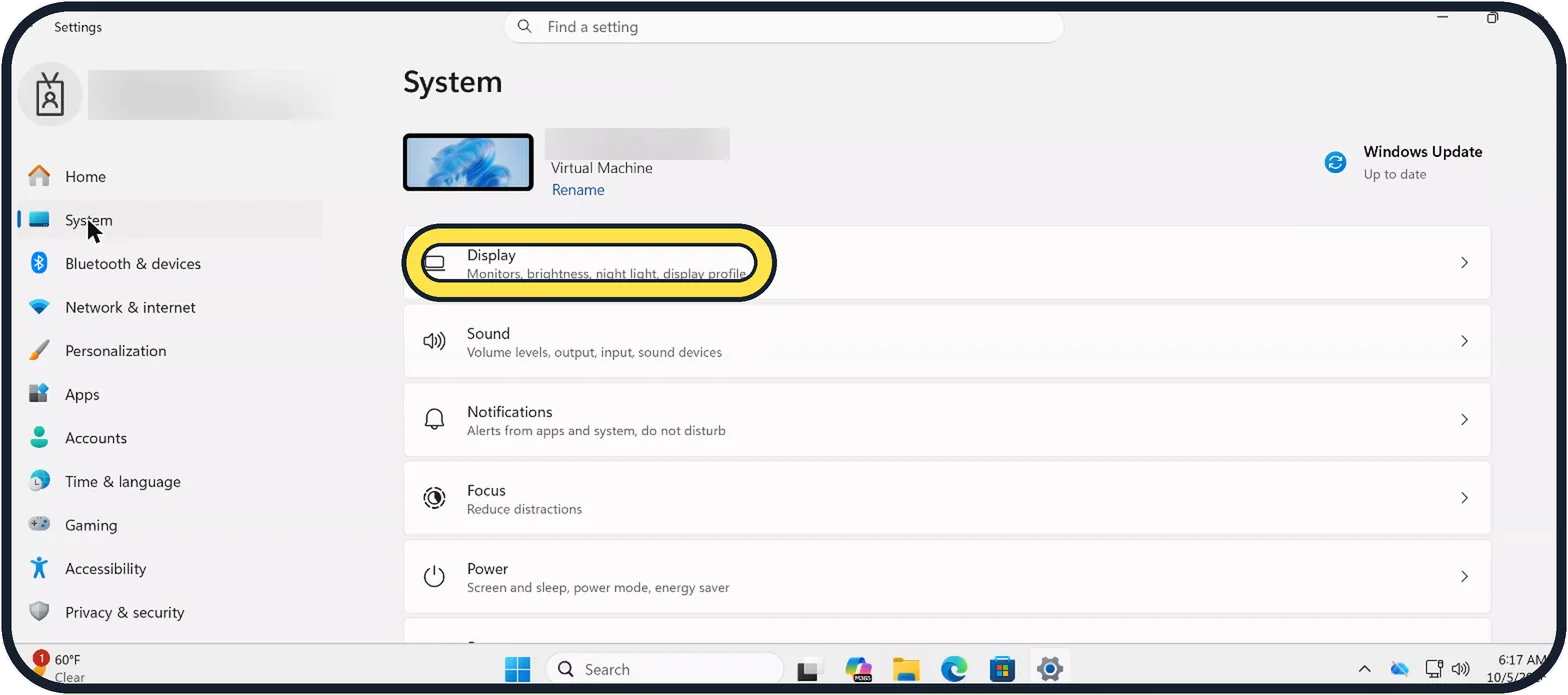
Open Settings, choose System, then Display, and switch on Night light. Click the row to set the strength and a schedule, for example sunset to sunrise.
How to turn on dark mode on Windows 11
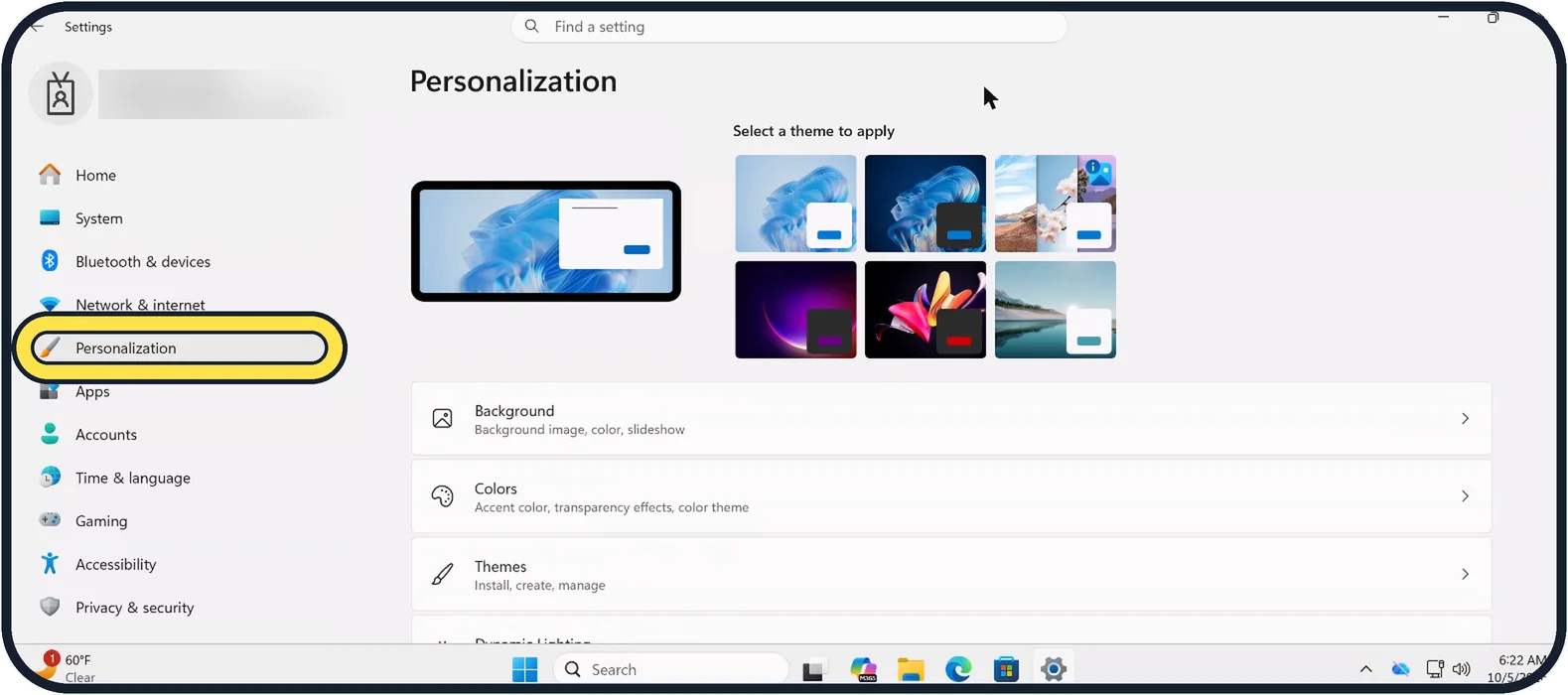
Open Settings, choose Personalization, then Colors, and set Choose your mode to Dark. Settings and apps that follow this setting switch to a dark background. Choose…
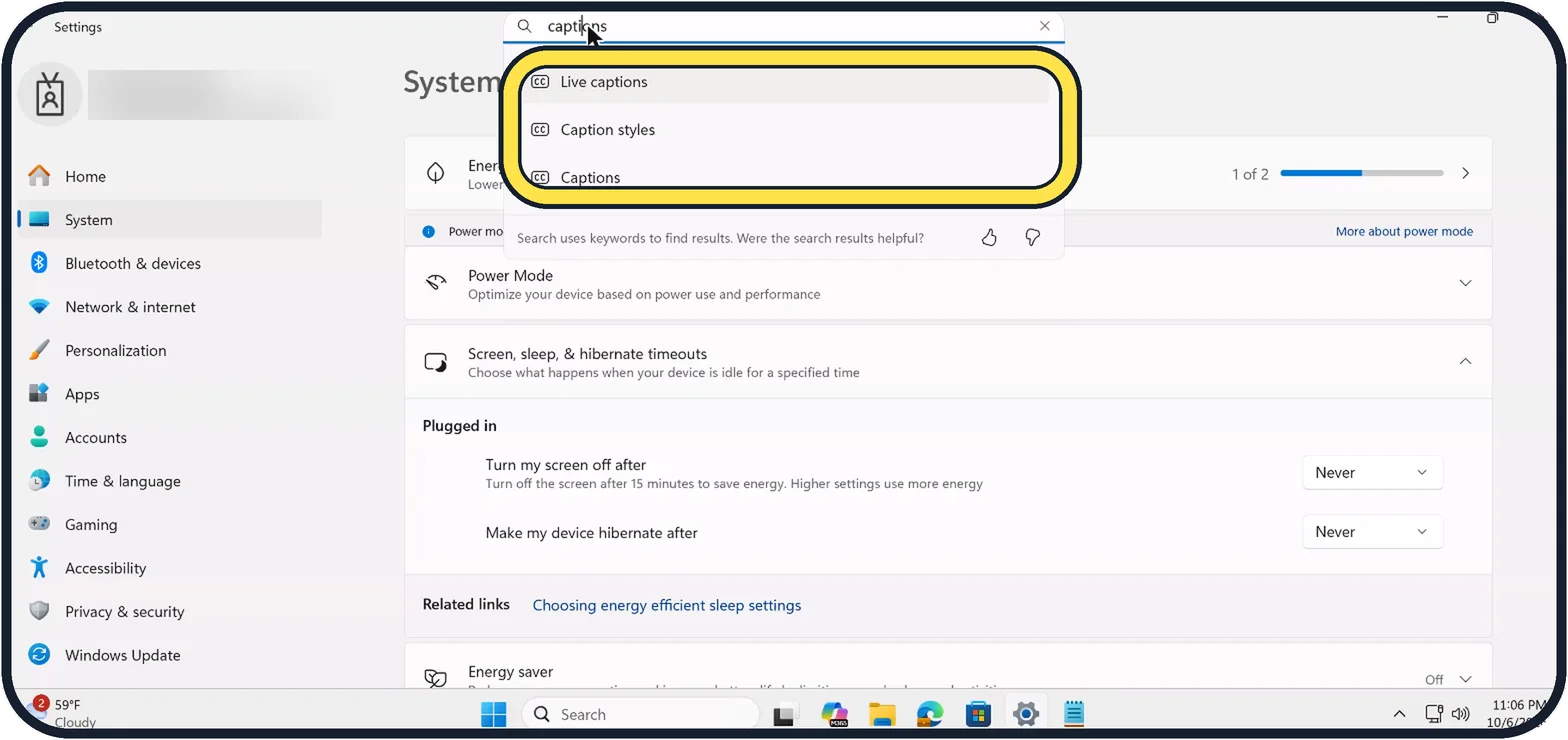
How to change the caption style on Windows 11
Open Settings, Accessibility, Captions and choose a Caption style: Default, White on black, Small caps, Large text or Yellow on blue. The Theme preview shows the…
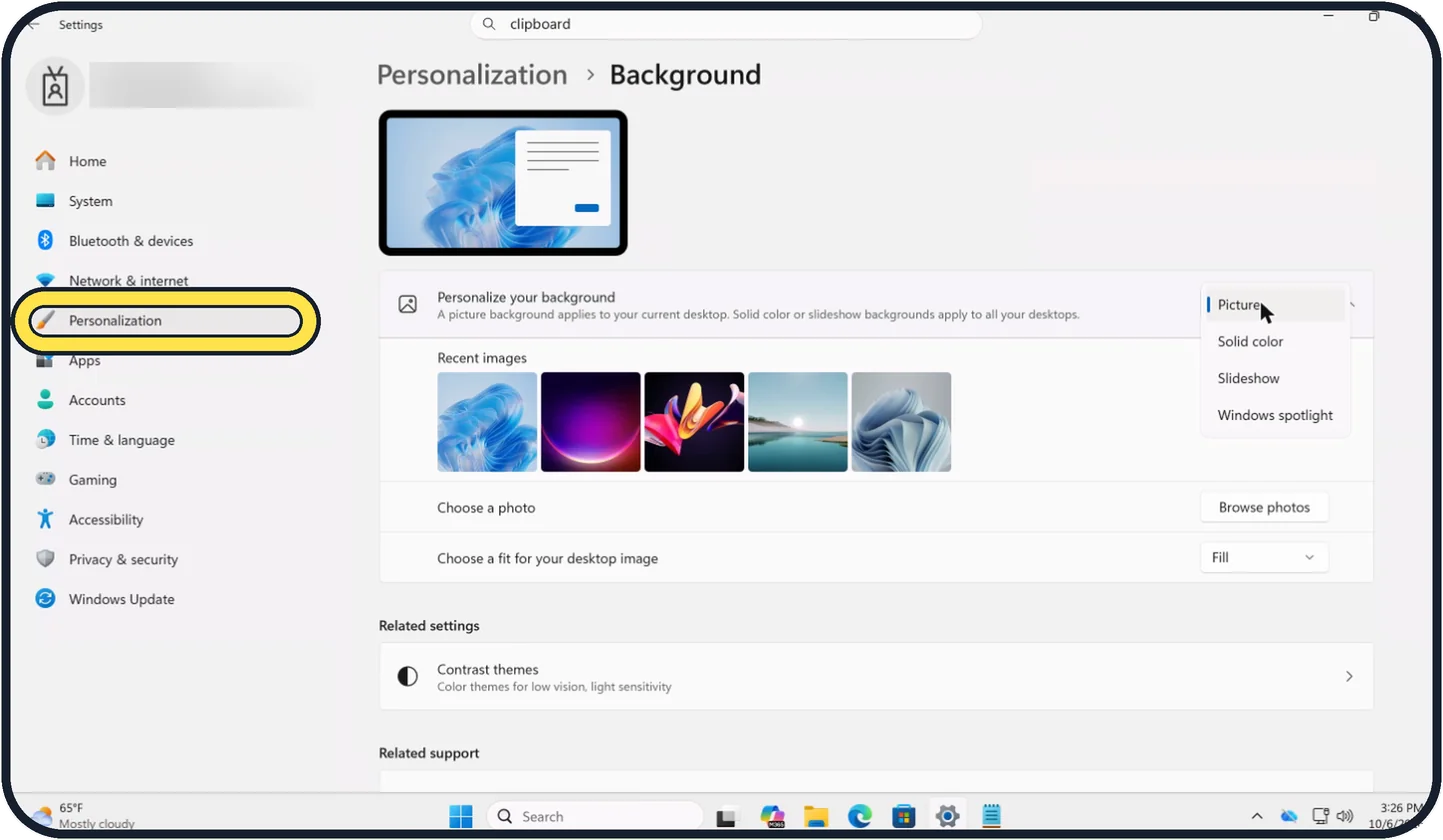
How to change the wallpaper on Windows 11
Right-click an empty spot on the desktop and choose Personalize, then click Background. Next to Personalize your background, choose Picture and click one of the recent…
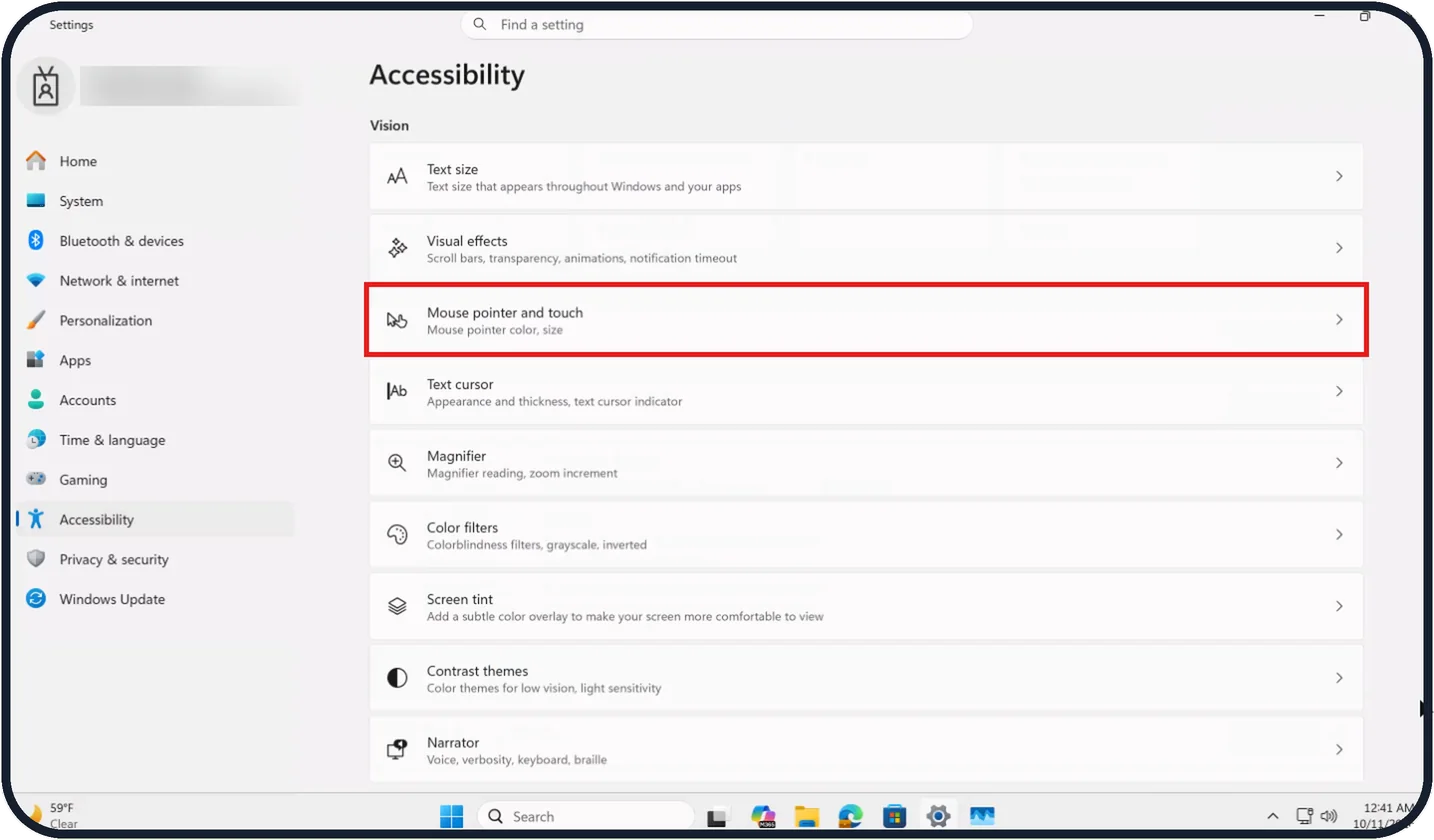
How to make the mouse pointer bigger on Windows 11
Press Windows + U to open the Accessibility settings and click Mouse pointer and touch. Drag the Size slider to the right to make the pointer larger. Under Mouse…
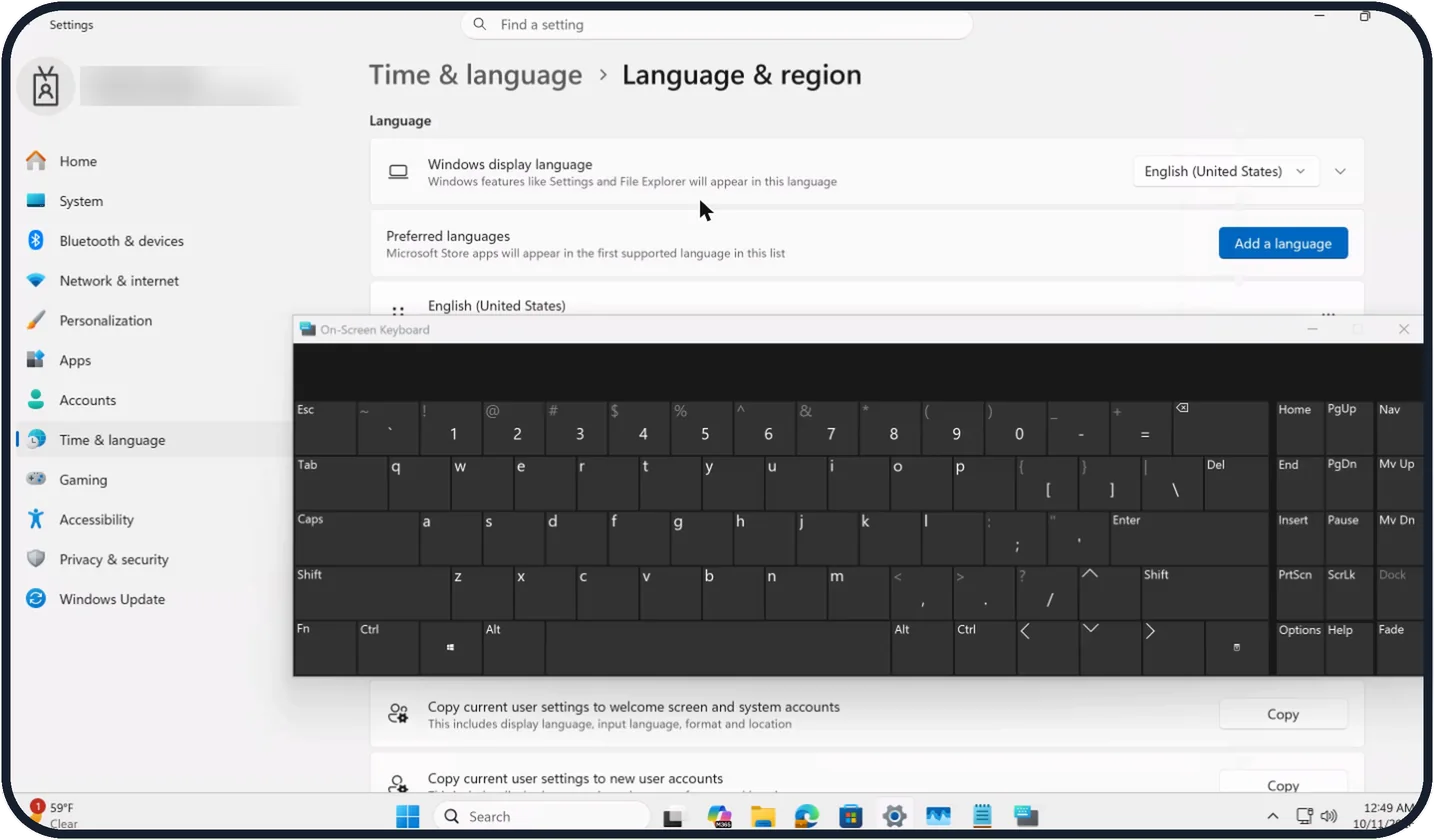
How to use the on-screen keyboard on Windows 11
Press the Windows logo key + Ctrl + O, or switch on On-screen keyboard under Settings, Accessibility, Keyboard. Click the keys with the mouse or tap them on a touch…
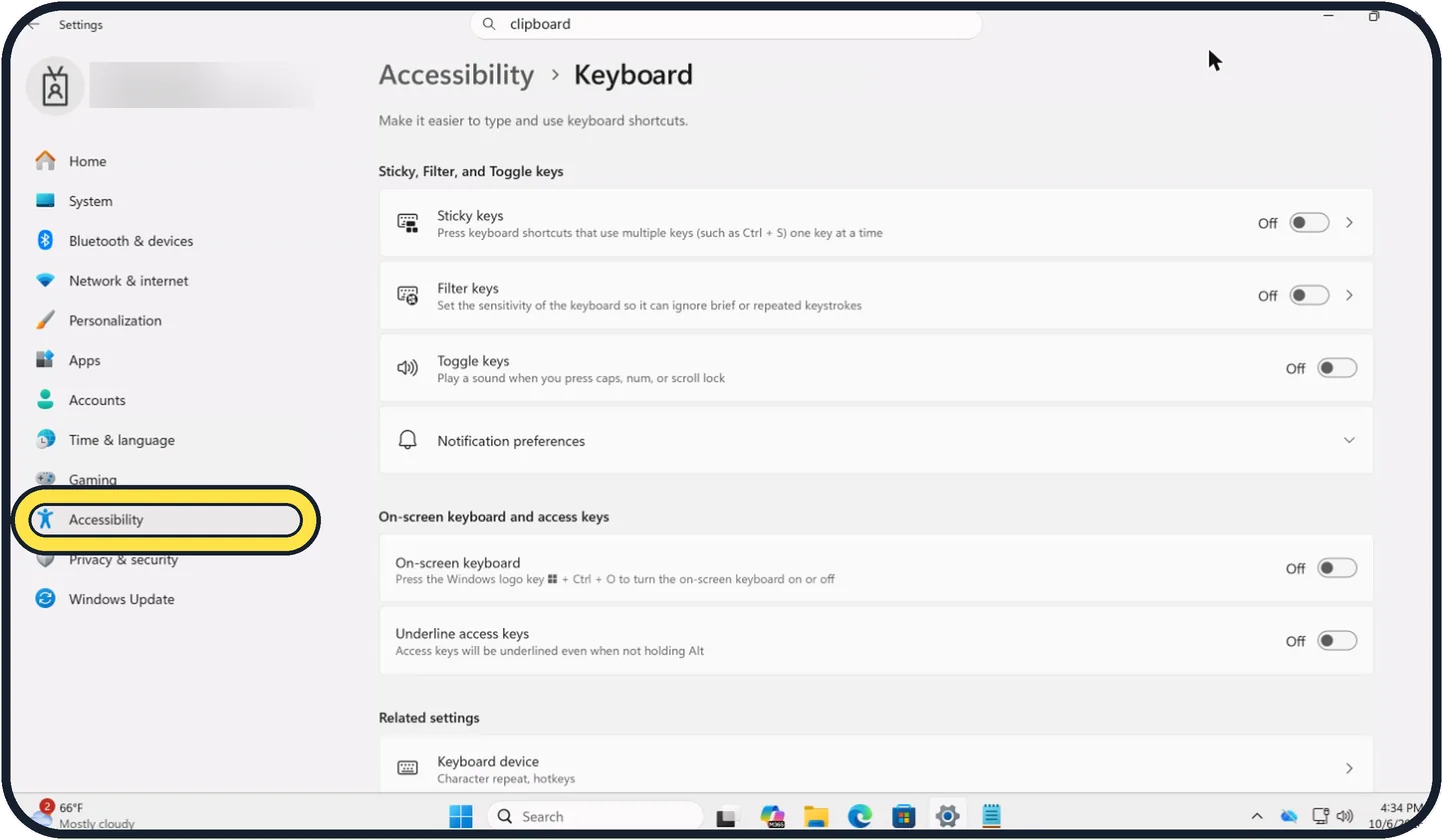
How to turn off Sticky Keys on Windows 11
Open Settings, Accessibility, Keyboard and switch Sticky keys off. To stop it from coming back, open the Sticky keys entry and switch off its keyboard shortcut…
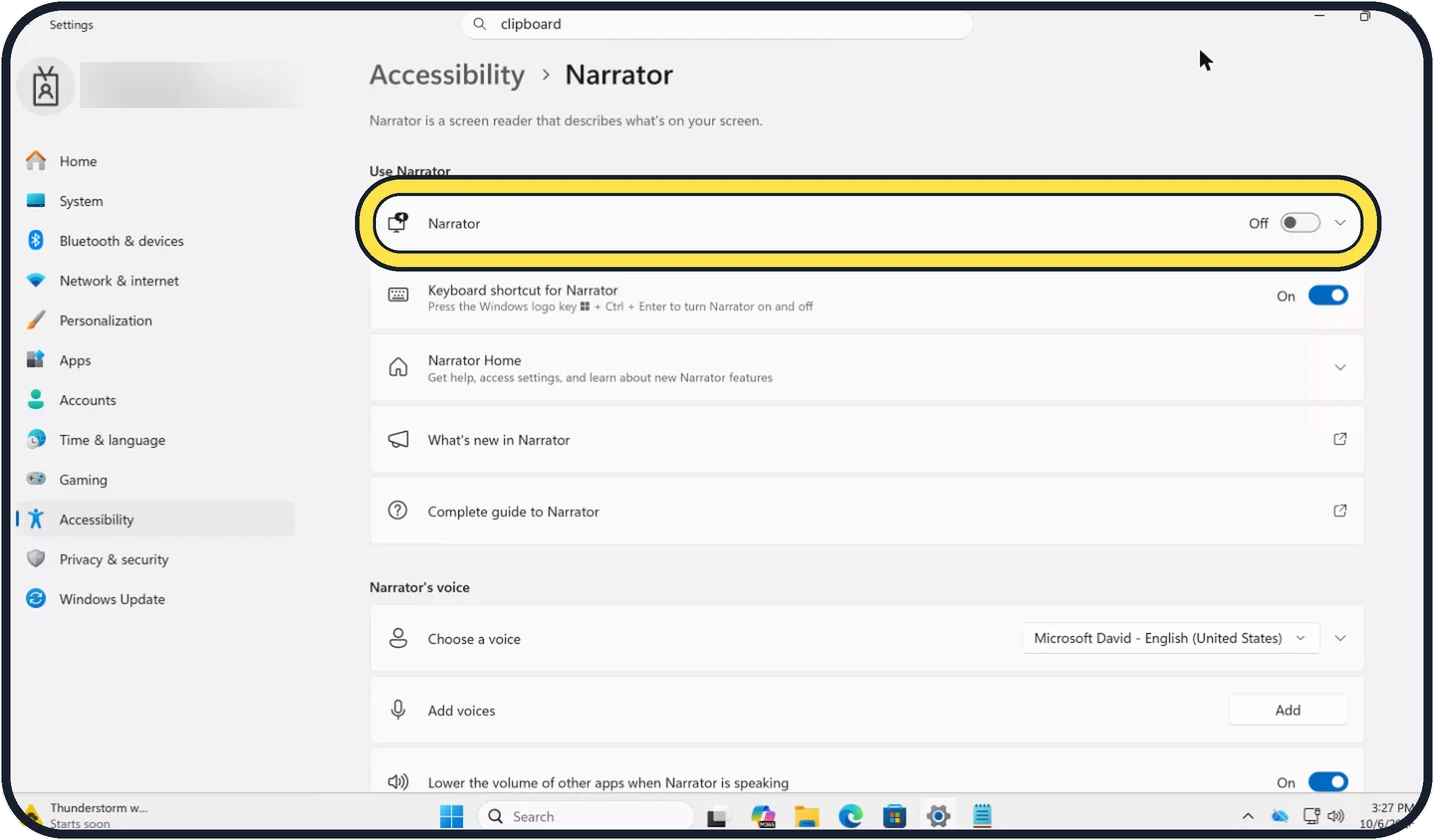
How to turn off Narrator on Windows 11
Press Windows logo key + Ctrl + Enter. That shortcut turns Narrator, the voice that reads the screen aloud, on and off. To stop it from starting by itself, open…
Wi-Fi & Connections
3 guidesHow to connect Bluetooth headphones to a Windows 11 PC
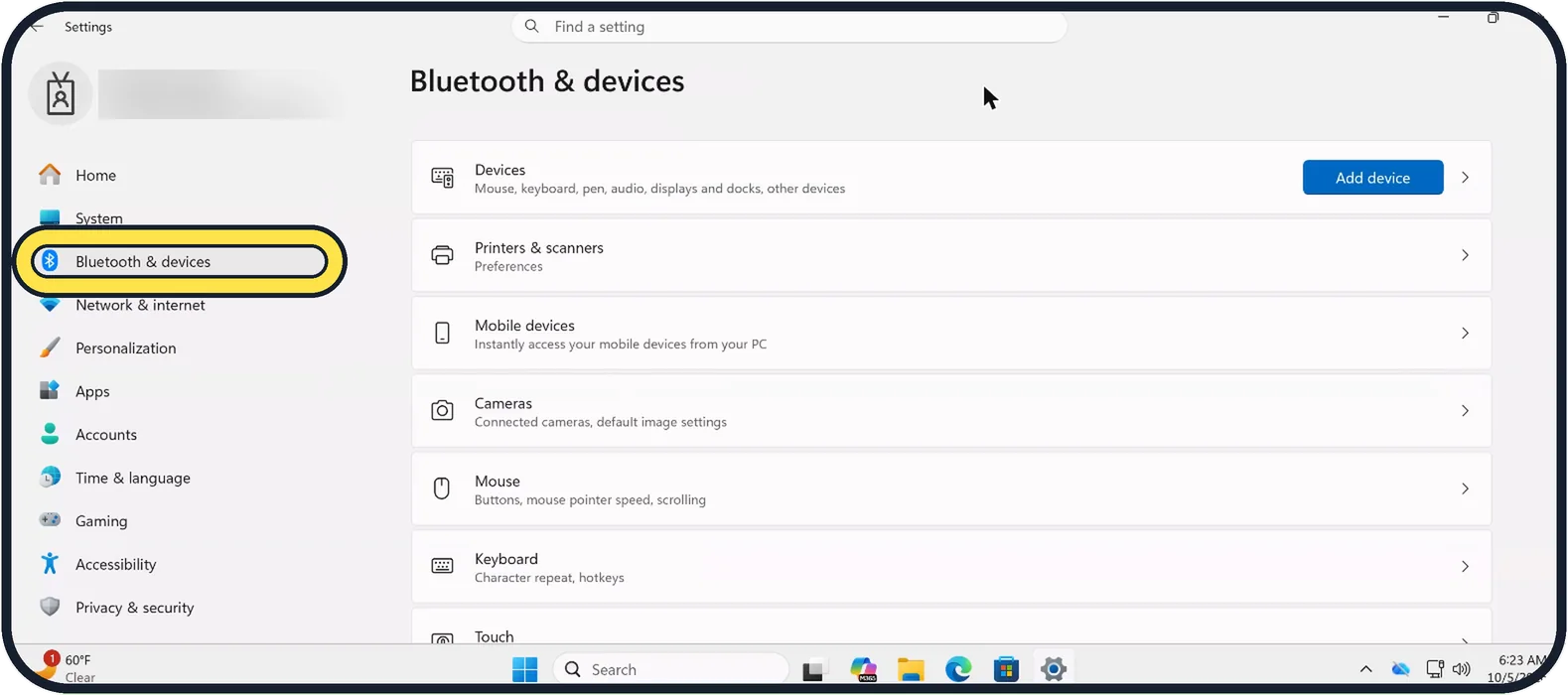
Put the headphones in pairing mode. On the PC, open Settings, choose Bluetooth & devices, click Add device, then Bluetooth, and pick the headphones from the list.
How to share files between Windows PCs with Nearby sharing
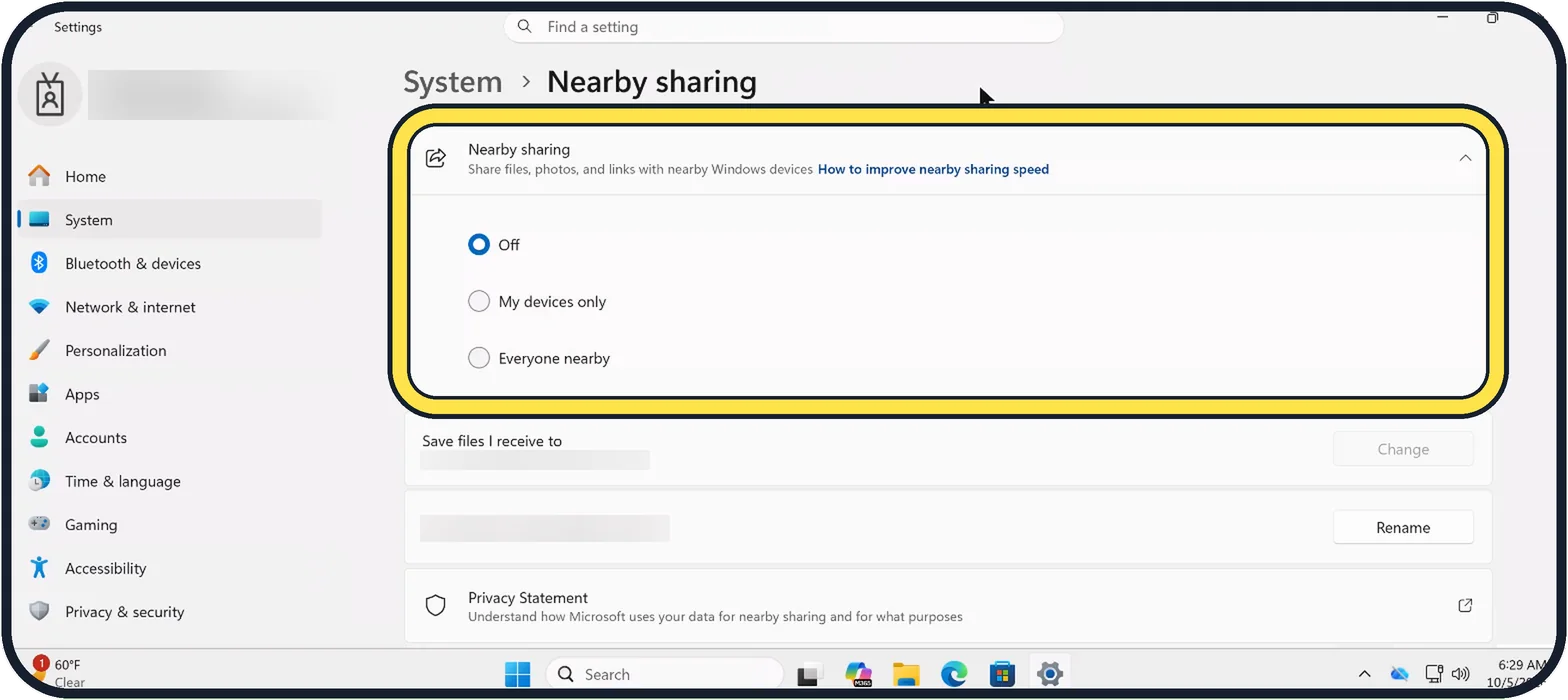
On both PCs, open Settings, System, Nearby sharing and choose My devices only or Everyone nearby. Then right-click a file in File Explorer, choose Share and click the…
How to set up a VPN connection on Windows 11
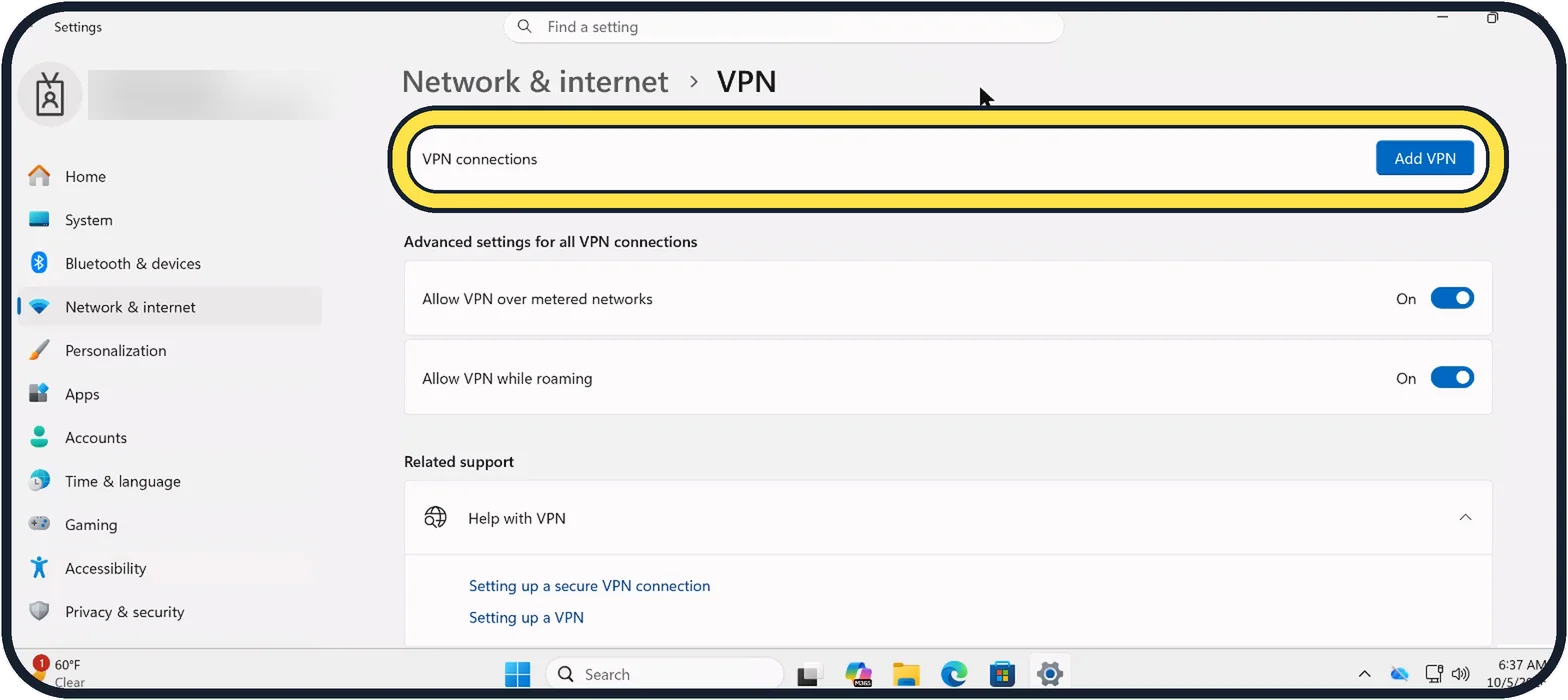
Open Settings, Network & internet, VPN and click Add VPN. Choose Windows (built-in) as the provider, give the connection a name, enter the server address, the VPN type…
Notifications & Focus
3 guidesHow to turn off notifications on Windows 11
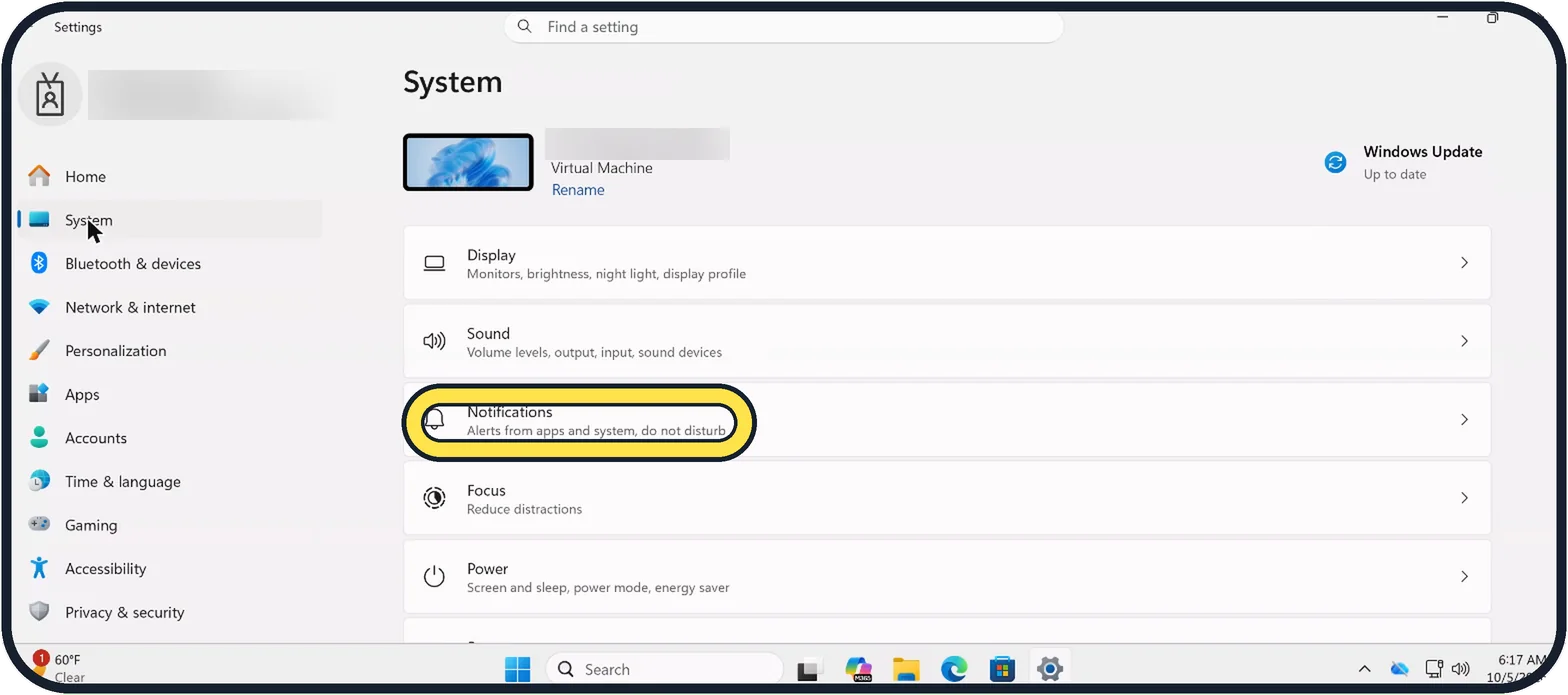
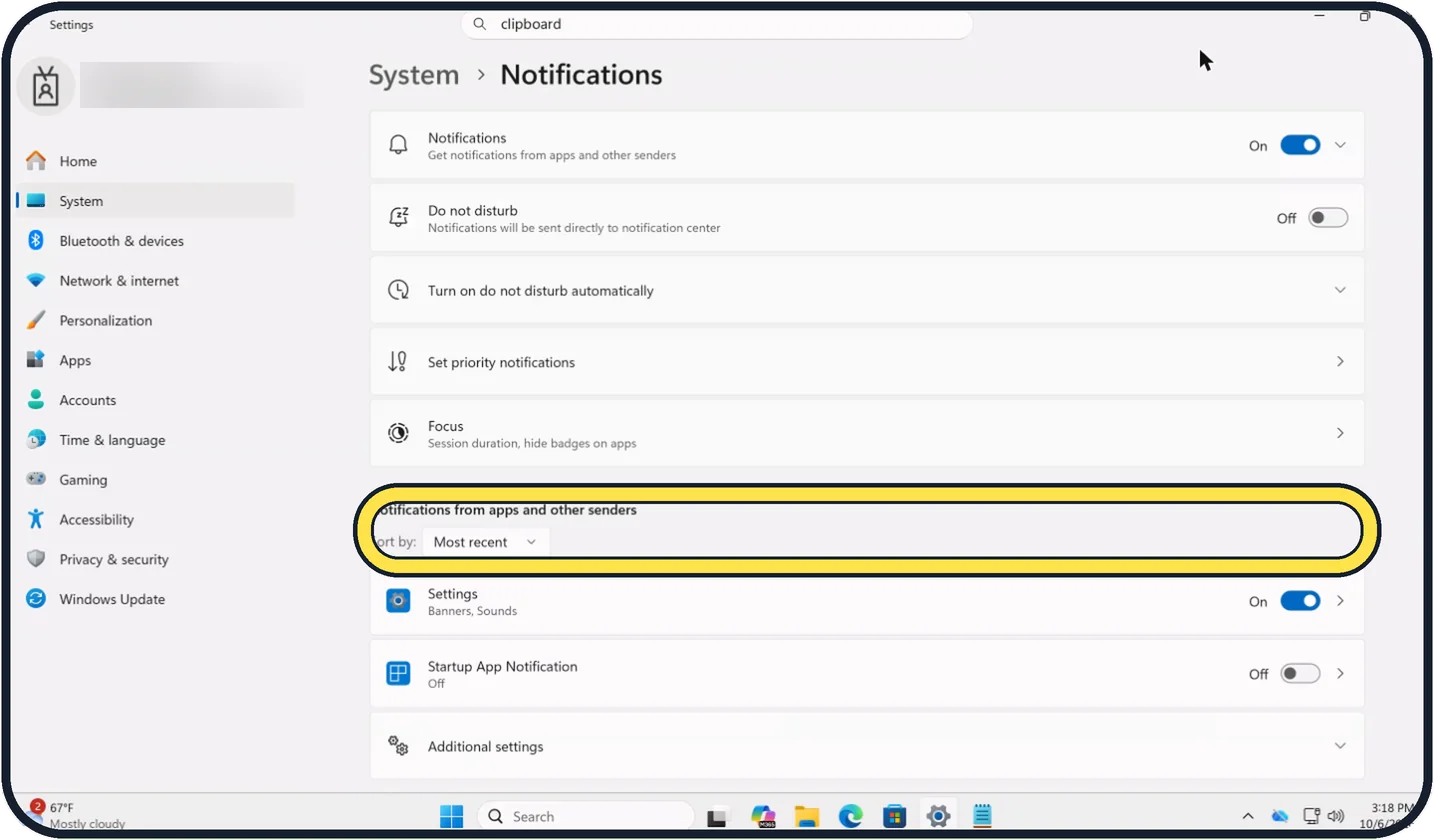
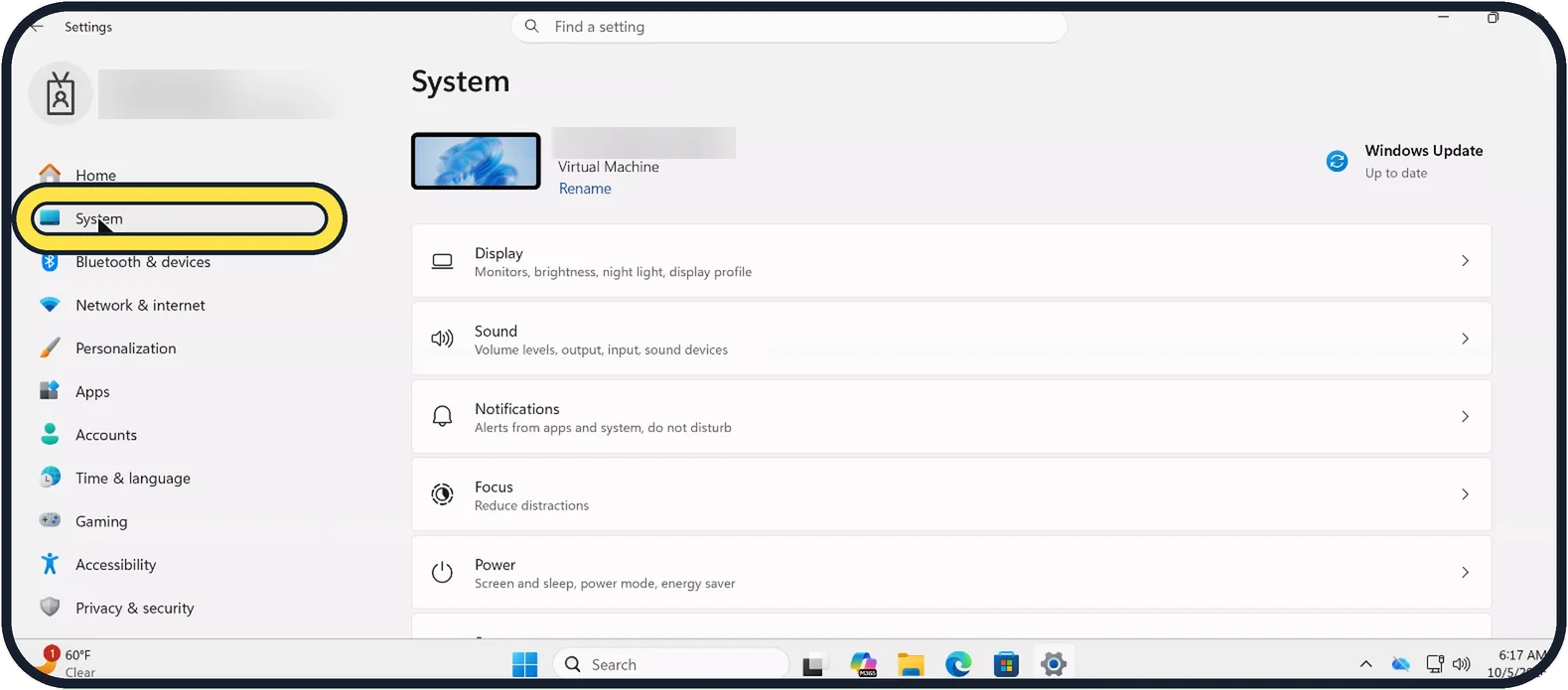
Open Settings, System, Notifications. Switch off Notifications to stop all of them, or switch off single apps in the list below. For a quiet period, open the…
How to stop notifications popping up on Windows 11
Open Settings, System, Notifications. Under Notifications from apps and other senders, switch off an app to silence it completely, or click it and untick Show…
How to use Do not disturb and Focus on Windows 11
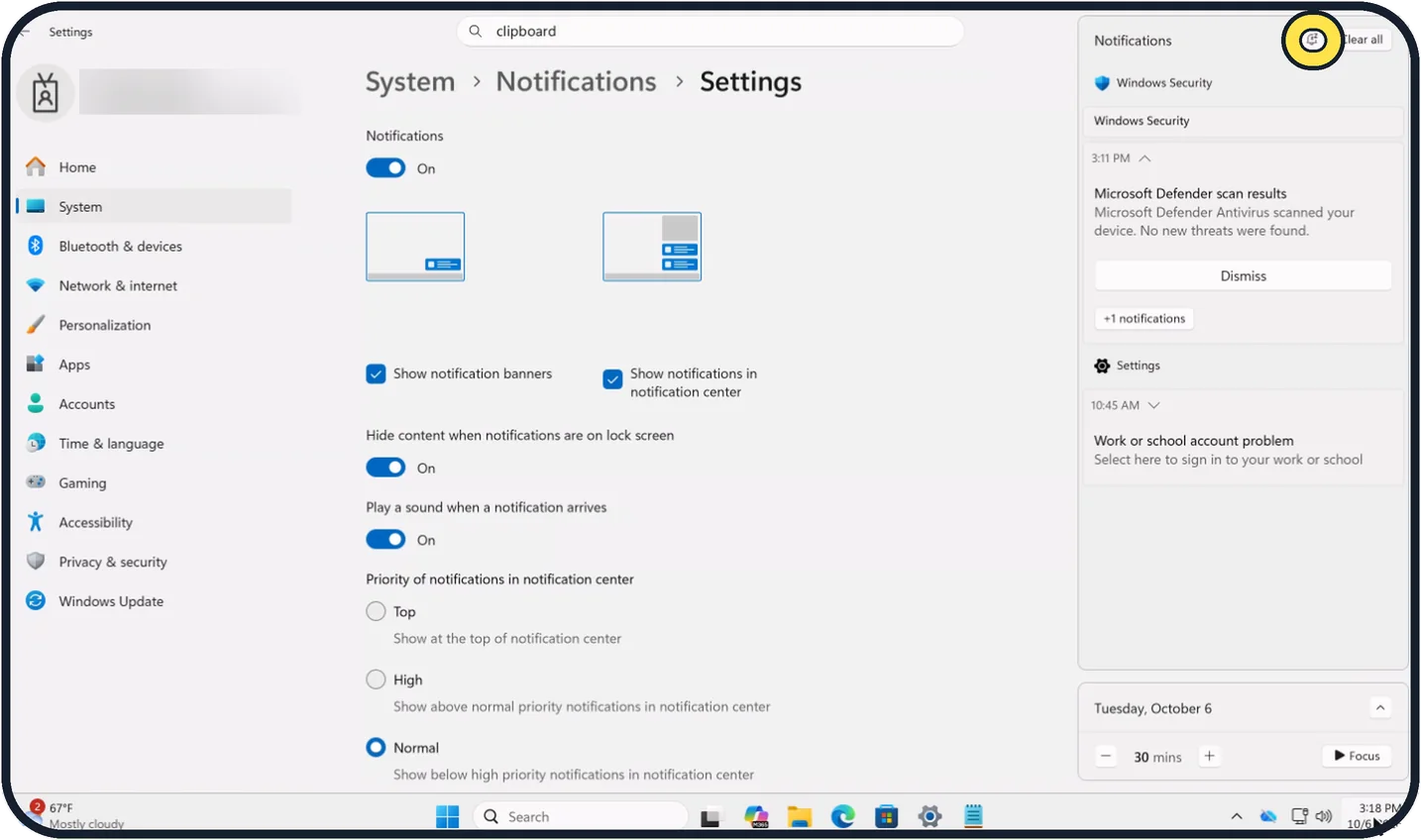
Click the clock on the taskbar or press Windows + N to open the notification center, then click the bell icon next to Clear all to turn on Do not disturb. For a timed…
Battery, Storage & Updates
8 guidesHow to free up disk space on Windows 11
Open Settings, choose System, then Storage. Click Cleanup recommendations to remove temporary files, old downloads and unused apps, and switch on Storage Sense so…
How to stop apps from opening at startup on Windows 11
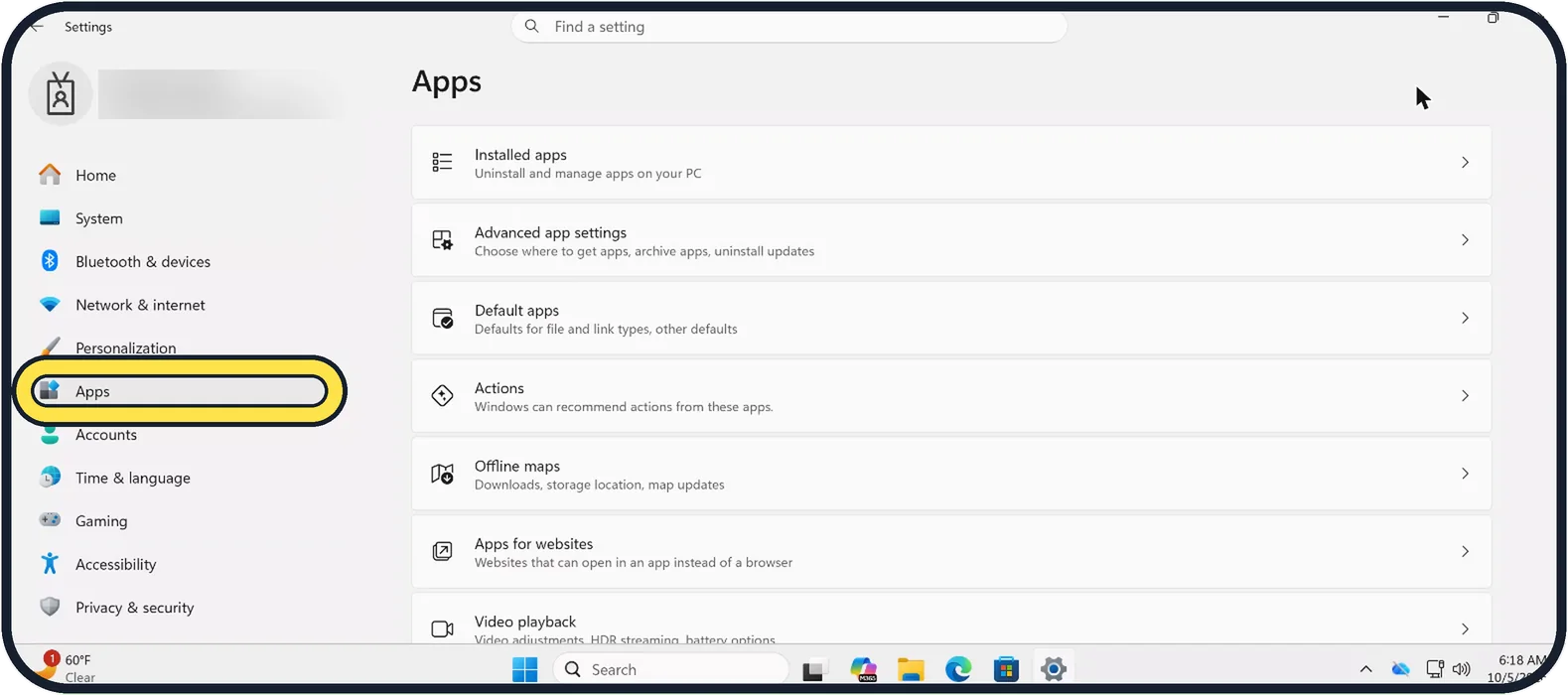
Open Settings, choose Apps, then Startup, and switch off every app you do not need the moment you sign in. The apps stay installed; they just stop launching by themselves.
How to check for updates on Windows 11
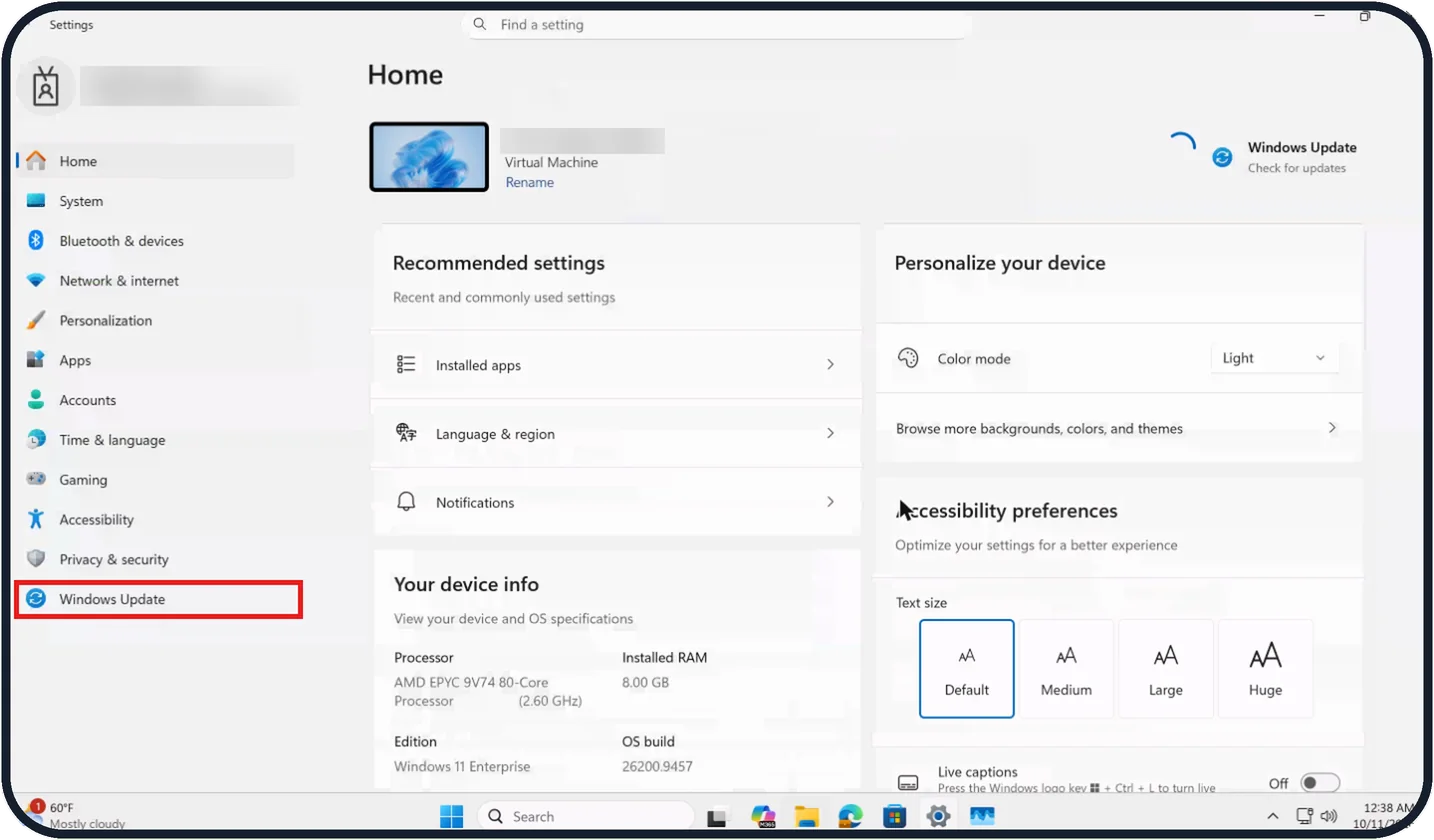
Open Settings, choose Windows Update at the bottom of the list on the left, and click Check for updates. Install what is offered and restart when asked.
How to check the specs of a Windows 11 PC
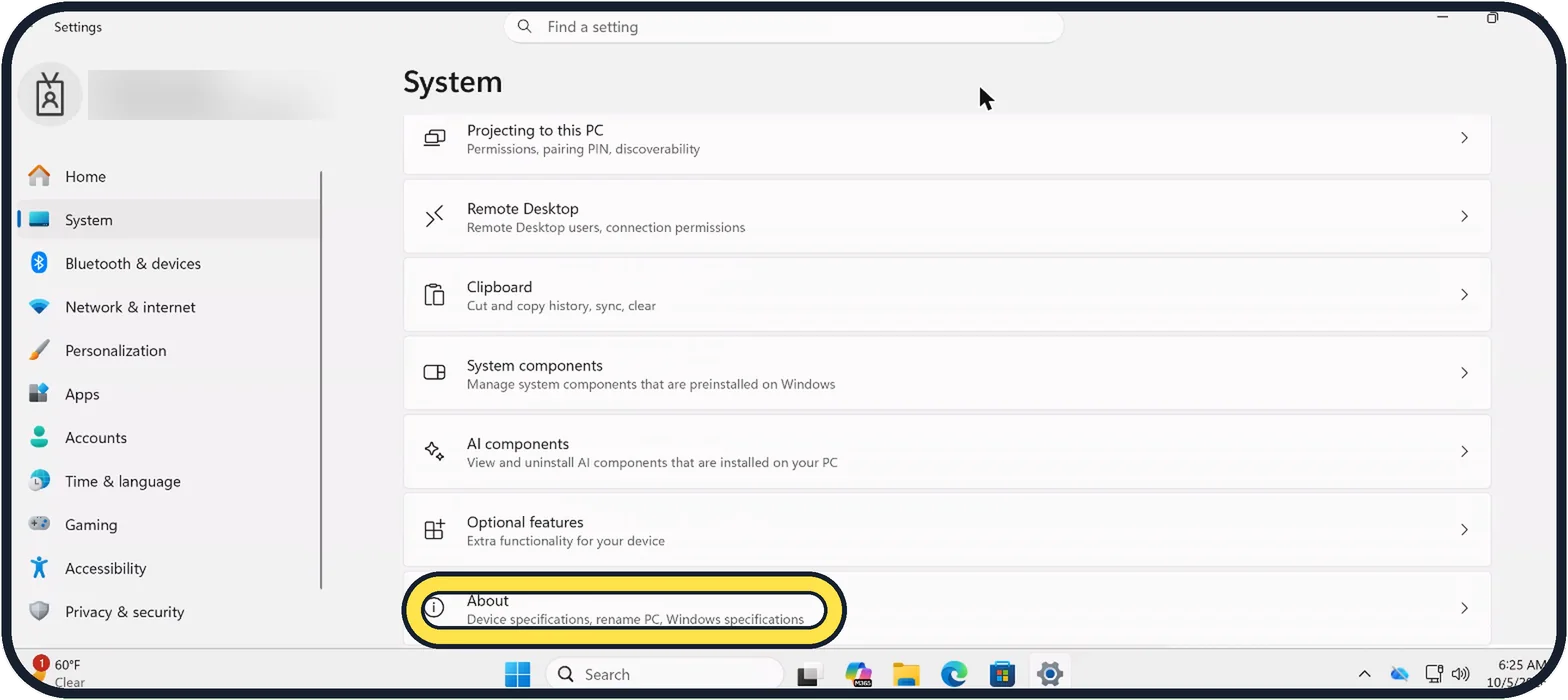
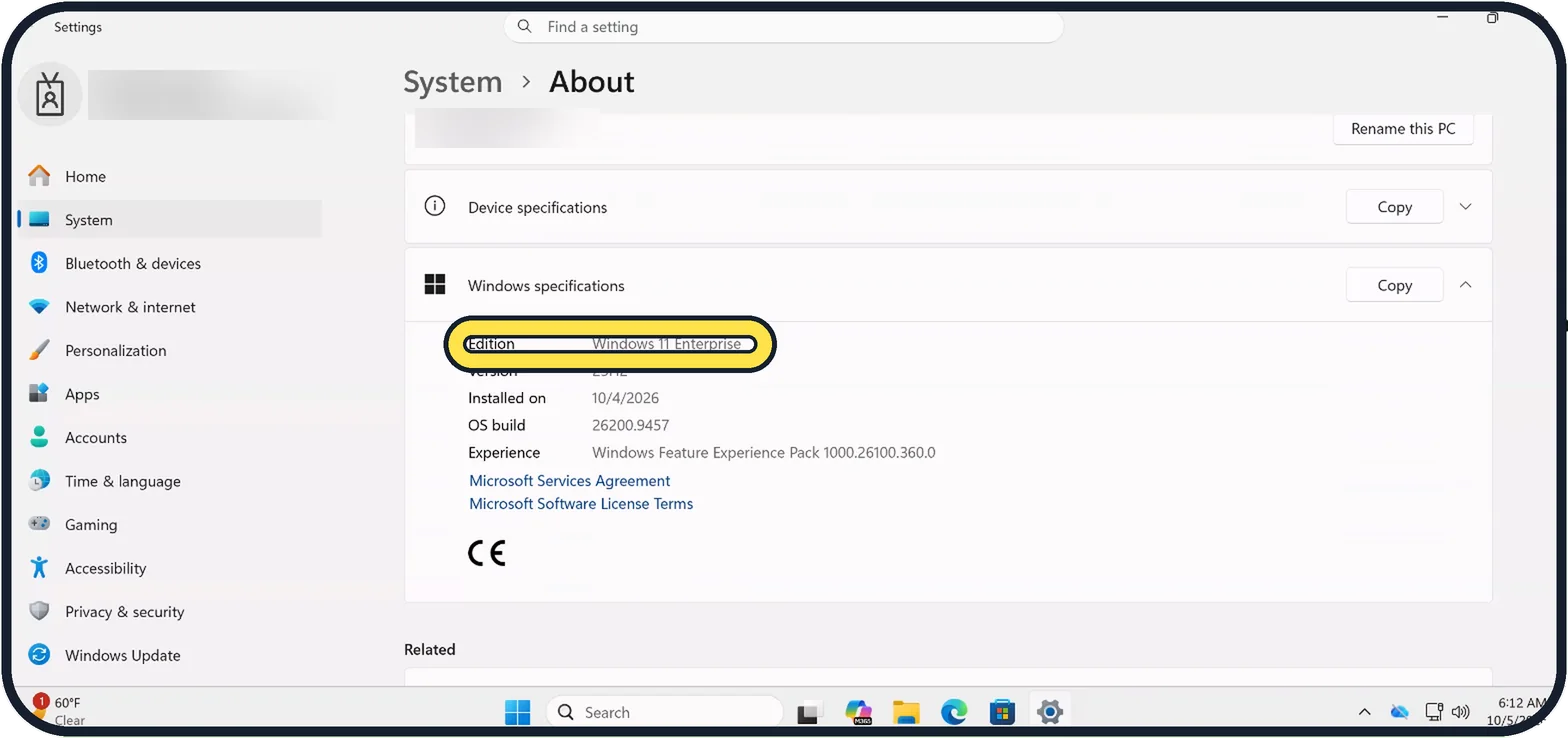
Open Settings, System and scroll down to About. Device specifications lists the Processor, Installed RAM and System type. Windows specifications below it shows the…
How to delete temporary files on Windows 11
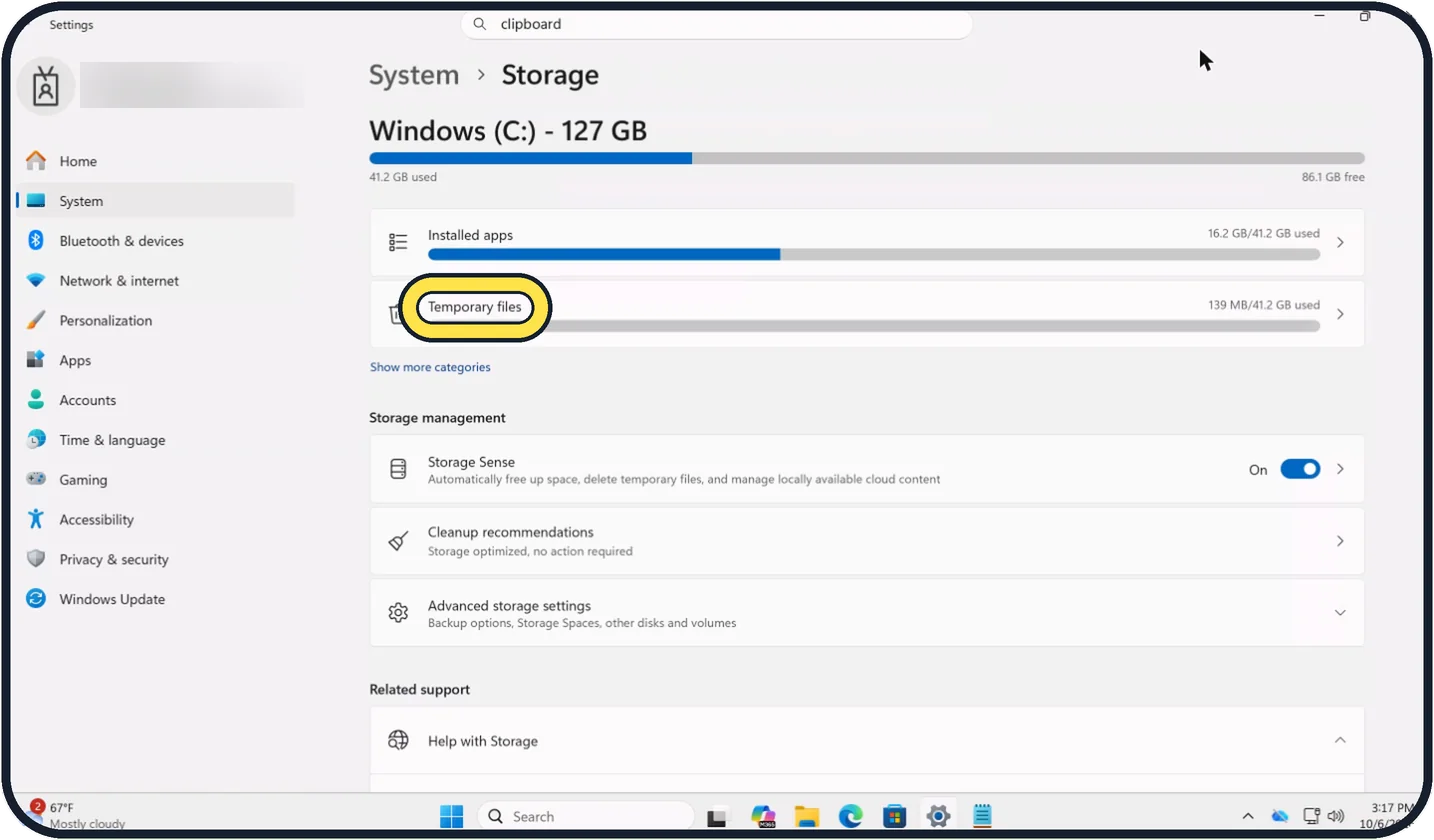
Open Settings, System, Storage and click Temporary files. Tick what you want gone and click Remove files. For the Temp folder itself, right-click Start, choose Run…
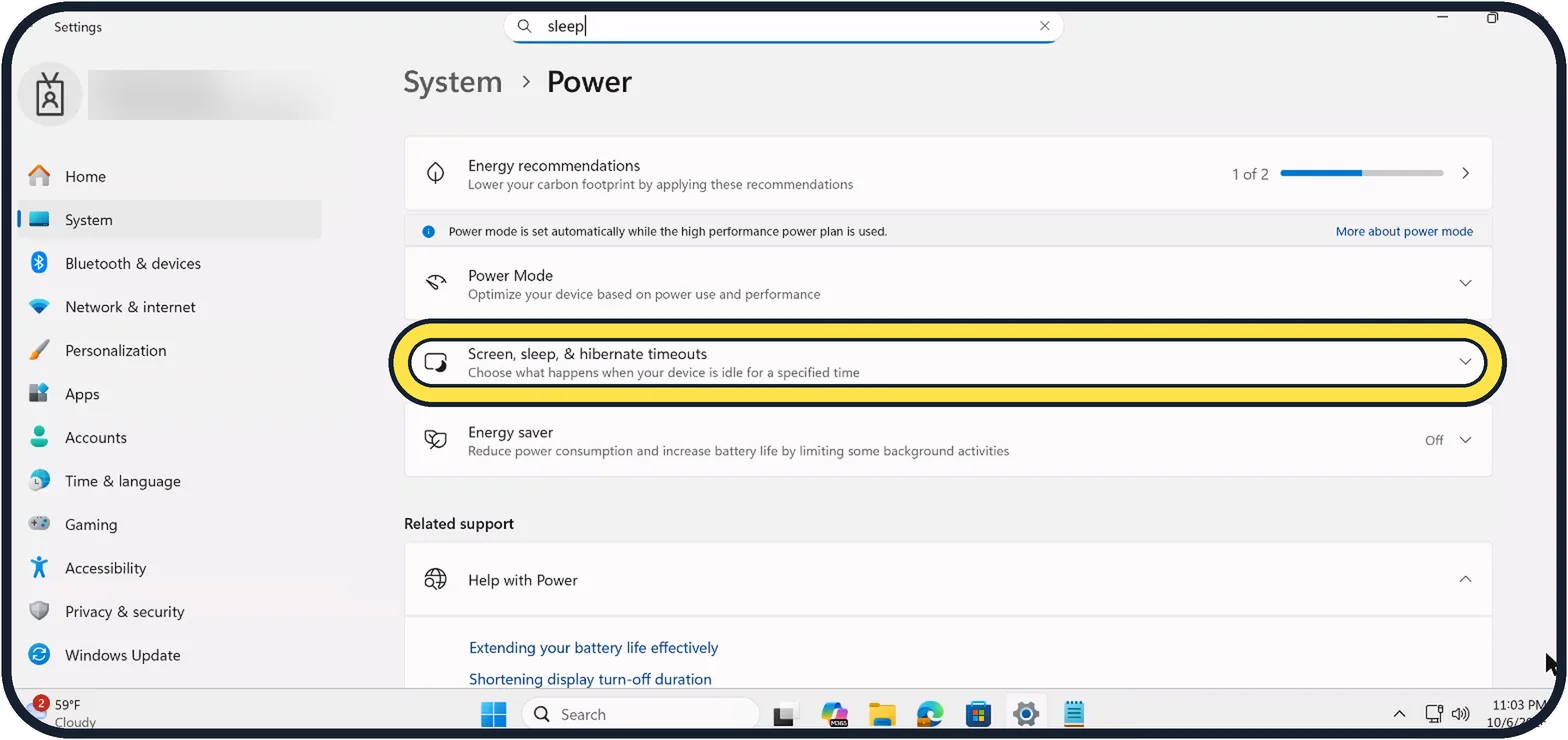
How to change when the screen turns off on Windows 11
Open Settings, System, Power (Power & battery on laptops) and expand Screen, sleep, & hibernate timeouts. Choose a time under Turn my screen off after, or Never.
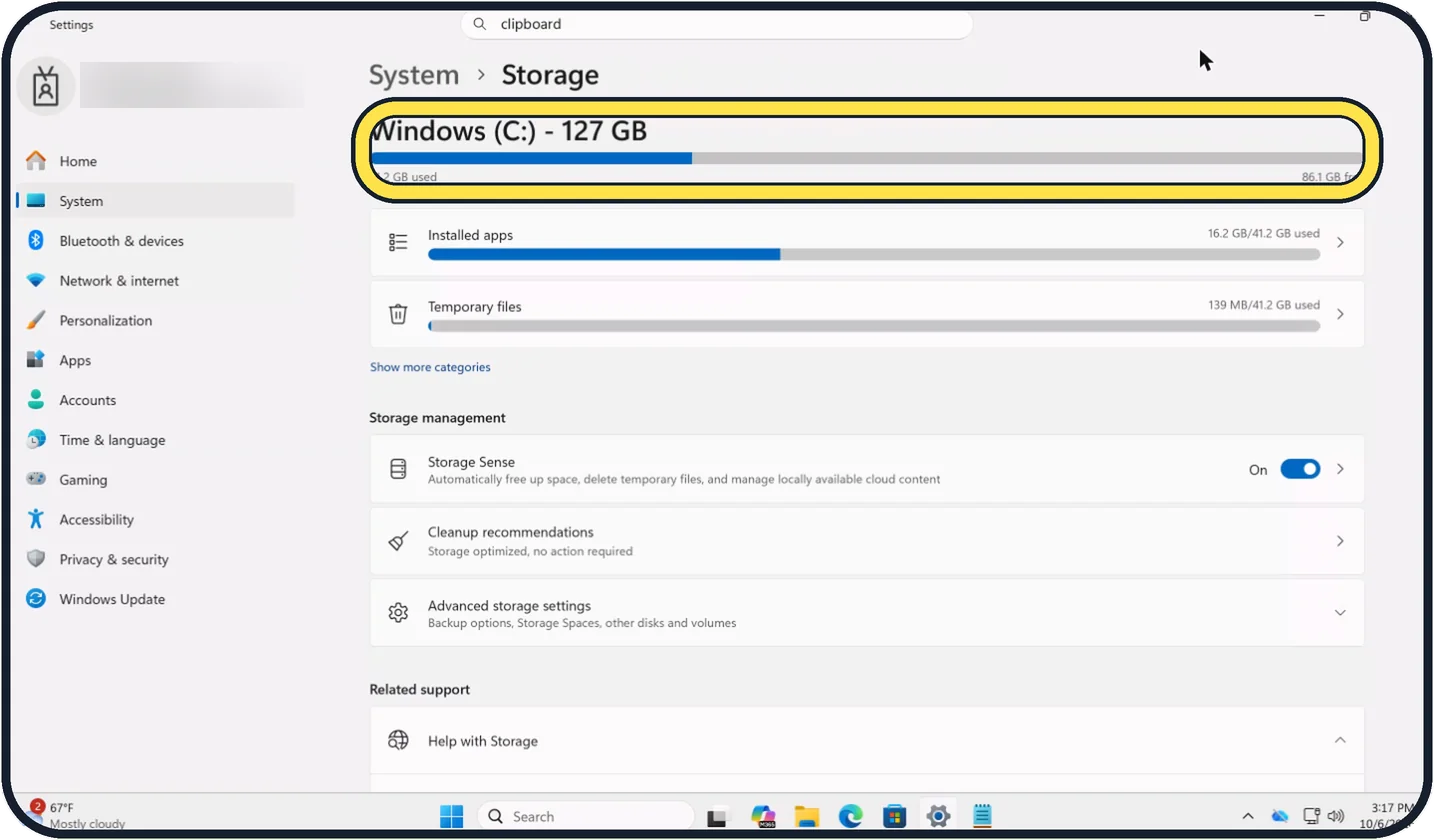
How to turn on Storage Sense on Windows 11
Open Settings, click System, then Storage, and switch on Storage Sense. Click Storage Sense to choose how often it runs and after how many days files in the Recycle Bin…
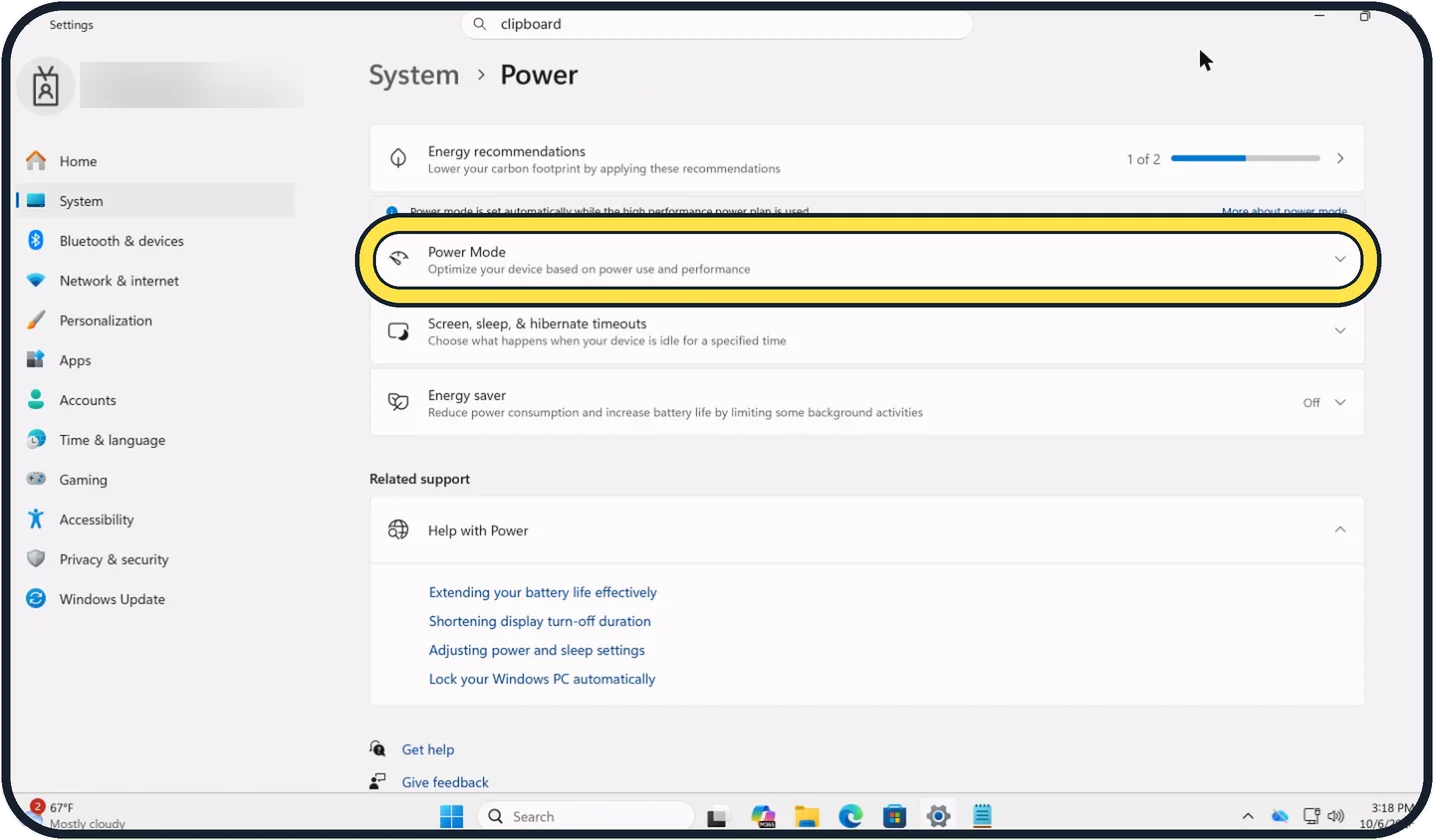
How to change the power mode on Windows 11
Open Settings, System, Power & battery (just Power on a desktop PC) and expand Power Mode. Choose Best power efficiency for battery life, Balanced for everyday use, or…
Desktop, Windows & File Explorer
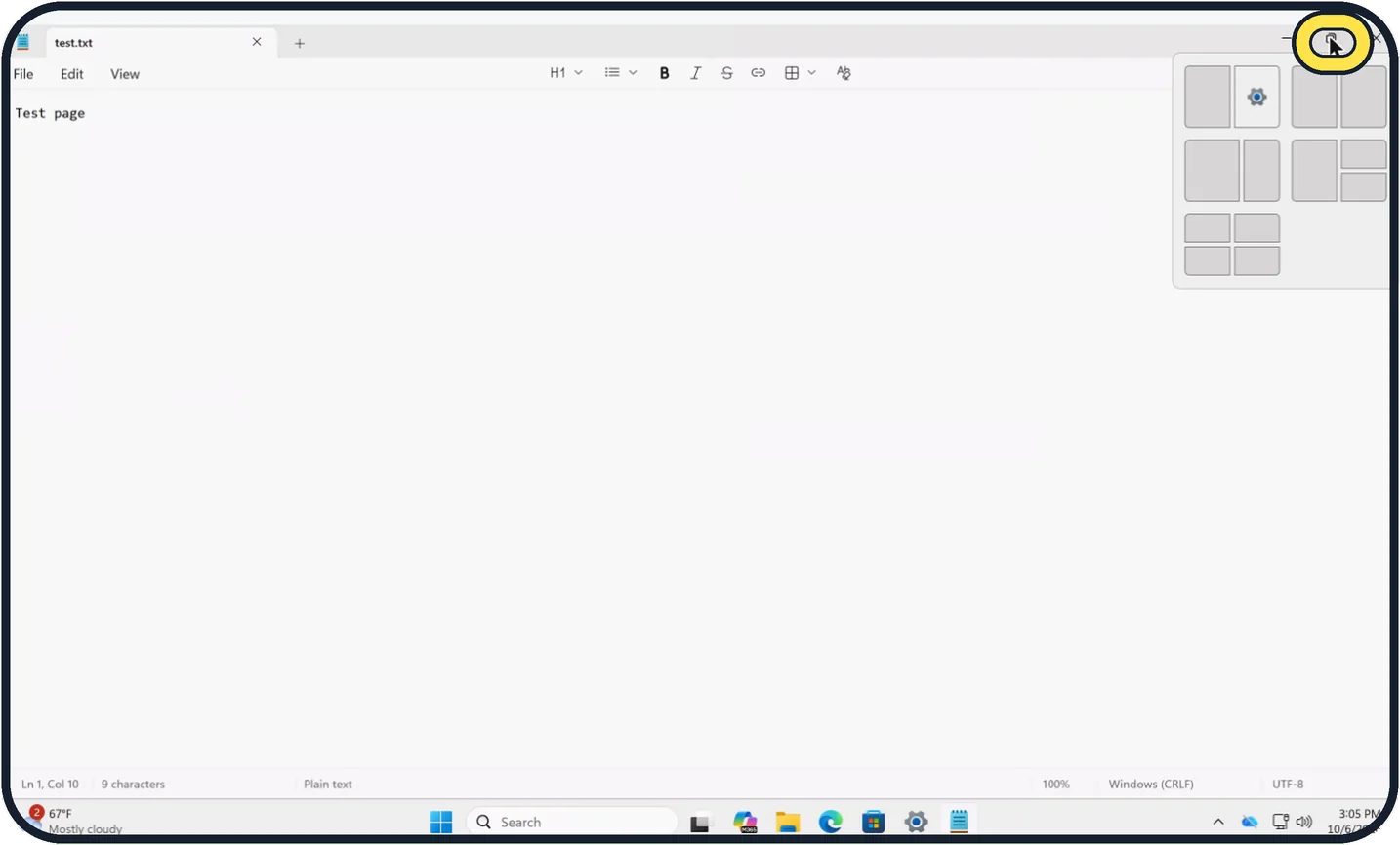
6 guidesHow to split the screen on Windows 11 with Snap layouts
Hold the pointer over the maximise button of a window, or press Windows + Z, and click a position in one of the layouts. Then click the window you want in each…
How to turn on clipboard history on Windows 11
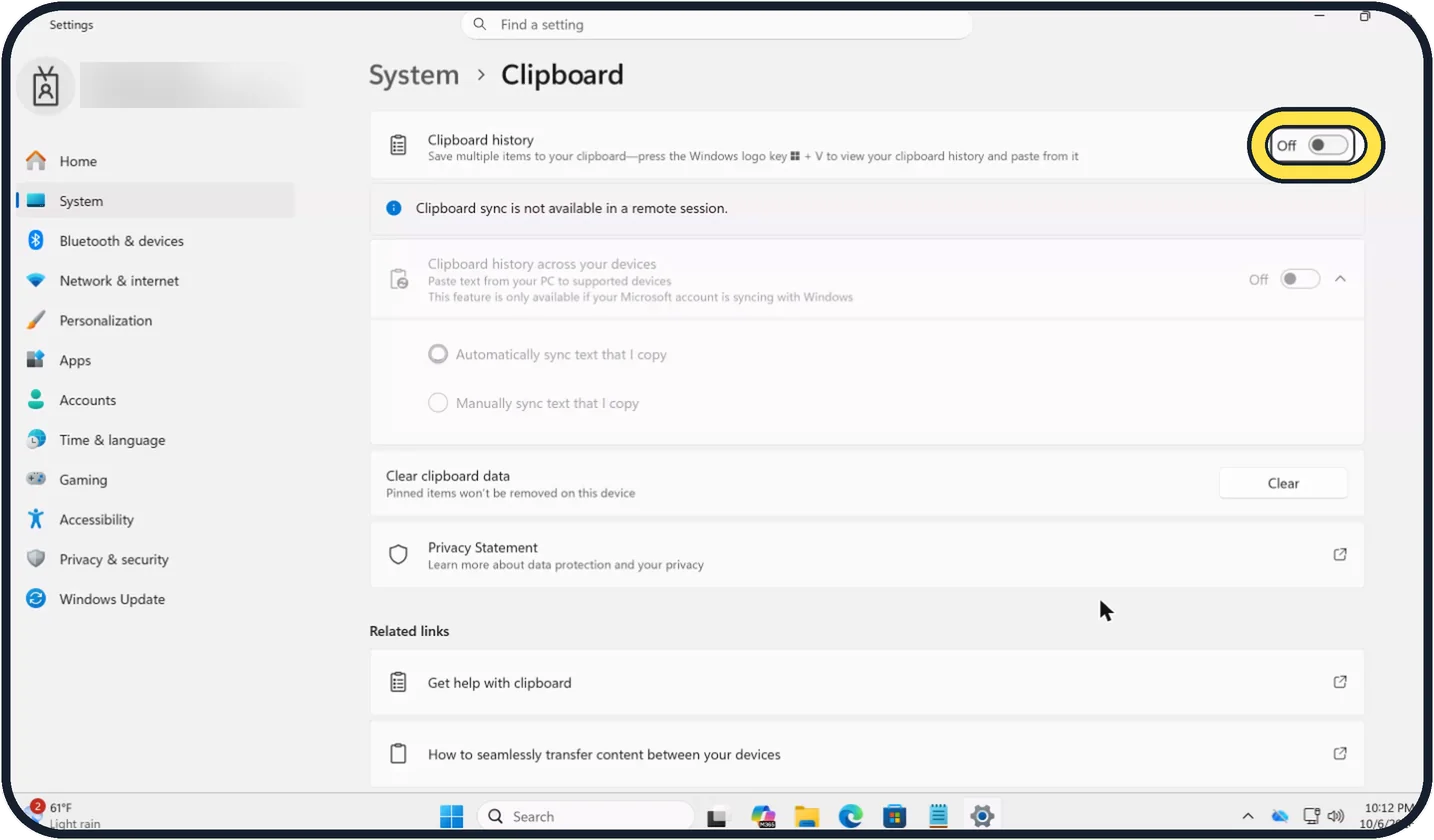
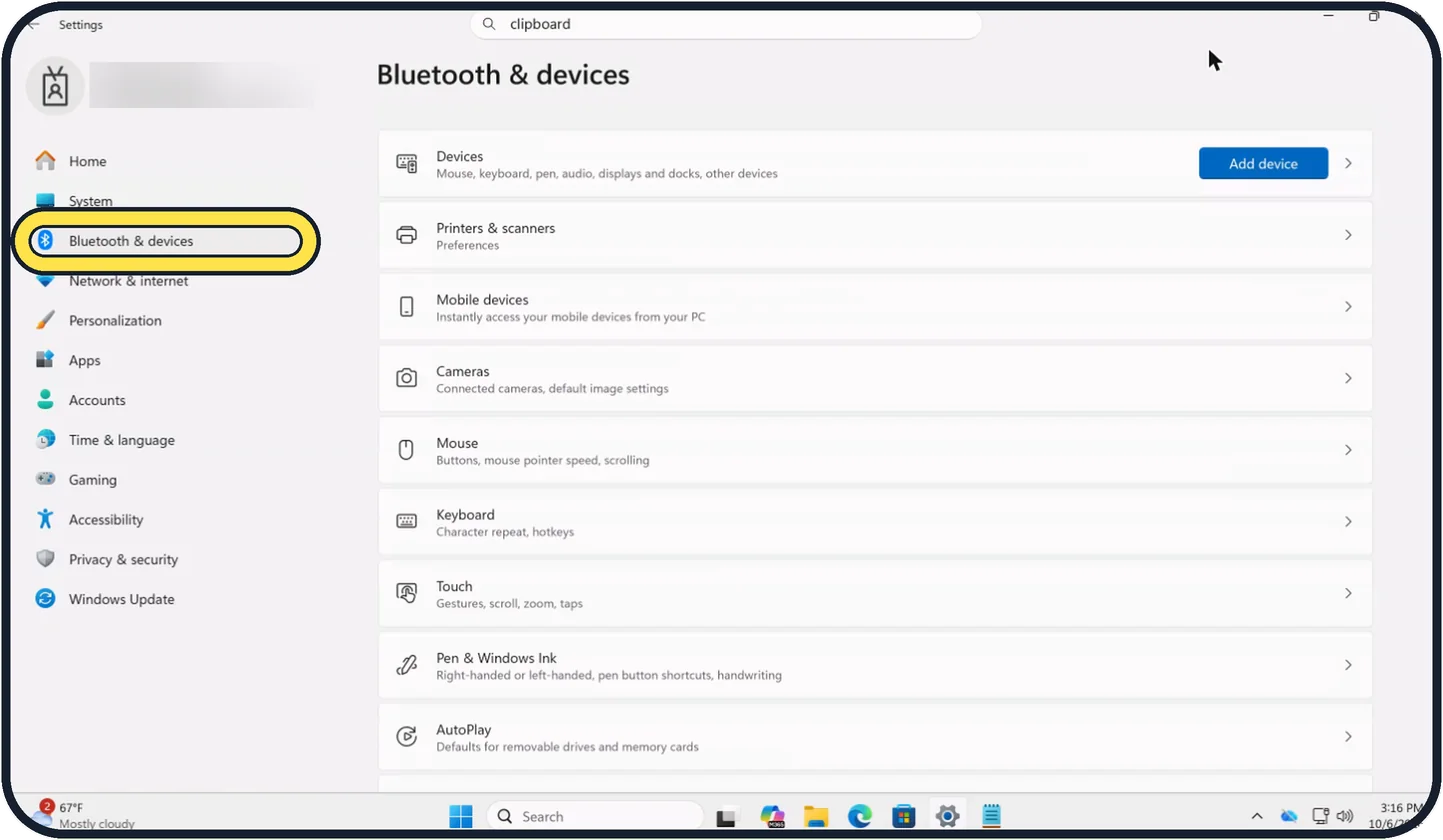
Open Settings, System, Clipboard and switch on Clipboard history, or press Windows + V and click Turn on. From then on, Windows + V shows the things you copied; click…
How to use multiple desktops on Windows 11
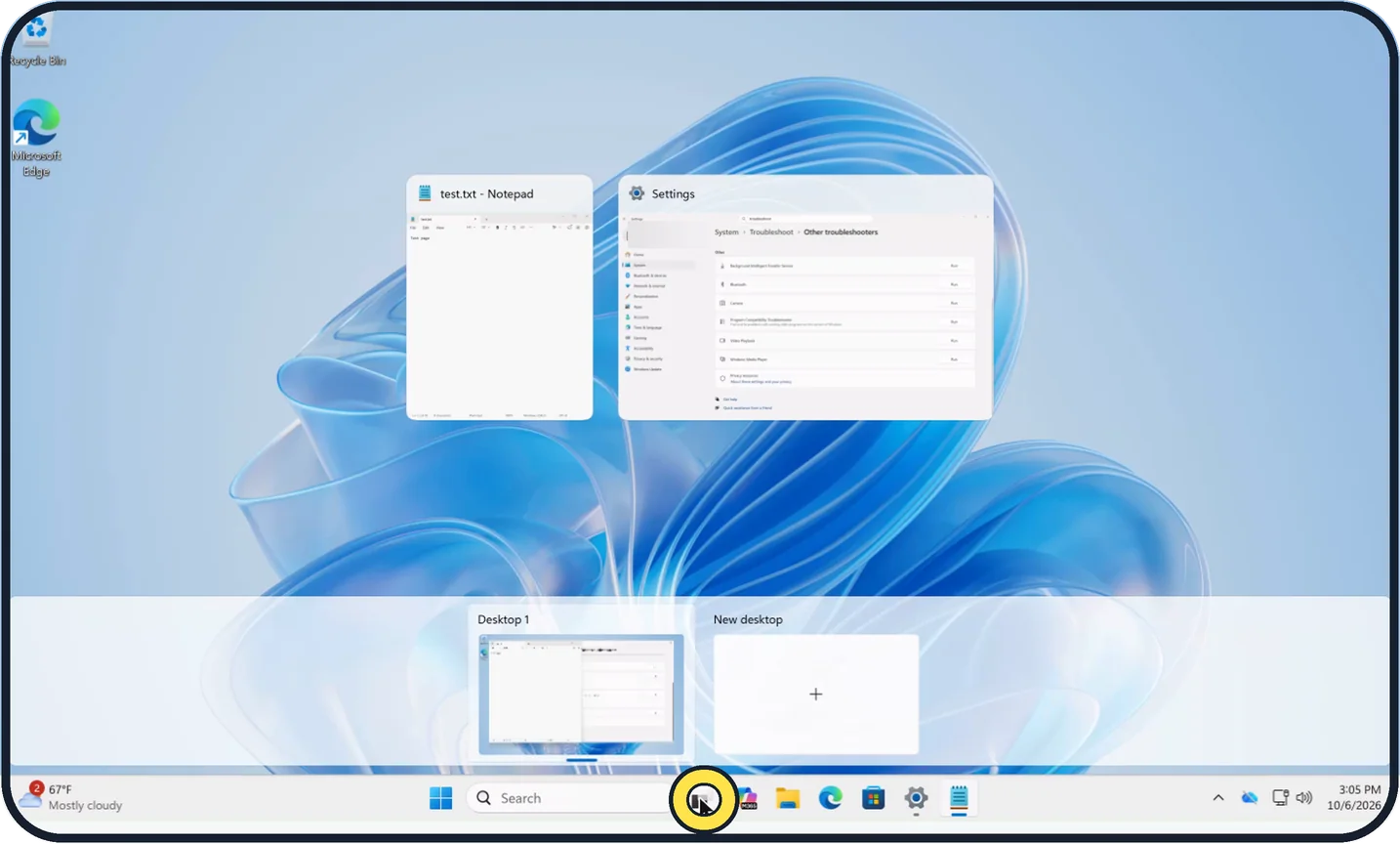
Open Task view with the button on the taskbar or Windows + Tab, and click New desktop at the bottom. Windows + Ctrl + D also creates one. Switch between desktops with…
How to add Settings, File Explorer and other folders to the Start menu on Windows 11
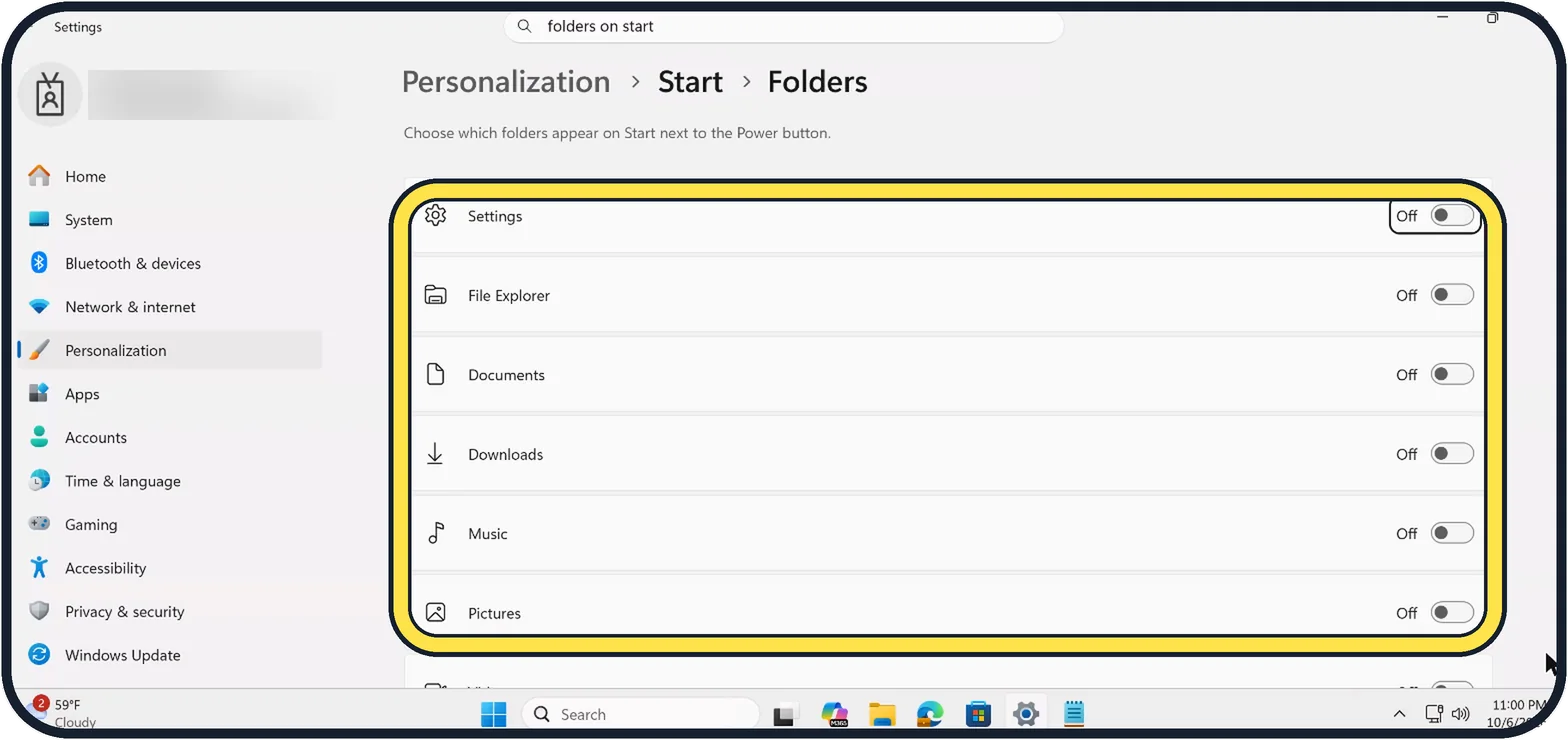
Open Settings, Personalization, Start, Folders and switch on the ones you want: Settings, File Explorer, Documents, Downloads, Music, Pictures, Videos, Network or…
How to show hidden files and file extensions on Windows 11
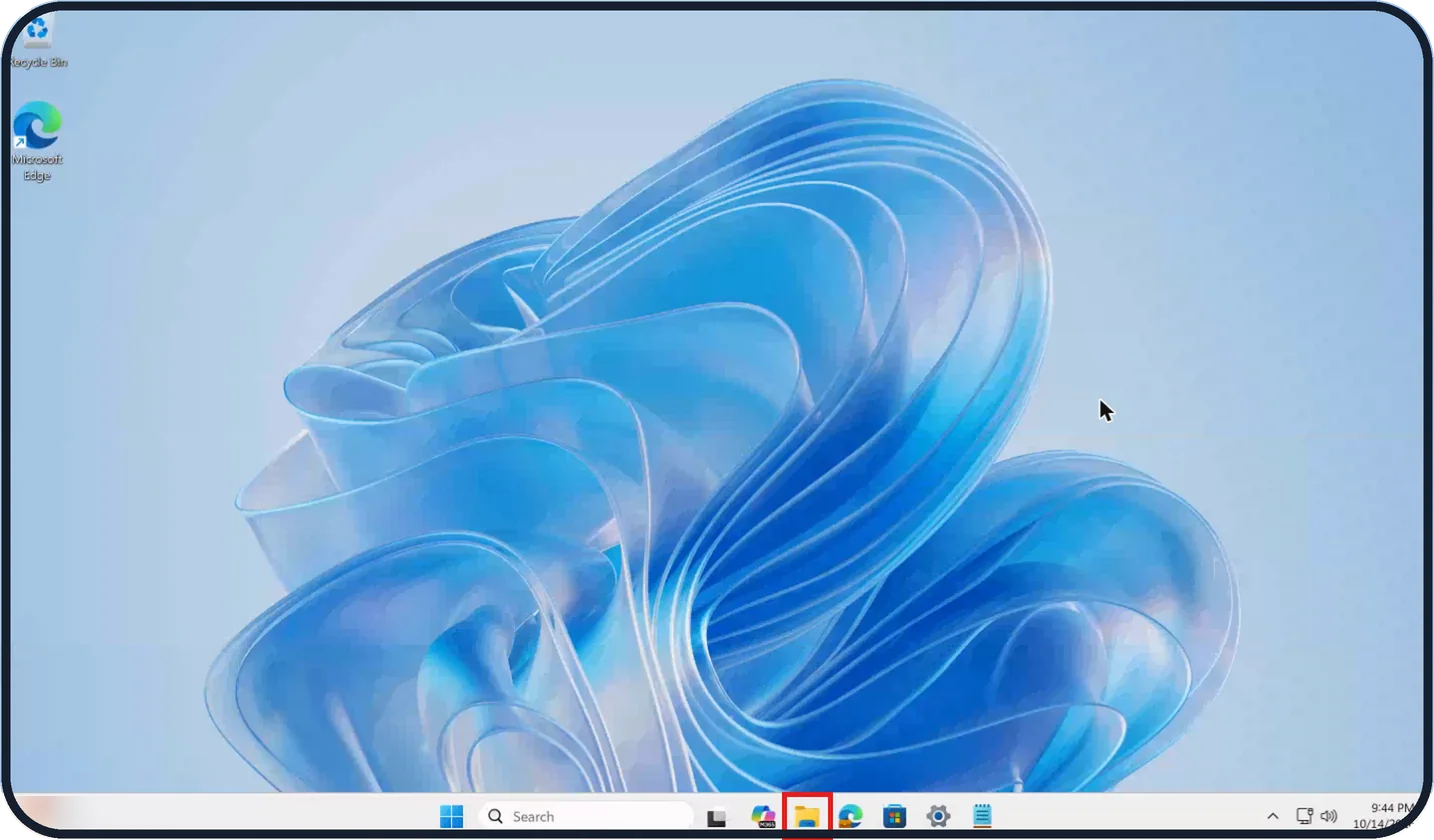
Open File Explorer with Windows + E, click View in the top bar, point to Show and click Hidden items. For the endings of file names such as .jpg or .docx, click File…
How to use Remote Desktop on Windows 11
On the PC you want to reach, open Settings, System, Remote Desktop, switch Remote Desktop on and note the PC name. On the other PC, search for Remote Desktop…
Files & Printing
4 guidesHow to add a printer on Windows 11
Turn the printer on and connect it to your Wi-Fi or plug in its USB cable. Open Settings, Bluetooth & devices, Printers & scanners, click Add device, wait for the…
How to stop Print Screen opening Snipping Tool on Windows 11
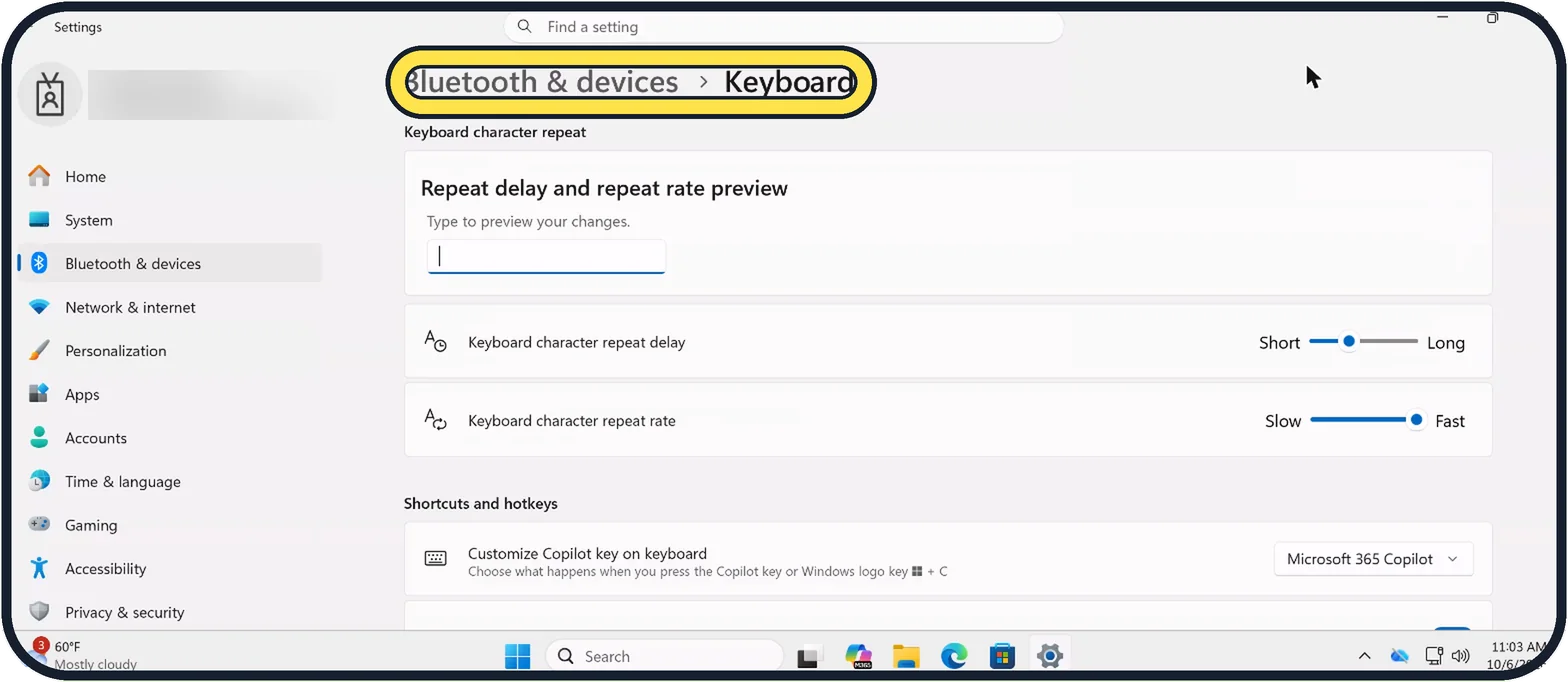
Open Settings, Bluetooth & devices, Keyboard. Under Shortcuts and hotkeys, switch off Use the Print screen key to open screen capture. The PrtSc key then copies the…
How to zip and unzip files on Windows 11
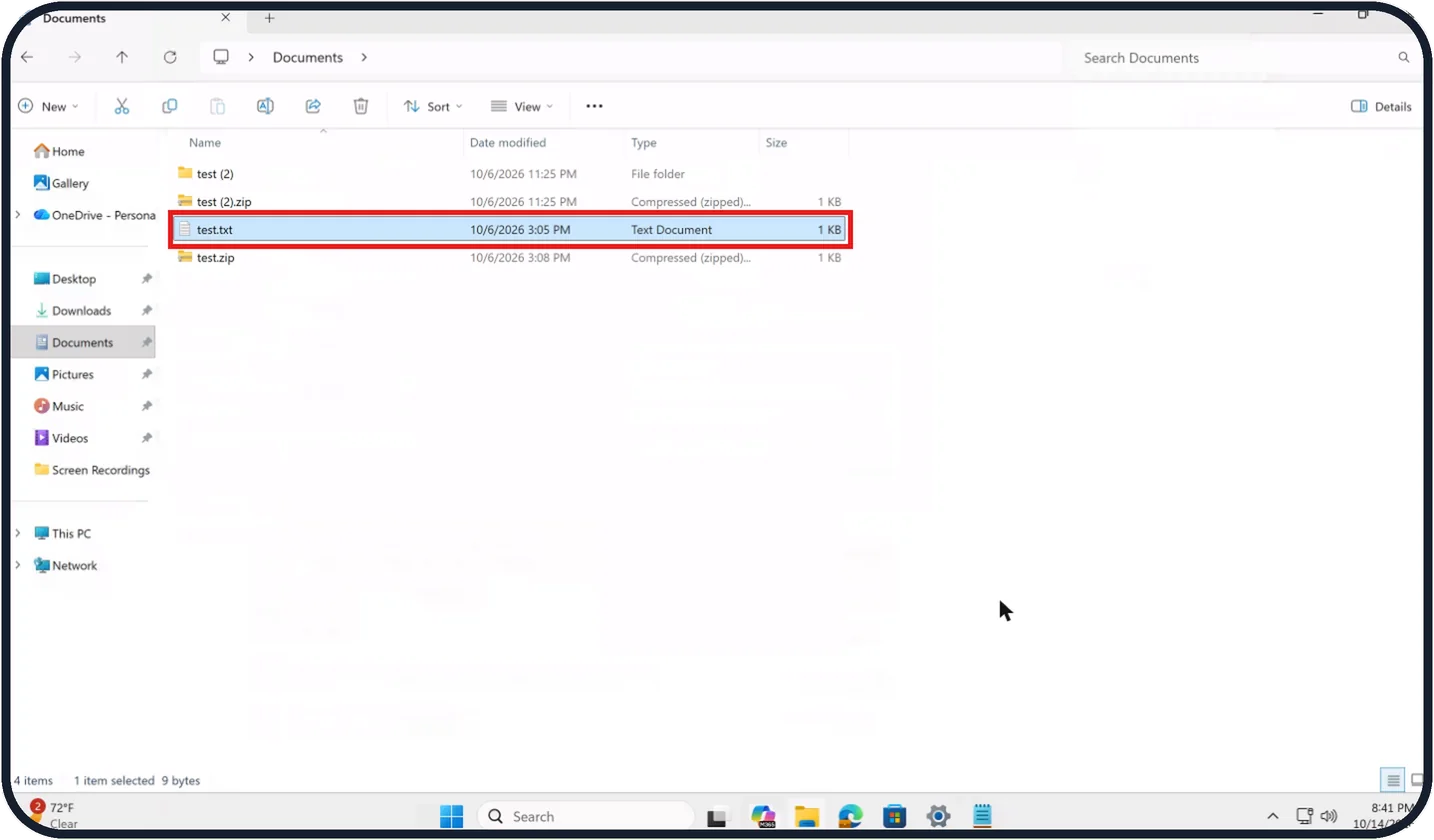
To zip, right-click the file or folder and choose Compress to..., or Show more options, Send to, Compressed (zipped) folder. To unzip, right-click the ZIP file, choose…
Printer shows offline on Windows 11: 8 fixes to try
Switch the printer off, unplug it for 30 seconds and switch it on again, and check that it is on the same network as the PC. Then open Settings, Bluetooth & devices…
More settings
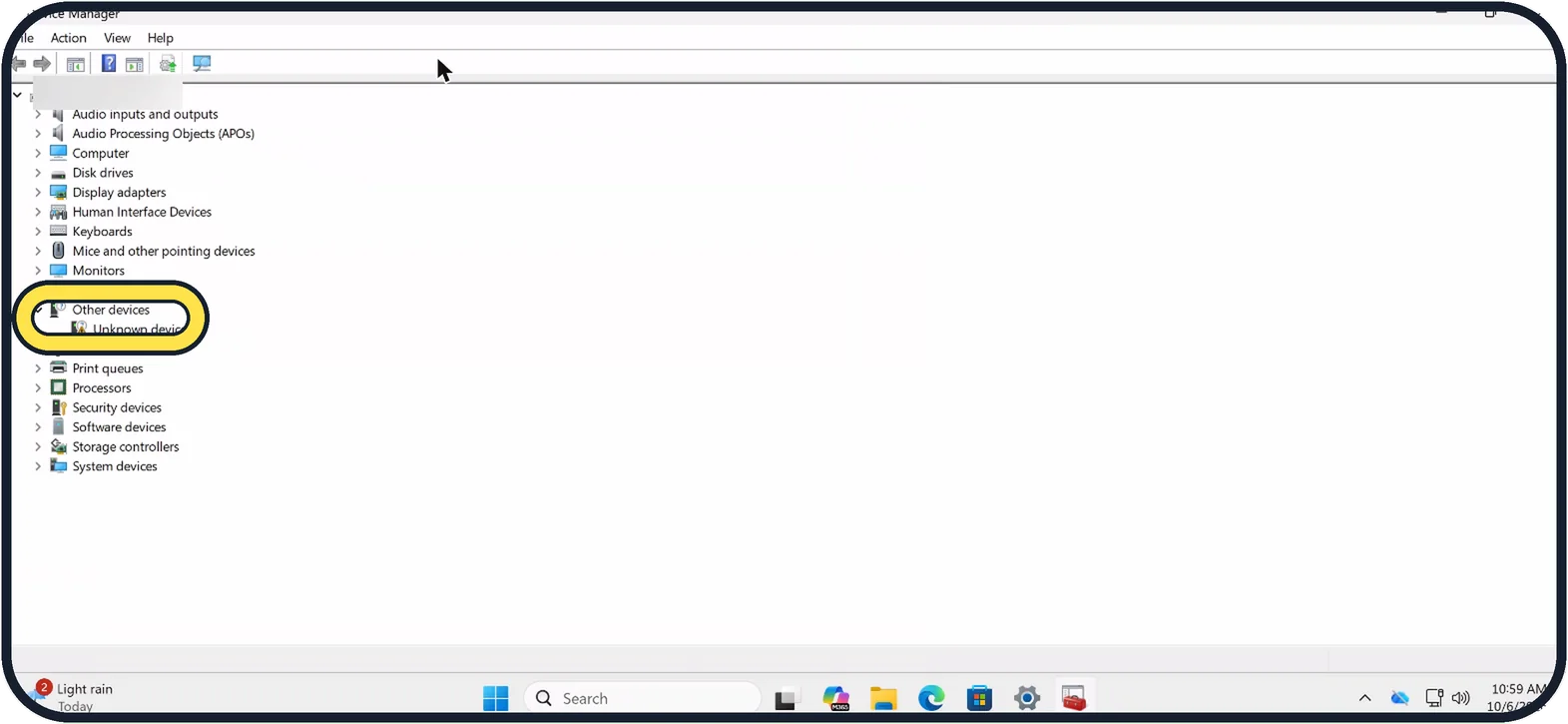
8 guidesUnknown device with Code 28 on Windows 11: how to fix it
Code 28 means Windows has no driver for that device. Right-click Start, open Device Manager, right-click the Unknown device and choose Update driver, then Search…
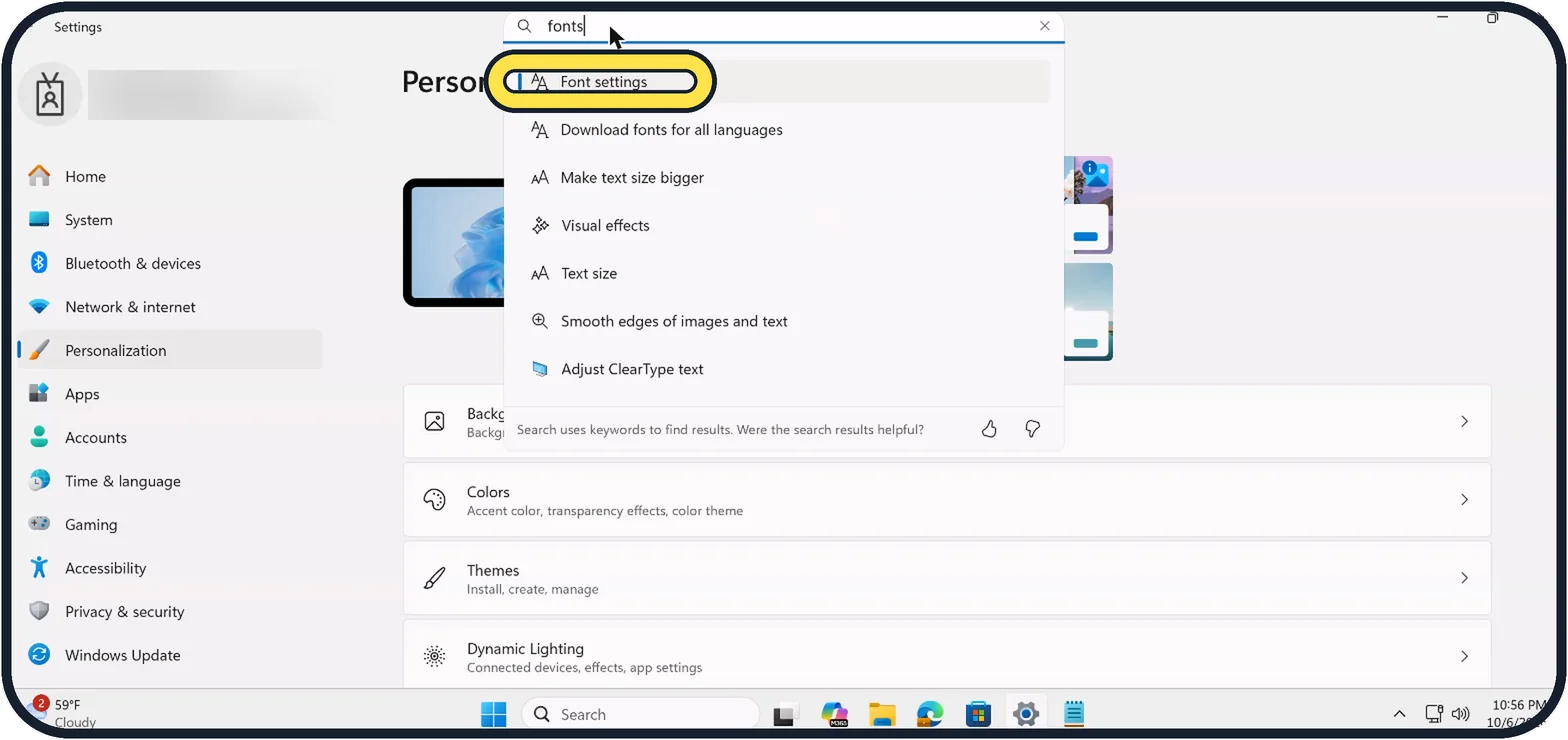
How to install fonts on Windows 11
Open Settings, Personalization, Fonts and drag the font file into the Drag and drop to install box, or click Browse and install fonts and choose the file. Windows reads…
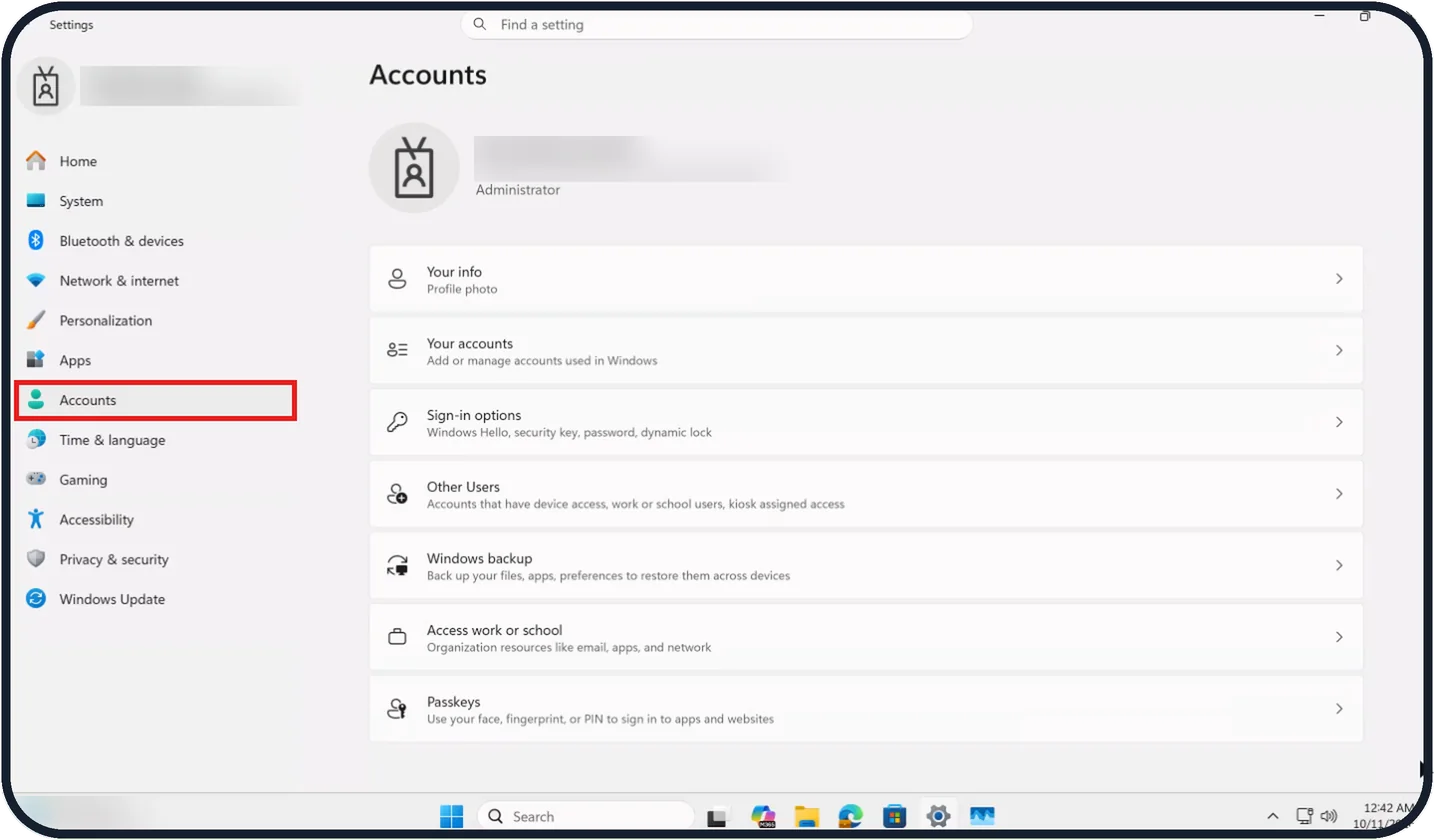
How to add another user account on Windows 11
Open Settings, click Accounts, then Other Users, and click Add account next to Add other user. Enter the person's Microsoft account email or phone number. For an…
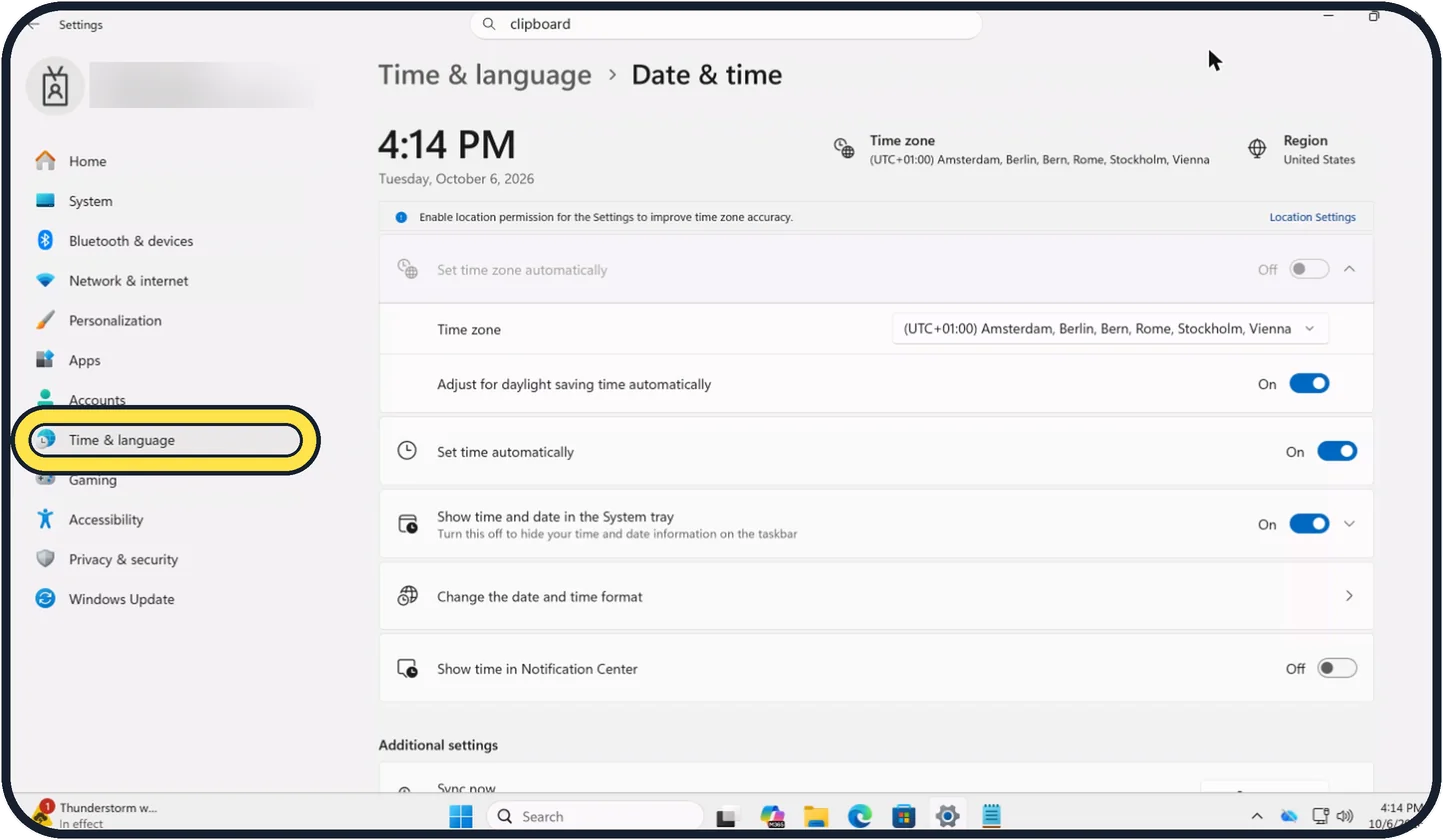
How to change the date, time and time zone on Windows 11
Open Settings, click Time & language and then Date & time. Switch on Set time automatically and Set time zone automatically. To set them by hand, switch both off, pick…
How to change which app opens a file on Windows 11
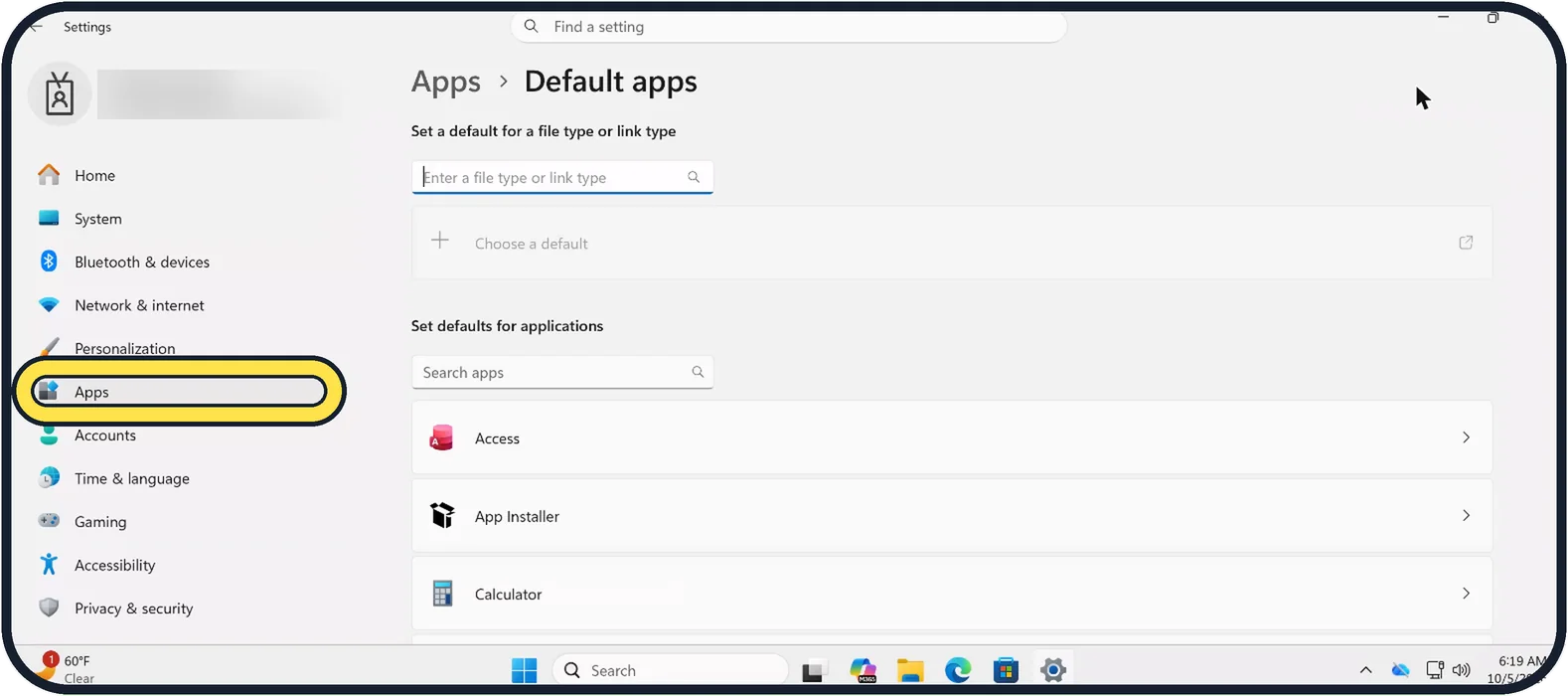
Open Settings, Apps, Default apps. Type the file extension, such as .pdf or .jpg, into the search box at the top, select the result and choose the app you want. Or…
How to change the default browser on Windows 11
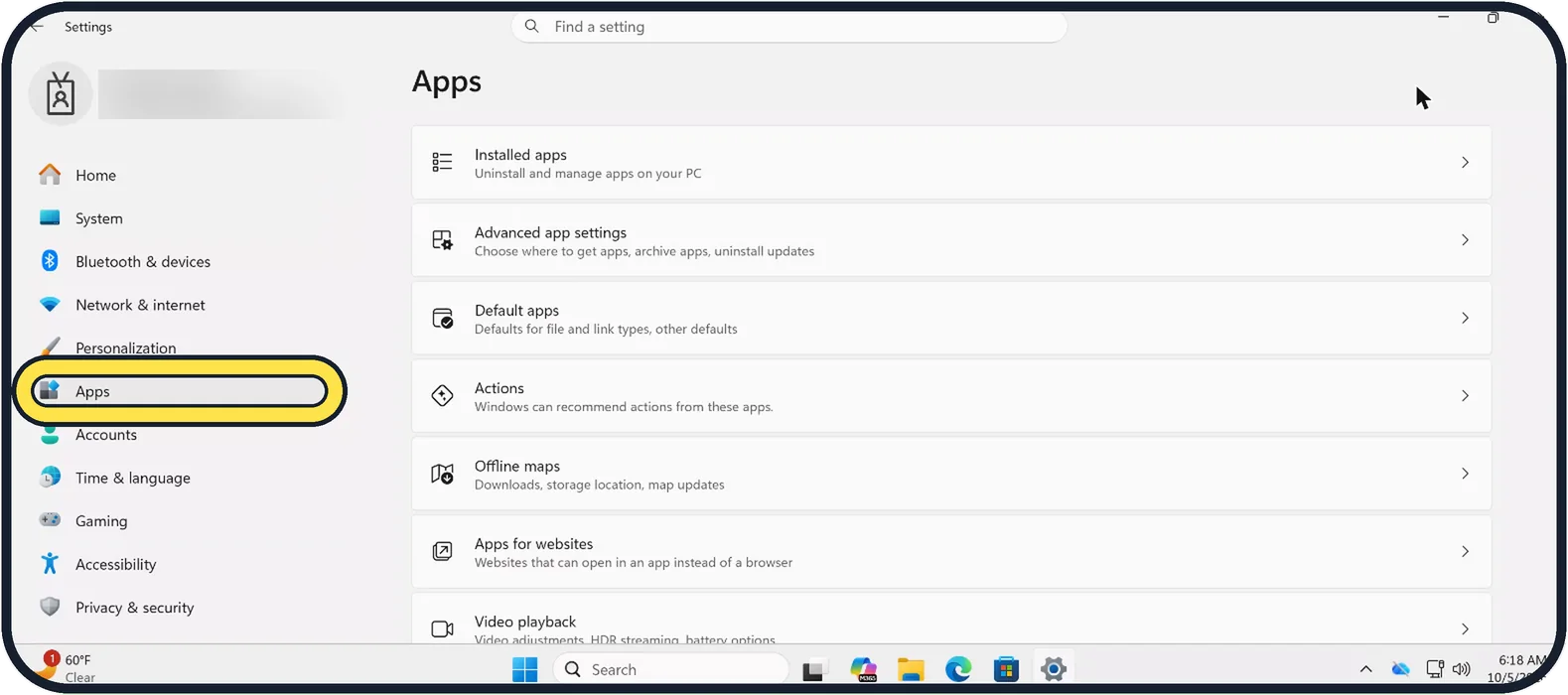
Open Settings, choose Apps, then Default apps. Click the browser you want, such as Chrome or Firefox, and click Set default at the top of its page.
How to uninstall programs on Windows 11
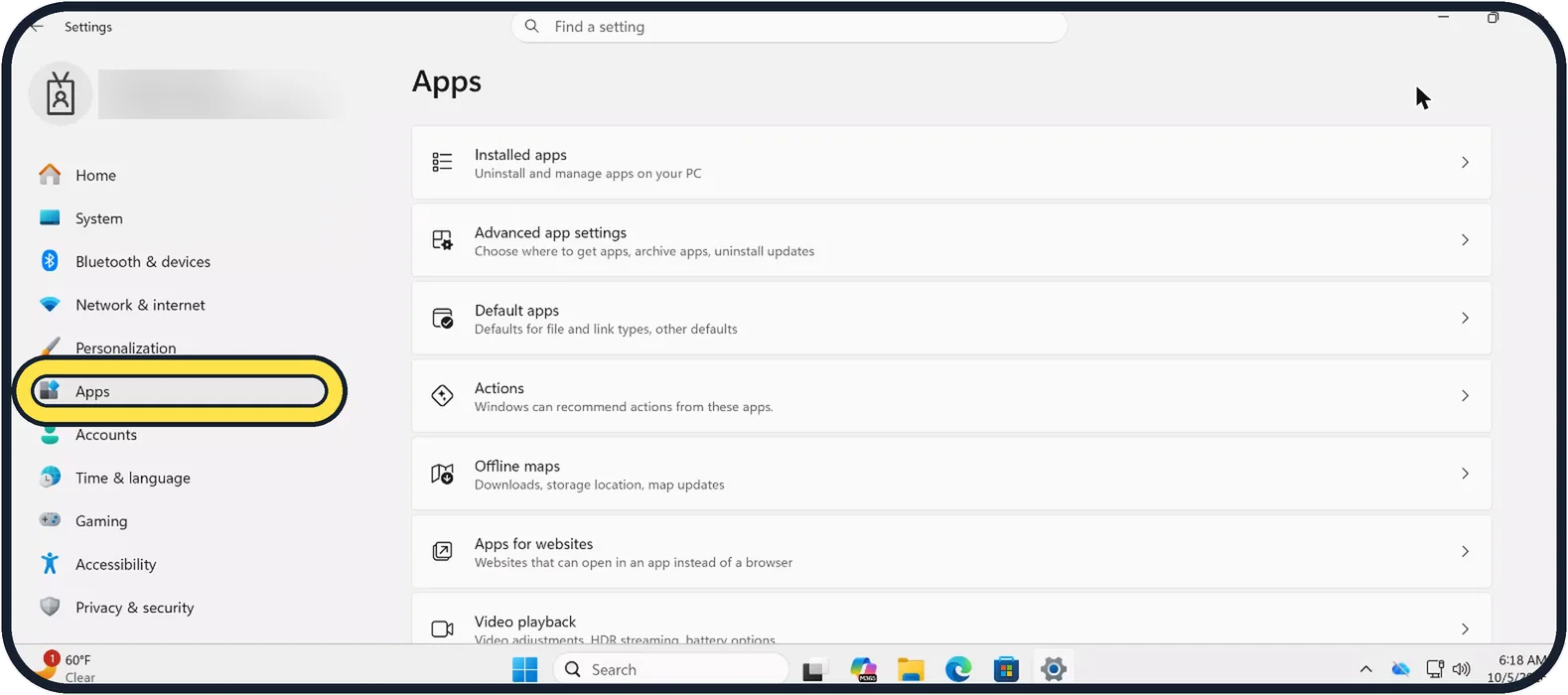
Open Settings, choose Apps, then Installed apps. Click the three dots next to the program and choose Uninstall. Confirm, and follow the program's own uninstaller if one opens.
How to add a keyboard language on Windows 11
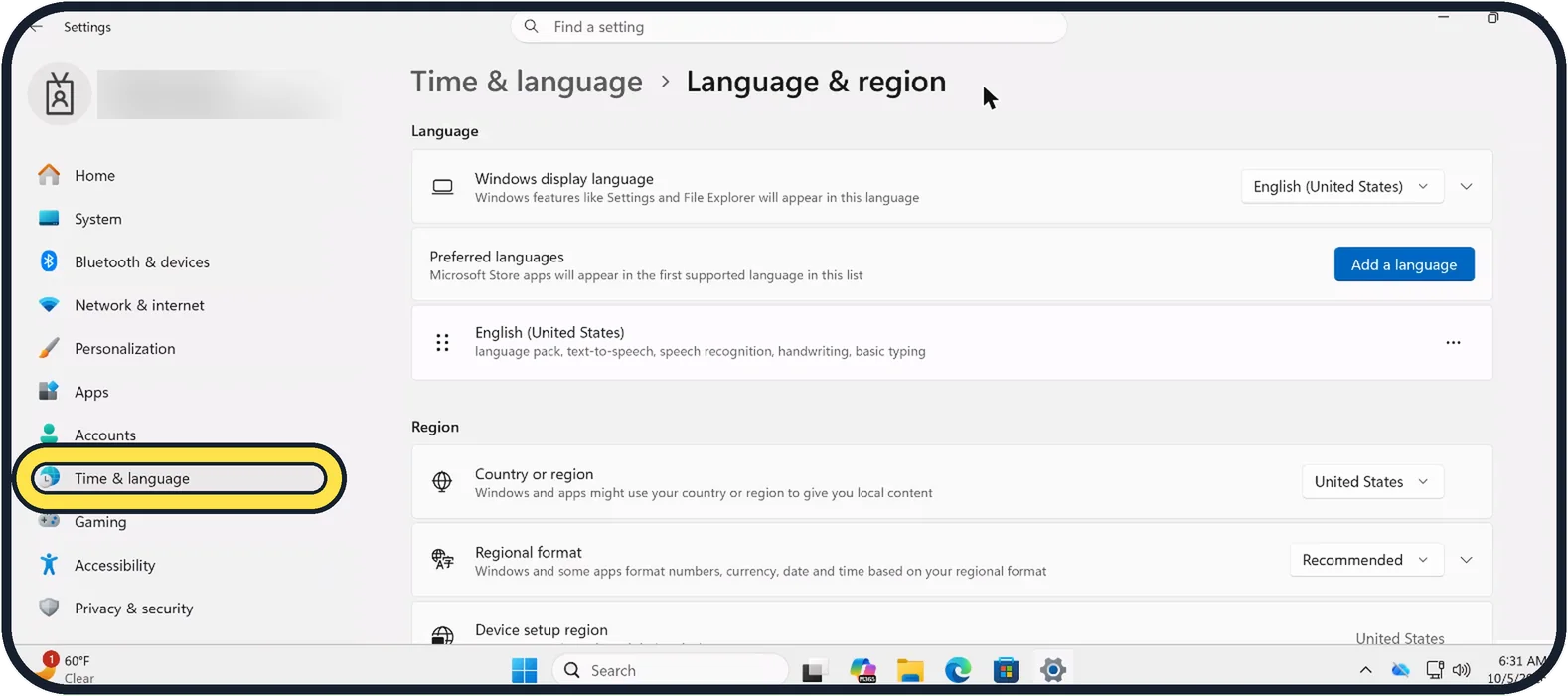
Open Settings, Time & language, Language & region. Click the three dots next to your language, choose Language options and, under Keyboards, click Add a keyboard. To…