
howtosimply.com/guides/coming-from-windows-10-habits-and-the-mac-way/ · Checked October 2026 · MacBook Neo · macOS 27.2
In this guide
- Right-click: Control-click or a two-finger click
- Delete key: Command-Delete
- Address bar: Show Path Bar
- Ctrl-C and Ctrl-V: Command-C and Command-V
- Task Manager: Force Quit (Option-Command-Esc)
- Snap windows: hover over the green button
- Print Screen: Shift-Command-5
- Control Panel: System Settings
- Start menu: Command-Space, then Command-1
- If you do not see this option
- If this does not work
- Good to know
- Sources
Right-click is Control-click or a two-finger click. Command replaces Ctrl for copy and paste, Command-Delete moves a file to the Trash, Option-Command-Esc opens Force Quit, Shift-Command-5 opens the screenshot tools and System Settings replaces Control Panel. Command-Tab switches apps.
9 of 9 steps with real screenshots · 4 official sources below
- Device
- Windows
- Shown on
- macOS 27.2 (MacBook Neo), macOS 27.0.1 (MacBook Neo)
- App
- Finder
- Real screenshots
- 9 of 9 steps
- Checked
- October 2026
- Sources
- 4 official, linked below
Step by step
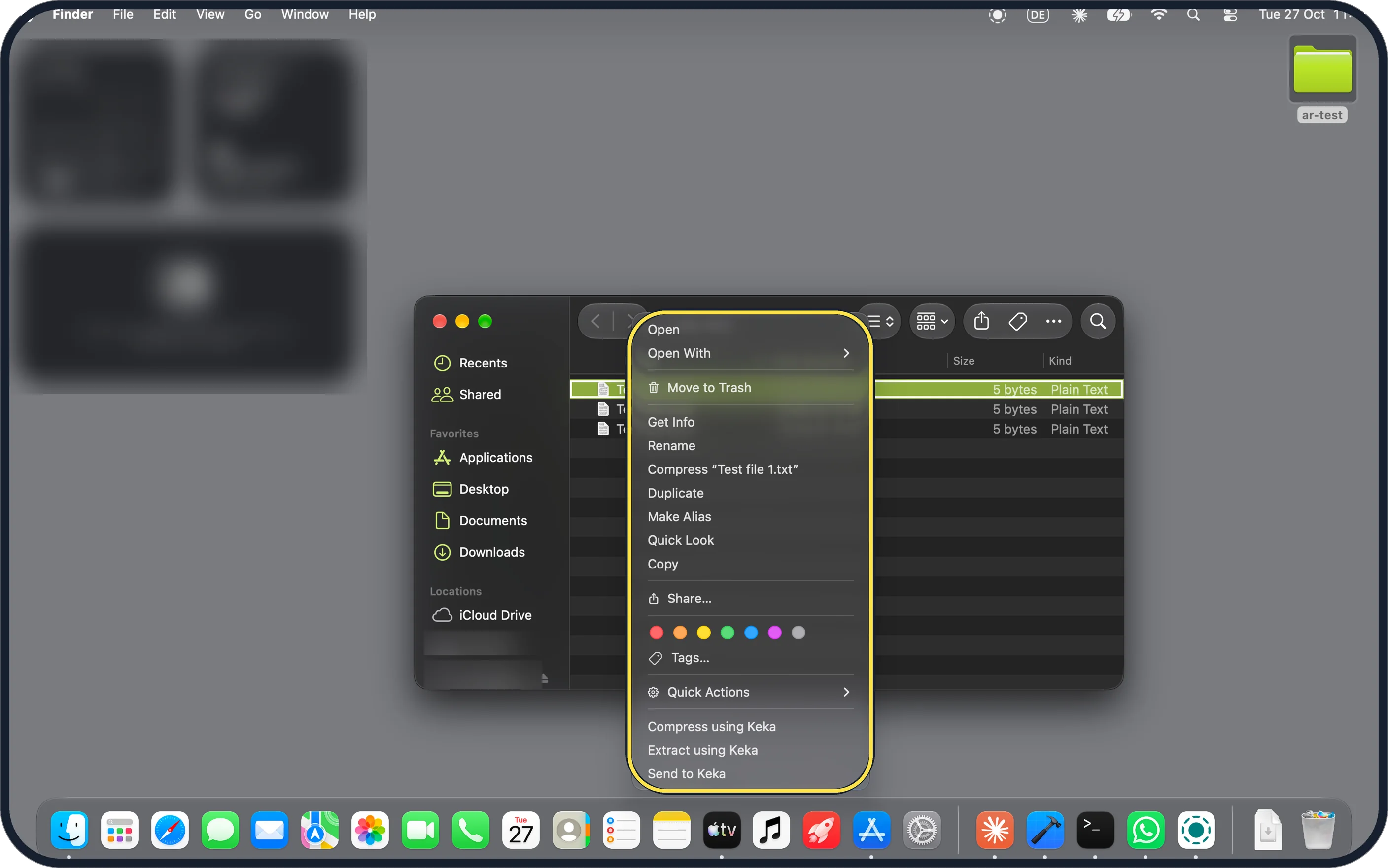
Zoomed in on the setting. Tap to see the whole screenTap the picture to see it full size Right-click: Control-click or a two-finger click
Hold Control and click a file, or click with two fingers on the trackpad. Ours showed Open, Open With, Move to Trash, Get Info, Rename, Compress, Duplicate, Make Alias, Quick Look, Copy, Share, Tags and Quick Actions. More: how to right-click on a Mac.
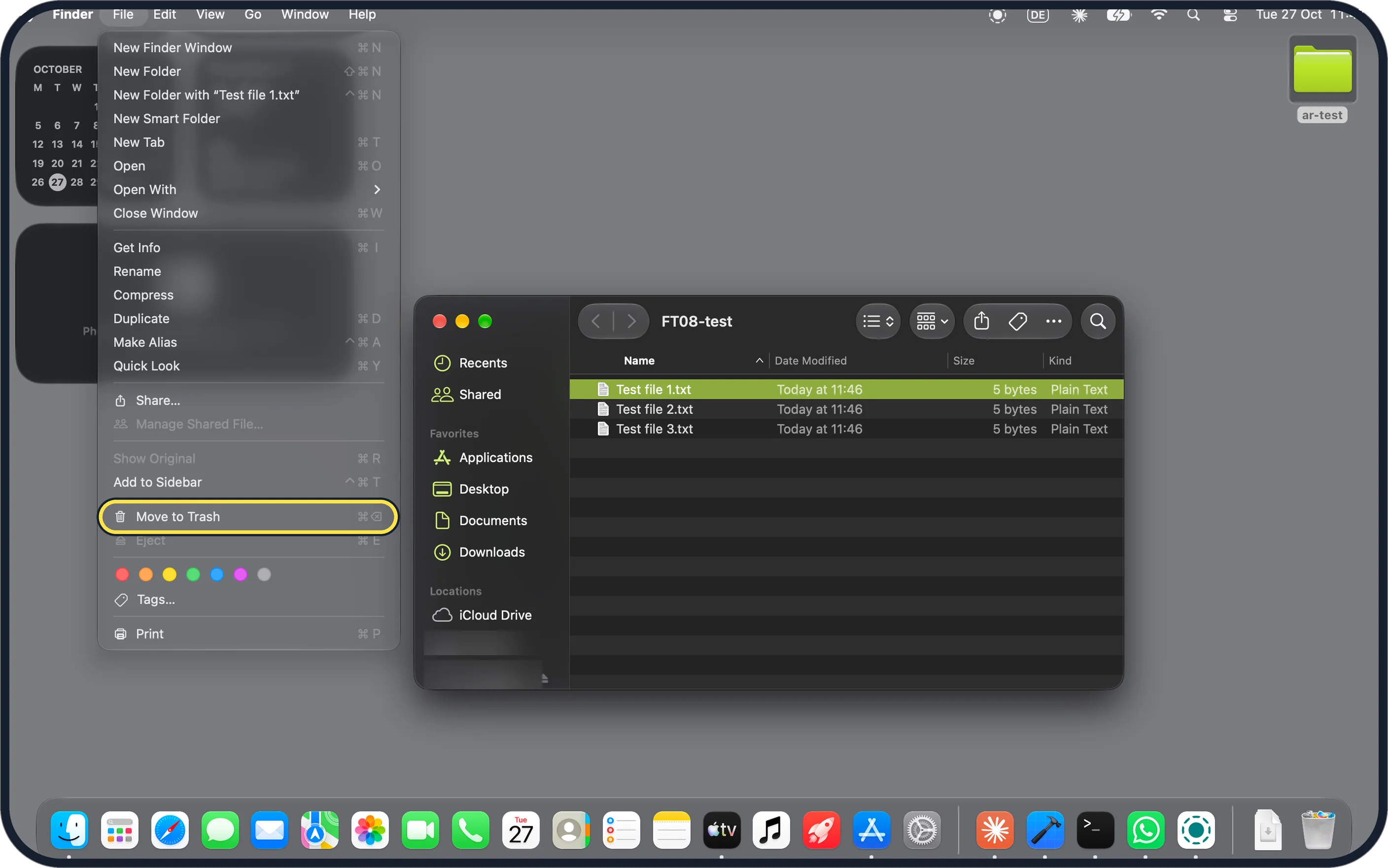
Zoomed in on the setting. Tap to see the whole screenTap the picture to see it full size Delete key: Command-Delete
Select the file and press Command-Delete, or choose File, Move to Trash. The File menu shows the shortcut next to it.
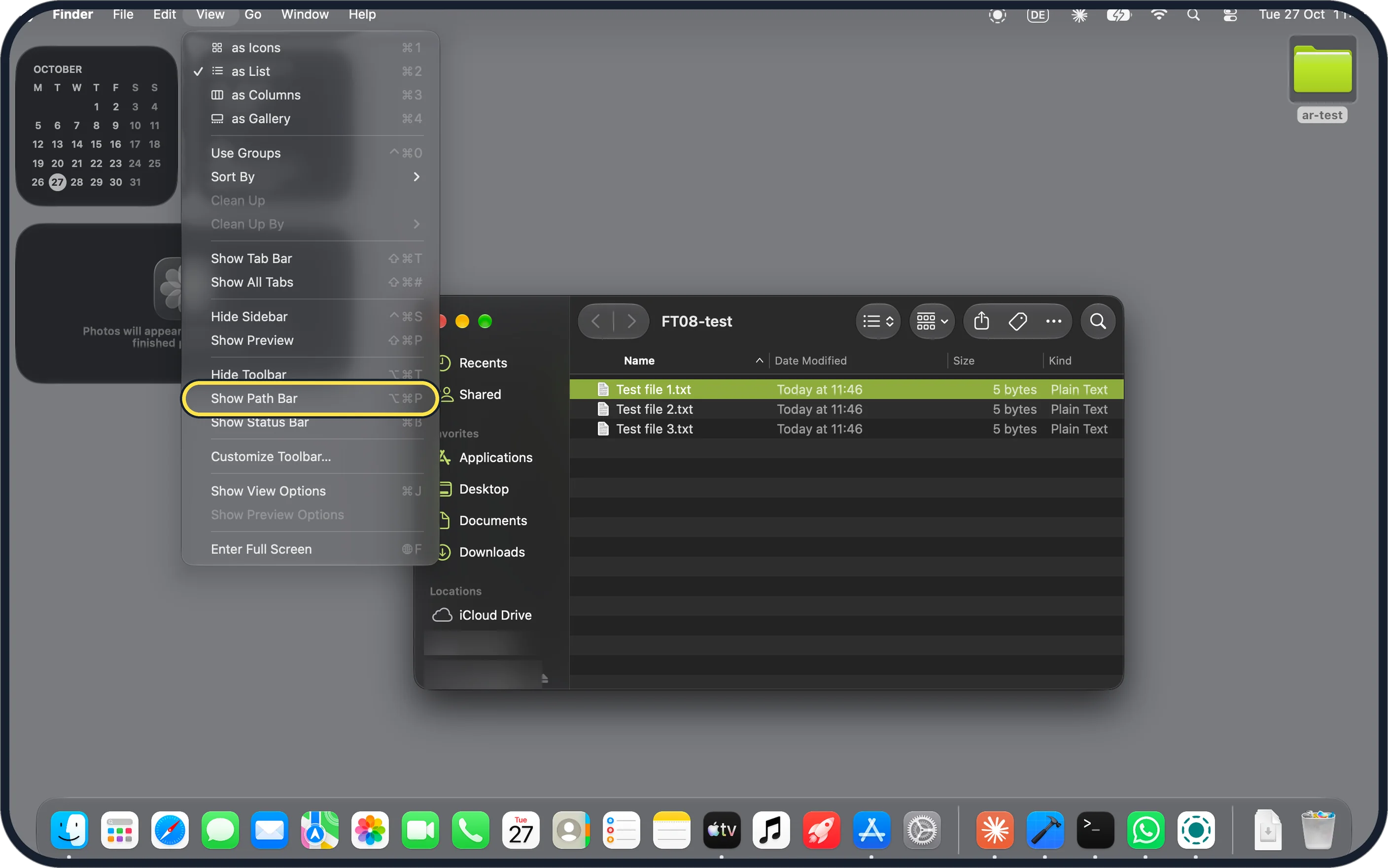
Zoomed in on the setting. Tap to see the whole screenTap the picture to see it full size Address bar: Show Path Bar
Finder has no address bar to type in. Choose View, Show Path Bar, or press Option-Command-P, to show the path of the folder in the window.
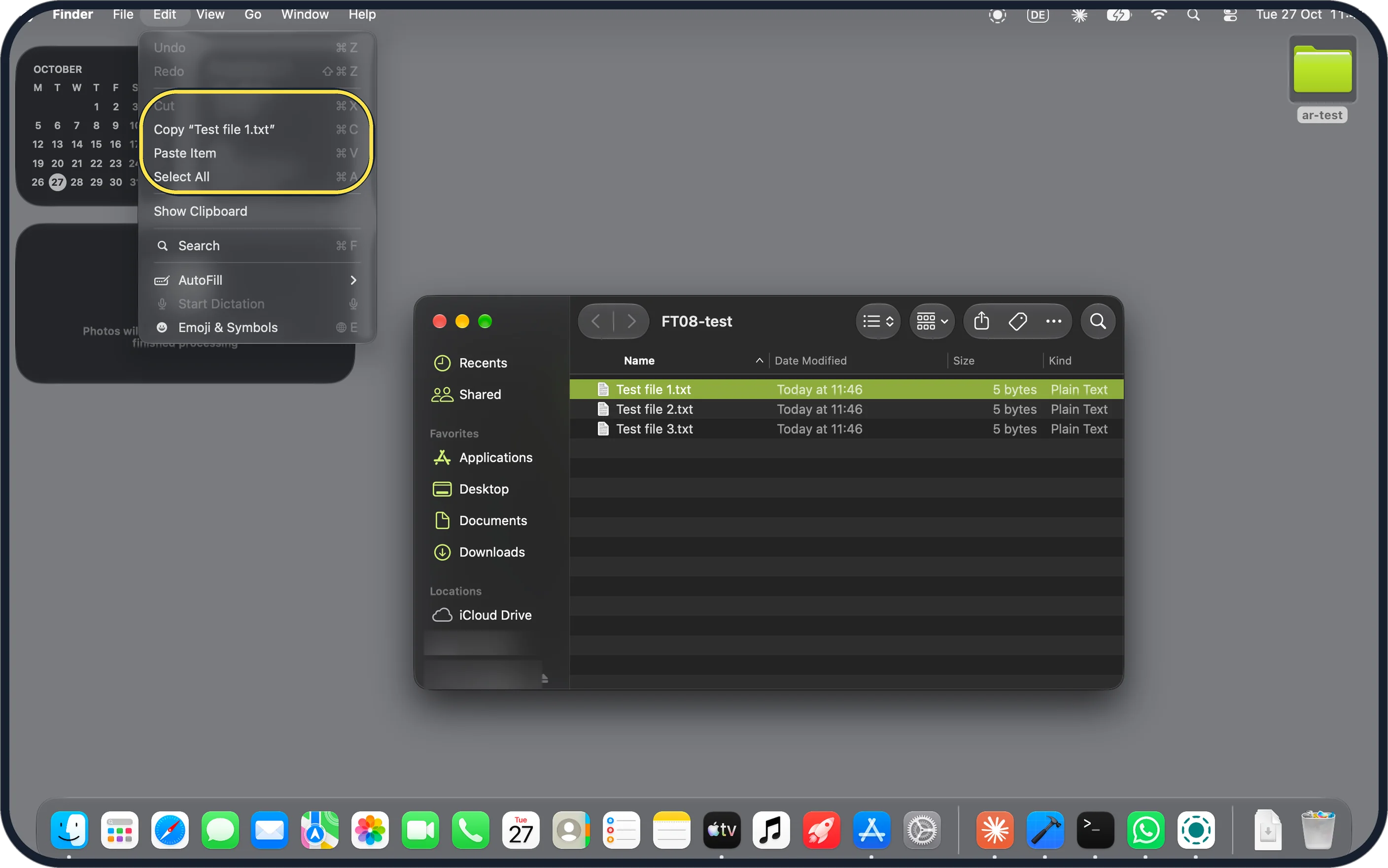
Zoomed in on the setting. Tap to see the whole screenTap the picture to see it full size Ctrl-C and Ctrl-V: Command-C and Command-V
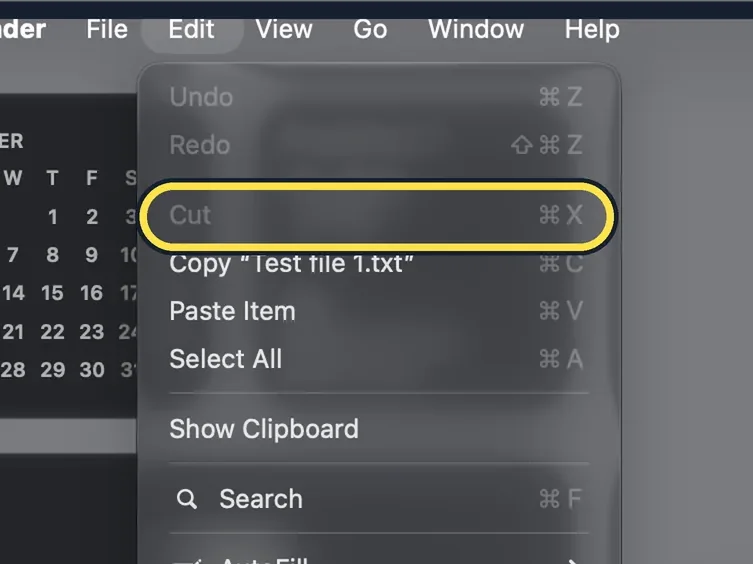
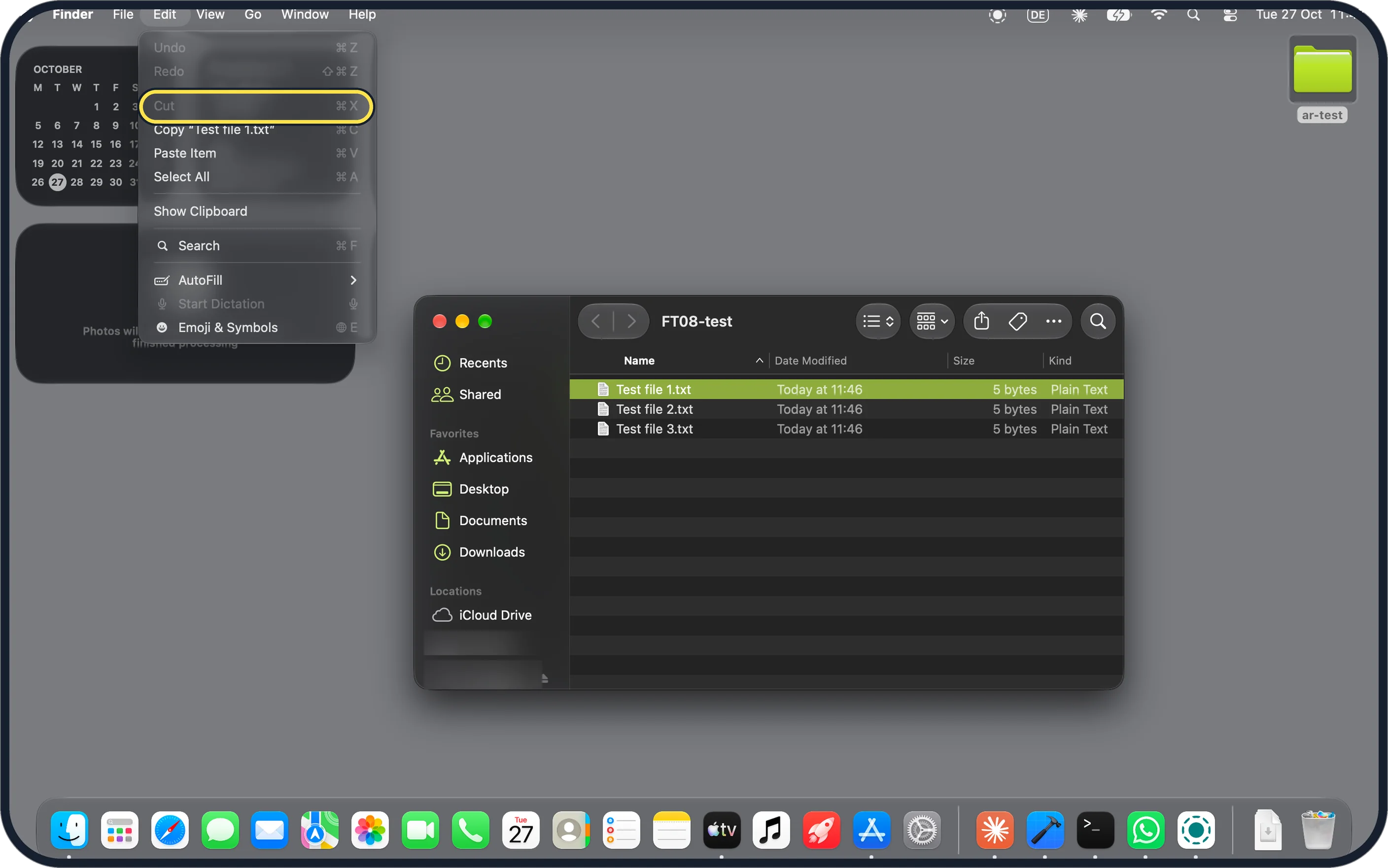
With a file selected, Edit showed Copy "Test file 1.txt" (Command-C) and Paste Item (Command-V). Cut was greyed out. To move a file, copy it, open the new folder and press Option-Command-V: Apple says this moves the files in the Clipboard from their original location.
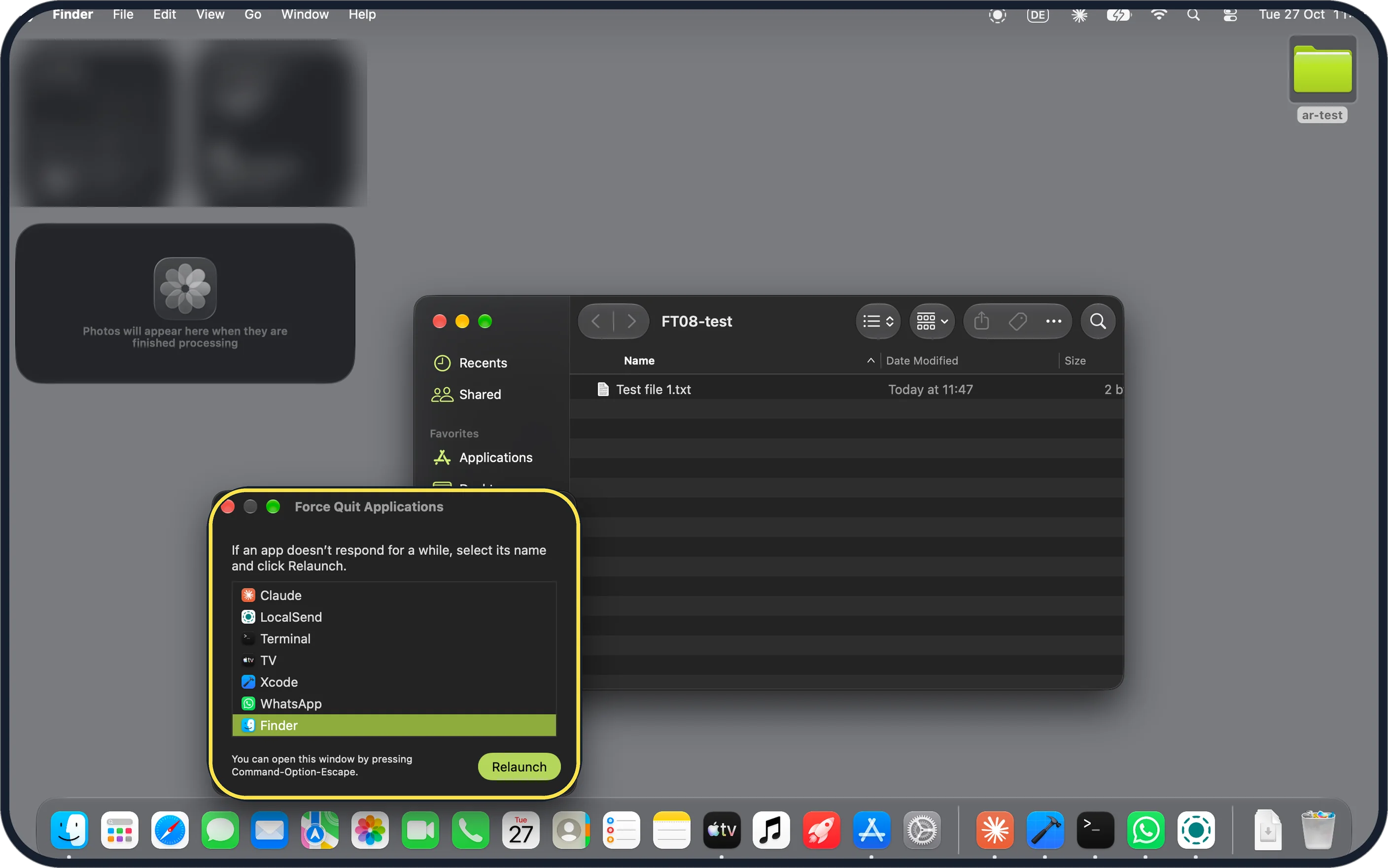
Zoomed in on the setting. Tap to see the whole screenTap the picture to see it full size Task Manager: Force Quit (Option-Command-Esc)
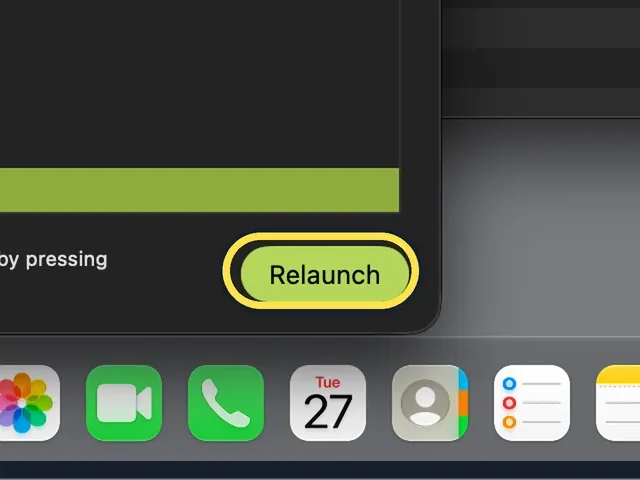
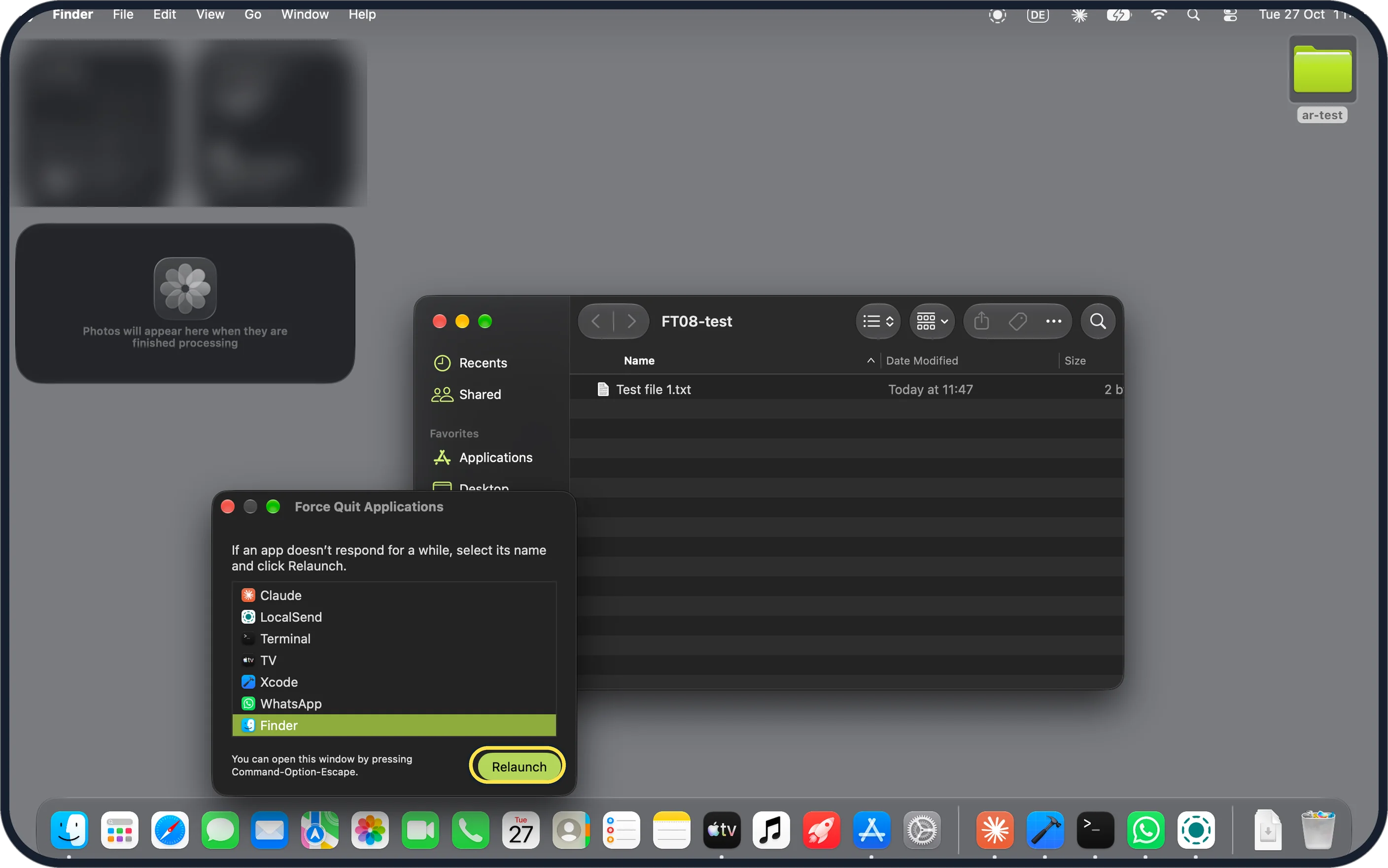
Press Option-Command-Esc. The Force Quit Applications window says: If an app doesn't respond for a while, select its name and click Relaunch. Ours listed the open apps, with Finder at the bottom. For a fuller view, see how to use Activity Monitor on a Mac.
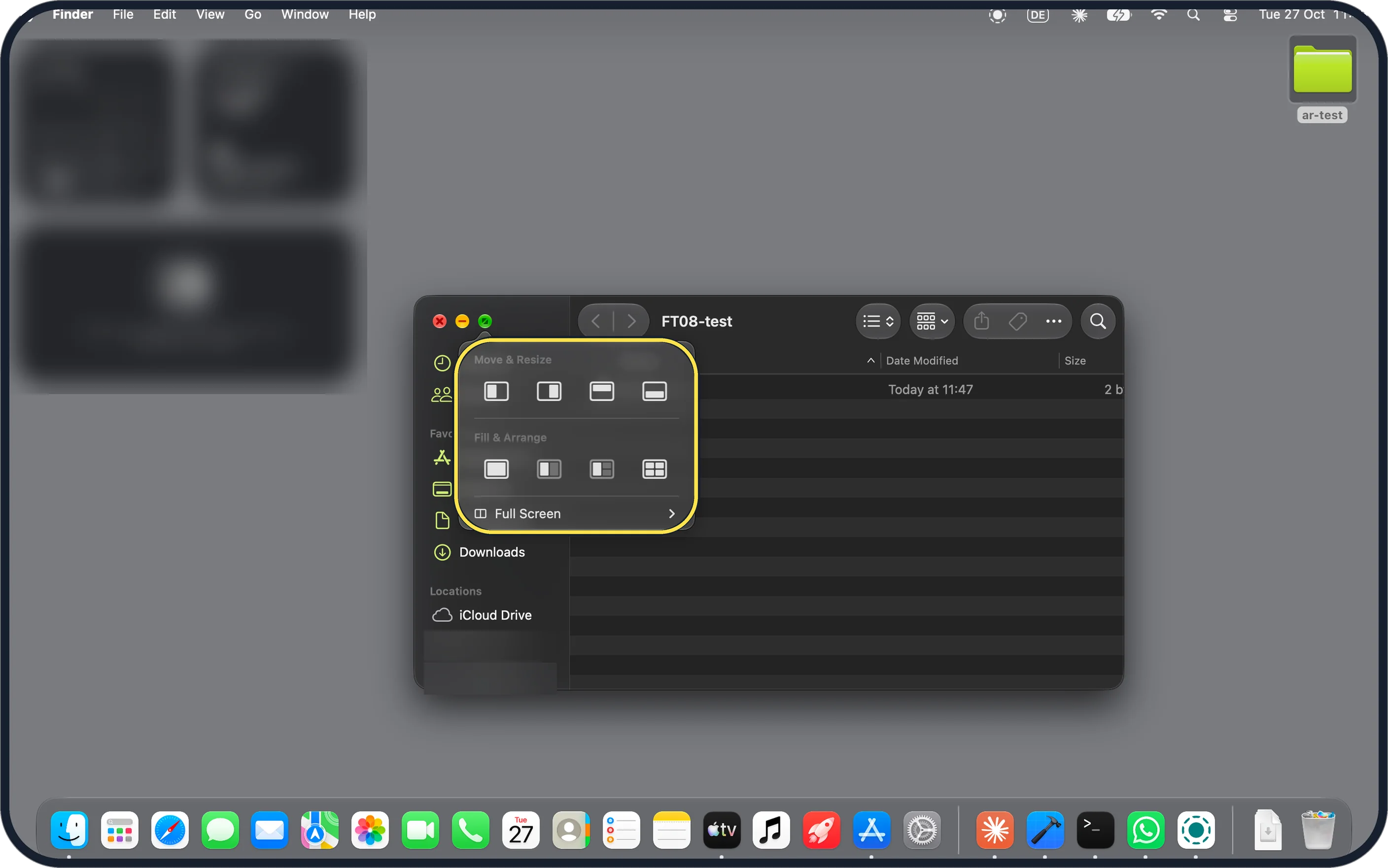
Zoomed in on the setting. Tap to see the whole screenTap the picture to see it full size Snap windows: hover over the green button
Hold the pointer over the green button at the top left of a window. Ours showed Move & Resize (halves of the screen), Fill & Arrange and Full Screen.
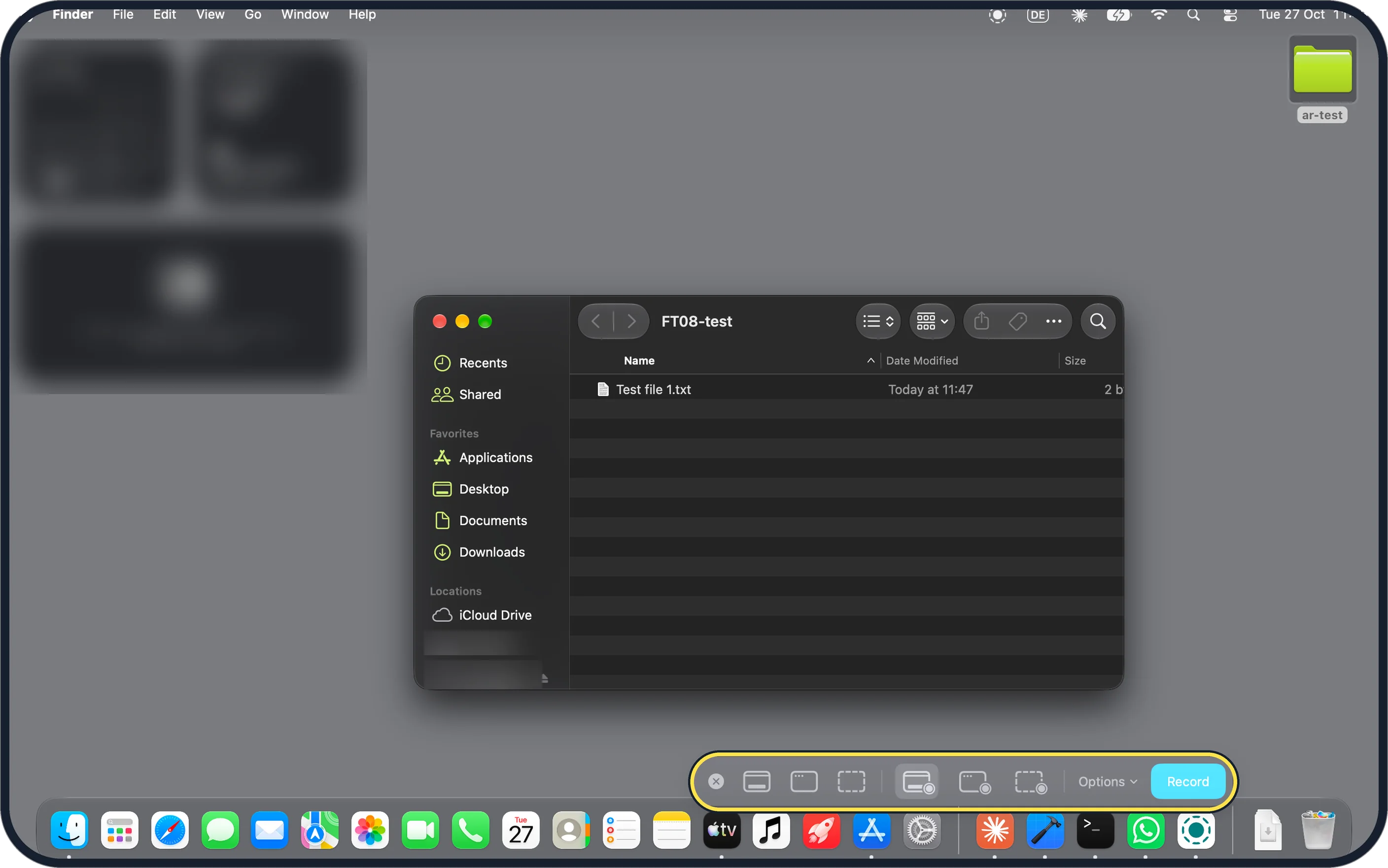
Zoomed in on the setting. Tap to see the whole screenTap the picture to see it full size Print Screen: Shift-Command-5
Press Shift-Command-5. A toolbar appears at the bottom of the screen with the capture buttons, then Options and Record. More: how to take a screenshot on a Mac.
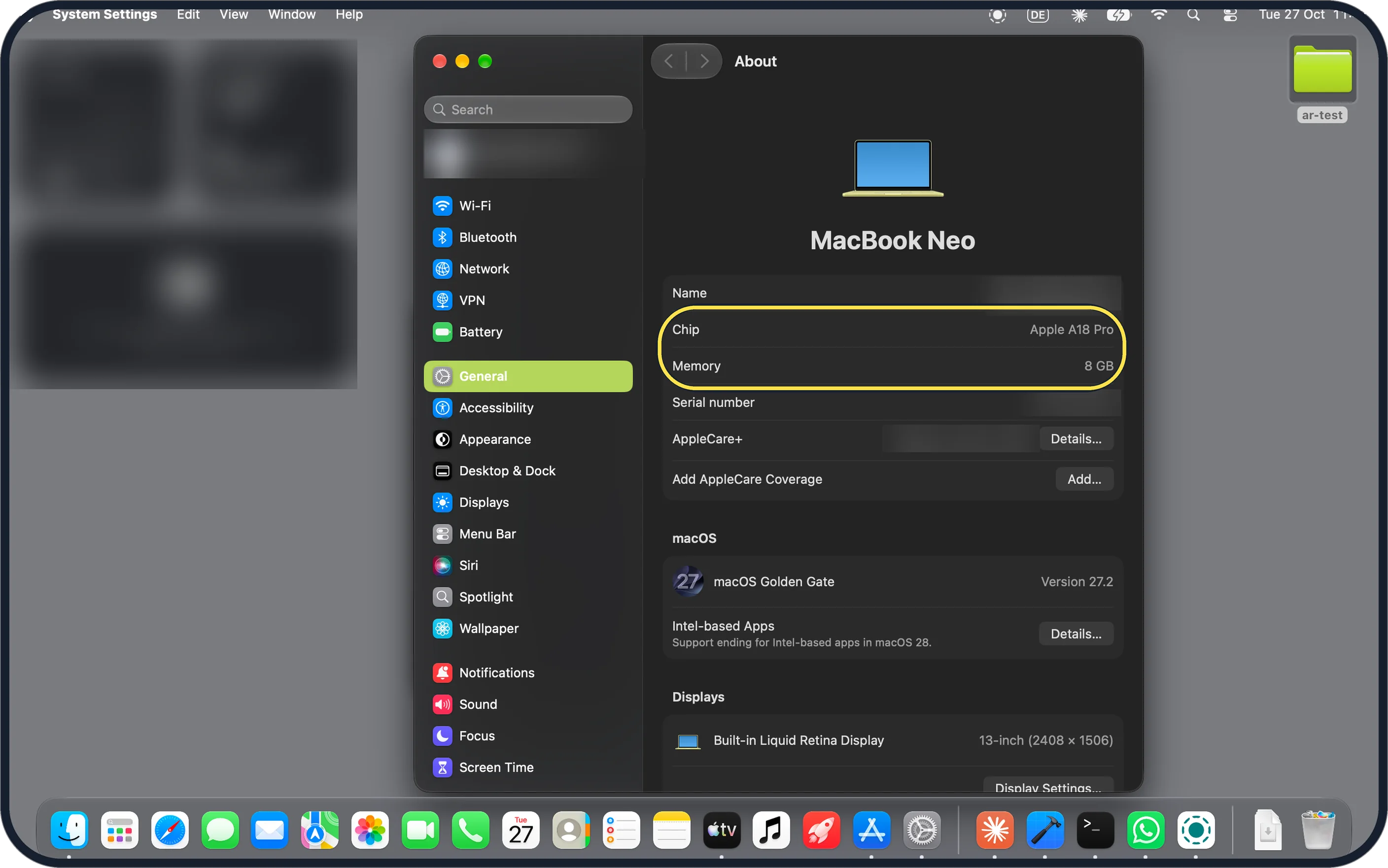
Zoomed in on the setting. Tap to see the whole screenTap the picture to see it full size Control Panel: System Settings
Settings live in System Settings, with a sidebar from Wi-Fi and Bluetooth down to Screen Time. General, About shows the Mac: ours is a MacBook Neo with the Apple A18 Pro chip, 8 GB of memory and macOS Golden Gate Version 27.2.
Zoomed in on the setting. Tap to see the whole screenTap the picture to see it full size Start menu: Command-Space, then Command-1
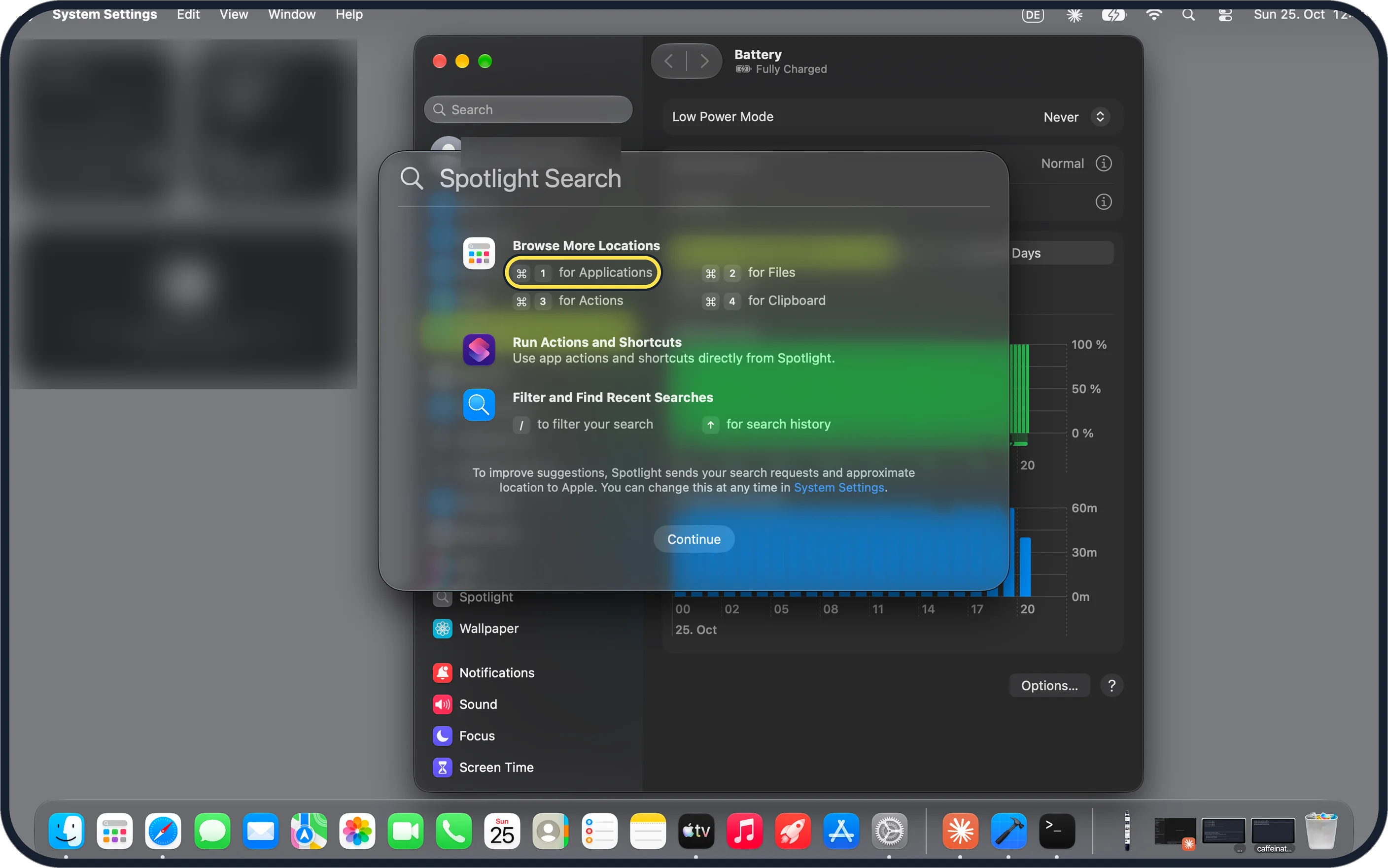
Apple says Command-Space bar shows or hides the Spotlight search field, so you can type an app's name and press Return to open it. The first time, ours showed this panel: Command-1 for Applications, Command-2 for Files, Command-3 for Actions, Command-4 for Clipboard. The Dock along the bottom holds your apps too.
If you do not see this option
- No Cut for files? Our Edit menu greyed out Cut with a file selected. Copy it with Command-C, then press Option-Command-V where you want it. Source: Mac keyboard shortcuts
Zoomed in on the setting. Tap to see the whole screen - No Move & Resize menu on the green button? Apple added its new keyboard and menu shortcuts for tiling windows in macOS Sequoia (2024), so an older Mac may not show this menu. Check your version in General, About. On ours, macOS 27.2, the menu was there. Source: macOS Sequoia takes productivity and intelligence on Mac to new heights
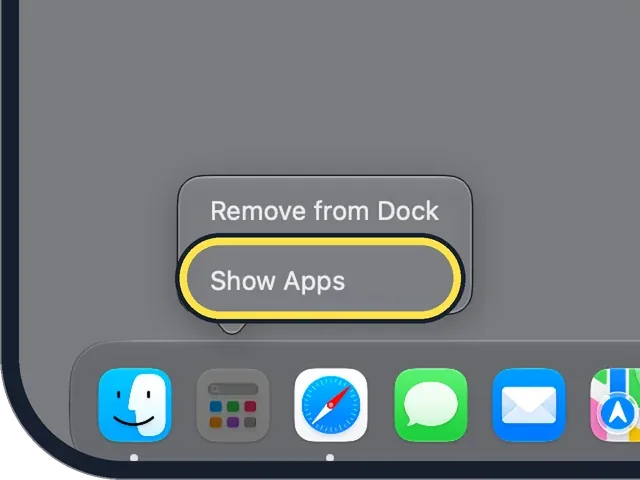
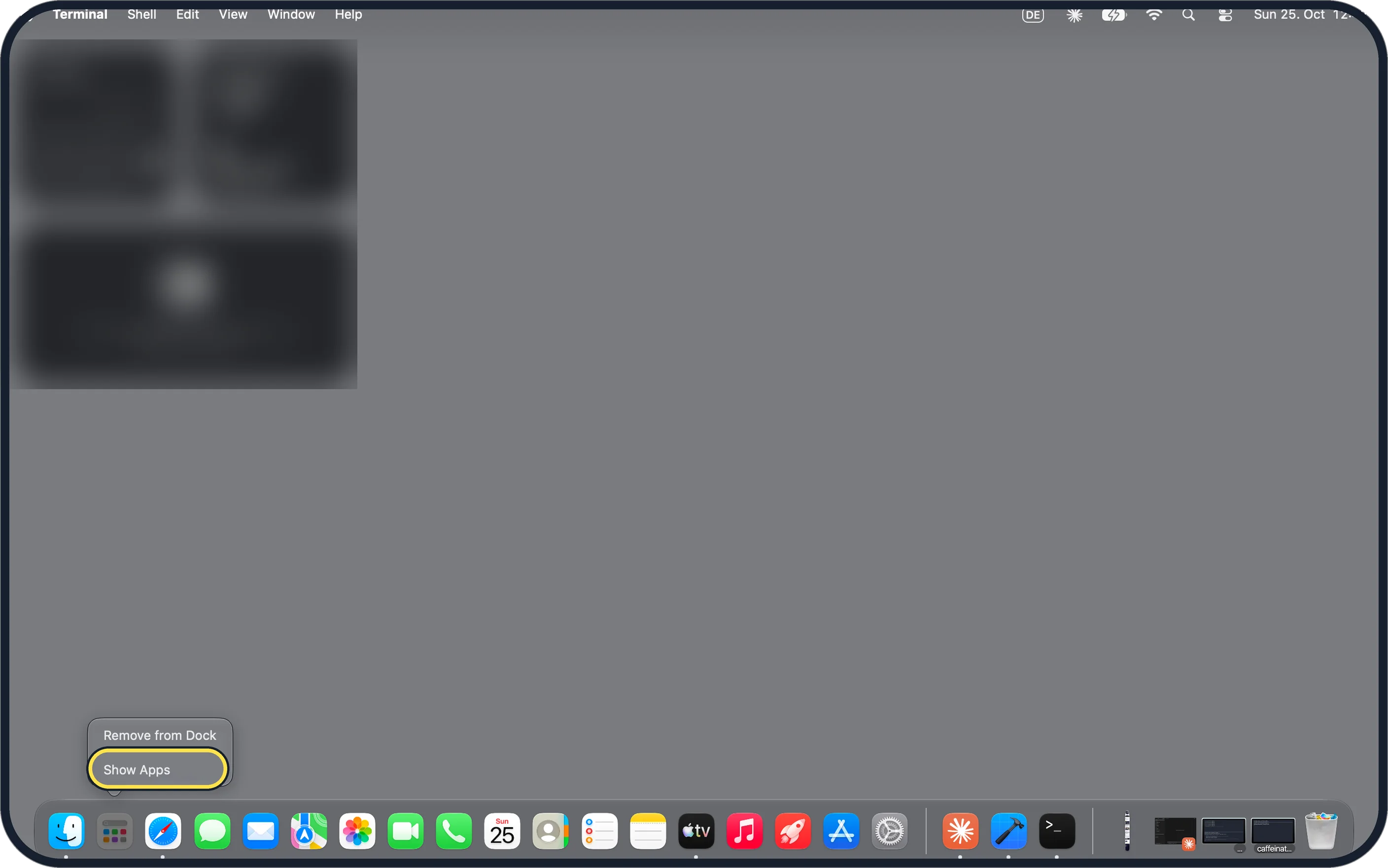
- Looking for Launchpad? Our Dock had an Apps icon in its place: Control-click it and the menu says Show Apps. Apple says the Apps icon in the Dock opens the apps window in Spotlight. More: where is Launchpad on a Mac. Source: View and open apps on Mac
Zoomed in on the setting. Tap to see the whole screen
If this does not work
- Want keys to snap windows? Apple lists Fn-Control-Left Arrow and Fn-Control-Right Arrow for the left and right halves, and Fn-Control-F to fill the screen. Source: Mac window tiling icons and keyboard shortcuts
- Need another kind of screenshot? Apple says Shift-Command-3 or Shift-Command-4 take screenshots too. To record, see how to record your screen on a Mac. Source: Mac keyboard shortcuts
- Want to empty the Trash from the keyboard? Apple says Shift-Command-Delete empties the Trash. Source: Mac keyboard shortcuts
- Force Quit shows Relaunch, not Force Quit? Ours did with Finder selected: the window's note says to select the app and click Relaunch. More ways: how to force quit a frozen app on a Mac.
Zoomed in on the setting. Tap to see the whole screen
About this guide
We tried each habit on our MacBook Neo with macOS 27.2 on 27 October 2026, in Dark mode, in a test folder with three small text files that we deleted afterwards. The Mac's region is the United Kingdom.
Shortcuts are from Apple's Mac keyboard shortcuts page. The Spotlight screenshot in step 9 is from the same Mac two days earlier, on macOS 27.0.1. Habit 10, Alt-Tab, is under Good to know: the app switcher only shows while you hold the keys, and we could not capture it.
Good to know
Alt-Tab is Command-Tab: Apple says it switches to the next most recently used app among your open apps, and Command-Grave accent (`) switches between the windows of the app you are using.
To see hidden files, as in File Explorer, see how to show hidden files on a Mac.
If windows jump into place when you drag them, see how to turn off window tiling when dragging on a Mac.
In short: Control-click to right-click, Command-C and Command-V, Command-Delete, Option-Command-P for the path bar, Option-Command-Esc to force quit, the green button to snap, Shift-Command-5 for screenshots, Command-Tab and Command-Space bar.
- Apple Support: Mac keyboard shortcuts
- Apple Support: Mac window tiling icons and keyboard shortcuts
- Mac User Guide: View and open apps on Mac
- Apple Newsroom: macOS Sequoia takes productivity and intelligence on Mac to new heights
Links checked in October 2026. Menus and features can change after software updates. These steps match the version named at the top.
📷 Camera Lab: the same 6 scenes photographed with 11 phones, side by side.
Did this guide work for you?
Sorry about that. What happened?