
howtosimply.com/guides/how-to-install-fonts-on-windows-11/ · Checked October 2026 · Windows 11 Enterprise 25H2 (build 26200.9457), Microsoft Cloud PC
In this guide
Open Settings, Personalization, Fonts and drag the font file into the Drag and drop to install box, or click Browse and install fonts and choose the file. The file filter includes .ttf, .otf, .ttc, .otc and .pfm. To remove a font, open its Options in the list and choose Uninstall.
4 of 4 steps with real screenshots · 1 official source below
- Device
- Windows
- Shown on
- Windows 11 Enterprise 25H2 (build 26200.9457), Microsoft Cloud PC
- App
- Settings
- Path
- Settings › Personalization
- Real screenshots
- 4 of 4 steps
- Checked
- October 2026
- Sources
- 1 official, linked below
Step by step
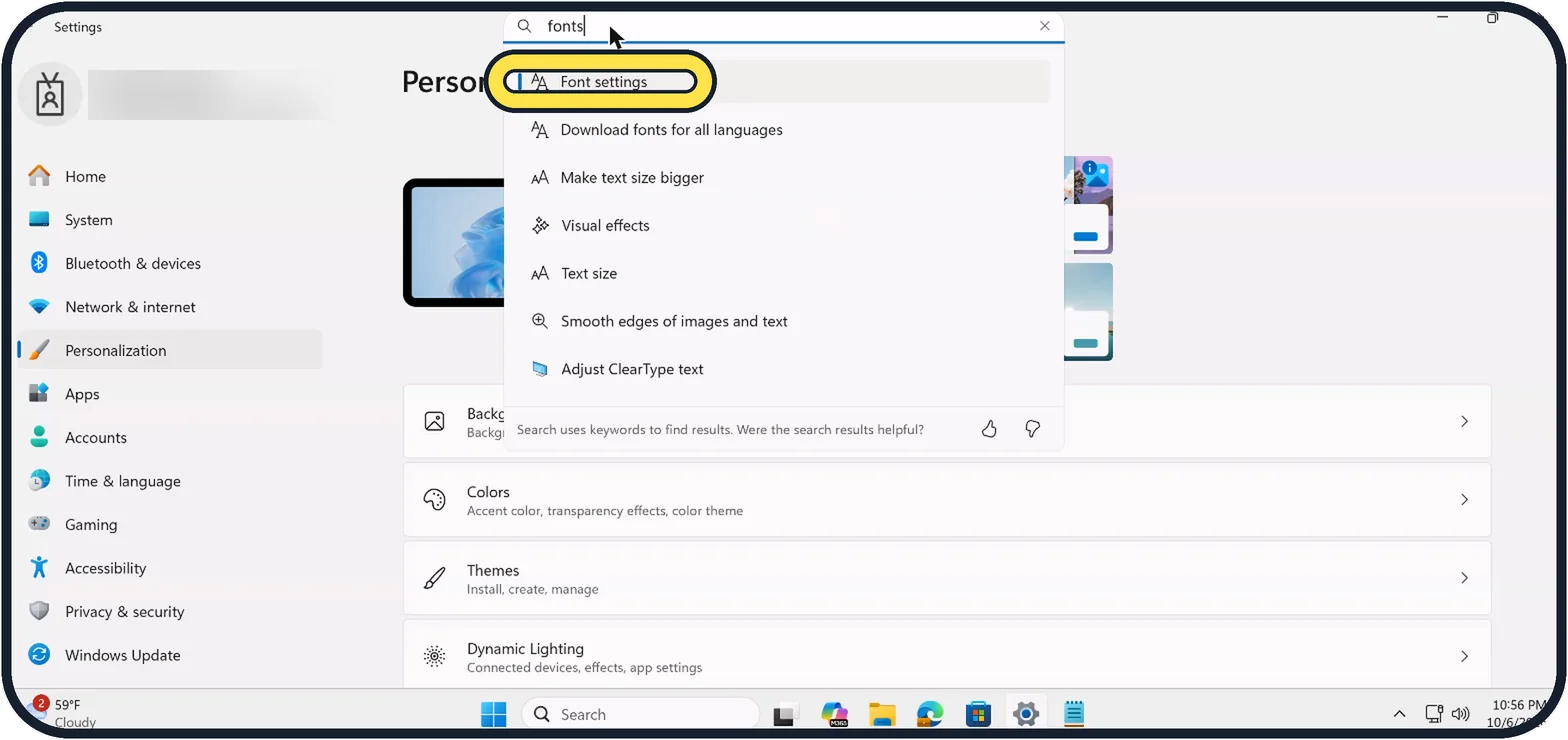
Zoomed in on the setting. Tap to see the whole screenTap the picture to see it full size Open the Fonts settings
Press Windows + I and type fonts in the search box, then click Font settings. It is under Personalization, Fonts.
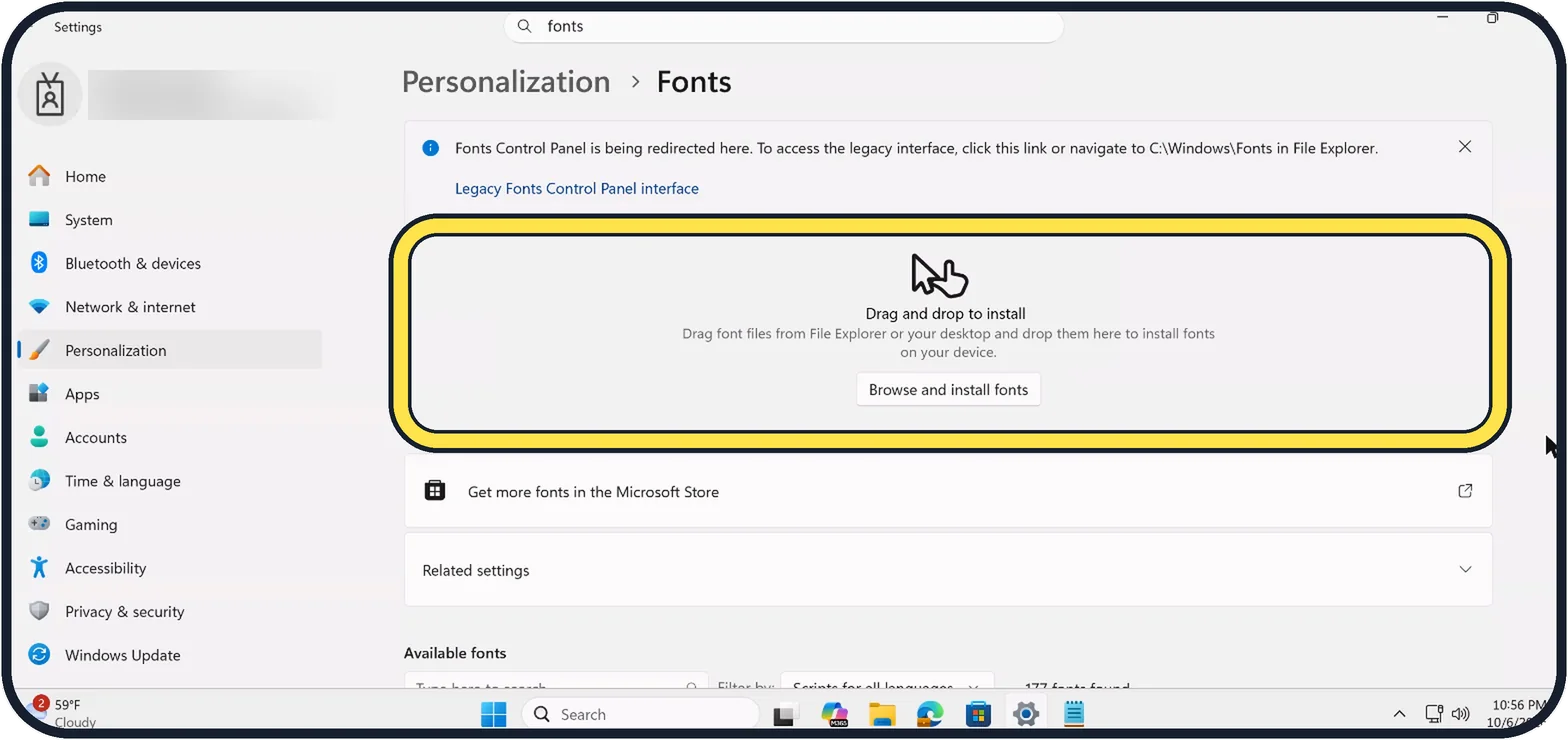
Tap the picture to see it full size Drag the font file in
Drag a font file from File Explorer or the desktop into the box. In our version, a note says the old Fonts Control Panel now opens this page.
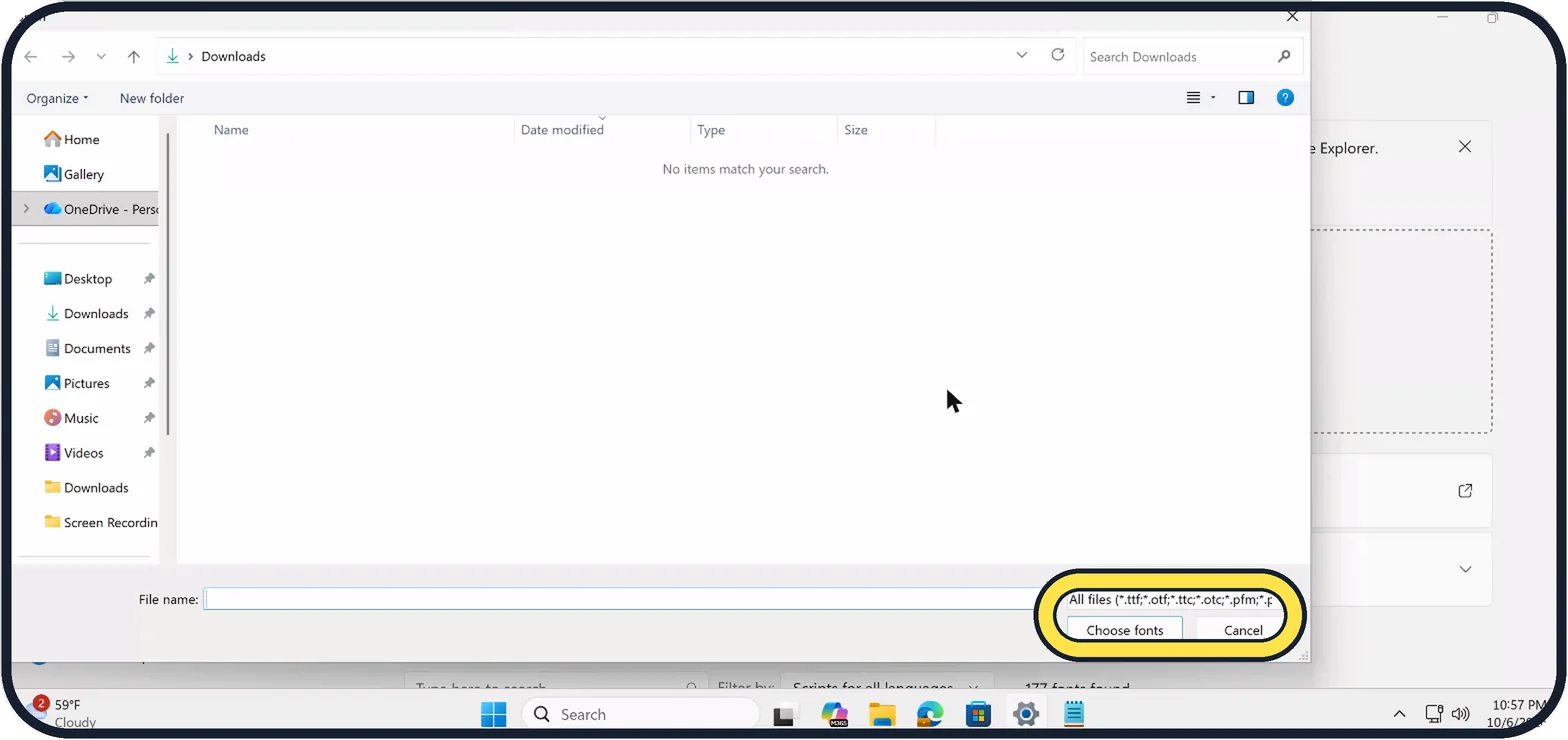
Zoomed in on the setting. Tap to see the whole screenTap the picture to see it full size Or browse for the font file
After clicking Browse and install fonts, choose the file and click Choose fonts. The file filter lists the types Windows installs; on ours it starts .ttf, .otf, .ttc, .otc, .pfm and is cut off after that. We cancelled, because we had no font file to install.
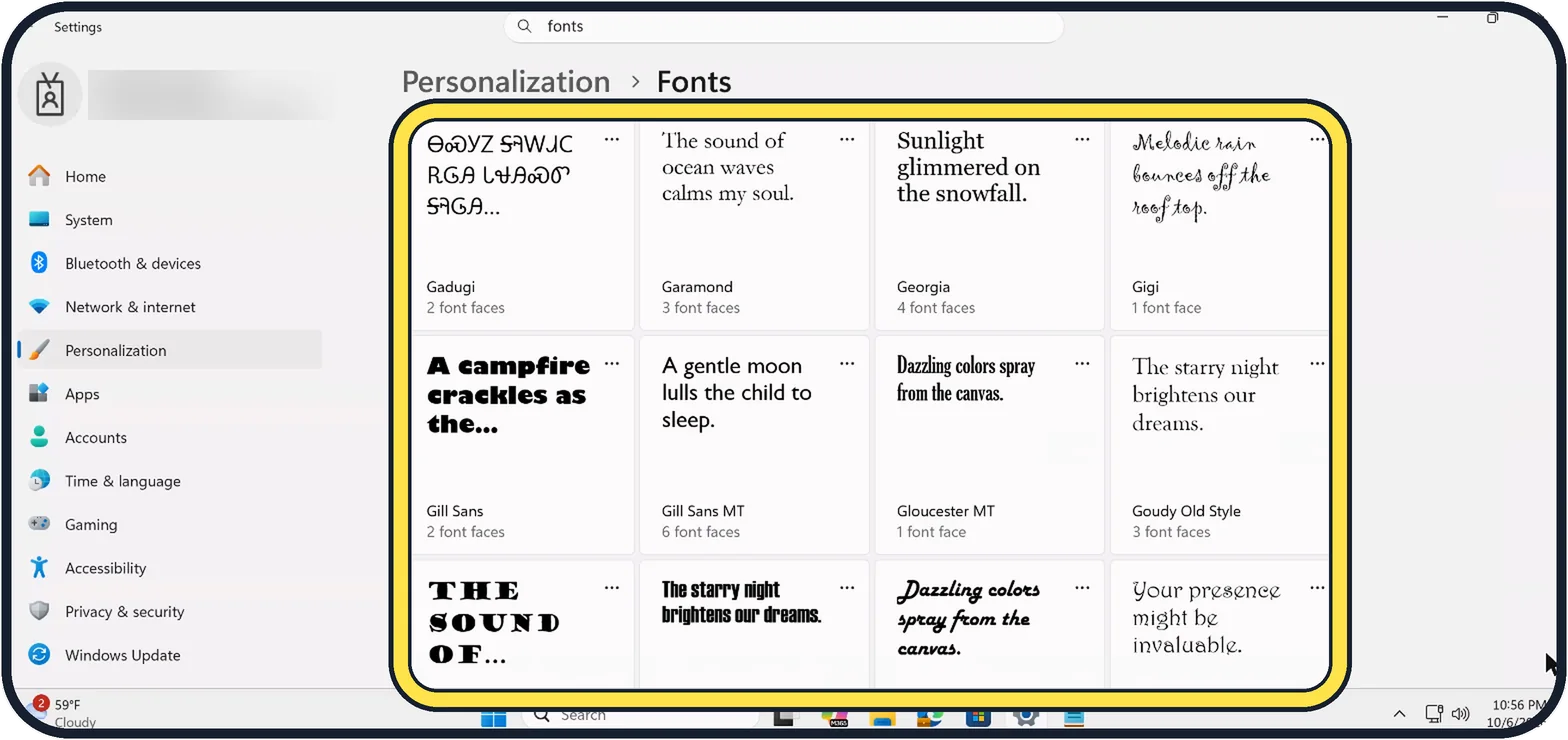
Tap the picture to see it full size Find it in Available fonts
Installed fonts appear in the list below, each with a sample sentence and its number of font faces. Click a font to see it larger. Microsoft says each font has Options with Uninstall, and Hide for fonts you want to keep out of the list.
If you do not see this option
- You do not have a font file. Microsoft says to select Get more fonts in Microsoft Store on the Fonts page, choose a font and select Get or Buy. It installs by itself. Source: Manage Fonts in Windows
- Text in another language shows as boxes. Microsoft says to select Download fonts for all languages under Related settings on the Fonts page, then OK. Source: Manage Fonts in Windows
If this does not work
- The font does not show up in one app. Microsoft says not all apps support custom fonts. Try another app to check that the font is installed and working. Source: Manage Fonts in Windows
- Windows asks to allow the program to make changes. Microsoft says to make sure you trust the source of the file, then select Yes. Source: Manage Fonts in Windows
- Install is missing when you right-click the file. Microsoft says the file must be a TrueType (.ttf) or OpenType (.otf) file. If it is a .zip file, extract it first. Source: Manage Fonts in Windows
About this guide
Fonts you install are available in every app, from Word to Photoshop. Download them only from sources you trust.
The screenshots are our own, taken on Windows 11 Enterprise 25H2 running as a Microsoft Cloud PC, a Windows PC that runs in the cloud.
Good to know
Quicker: right-click the font file and choose Install. Install for all users makes it available to every account on the PC, and Windows may ask for permission.
A downloaded font often comes in a .zip file. Right-click it, choose Extract All, then install the .ttf or .otf files inside.
Restart an app that was open during the install before you look for the font in it.
What changed: on Windows 11 25H2 the Fonts Control Panel redirects to Settings. The old window is still at C:\Windows\Fonts.
In short: Settings, Personalization, Fonts: drag the file in, or Browse and install fonts. Options, Uninstall on a font to remove it.
Links checked in October 2026. Menus and features can change after software updates. These steps match the version named at the top.
📷 Camera Lab: the same 6 scenes photographed with 11 phones, side by side.
Did this guide work for you?
Sorry about that. What happened?