
howtosimply.com/guides/windows-11-camera-not-working-9-fixes-to-try/ · Checked October 2026 · Windows 11 Enterprise 25H2 (build 26200.9457), Microsoft Cloud PC
In this guide
- Look for a switch or cover
- Check the privacy settings
- Test with the Camera app
- Allow the app you use
- Restart the PC
- Check for updates
- External camera: try another USB port
- Check the antivirus program
- Update, roll back or reinstall the driver
- If you do not see this option
- If this does not work
- Good to know
- Sources
Check for a camera switch, key or cover. In Settings, Privacy & security, Camera, switch on Camera access, Let apps access your camera, your app and Let desktop apps access your camera. Test in the Camera app, restart, update Windows, try another USB port, check the antivirus and the driver.
6 of 9 steps with real screenshots · 1 official source below
- Device
- Windows
- Shown on
- Windows 11 Enterprise 25H2 (build 26200.9457), Microsoft Cloud PC
- App
- Camera
- Real screenshots
- 6 of 9 steps
- Checked
- October 2026
- Sources
- 1 official, linked below
Step by step
Look for a switch or cover
Many laptops have a sliding shutter over the lens, a camera key on the keyboard (often with Fn) or a small switch on the side.
Make sure the camera is not covered or switched off.
Tap the picture to see it full size Check the privacy settings
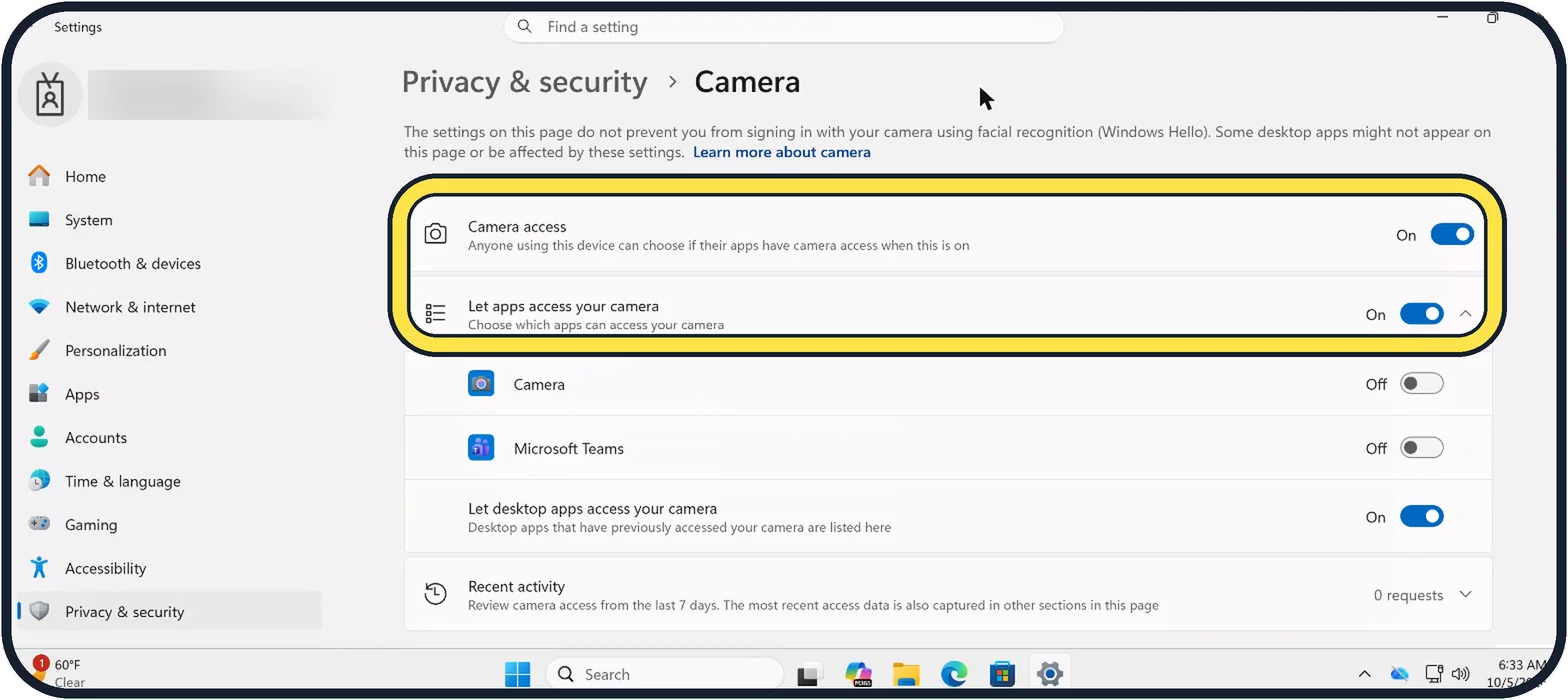
Open Settings, Privacy & security, Camera.
Switch on Camera access and Let apps access your camera.
Zoomed in on the setting. Tap to see the whole screenTap the picture to see it full size Test with the Camera app
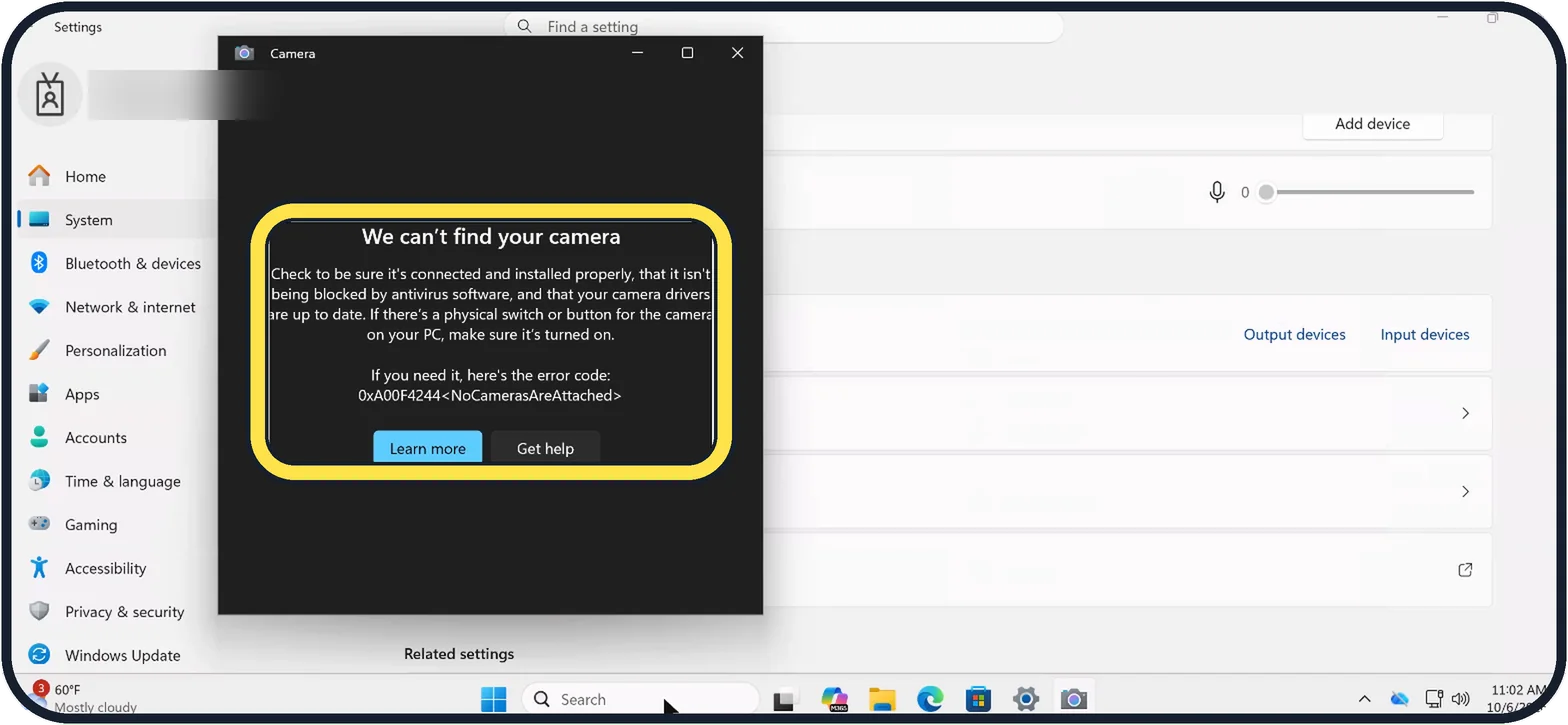
Click Start and open Camera. If you see yourself, the camera works and the fault is in the other app.
If it says We can't find your camera with the error code 0xA00F4244<NoCamerasAreAttached>, Windows sees no camera at all: check the switch, the cable and the driver.
Tap the picture to see it full size Allow the app you use
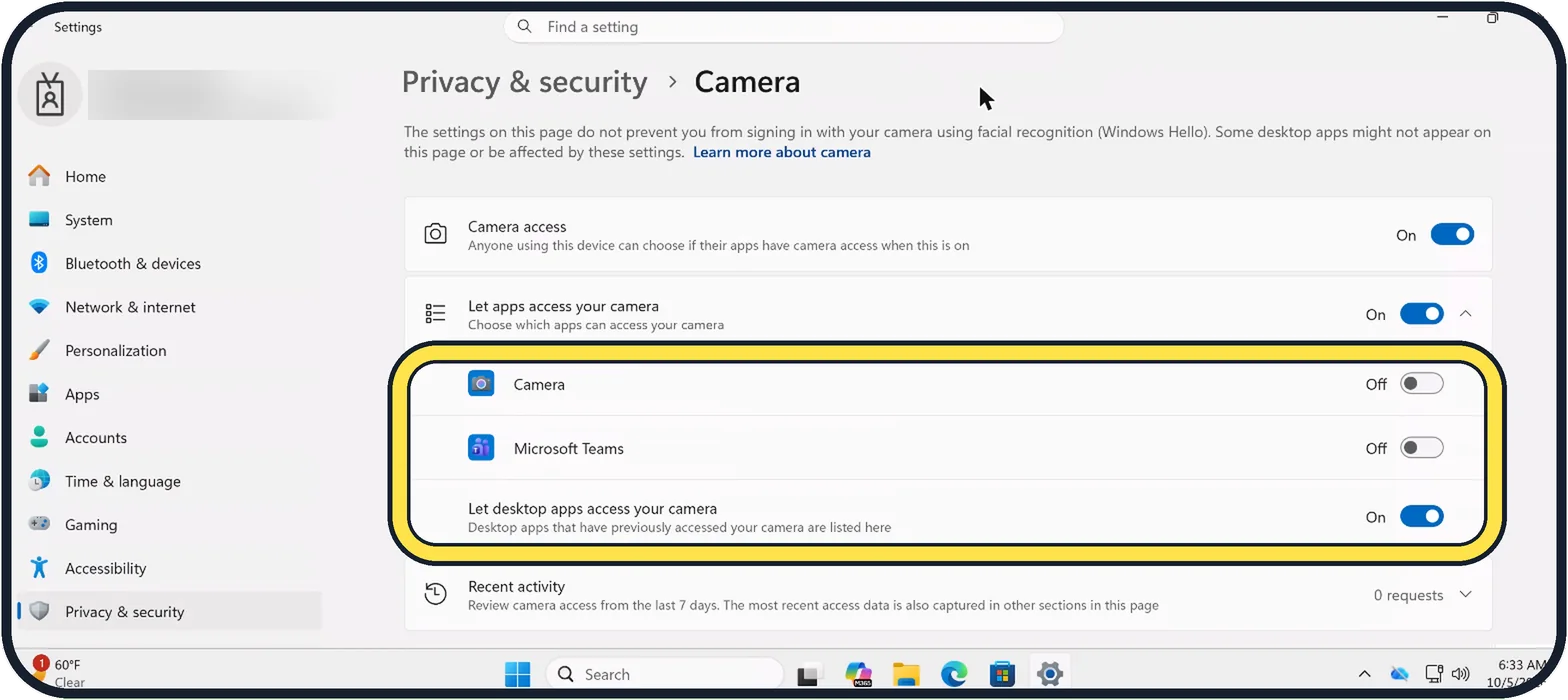
Back on the Camera privacy page, switch on the app in the list. On our Cloud PC both Camera and Microsoft Teams are Off.
For programs that are not from the Microsoft Store, such as Zoom or a browser, Let desktop apps access your camera must be On.
Tap the picture to see it full size Restart the PC
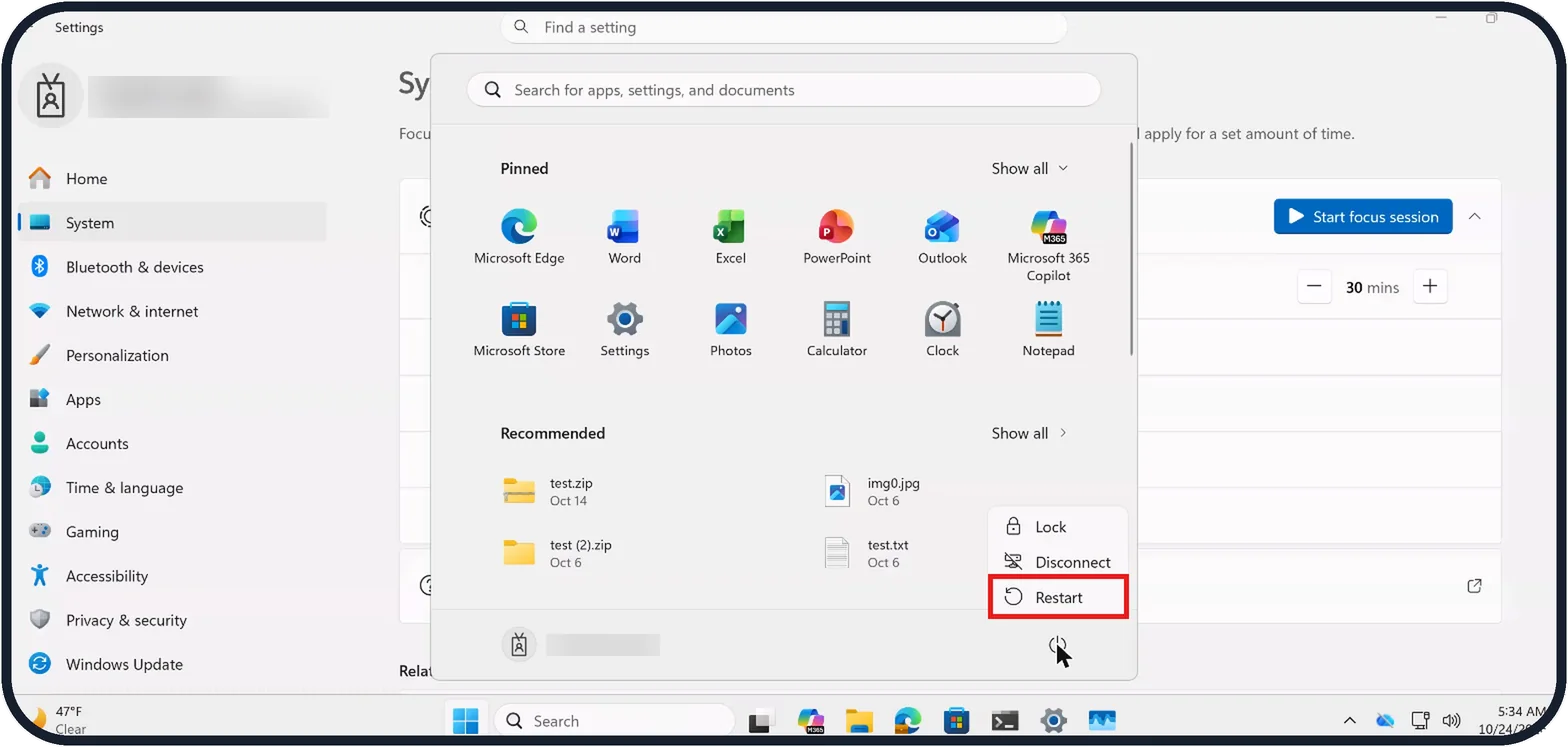
Click Start, Power, Restart. Microsoft points out that waking a PC from sleep is not the same as a restart.
On our Cloud PC the Power menu shows only Lock, Disconnect and Restart.
Tap the picture to see it full size Check for updates
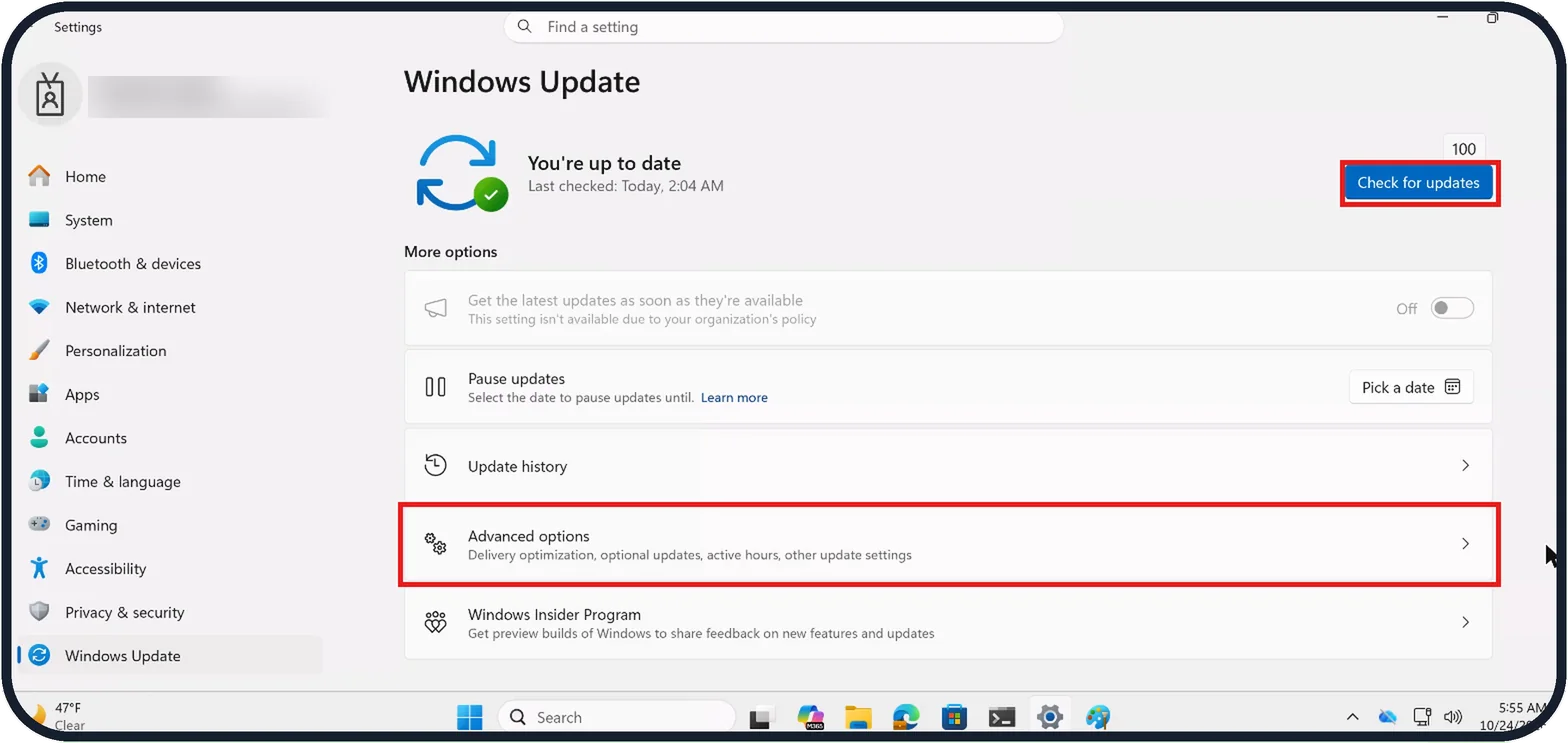
Open Settings, Windows Update and click Check for updates.
Then click Advanced options, boxed in the picture. Optional updates is on the next page: click it and install any camera driver listed there.
On our Cloud PC the page said You're up to date, Last checked: Today, 2:04 AM.
External camera: try another USB port
Plug a USB webcam into a different port on the PC, without a hub in between.
Check the antivirus program
Microsoft says some antivirus programs or firewalls might block camera access.
Look in the settings of your antivirus program for a webcam protection option and allow the app.
Zoomed in on the setting. Tap to see the whole screenTap the picture to see it full size Update, roll back or reinstall the driver
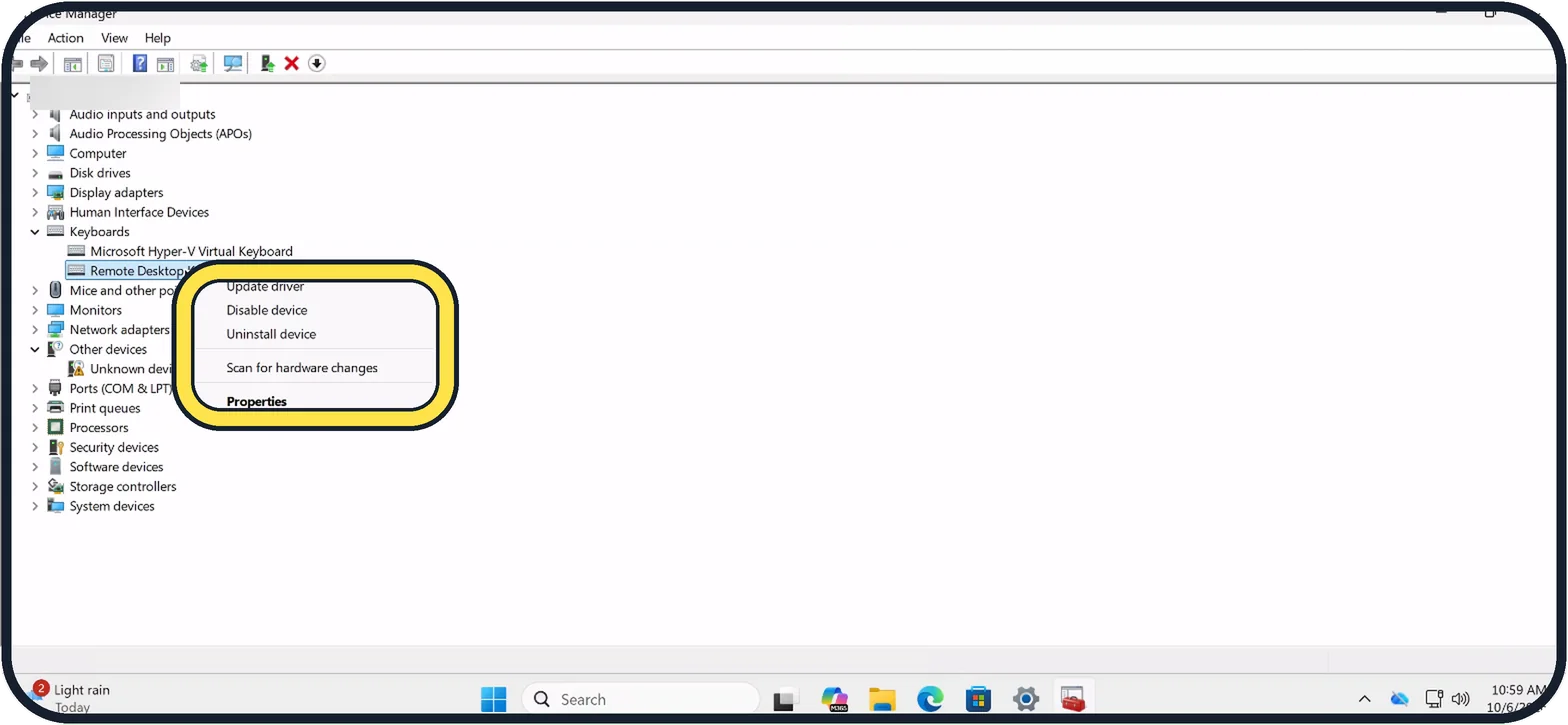
Right-click Start, open Device Manager, find the camera under Cameras or Imaging devices, right-click it and choose Update driver.
If the camera stopped after an update, open Properties, the Driver tab, and click Roll Back Driver (Microsoft notes some drivers don't provide this option); as a last resort choose Uninstall device and restart, and Windows installs the driver again.
Our Cloud PC has no camera, so the picture shows the same menu (Update driver, Disable device, Uninstall device, Scan for hardware changes, Properties) on a Remote Desktop device under Keyboards.
If you do not see this option
- Camera access is greyed out. Microsoft says an administrator on the device has to turn camera access on for you. Source: Camera doesn't work in Windows
- Zoom, Teams or your browser is not in the app list. Microsoft says only apps from the Microsoft Store appear there. Desktop apps use Let desktop apps access your camera, which cannot be set per app. Source: Camera doesn't work in Windows
- There is no Cameras group in Device Manager. Microsoft says the camera can also be under Imaging devices or Sound, video and game controllers. If it is in none of them, choose Action, Scan for hardware changes. Our Cloud PC has no camera, and its Device Manager has no Cameras group (step 9 picture). Source: Camera doesn't work in Windows
If this does not work
- The camera still fails on Windows 11 24H2 or later. Microsoft says Basic camera mode can help when the maker's plug-ins or hardware acceleration stop the camera working. Turn it on and test again. Source: Camera doesn't work in Windows
- A USB webcam still does not work. Microsoft says to switch it to the UVC driver built into Windows: in Device Manager choose Update driver, Browse my computer for drivers, Let me pick from a list, then USB Video Device. Windows Hello face sign-in may stop working with it. Source: Camera doesn't work in Windows
- You want Windows to look for the fault. Microsoft says to open Settings, System, Troubleshoot, Other troubleshooters and click Run next to Camera. Source: Camera doesn't work in Windows
About this guide
When a video call shows a black picture, the camera is usually switched off: by a cover, by a key or by a privacy setting. The driver is the cause far less often.
The screenshots are our own, taken on Windows 11 Enterprise 25H2 running as a Microsoft Cloud PC, a Windows PC that runs in the cloud.
Our Cloud PC has no camera, so its Camera app shows the real error you get when Windows finds none.
Good to know
Only one program can use the camera at a time. Close other video programs before a call.
For the microphone in calls, see Windows 11 microphone not working: 6 fixes to try.
In short: Cover or switch, privacy settings, Camera app, restart, updates, other USB port, antivirus, driver.
Links checked in October 2026. Menus and features can change after software updates. These steps match the version named at the top.
📷 Camera Lab: the same 6 scenes photographed with 11 phones, side by side.
Did this guide work for you?
Sorry about that. What happened?