
What changed: added Microsoft's known issue with the 13 October 2026 update KB5127648: the switch to turn Smart App Control back on may be greyed out.
howtosimply.com/guides/windows-security-or-smart-app-control-blocked-an-app-what-to-do/ · Checked October 2026 · Windows 11 Enterprise 25H2 (build 26200.9457), Microsoft Cloud PC
In this guide
Open Windows Security and click Protection history to see what was blocked. A file Microsoft Defender quarantined can be restored there and then allowed. Smart App Control has no exception for a single app: you can only switch it off under App & browser control. Only do either for an app you trust.
6 of 8 steps with real screenshots · 4 official sources below
- Device
- Windows
- Shown on
- Windows 11 Enterprise 25H2 (build 26200.9457), Microsoft Cloud PC
- Real screenshots
- 6 of 8 steps
- Checked
- October 2026
- Sources
- 4 official, linked below
Step by step
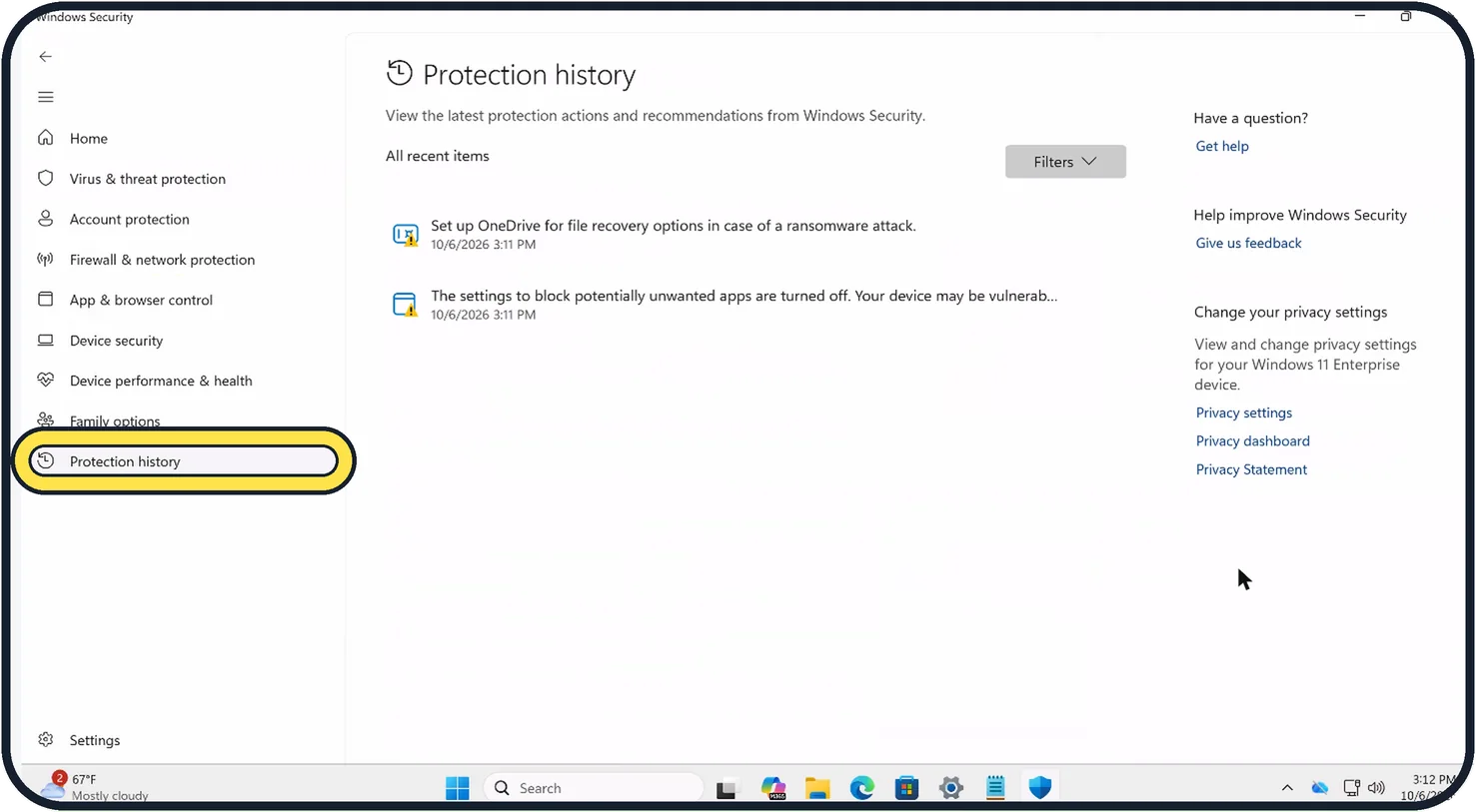
Zoomed in on the setting. Tap to see the whole screenTap the picture to see it full size Open Protection history
Open Start, type Windows Security and open the app. Click Protection history on the left. Every threat Defender blocked or quarantined is listed with its date. Ours shows only two recommendations, no threats.
Restore a quarantined file you trust
Click the item, open Actions and choose Restore. Defender then finds the file again and lists it as Threat found, action needed. Click that item and choose Allow on device. If you are not sure the file is safe, leave it in quarantine.
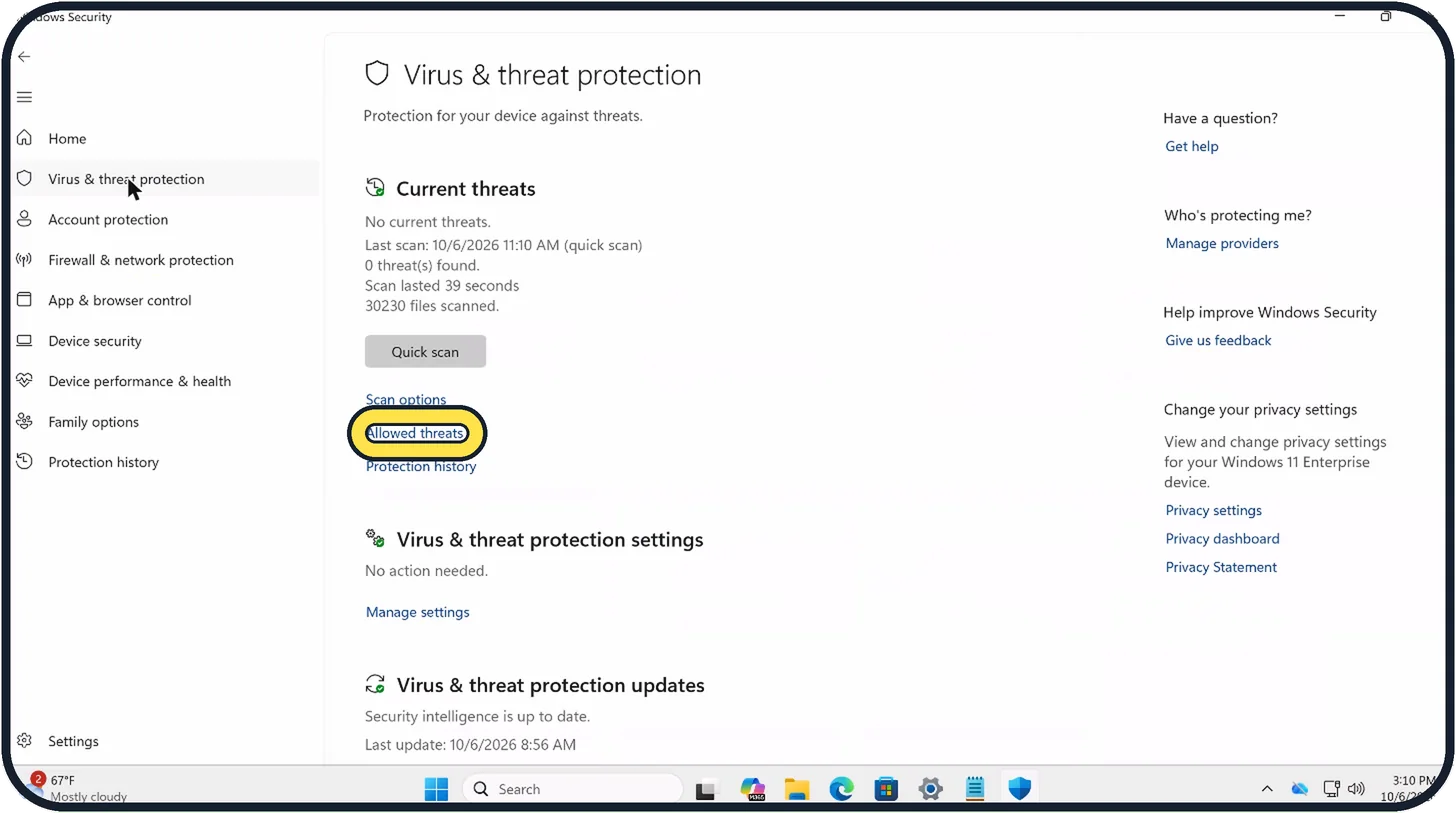
Zoomed in on the setting. Tap to see the whole screenTap the picture to see it full size Undo an allow later
On the Virus & threat protection page, Allowed threats lists everything you allowed. Remove an item there and Defender blocks it again.
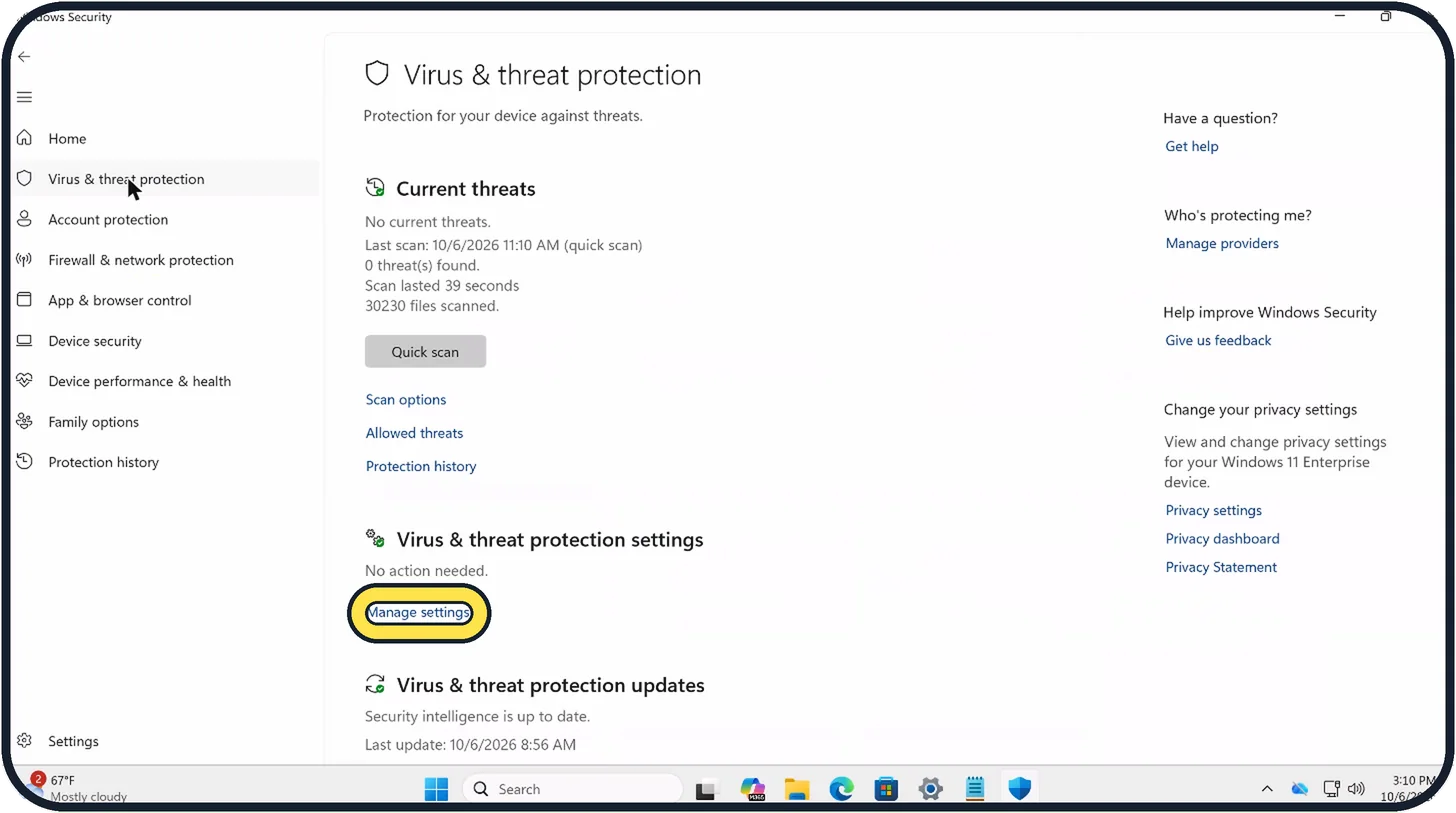
Zoomed in on the setting. Tap to see the whole screenTap the picture to see it full size Stop Defender scanning one folder
If Defender keeps flagging a game or tool folder you trust, click Manage settings under Virus & threat protection settings and scroll to Exclusions, then click Add or remove exclusions.
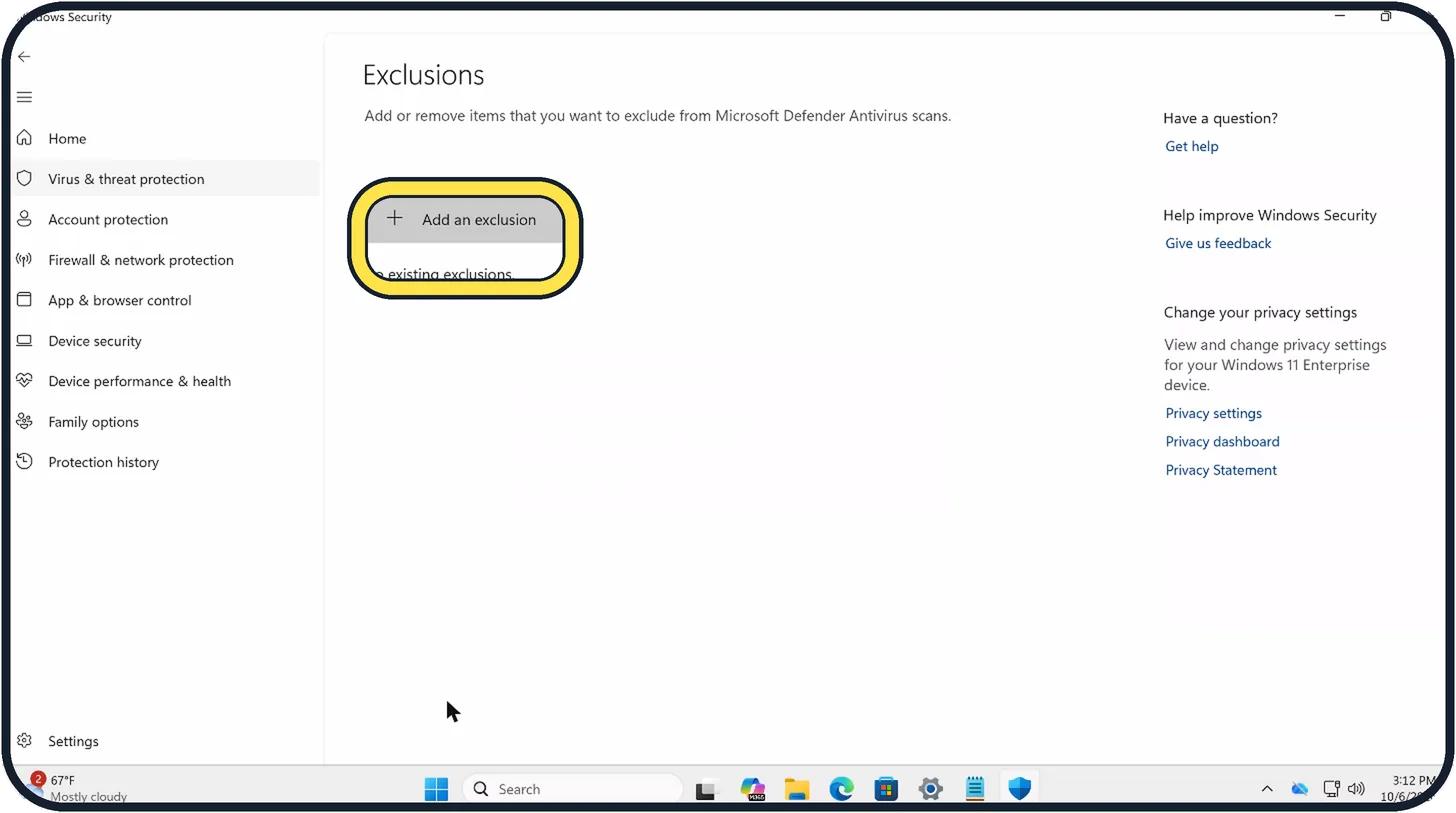
Zoomed in on the setting. Tap to see the whole screenTap the picture to see it full size Add the exclusion
Click Add an exclusion and choose File, Folder, File type or Process. A folder exclusion covers its subfolders too. Microsoft warns to do this only for files you are confident are safe. Ours has no exclusions.
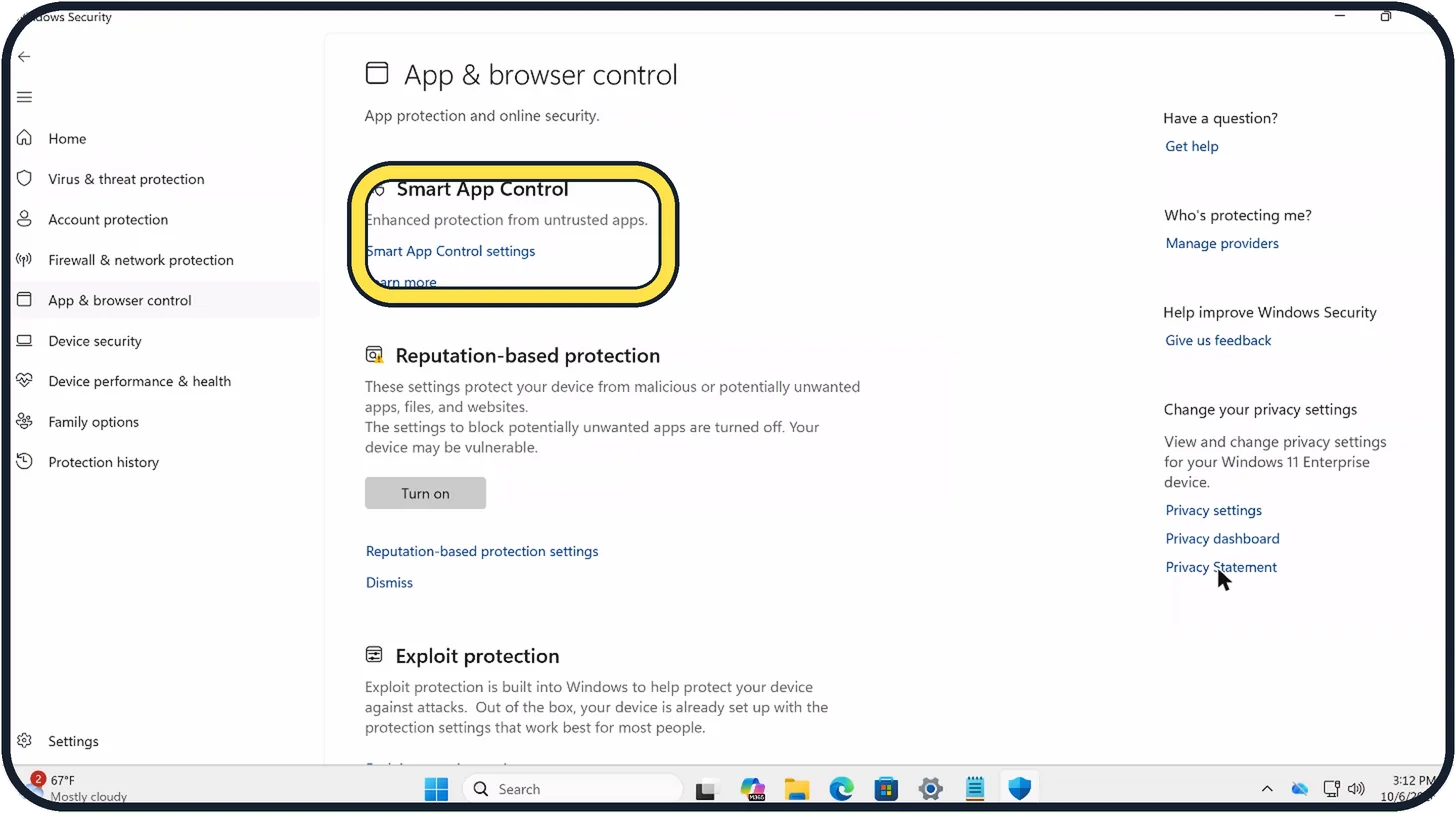
Zoomed in on the setting. Tap to see the whole screenTap the picture to see it full size Check Smart App Control
If no threat is listed in Protection history, Smart App Control may have blocked the app. Click App & browser control, then Smart App Control settings.
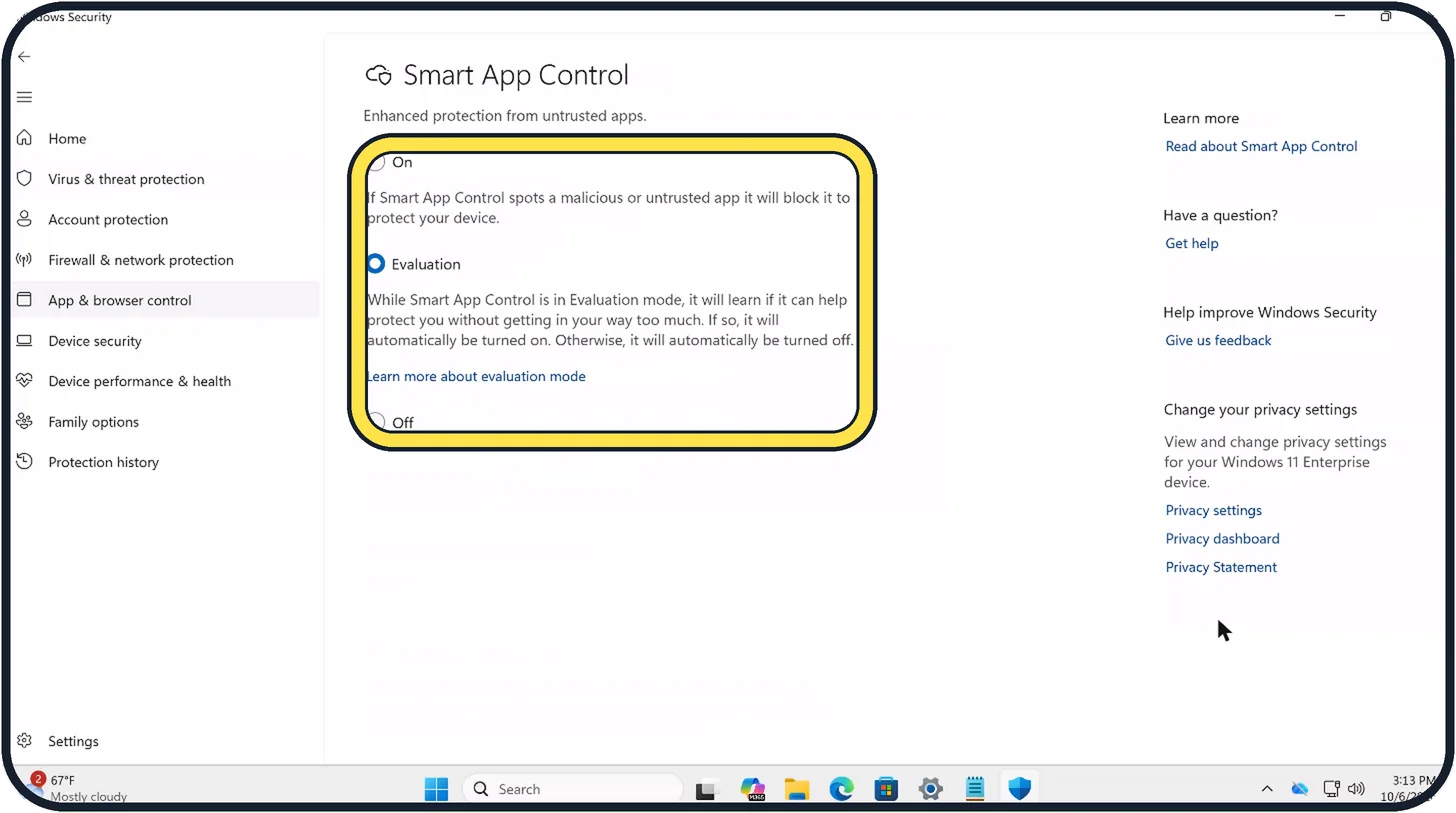
Zoomed in on the setting. Tap to see the whole screenTap the picture to see it full size Read its setting
On blocks unsafe and unsigned apps. Evaluation, as on our Cloud PC, means Windows is still learning whether Smart App Control suits you and switches it on or off by itself. Off stops it. Microsoft says there is no way to allow one app; only switching it off helps.
Decide before you switch it off
Switching it off is your choice for an app you trust. Microsoft says recent updates let you switch it back on without reinstalling Windows, but after the 13 October 2026 update that switch may be greyed out (see the note at the top). The other route is to ask the app's maker to sign it.
What changed: added Microsoft's known issue with the 13 October 2026 update KB5127648: the switch to turn Smart App Control back on may be greyed out.
About this guide
October 2026: Microsoft lists a known issue with the 13 October update KB5127648 for Windows 11 24H2, 25H2 and 26H2. If Smart App Control was off, the option to turn it back on may be greyed out. PCs where it is already on are not affected. Microsoft gives a registry and a Group Policy workaround on its KB page and says a fix will come in an upcoming update. Switch it off only if you accept that it may stay off for now.
Two different parts of Windows Security block apps. Microsoft Defender Antivirus quarantines files it thinks are harmful, and those can be restored. Smart App Control blocks apps it cannot confirm as safe, often unsigned tools, mods and older games, and it cannot make an exception for one app. Find out which one it was before you change anything.
Good to know
If Smart App Control is Off on your PC, it did not block the app. Look again at Protection history and at Reputation-based protection on the App & browser control page.
Run a scan after anything suspicious: how to scan a Windows 11 PC for viruses with Windows Security.
In short: Windows Security, Protection history: restore and Allow on device for a quarantined file you trust, or add an exclusion. Smart App Control has no per-app exception: App & browser control, Smart App Control settings, Off.
- Microsoft Support: Protection History in the Windows Security App
- Microsoft Support: Add an exclusion to Windows Security
- Microsoft Support: Smart App Control Frequently Asked Questions
- Microsoft Support: KB5127648, 13 October 2026 security update
Links checked in October 2026. Menus and features can change after software updates. These steps match the version named at the top.
📷 Camera Lab: the same 6 scenes photographed with 11 phones, side by side.
Did this guide work for you?
Sorry about that. What happened?