
howtosimply.com/guides/how-to-copy-text-from-a-screenshot-on-windows-11-with-snipping-tool/ · Checked October 2026 · Windows 11 Enterprise 25H2 (build 26200.9457), Microsoft Cloud PC
In this guide
Take a snip with Snipping Tool, then click Scan text in the toolbar of the snip. The text is highlighted; click Copy all text and paste it anywhere. Quick redact hides email addresses and phone numbers before you share the picture.
4 of 4 steps with real screenshots · 1 official source below
- Device
- Windows
- Shown on
- Windows 11 Enterprise 25H2 (build 26200.9457), Microsoft Cloud PC
- Real screenshots
- 4 of 4 steps
- Checked
- October 2026
- Sources
- 1 official, linked below
Step by step
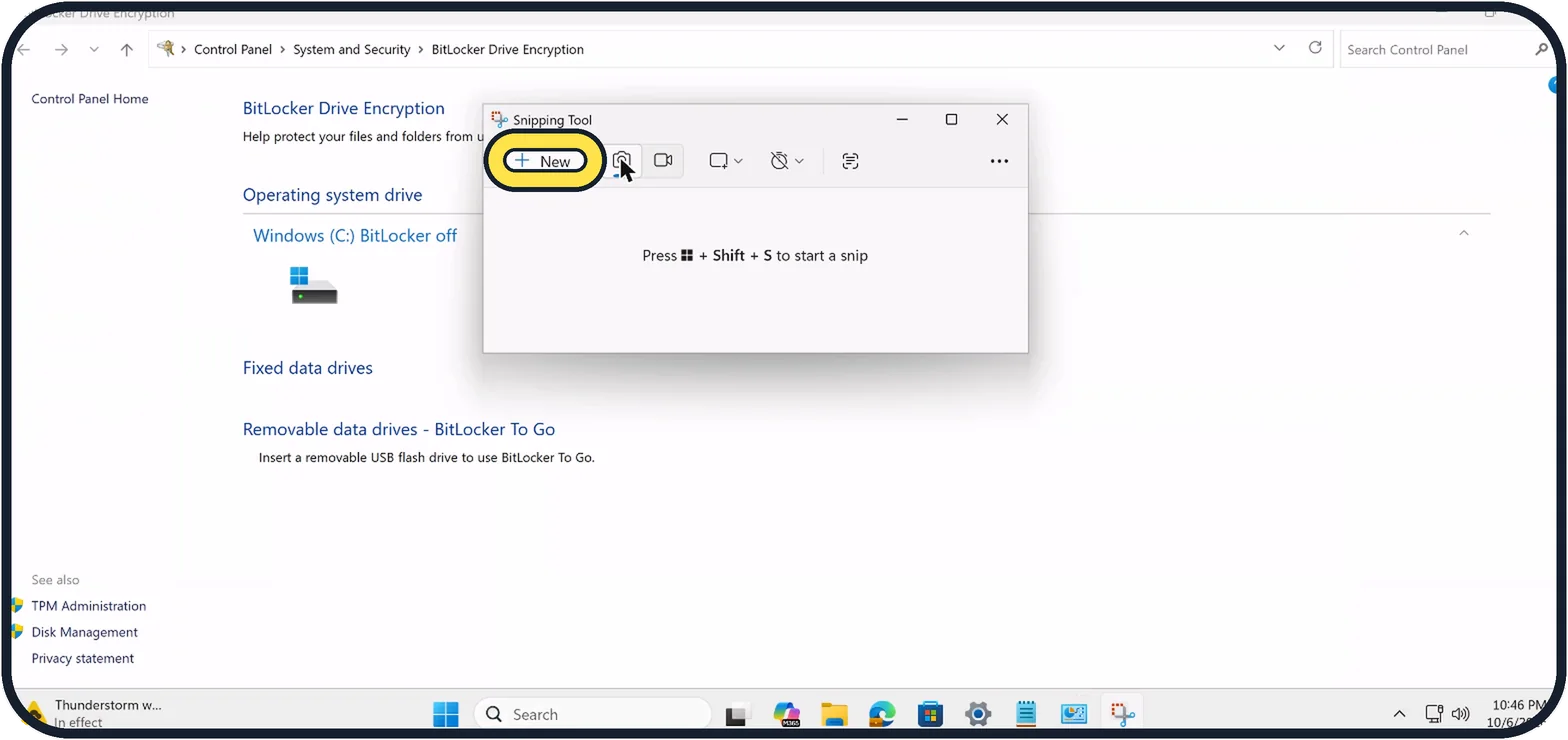
Zoomed in on the setting. Tap to see the whole screenTap the picture to see it full size Open Snipping Tool and click New
Open Start, type Snipping Tool and open it. Click New and drag around the text you need.
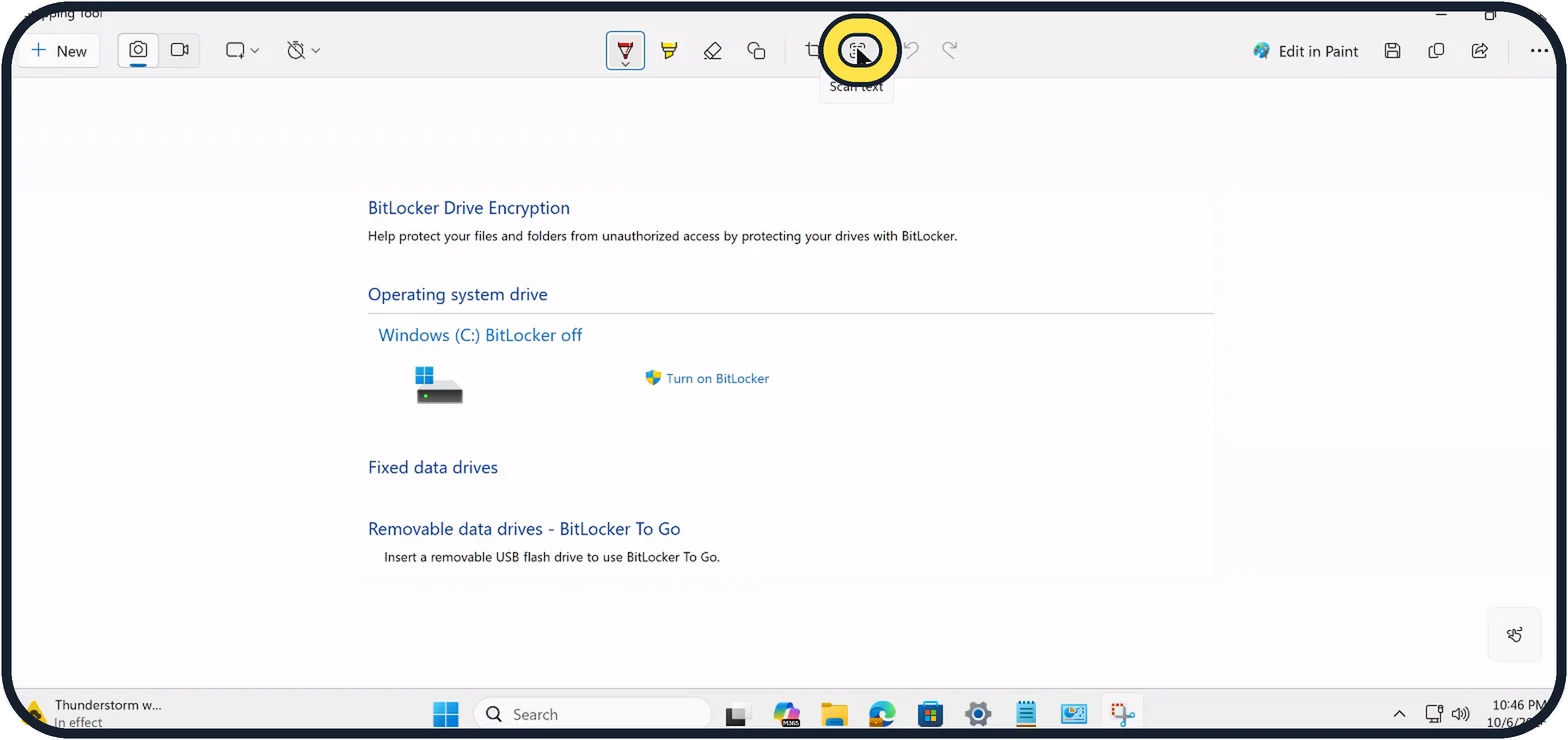
Zoomed in on the setting. Tap to see the whole screenTap the picture to see it full size Click Scan text
The snip opens in the editor. Click Scan text in the toolbar at the top; older versions call this button Text actions.
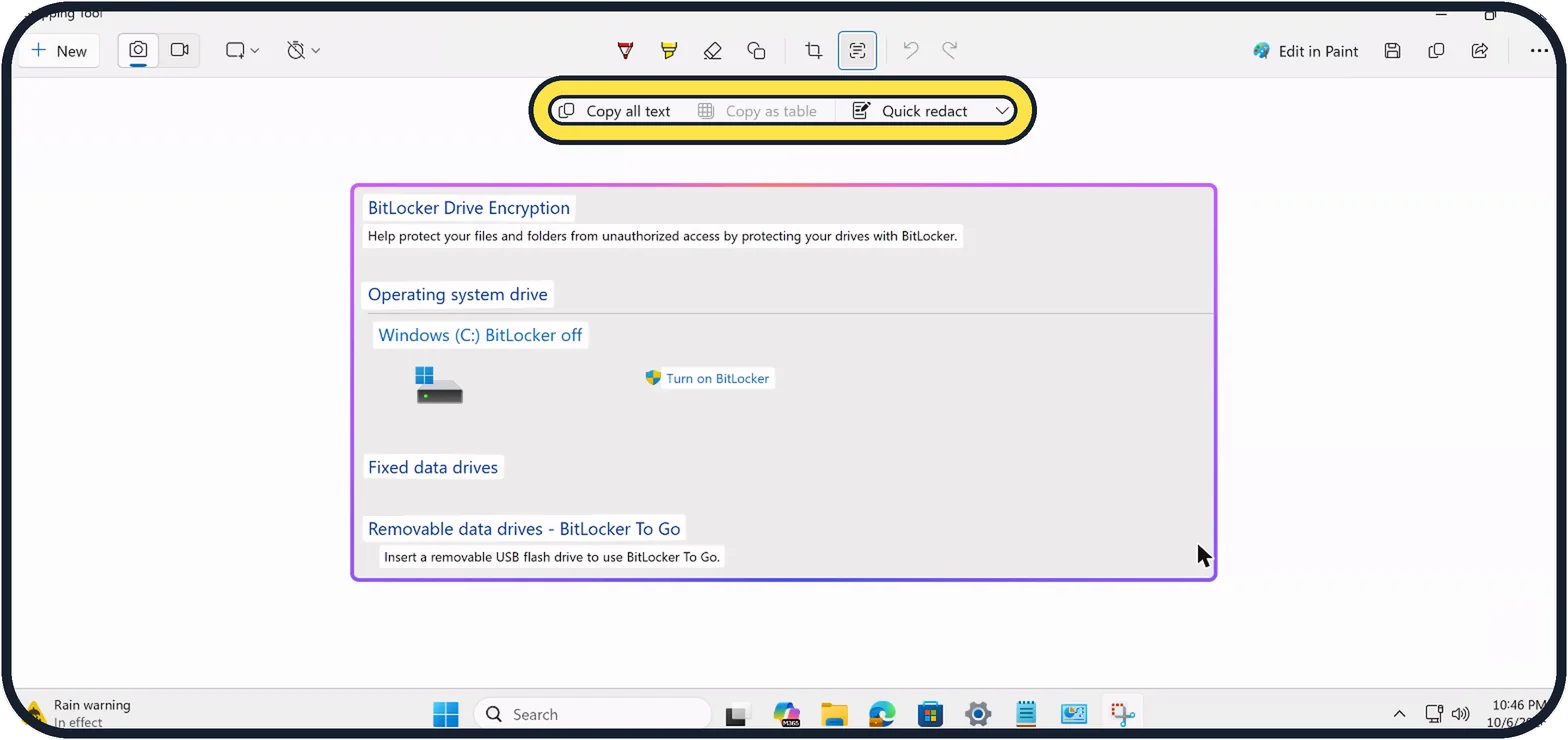
Zoomed in on the setting. Tap to see the whole screenTap the picture to see it full size Copy all text
The text in the snip is highlighted and a bar appears with Copy all text, Copy as table and Quick redact. Click Copy all text, the first button in the bar. Copy as table only works when the snip holds a table.
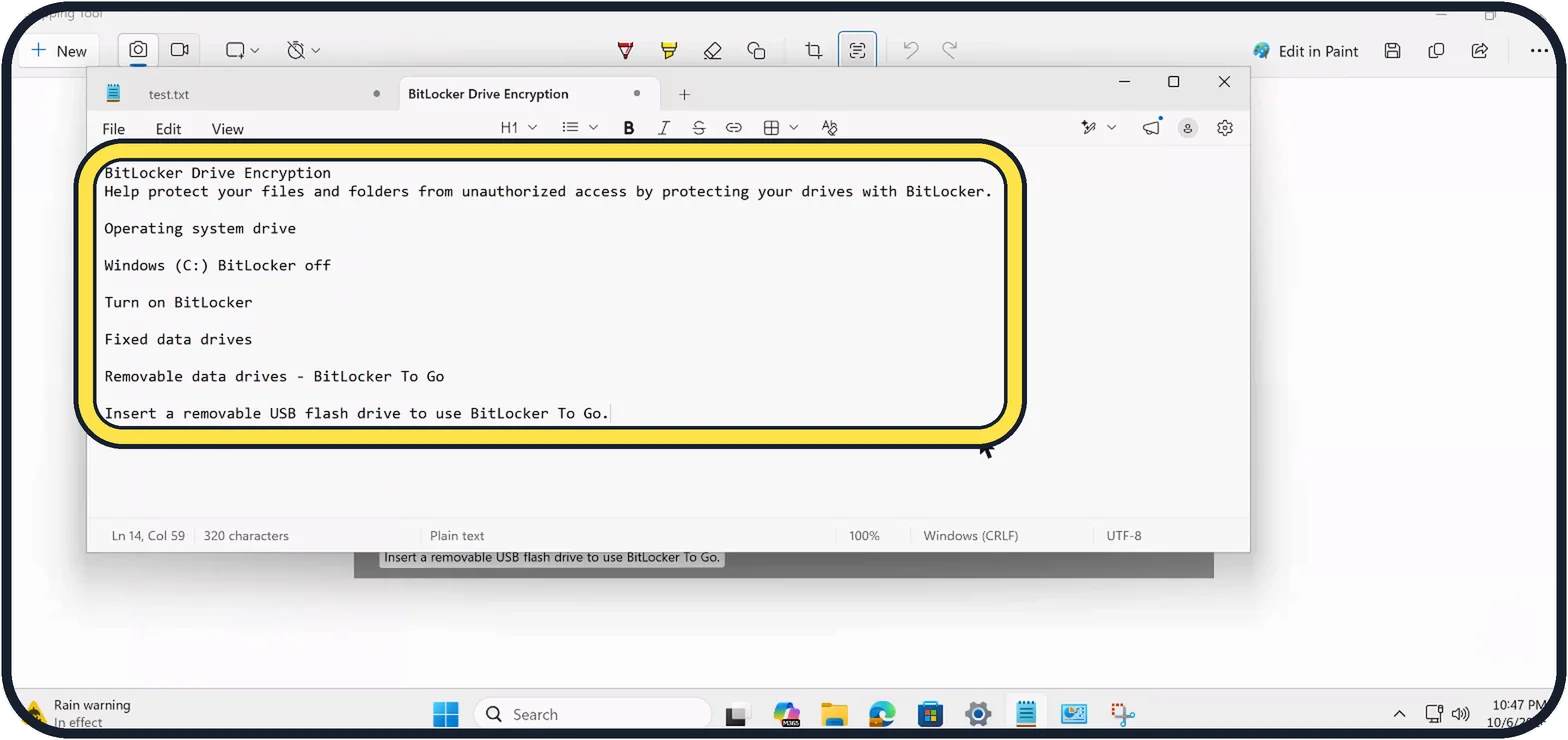
Tap the picture to see it full size Paste it
Paste with Ctrl + V. In Notepad, our snip of the BitLocker page came out as 320 characters of plain text, line by line.
If you do not see this option
- The button reads Text actions Microsoft's support page still calls it Text actions, with the same Copy all text and Quick redact choices. Ours reads Scan text. Source: Use Snipping Tool to capture screenshots
If this does not work
- Copy as table is greyed out On our Cloud PC it was greyed out for a snip of a settings page, which holds no table. Use Copy all text instead.
- You are worried about privacy Microsoft says all text recognition is done locally on your device. Source: Use Snipping Tool to capture screenshots
About this guide
Snipping Tool can read the text in a picture, so you can copy words from an error message, a scanned page or a video frame instead of typing them out.
Good to know
To copy only part of the text, select it with the mouse in the highlighted snip and press Ctrl + C.
The capture bar has a Text extractor button too, which copies text straight from the screen without saving a picture.
What changed: in our version (Windows 11 25H2, October 2026) the button is called Scan text; it was Text actions before.
In short: Snipping Tool, New, snip the text, Scan text, Copy all text, Ctrl + V.
Links checked in October 2026. Menus and features can change after software updates. These steps match the version named at the top.
📷 Camera Lab: the same 6 scenes photographed with 11 phones, side by side.
Did this guide work for you?
Sorry about that. What happened?