
howtosimply.com/guides/mouse-scrolling-too-fast-or-the-wrong-way-on-windows-11-fix-it/ · Checked October 2026 · Windows 11 Enterprise 25H2 (build 26200.9457), Microsoft Cloud PC
In this guide
- Open the Mouse settings
- Scroll by lines or a whole screen
- Make scrolling slower or faster
- Fix the scrolling direction
- Stop windows scrolling when you point at them
- Change the pointer speed
- Open Additional mouse settings
- Fix swapped left and right buttons
- Fix double-click
- If you do not see this option
- If this does not work
- Good to know
- Sources
Open Settings, Bluetooth & devices, Mouse. Under Scrolling, move the Lines to scroll at a time slider and check Scrolling direction. Pointer speed and the primary button are on the same page; double-click speed is under Additional mouse settings.
9 of 9 steps with real screenshots · 3 official sources below
- Device
- Windows
- Shown on
- Windows 11 Enterprise 25H2 (build 26200.9457), Microsoft Cloud PC
- App
- Settings
- Path
- Settings › Bluetooth & devices
- Real screenshots
- 9 of 9 steps
- Checked
- October 2026
- Sources
- 3 official, linked below
Step by step
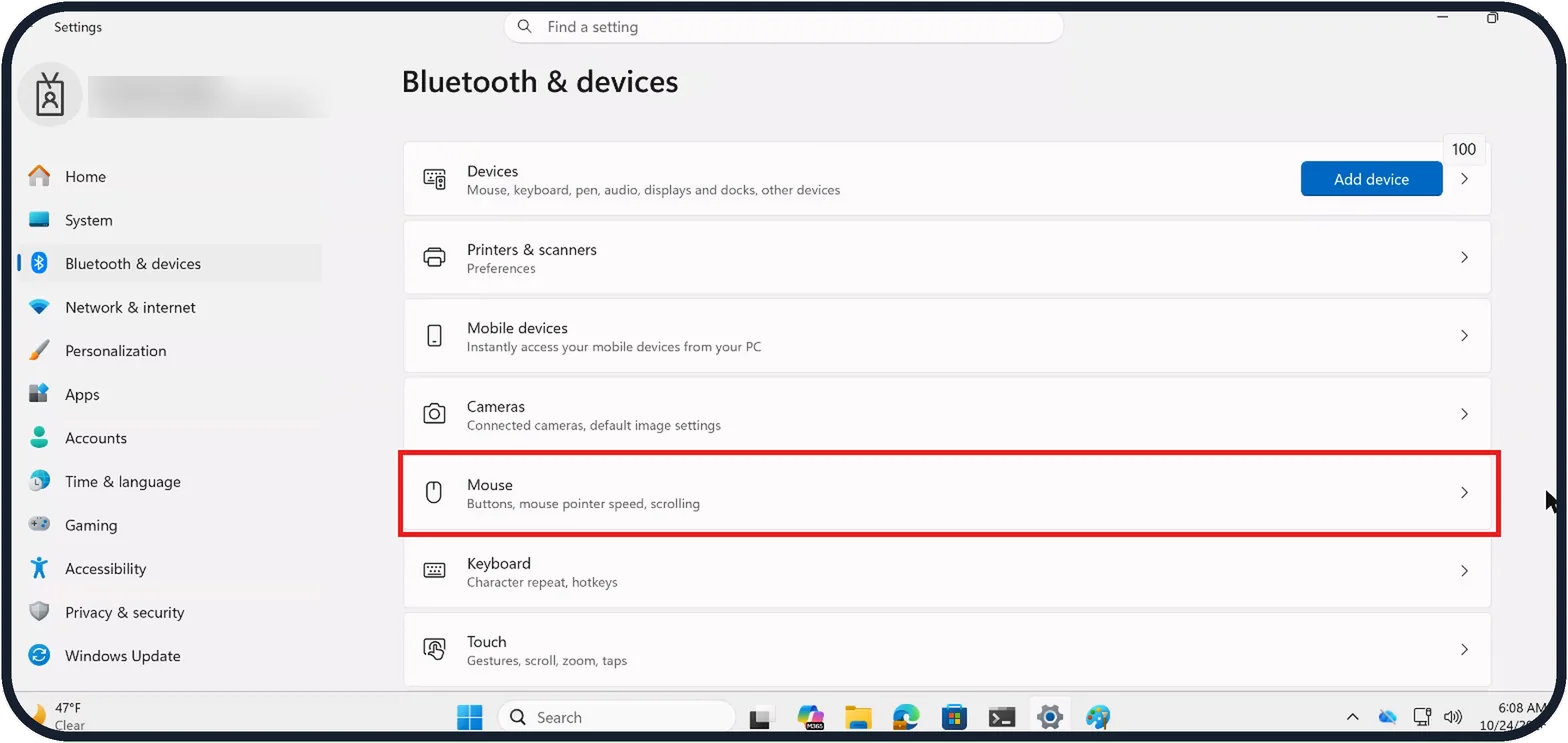
Tap the picture to see it full size Open the Mouse settings
Open Start, Settings, Bluetooth & devices and click Mouse.
On our Cloud PC the Mouse row reads Buttons, mouse pointer speed, scrolling.
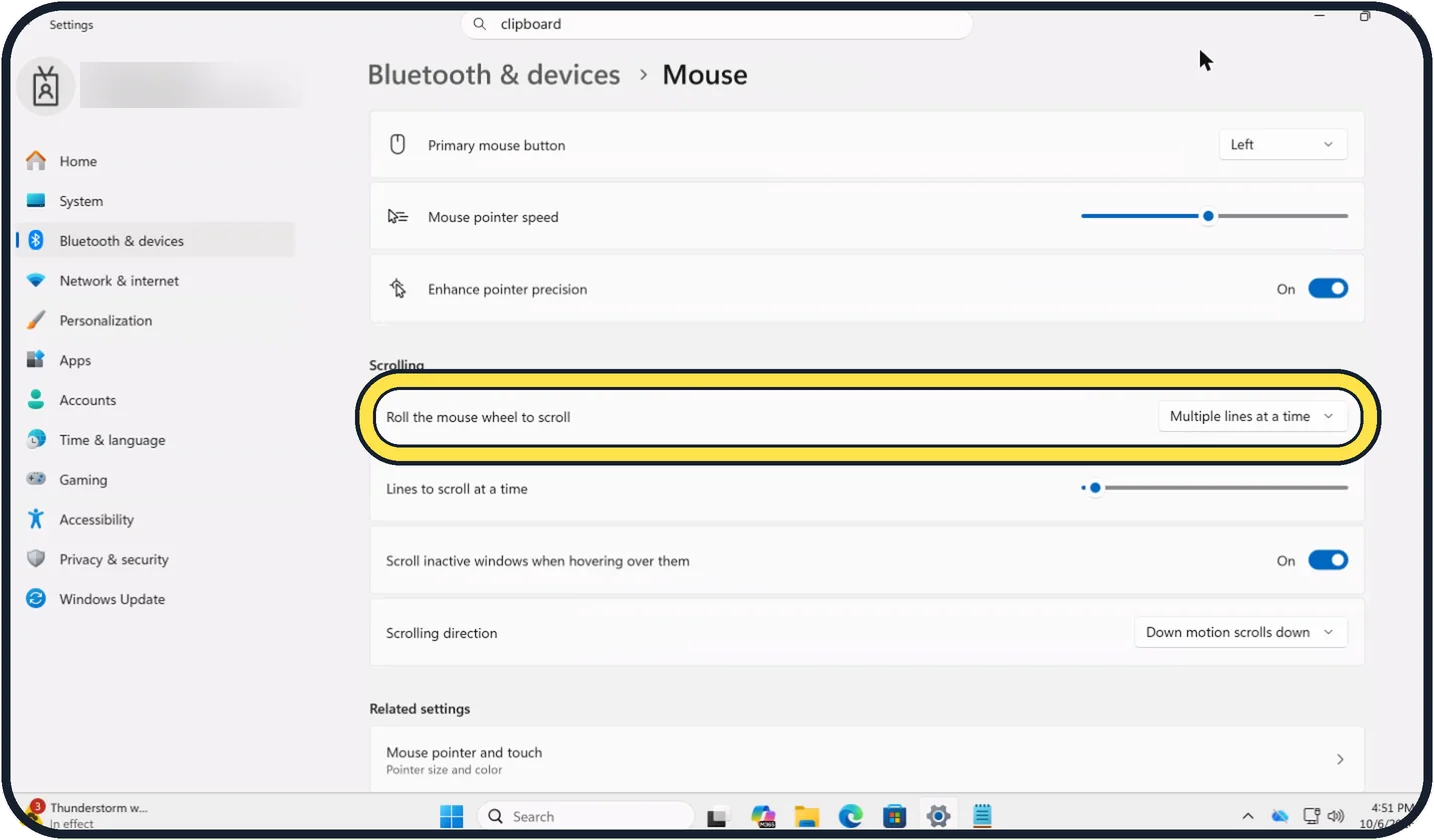
Tap the picture to see it full size Scroll by lines or a whole screen
Roll the mouse wheel to scroll offers Multiple lines at a time, as on ours, or One screen at a time.
One screen at a time makes every wheel step jump a full page.
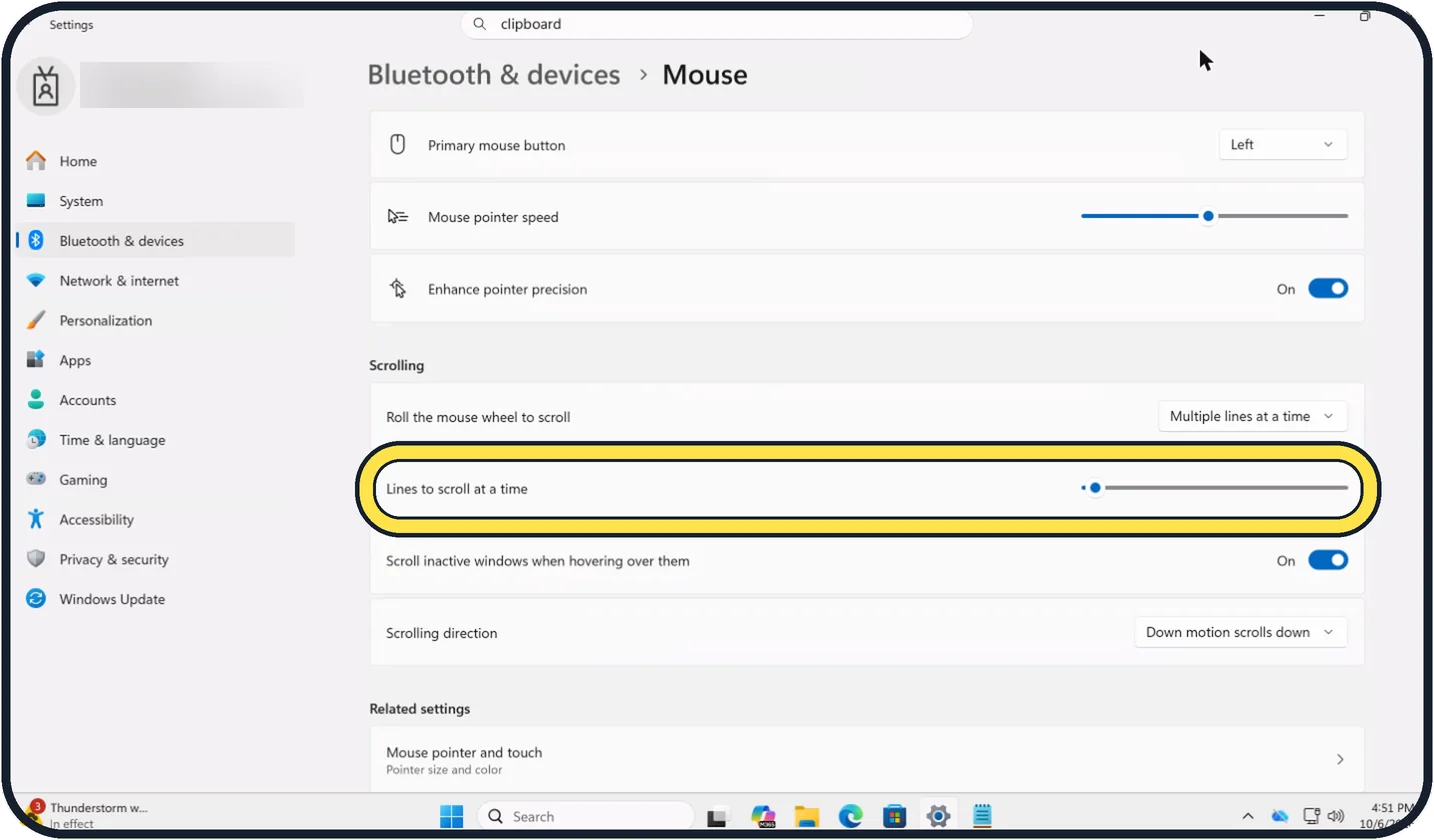
Tap the picture to see it full size Make scrolling slower or faster
Drag the Lines to scroll at a time slider.
Left scrolls fewer lines per wheel step, right scrolls more.
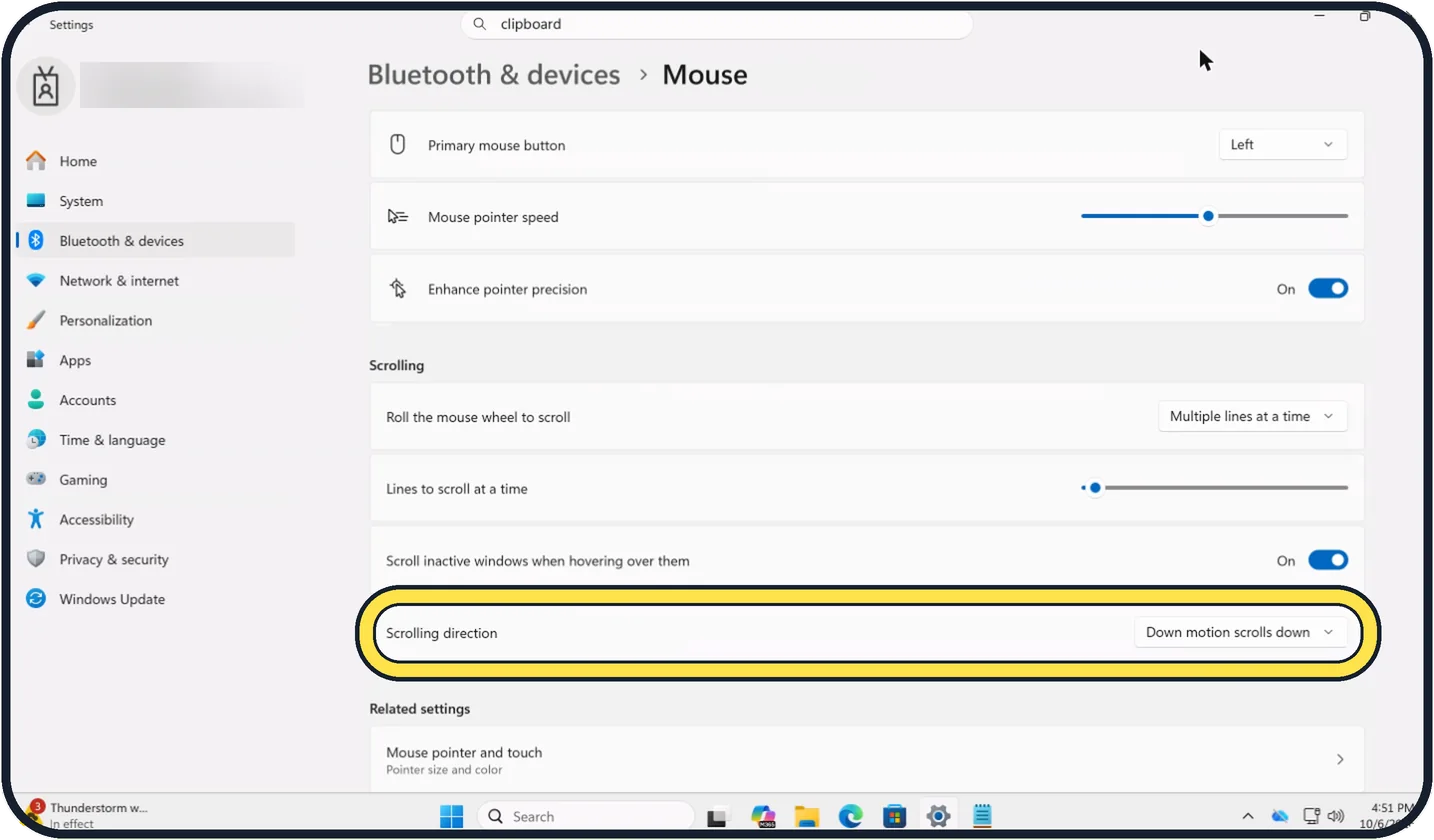
Tap the picture to see it full size Fix the scrolling direction
Scrolling direction says Down motion scrolls down on our Cloud PC. If the page moves up when you roll down, change it here.
On our Cloud PC the list offers two choices: Down motion scrolls down and Down motion scrolls up.
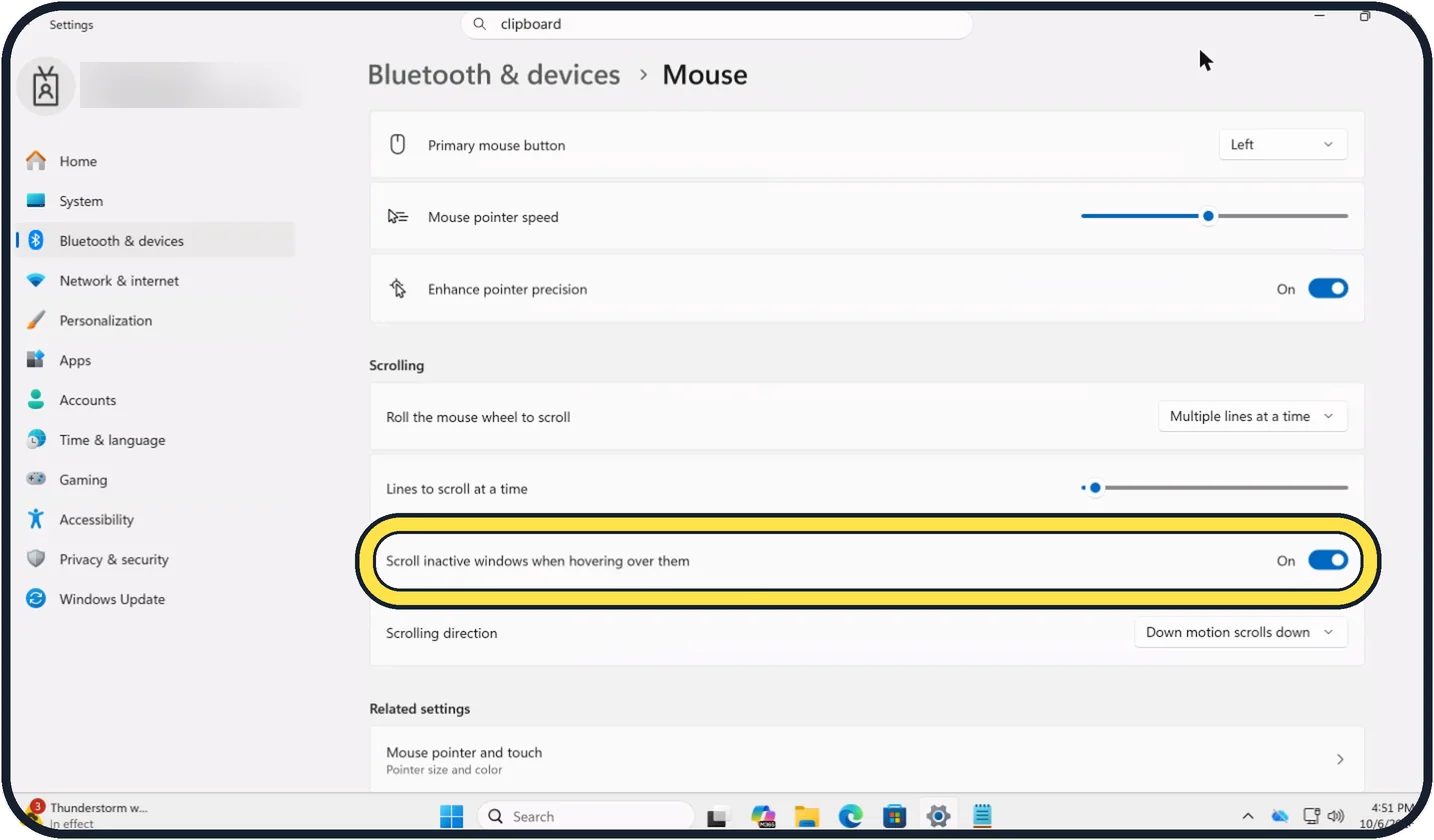
Tap the picture to see it full size Stop windows scrolling when you point at them
Scroll inactive windows when hovering over them lets the wheel scroll a window under the pointer without clicking it. It is On on our Cloud PC.
Switch it off if that surprises you.
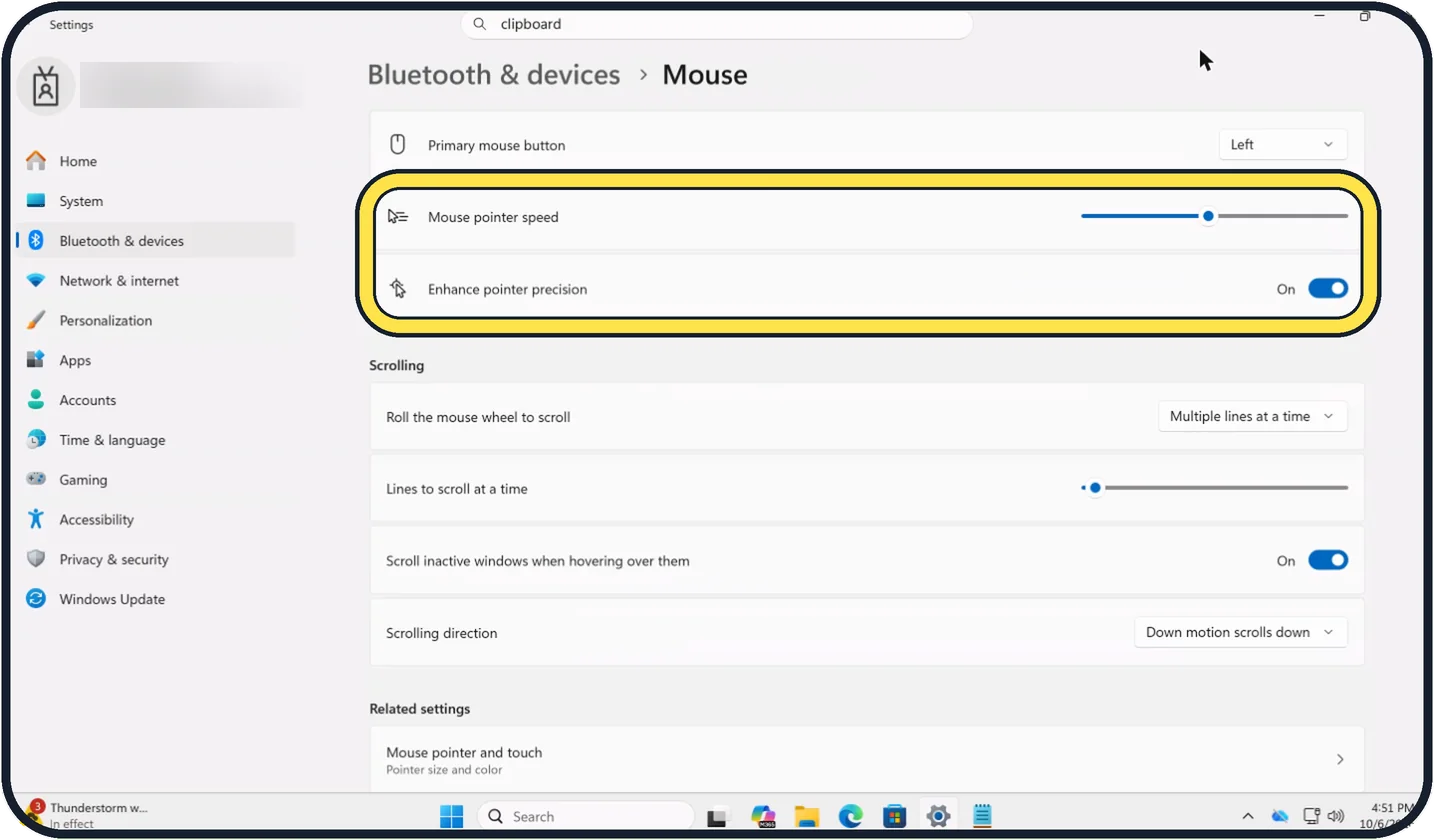
Tap the picture to see it full size Change the pointer speed
Drag the Mouse pointer speed slider.
Enhance pointer precision, On on our Cloud PC, makes the pointer speed up with faster movements. Switch it off for steadier movement.
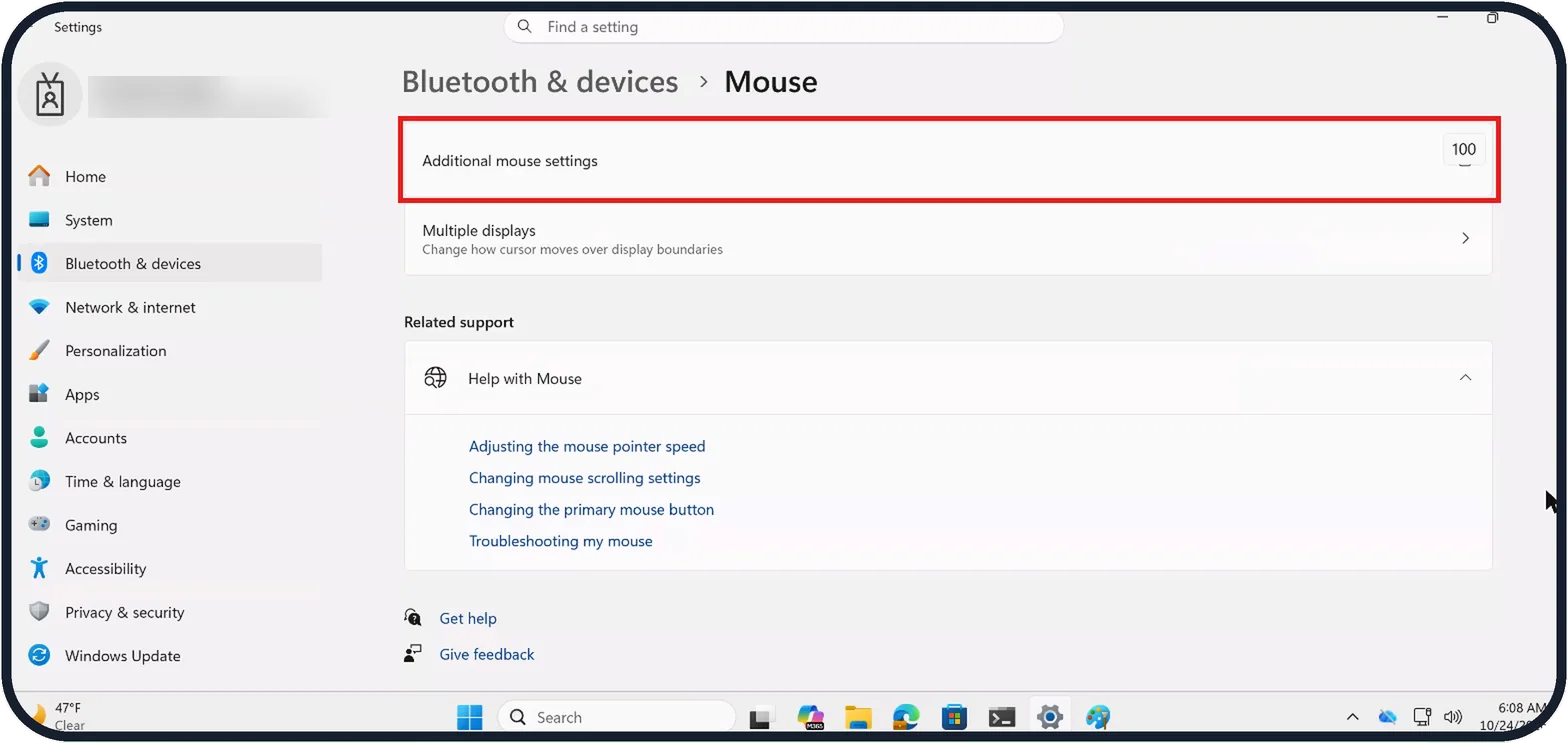
Tap the picture to see it full size Open Additional mouse settings
Primary mouse button, at the top of the Mouse page, should say Left for a right-handed setup.
For more options, scroll down and click Additional mouse settings to open Mouse Properties.
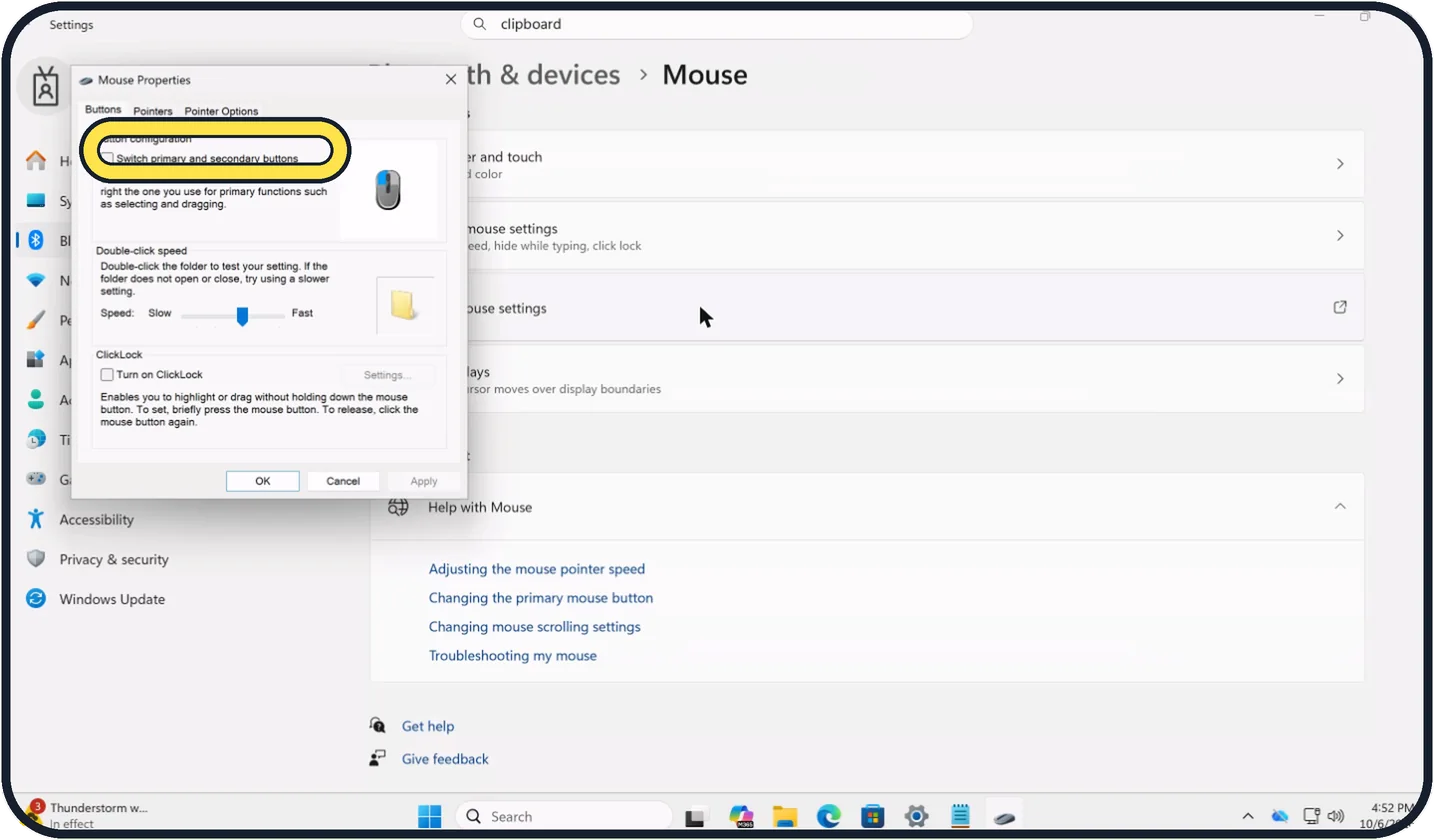
Zoomed in on the setting. Tap to see the whole screenTap the picture to see it full size Fix swapped left and right buttons
On the Buttons tab of Mouse Properties, Switch primary and secondary buttons does the same job as Primary mouse button.
It is unticked on our Cloud PC. Untick it if the buttons are swapped.
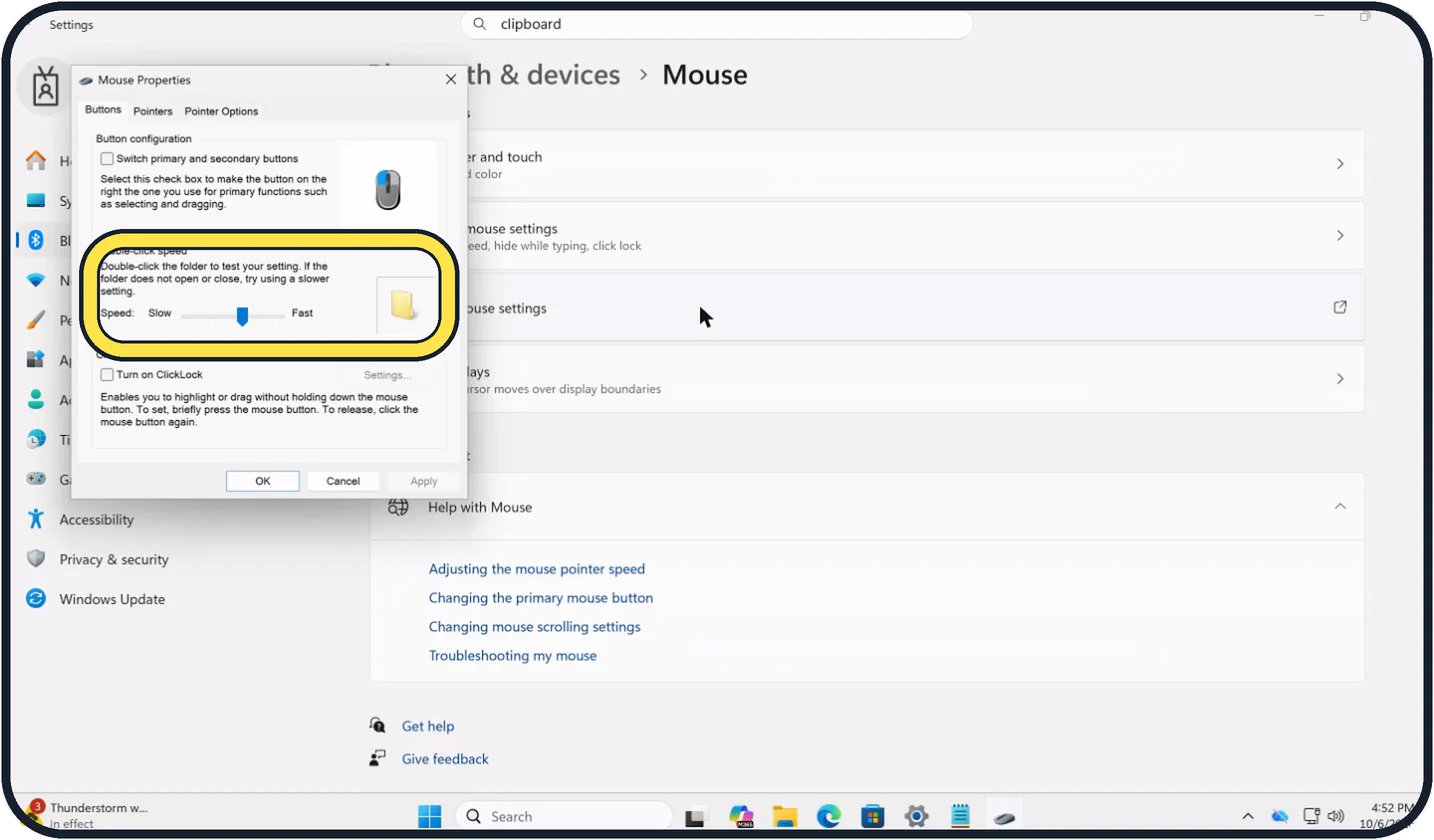
Zoomed in on the setting. Tap to see the whole screenTap the picture to see it full size Fix double-click
In the same Mouse Properties window, move the Double-click speed slider towards Slow, then double-click the folder picture to test it.
Click OK to keep the change.
If you do not see this option
- Sideways scrolling is wrong Microsoft says horizontal scrolling is set on the Wheel tab of Mouse Properties, and only works if the mouse can tilt its wheel left and right. Sources: Change mouse settings, Mouse and keyboard problems in Windows, Touch gestures for Windows
- You cannot find the pointer Microsoft says Show location of pointer when I press the CTRL key, on the Pointer Options tab of Mouse Properties, circles the pointer when you press Ctrl. Sources: Change mouse settings, Mouse and keyboard problems in Windows, Touch gestures for Windows
- Your laptop has only a touchpad Microsoft lists touchpad settings separately, under Settings, Bluetooth & devices, Touchpad. On our Cloud PC, which has no touchpad, the page shows a Touch row instead. Sources: Change mouse settings, Mouse and keyboard problems in Windows, Touch gestures for Windows
If this does not work
- The pointer jumps to buttons by itself Microsoft says that is Snap To on the Pointer Options tab of Mouse Properties. Untick Automatically move pointer to the default button in a dialog box. Sources: Change mouse settings, Mouse and keyboard problems in Windows, Touch gestures for Windows
- A trail follows the pointer Microsoft says that is Display pointer trails on the Pointer Options tab. Untick it and click OK. Sources: Change mouse settings, Mouse and keyboard problems in Windows, Touch gestures for Windows
- The mouse still scrolls or clicks wrongly after the change Microsoft says to unplug the USB cable or wireless receiver, wait a little and plug it back in, or try a different USB port. For a wireless mouse, it says to look underneath for a Reset button. Sources: Change mouse settings, Mouse and keyboard problems in Windows, Touch gestures for Windows
- The mouse may need a driver update Microsoft says to check for driver updates in Windows Update, or open Device Manager, double-click the mouse and click Update Driver on the Driver tab. Sources: Change mouse settings, Mouse and keyboard problems in Windows, Touch gestures for Windows
About this guide
Scrolling speed, direction and the button layout are all Windows settings. If a mouse suddenly behaves differently, a setting has usually been changed or the mouse's own app has taken over. Check these before you replace the mouse.
Good to know
Gaming and brand mice often come with their own app, such as Logitech Options or Razer Synapse, which can override these settings. Check that app if a change here does nothing.
Pointer too small to see: how to make the mouse pointer bigger on Windows 11. A mouse that does not work at all: Windows 11 keyboard or mouse not working: 7 fixes.
In short: Settings, Bluetooth & devices, Mouse: Lines to scroll at a time, Scrolling direction, pointer speed, primary button. Additional mouse settings for double-click speed.
- Microsoft Support: Change mouse settings
- Microsoft Support: Mouse and keyboard problems in Windows
- Microsoft Support: Touch gestures for Windows
Links checked in October 2026. Menus and features can change after software updates. These steps match the version named at the top.
📷 Camera Lab: the same 6 scenes photographed with 11 phones, side by side.
Did this guide work for you?
Sorry about that. What happened?