
howtosimply.com/guides/how-to-turn-off-notifications-on-windows-11/ · Checked October 2026 · Windows 11 Enterprise 25H2 (build 26200.9457), Microsoft Cloud PC
In this guide
Open Settings, System, Notifications. Switch off Notifications to stop all of them, or switch off single apps in the list below. For a quiet period, open the notification centre and click the bell icon next to Clear all to turn on Do not disturb.
5 of 5 steps with real screenshots · 1 official source below
- Device
- Windows
- Shown on
- Windows 11 Enterprise 25H2 (build 26200.9457), Microsoft Cloud PC
- App
- Settings
- Path
- Settings › System › Notifications
- Real screenshots
- 5 of 5 steps
- Checked
- October 2026
- Sources
- 1 official, linked below
Step by step
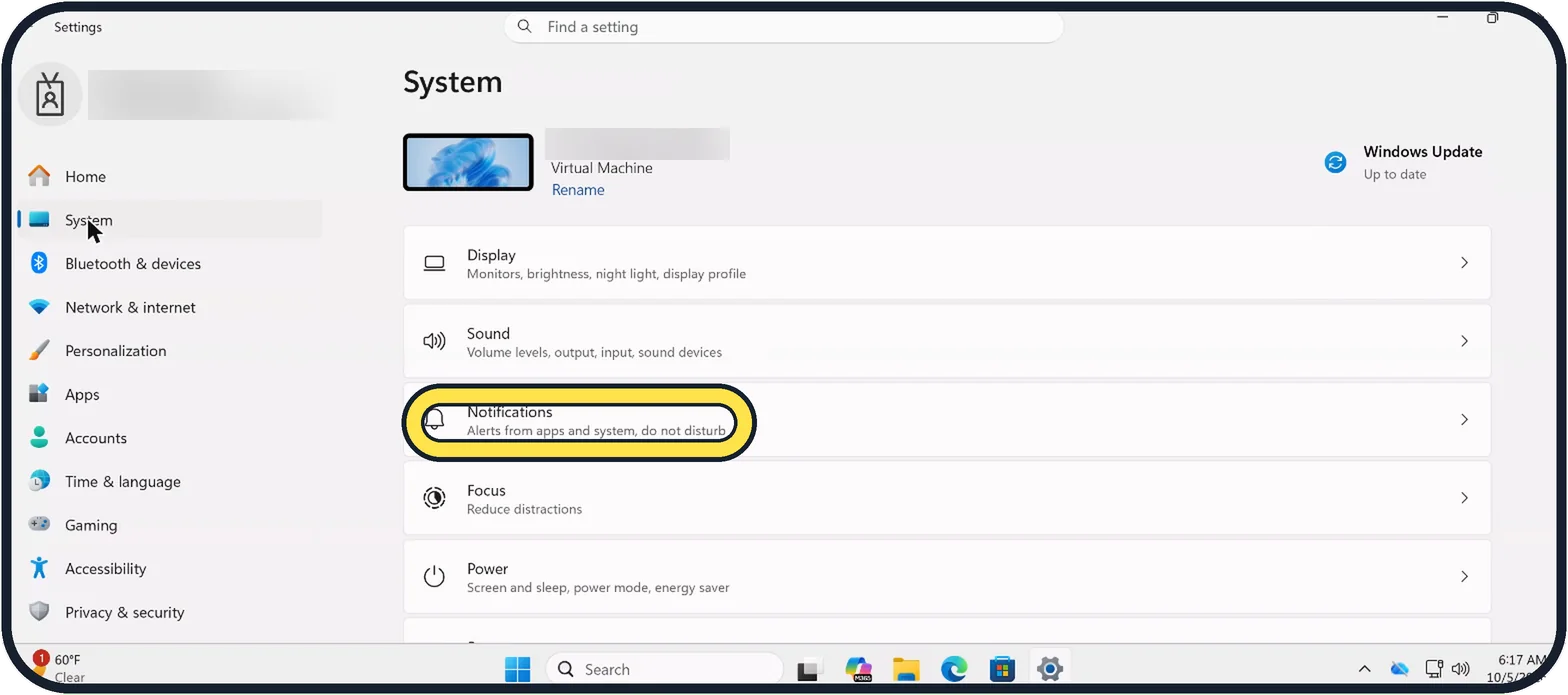
Zoomed in on the setting. Tap to see the whole screenTap the picture to see it full size Open Settings, System, Notifications
Press Windows + I, stay on System and click Notifications.
Watch these steps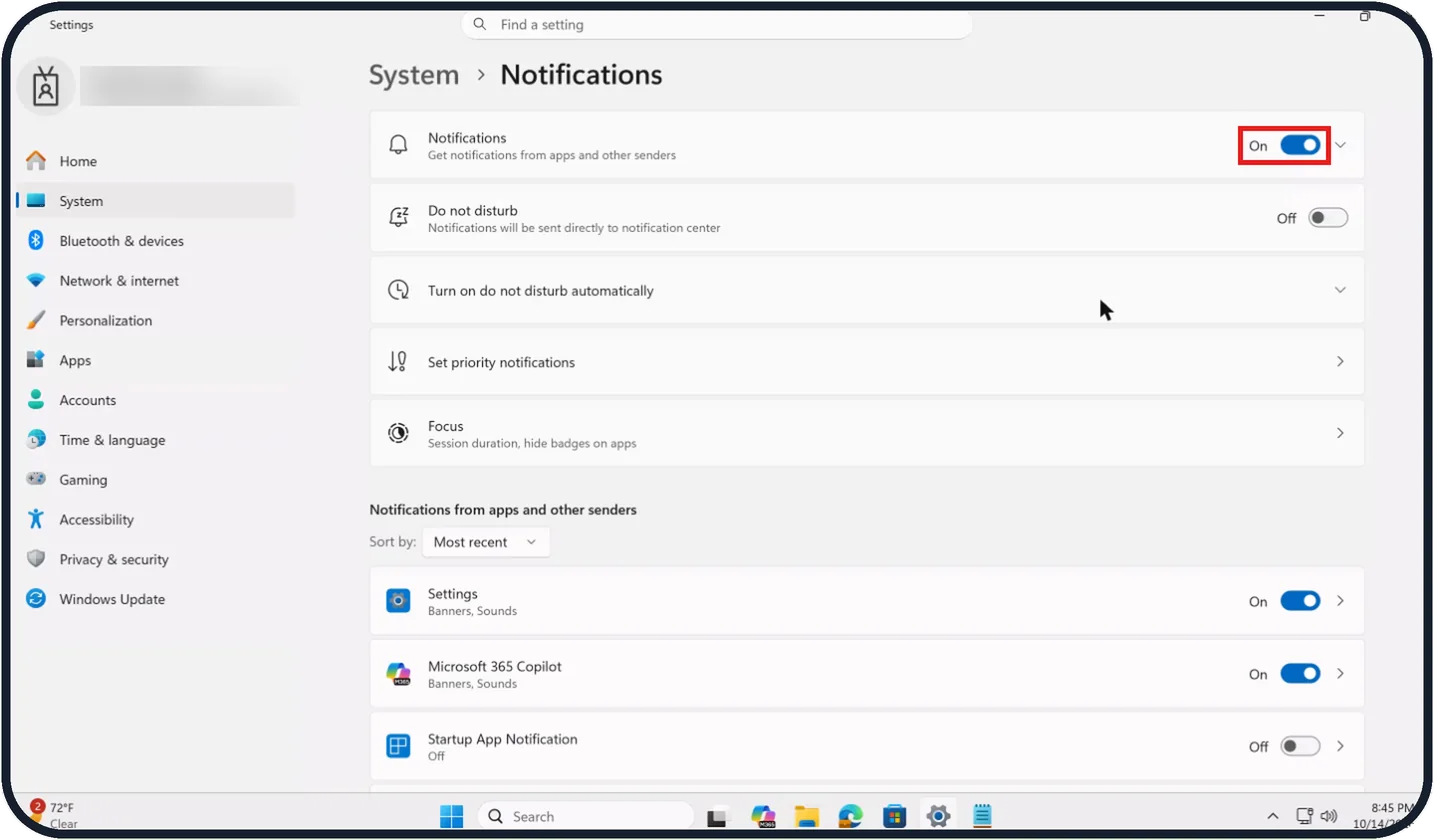
Tap the picture to see it full size Stop all notifications
Use the switch at the right end of the Notifications row at the top. On our Cloud PC it is set to On.
This is the bluntest option, and you will also miss reminders and messages.
Tap the picture to see it full size Or switch off single apps
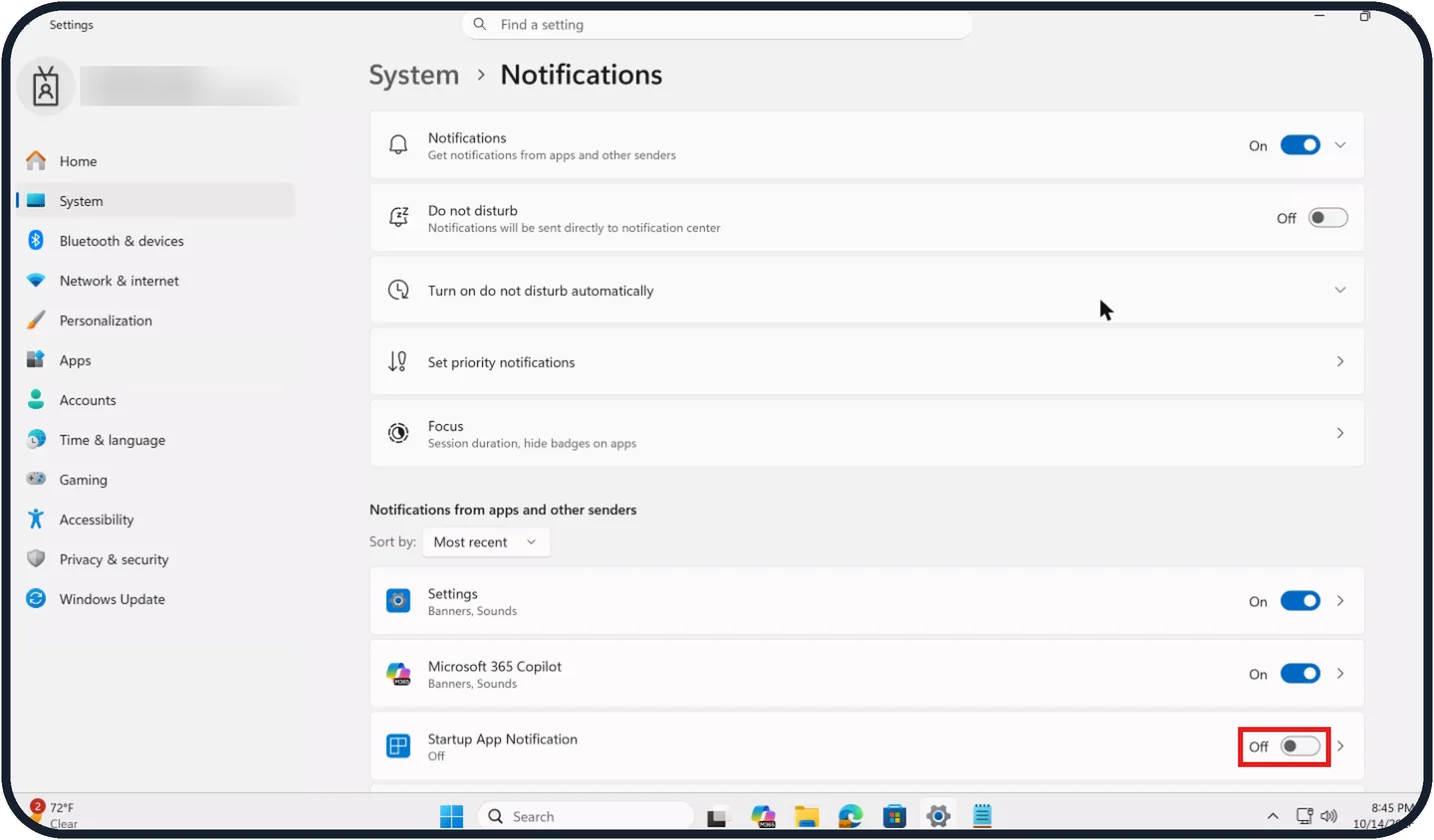
Scroll to "Notifications from apps and other senders", below the Focus row, and switch off the apps you do not want to hear from.
On our Cloud PC the list shows Settings and Microsoft 365 Copilot set to On, and Startup App Notification set to Off.
Tap the picture to see it full size Use Do not disturb for quiet time
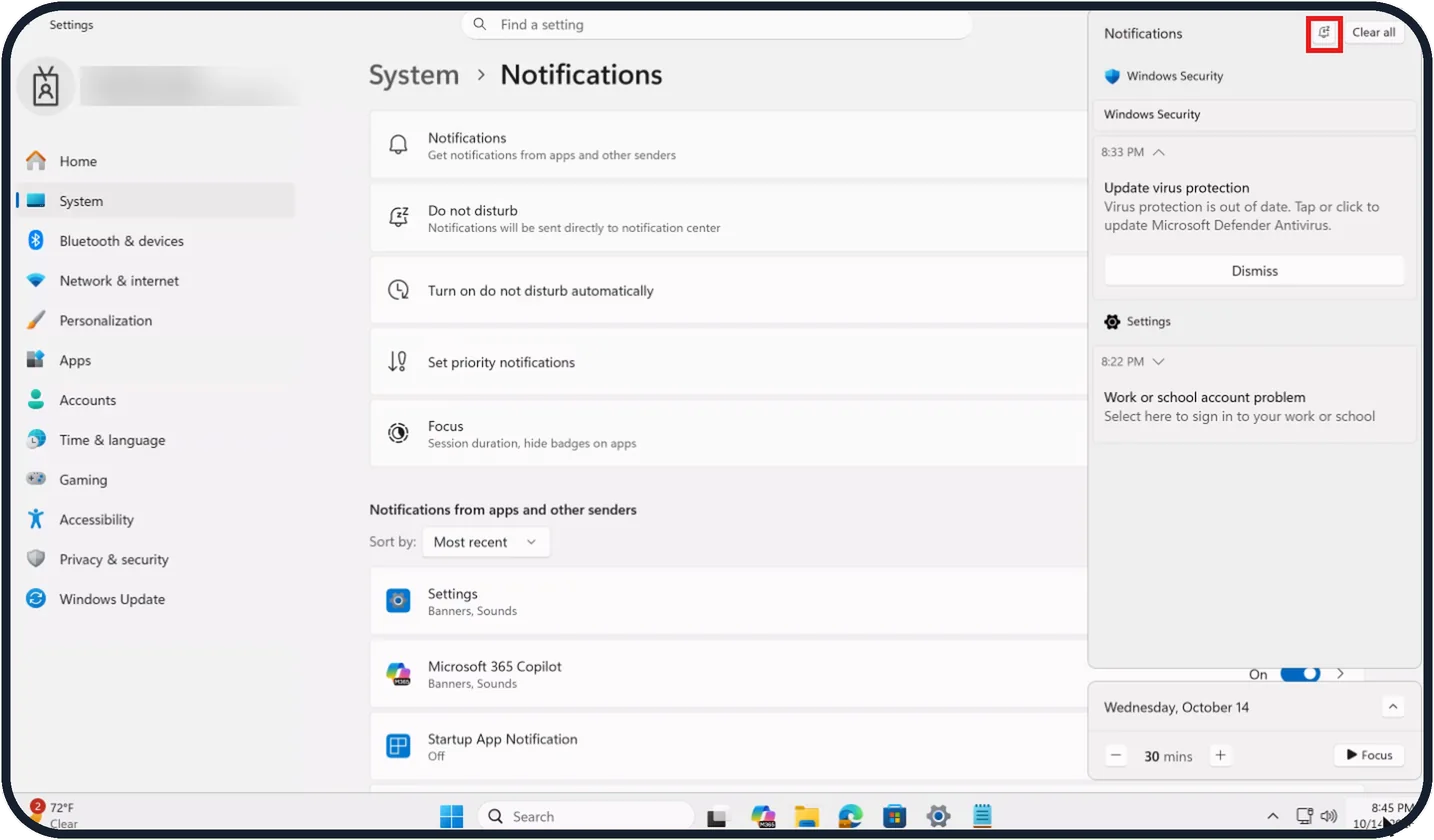
Click the time and date at the right of the taskbar to open the notification centre, then click the bell icon next to Clear all at the top.
Notifications are then sent directly to the notification centre until you turn it off.
Tap the picture to see it full size Set it to turn on by itself
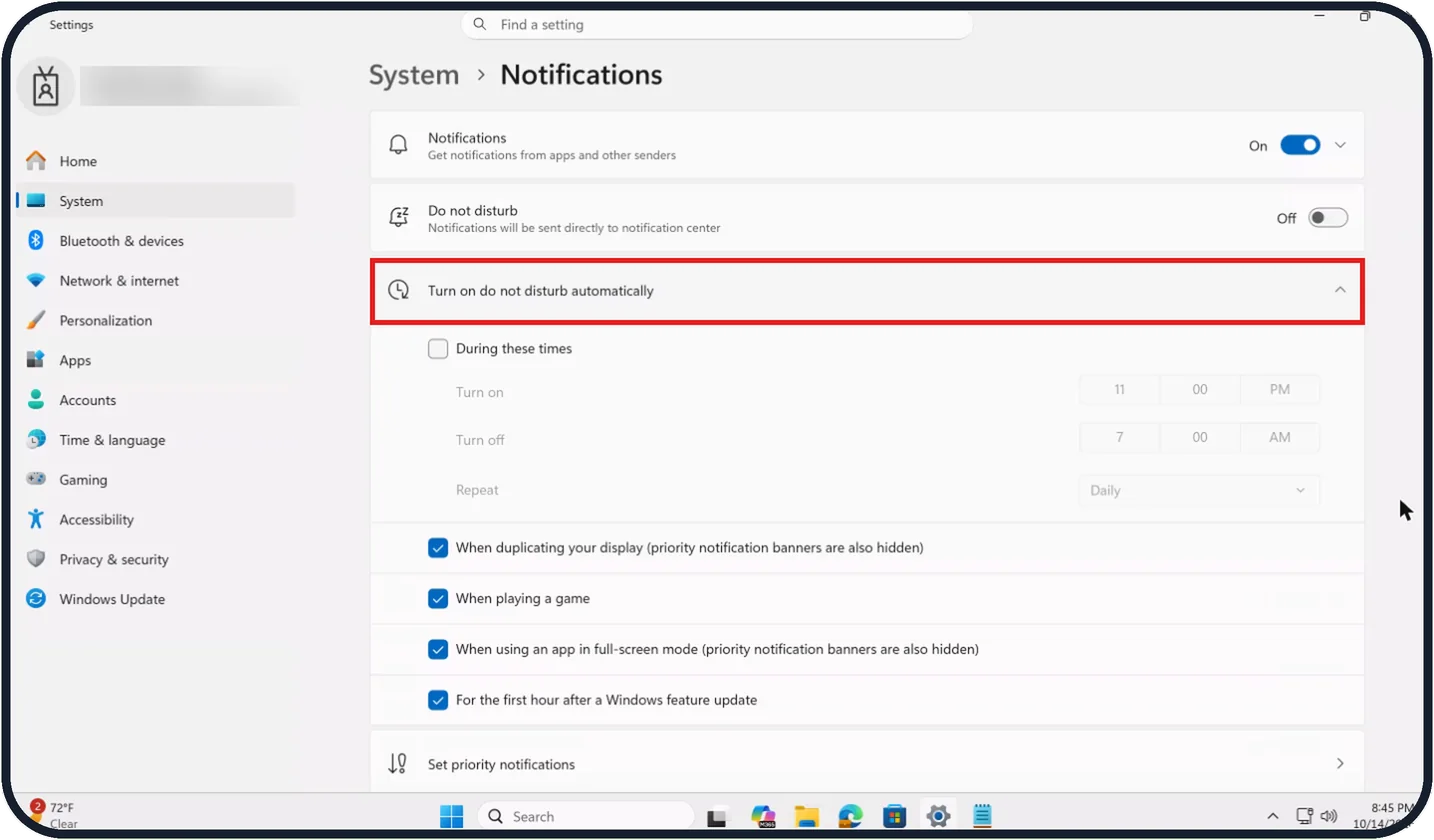
Back in Settings, click the arrow on the "Turn on do not disturb automatically" row to expand it and choose when Do not disturb turns on.
On our Cloud PC "During these times" is unticked (Turn on 11 00 PM, Turn off 7 00 AM, Repeat Daily), and the four options below it, such as "When playing a game", are ticked.
Watch these steps
What we saw on our device
- Stop all notifications: On our Cloud PC it is set to On.
- Or switch off single apps: On our Cloud PC the list shows Settings and Microsoft 365 Copilot set to On, and Startup App Notification set to Off.
- Set it to turn on by itself: On our Cloud PC "During these times" is unticked (Turn on 11 00 PM, Turn off 7 00 AM, Repeat Daily), and the four options below it, such as "When playing a game", are ticked.
If you do not see this option
- You cannot see the app list Scroll down past the Focus row. The list starts under the heading "Notifications from apps and other senders", with "Sort by: Most recent" above the first app.
- You cannot find the Do not disturb bell Click the time and date at the right of the taskbar. On our Cloud PC the bell sits at the top of the Notifications panel, to the left of Clear all.
- The schedule options are hidden Click the arrow at the right of the "Turn on do not disturb automatically" row. The row expands to show "During these times" and the other options.
If this does not work
- An app still shows pop-ups Check that its switch in the app list shows Off. On our Cloud PC an app that is switched off, such as Startup App Notification, also shows Off under its name.
- Do not disturb turns on when you did not expect it Expand "Turn on do not disturb automatically" and untick the situations you do not want, such as "When using an app in full-screen mode (priority notification banners are also hidden)".
- You think you have missed messages With Do not disturb on, notifications will be sent directly to the notification centre. Click the time and date on the taskbar to read them.
About this guide
Pop-ups in the corner of the screen interrupt work and show up during presentations. You can silence everything, only certain apps, or only at certain times.
The screenshots are our own, taken on Windows 11 Enterprise 25H2 running as a Microsoft Cloud PC, a Windows PC that runs in the cloud. Where the Cloud PC shows something worth noting, the step says so.
Good to know
Under "Set priority notifications" you choose what may still come through during Do not disturb.
Notifications from websites are controlled in the browser, under its site permissions.
Missed notifications stay in the notification centre until you clear them.
In short: Settings, System, Notifications. Switch off everything or single apps, or use Do not disturb.
Links checked in October 2026. Menus and features can change after software updates. These steps match the version named at the top.
Did this guide work for you?
Sorry about that. What happened?