
howtosimply.com/guides/how-to-turn-on-clipboard-history-on-windows-11/ · Checked October 2026 · Windows 11 Enterprise 25H2 (build 26200.9457), Microsoft Cloud PC
In this guide
Open Settings, System, Clipboard and switch on Clipboard history, or press Windows + V and click Turn on. From then on, Windows + V shows the things you copied; click one to paste it. Pin entries you want to keep.
5 of 6 steps with real screenshots · 1 official source below
- Device
- Windows
- Shown on
- Windows 11 Enterprise 25H2 (build 26200.9457), Microsoft Cloud PC
- App
- Settings
- Path
- Settings › System › Clipboard › Clipboard history On
- Real screenshots
- 5 of 6 steps
- Checked
- October 2026
- Sources
- 1 official, linked below
Step by step
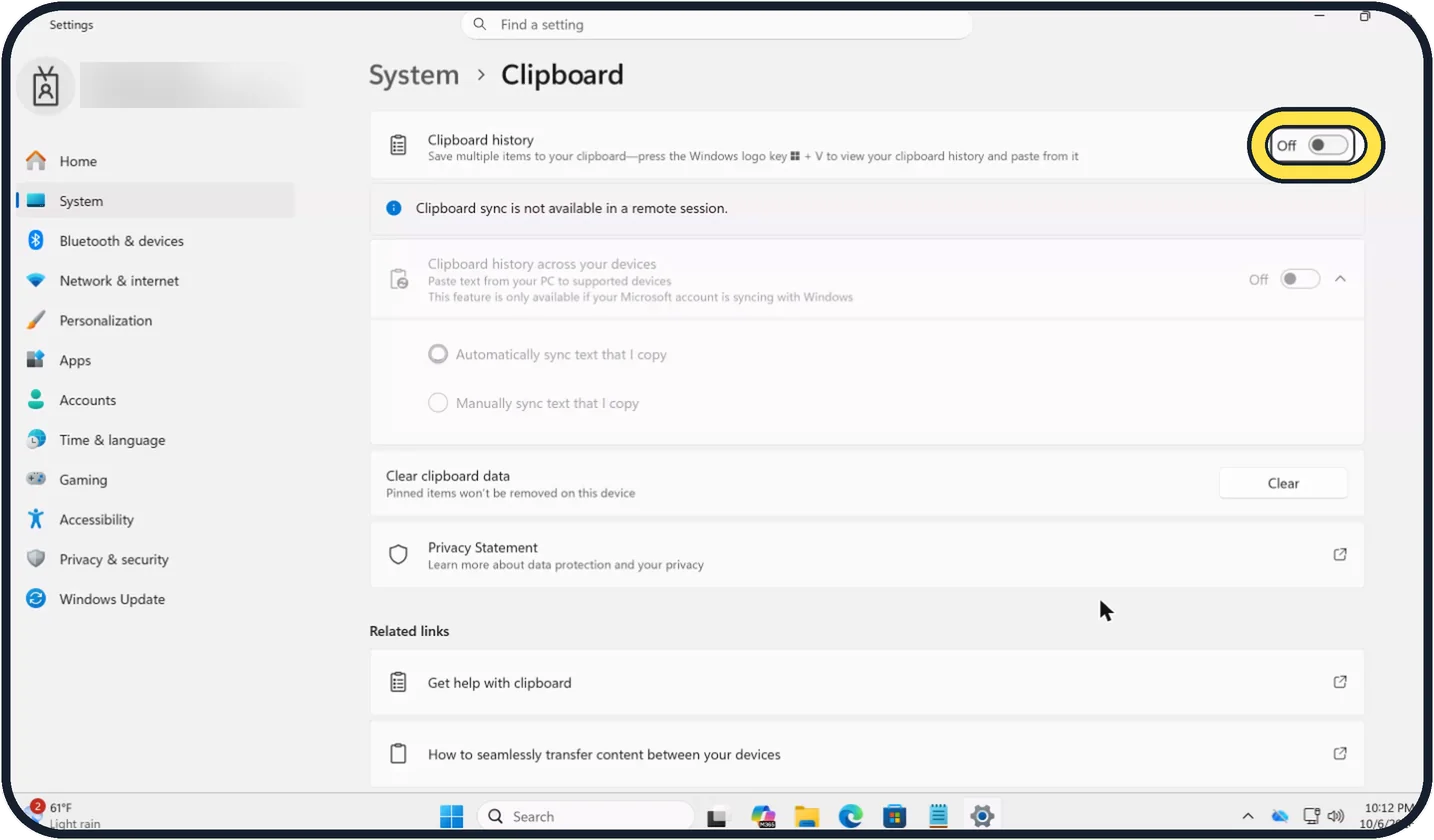
Zoomed in on the setting. Tap to see the whole screenTap the picture to see it full size Open the Clipboard settings
Press Windows + I, click System and then Clipboard. On our PC Clipboard history was Off.
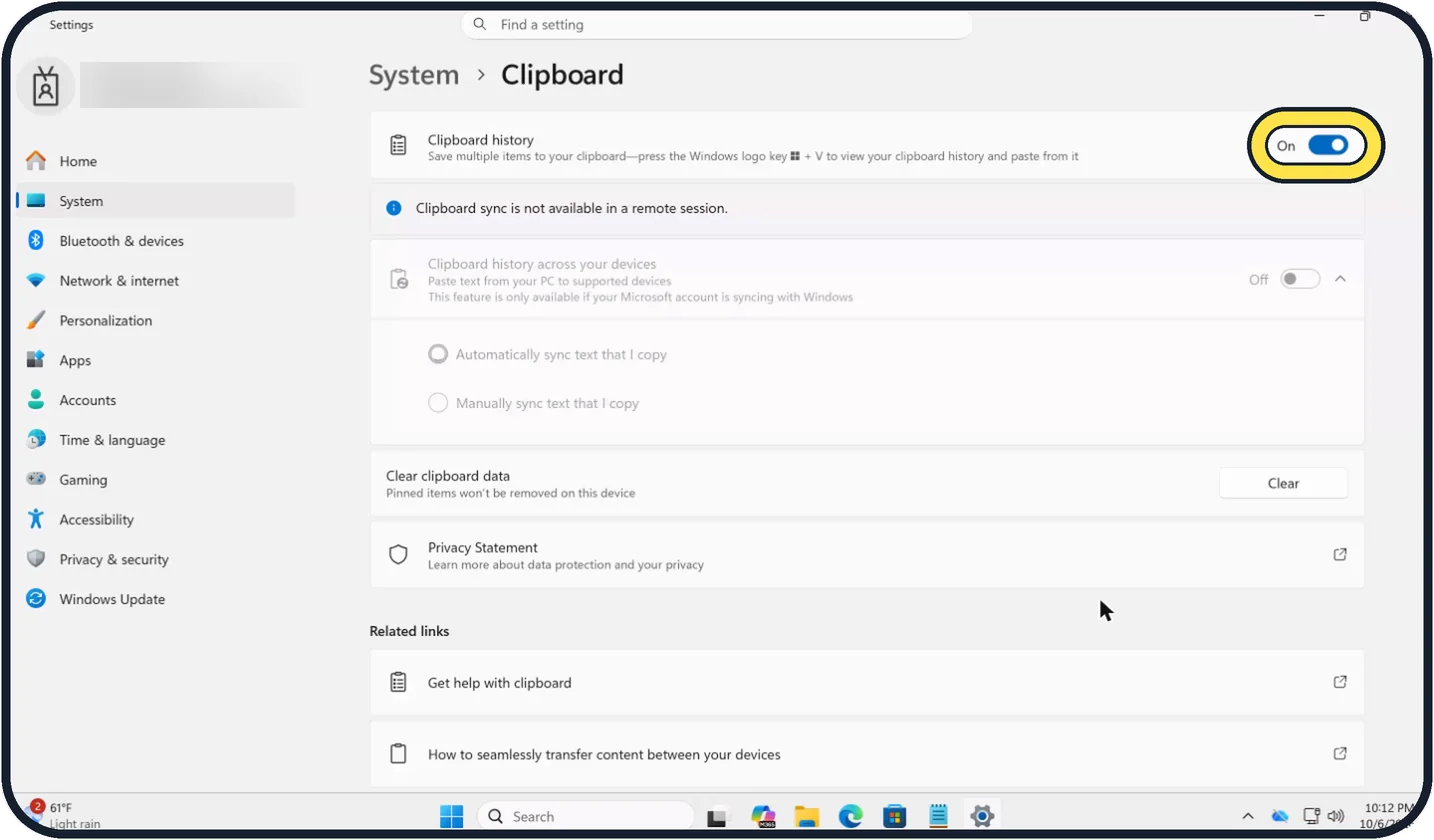
Zoomed in on the setting. Tap to see the whole screenTap the picture to see it full size Switch on Clipboard history
Click the switch so it reads On. Pressing Windows + V and clicking Turn on does the same.
Copy as usual
Use Ctrl + C. Each copied text or picture is added to the history. We copied two words in Notepad; they appear as page and Test in the next step.
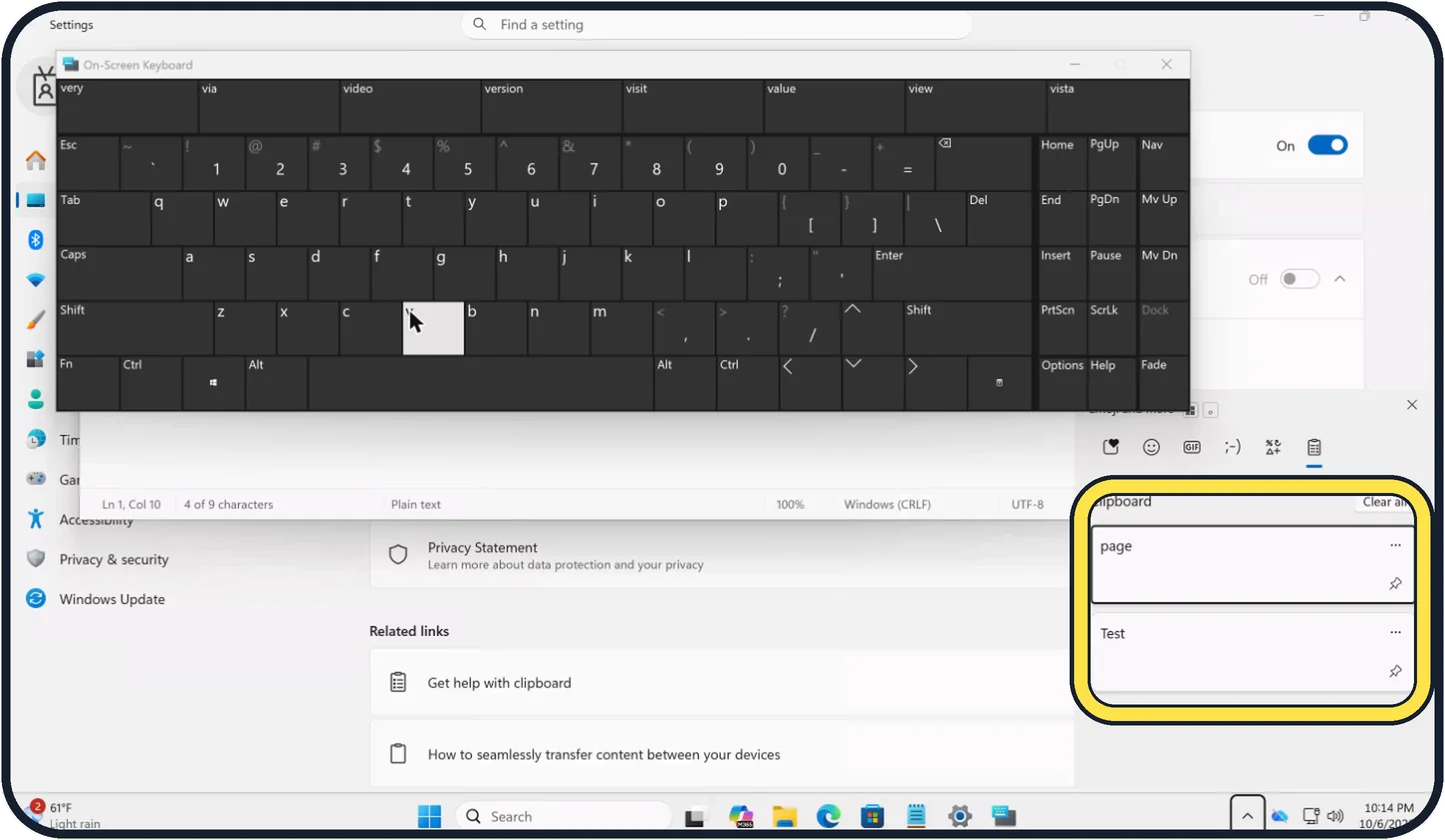
Zoomed in on the setting. Tap to see the whole screenTap the picture to see it full size Press Windows + V
Click where you want to paste and press Windows + V. The newest entry is at the top; click one to paste it. On our Cloud PC we pressed the keys on the On-Screen Keyboard, which you see above the panel.
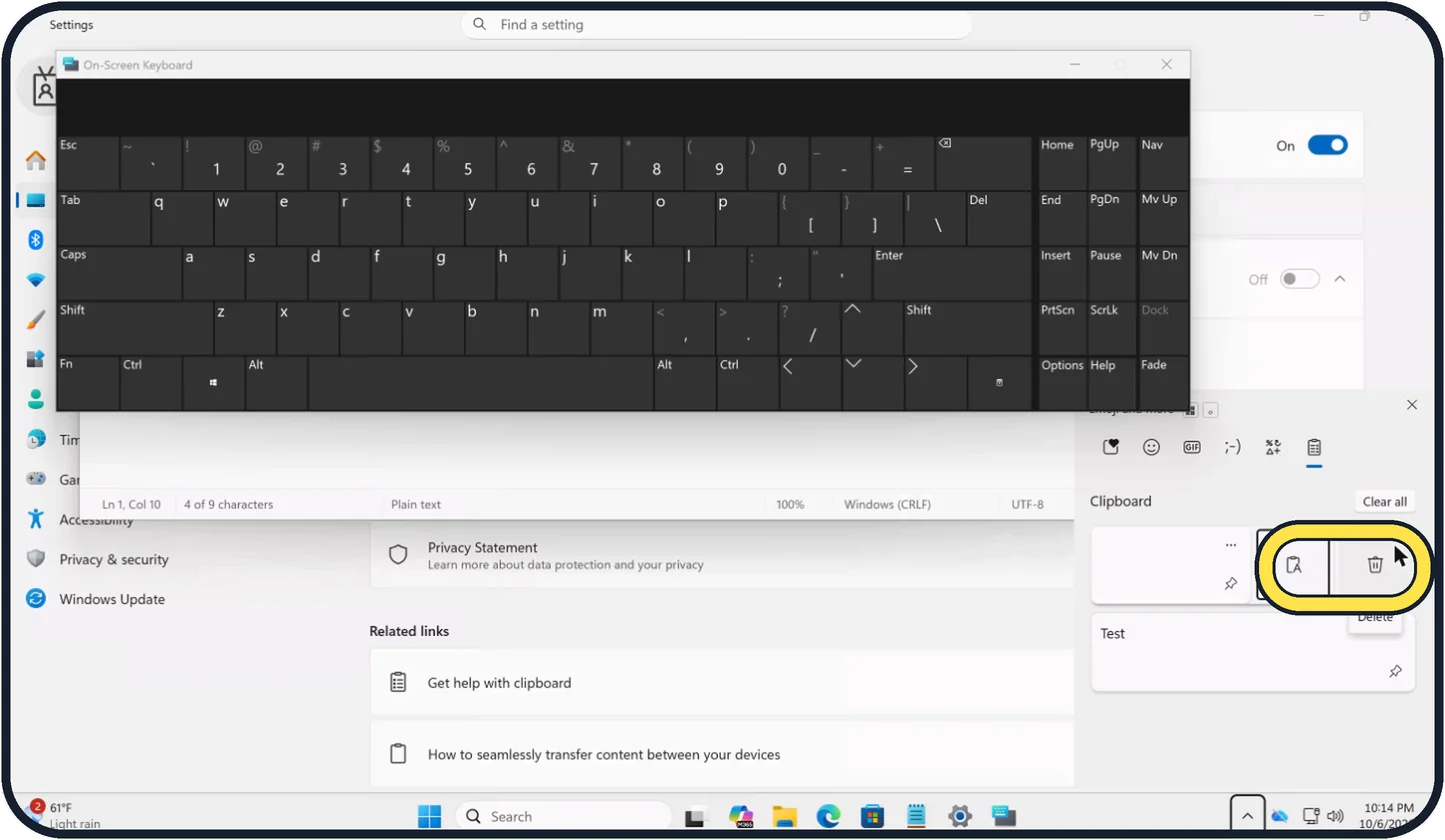
Zoomed in on the setting. Tap to see the whole screenTap the picture to see it full size Pin or delete an entry
Click the three dots on an entry. On our Cloud PC two icons appeared: a clipboard icon and a bin icon labelled Delete. The pin icon keeps an entry when the rest is cleared.
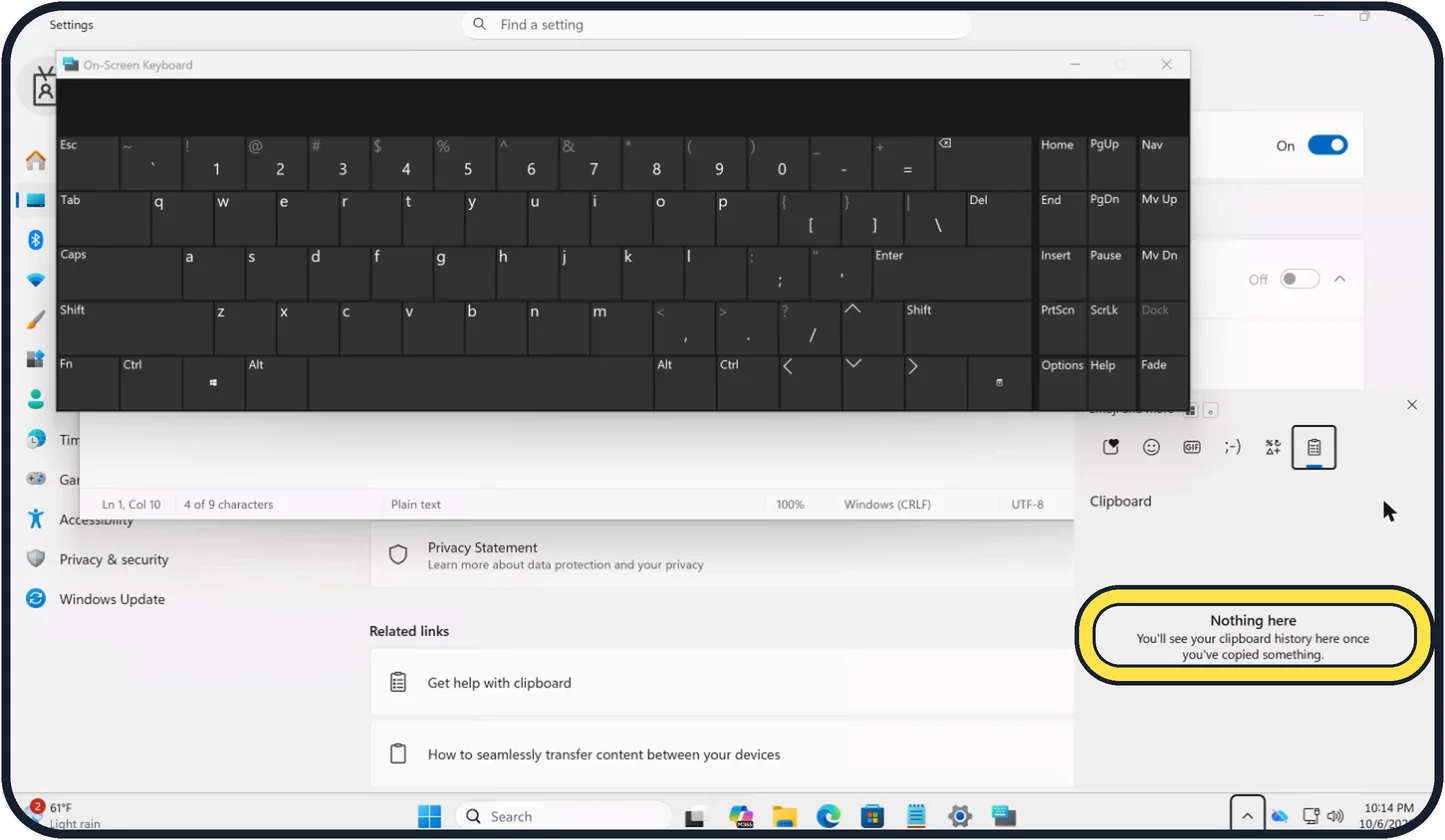
Zoomed in on the setting. Tap to see the whole screenTap the picture to see it full size Clear the history
Click Clear all at the top right of the panel. Pinned entries stay. Our panel then showed Nothing here.
What we saw on our device
- Open the Clipboard settings: On our PC Clipboard history was Off.
- Press Windows + V: On our Cloud PC we pressed the keys on the On-Screen Keyboard, which you see above the panel.
- Pin or delete an entry: On our Cloud PC two icons appeared: a clipboard icon and a bin icon labelled Delete.
- Clear the history: Our panel then showed Nothing here.
About this guide
Normally the clipboard holds only the last thing you copied. With clipboard history you can copy several pieces of text or pictures and paste them in any order.
Good to know
The history holds up to 25 entries of up to 4 MB each, as text, formatted text or pictures. It is cleared when the PC restarts, except for pinned entries.
"Clipboard history across your devices" on the same Settings page shares copied text between PCs signed in with the same Microsoft account. Our Cloud PC says clipboard sync is not available in a remote session, so we could not show it. Leave it off if you copy passwords.
The Clear button next to Clear clipboard data on the Settings page empties the history without opening the panel.
In short: Settings, System, Clipboard, Clipboard history On. Then Windows + V to choose what to paste.
Links checked in October 2026. Menus and features can change after software updates. These steps match the version named at the top.
Did this guide work for you?
Sorry about that. What happened?