
howtosimply.com/guides/windows-11-screen-has-a-yellow-or-pink-tint-how-to-fix-it/ · Checked October 2026 · Windows 11 Enterprise 25H2 (build 26200.9457), Microsoft Cloud PC
In this guide
A yellow tint is usually Night light: open Settings, System, Display, Night light and click Turn off now. Odd colours usually come from a colour filter: open Settings, Accessibility, Color filters and switch it off.
7 of 7 steps with real screenshots · 2 official sources below
- Device
- Windows
- Shown on
- Windows 11 Enterprise 25H2 (build 26200.9457), Microsoft Cloud PC
- App
- Settings
- Path
- Settings › System › Display › Night light
- Real screenshots
- 7 of 7 steps
- Checked
- October 2026
- Sources
- 2 official, 1 other, linked below
Step by step
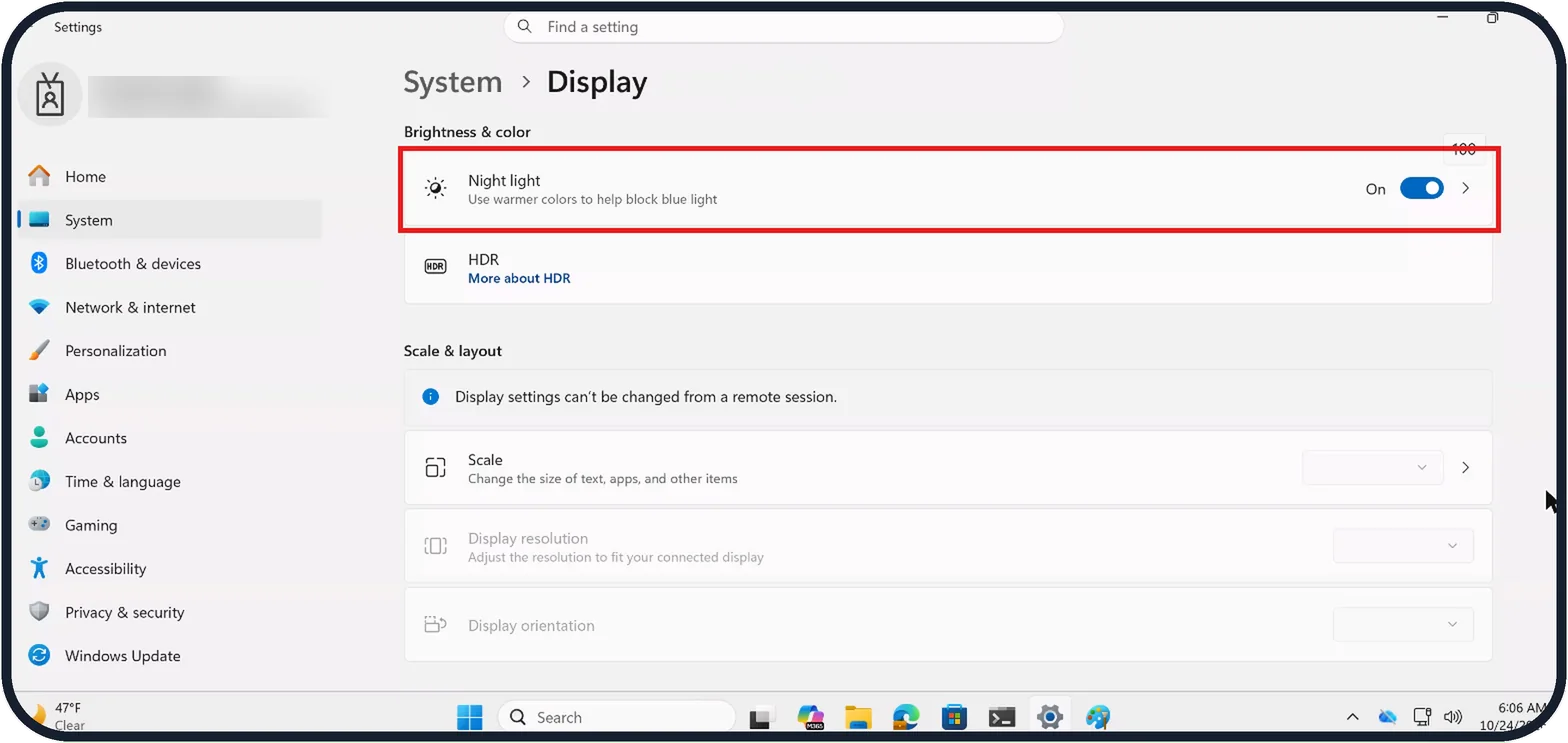
Tap the picture to see it full size Check Night light
Open Start, Settings, System, Display.
The switch at the right end of the Night light row shows whether it is On or Off.
On our Cloud PC the row read On, although the warm tint did not show through the remote connection.
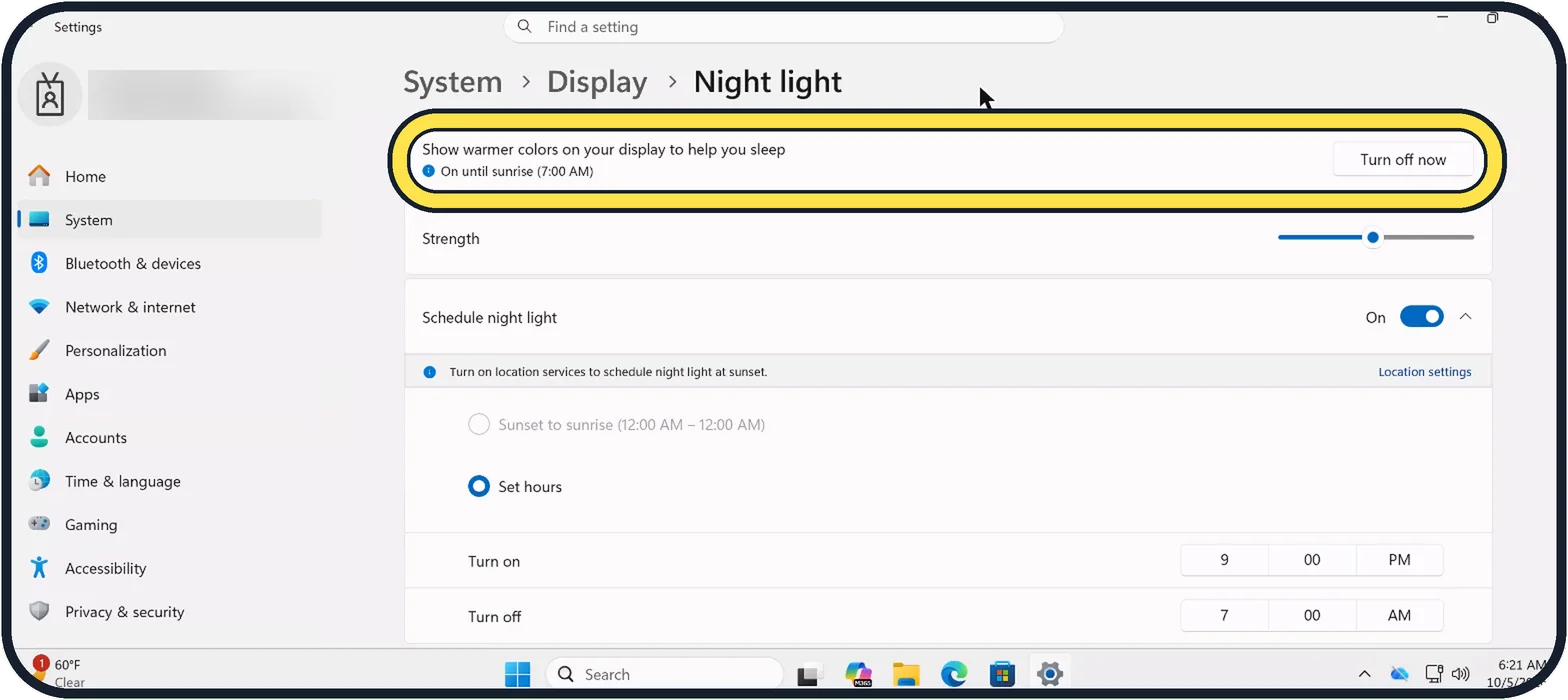
Tap the picture to see it full size Turn it off
Click the Night light row, then Turn off now.
While it is on, the page says until when; on our Cloud PC it read On until sunrise (7:00 AM).
Once it is off, the button reads Turn on now.
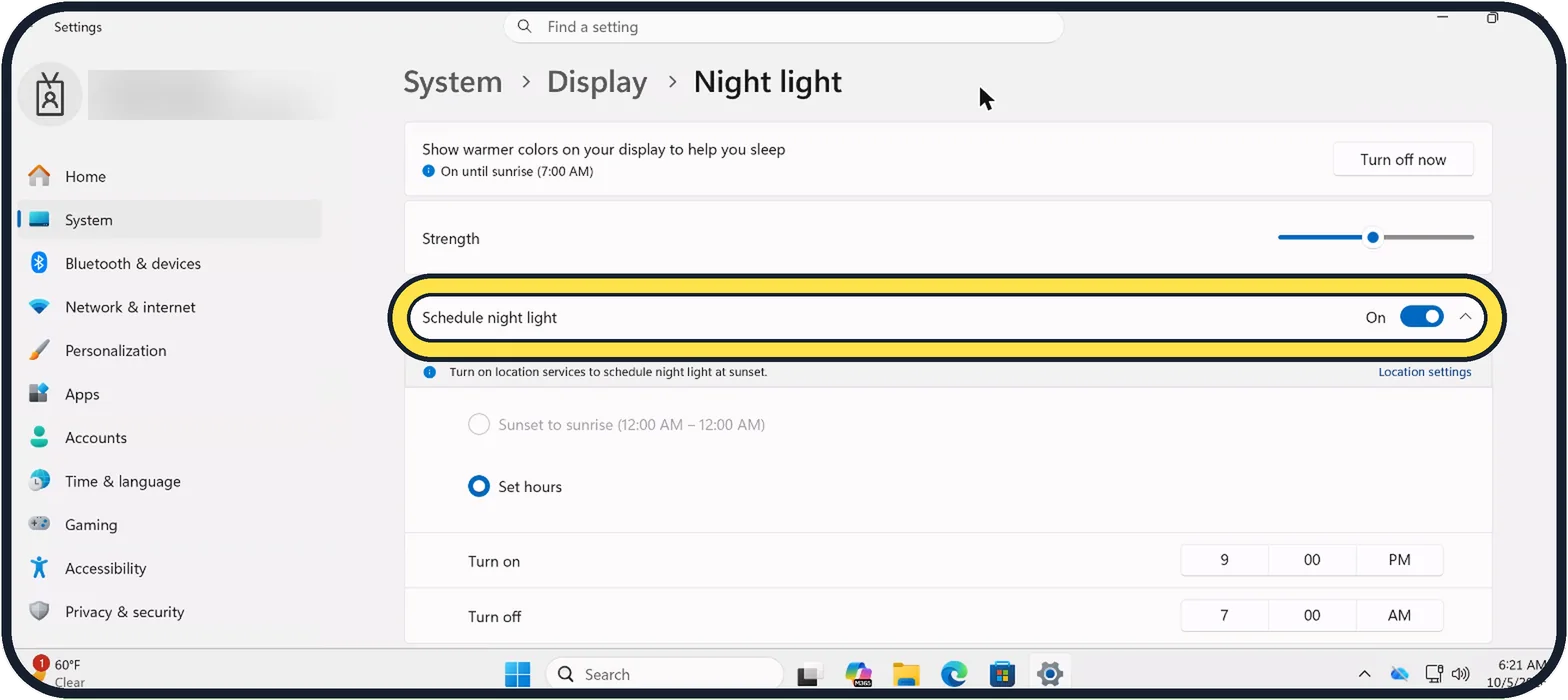
Tap the picture to see it full size Check the schedule
If Schedule night light is On, Night light comes back at the set time.
Switch the schedule off, or lower Strength so it is less yellow.
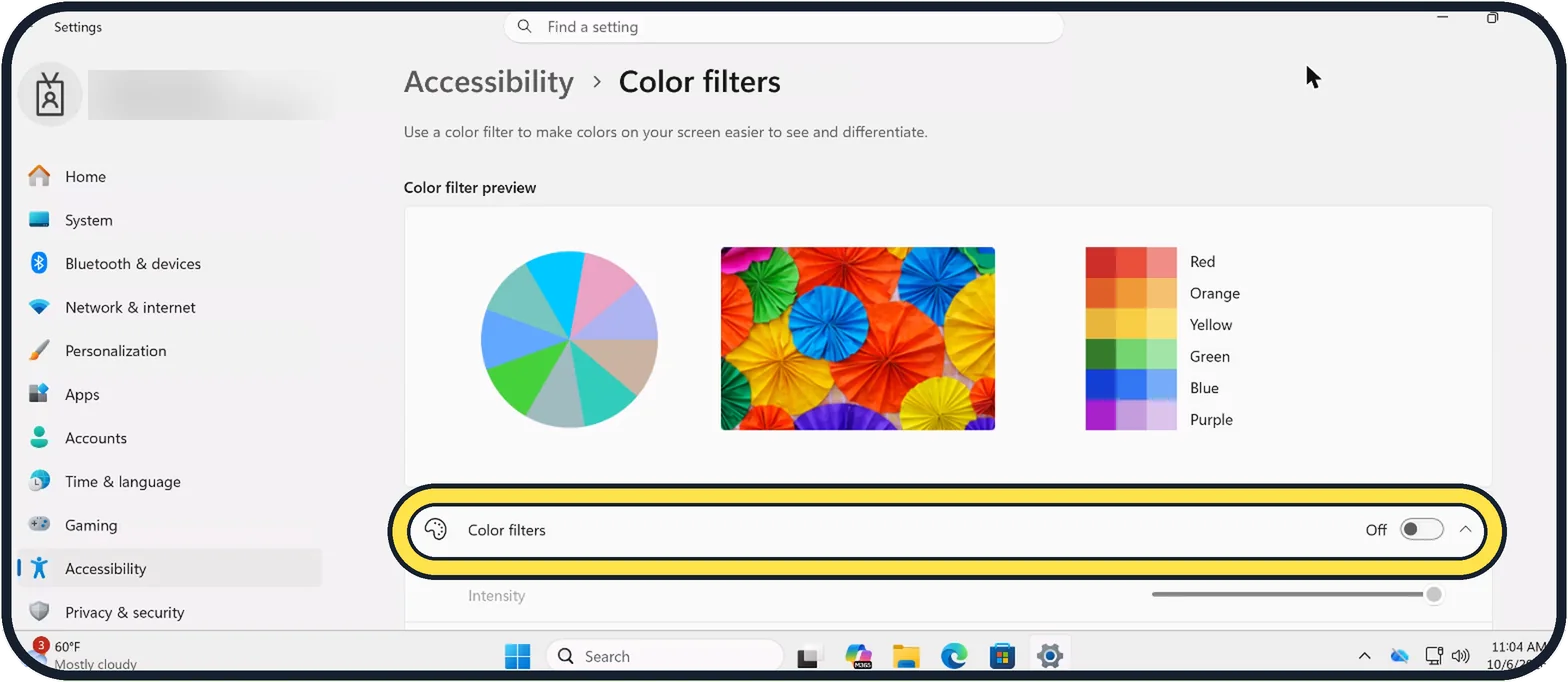
Tap the picture to see it full size Check the colour filters
Open Settings, Accessibility, Color filters.
If Color filters is On, switch it off and the normal colours come back.
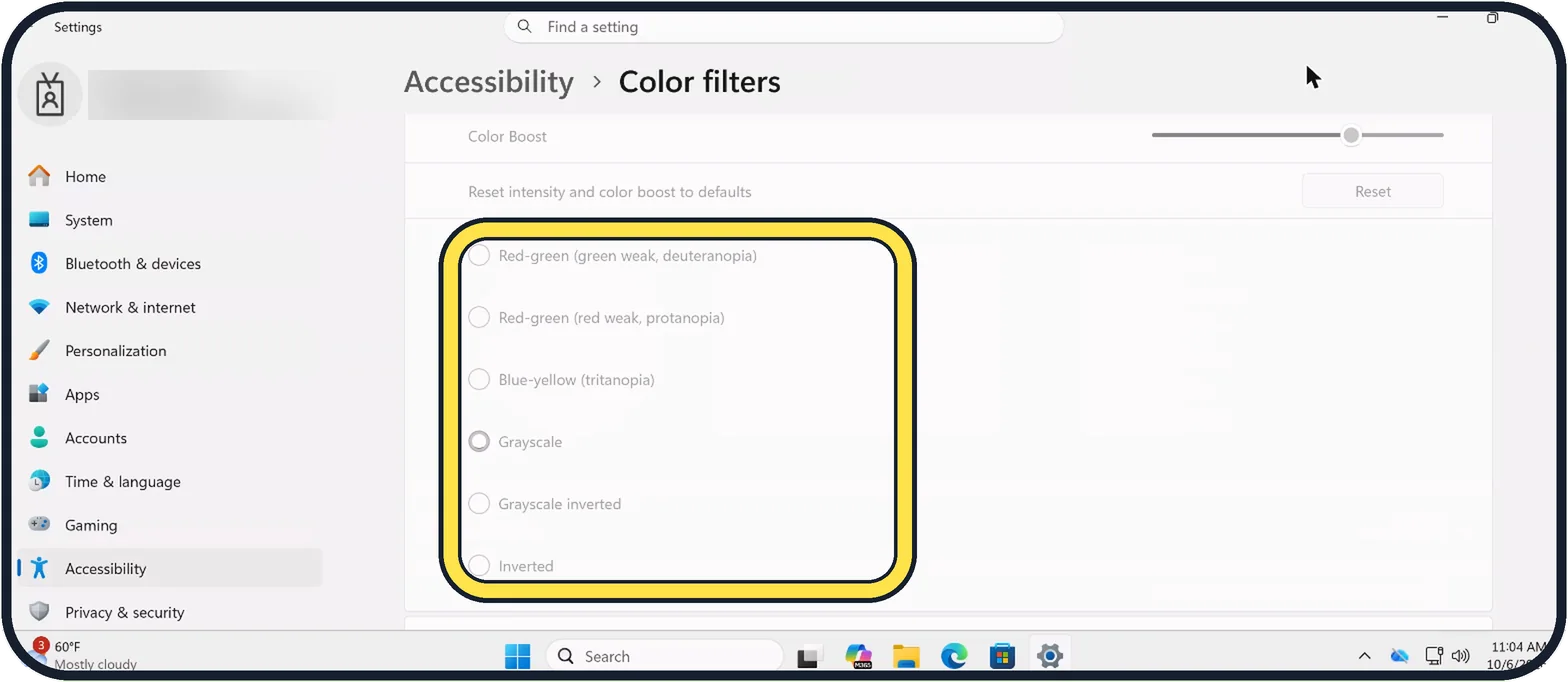
Zoomed in on the setting. Tap to see the whole screenTap the picture to see it full size See which filter was chosen
Below the switch are the filters: Red-green (green weak, deuteranopia), Red-green (red weak, protanopia), Blue-yellow (tritanopia), Grayscale, Grayscale inverted and Inverted.
The selected one is the filter Windows applies when Color filters is On.
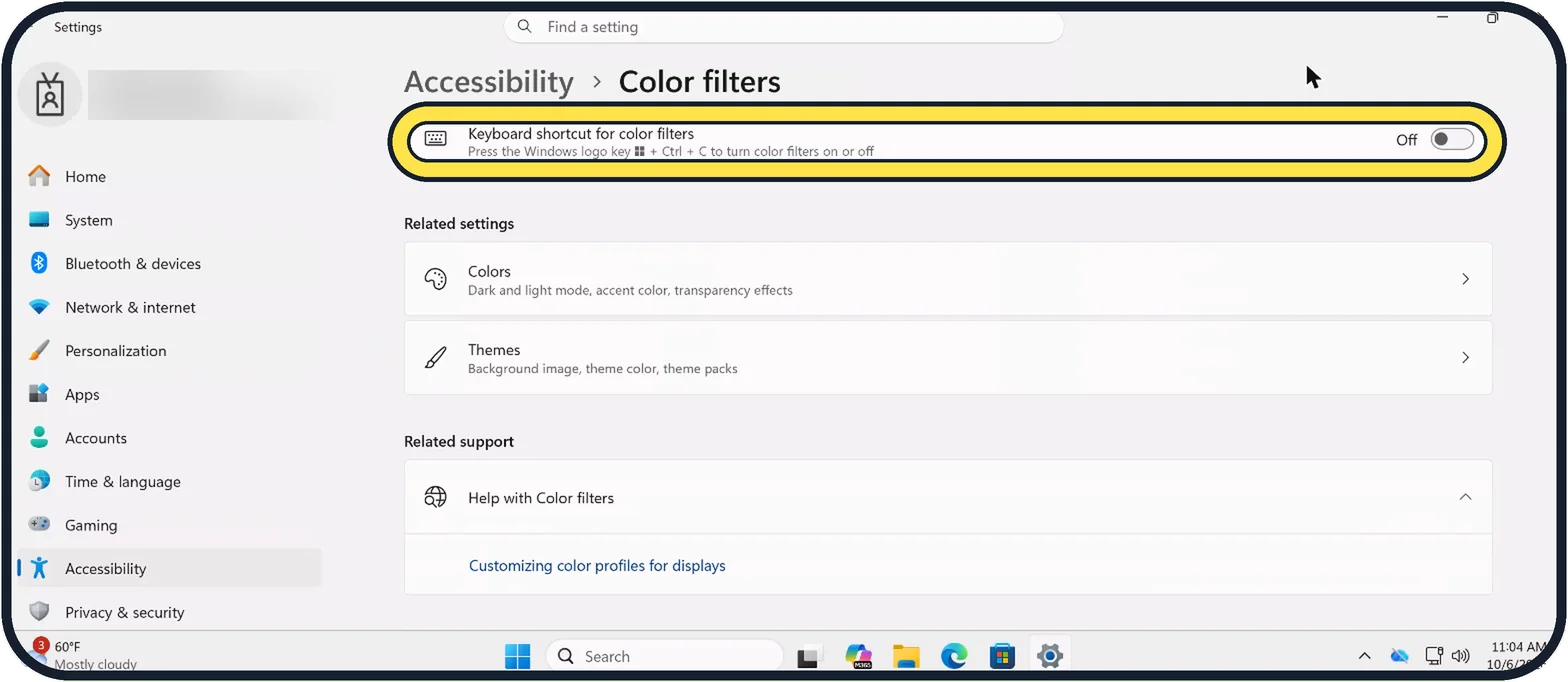
Tap the picture to see it full size Check the shortcut
Keyboard shortcut for color filters lets the Windows logo key + Ctrl + C turn color filters on or off, so a filter can appear by accident.
Switch the shortcut off if you do not use it. On our Cloud PC it is Off.
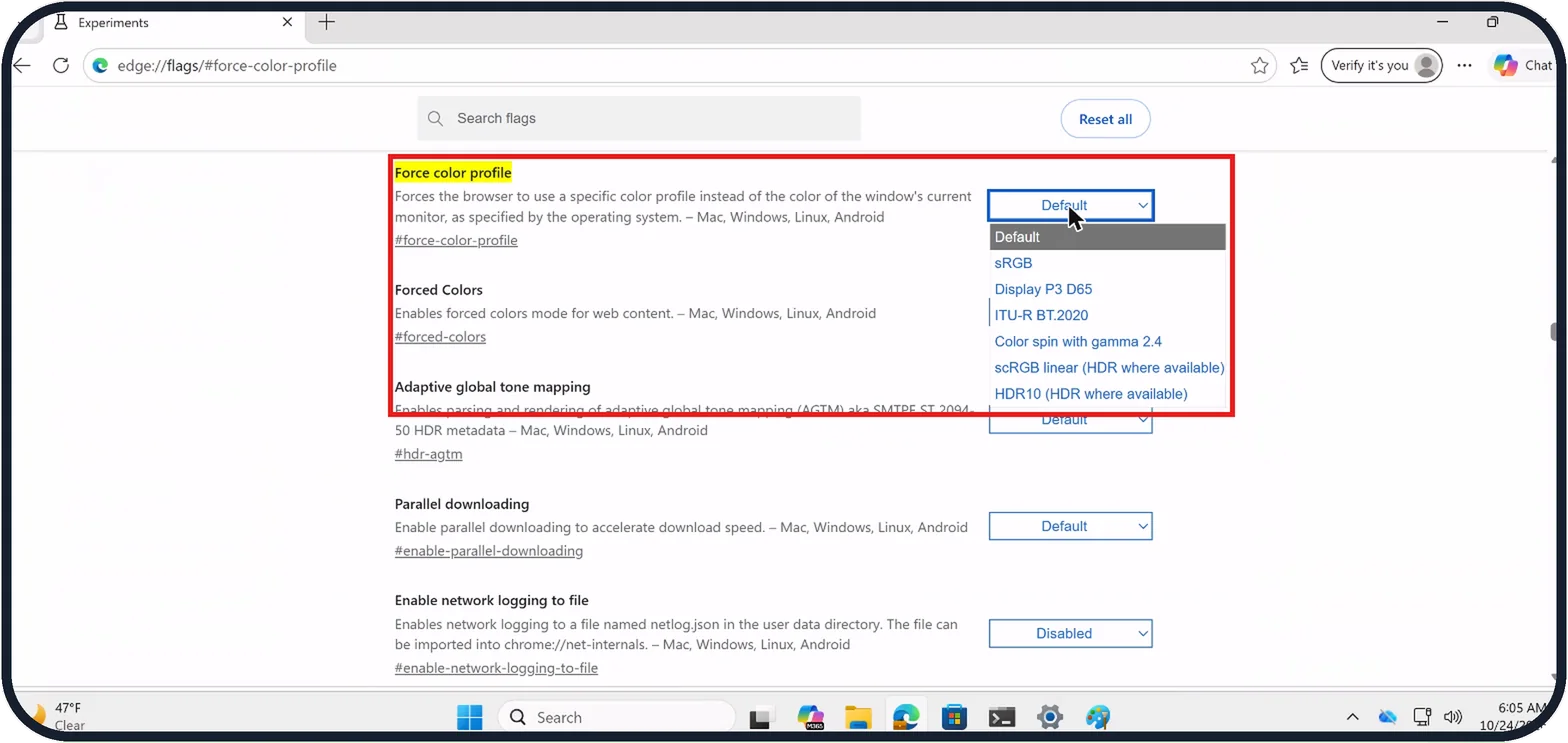
Tap the picture to see it full size Only Edge and Chrome look yellow?
Since a Windows update at the end of September 2026, people on Microsoft Q&A report a yellow page in Edge and Chrome; Microsoft has not confirmed this as a bug.
The fix given in that thread: type edge://flags (or chrome://flags) in the address bar, set Force color profile to sRGB and restart the browser.
On our Cloud PC the list offers Default, sRGB, Display P3 D65, ITU-R BT.2020, Color spin with gamma 2.4, scRGB linear (HDR where available) and HDR10 (HDR where available).
If you do not see this option
- No Night light row, or it is greyed out Microsoft says Night light is not available with certain drivers, such as DisplayLink or Basic Display. If the switch is greyed out, it says to update the display driver. Sources: Change display brightness and color in Windows, Use color filters in Windows, yellow page color on browsers after latest windows update
- No Turn off now button Night light is already off: the button then reads Turn on now, as on our Cloud PC after turning it off.
- Your PC runs Windows 10 Microsoft says colour filters are under Settings, Ease of Access, Color filters there, and under Color & high contrast on earlier versions of Windows 10. Sources: Change display brightness and color in Windows, Use color filters in Windows, yellow page color on browsers after latest windows update
If this does not work
- Colours still look wrong everywhere Microsoft says Automatically manage color for apps, under Settings, System, Display, Color profile, keeps colours accurate on supported displays. Check it there, with the colour profile. Sources: Change display brightness and color in Windows, Use color filters in Windows, yellow page color on browsers after latest windows update
- Colours went wrong after a colour profile was added Microsoft says to open Settings, System, Display, Color profile and select the display. Expand the profile and click Remove, or choose another profile and click Set profile to make it the default. Sources: Change display brightness and color in Windows, Use color filters in Windows, yellow page color on browsers after latest windows update
- Using a Cloud PC or remote session On our Cloud PC the Night light tint did not come through the remote connection even with Night light On, so check the switch rather than the colours you see.
About this guide
Two Windows settings change the colours of the whole screen: Night light makes it warmer, and colour filters change or invert the colours. Both can be switched on by a schedule or a shortcut without you noticing. If only browser windows look yellow after an update, see the last step.
The screenshots are our own, taken on Windows 11 Enterprise 25H2 running as a Microsoft Cloud PC, a Windows PC that runs in the cloud.
Good to know
If the colours are wrong everywhere and neither setting is on, check the monitor's own menu and the colour profile: the Color filters page links to Customizing color profiles for displays.
Using Night light on purpose: how to turn on Night light on Windows 11.
In short: Yellow: Settings, System, Display, Night light, Turn off now, then check Schedule night light. Odd colours: Settings, Accessibility, Color filters, Off. Check the keyboard shortcut for color filters too.
- Microsoft Support: Change display brightness and color in Windows
- Microsoft Support: Use color filters in Windows
- Microsoft Q&A: yellow page color on browsers after latest windows update
Links checked in October 2026. Menus and features can change after software updates. These steps match the version named at the top.
📷 Camera Lab: the same 6 scenes photographed with 11 phones, side by side.
Did this guide work for you?
Sorry about that. What happened?