
howtosimply.com/guides/file-explorer-preview-pane-not-working-on-windows-11-fixes/ · Checked October 2026 · Windows 11 Enterprise 25H2 (build 26200.9457), Microsoft Cloud PC
In this guide
- Turn on the preview pane
- Select one file
- "The file you are attempting to preview could harm your computer"
- Unblock a file you trust
- Open Folder Options
- Check the preview handlers
- Preview pane or Details pane
- Check the button at the right of the bar
- Install updates and restart
- If you do not see this option
- If this does not work
- Good to know
- Sources
Turn the pane on with View, Preview pane, and select one file. If it says the file could harm your computer, Windows treats it as coming from the internet: Windows has blocked such previews since the 14 October 2025 updates. For a trusted file, open Properties and tick Unblock.
8 of 9 steps with real screenshots · 3 official sources below
- Device
- Windows
- Shown on
- Windows 11 Enterprise 25H2 (build 26200.9457), Microsoft Cloud PC
- App
- Preview
- Real screenshots
- 8 of 9 steps
- Checked
- October 2026
- Sources
- 3 official, linked below
Step by step
Zoomed in on the setting. Tap to see the whole screenTap the picture to see it full size Turn on the preview pane
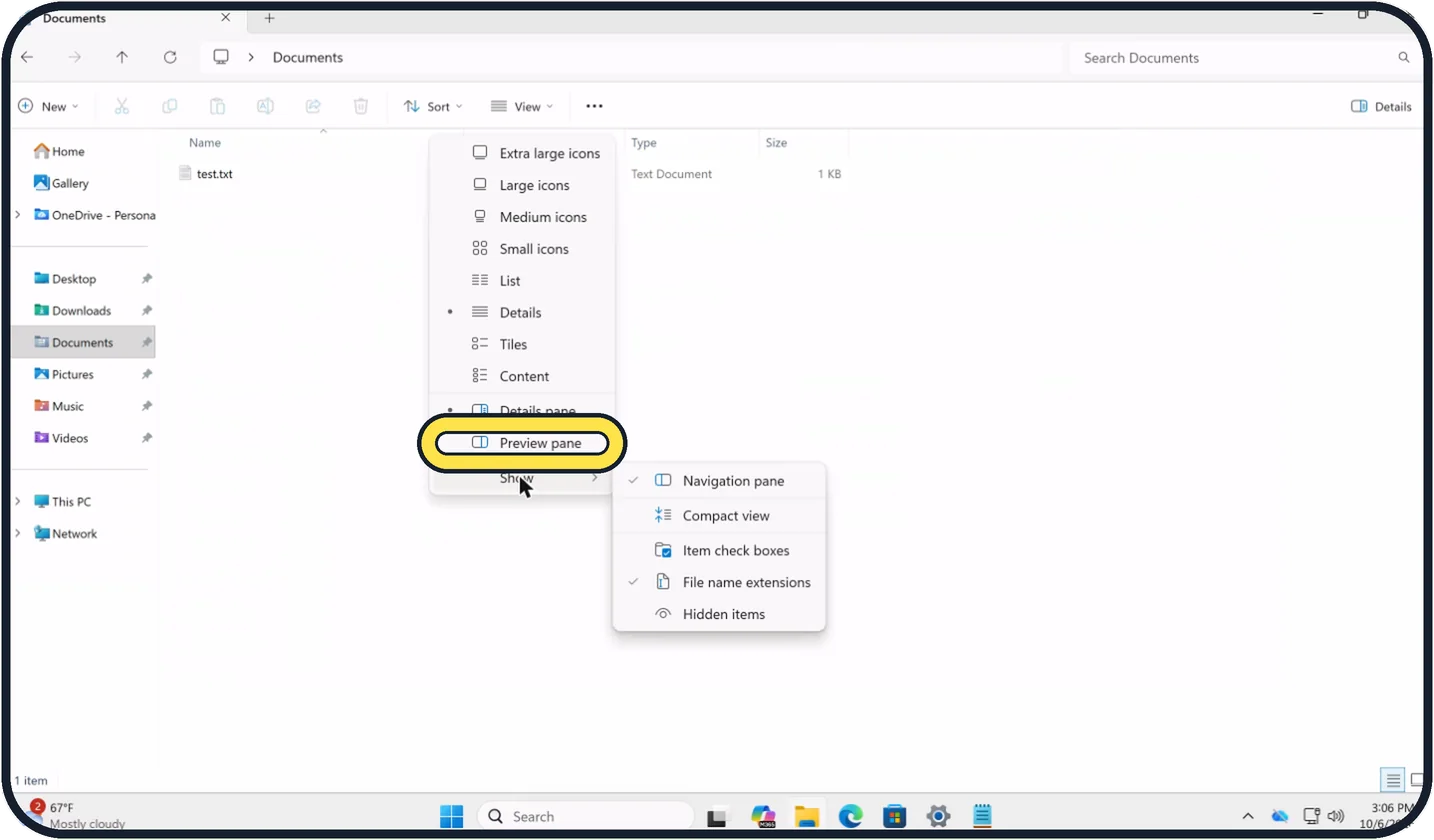
In File Explorer, click View in the top bar and choose Preview pane.
On our Cloud PC, Preview pane sits just below Details pane and just above Show.
Zoomed in on the setting. Tap to see the whole screenTap the picture to see it full size Select one file
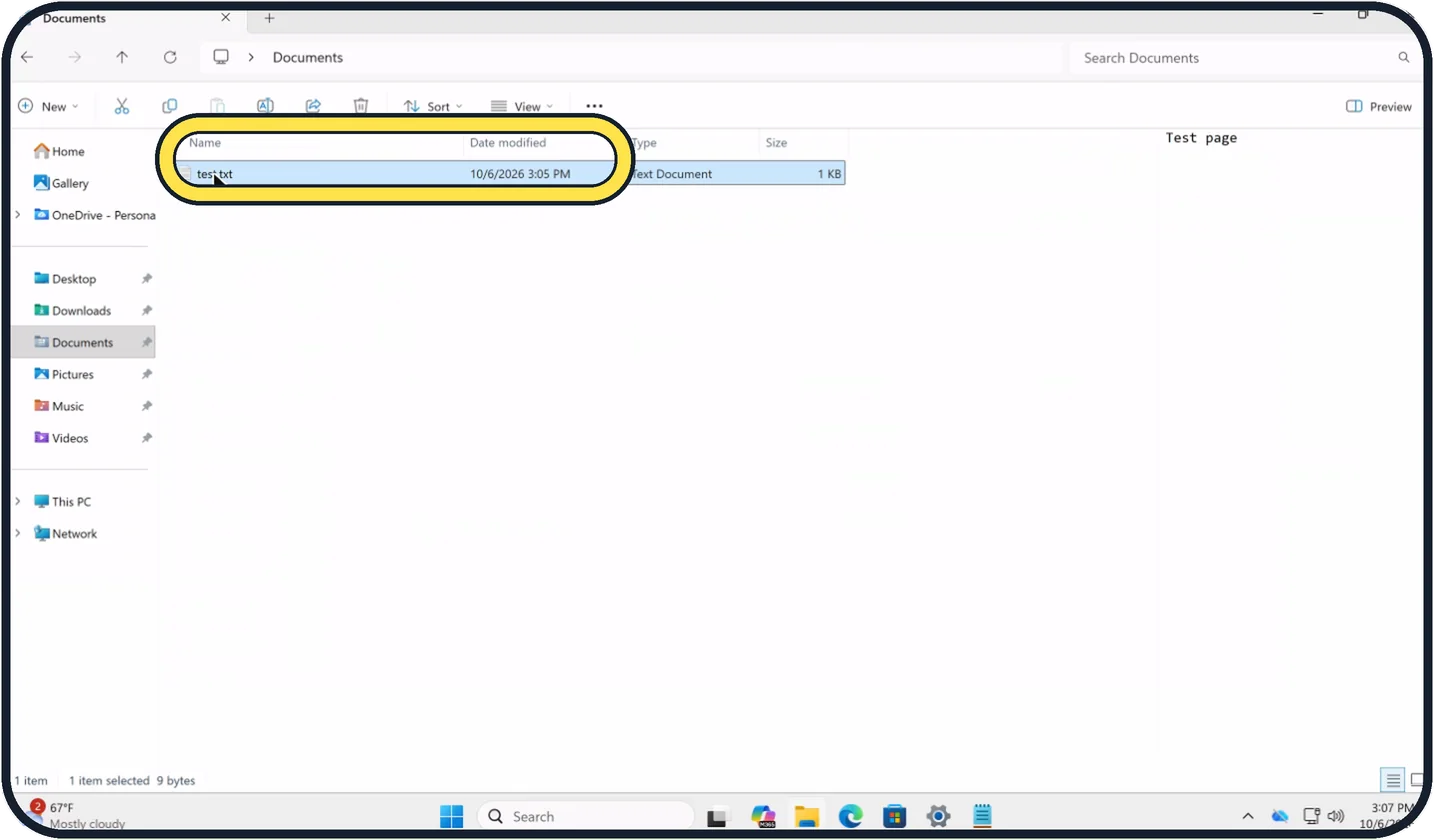
Click a single file. Its content appears on the right; our test.txt shows its line Test page.
With several files or a folder selected, the pane stays empty.
"The file you are attempting to preview could harm your computer"
Microsoft says this happens when the file is marked as downloaded from the internet, or sits on a network share in the Internet zone.
Microsoft turned off previews for such files with the Windows security updates from 14 October 2025, to protect against attacks through the preview.
Tap the picture to see it full size Unblock a file you trust
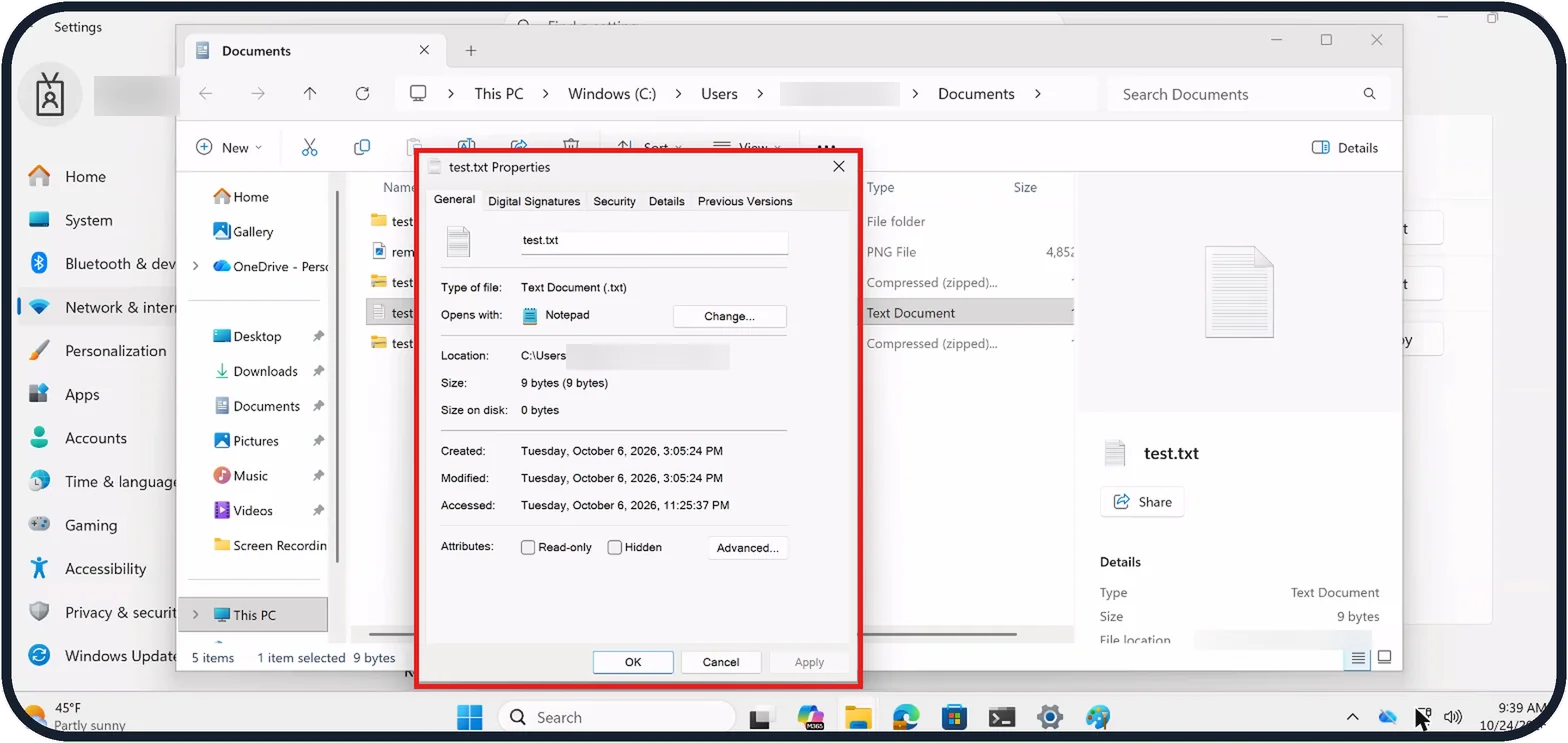
Right-click the file, choose Properties and, according to Microsoft, tick Unblock on the General tab, then click OK. Do this only for files from a source you trust.
On our Cloud PC, test.txt was made on the PC, so its General tab has no Unblock box; Attributes shows only Read-only and Hidden.
Zoomed in on the setting. Tap to see the whole screenTap the picture to see it full size Open Folder Options
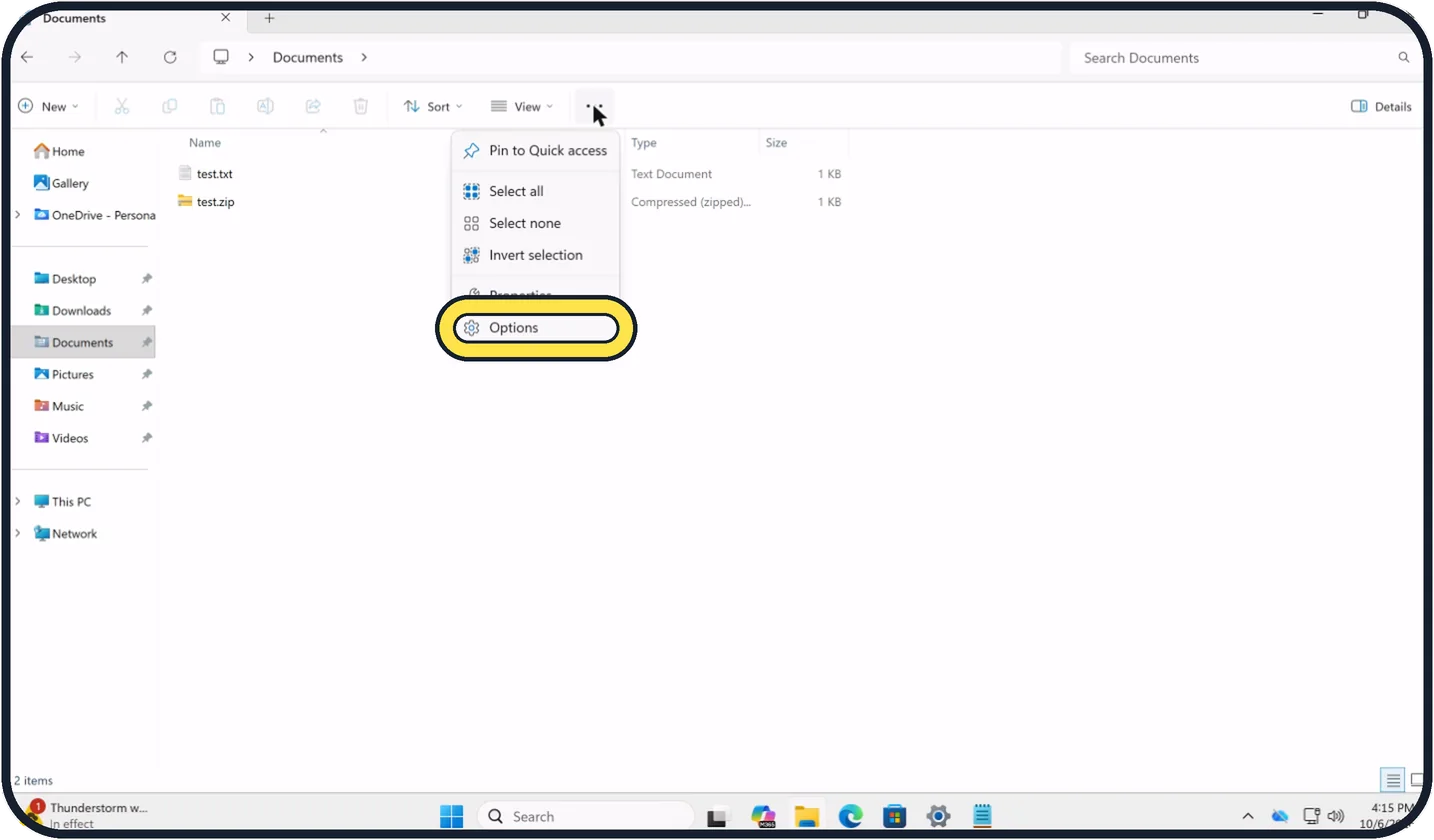
Click the three dots in the File Explorer bar, to the right of View, and choose Options.
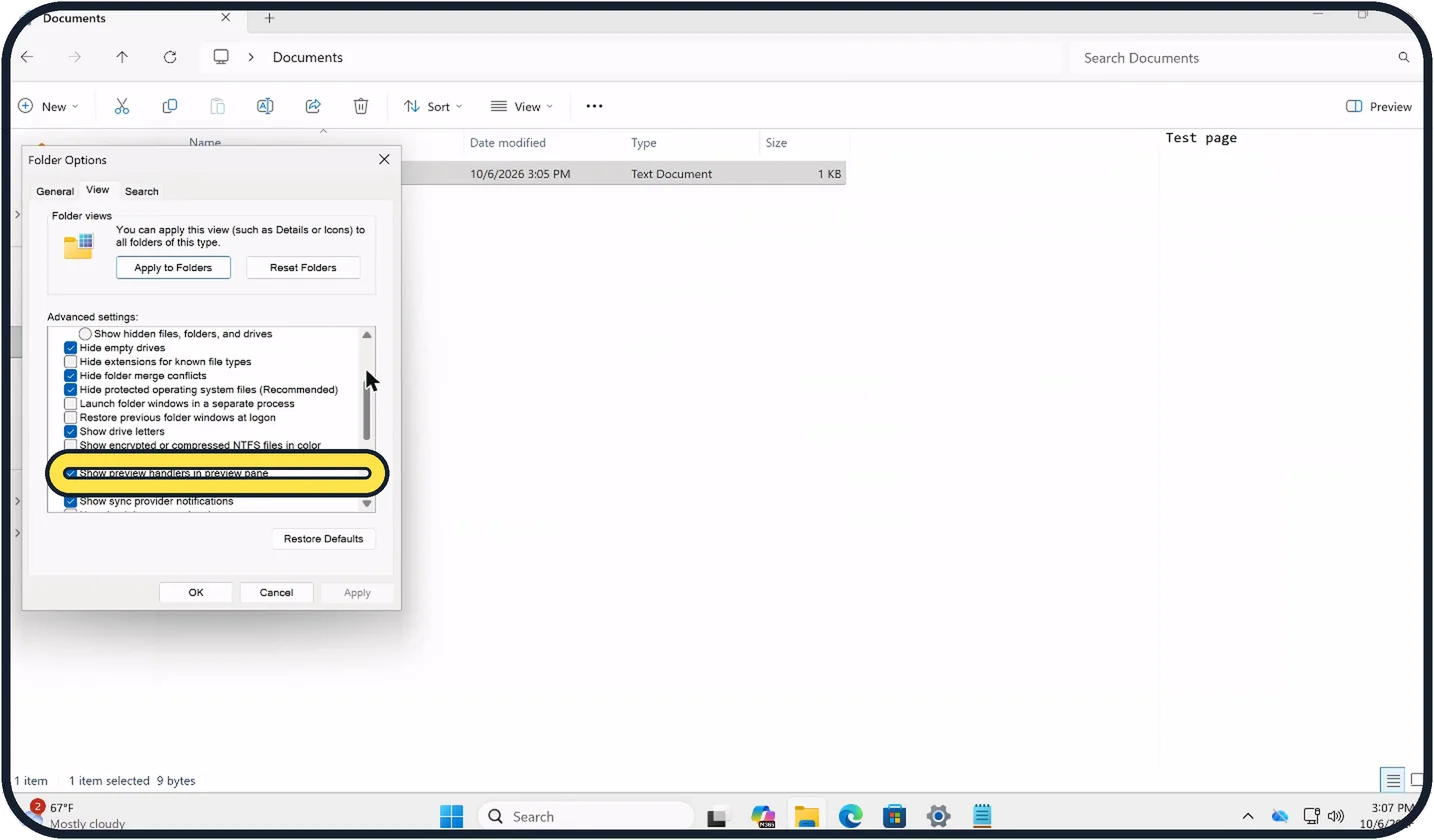
Zoomed in on the setting. Tap to see the whole screenTap the picture to see it full size Check the preview handlers
In Folder Options, open the View tab. Under Advanced settings, Show preview handlers in preview pane must be ticked. Click OK.
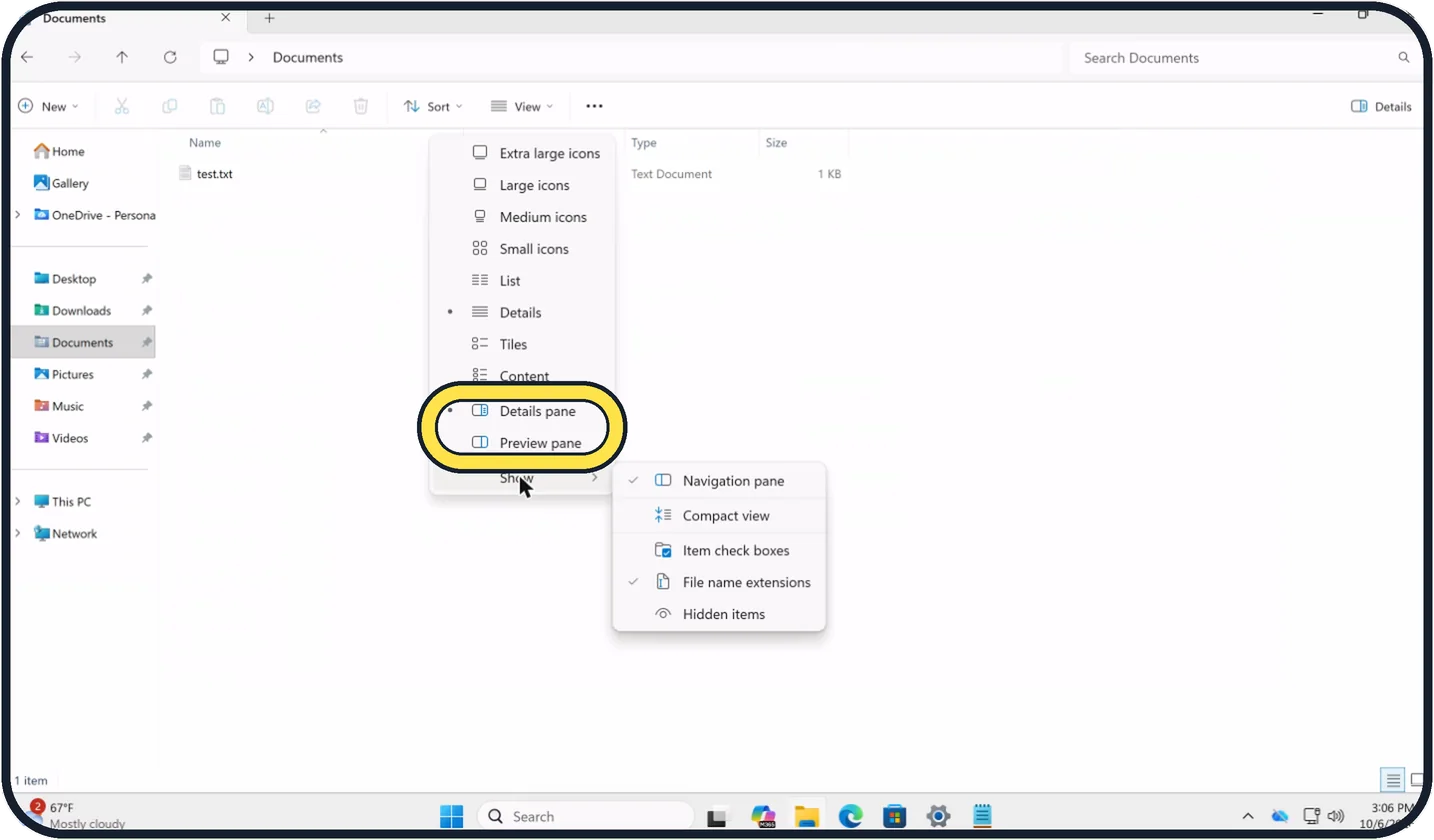
Zoomed in on the setting. Tap to see the whole screenTap the picture to see it full size Preview pane or Details pane
The View menu has a dot in front of the pane that is shown. Details pane and Preview pane share the same space, so choosing one hides the other.
On our Cloud PC, the dot was in front of Details pane.
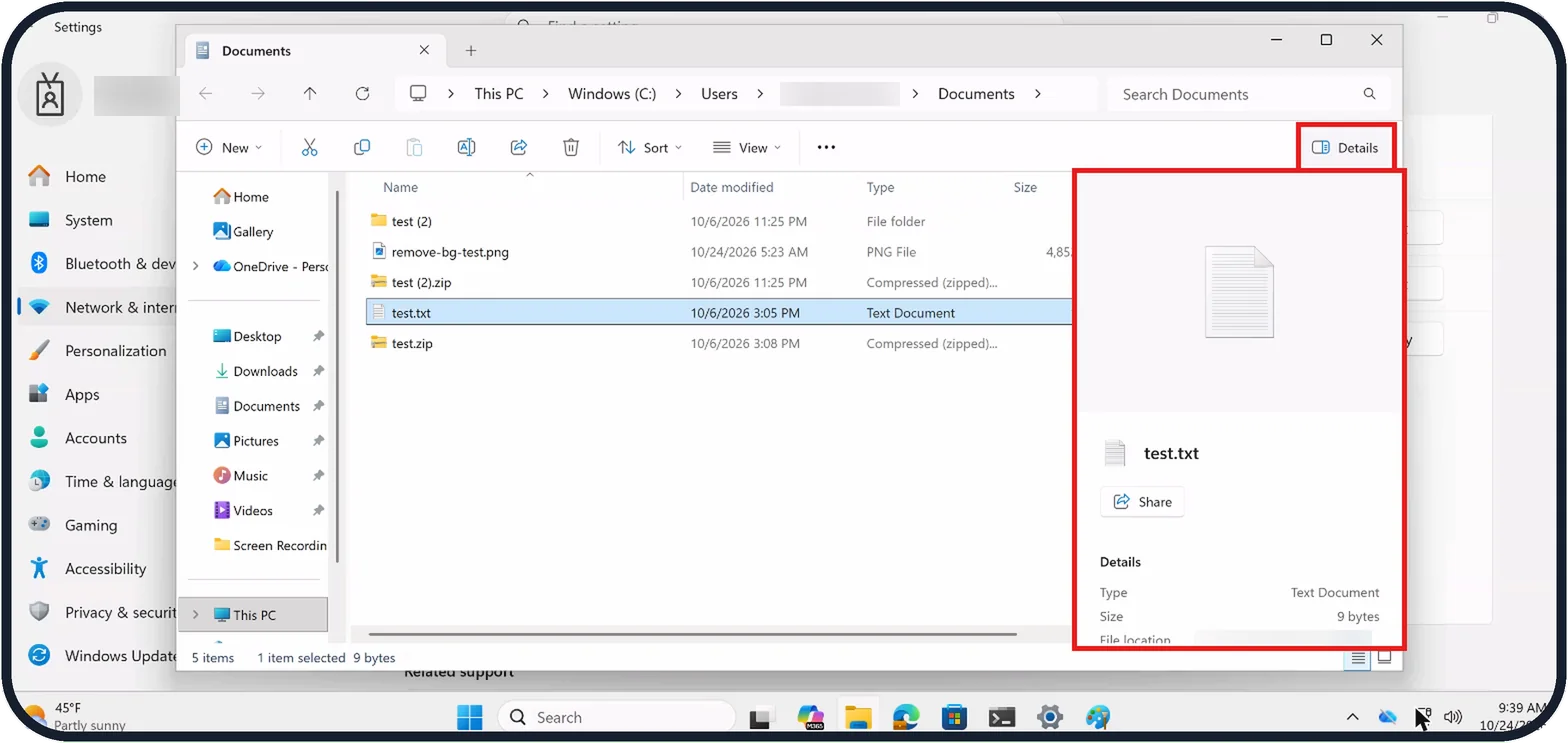
Tap the picture to see it full size Check the button at the right of the bar
The button at the right end of the command bar names the pane in use and switches it off when clicked. Then choose Preview pane in the View menu.
On our Cloud PC, the button read Details and the pane showed Type Text Document and Size 9 bytes for test.txt instead of its content.
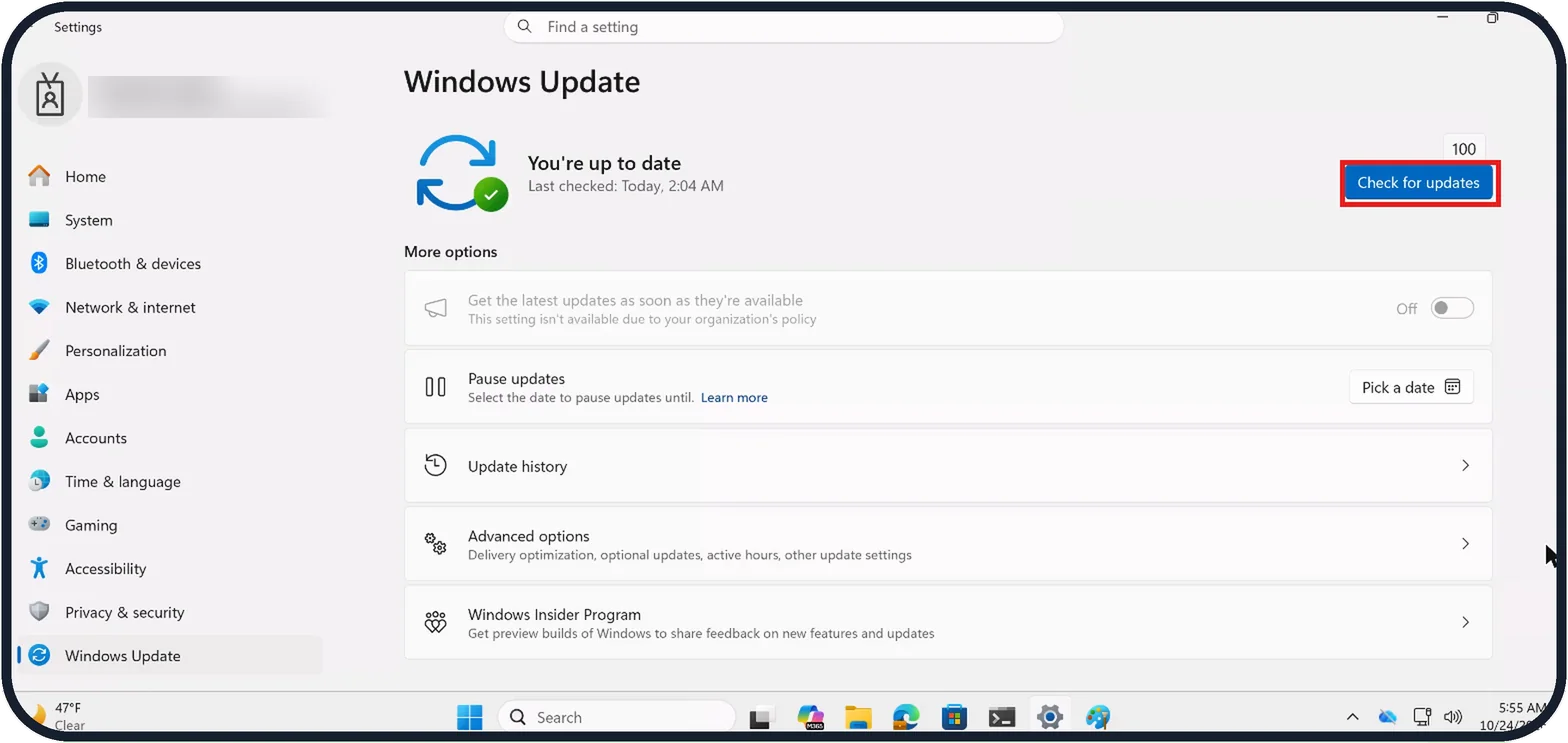
Tap the picture to see it full size Install updates and restart
If only some file types fail, such as PDFs, the app that should preview them may be missing its preview part.
In Settings, open Windows Update and click Check for updates, install the latest version of that app, then restart.
On our Cloud PC, the Windows Update page showed You're up to date.
If you do not see this option
- Preview pane is not under Show In our View menu, Details pane and Preview pane sit below the layouts such as Details and Tiles, just above Show. Show only holds items such as Navigation pane and Hidden items.
- No Unblock box on the General tab Files made on the PC are not blocked, so they have no Unblock box. Our test.txt shows only the Read-only and Hidden attributes.
- No Unblock box for a file on a network share Microsoft says Unblock is for downloaded files. For files on an internet-zone share, it says to add the share to Local intranet or Trusted sites on the Security tab of Internet Options. That relaxes security for every file on that share. Sources: File Explorer automatically disables the preview feature for files downloaded from the internet, File Explorer in Windows, File Explorer is restoring previews with a Preview anyway button
If this does not work
- The pane shows file details, not the content The Details pane is on. On our Cloud PC it listed Type and Size for test.txt. Click the Details button at the right of the bar, then choose Preview pane in View.
- Some files preview and others do not Microsoft says the block applies only to files marked as coming from the internet and to files on an internet-zone share. Files made on the PC, like our test.txt, still preview. Sources: File Explorer automatically disables the preview feature for files downloaded from the internet, File Explorer in Windows, File Explorer is restoring previews with a Preview anyway button
- The preview is still blocked after you tick Unblock Microsoft says the change might not take effect immediately, but will work after the next login. Sign out and back in, then select the file again. Sources: File Explorer automatically disables the preview feature for files downloaded from the internet, File Explorer in Windows, File Explorer is restoring previews with a Preview anyway button
About this guide
The preview pane shows the content of the selected file on the right side of File Explorer. When it stays empty, it is usually switched off, replaced by the Details pane, blocked for downloaded files, or the preview handlers are switched off.
The screenshots are our own, taken on Windows 11 Enterprise 25H2 running as a Microsoft Cloud PC, a Windows PC that runs in the cloud. File Explorer is the same on Home and Pro PCs; where the Cloud PC shows something different, the step says so.
Good to know
A Preview anyway button that skips the warning for a single file was tested with Windows Insiders in 2026, according to Windows Latest.
Seeing file endings helps here: how to show hidden files and file extensions on Windows 11.
In short: View, Preview pane, select one file. Downloaded file blocked: Properties, Unblock, then sign in again. Folder Options, View: Show preview handlers in preview pane. Details pane showing instead: switch to Preview pane. Some file types failing: Windows Update, Check for updates, then restart.
- Microsoft Support: File Explorer automatically disables the preview feature for files downloaded from the internet
- Microsoft Support: File Explorer in Windows
- Windows Latest: File Explorer is restoring previews with a Preview anyway button
Links checked in October 2026. Menus and features can change after software updates. These steps match the version named at the top.
📷 Camera Lab: the same 6 scenes photographed with 11 phones, side by side.
Did this guide work for you?
Sorry about that. What happened?