
howtosimply.com/guides/how-to-turn-on-night-light-on-windows-11/ · Checked October 2026 · Windows 11 Enterprise 25H2 (build 26200.9457), Microsoft Cloud PC
In this guide
Open Settings, choose System, then Display, and switch on Night light. Click the row to set the strength and a schedule, for example sunset to sunrise.
4 of 4 steps with real screenshots · 1 official source below
- Device
- Windows
- Shown on
- Windows 11 Enterprise 25H2 (build 26200.9457), Microsoft Cloud PC
- App
- Settings
- Path
- Settings › System › Display › Night light
- Real screenshots
- 4 of 4 steps
- Checked
- October 2026
- Sources
- 1 official, linked below
Step by step
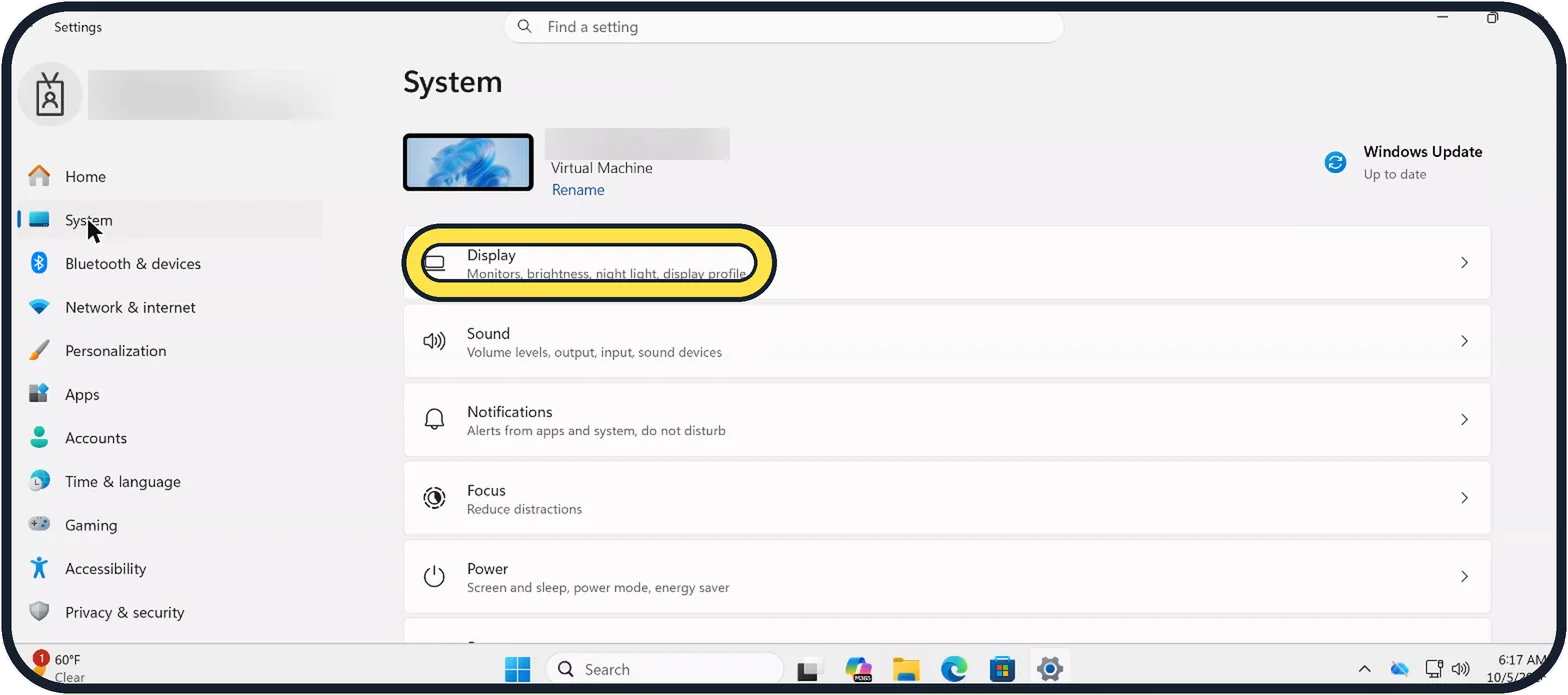
Zoomed in on the setting. Tap to see the whole screenTap the picture to see it full size Open Settings and choose System, then Display
Press Windows + I. Display is the first row on the System page.
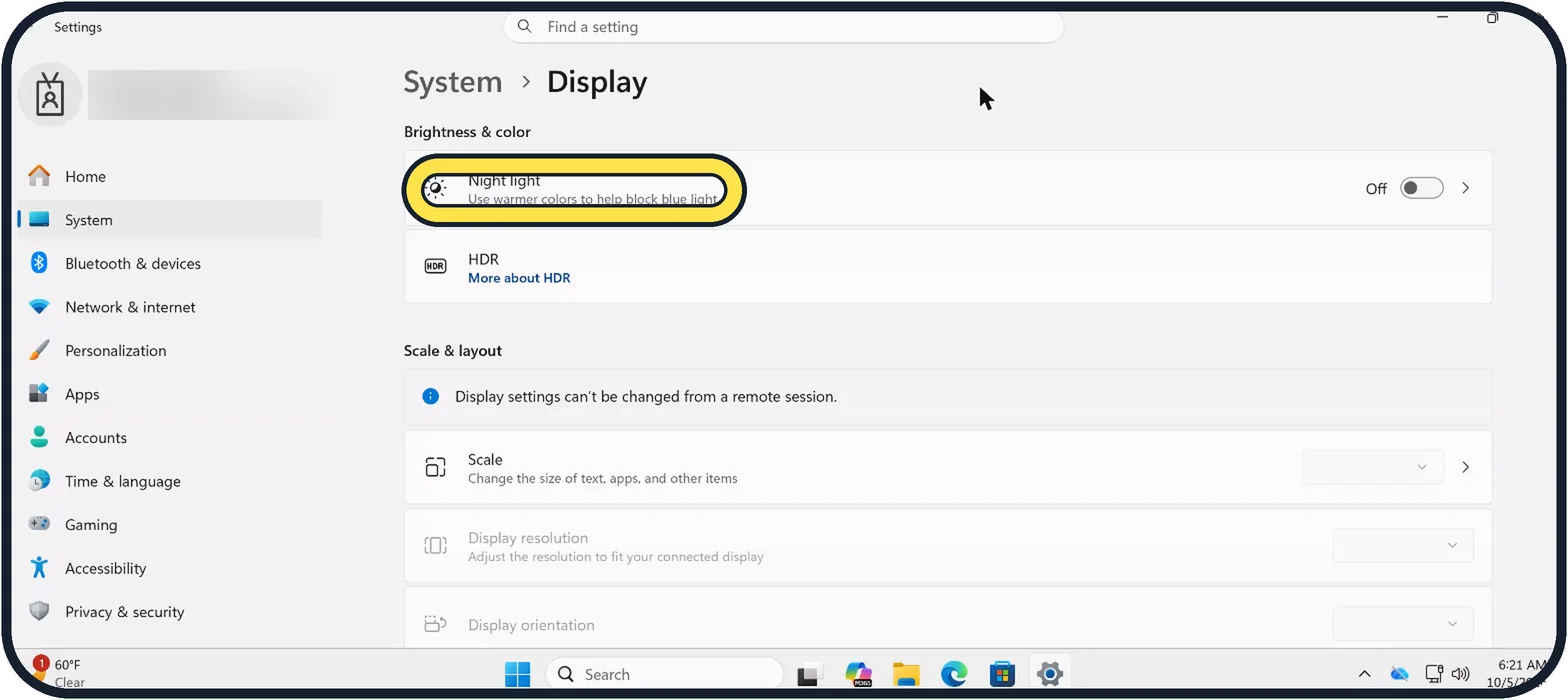
Zoomed in on the setting. Tap to see the whole screenTap the picture to see it full size Switch on Night light
Use the switch at the right end of the Night light row. The screen turns slightly orange straight away.
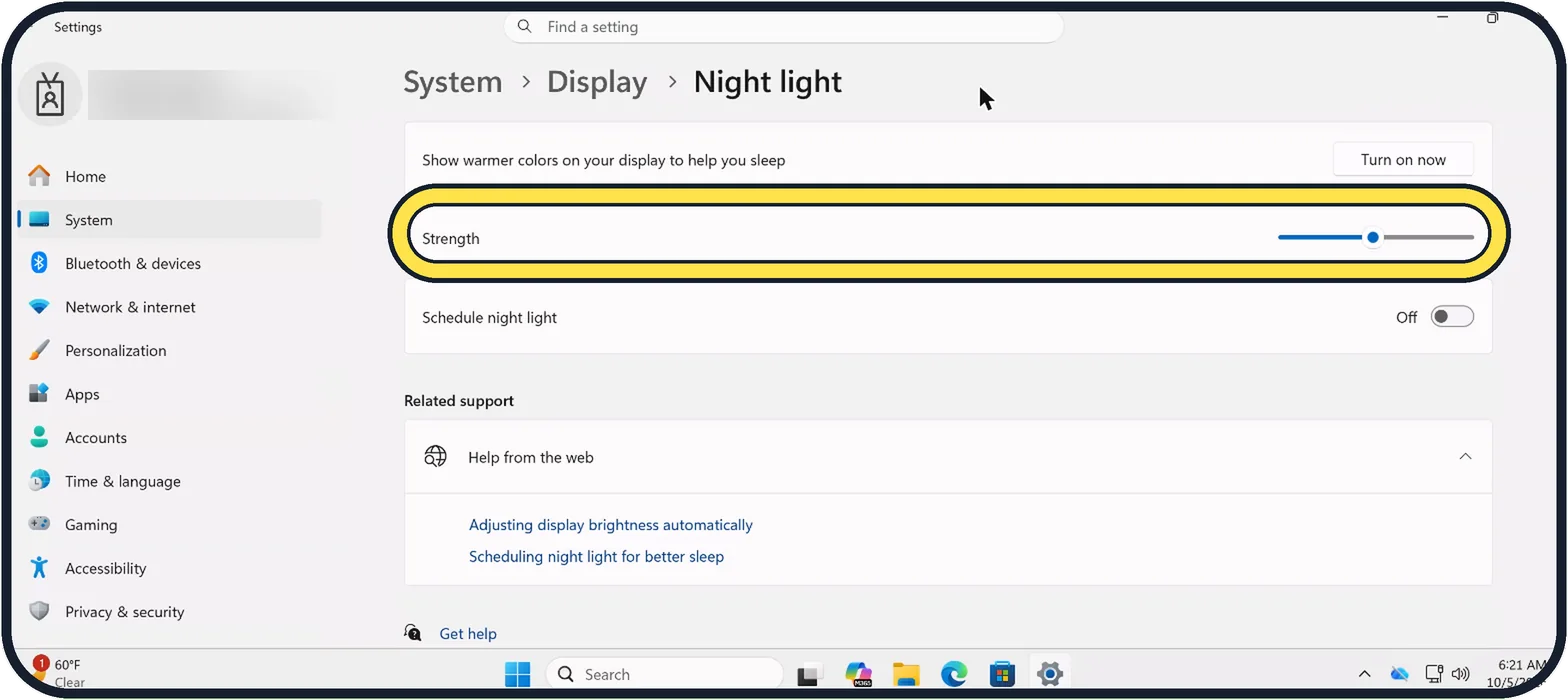
Tap the picture to see it full size Click the Night light row to adjust it
Move the Strength slider until the colour is comfortable. Turn on now switches it on without a schedule.
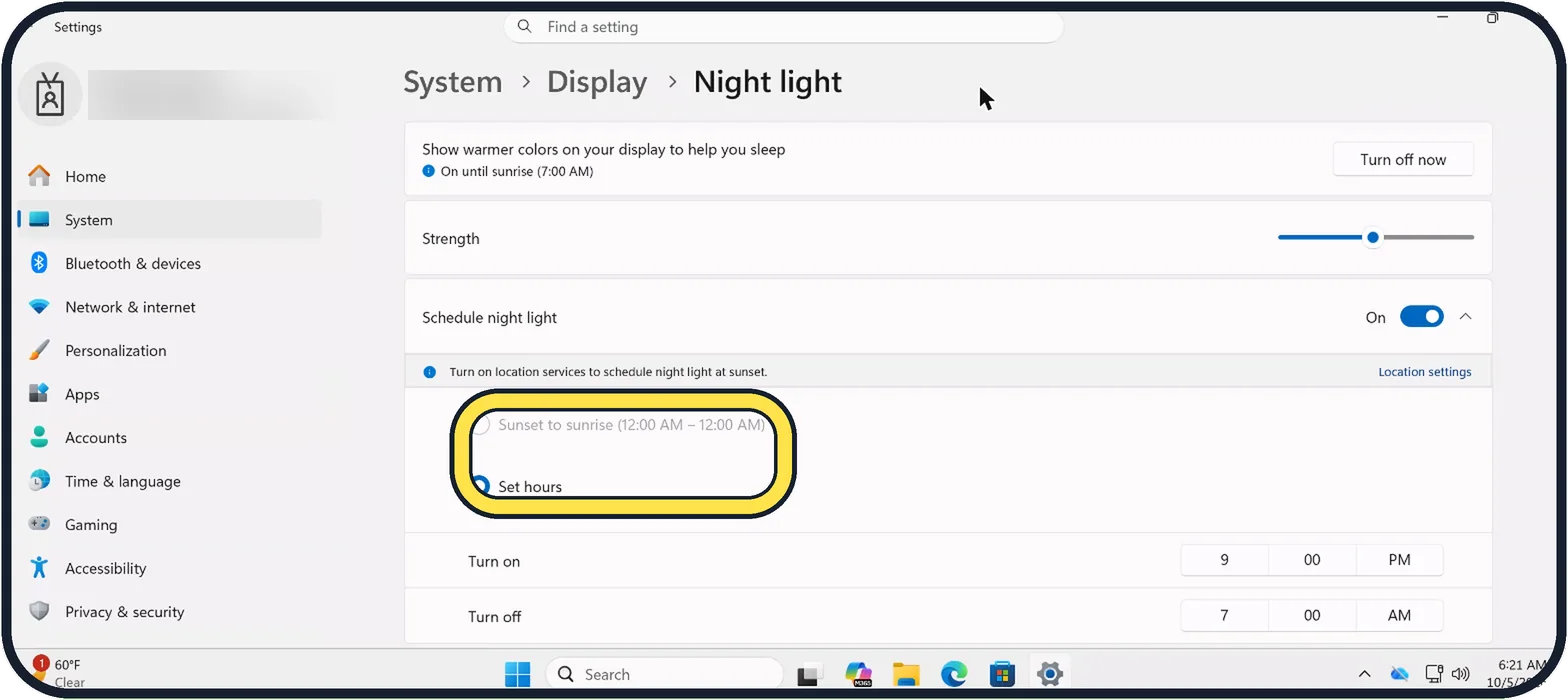
Zoomed in on the setting. Tap to see the whole screenTap the picture to see it full size Set a schedule
Switch on Schedule night light. Choose Sunset to sunrise, which needs location services turned on, or Set hours to pick your own times. With location off, as on our PC, only Set hours can be chosen.
About this guide
Night light makes the screen warmer and less blue in the evening. Many people find it easier on the eyes in a dark room.
Good to know
The quick way: click the network, sound and battery icons at the right end of the taskbar and use the Night light button.
Turn Night light off when you edit photos or video, because it changes how colours look.
In short: Settings, System, Display, Night light. Add a schedule so it turns on by itself.
Links checked in October 2026. Menus and features can change after software updates. These steps match the version named at the top.
Did this guide work for you?
Sorry about that. What happened?