
howtosimply.com/guides/how-to-stop-notifications-popping-up-on-windows-11/ · Checked October 2026 · Windows 11 Enterprise 25H2 (build 26200.9457), Microsoft Cloud PC
In this guide
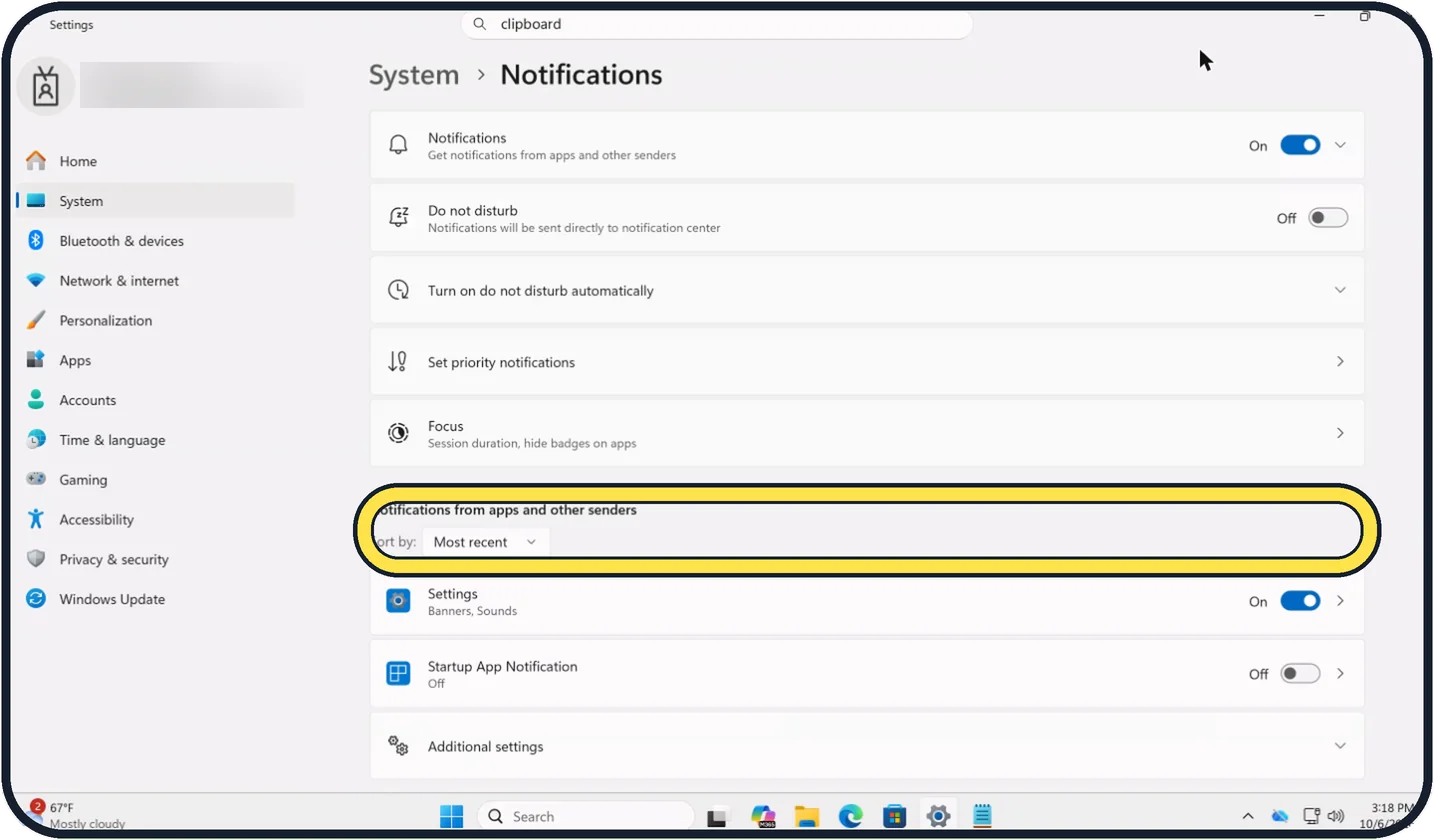
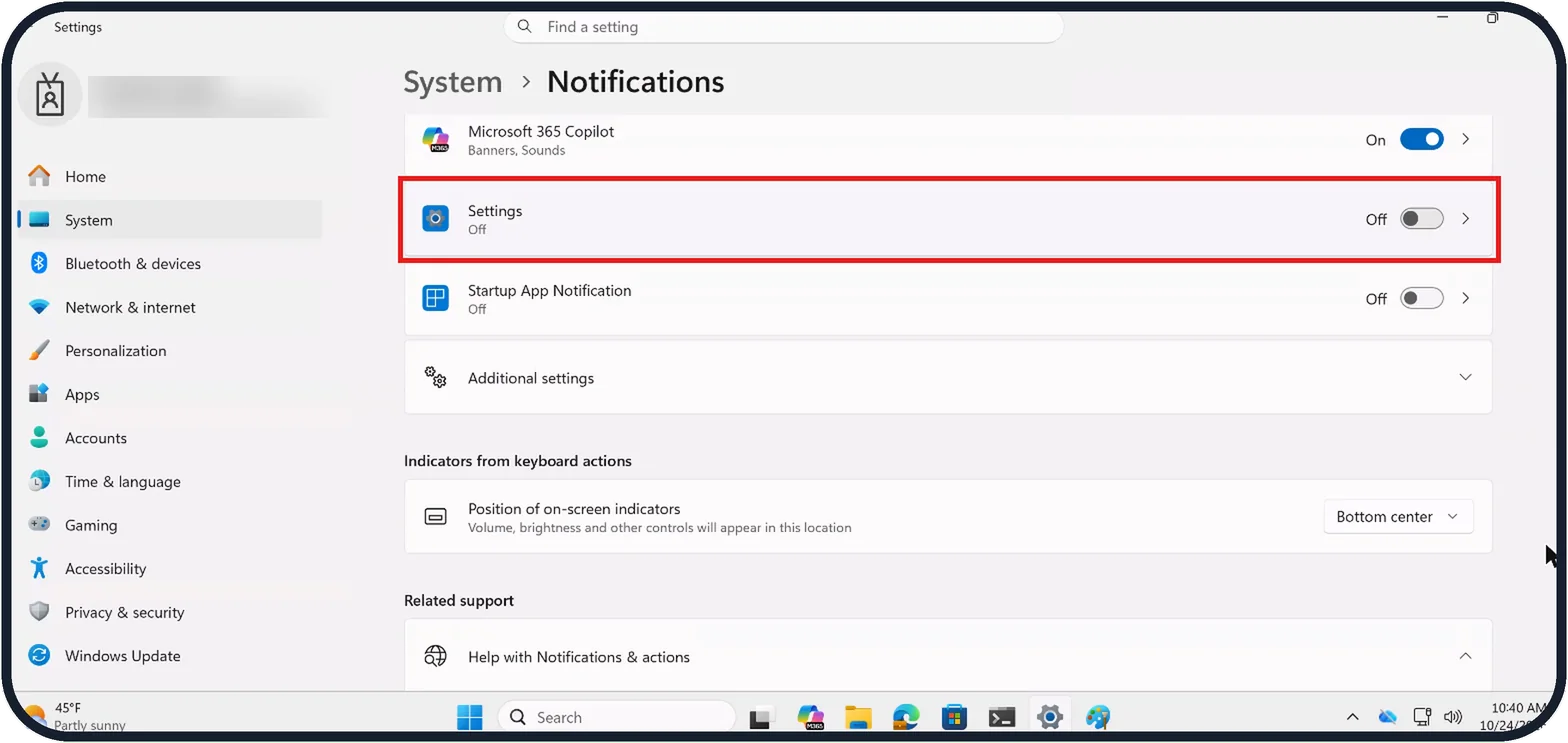
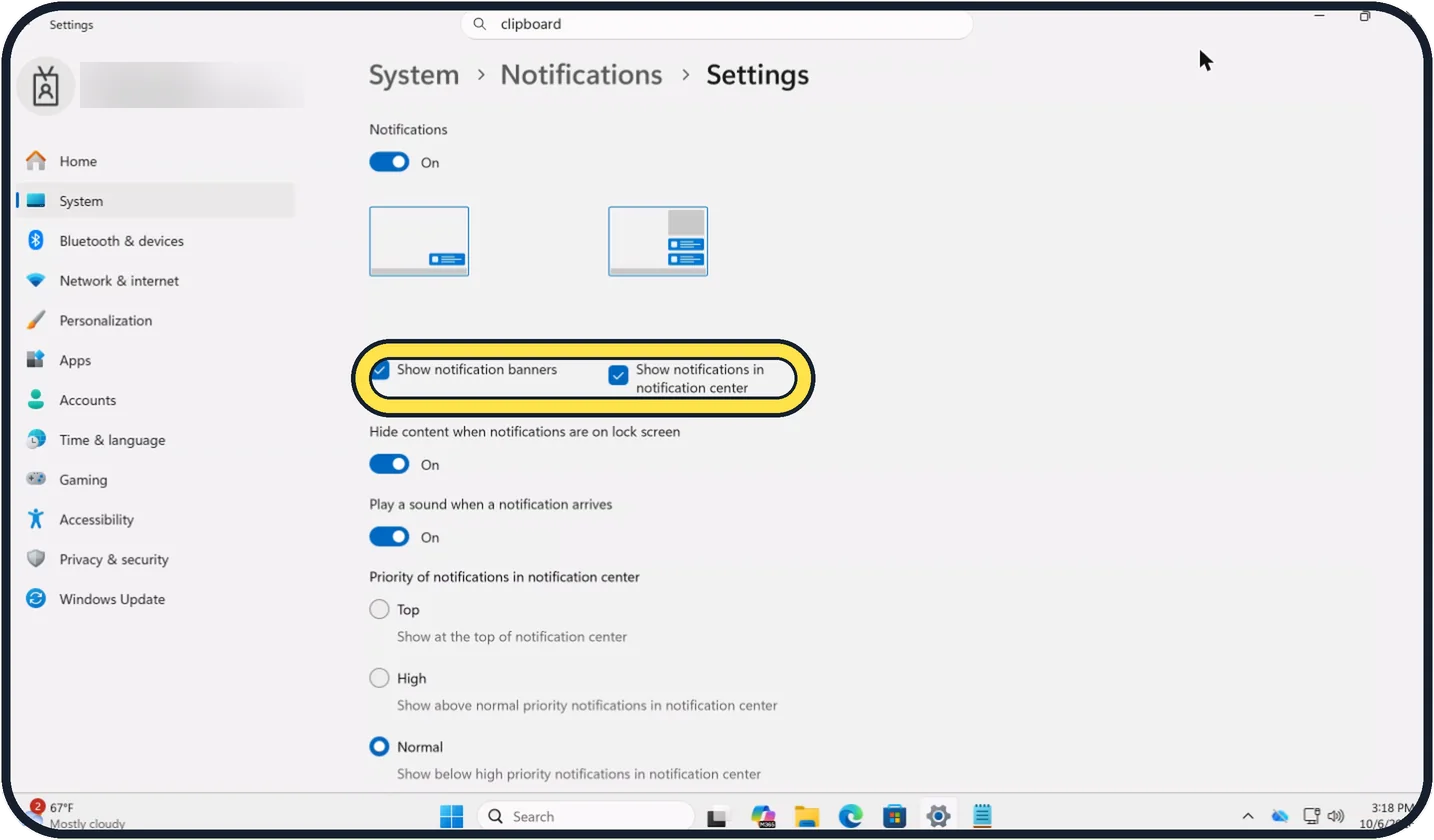
Open Settings, System, Notifications. Under Notifications from apps and other senders, switch an app Off to silence it, or click it and untick Show notification banners to keep its messages in notification center without pop-ups. Do not disturb silences banners for all apps.
8 of 8 steps with real screenshots · 1 official source below
- Device
- Windows
- Shown on
- Windows 11 Enterprise 25H2 (build 26200.9457), Microsoft Cloud PC
- App
- Settings
- Path
- Settings › System
- Real screenshots
- 8 of 8 steps
- Checked
- October 2026
- Sources
- 1 official, linked below
Step by step
Tap the picture to see it full size Open the notification settings
Open Start, Settings, System, Notifications. Scroll to Notifications from apps and other senders.
Sort by Most recent to find the app that keeps popping up.
Tap the picture to see it full size Switch off one app
Switch off the app in the list. It sends no banners and no entries any more.
On our Cloud PC, the Settings app's row then read Off under its name.
Zoomed in on the setting. Tap to see the whole screenTap the picture to see it full size Or keep it but stop the pop-ups
Click the app instead. Untick Show notification banners and leave Show notifications in notification center ticked.
On our Cloud PC both boxes were ticked to start with.
Its messages then wait quietly behind the clock.
Zoomed in on the setting. Tap to see the whole screenTap the picture to see it full size Turn off the sound
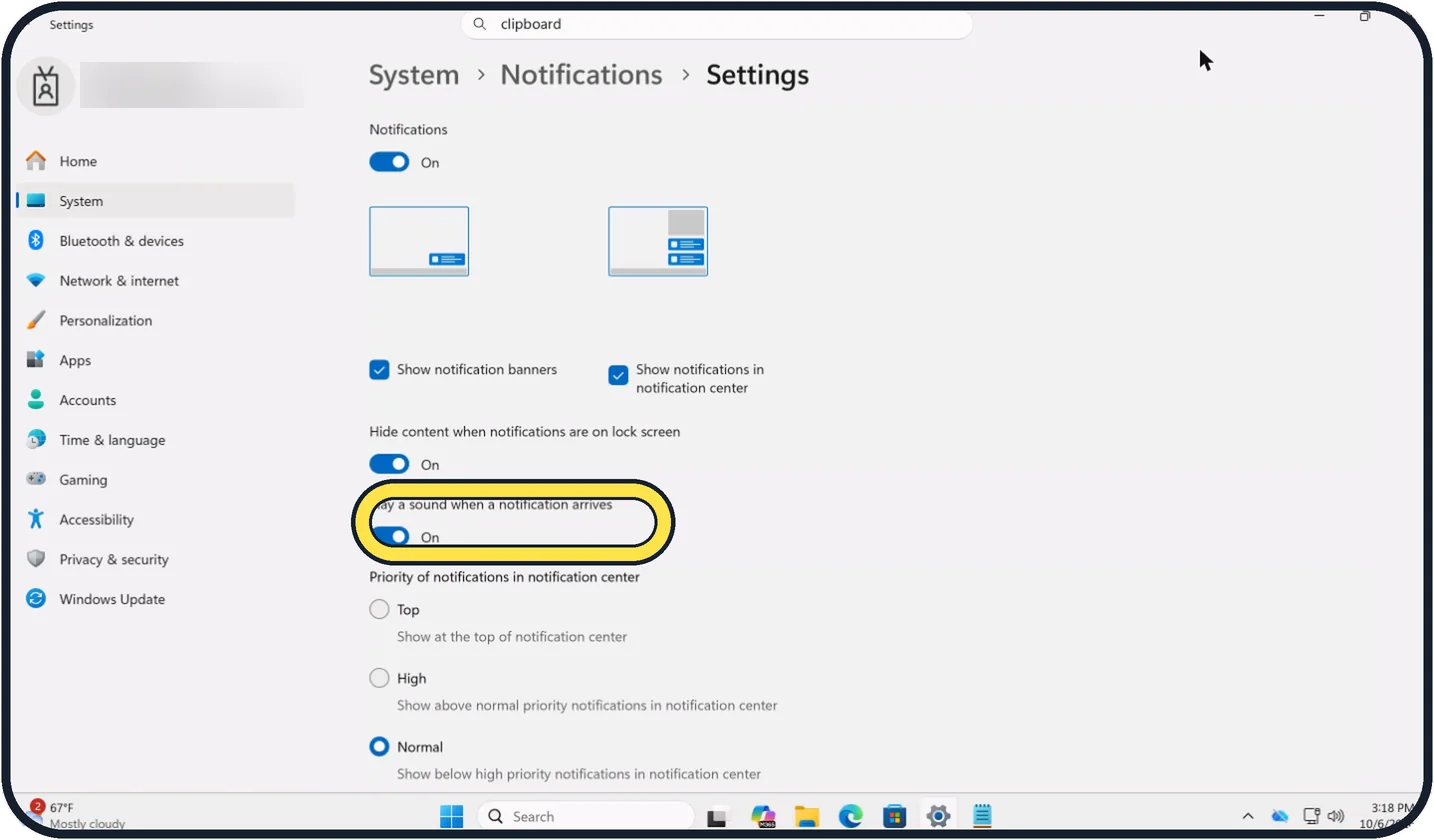
On the same page, switch off Play a sound when a notification arrives.
Tap the picture to see it full size Silence everything for a while
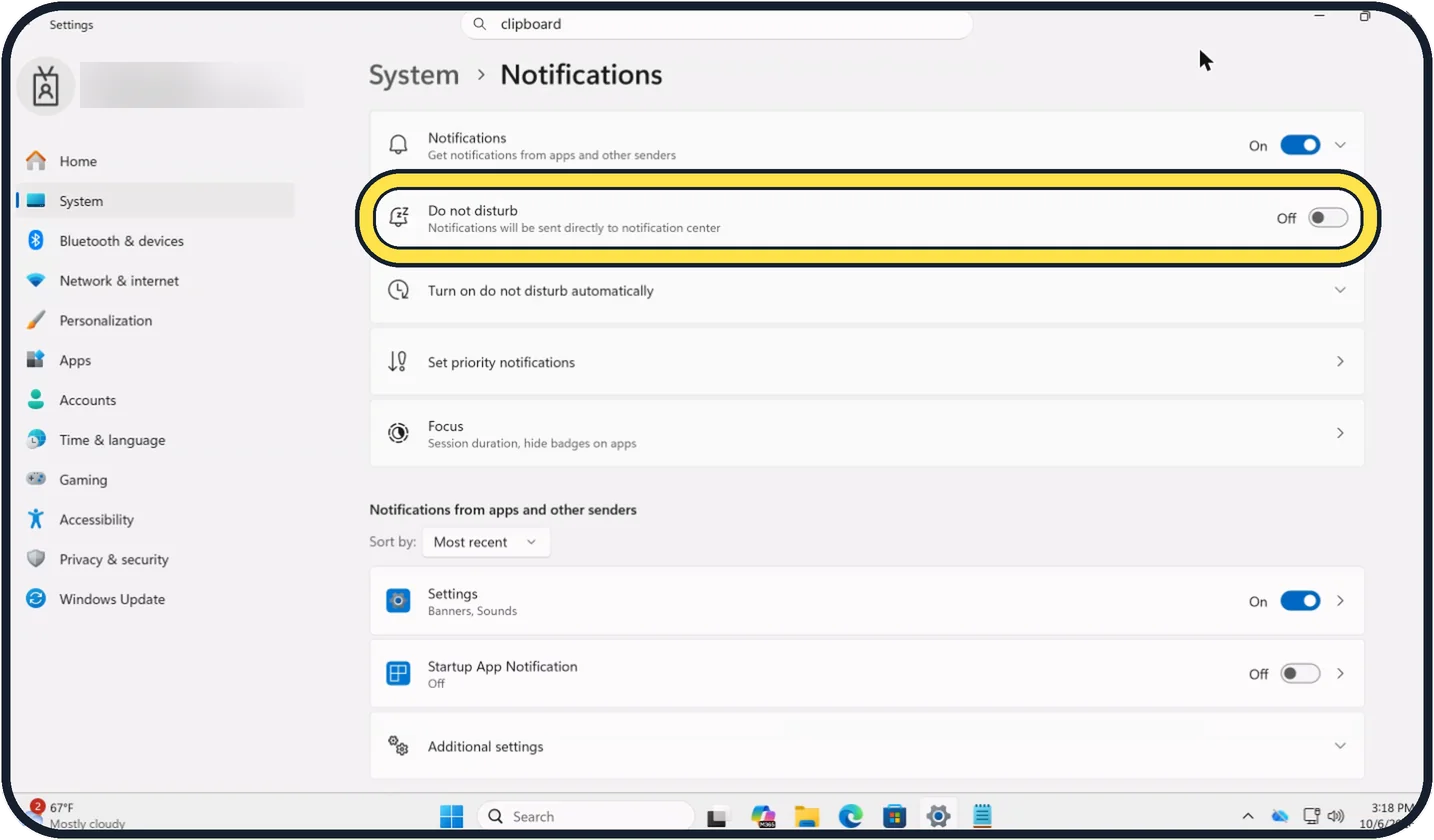
Back on the Notifications page, switch on Do not disturb. Its subtitle reads: Notifications will be sent directly to notification center.
On our Cloud PC, the bell at the right-hand end of the taskbar then showed a small zz.
The picture shows the switch before it is turned on.
Tap the picture to see it full size Or switch all notifications off
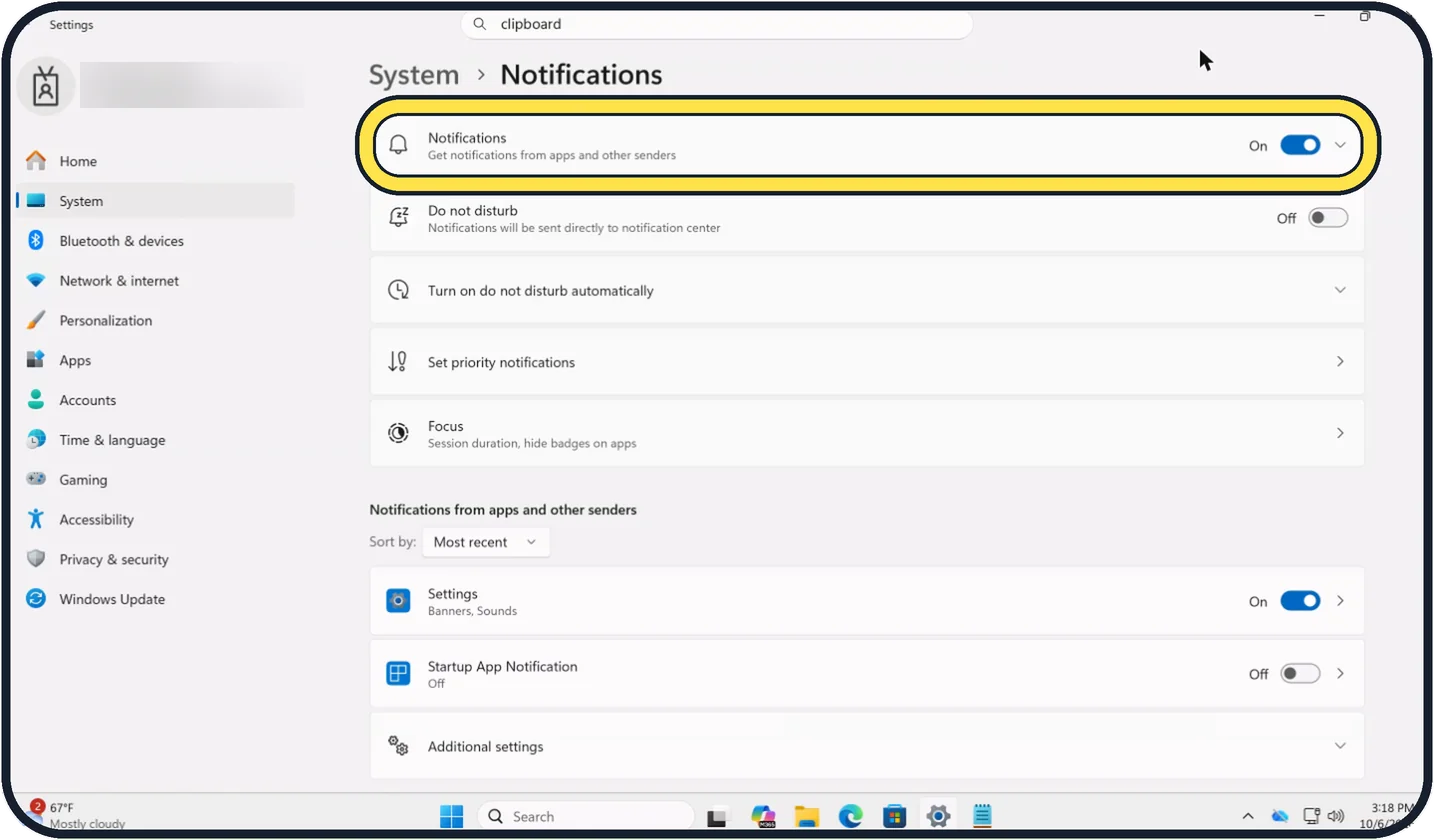
The Notifications switch at the top turns them off for every app.
Zoomed in on the setting. Tap to see the whole screenTap the picture to see it full size Clear what is already there
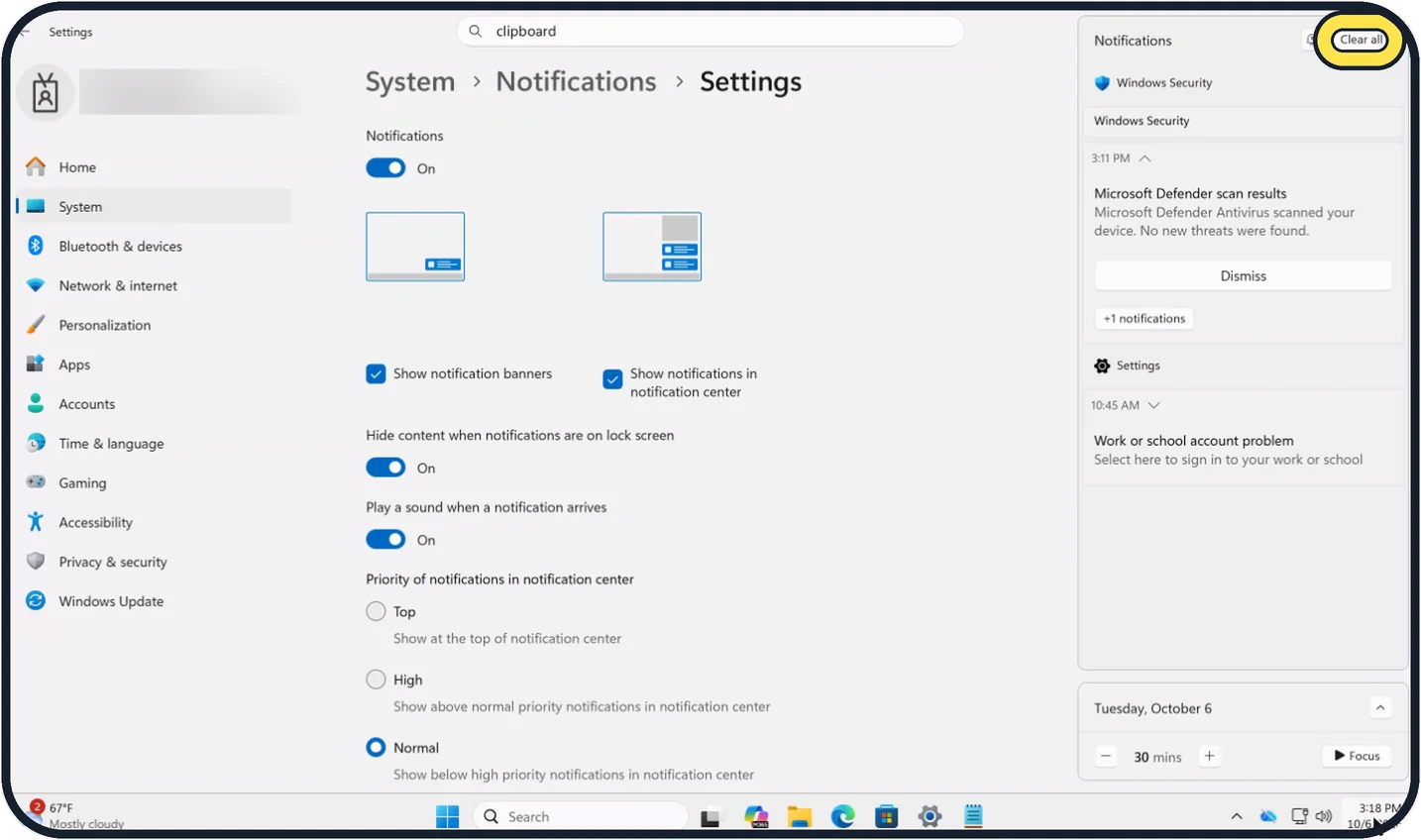
Click the clock on the taskbar to open the notification center and click Clear all.
Tap the picture to see it full size Stop Windows' own tips
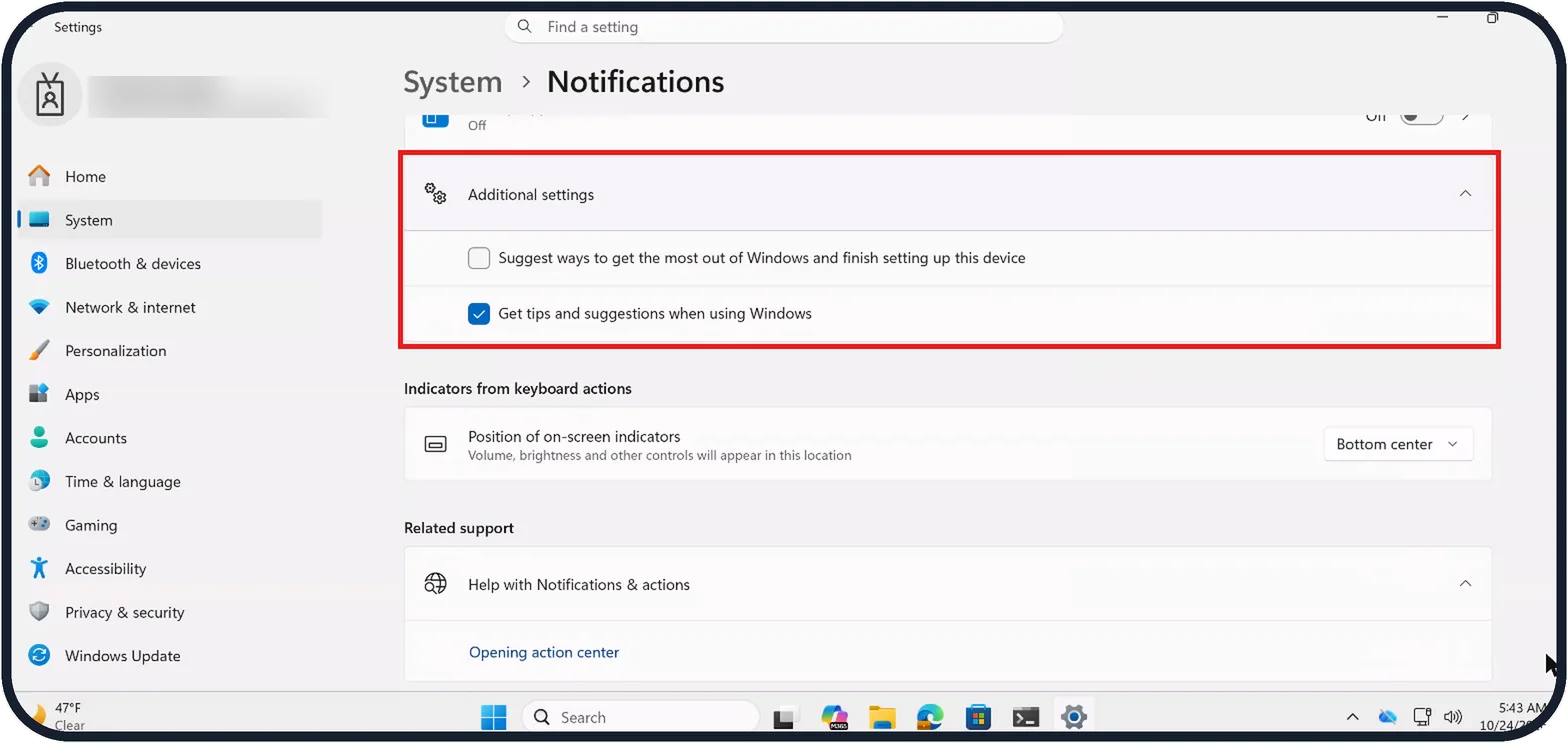
At the bottom of the Notifications page, expand Additional settings, the last row under the app list.
It holds two tick boxes: Suggest ways to get the most out of Windows and finish setting up this device, and Get tips and suggestions when using Windows.
On our Cloud PC the first was unticked and the second ticked; untick the ones you do not want.
If you do not see this option
- You want to stop an app straight from a notification. Microsoft says that in the notification center you can select the More button on its notification and choose Turn off all notifications. Source: Notifications and Do Not Disturb in Windows
- No banner appeared, but the bell icon lit up. Microsoft says the bell icon on the taskbar lights up when you have new notifications. Open the notification center with Windows + N to see them. Source: Notifications and Do Not Disturb in Windows
- Your PC runs Windows 10. Microsoft says the page there is System, Notifications & actions, with each app under Get notifications from these senders. The tick boxes say action center instead of notification center. Source: Notifications and Do Not Disturb in Windows
If this does not work
- Some banners still appear with Do not disturb on. Microsoft says you still get banners for alarms, reminders and the apps you allowed under Set priority notifications. Remove apps you do not need there. Source: Notifications and Do Not Disturb in Windows
- Do not disturb switches on by itself. Microsoft says it can turn on automatically at certain times, when duplicating the display, playing a game, using an app full screen, or for the first hour after a feature update. Change the ticks under Turn on do not disturb automatically. Source: Notifications and Do Not Disturb in Windows
- Messages show on the lock screen. Microsoft says each app's page has Hide content when notifications are on lock screen. Switch it on for apps with private messages; it was already On for the Settings app on our Cloud PC. Source: Notifications and Do Not Disturb in Windows
About this guide
A notification shows up two ways on Windows 11: as a banner that pops up in the corner, and as an entry in the notification center behind the clock. You can stop the pop-ups for one app, keep the entries, turn off sounds, or switch everything off.
The screenshots are our own, taken on Windows 11 Enterprise 25H2 running as a Microsoft Cloud PC, a Windows PC that runs in the cloud.
Good to know
On each app's page you can also set its priority: Top, High or Normal, under Priority of notifications in notification center.
Timed quiet with a timer: how to use Do not disturb and Focus on Windows 11.
In short: Settings, System, Notifications: switch an app Off, or click it and untick Show notification banners. Do not disturb for all at once. Additional settings for Windows tips.
Links checked in October 2026. Menus and features can change after software updates. These steps match the version named at the top.
📷 Camera Lab: the same 6 scenes photographed with 11 phones, side by side.
Did this guide work for you?
Sorry about that. What happened?