
howtosimply.com/guides/print-to-pdf-not-showing-the-save-window-on-windows-11-fix/ · Checked October 2026 · Windows 11 Enterprise 25H2 (build 26200.9457), Microsoft Cloud PC
In this guide
- Open the print window
- Open the Printer list
- Choose Microsoft Print to PDF
- Click Print
- Find the Save Print Output As window
- "The operation was canceled by the user"
- Restart the Print Spooler
- Or right-click Print Spooler and choose Restart
- Check for Windows updates
- If you do not see this option
- If this does not work
- Good to know
- Sources
After you click Print with Microsoft Print to PDF chosen, Windows opens a separate Save Print Output As window. If you do not see it, check the taskbar or press Alt + Tab. If it never opens, restart the Print Spooler service, then install Windows updates.
9 of 9 steps with real screenshots · 3 official sources below
- Device
- Windows
- Shown on
- Windows 11 Enterprise 25H2 (build 26200.9457), Microsoft Cloud PC
- App
- Settings
- Real screenshots
- 9 of 9 steps
- Checked
- October 2026
- Sources
- 3 official, 1 other, linked below
Step by step
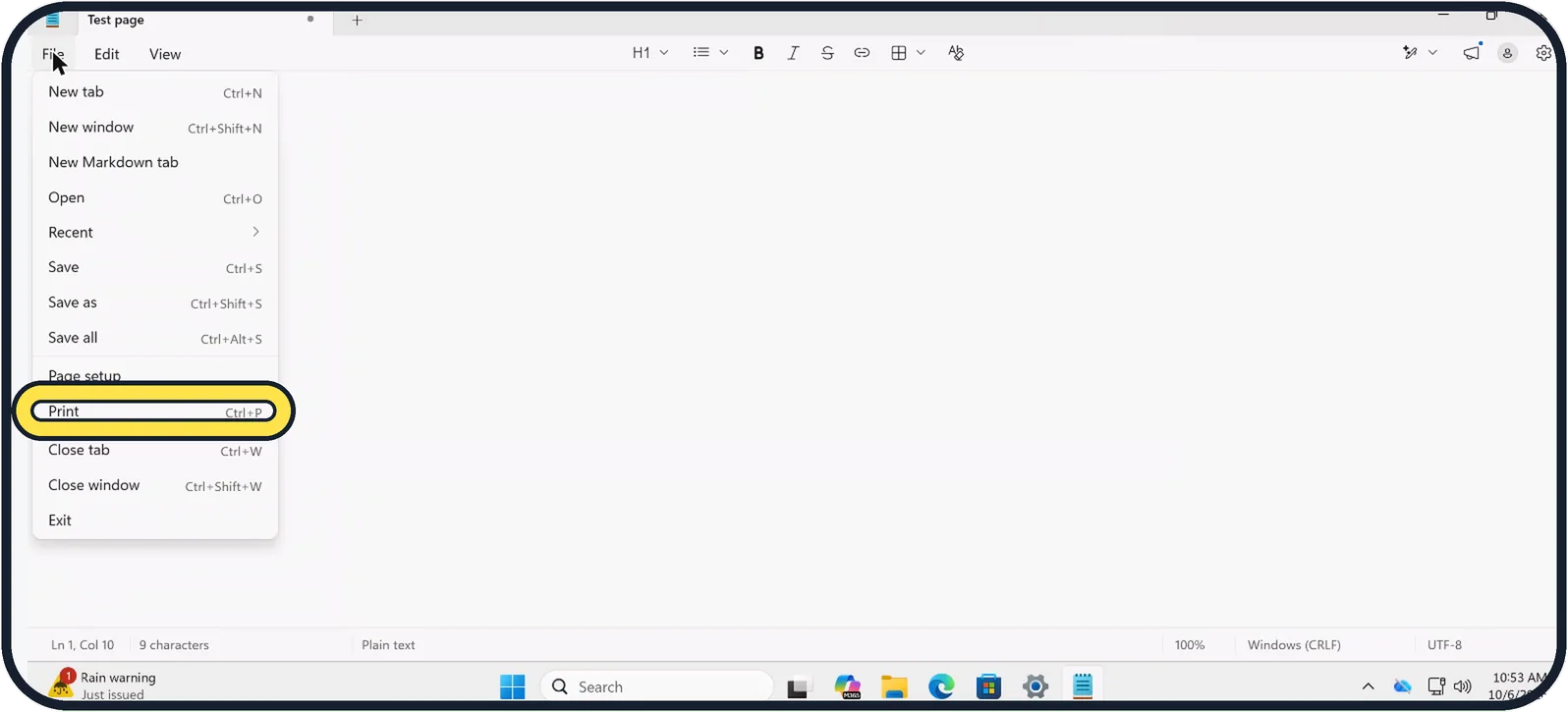
Zoomed in on the setting. Tap to see the whole screenTap the picture to see it full size Open the print window
In the app, open the File menu and choose Print, or press Ctrl + P.
Here it is Notepad; in a browser it is the three-dot menu, then Print.
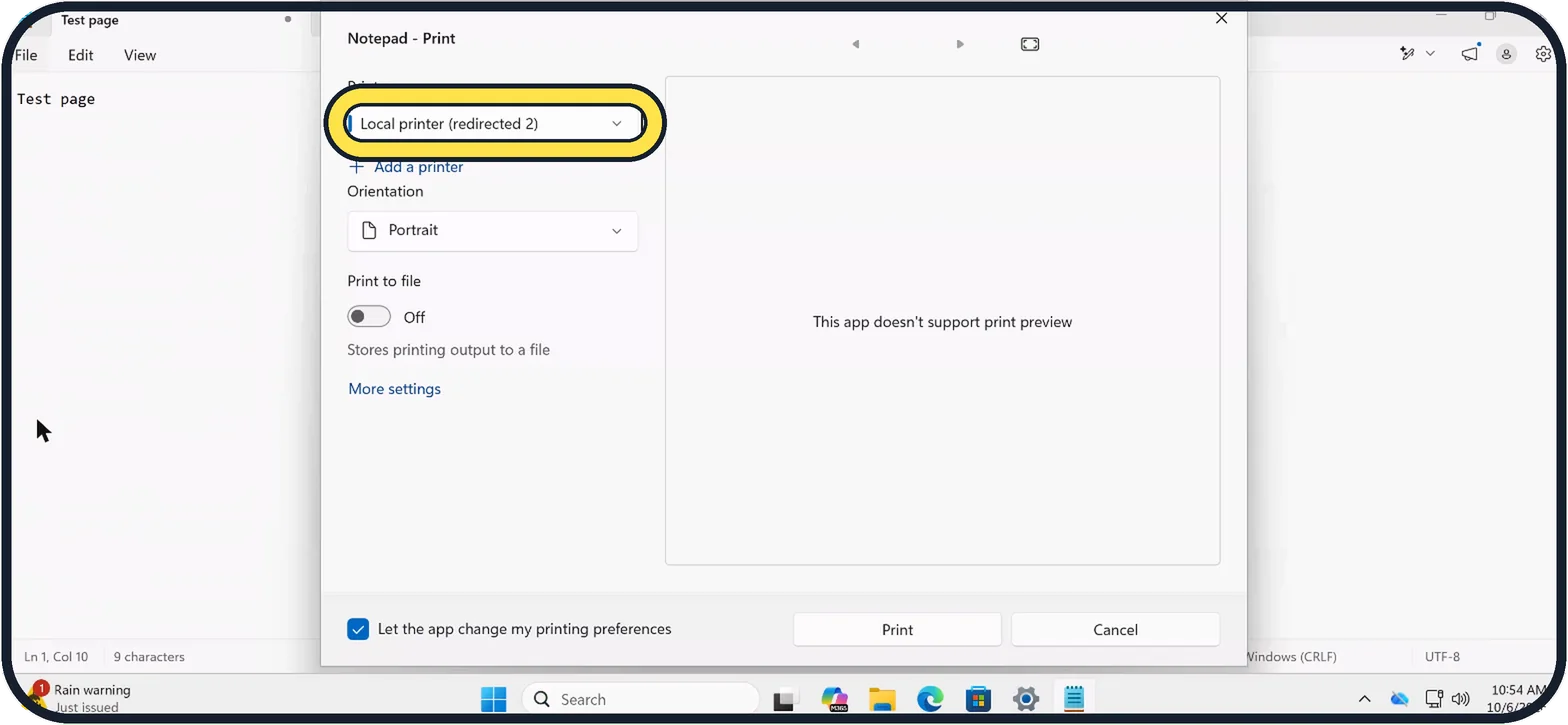
Zoomed in on the setting. Tap to see the whole screenTap the picture to see it full size Open the Printer list
Click the box under Printer. It shows the printer you used last.
On our Cloud PC it showed Local printer (redirected 2).
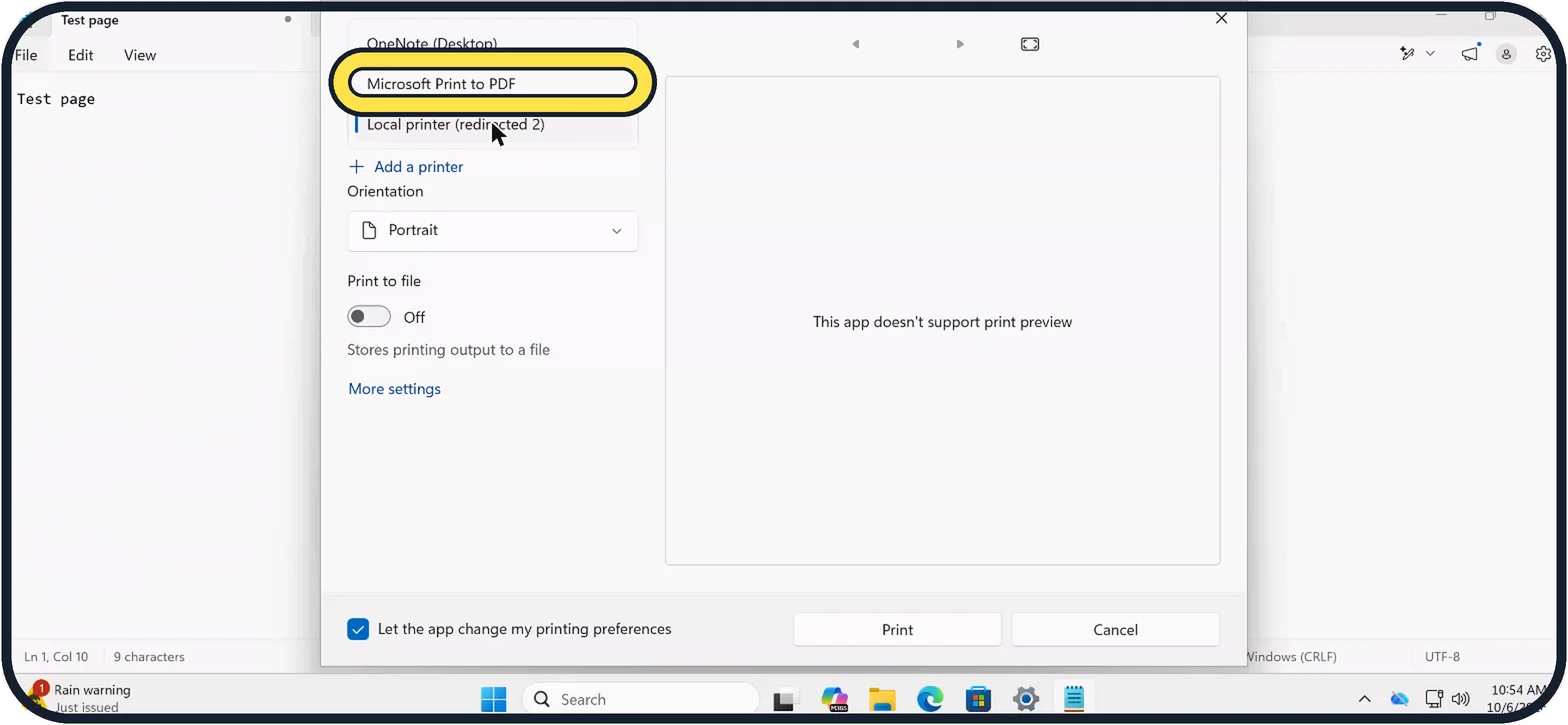
Zoomed in on the setting. Tap to see the whole screenTap the picture to see it full size Choose Microsoft Print to PDF
Pick Microsoft Print to PDF, not OneNote and not your real printer.
On our Cloud PC the list had three printers: OneNote (Desktop), Microsoft Print to PDF and Local printer (redirected 2).
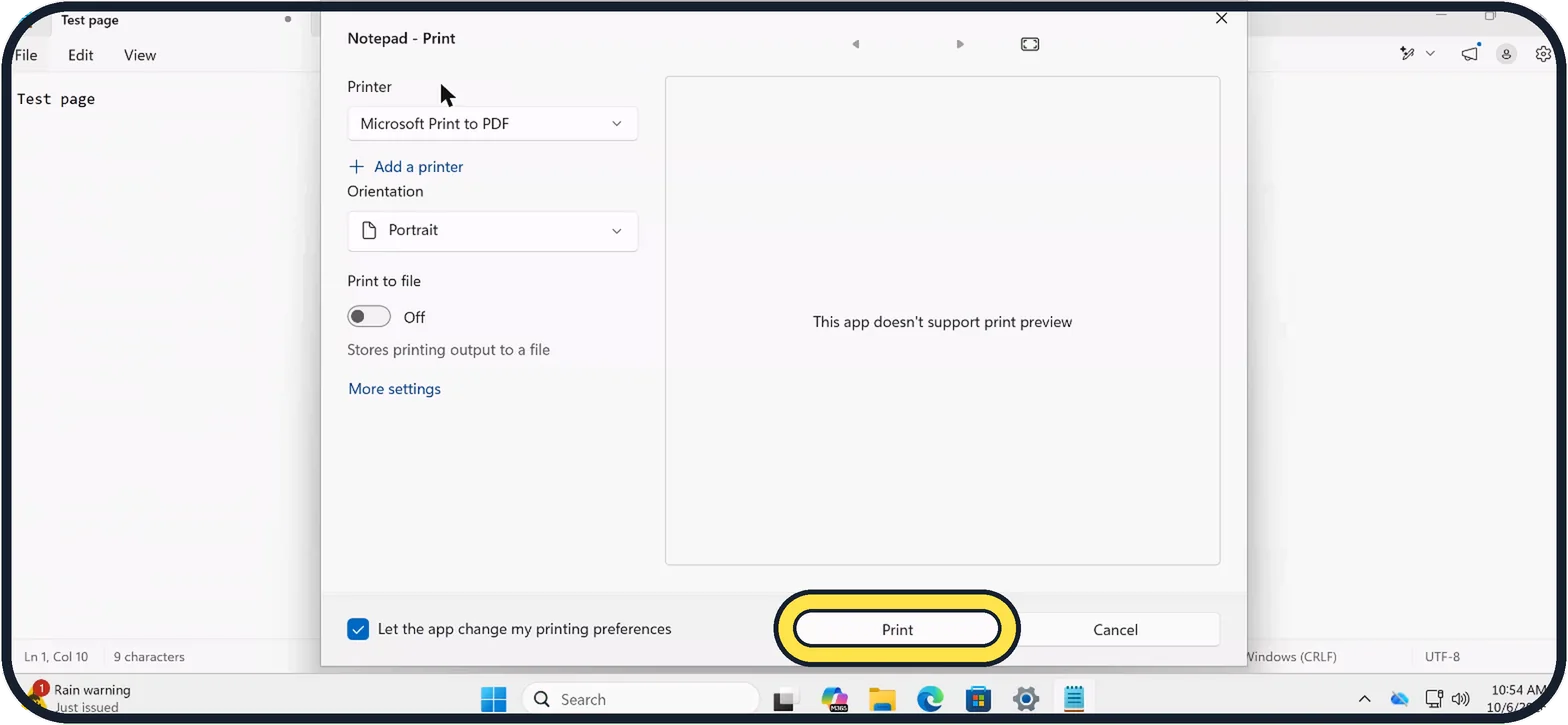
Zoomed in on the setting. Tap to see the whole screenTap the picture to see it full size Click Print
Nothing prints. Windows now opens the save window.
Zoomed in on the setting. Tap to see the whole screenTap the picture to see it full size Find the Save Print Output As window
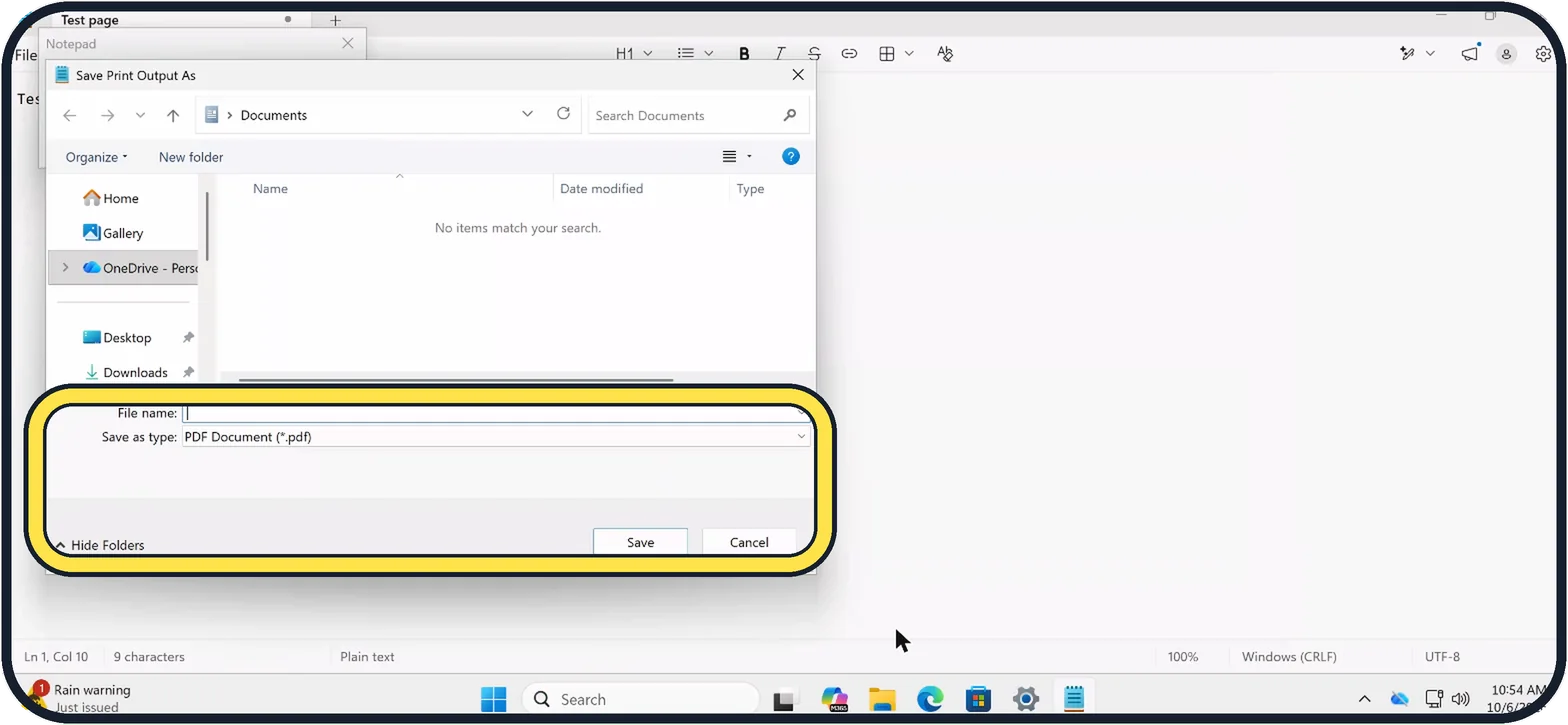
It is a separate window with a File name box and Save as type set to PDF Document (*.pdf). On our Cloud PC it opened in the top left corner, in front of Notepad, in the Documents folder.
If you do not see it, look on the taskbar or press Alt + Tab. Type a name, pick a folder and click Save.
Zoomed in on the setting. Tap to see the whole screenTap the picture to see it full size "The operation was canceled by the user"
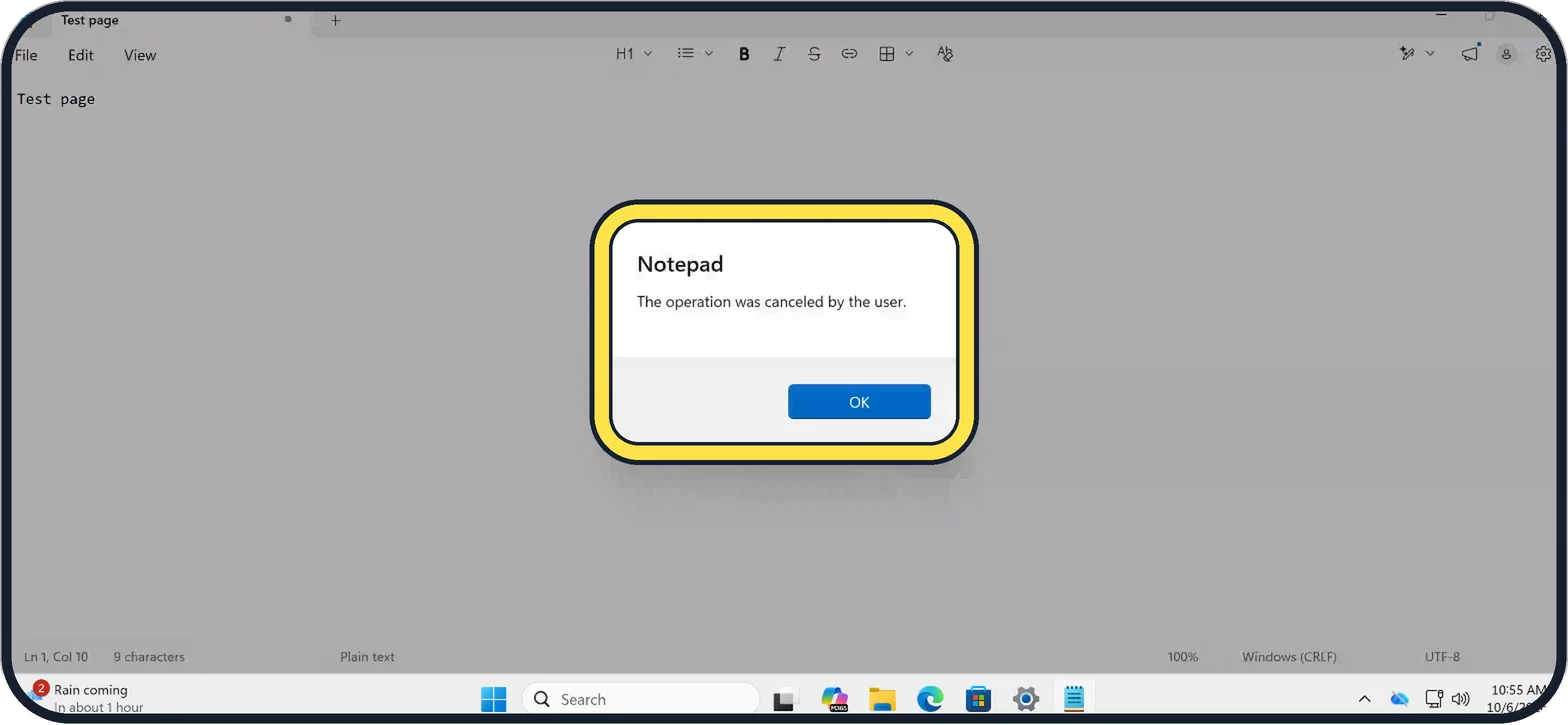
This message appears when the save window was closed with Cancel or the X, so no PDF was made.
Click OK and print again.
Zoomed in on the setting. Tap to see the whole screenTap the picture to see it full size Restart the Print Spooler
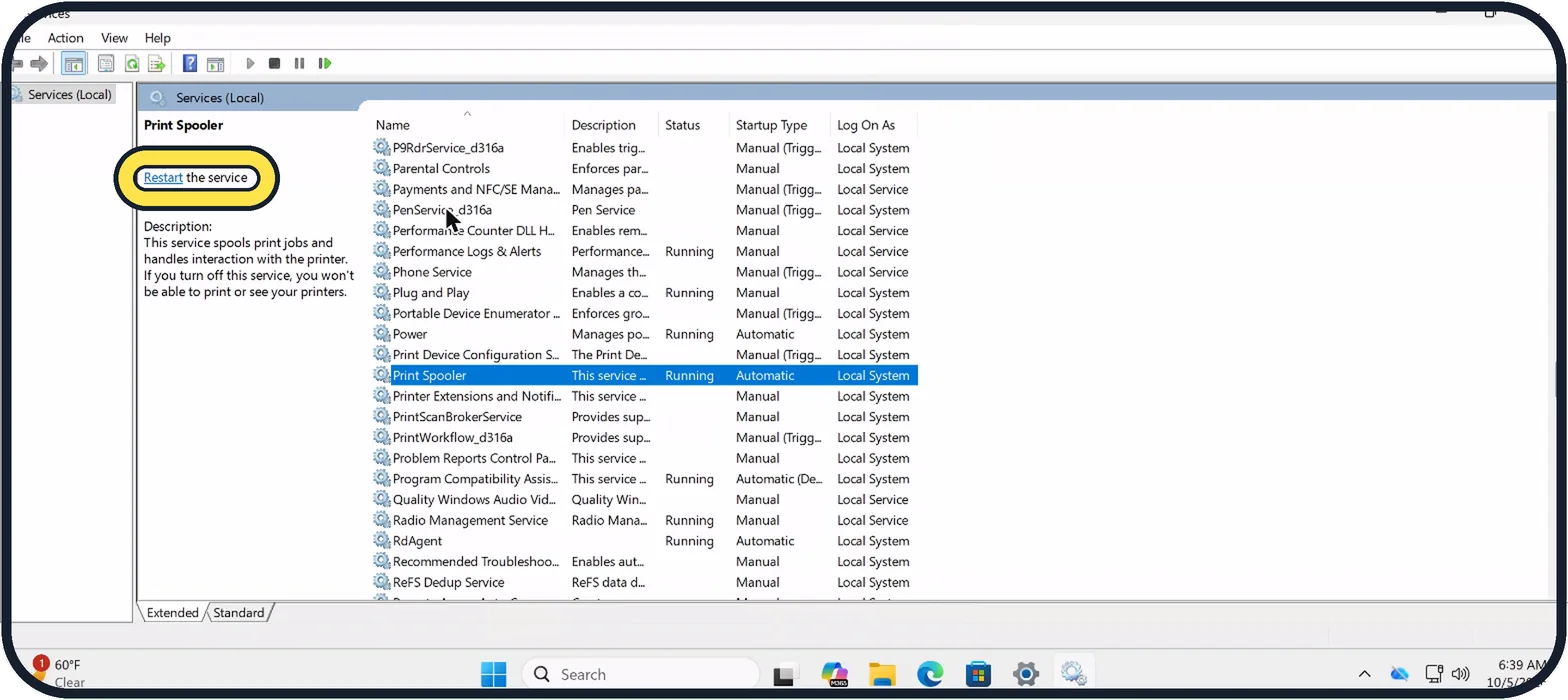
If the save window never appears, open Services: search for Services on the taskbar.
Click Print Spooler, then click Restart the service on the left. Then try printing again.
Tap the picture to see it full size Or right-click Print Spooler and choose Restart
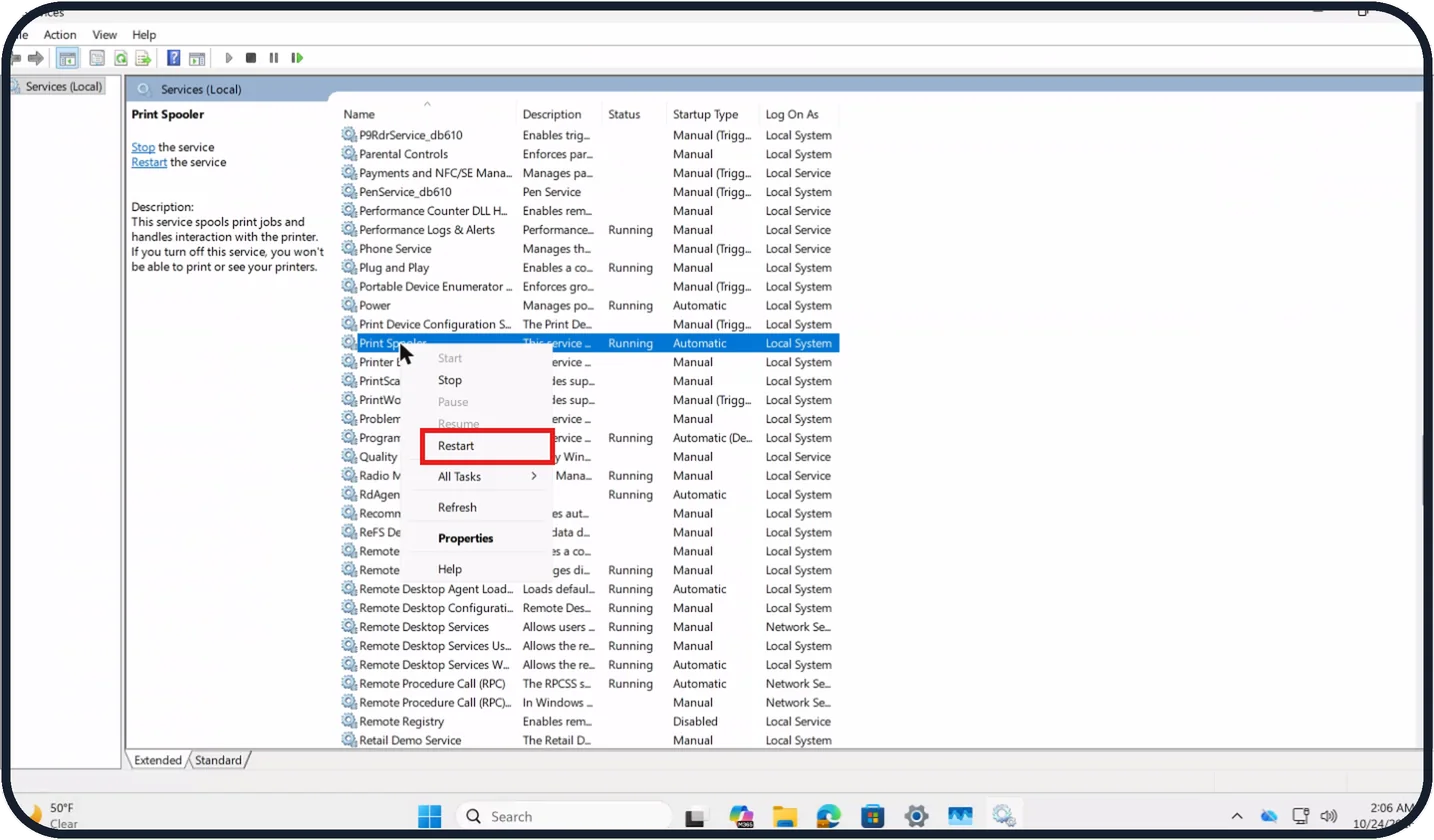
Right-clicking Print Spooler and choosing Restart does the same.
On our Cloud PC Print Spooler showed Running and Automatic, and in the menu Start, Pause and Resume were greyed out.
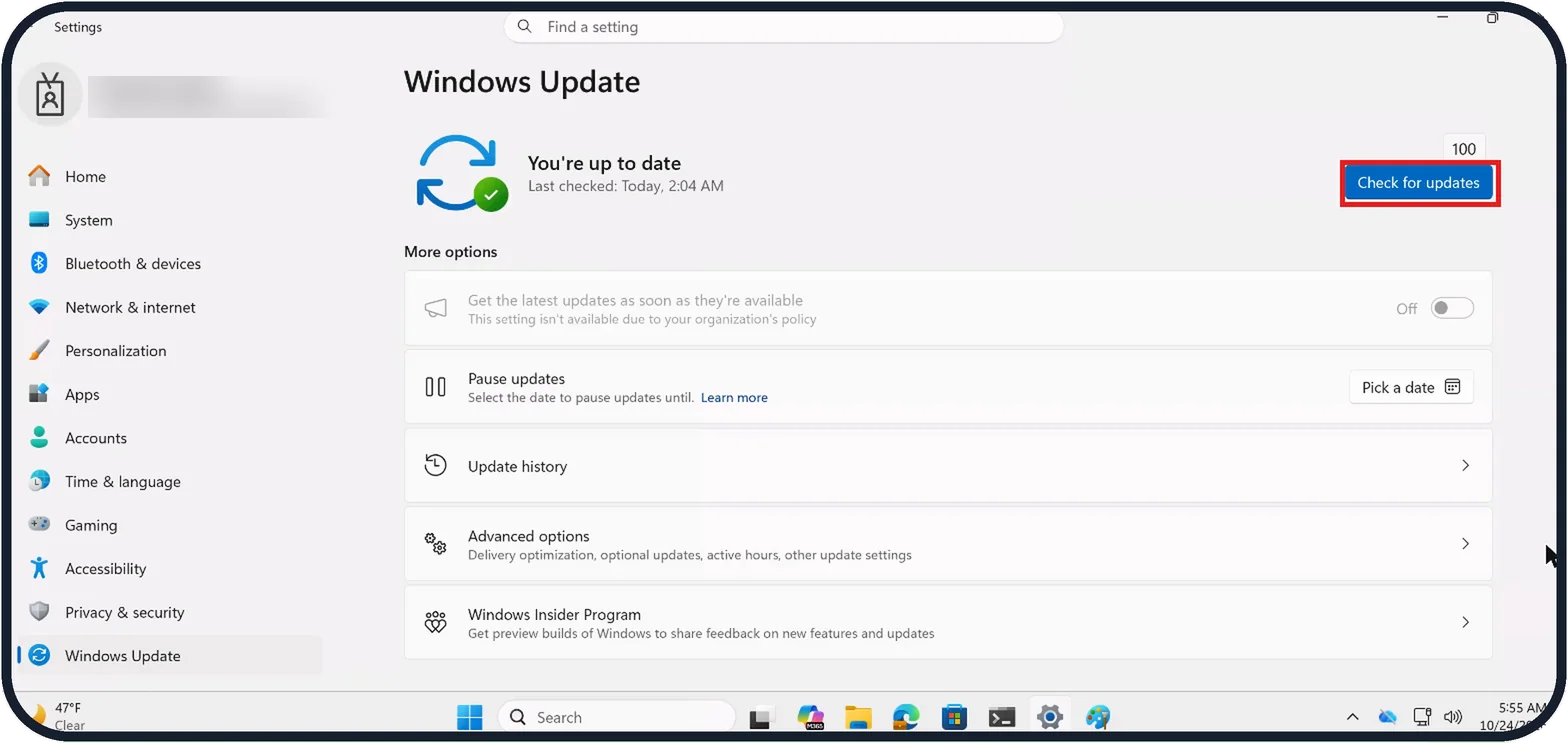
Tap the picture to see it full size Check for Windows updates
Microsoft's printing help suggests installing Windows updates. Open Settings, Windows Update and click Check for updates, then install what is waiting and restart.
On our Cloud PC the page said You're up to date, Last checked: Today, 2:04 AM.
If you do not see this option
- No preview in the print window In Notepad on our Cloud PC the print window says This app doesn't support print preview. The save window still opened after Print, as in step 5.
- Print Spooler is not set to start Microsoft's steps for restarting the spooler end with choosing Automatic in the Startup Type box of Print Spooler's properties. On our Cloud PC it already showed Automatic. Sources: "Print to PDF" is no longer available, Install Windows updates, Fix printer connection and printing problems in Windows, Fix print job stuck in queue errors in Windows
- An update setting is greyed out On our Cloud PC Get the latest updates as soon as they're available was greyed out with This setting isn't available due to your organization's policy. The Check for updates button was still there.
If this does not work
- The save window seems never to open It may be behind the app. Check the taskbar or press Alt + Tab; on our Cloud PC it opened in the top left corner, in front of Notepad.
- Notepad says The operation was canceled by the user The save window was closed with Cancel or the X. Click OK, print again and click Save this time.
- Restarting the spooler does not help Microsoft says to stop Print Spooler, delete all files in C:\Windows\System32\spool\PRINTERS, then start it again, so stuck jobs no longer block new ones. Sources: "Print to PDF" is no longer available, Install Windows updates, Fix printer connection and printing problems in Windows, Fix print job stuck in queue errors in Windows
About this guide
Microsoft Print to PDF is a printer that writes a PDF file instead of paper. It never saves on its own: it always asks where to save, in a window called Save Print Output As. When people say Print to PDF does nothing, that window is usually hidden, was closed, or the printer itself is broken.
The screenshots are our own, taken on Windows 11 Enterprise 25H2 running as a Microsoft Cloud PC, a Windows PC that runs in the cloud.
Good to know
Printing from Edge? Since late September 2026, people on Microsoft Q&A report that printing to PDF from Edge stops before the save window appears. Microsoft has not confirmed it. Update Edge (Settings, About Microsoft Edge), or print the page from another browser until it is fixed.
The print window on our Cloud PC also has a Print to file switch. You do not need it for a PDF: leave it off and use Microsoft Print to PDF as the printer.
Many apps can save a PDF without printing. In Word use File, Save As and choose PDF; Edge and Chrome have their own Save as PDF choice in the print window, which does not use Microsoft Print to PDF.
Updates step by step: how to check for updates on Windows 11. If the app freezes when you print: how to close a frozen program on Windows 11.
In short: File, Print, choose Microsoft Print to PDF, Print, then find the Save Print Output As window with Alt + Tab. If it never opens, restart Print Spooler, then check Windows Update.
- Microsoft Q&A: "Print to PDF" is no longer available
- Microsoft Support: Install Windows updates
- Microsoft Support: Fix printer connection and printing problems in Windows
- Microsoft Support: Fix print job stuck in queue errors in Windows
Links checked in October 2026. Menus and features can change after software updates. These steps match the version named at the top.
📷 Camera Lab: the same 6 scenes photographed with 11 phones, side by side.
Did this guide work for you?
Sorry about that. What happened?