
howtosimply.com/guides/how-to-check-the-specs-of-a-windows-11-pc/ · Checked October 2026 · Windows 11 Enterprise 25H2 (build 26200.9457), Microsoft Cloud PC
In this guide
Open Settings, System and scroll down to About. Device specifications lists the Processor, Installed RAM and System type. Windows specifications below it shows the Edition, Version and OS build of Windows.
4 of 5 steps with real screenshots · 1 official source below
- Device
- Windows
- Shown on
- Windows 11 Enterprise 25H2 (build 26200.9457), Microsoft Cloud PC
- App
- Settings
- Path
- Settings › System › About
- Real screenshots
- 4 of 5 steps
- Checked
- October 2026
- Sources
- 1 official, linked below
Step by step
Open Settings
Press Windows + I. The System page opens.
Watch these steps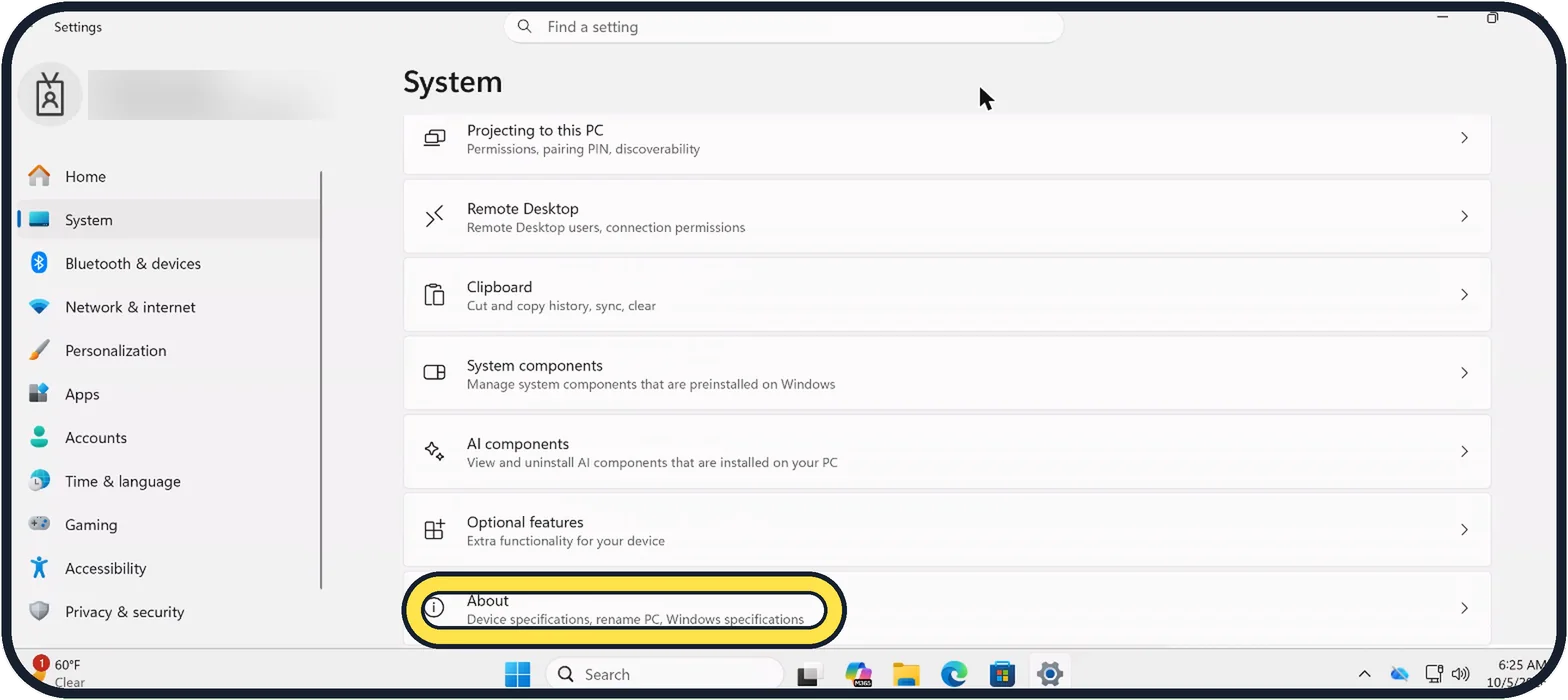
Zoomed in on the setting. Tap to see the whole screenTap the picture to see it full size Scroll down and click About
It is the last entry in the list, labelled Device specifications, rename PC, Windows specifications.
On our Cloud PC, About is the last row on the System page, below Optional features.
Tap the picture to see it full size Read Device specifications
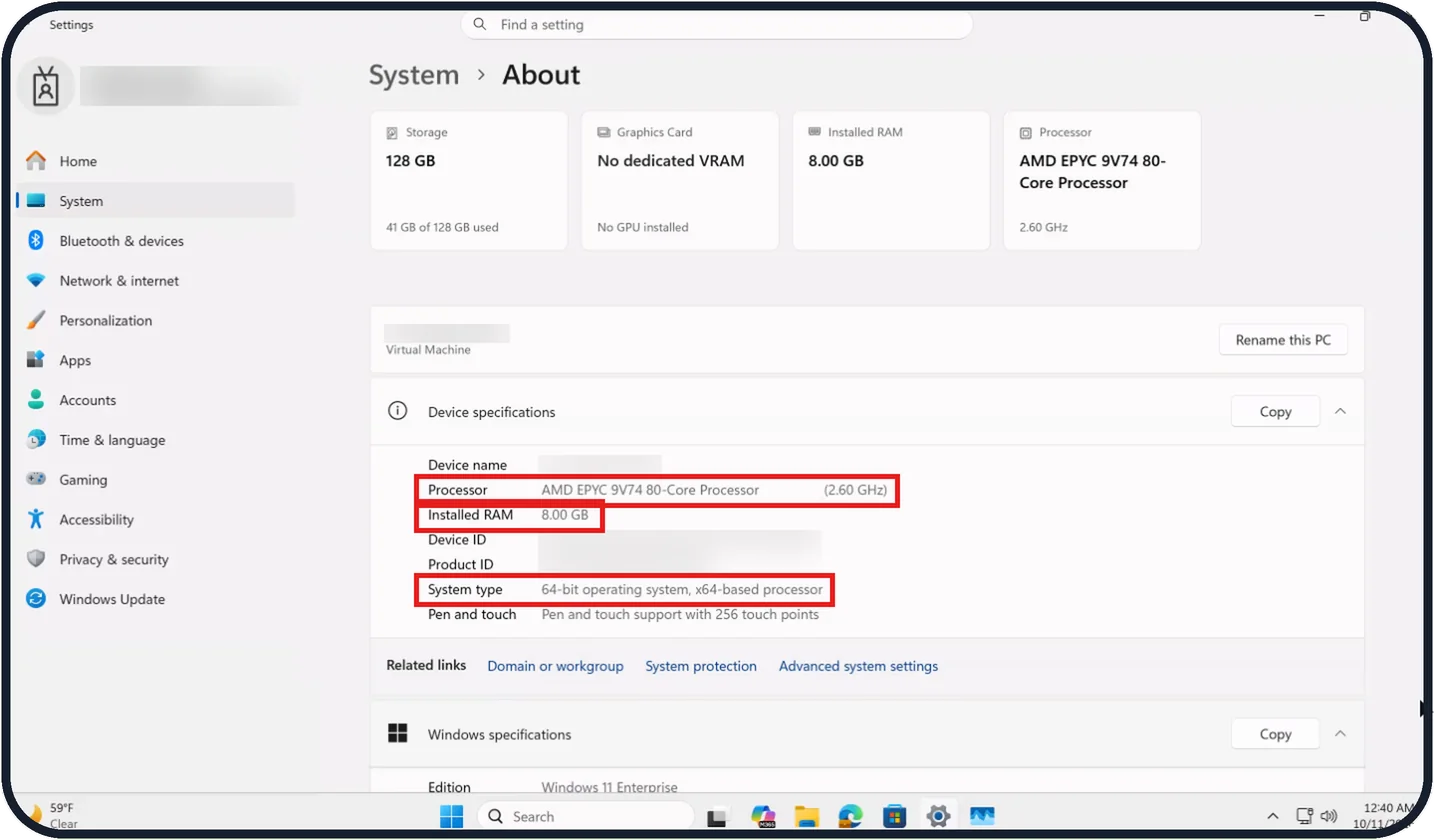
Click Device specifications to open it if it is folded. Read the Processor, Installed RAM and System type rows; System type says whether Windows is 64-bit.
On our Cloud PC these read AMD EPYC 9V74 80-Core Processor (2.60 GHz), 8.00 GB and 64-bit operating system, x64-based processor.
Zoomed in on the setting. Tap to see the whole screenTap the picture to see it full size Read Windows specifications
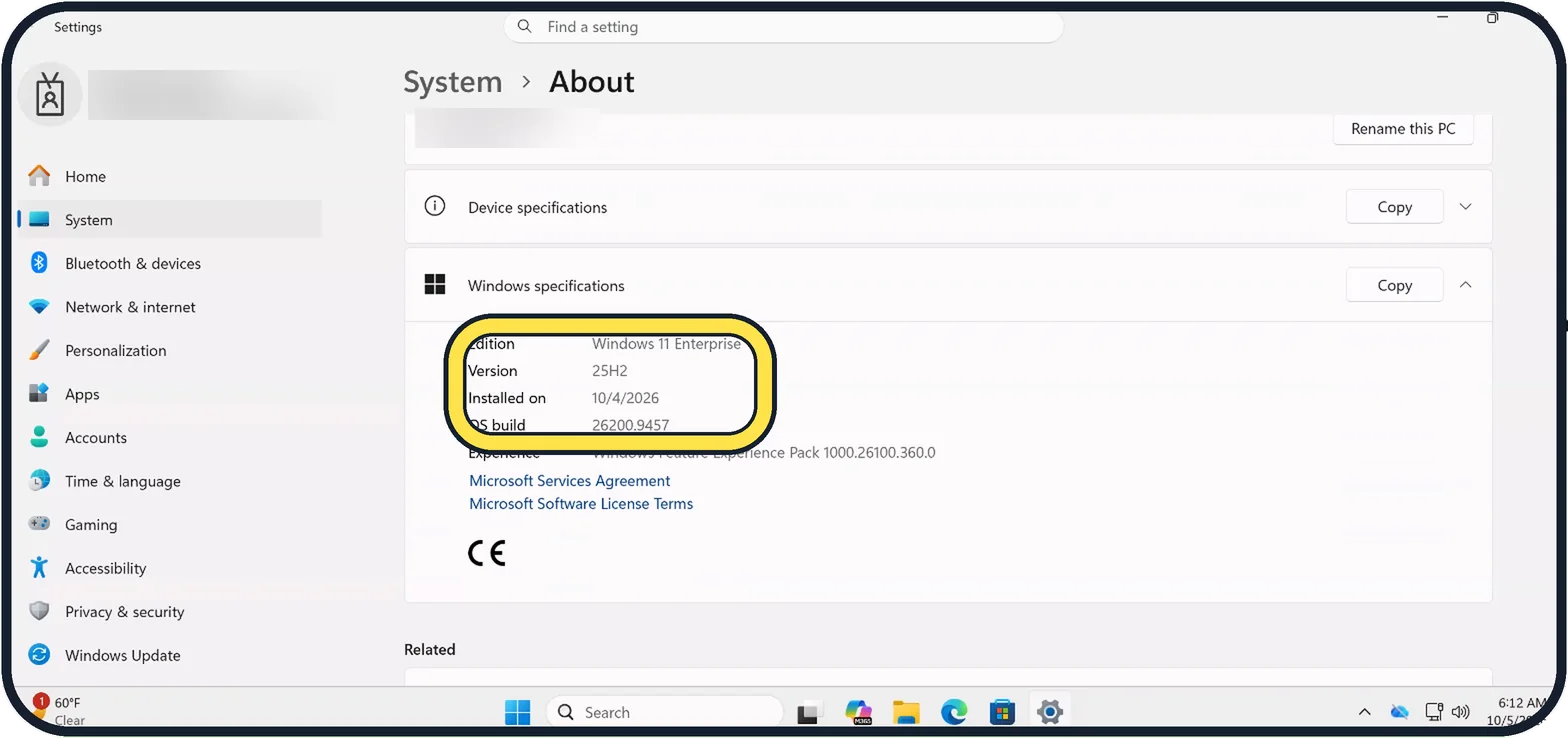
Edition shows Windows 11 Home or Pro, Version shows the version number such as 25H2, and OS build shows the build.
On our Cloud PC these read Windows 11 Enterprise, 25H2 and 26200.9457.
Zoomed in on the setting. Tap to see the whole screenTap the picture to see it full size Check the storage
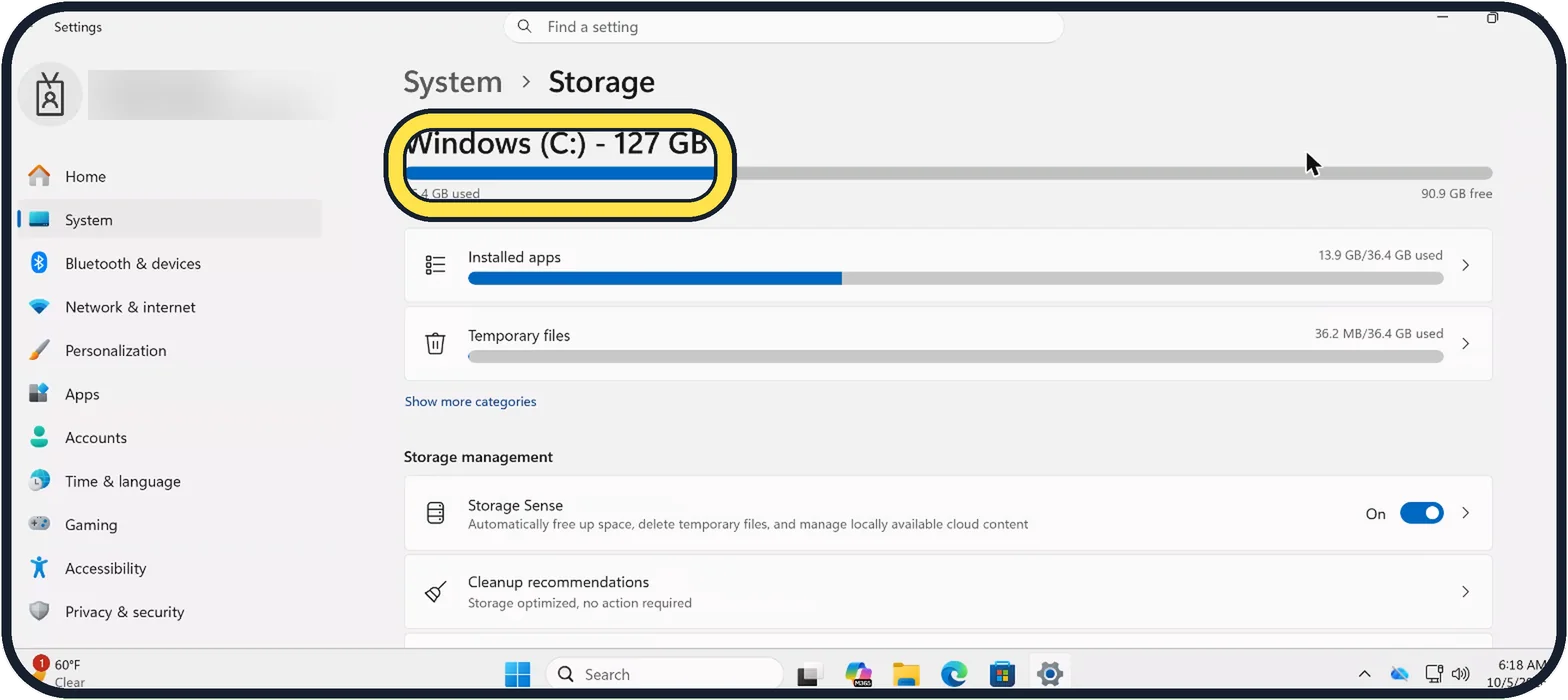
Go back to System and click Storage. The System › Storage page shows how large the drive is and how much is free.
On our Cloud PC it shows Windows (C:) - 127 GB with 90.9 GB free.
Watch these steps
What we saw on our device
- Scroll down and click About: On our Cloud PC, About is the last row on the System page, below Optional features.
- Read Device specifications: On our Cloud PC these read AMD EPYC 9V74 80-Core Processor (2.60 GHz), 8.00 GB and 64-bit operating system, x64-based processor.
- Read Windows specifications: On our Cloud PC these read Windows 11 Enterprise, 25H2 and 26200.9457.
- Check the storage: On our Cloud PC it shows Windows (C:) - 127 GB with 90.9 GB free.
If you do not see this option
- About is not on the screen Scroll to the bottom of the System page. About is the last entry, below Optional features.
- Device specifications shows no details The section is folded. Click Device specifications or the arrow at the right of its row to open it.
- No graphics card is named On our Cloud PC, a virtual machine, the Graphics Card card on the About page reads No dedicated VRAM and No GPU installed.
If this does not work
- Windows + I does nothing Click the Settings icon on the taskbar if it is pinned, as it is on our Cloud PC, then click System.
- The storage figures do not match On our Cloud PC the Storage card on the About page shows 128 GB, while the Storage page shows Windows (C:) - 127 GB. Use the Storage page for the drive size and free space.
- You need to send the details to someone Click Copy next to Device specifications or Windows specifications, then paste the text into an email or message.
About this guide
You need these details to check whether a program or game will run, to buy the right memory, or when someone helping you asks what PC you have.
Good to know
The Copy button next to each section copies the details so you can paste them into an email.
For the graphics card, open Settings, System, Display, Advanced display. The name is shown under Display information. On our Cloud PC the Graphics Card card on the About page reads No dedicated VRAM and No GPU installed.
Running low on space? See how to free up disk space on Windows 11.
In short: Settings, System, About. Storage is on its own page under System.
Links checked in October 2026. Menus and features can change after software updates. These steps match the version named at the top.
Did this guide work for you?
Sorry about that. What happened?