Nothing Phone Guides
Simple, step-by-step answers for your Nothing Phone, with real screenshots and the exact Nothing OS version.
Steps that work on any Android phone: Android guides
 Illustration
Fix a Nothing Phone problem
Quick solutions for the most common issues.
Latest Nothing Phone guides
View all Nothing Phone guides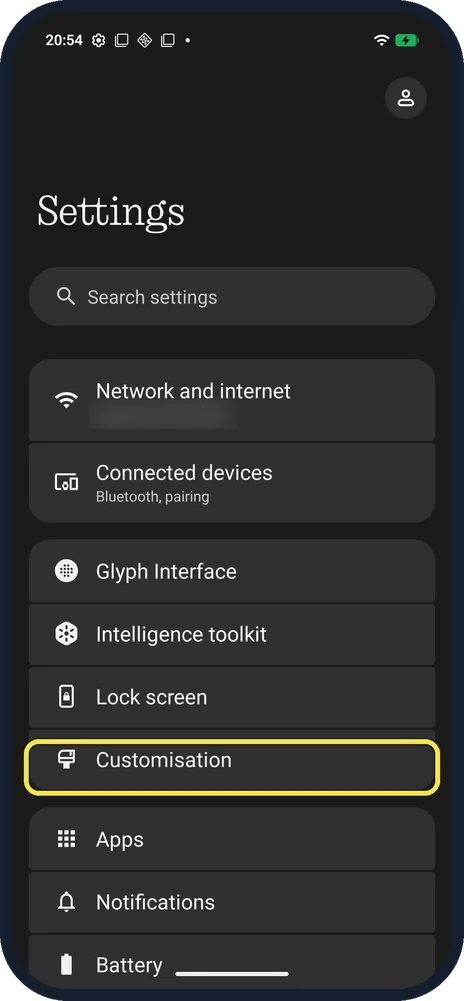 NewHow to change the app grid and labels on a Nothing PhoneOpen Settings, Customisation and tap Layout. Tap App Grid to choose 4 or 5 columns, and switch…
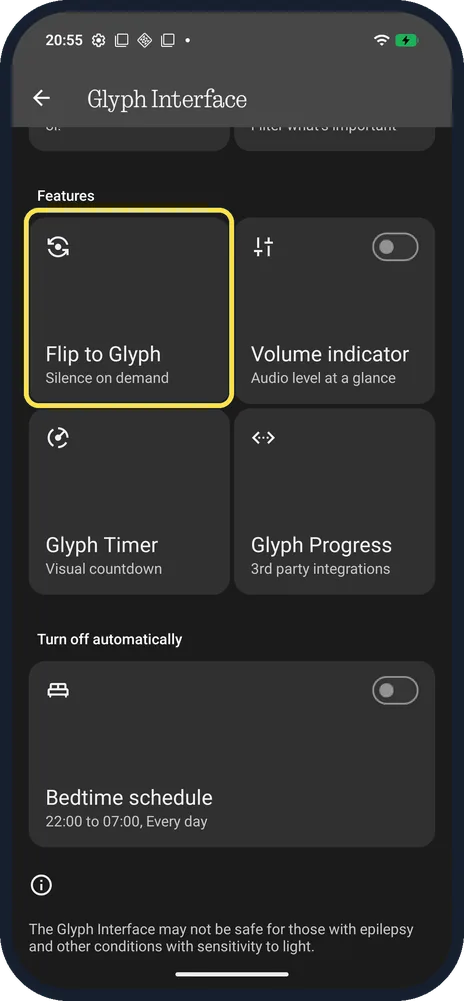 NewHow to use the Always-on Glyph Toy on a Nothing Phone (4a) ProOpen Settings, Glyph Interface, Flip to Glyph and tap Always-on Glyph Toy. Pick Digital Clock…
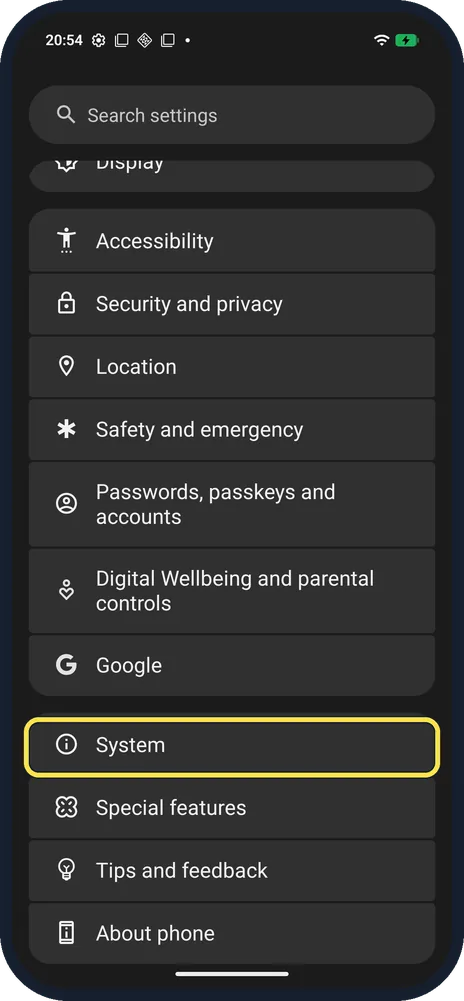 NewHow to update a Nothing Phone (Nothing OS 4.1)Open Settings, System, System updates. If it says System update available, read What's New and…
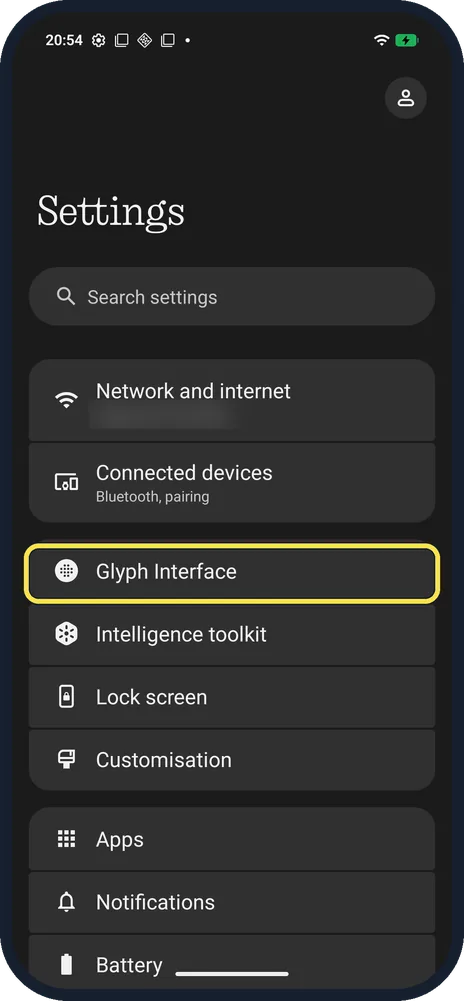 NewHow to turn on the Glyph Interface on a Nothing Phone (4a) ProOpen Settings, tap Glyph Interface and turn on the Glyph Interface switch. The same page sets…
Nothing OS 4.1
All Nothing Phone guides by topic
All Nothing Phone guides
19 guidesHow to turn on the Glyph Interface on a Nothing Phone (4a) Pro
Open Settings, tap Glyph Interface and turn on the Glyph Interface switch. The same page sets the light brightness, what lights up (ringtones, notifications, Essential…
How to use the Always-on Glyph Toy on a Nothing Phone (4a) Pro
Open Settings, Glyph Interface, Flip to Glyph and tap Always-on Glyph Toy. Pick Digital Clock, Battery, Solar Path or Moon Phase and turn on the switch. It shows on the…
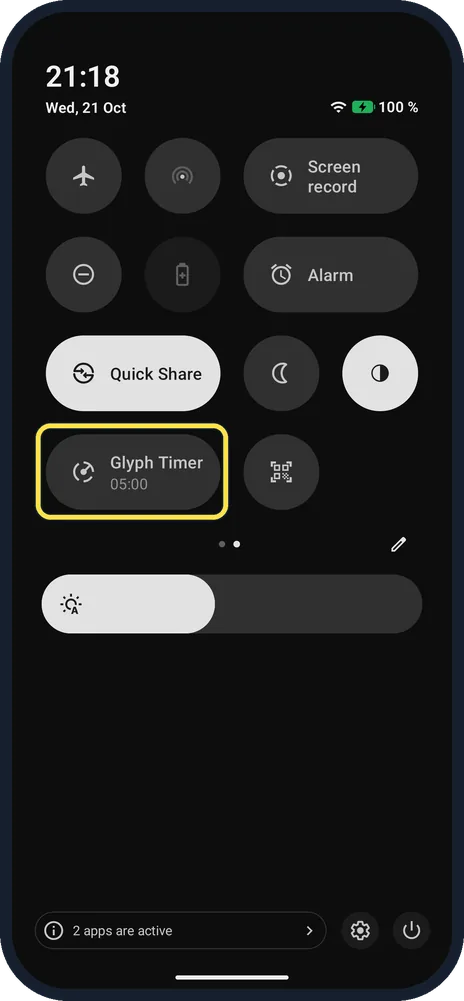
How to use the Glyph Timer on a Nothing Phone (4a) Pro
Swipe down twice to Quick Settings page 2 and tap Glyph Timer, or open Settings, Glyph Interface, Glyph Timer and tap Set Glyph Timer. The back lights count down; turn…
Does the Nothing Phone (4a) Pro have an Essential Key?
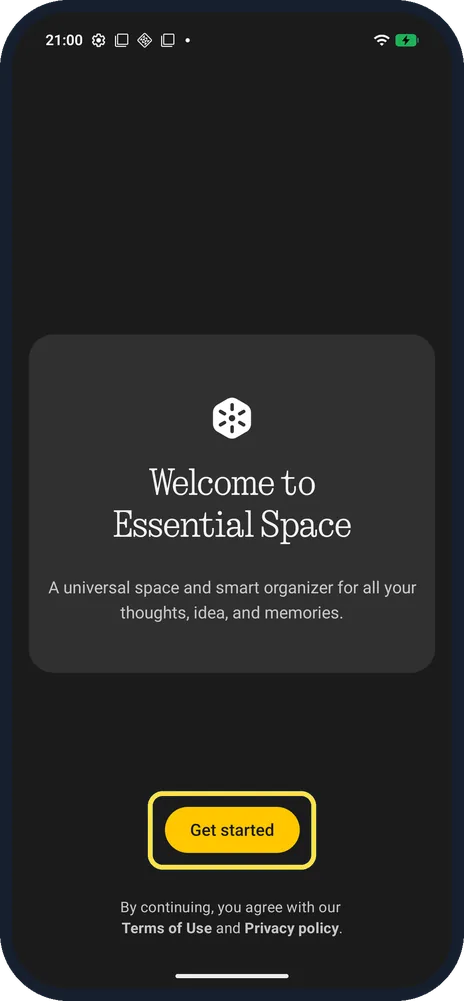
Yes. Essential Space's setup on our Nothing Phone (4a) Pro shows the Essential Key on the left edge of the phone and asks you to double-click it. A Settings search for…
How to take a screenshot on a Nothing Phone (Nothing OS 4.1)
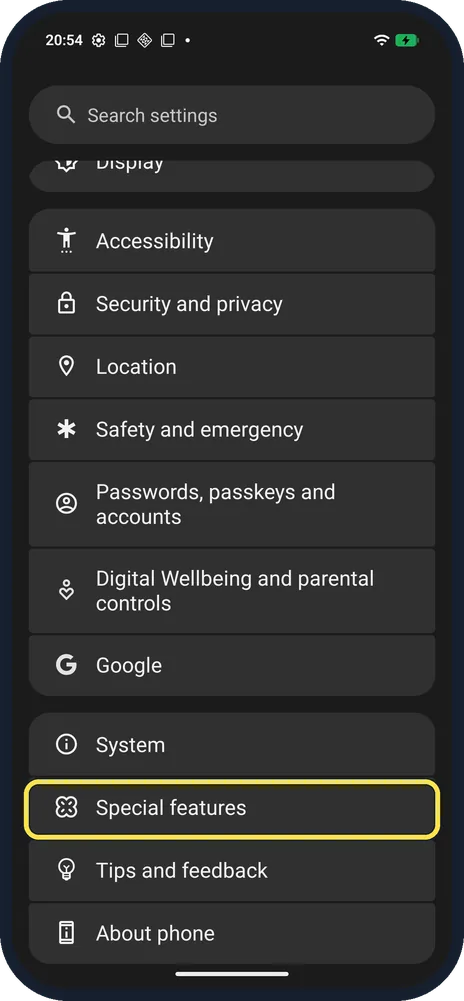
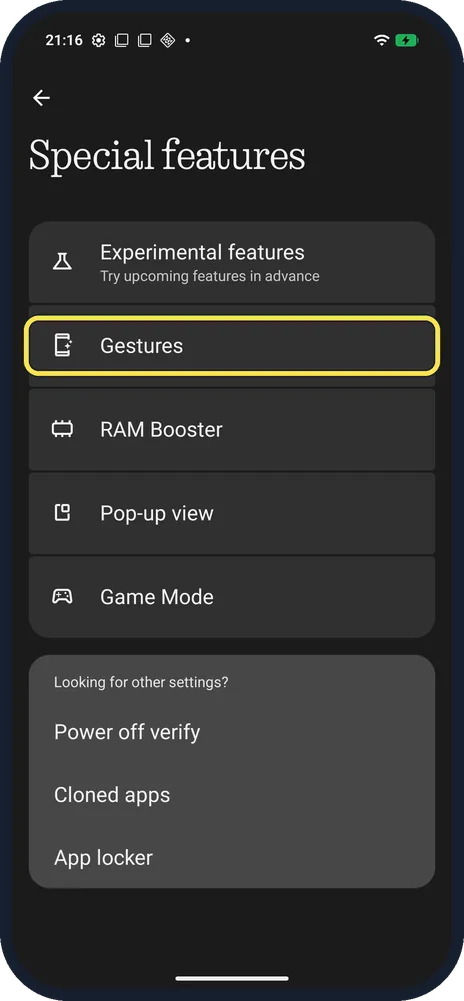
Press Power and Volume Down together, or swipe down with three fingers once Three finger swipe is on in Settings, Special features, Gestures, Screenshot gesture. Press…
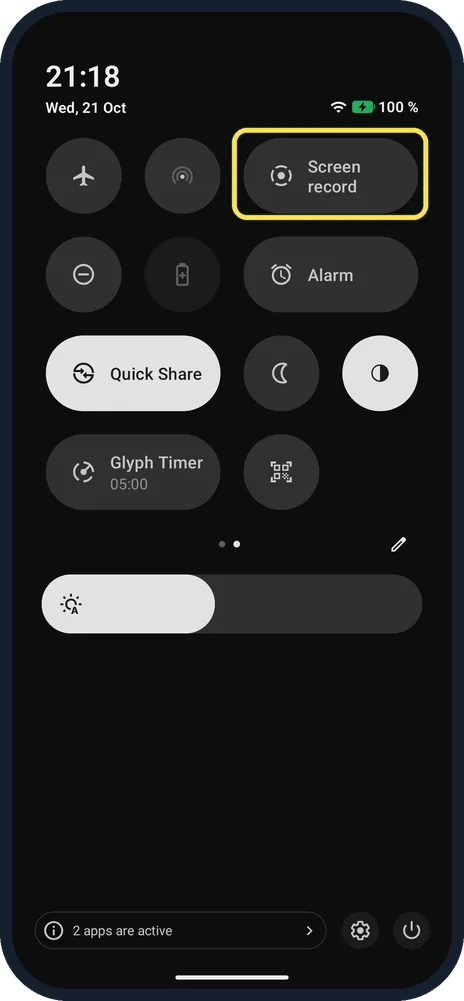
How to screen record on a Nothing Phone (Nothing OS 4.1)
Swipe down twice, go to the second page of tiles and tap Screen record. Choose Record one app or Record this screen, turn on Record audio if you want sound, then tap…
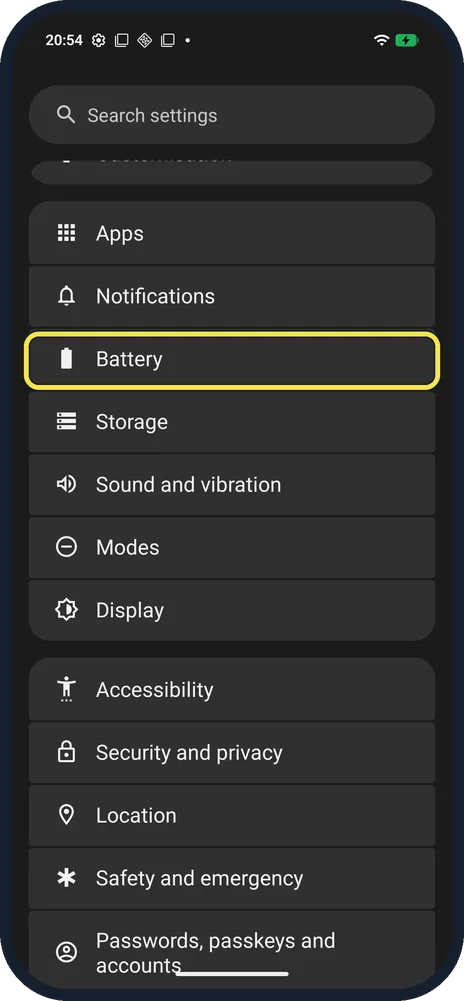
How to show battery percentage on a Nothing Phone (4a) Pro
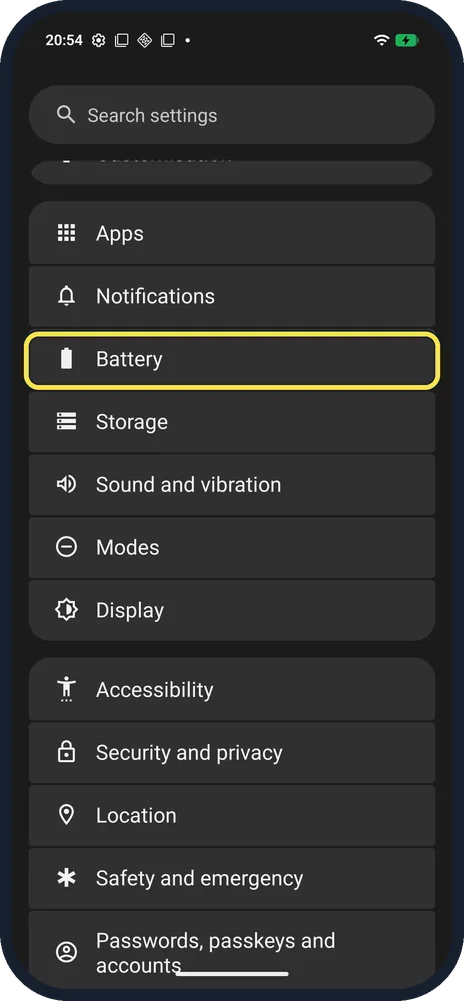
Open Settings, Battery and turn on Battery percentage ("Show battery percentage in status bar"). It was off on our (4a) Pro out of the box.
How to check battery health on a Nothing Phone (4a) Pro
Open Settings, Battery and tap Battery information at the bottom: Maximum capacity, Cycle count, Production date and First use. Ours: 100 %, 1 cycle, made 2026-01-16…
How to turn on Extra dark mode on a Nothing Phone (4a) Pro
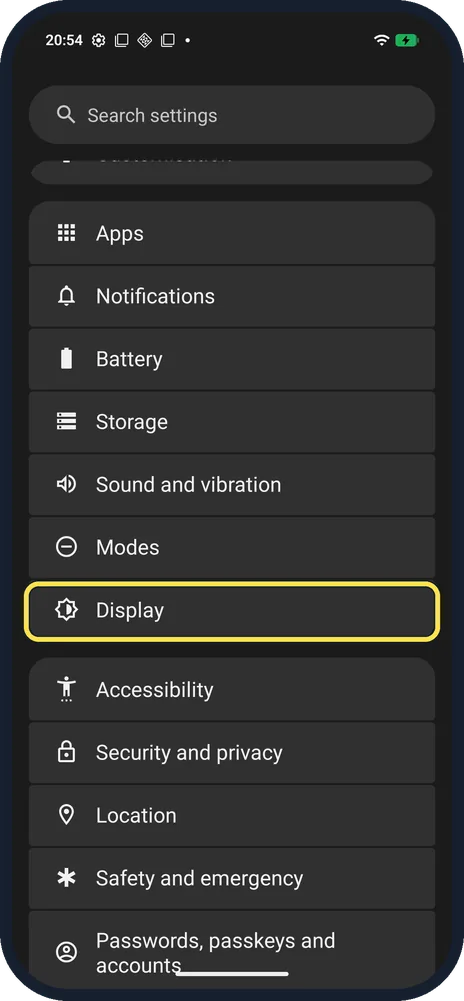
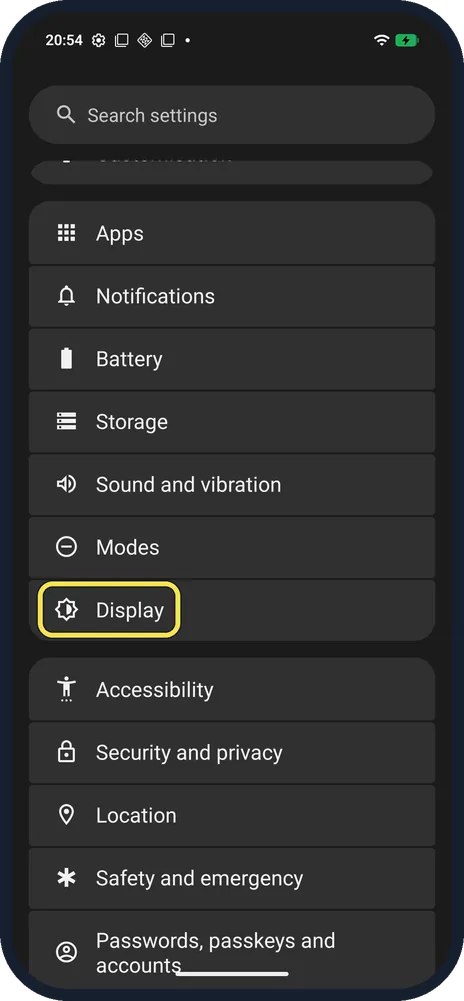
Open Settings, Display, Dark theme and turn on Use Dark theme. For deeper blacks, also turn on Extra dark mode ("Enhance darkness for better contrast"); it was off on ours.
How to change navigation mode on a Nothing Phone
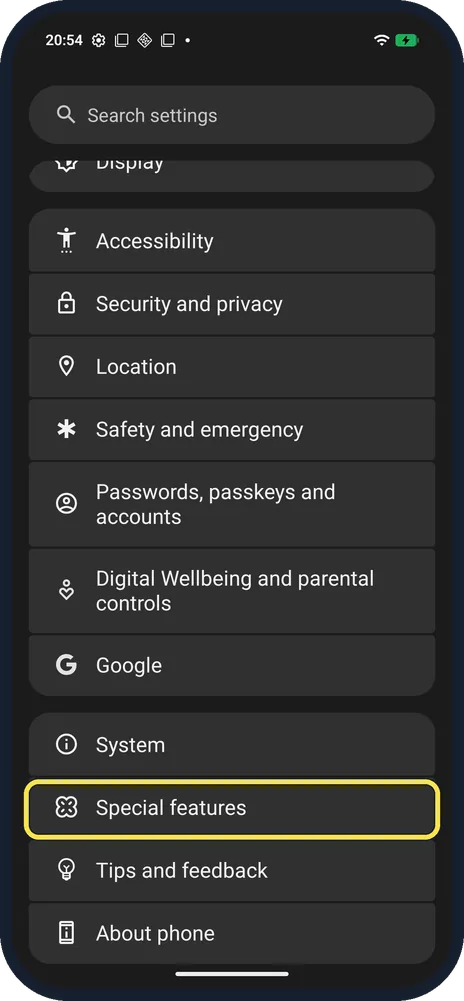
Open Settings, Special features, Gestures, Navigation mode and choose Gesture navigation or 3-button navigation. On Nothing OS 4.1 it is under Special features, not System.
How to change what the power button does on a Nothing Phone
On our (4a) Pro, holding Power opened the digital assistant. Change it in Settings, Special features, Gestures, Press and hold power button: choose Power menu. To turn…
How to turn on Developer options on a Nothing Phone
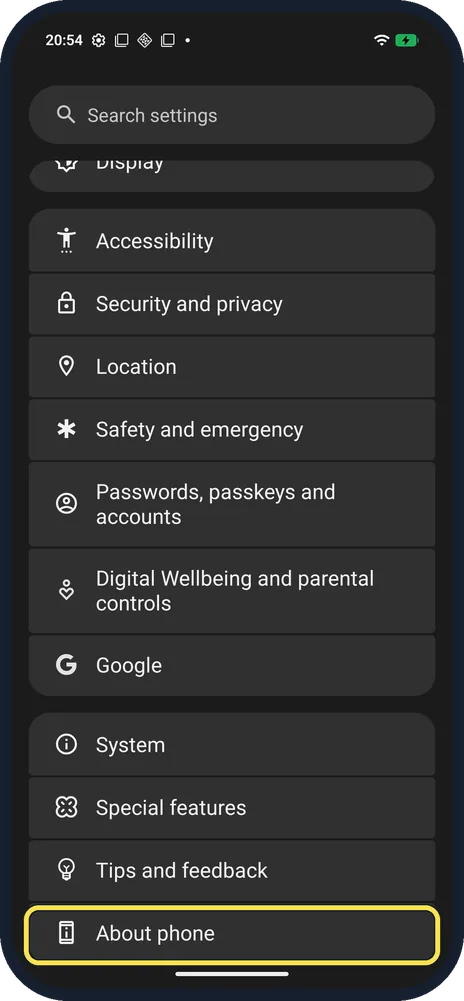
Open Settings, About phone, tap the NOTHING OS card, then tap Build number seven times. Developer options appears in Settings, System.
How to update a Nothing Phone (Nothing OS 4.1)
Open Settings, System, System updates. If it says System update available, read What's New and download it on Wi-Fi. Ours offered a 643 MB update with the September…
How to clear app cache on a Nothing Phone (Nothing OS 4.1)
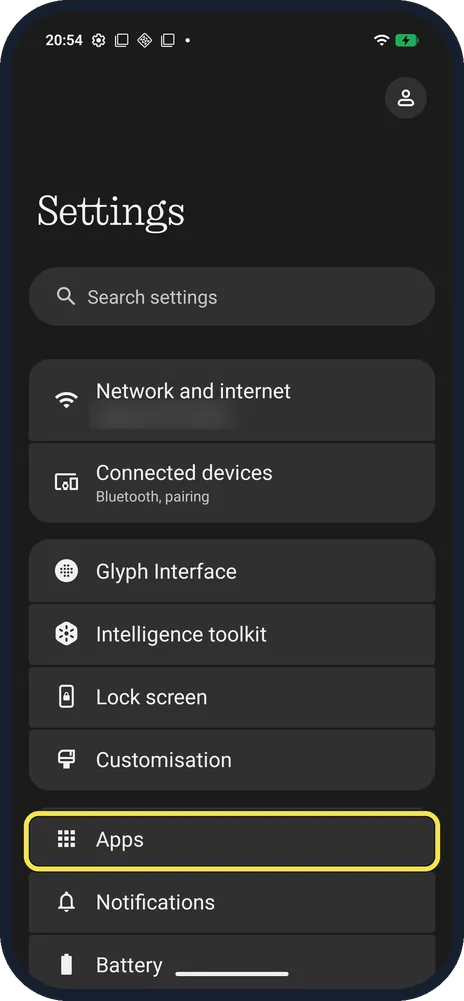
Open Settings, Apps, See all apps, tap the app, then Storage and cache, and tap Clear cache. Chrome's cache on ours went from 295 kB to 0 byte; your data and logins stay.
How to factory reset a Nothing Phone (Nothing OS 4.1)
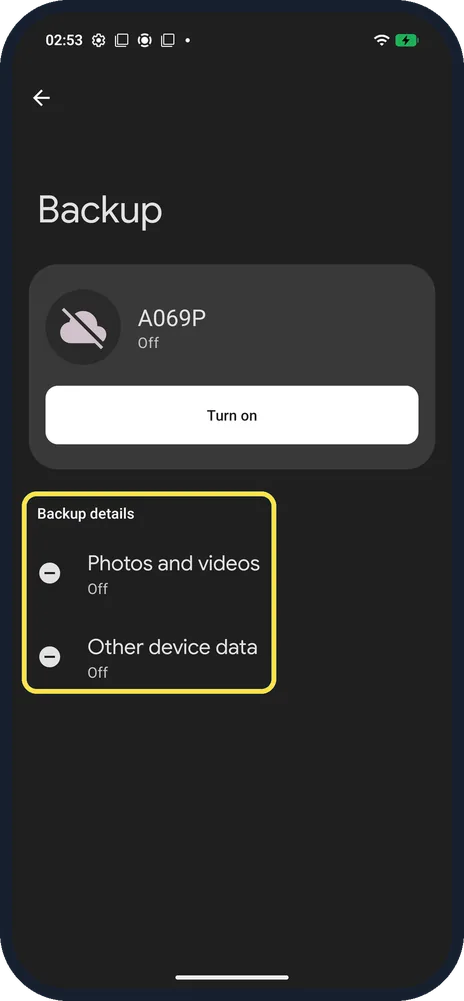
Back up first, then open Settings, System, Reset options, Erase all data (factory reset) and tap Erase all data. Tick Erase eSIMs only if you also want eSIMs removed…
How to add a Nothing widget to the Home screen (Nothing Phone)
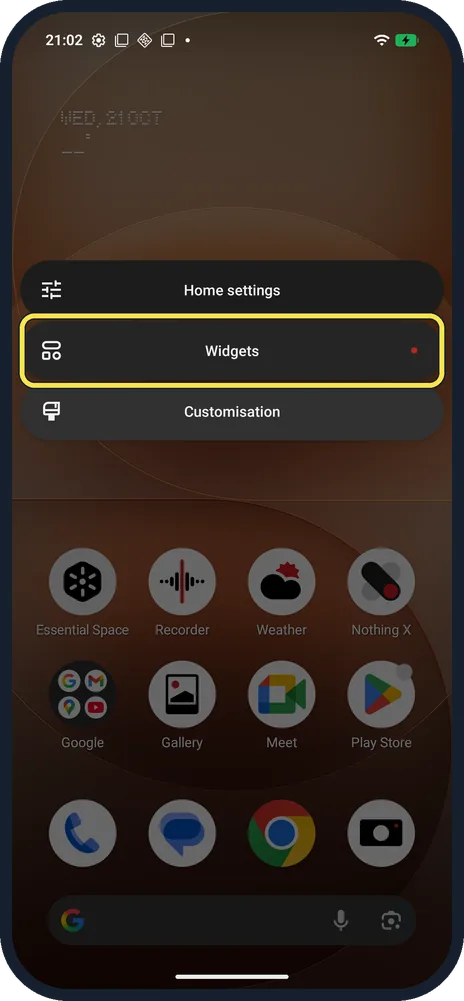
Touch and hold an empty part of the Home screen, tap Widgets, swipe to the Nothing widgets, tap one (we used Clock), then Add widget and choose a face. Hold the widget…
How to change the font on a Nothing Phone (Roboto or Inter)
Open Settings, Display, Font and display size and tap Default font. Pick Inter or Roboto and tap Apply. Nothing OS 4.1 offers only these two system fonts.
How to change the wallpaper on a Nothing Phone (and use Wallpaper Studio)
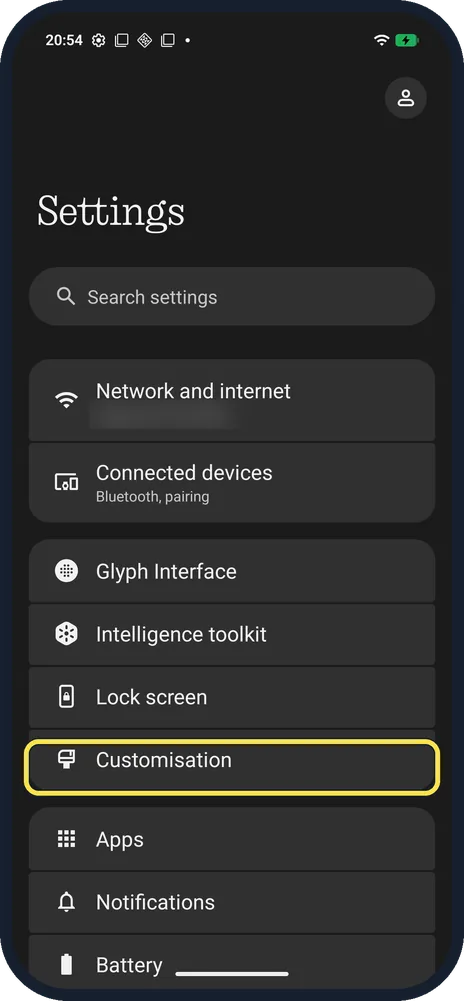
Open Settings, Customisation and tap More wallpapers. Pick a wallpaper from Nothing, Colours or My photos, then tap the tick at the top right. Wallpaper Studio in the…
How to change the app grid and labels on a Nothing Phone
Open Settings, Customisation and tap Layout. Tap App Grid to choose 4 or 5 columns, and switch App label to show or hide app names on the Home screen. Search bar sets…