
howtosimply.com/guides/print-job-stuck-in-the-queue-on-windows-11-4-fixes-to-try/ · Checked October 2026 · Windows 11 Enterprise 25H2 (build 26200.9457), Microsoft Cloud PC
In this guide
Open Settings, Bluetooth & devices, Printers & scanners, select the printer and click Open print queue. Right-click each job and choose Cancel. If a job will not go away, press Windows + R, type services.msc, select Print Spooler and click Restart. Then print again.
4 of 6 steps with real screenshots · 1 official source below
- Device
- Windows
- Shown on
- Windows 11 Enterprise 25H2 (build 26200.9457), Microsoft Cloud PC
- App
- Settings
- Real screenshots
- 4 of 6 steps
- Checked
- October 2026
- Sources
- 1 official, linked below
Step by step
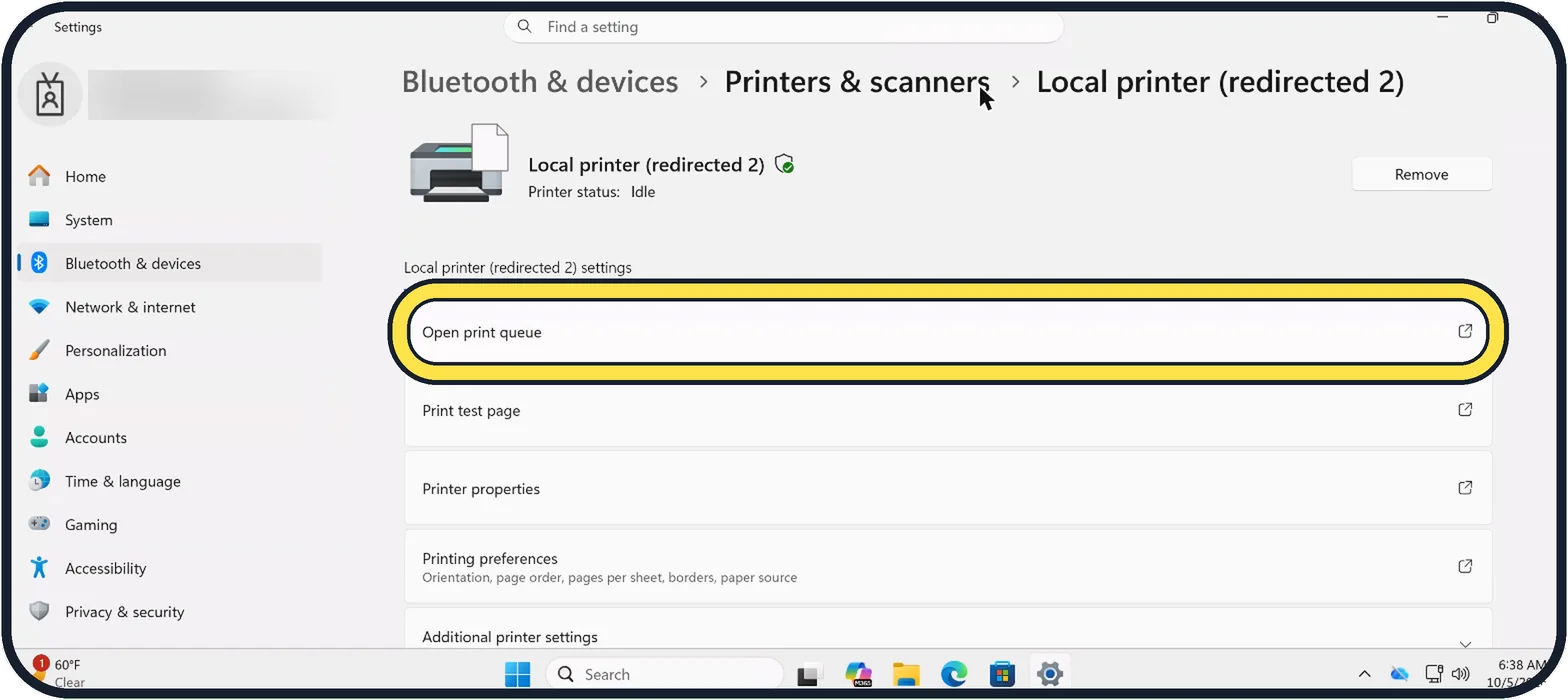
Tap the picture to see it full size Open the printer page
Open Start, Settings, Bluetooth & devices, Printers & scanners and click your printer. On its page, click Open print queue.
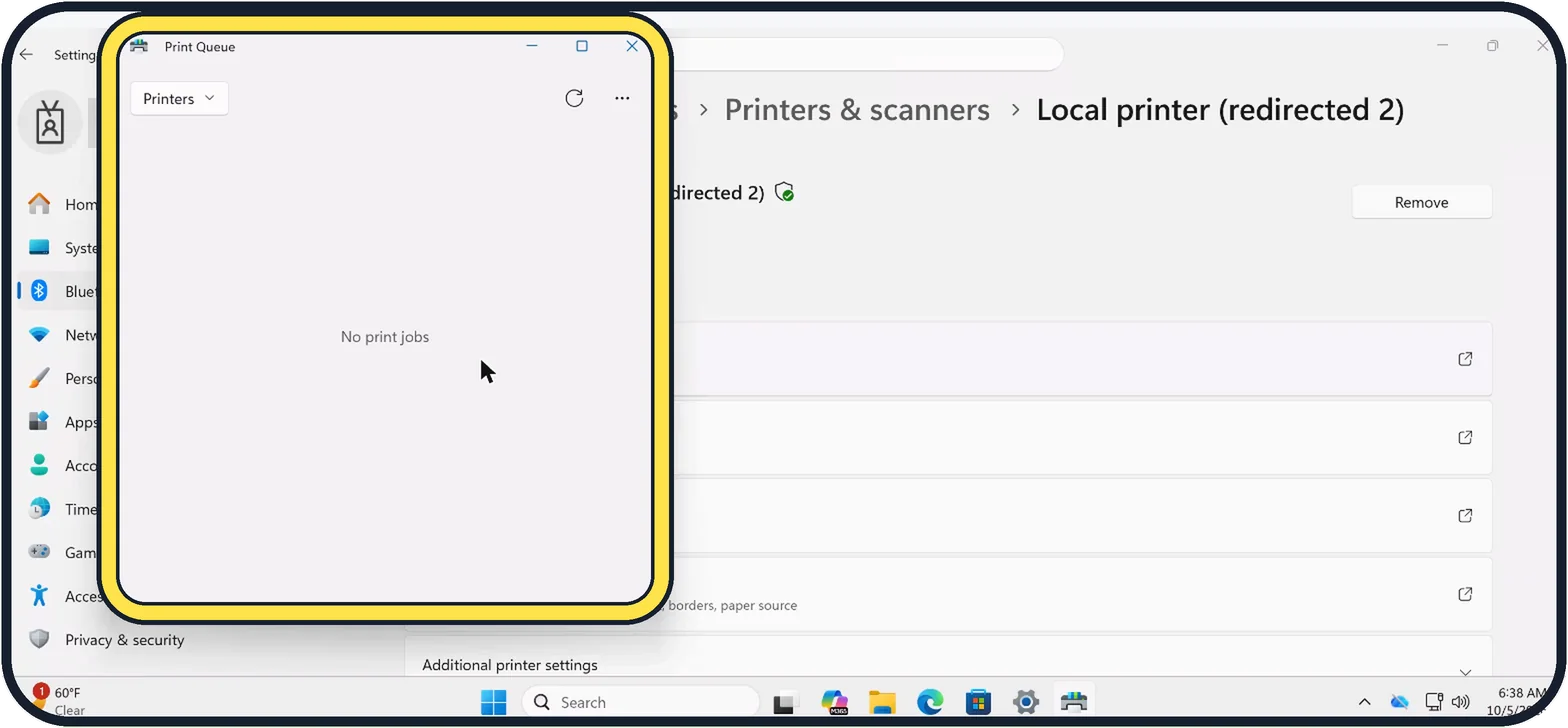
Zoomed in on the setting. Tap to see the whole screenTap the picture to see it full size Cancel the jobs in the queue
The Print Queue window lists every waiting job. Right-click each job and choose Cancel, or use the three dots at the top right. Give it half a minute, as a job often shows Deleting for a while. Our queue was empty, so it says No print jobs.
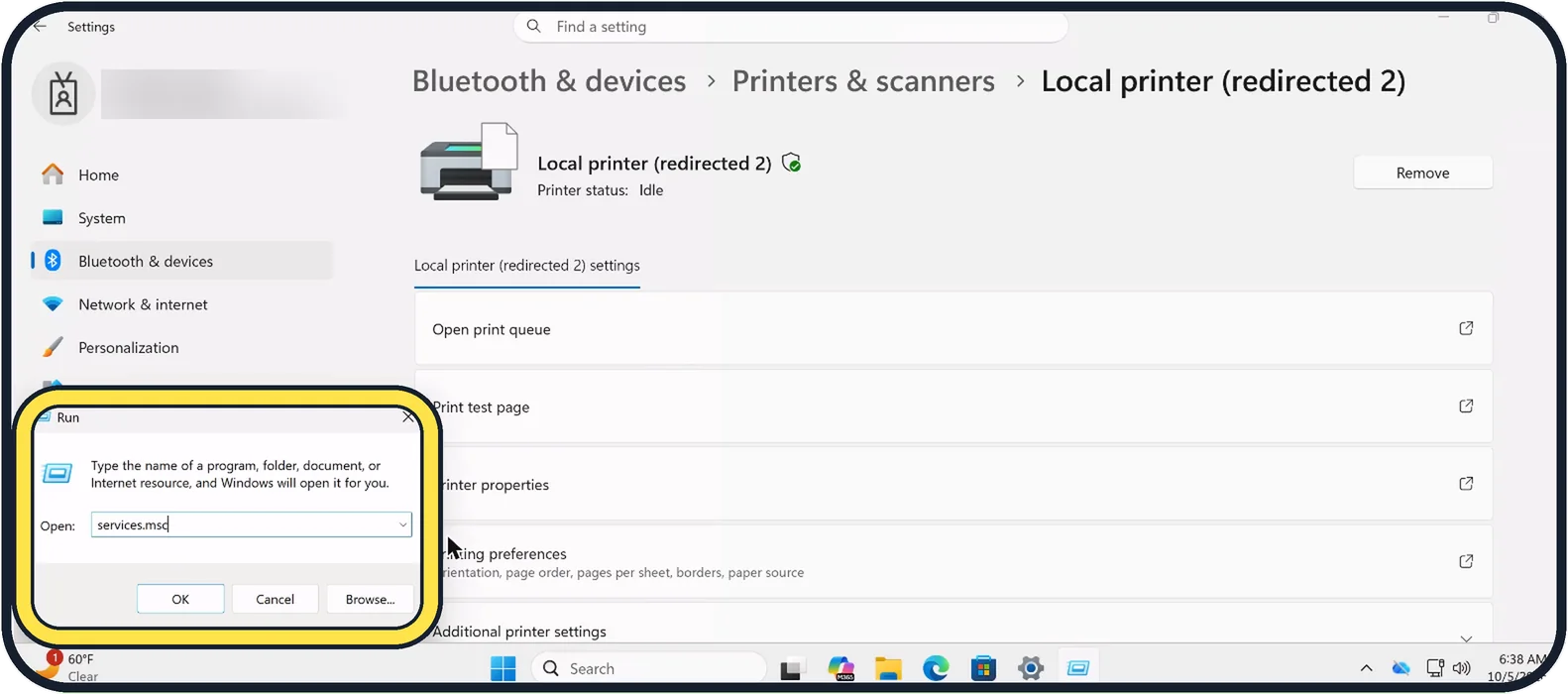
Zoomed in on the setting. Tap to see the whole screenTap the picture to see it full size Open Services
If a job stays stuck, press Windows + R, type services.msc and click OK.
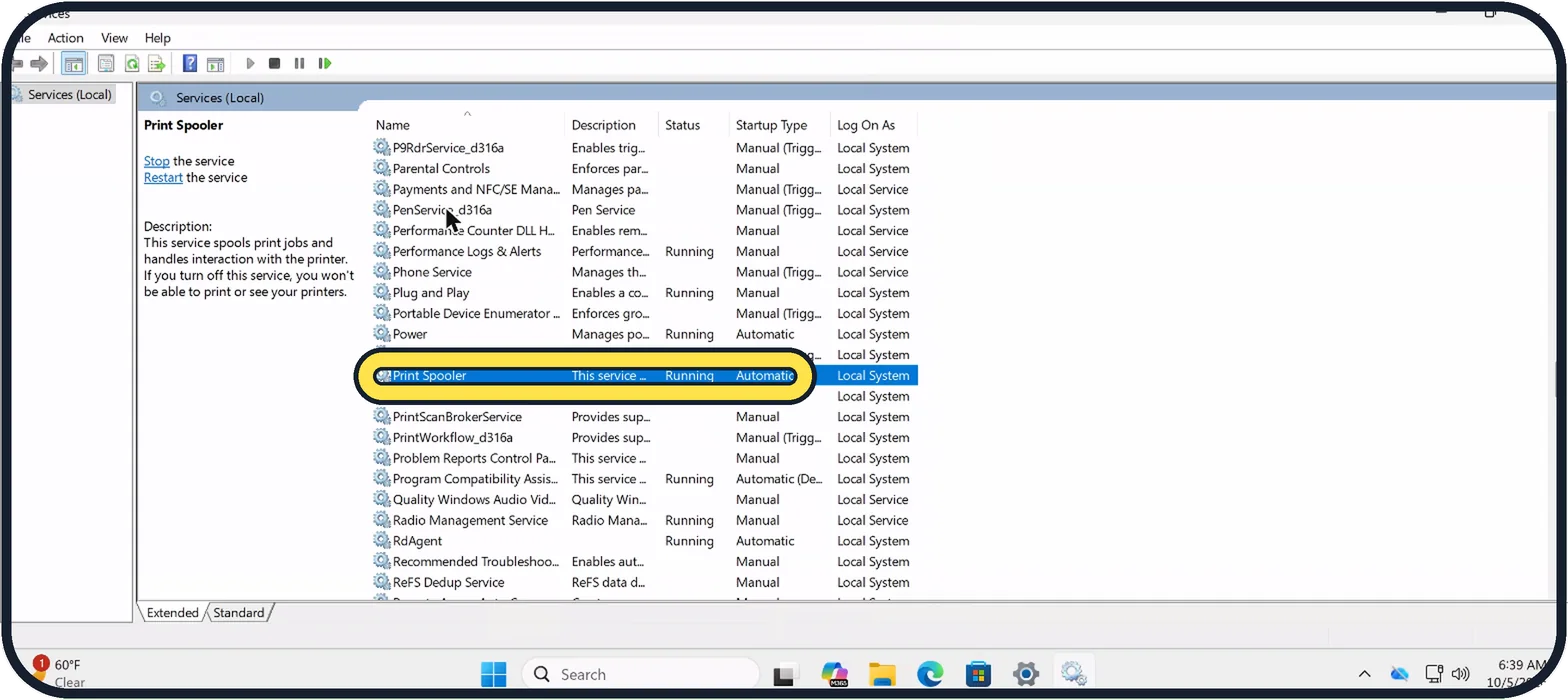
Zoomed in on the setting. Tap to see the whole screenTap the picture to see it full size Restart the Print Spooler
Scroll down to Print Spooler and select it. Click Restart the service on the left, or right-click Print Spooler and choose Restart. Its status should say Running and its startup type Automatic. Then try to print.
Empty the spool folder by hand
If the job is still there, select Print Spooler in the same window and click Stop the service. Open File Explorer, go to C:\Windows\System32\spool\PRINTERS and delete all the files inside, but not the folder itself. Windows asks for administrator permission. Go back to Services and click Start the service.
Restart the printer and the PC
Switch the printer off, wait at least 60 seconds and switch it on again. Restart the PC with Start, Power, Restart. Then print the document again from its program.
About this guide
A document that hangs in the print queue blocks everything behind it: nothing prints, and the same job cannot be deleted. The cause is nearly always the Print Spooler, the Windows service that hands documents to the printer. Work through these fixes in order.
Our Cloud PC prints through a redirected printer, Local printer (redirected 2). Your printer page shows your own printer's name.
Good to know
The files in the PRINTERS folder are only the waiting print jobs. Deleting them does not remove the printer or its settings, but the documents have to be sent again.
If the queue blocks again with the same document, the document is the trigger. Print it as a PDF first, or print a few pages at a time.
If the queue is empty and still nothing comes out: printer not working. To set the printer up again from scratch: how to add a printer on Windows 11.
In short: Cancel the jobs in the print queue, restart Print Spooler in services.msc, empty C:\Windows\System32\spool\PRINTERS with the service stopped, restart printer and PC.
Links checked in October 2026. Menus and features can change after software updates. These steps match the version named at the top.
Did this guide work for you?
Sorry about that. What happened?