
howtosimply.com/guides/how-to-stop-apps-from-opening-at-startup-on-windows-11/ · Checked October 2026 · Windows 11 Enterprise 25H2 (build 26200.9457), Microsoft Cloud PC
In this guide
Open Settings, choose Apps, then Startup, and switch off every app you do not need the moment you sign in. The apps stay installed; they just stop launching by themselves.
4 of 5 steps with real screenshots · 1 official source below
- Device
- Windows
- Shown on
- Windows 11 Enterprise 25H2 (build 26200.9457), Microsoft Cloud PC
- App
- Settings
- Path
- Settings › Apps › Startup
- Real screenshots
- 4 of 5 steps
- Checked
- October 2026
- Sources
- 1 official, linked below
Step by step
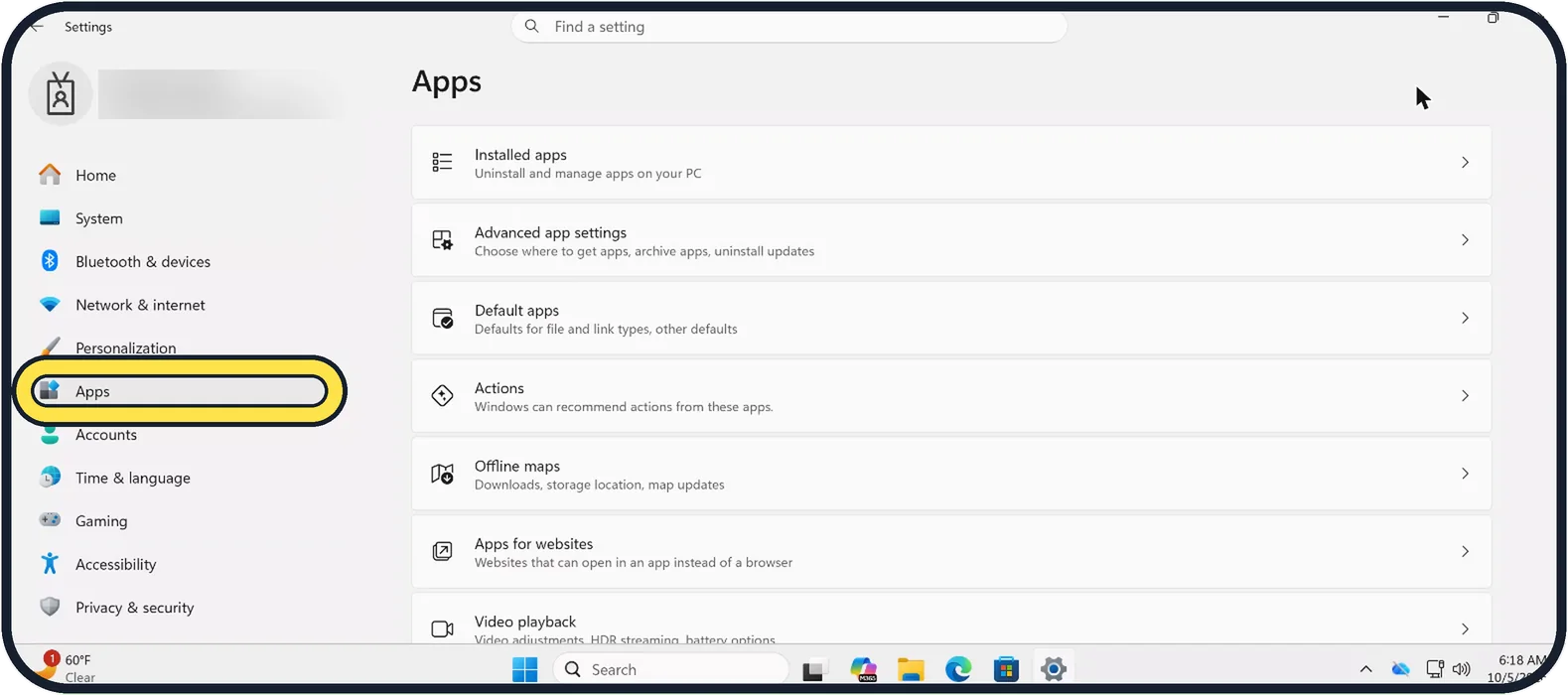
Zoomed in on the setting. Tap to see the whole screenTap the picture to see it full size Open Settings and choose Apps
Press Windows + I. Apps is in the list on the left.
Watch these steps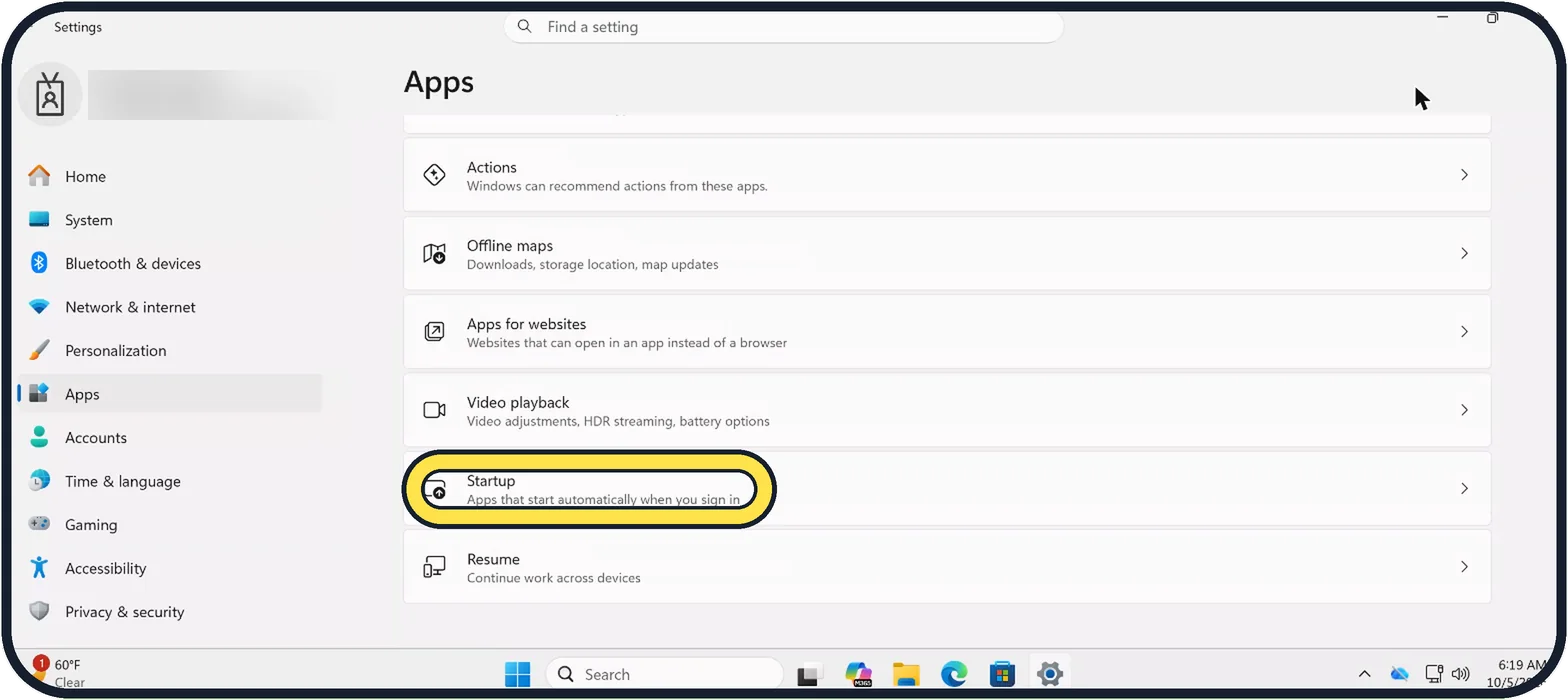
Zoomed in on the setting. Tap to see the whole screenTap the picture to see it full size Click Startup
It is near the bottom of the Apps page.
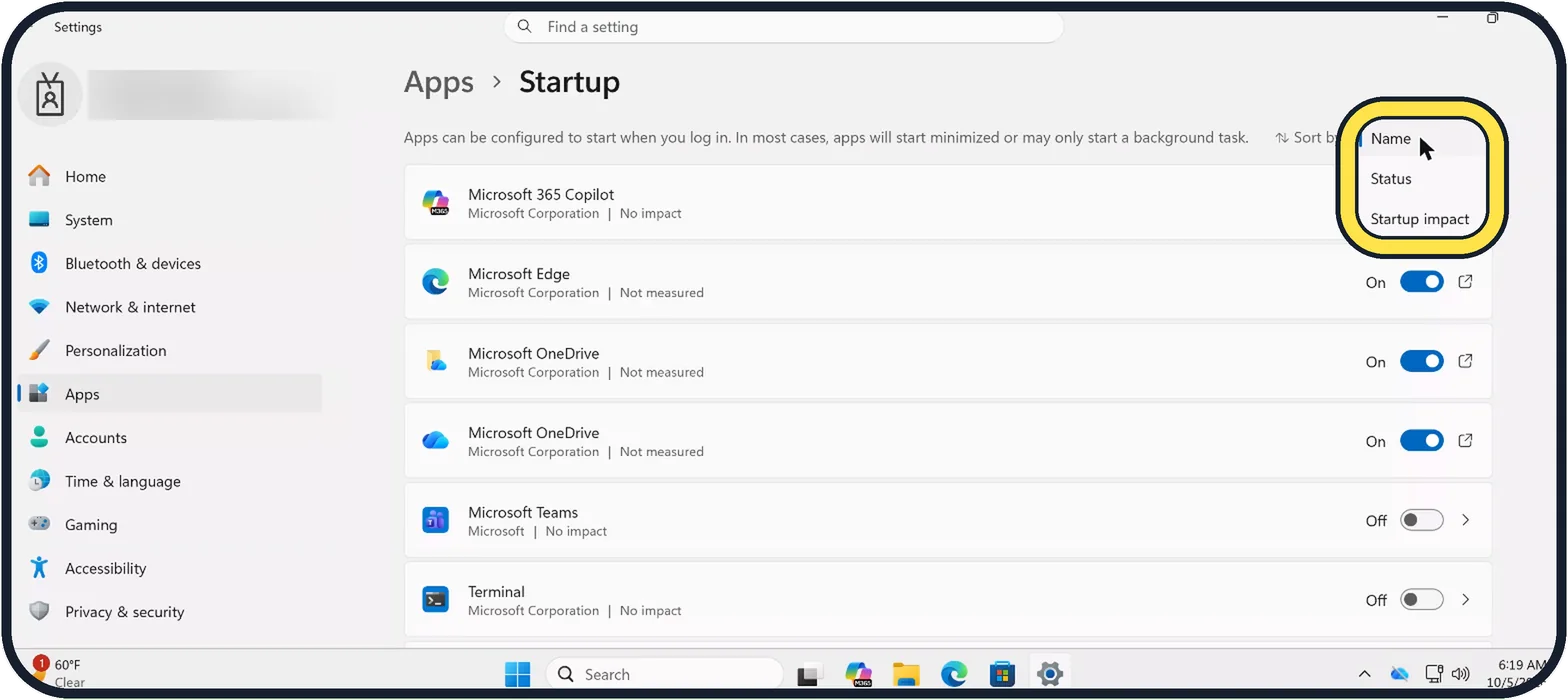
Zoomed in on the setting. Tap to see the whole screenTap the picture to see it full size Sort by startup impact
Use the Sort by menu at the top right and choose Startup impact. On our Cloud PC the menu offers Name, Status and Startup impact. Each app's impact is shown under its name; on our new PC they read No impact or Not measured.
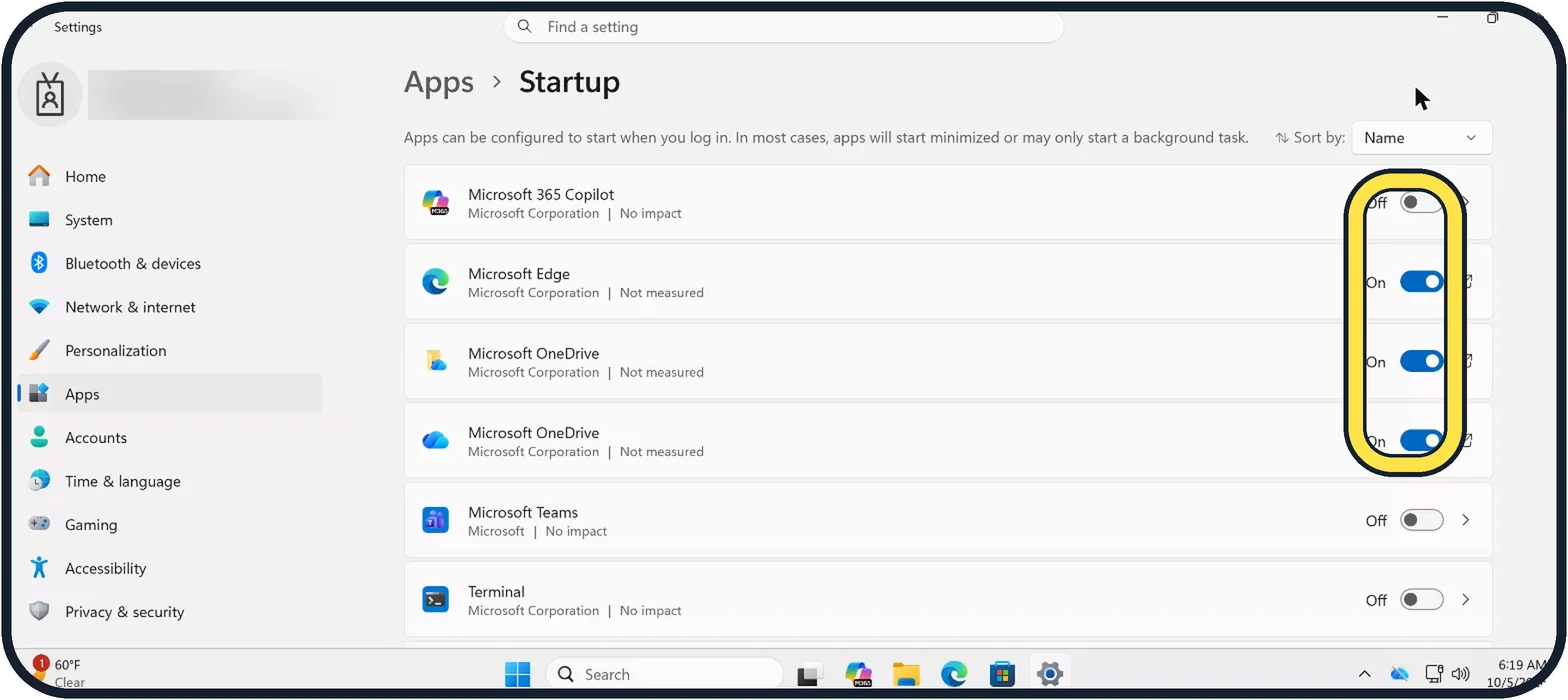
Zoomed in on the setting. Tap to see the whole screenTap the picture to see it full size Switch off what you do not need
Turn off chat apps, game launchers, music players and updaters you do not need immediately. Leave your antivirus, touchpad and audio drivers, and cloud backup on. On our Cloud PC, Microsoft 365 Copilot, Microsoft Teams and Terminal are already Off, while Microsoft Edge and both Microsoft OneDrive entries are On.
Restart to feel the difference
The change applies at the next sign-in.
Watch these steps
What we saw on our device
- Sort by startup impact: On our Cloud PC the menu offers Name, Status and Startup impact.
- Switch off what you do not need: On our Cloud PC, Microsoft 365 Copilot, Microsoft Teams and Terminal are already Off, while Microsoft Edge and both Microsoft OneDrive entries are On.
About this guide
Many programs add themselves to the list of things that start with Windows. Each one makes the PC slower to become usable and keeps using memory in the background. Turning them off is safe and easy to undo.
Good to know
Task Manager has a startup list too. Press Ctrl + Shift + Esc and open the Startup apps tab. The two lists can differ, so check both.
If you are not sure what an entry is, right-click it in Task Manager and choose Search online before turning it off.
More ideas for a sluggish PC: seven free fixes for a slow laptop.
In short: Settings, Apps, Startup. Switch off the High impact apps you do not need at sign-in.
Links checked in October 2026. Menus and features can change after software updates. These steps match the version named at the top.
Did this guide work for you?
Sorry about that. What happened?