Tech
Tech, made simple
Clear steps. Real screens. No fuss. 1,094 step-by-step guides for iPhone, Android and Mac, each shown on our own devices with the exact system version.
Real screenshot · iPhone 17e, iOS 27.0.1
Start with your device
Every guide names the device and system version its screenshots come from.




Latest guides
Fresh guides, checked on our own devices.
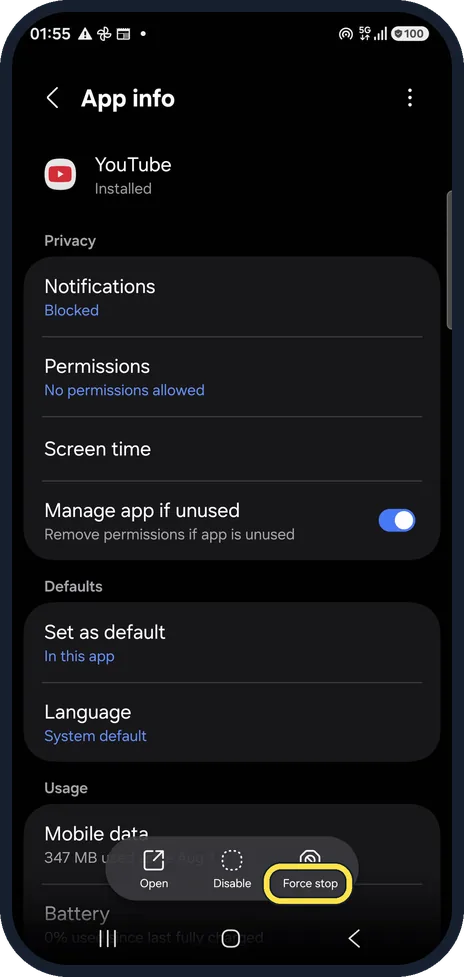 PIXELYouTube not working on Android? What to checkForce stop YouTube in Settings, Apps, See all apps, YouTube and open it again. Then tap Storage and cache and Clear cache (not Clear storage), check that Wi-Fi or mobile data is on, and update YouTube in the Play Store.27 Oct 2026 · 3 min read
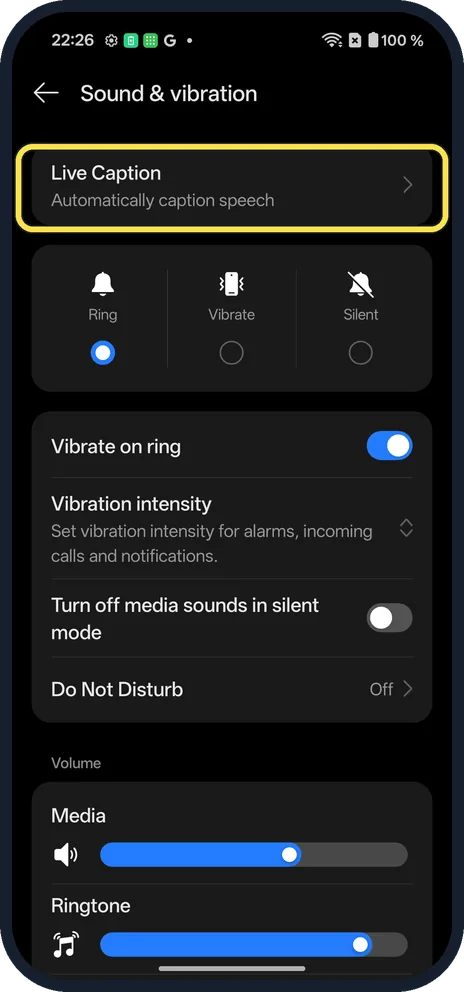 ANDROIDWhy Live Caption is greyed out on a OnePlus (OxygenOS 16)On our Nord 5 the Use Live Caption switch was greyed out with Update your software to enable this feature. It needs a software update first. Open Settings, Sound & vibration, Live Caption to see it.27 Oct 2026 · 2 min read
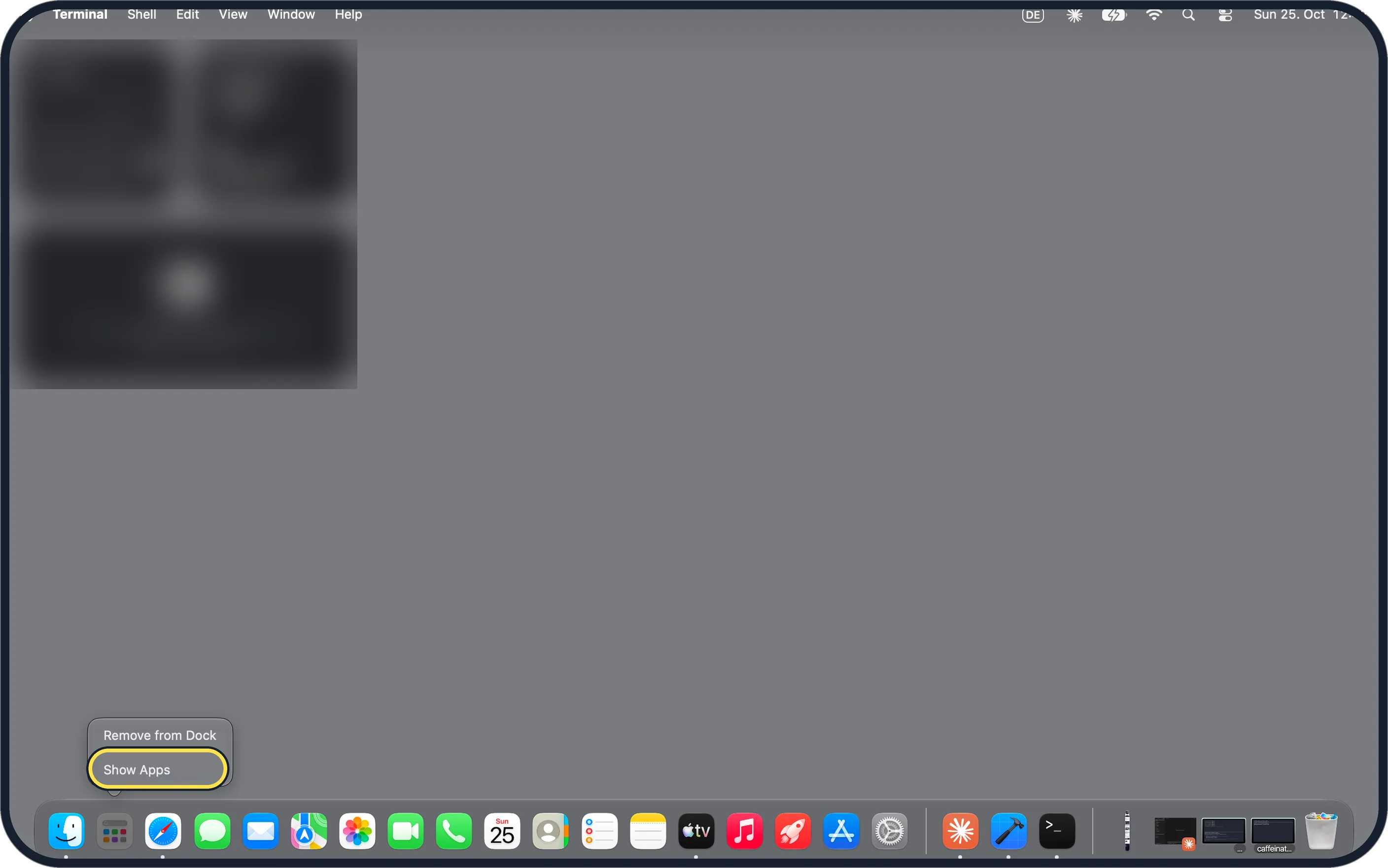 MACWhere is Launchpad on a Mac? How to open your apps in macOS 27There is no Launchpad in macOS 27. The grid icon in the Dock is now called Apps: click it to see every app, filter by category or switch to a list. Spotlight opens the same view with Command-1.27 Oct 2026 · 2 min read
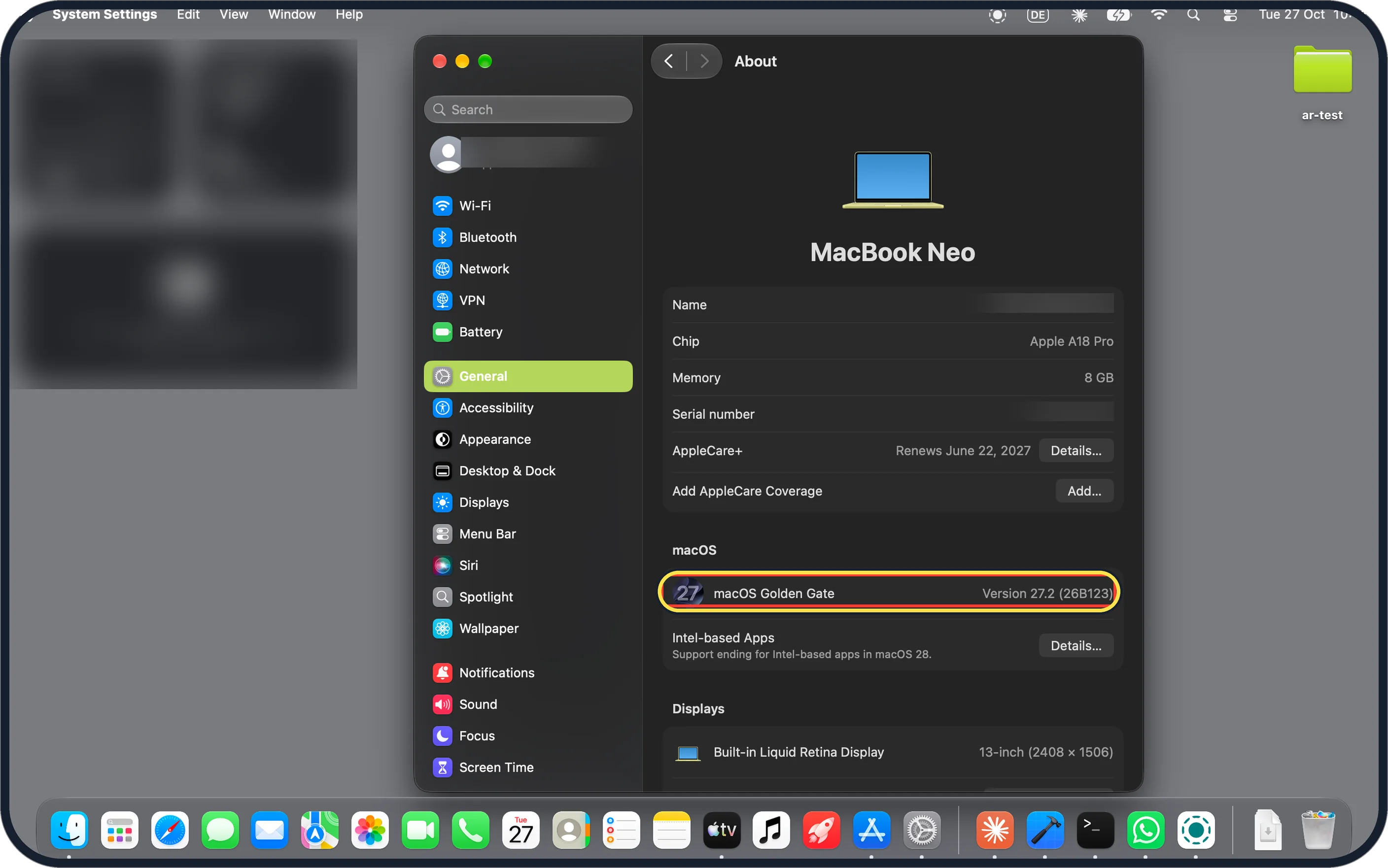 MACWhat's new in macOS 27.2 on a MacBook NeoOn our MacBook Neo, macOS 27.2 (26B123) added two Siri settings, Excluded Apps and Suggestions, and a new brightness and volume pill split into steps. The new Podcasts sections and the Siri AI features did not show on our Mac.27 Oct 2026 · 5 min read
Articles
Phones and software explained in plain language, with the sources listed.
ExplainerBattery health on iPhone, Samsung Galaxy and MacBook: what each screen really tells youAll of them show battery health, but not the same thing. An iPhone 14 Pro gives one percentage, an iPhone 17e on the same iOS adds cycle count and dates, a Galaxy A57 shows the most, and a MacBook says "Normal" until you click (i).10 October 2026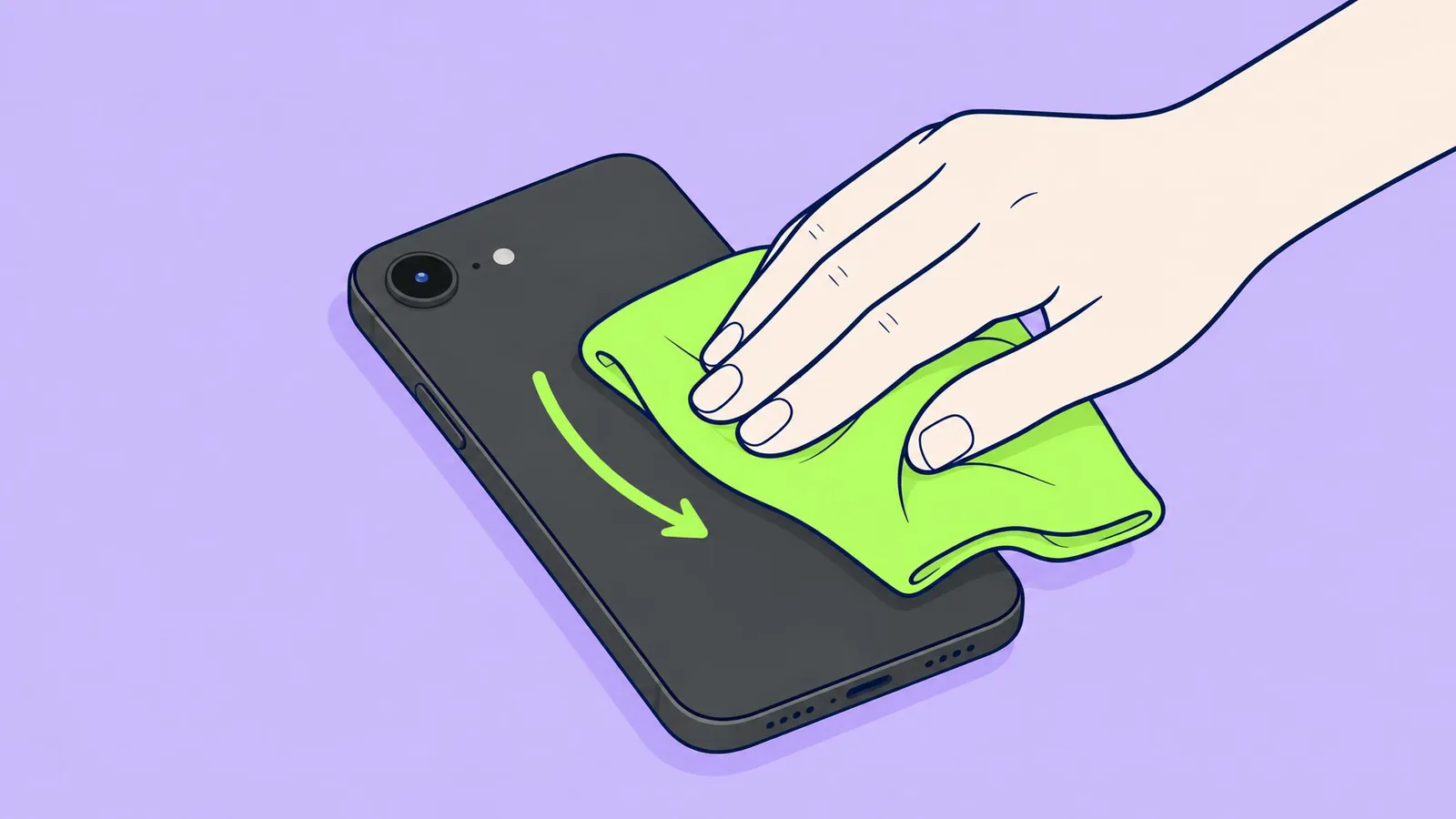 How-toHow to clean your iPhone: screen, camera, buttons and charging port (17e, 18 Pro, 14 Pro)Unplug it, turn it off and wipe it with a soft, lint-free cloth that is only slightly damp, or a 70% isopropyl alcohol wipe. Keep liquid out of every opening and push nothing into the port. Each step, for the iPhone 17e, 18 Pro and 14 Pro.27 October 2026
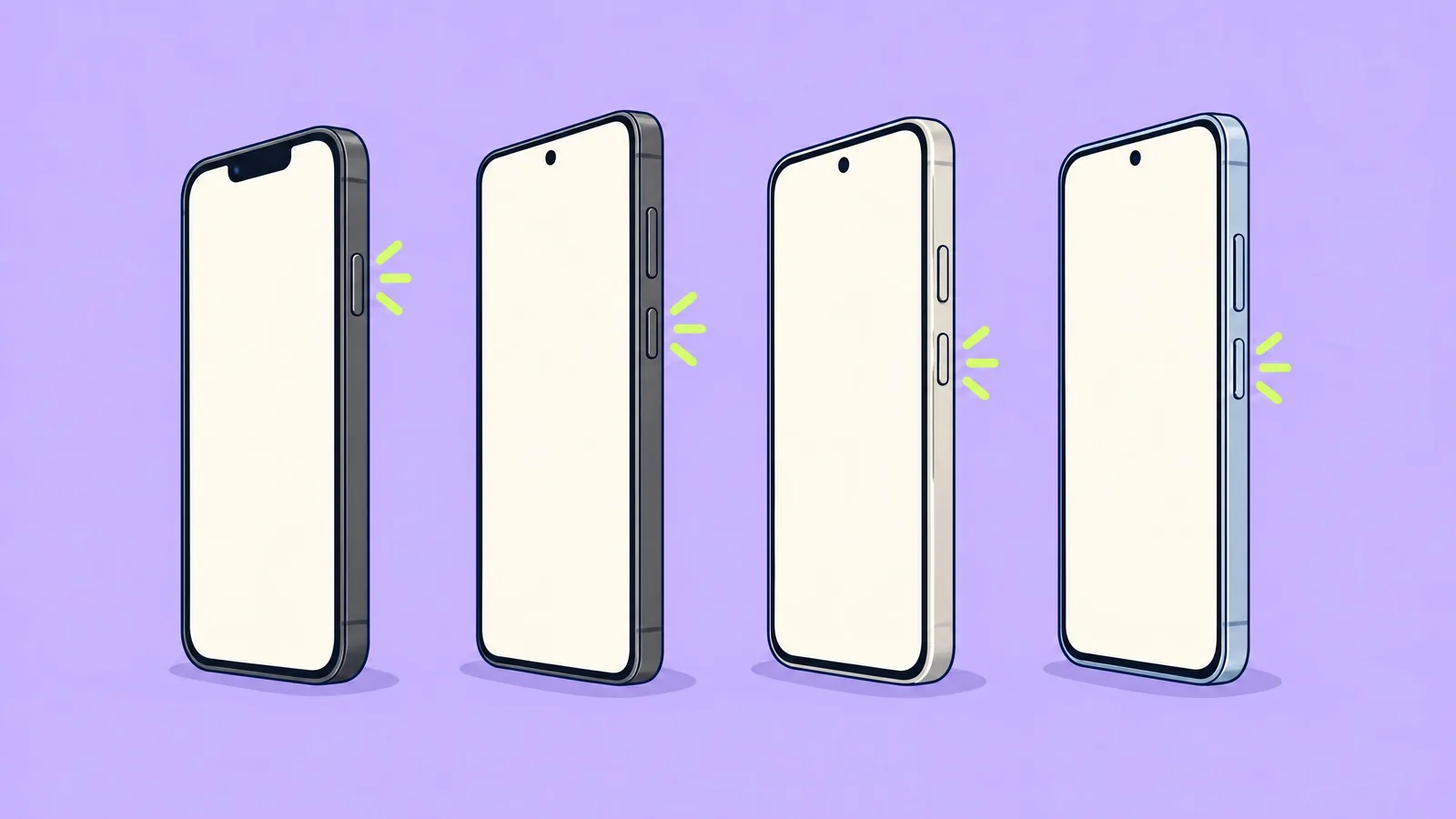 How-toPhone frozen? How to force restart an iPhone, Galaxy, Pixel, Redmi, OnePlus or NothingiPhone: tap volume up, tap volume down, then hold the side button. Galaxy: hold side key and volume down. Pixel: hold power for about 60 seconds. Redmi: hold power over 10 seconds. OnePlus and Nothing: hold power and volume up. Nothing is deleted.27 October 2026
How-toHow to clean your iPhone: screen, camera, buttons and charging port (17e, 18 Pro, 14 Pro)Unplug it, turn it off and wipe it with a soft, lint-free cloth that is only slightly damp, or a 70% isopropyl alcohol wipe. Keep liquid out of every opening and push nothing into the port. Each step, for the iPhone 17e, 18 Pro and 14 Pro.27 October 2026How-toPhone frozen? How to force restart an iPhone, Galaxy, Pixel, Redmi, OnePlus or NothingiPhone: tap volume up, tap volume down, then hold the side button. Galaxy: hold side key and volume down. Pixel: hold power for about 60 seconds. Redmi: hold power over 10 seconds. OnePlus and Nothing: hold power and volume up. Nothing is deleted.27 October 2026Camera Lab
Same scene. Eleven phones.
Real photos from the phones we own, taken minutes apart in the same light.
Open the Camera Lab

 Home
Home Health
 Life
Life