
howtosimply.com/guides/how-to-turn-on-storage-sense-on-windows-11/ · Checked October 2026 · Windows 11 Enterprise 25H2 (build 26200.9457), Microsoft Cloud PC
In this guide
Open Settings, click System, then Storage, and switch on Storage Sense. Click Storage Sense to choose how often it runs and after how many days files in the Recycle Bin and the Downloads folder are deleted.
6 of 6 steps with real screenshots · 1 official source below
- Device
- Windows
- Shown on
- Windows 11 Enterprise 25H2 (build 26200.9457), Microsoft Cloud PC
- App
- Settings
- Path
- Settings › System › Storage
- Real screenshots
- 6 of 6 steps
- Checked
- October 2026
- Sources
- 1 official, linked below
Step by step
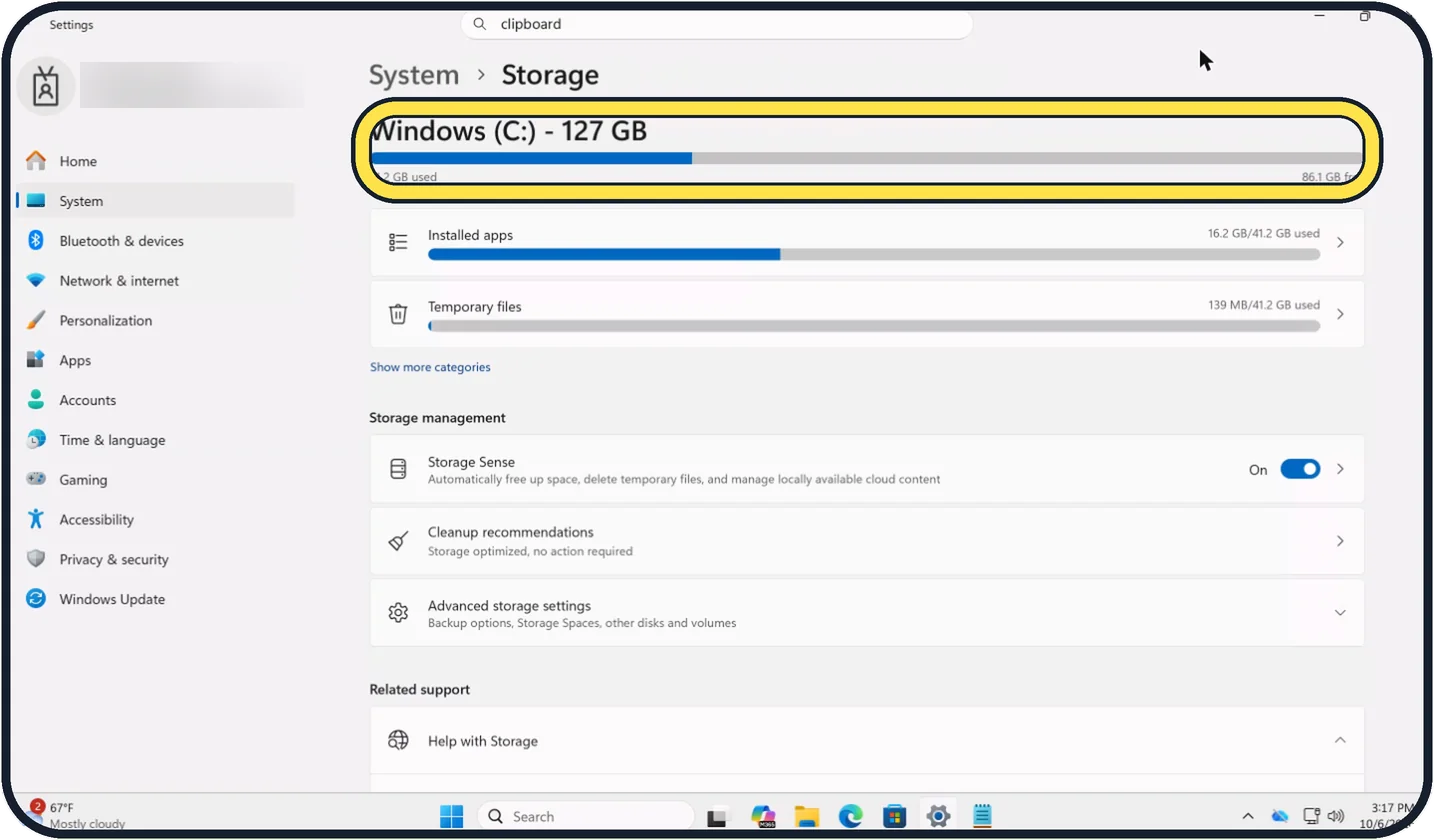
Tap the picture to see it full size Open Settings, System, Storage
Open Start, Settings, System and click Storage. The bar at the top shows how much of the system drive is used and free.
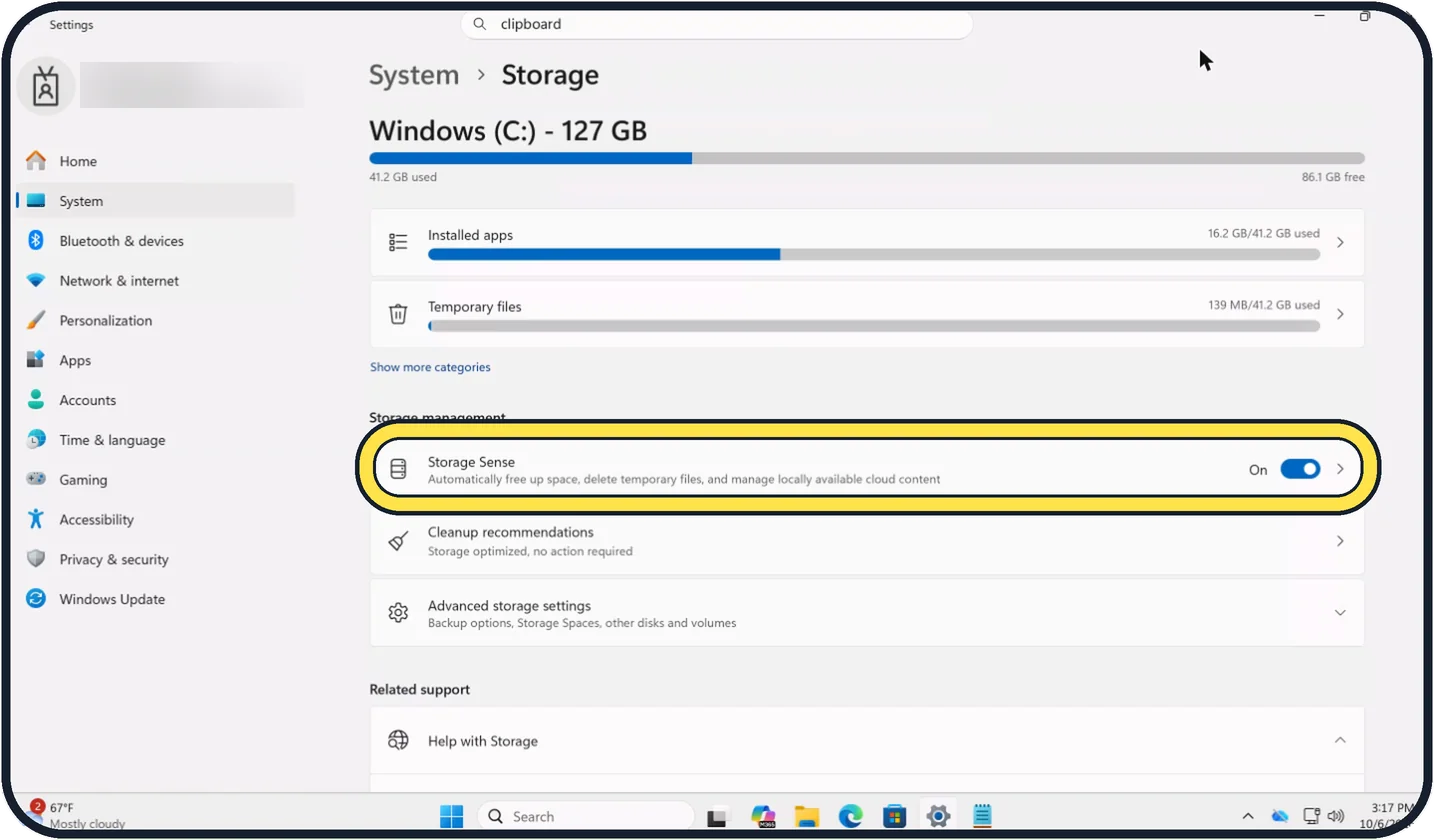
Tap the picture to see it full size Switch on Storage Sense
Under Storage management, switch on Storage Sense. With the default settings it runs when the PC is low on disk space. On our Cloud PC it was already On.
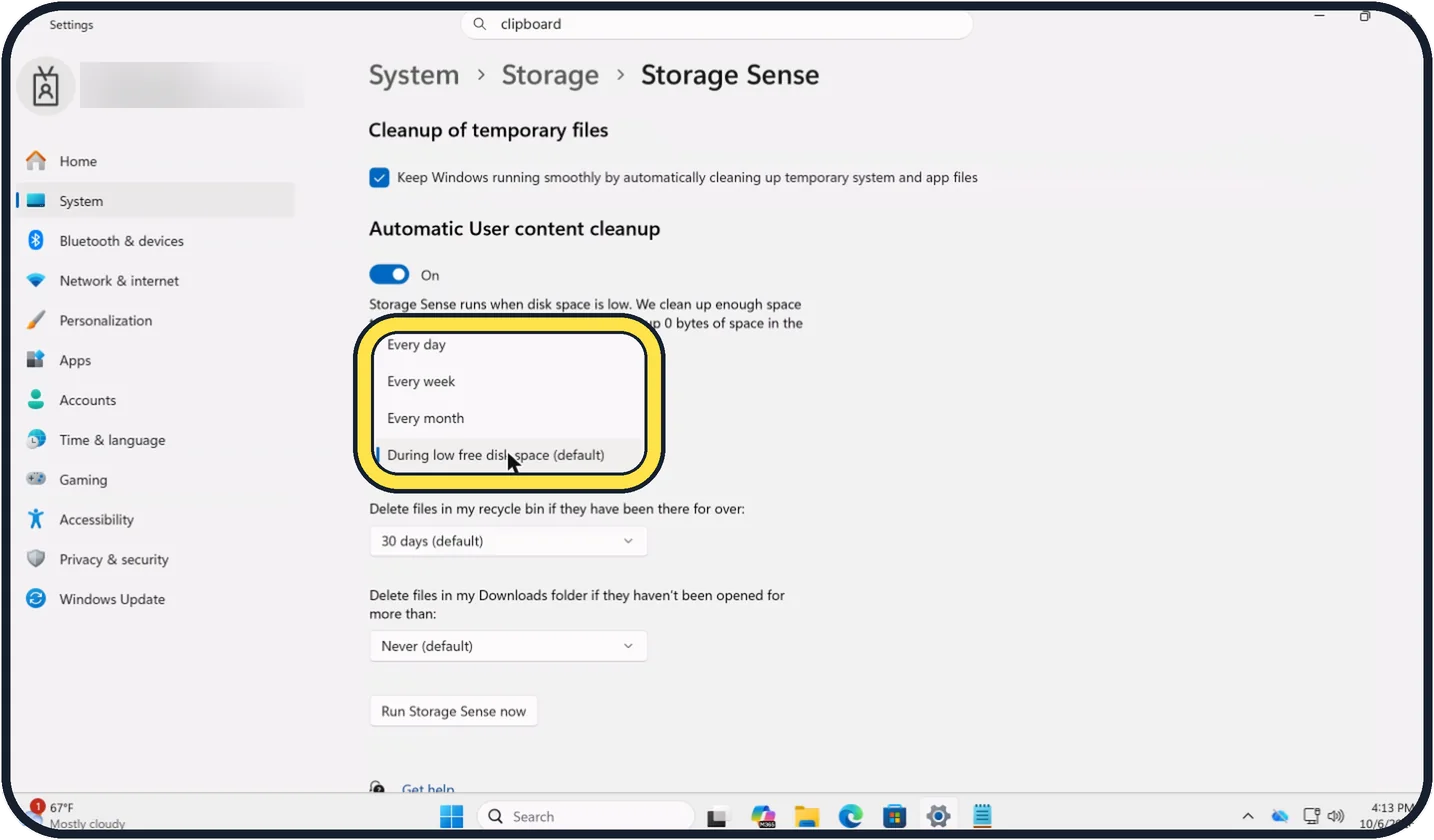
Zoomed in on the setting. Tap to see the whole screenTap the picture to see it full size Click Storage Sense to choose how often it runs
Click the Storage Sense row itself. Under Run Storage Sense, choose Every day, Every week, Every month or During low free disk space, which is the default.
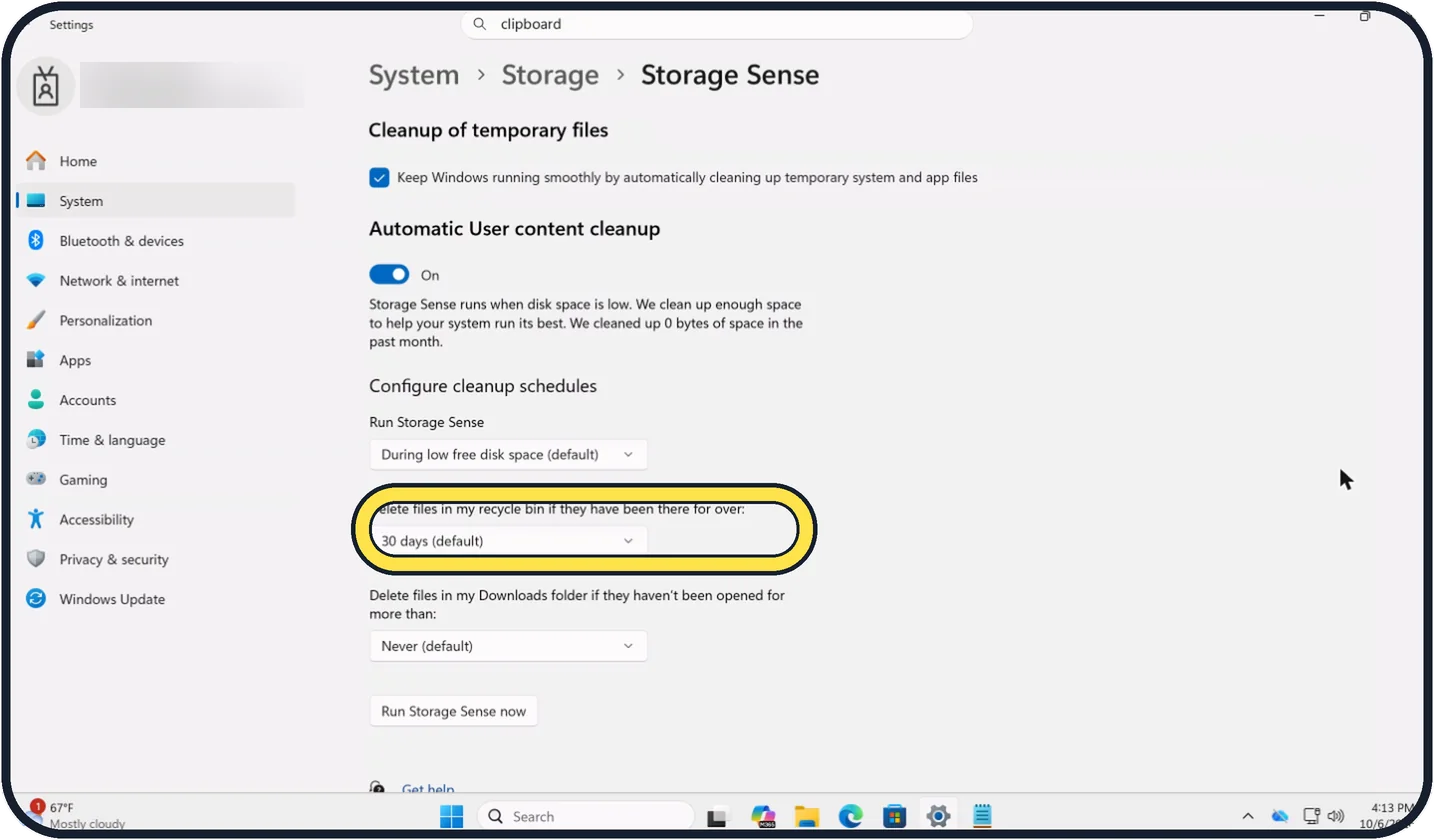
Zoomed in on the setting. Tap to see the whole screenTap the picture to see it full size Set the Recycle Bin
Under Delete files in my recycle bin if they have been there for over, choose a number of days. The default is 30 days. After that time, deleted files are gone for good.
Zoomed in on the setting. Tap to see the whole screenTap the picture to see it full size Decide about the Downloads folder
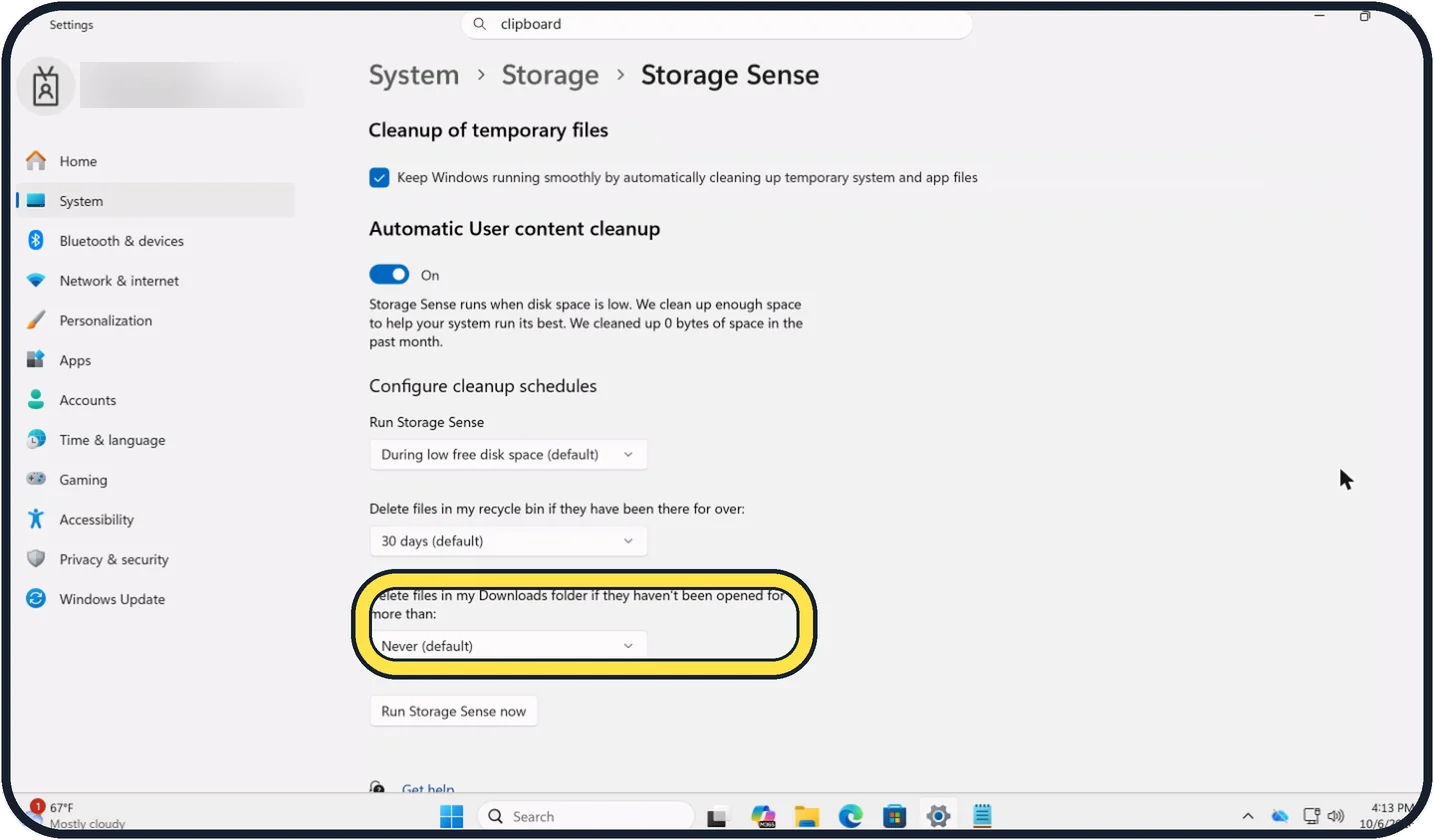
Delete files in my Downloads folder if they haven't been opened for more than is set to Never by default. Leave it on Never if you keep things in Downloads that you still need.
Zoomed in on the setting. Tap to see the whole screenTap the picture to see it full size Run it once now
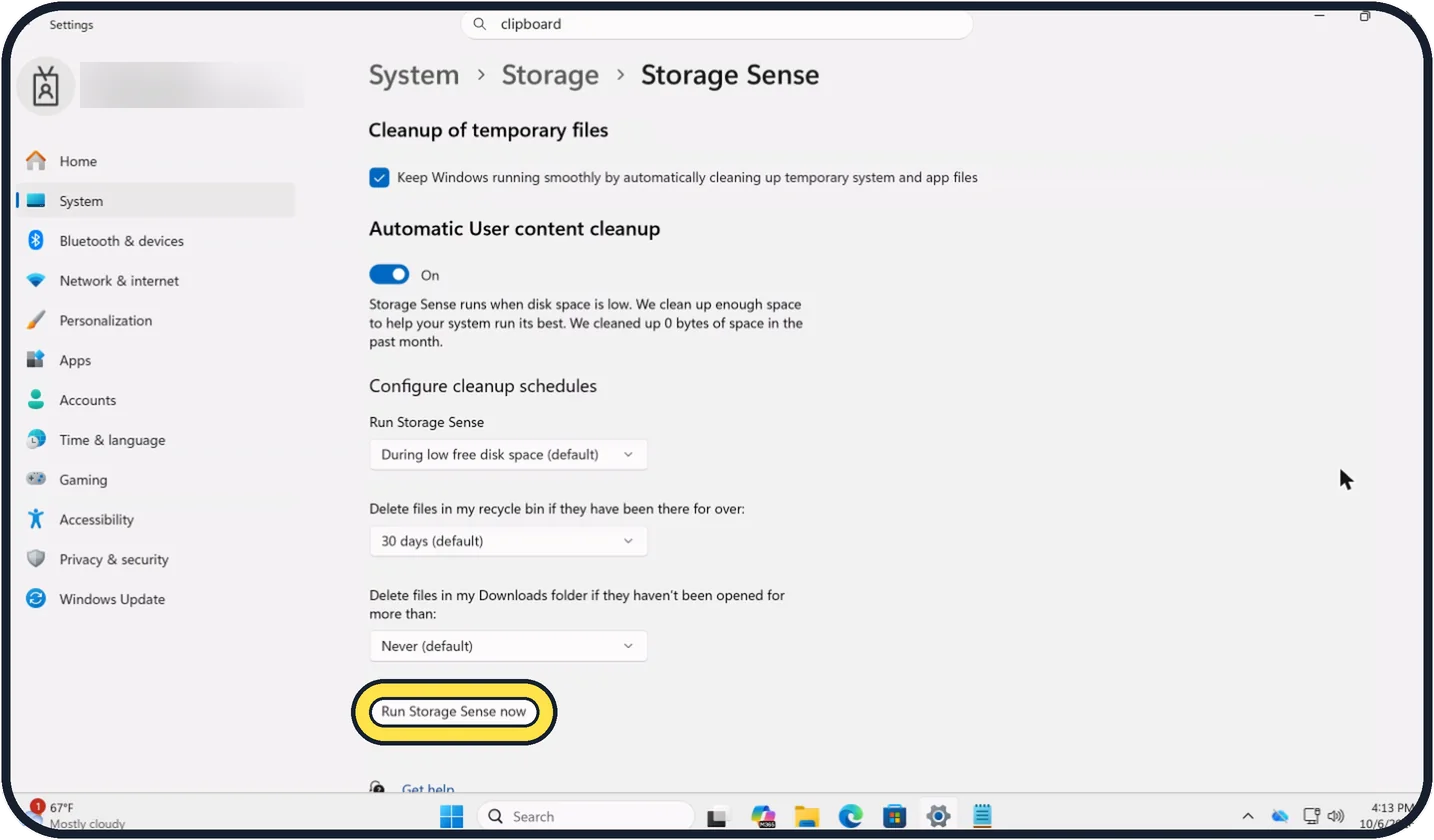
Click Run Storage Sense now at the bottom of the page to clean up straight away. The page also says how much space it cleaned up in the past month.
If you do not see this option
- Storage Sense does not clean another drive. Microsoft says it works on the system drive only. For other drives, open Settings, System, Storage, Advanced storage settings, Storage used on other drives. Source: Manage drive space with Storage Sense
- It has not run yet. Microsoft says it cannot run unless you are signed in and online for more than 10 minutes. With the default setting it runs only when the drive is low on space, which is when the bar under Settings, System, Storage turns red. Source: Manage drive space with Storage Sense
If this does not work
- A file from OneDrive now shows as online-only. Microsoft says Storage Sense makes OneDrive files online-only when they have not been opened for 30 days, by default. It does not delete them; they download again when you open them. Files marked Always keep on this device are left alone. Source: Manage drive space with Storage Sense
- You want to remove the old Windows installation after an update. Open Settings, System, Storage, Temporary files, tick Previous Windows Installation(s) and select Remove files. Source: Manage drive space with Storage Sense
About this guide
Storage Sense is Windows' own cleaner. It deletes temporary files and empties the Recycle Bin by itself, so that the drive does not fill up unnoticed. It works on the system drive, usually C:.
Good to know
If you use OneDrive, Storage Sense can also turn files you have not opened for a while into online-only files. They stay visible and download again when you open them. Files marked Always keep on this device are never touched.
Storage Sense only runs when you have been signed in and online for more than ten minutes.
For a one-off clear-out with more options, see how to free up disk space on Windows 11.
In short: Settings, System, Storage, Storage Sense on. Choose how often it runs and what it may delete.
Links checked in October 2026. Menus and features can change after software updates. These steps match the version named at the top.
Did this guide work for you?
Sorry about that. What happened?