
howtosimply.com/guides/how-to-change-when-the-screen-turns-off-on-windows-11/ · Checked October 2026 · Windows 11 Enterprise 25H2 (build 26200.9457), Microsoft Cloud PC
In this guide
Open Settings, System, Power (Power & battery on laptops) and expand Screen, sleep, & hibernate timeouts. Choose a time under Turn my screen off after, or Never.
3 of 3 steps with real screenshots · 1 official source below
- Device
- Windows
- Shown on
- Windows 11 Enterprise 25H2 (build 26200.9457), Microsoft Cloud PC
- App
- Settings
- Path
- Settings › System › Power › Screen
- Real screenshots
- 3 of 3 steps
- Checked
- October 2026
- Sources
- 1 official, linked below
Step by step
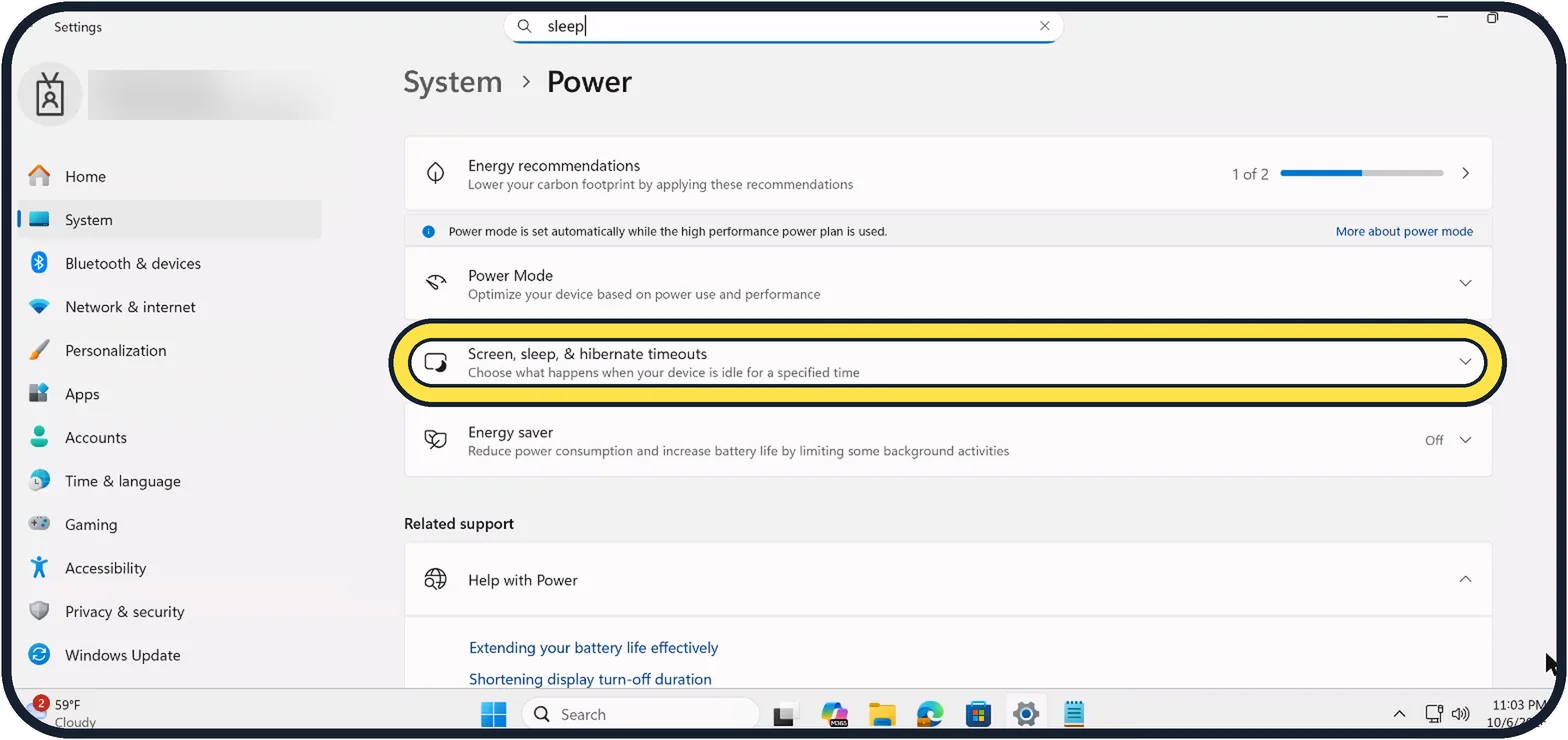
Tap the picture to see it full size Open Power settings
Press Windows + I, click System, then Power, or Power & battery on a laptop. Click Screen, sleep, & hibernate timeouts.
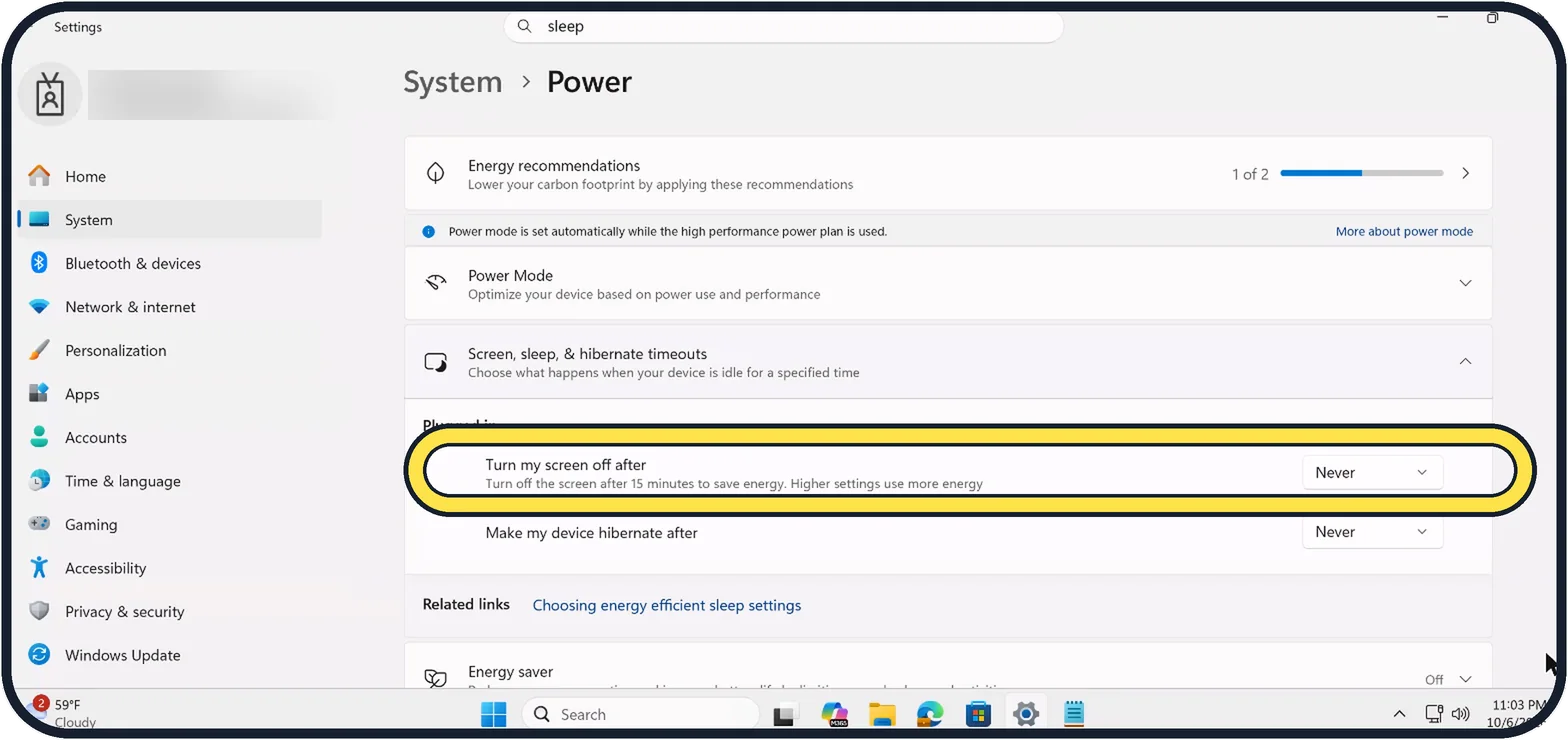
Tap the picture to see it full size Find Turn my screen off after
Under the Plugged in heading, just above the row, Turn my screen off after shows the current time. Ours was Never.
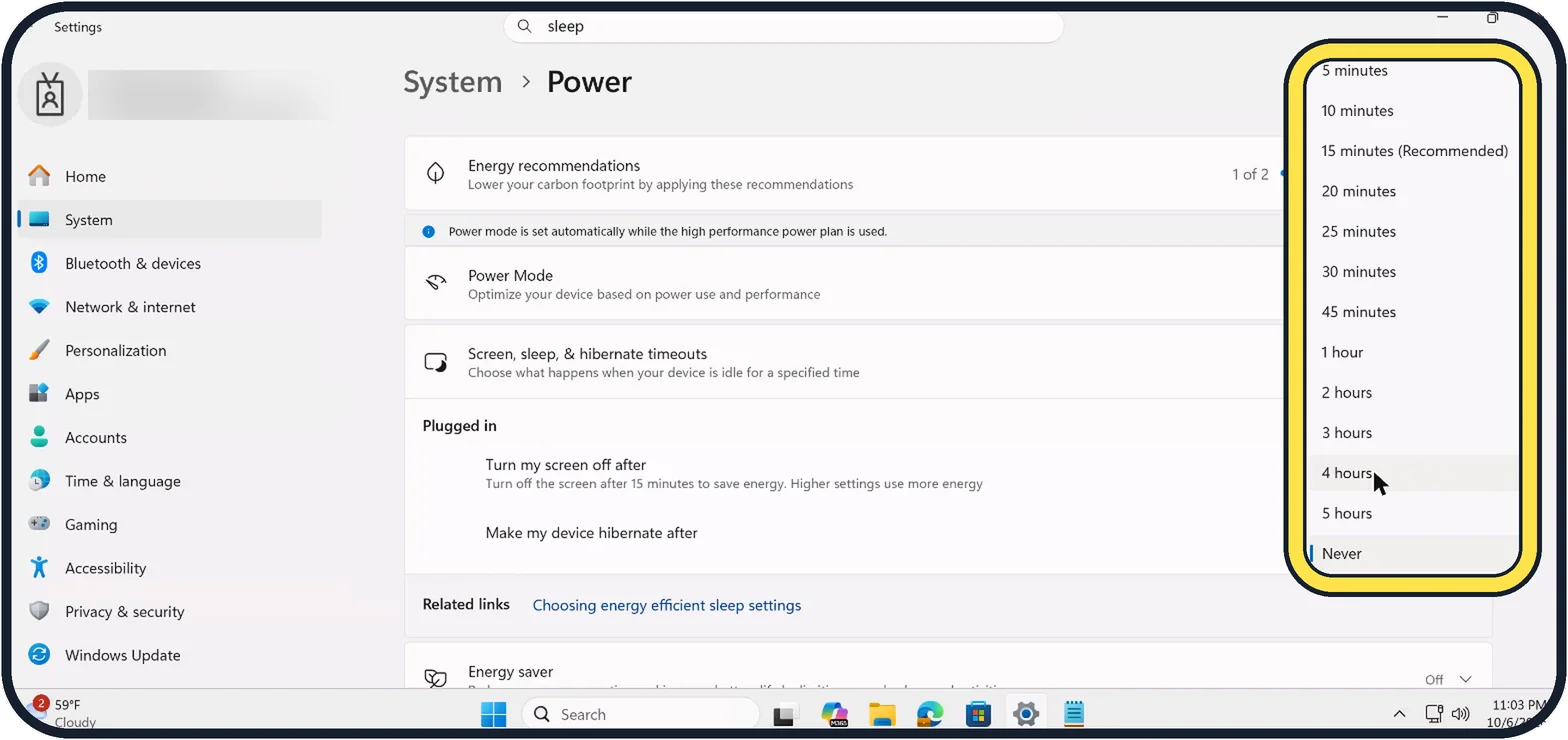
Zoomed in on the setting. Tap to see the whole screenTap the picture to see it full size Pick a time
Open the list and choose. 15 minutes is marked Recommended. We left ours unchanged.
If this does not work
- The screen turns off sooner than before Microsoft says Windows defaults were lowered to save energy: a modern standby PC that is plugged in now turns the screen off after 5 minutes instead of 10. Set your own time here. Source: How to adjust power and sleep settings in Windows
- The PC goes to sleep as well Microsoft says Make my device sleep after is a separate drop-down on the same page, with its own times for plugged in and on battery. Source: How to adjust power and sleep settings in Windows
About this guide
A screen that turns off too soon is annoying while reading; one that never turns off wastes energy. Windows recommends 15 minutes when plugged in.
Good to know
Laptops show a second column for On battery; set a shorter time there to save battery.
Physical PCs also show Make my device sleep after on the same page. Our Cloud PC has no sleep row.
In short: Settings, System, Power, Screen, sleep, & hibernate timeouts, Turn my screen off after.
Links checked in October 2026. Menus and features can change after software updates. These steps match the version named at the top.
📷 Camera Lab: the same 6 scenes photographed with 11 phones, side by side.
Did this guide work for you?
Sorry about that. What happened?