
howtosimply.com/guides/how-to-turn-off-sticky-keys-on-windows-11/ · Checked October 2026 · Windows 11 Enterprise 25H2 (build 26200.9457), Microsoft Cloud PC
In this guide
Open Settings, Accessibility, Keyboard and switch Sticky keys off. To stop it from coming back, open the Sticky keys entry and switch off its keyboard shortcut. Otherwise pressing Shift five times in a row turns it on again.
5 of 5 steps with real screenshots · 2 official sources below
- Device
- Windows
- Shown on
- Windows 11 Enterprise 25H2 (build 26200.9457), Microsoft Cloud PC
- App
- Settings
- Real screenshots
- 5 of 5 steps
- Checked
- October 2026
- Sources
- 2 official, linked below
Step by step
Zoomed in on the setting. Tap to see the whole screenTap the picture to see it full size Open the keyboard settings
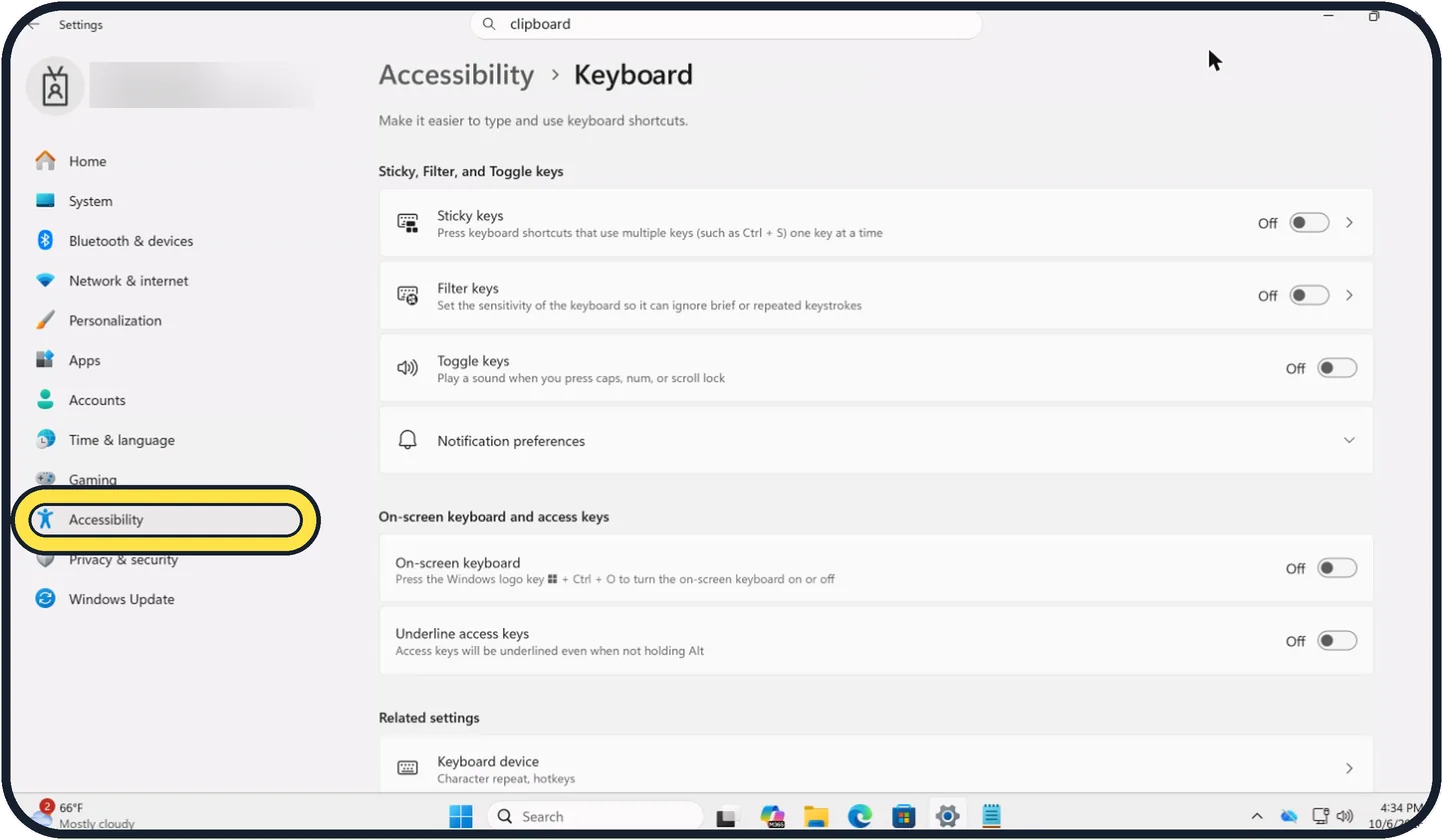
Press Windows key + U, or open Start, Settings and select Accessibility in the list on the left. Then scroll to Interaction and select Keyboard.
Tap the picture to see it full size Switch Sticky keys off
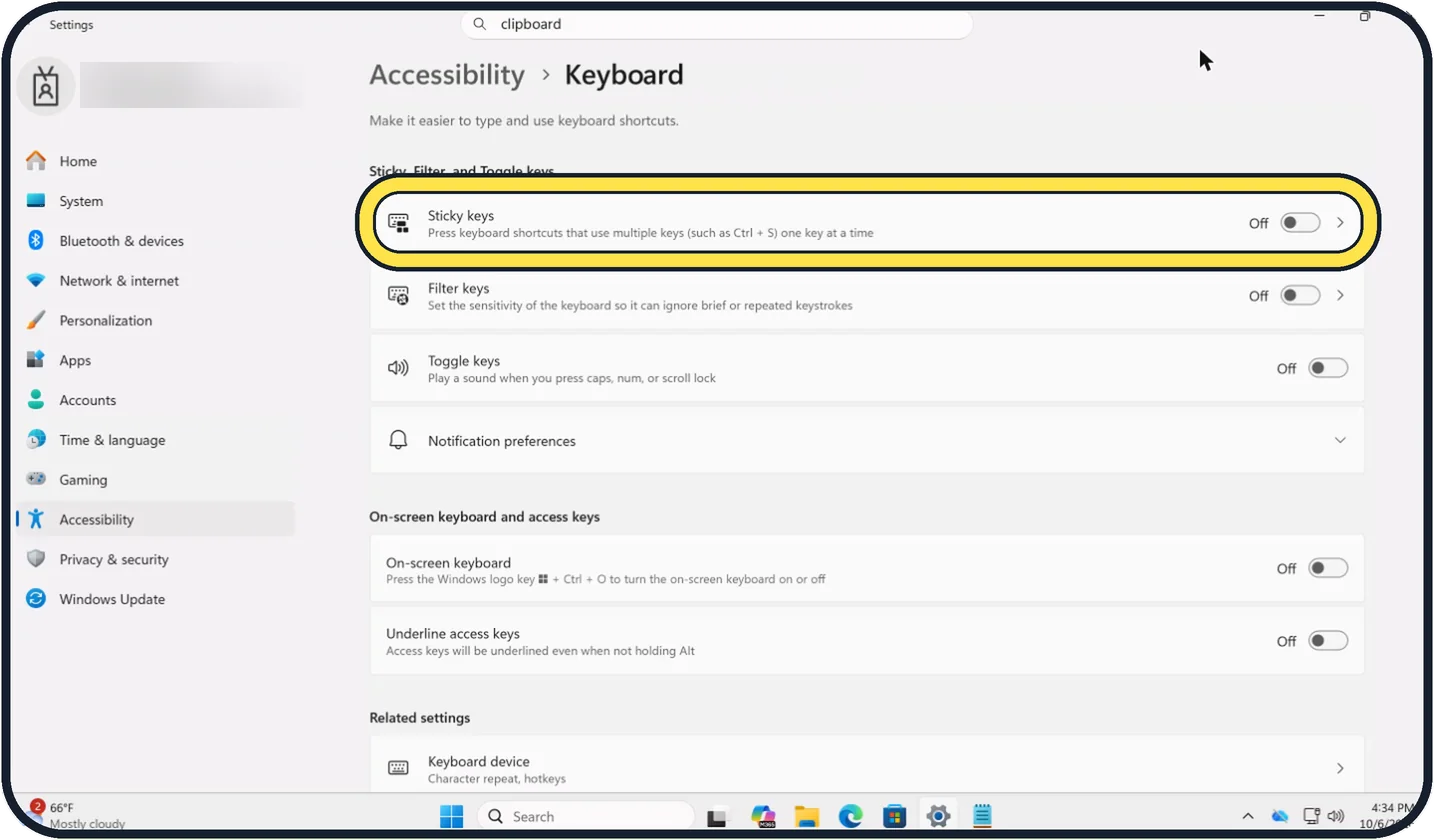
At the top, under Sticky, Filter, and Toggle keys, turn the Sticky keys switch off. On our Cloud PC all three were off.
Tap the picture to see it full size Switch off the shortcut
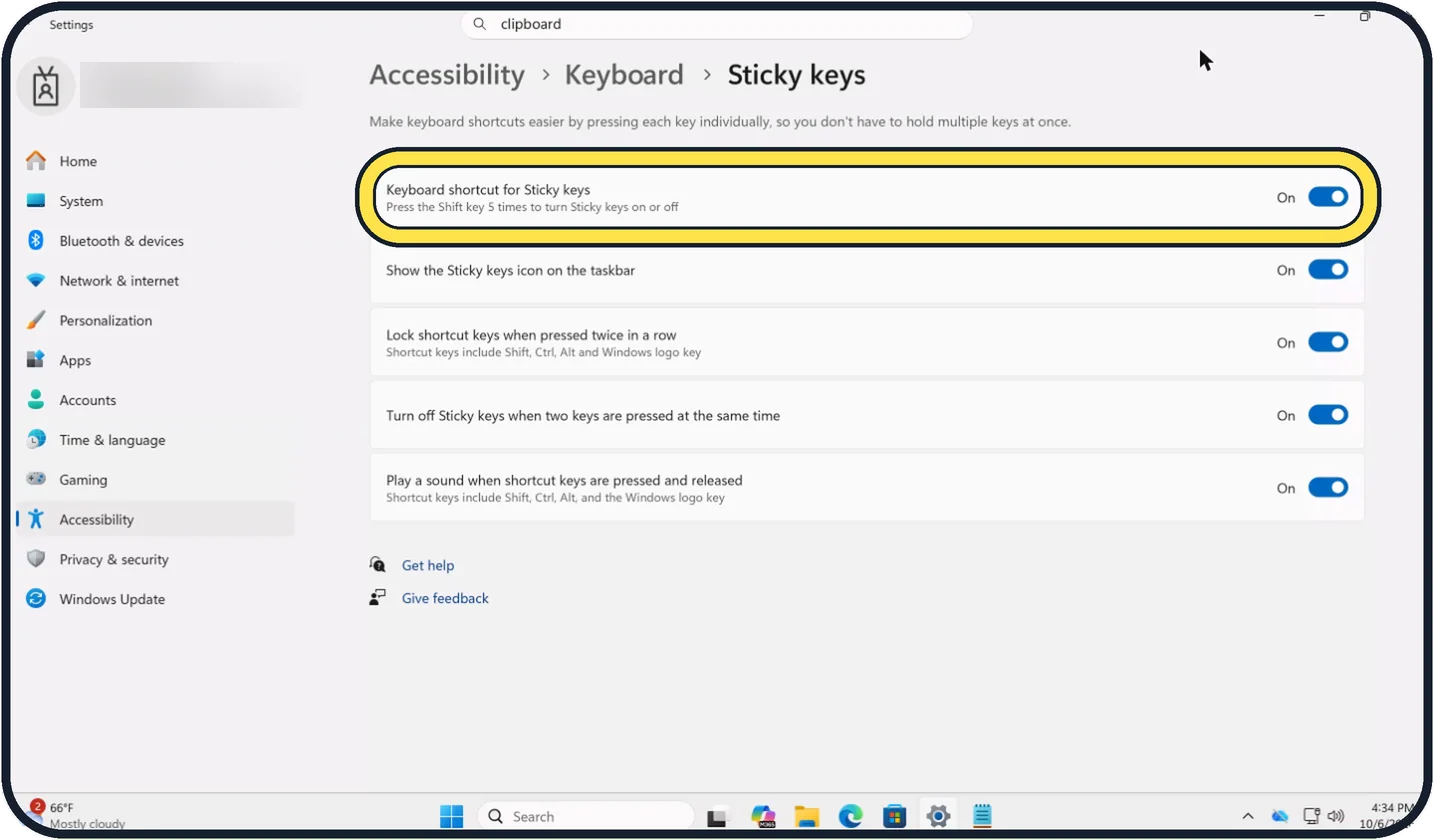
Click the arrow at the end of the Sticky keys row, not the switch. Turn off Keyboard shortcut for Sticky keys. It says Press the Shift key 5 times to turn Sticky keys on or off; once it is off, pressing Shift five times does nothing.
Tap the picture to see it full size Do the same for Filter keys
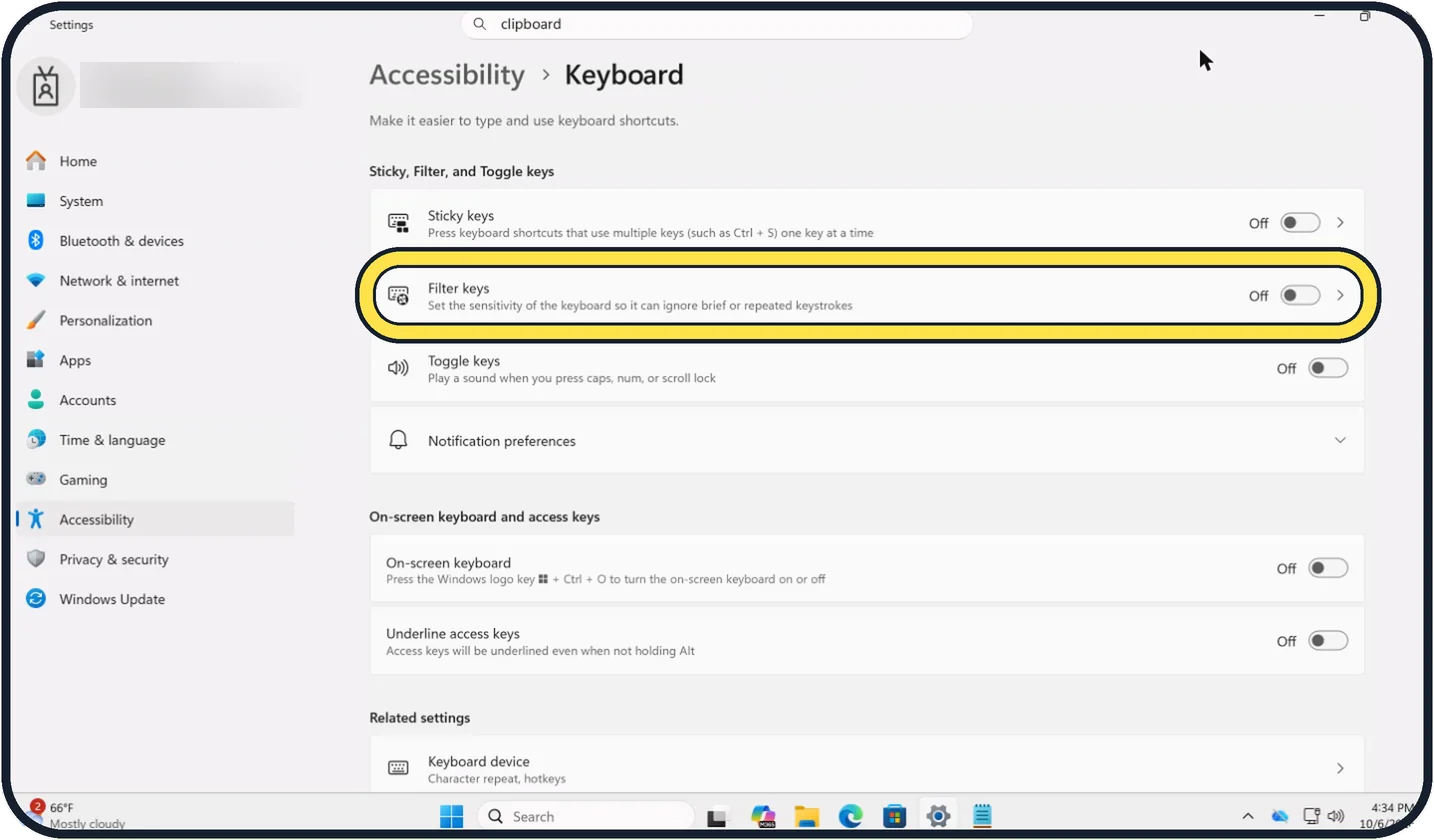
Go back to Keyboard. Filter keys makes the keyboard ignore short or repeated key presses, which feels like a keyboard that has stopped working. It turns on when the right Shift key is held for eight seconds. Switch it off, and its shortcut behind its arrow.
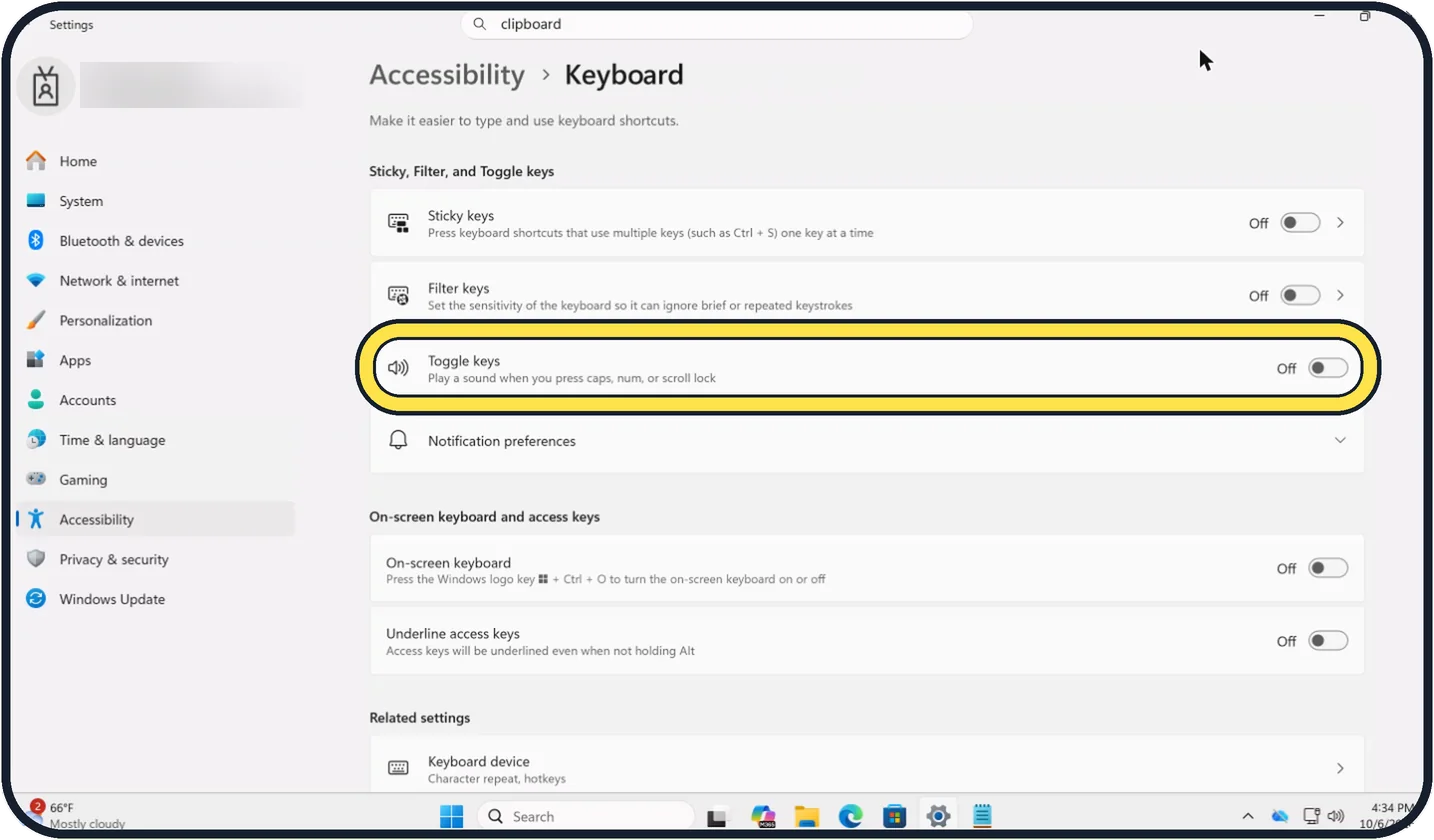
Tap the picture to see it full size And for Toggle keys
Toggle keys plays a sound when you press Caps Lock, Num Lock or Scroll Lock. It turns on when Num Lock is held for five seconds. Switch it off on the same page if the beeps bother you.
If you do not see this option
- Your PC runs Windows 10. Open Start, Settings, Ease of Access, Keyboard and turn off the toggle under Sticky Keys. Source: Make your mouse, keyboard, and other input devices easier to use
If this does not work
- Key presses are ignored unless you hold them down. That is Filter keys, which Microsoft describes as setting the keyboard to ignore brief or repeated keystrokes. Switch it off on the same Keyboard page. Source: Make your mouse, keyboard, and other input devices easier to use
- A sound plays when you press Caps Lock. That is Toggle keys: it plays a sound for Caps lock, Num lock and Scroll lock. Switch it off on the same page. Source: Make your mouse, keyboard, and other input devices easier to use
About this guide
Sticky Keys lets people press shortcuts such as Ctrl + S one key after the other instead of together. It is a real help for anyone who types with one hand. For everyone else it usually appears by accident, with a beep and a pop-up, after Shift was pressed five times, often in a game.
Good to know
If the pop-up Do you want to turn on Sticky Keys? appears, choose No. The link in that pop-up leads straight to the setting for the shortcut.
If keys still behave oddly afterwards, the keyboard itself may be the cause: Windows 11 keyboard or mouse not working: 7 fixes to try.
An alternative when a key is broken: how to use the on-screen keyboard on Windows 11.
In short: Windows key + U, Keyboard, Sticky keys off, then open the entry and switch off its keyboard shortcut. Filter keys (right Shift, eight seconds) and Toggle keys are in the same list.
- Microsoft Support: Make your mouse, keyboard, and other input devices easier to use
- Microsoft Support: Windows keyboard shortcuts for accessibility
Links checked in October 2026. Menus and features can change after software updates. These steps match the version named at the top.
Did this guide work for you?
Sorry about that. What happened?