
howtosimply.com/guides/how-to-change-the-power-mode-on-windows-11/ · Checked October 2026 · Windows 11 Enterprise 25H2 (build 26200.9457), Microsoft Cloud PC
In this guide
Open Settings, System, Power & battery (just Power on a desktop PC) and expand Power Mode. Choose Best power efficiency for battery life, Balanced for everyday use, or Best performance for demanding work. A greyed-out list means a power plan such as High performance is active: switch it to Balanced in powercfg.cpl.
4 of 6 steps with real screenshots · 1 official source below
- Device
- Windows
- Shown on
- Windows 11 Enterprise 25H2 (build 26200.9457), Microsoft Cloud PC
- App
- Settings
- Path
- Settings › System › Power & battery › Power mode: Best power efficiency › Balanced or Best performance
- Real screenshots
- 4 of 6 steps
- Checked
- October 2026
- Sources
- 1 official, linked below
Step by step
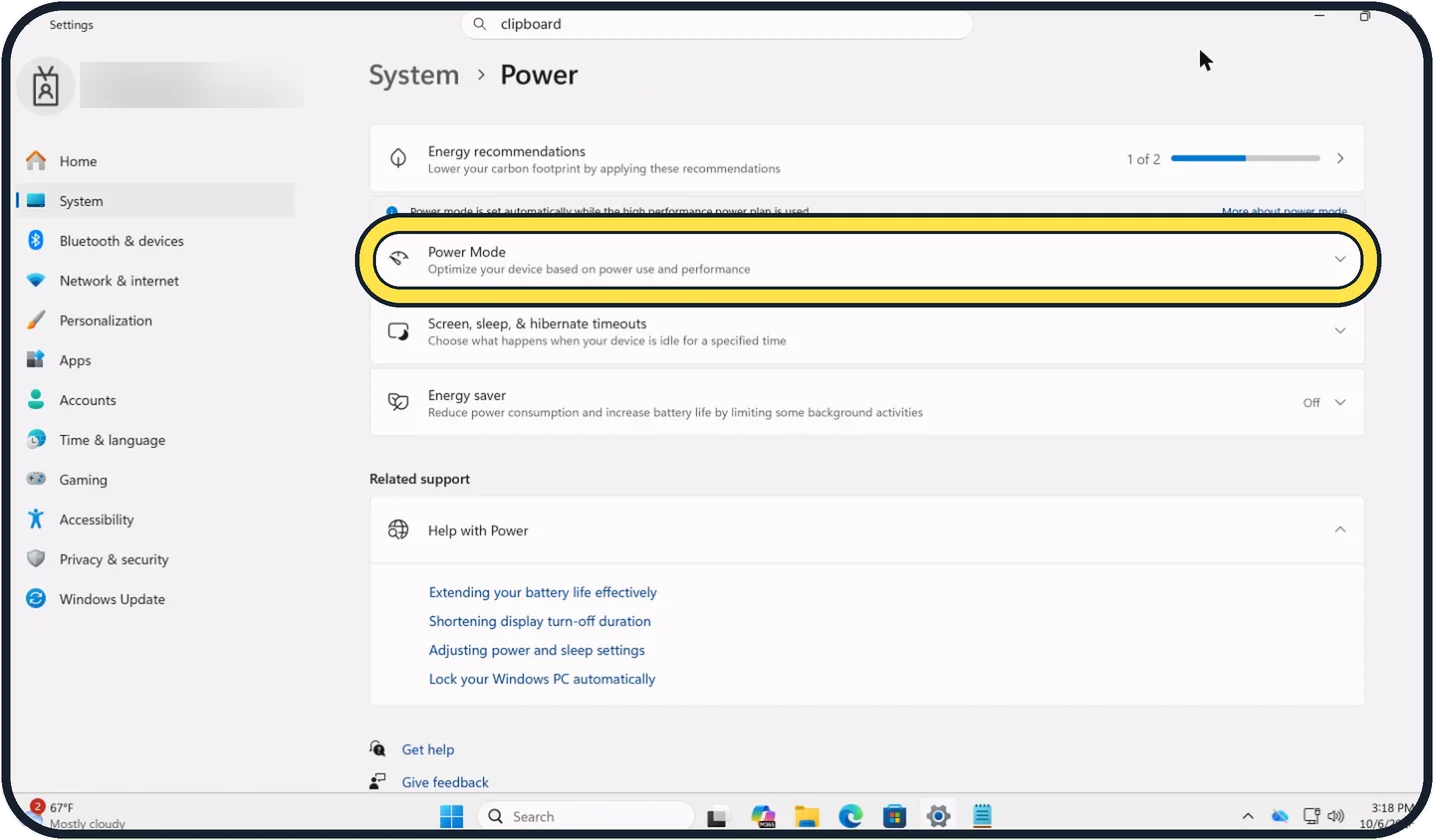
Tap the picture to see it full size Open Settings, System, Power
Open Start, Settings, System and click Power & battery. On a desktop PC without a battery, like our Cloud PC, the page is called just Power.
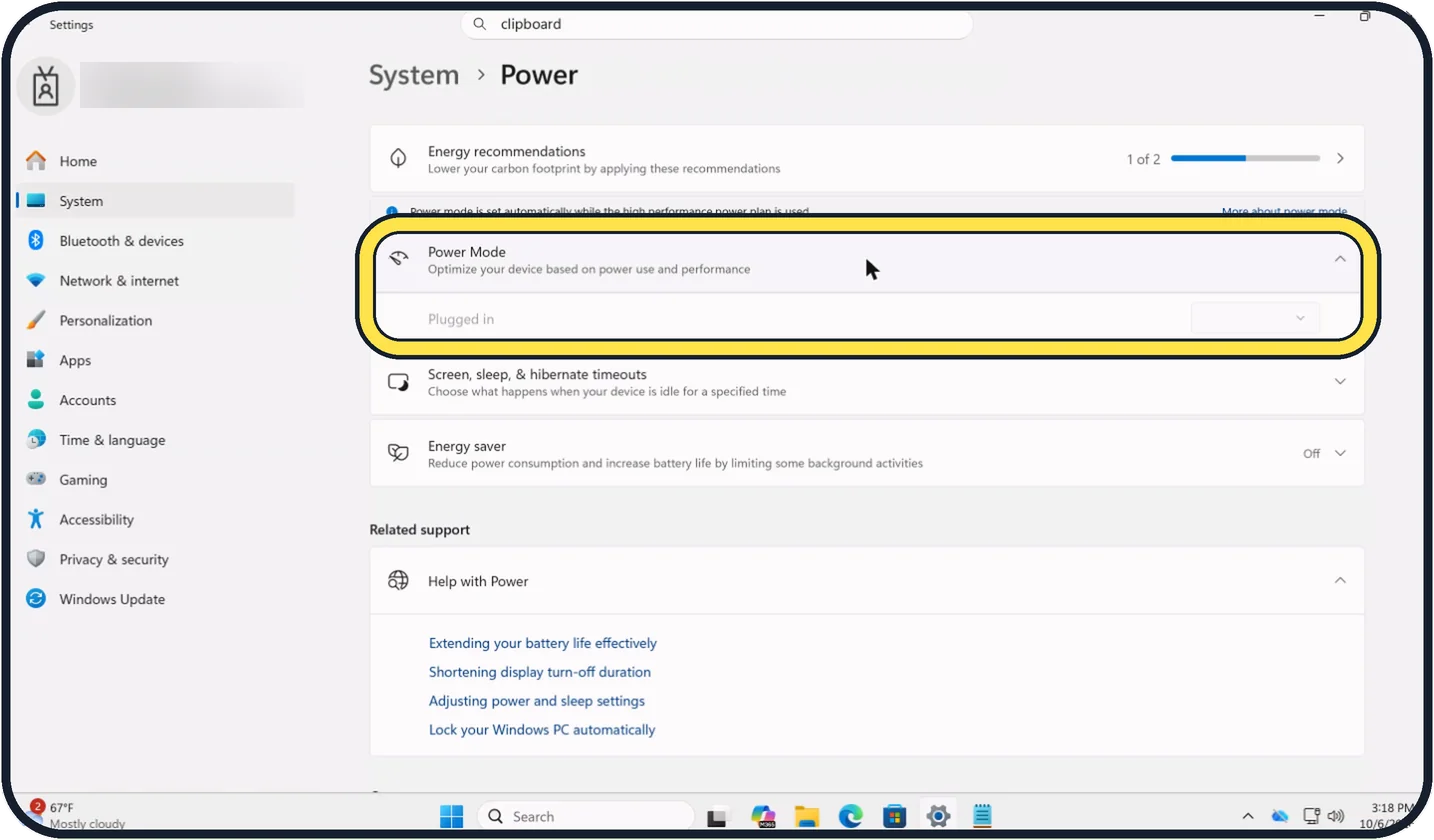
Tap the picture to see it full size Open Power Mode
Click the Power Mode row to expand it. On a laptop there are two lists, one for Plugged in and one for On battery; a desktop PC has only Plugged in.
Choose the mode
Best power efficiency saves battery by holding back performance. Balanced is the middle setting and suits most people. Best performance gives full speed and uses more energy, with more fan noise and heat.
Use the quick way
Click the battery icon on the taskbar. On PCs that offer it, the power mode can be changed there as well.
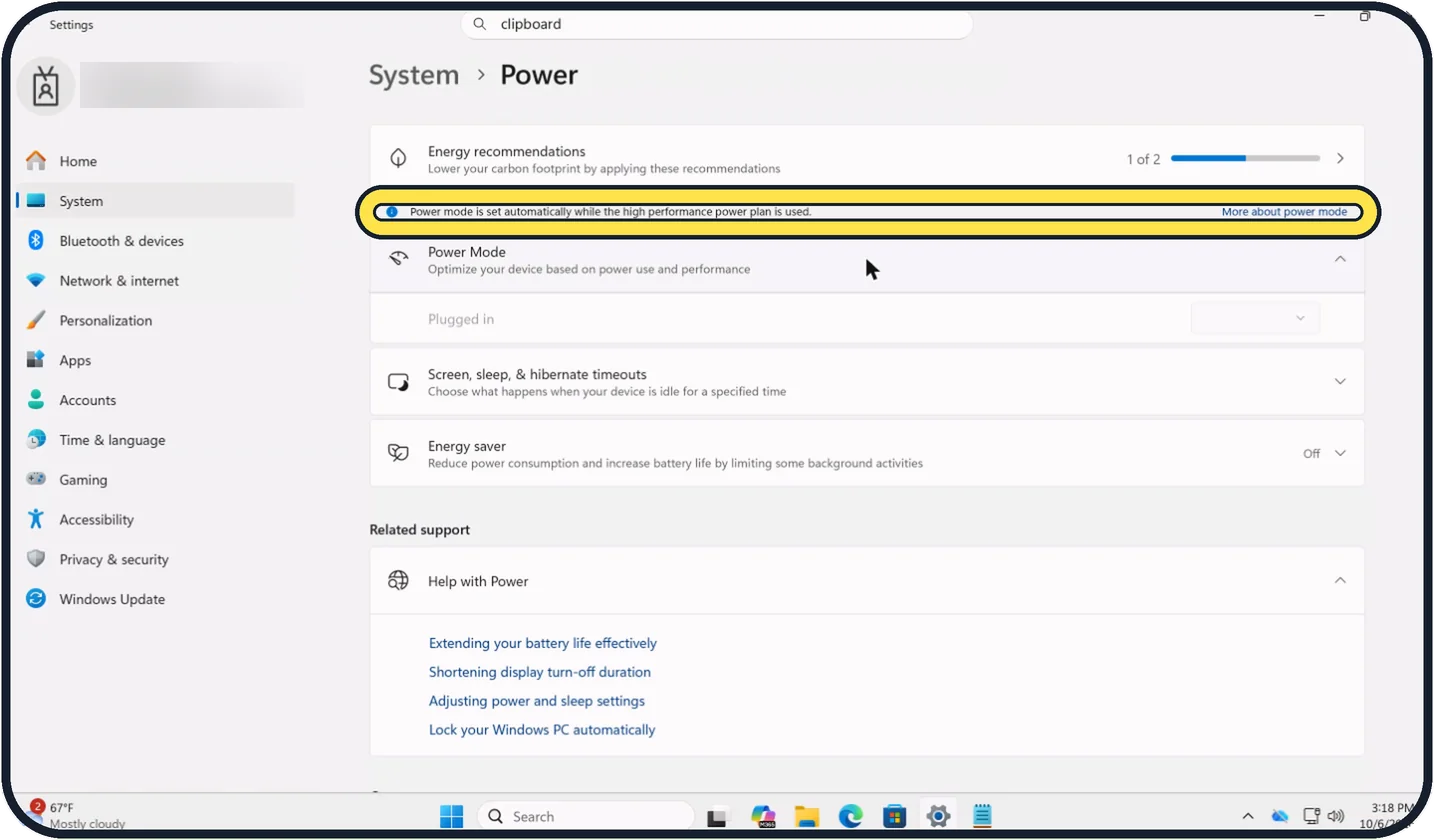
Tap the picture to see it full size If the list is greyed out
Look for a blue note above Power Mode. On our Cloud PC it says: Power mode is set automatically while the high performance power plan is used. The list stays grey until you switch the power plan back to Balanced.
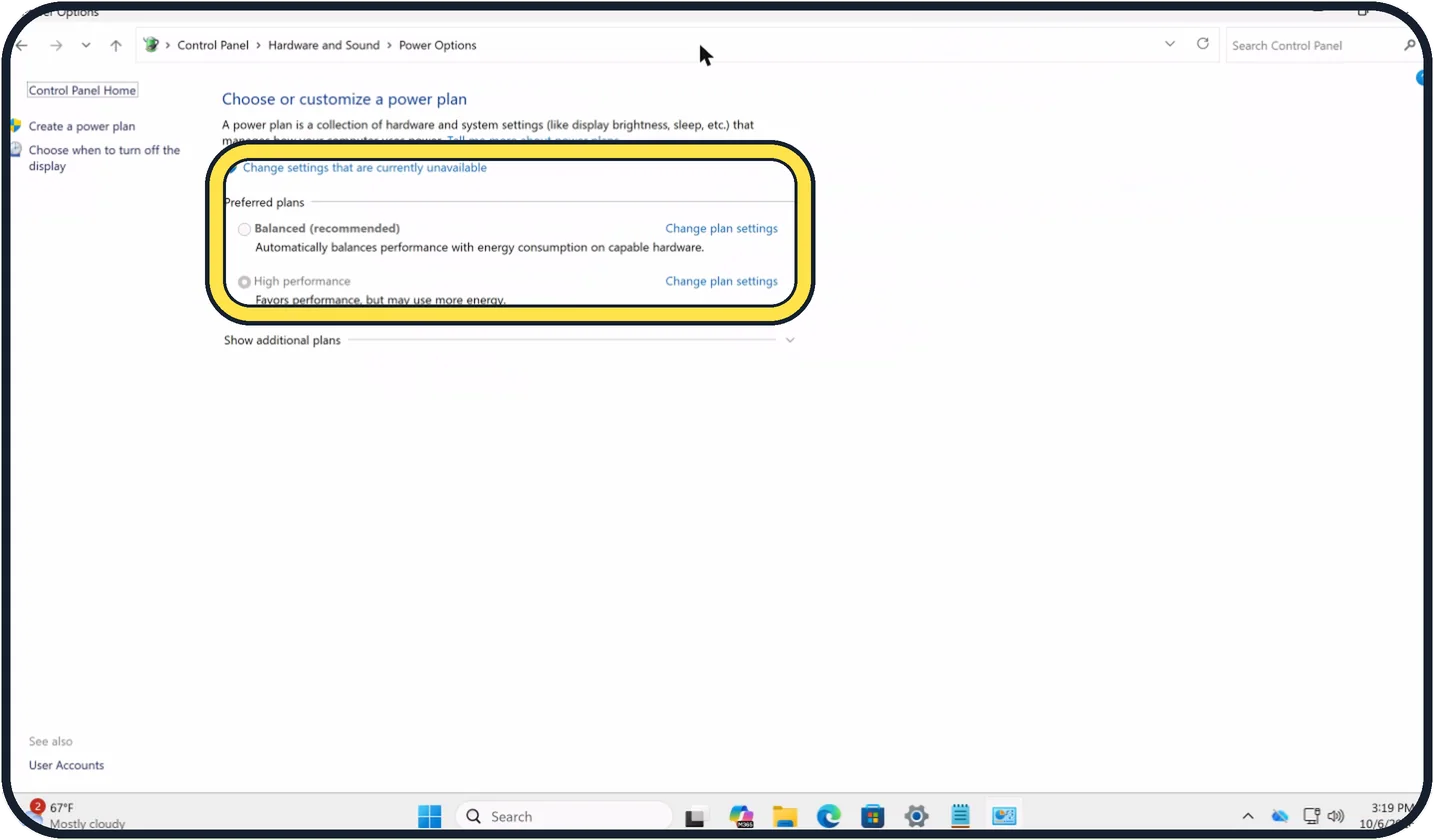
Zoomed in on the setting. Tap to see the whole screenTap the picture to see it full size Switch the power plan to Balanced
Press Windows + R, type powercfg.cpl and press Enter. Under Preferred plans, select Balanced (recommended), then go back to Settings. If the plans are grey, as on our Cloud PC, click Change settings that are currently unavailable first; that needs an administrator account.
About this guide
The power mode decides how Windows trades speed against energy use. It is the first setting to look at when a laptop battery empties too quickly, or when a PC feels slower than it should while it is plugged in.
On our Cloud PC the Power Mode list could not be changed at all, because an older power plan was in charge. That is the most common reason the setting seems stuck, so the last two steps cover it.
Good to know
A sensible combination for a laptop is Best power efficiency on battery and Balanced or Best performance when plugged in.
For even longer battery life, Energy saver on the same page dims the screen and limits background activity: how to make a Windows 11 laptop battery last longer.
Some makers add their own performance modes in a separate app, which can override the Windows setting.
If the PC is slow whatever the mode: slow laptop: 7 free fixes that actually work.
In short: Settings, System, Power & battery, Power mode: Best power efficiency, Balanced or Best performance, separately for battery and plugged in.
Links checked in October 2026. Menus and features can change after software updates. These steps match the version named at the top.
Did this guide work for you?
Sorry about that. What happened?