
howtosimply.com/guides/taskbar-search-box-or-icons-missing-on-windows-11-get-them-back/ · Checked October 2026 · Windows 11 Enterprise 25H2 (build 26200.9457), Microsoft Cloud PC
In this guide
- Right-click the taskbar
- Or open it from Settings
- Find the Search row
- Choose how Search looks
- Check the taskbar
- Switch Task view and Widgets back on
- Icons next to the clock missing
- Taskbar disappears
- Icons moved to the left or centre
- App names missing from the buttons
- If you do not see this option
- If this does not work
- Good to know
- Sources
Right-click an empty part of the taskbar and choose Taskbar settings. Under Taskbar items, set Search to Search box and switch Task view and Widgets on. If the whole taskbar vanishes, untick Automatically hide the taskbar under Taskbar behaviors.
10 of 10 steps with real screenshots · 1 official source below
- Device
- Windows
- Shown on
- Windows 11 Enterprise 25H2 (build 26200.9457), Microsoft Cloud PC
- App
- Settings
- Real screenshots
- 10 of 10 steps
- Checked
- October 2026
- Sources
- 1 official, linked below
Step by step
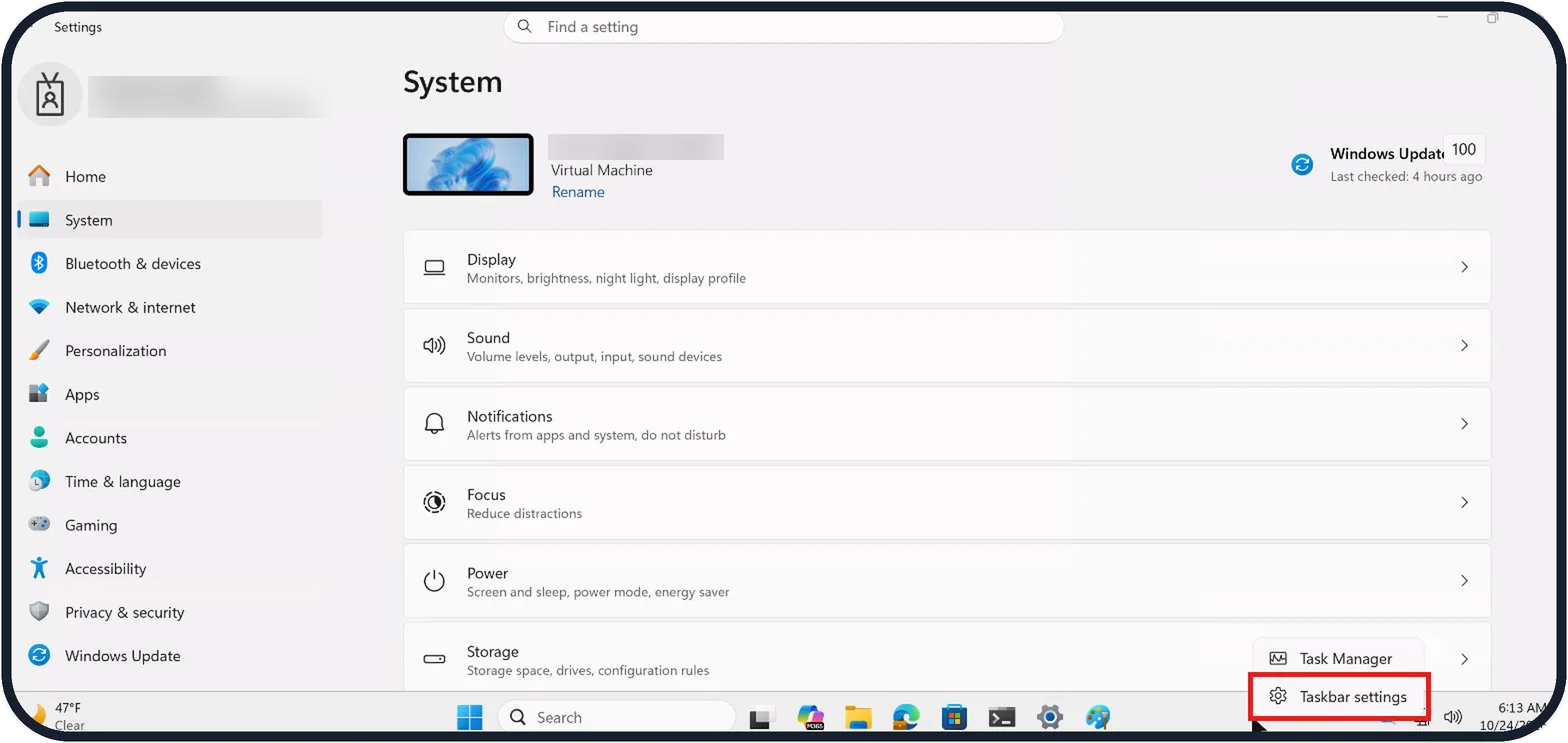
Tap the picture to see it full size Right-click the taskbar
Right-click an empty part of the taskbar and choose Taskbar settings.
On our Cloud PC the menu had just two items: Task Manager and Taskbar settings.
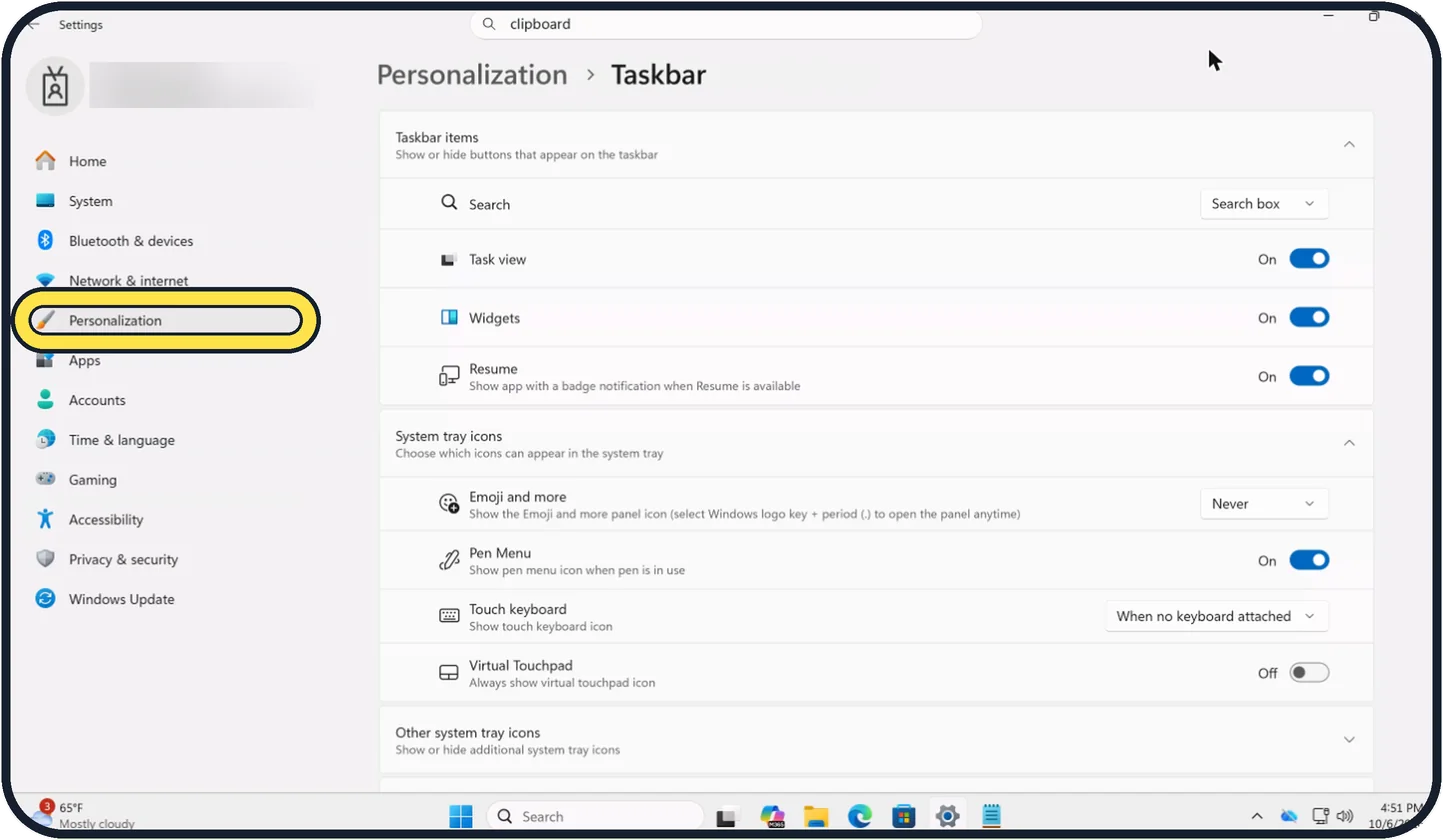
Zoomed in on the setting. Tap to see the whole screenTap the picture to see it full size Or open it from Settings
Open Start, then Settings, click Personalization and then Taskbar.
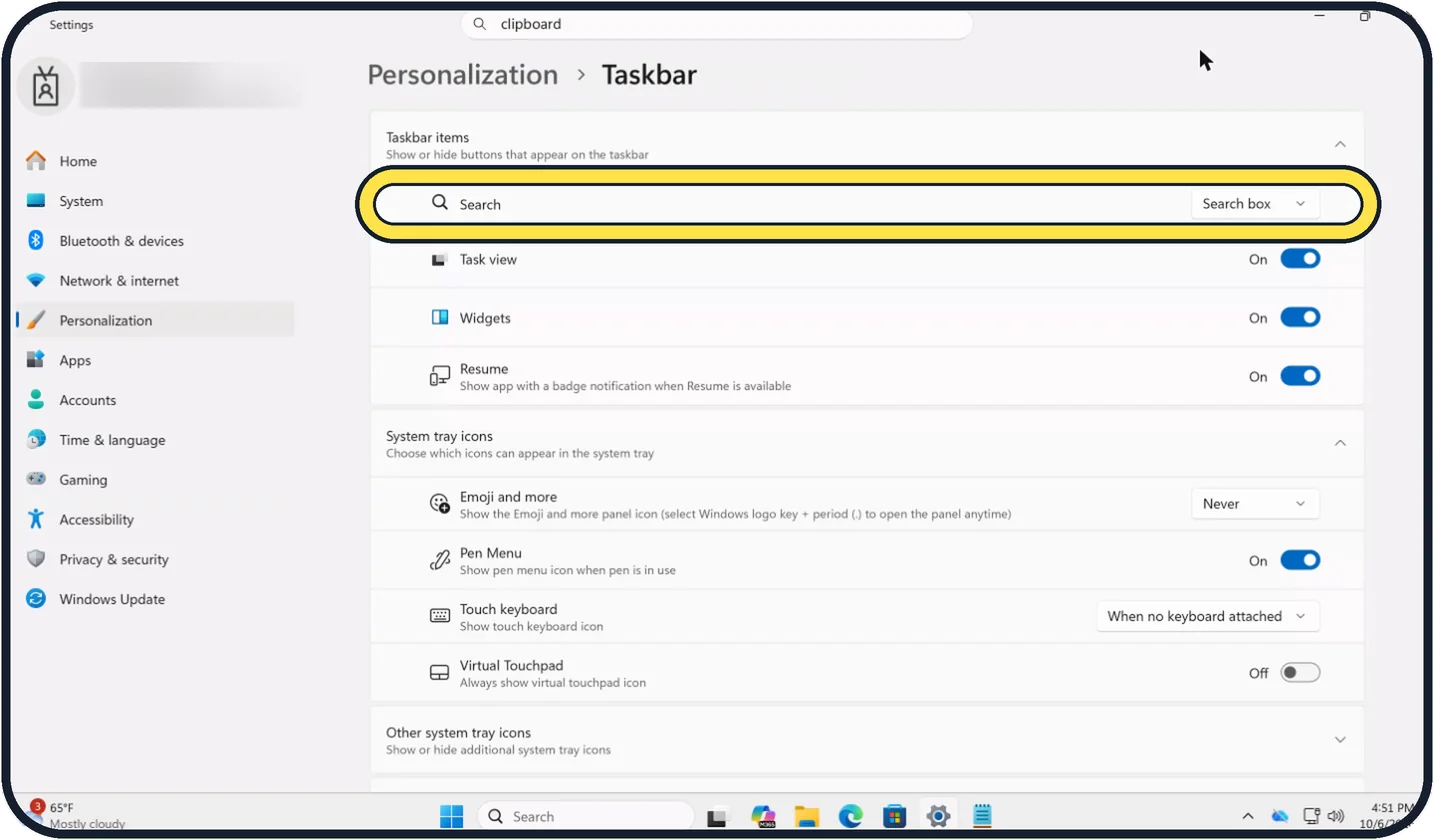
Tap the picture to see it full size Find the Search row
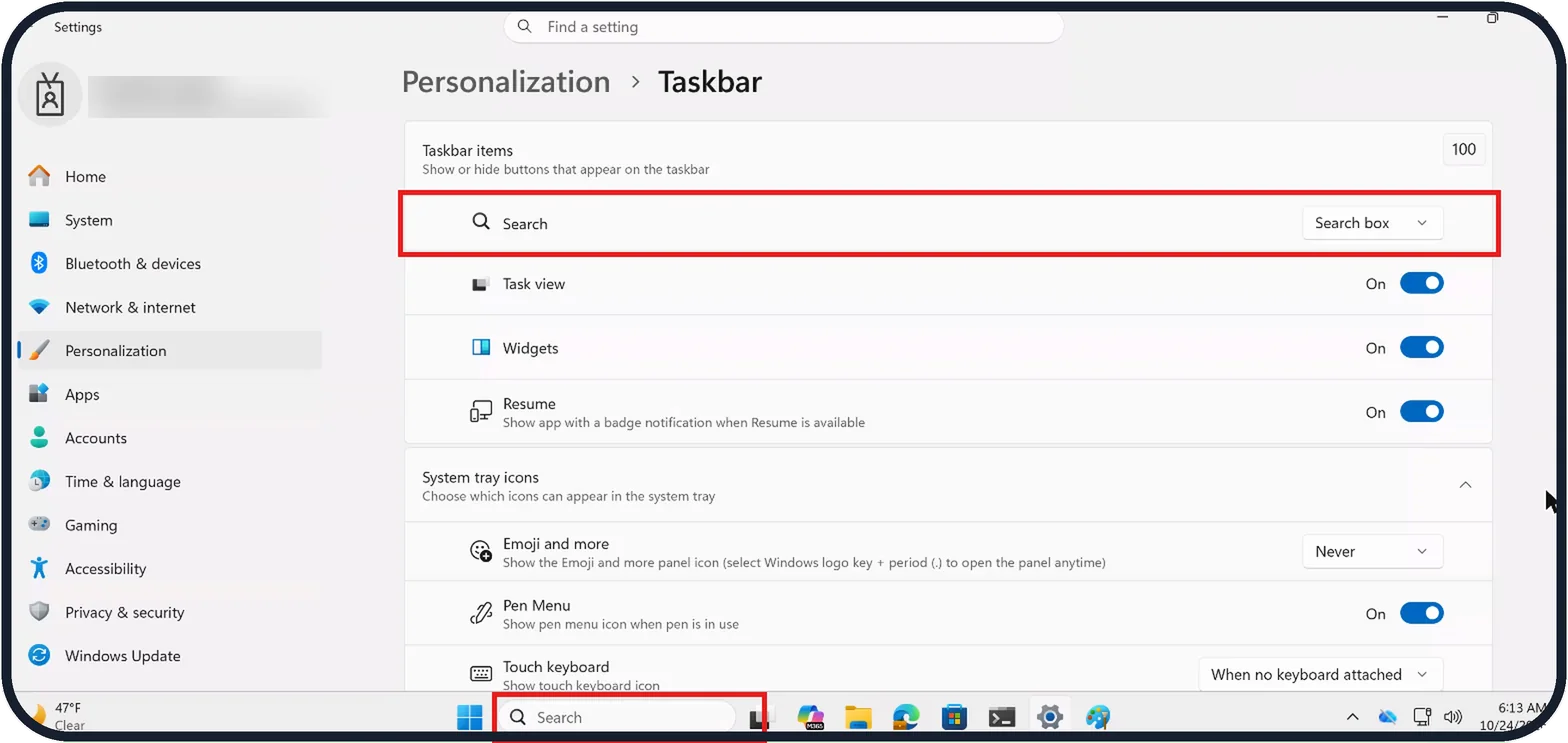
The Search row under Taskbar items shows what the taskbar has now. Ours says Search box. Click the box on the right to change it.
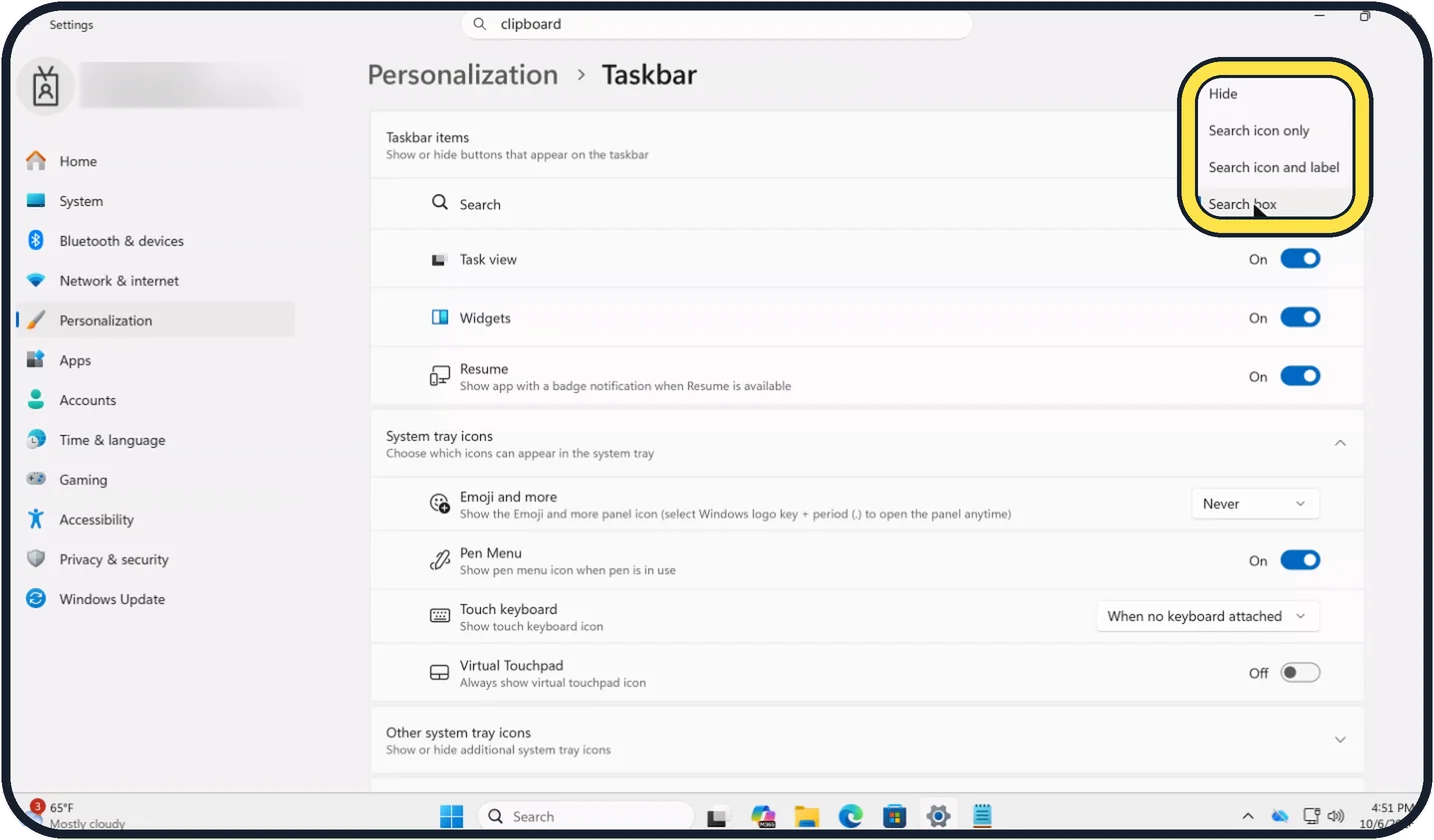
Zoomed in on the setting. Tap to see the whole screenTap the picture to see it full size Choose how Search looks
Hide removes it completely. Search icon only shows a magnifying glass, Search icon and label adds the word Search, and Search box shows the full typing box.
Tap the picture to see it full size Check the taskbar
The taskbar changes straight away. On our Cloud PC, Search icon only left just the magnifying glass, and Search box brought back the full box with the word Search.
Tap the picture to see it full size Switch Task view and Widgets back on
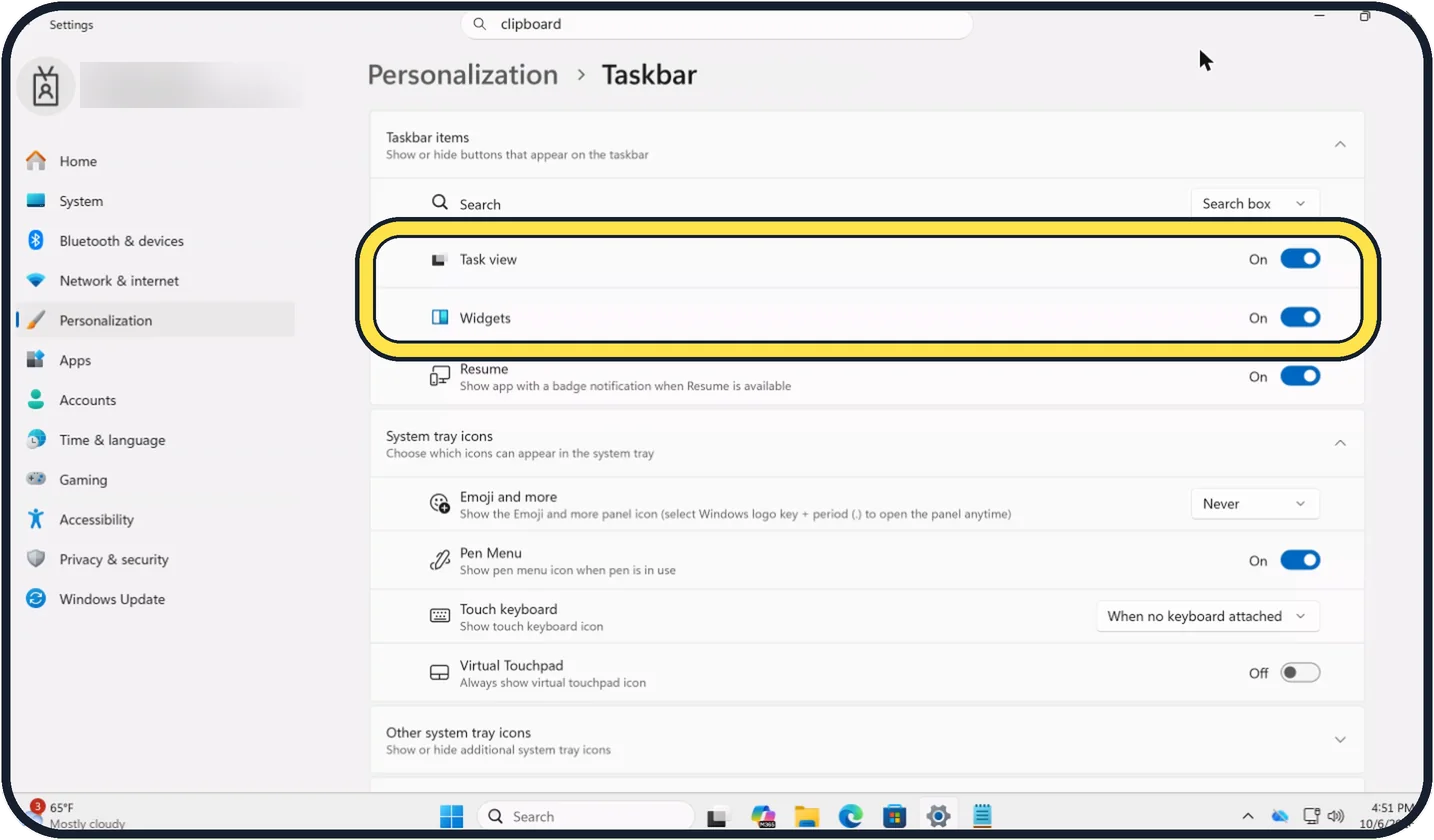
Task view is the button for your open windows and desktops; Widgets shows news and weather. Each has its own switch. On our Cloud PC both are On.
Tap the picture to see it full size Icons next to the clock missing
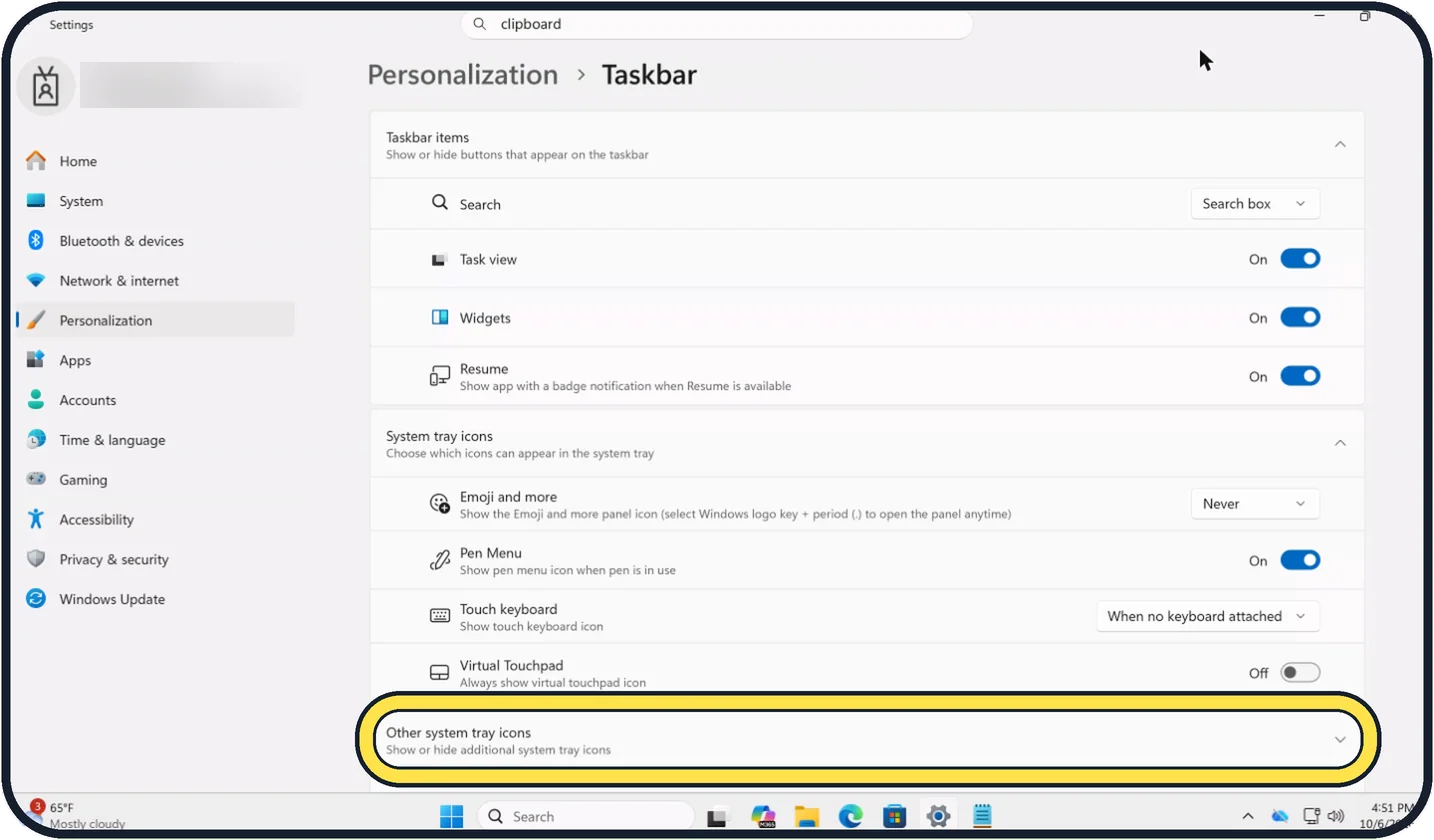
Open Other system tray icons to choose which app icons show by the clock. Hidden ones sit behind the small arrow on the taskbar.
Tap the picture to see it full size Taskbar disappears
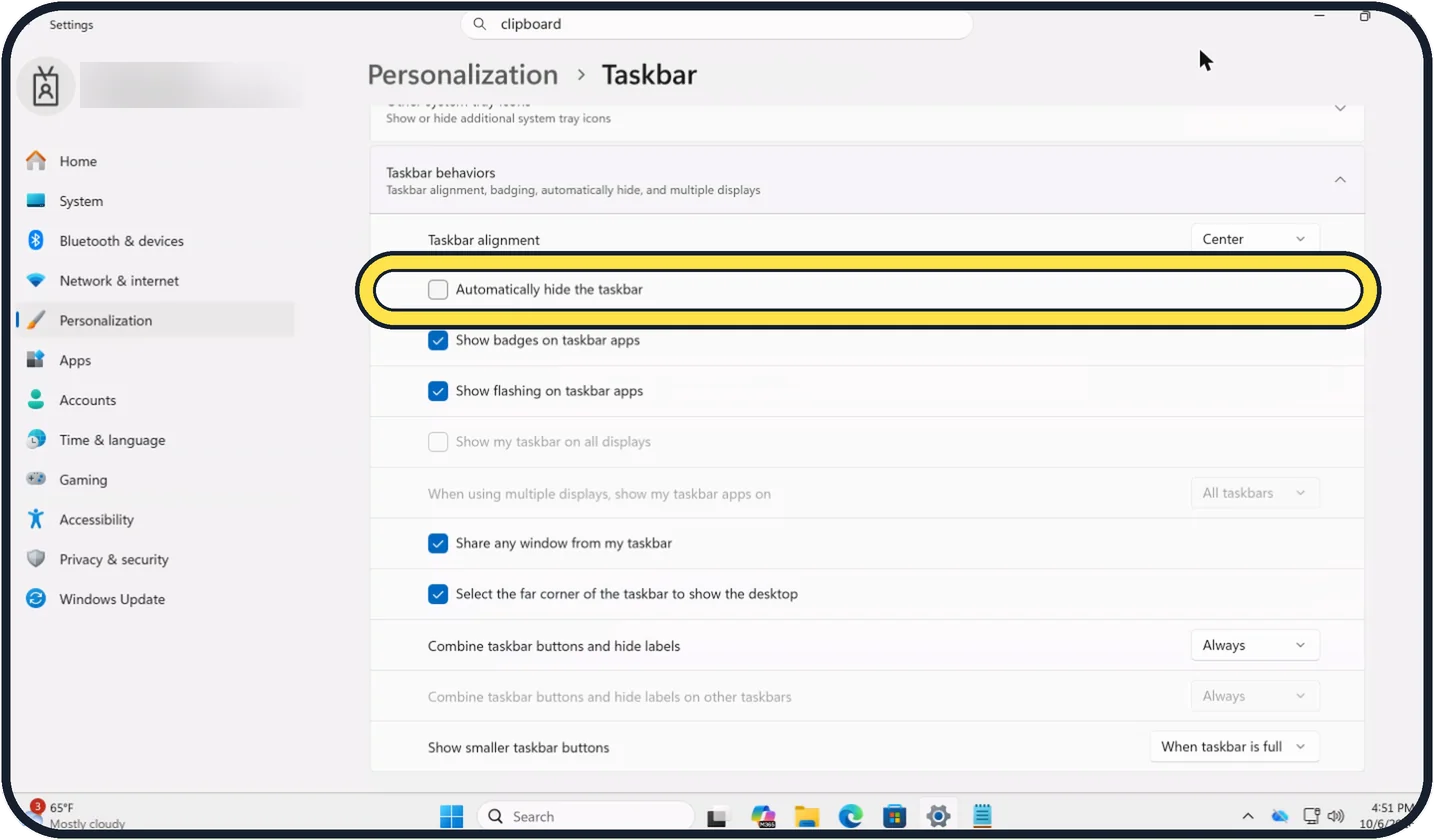
Scroll down and open Taskbar behaviors. If Automatically hide the taskbar is ticked, the taskbar only appears when you move the pointer to the bottom edge. Untick it to keep it on screen.
Tap the picture to see it full size Icons moved to the left or centre
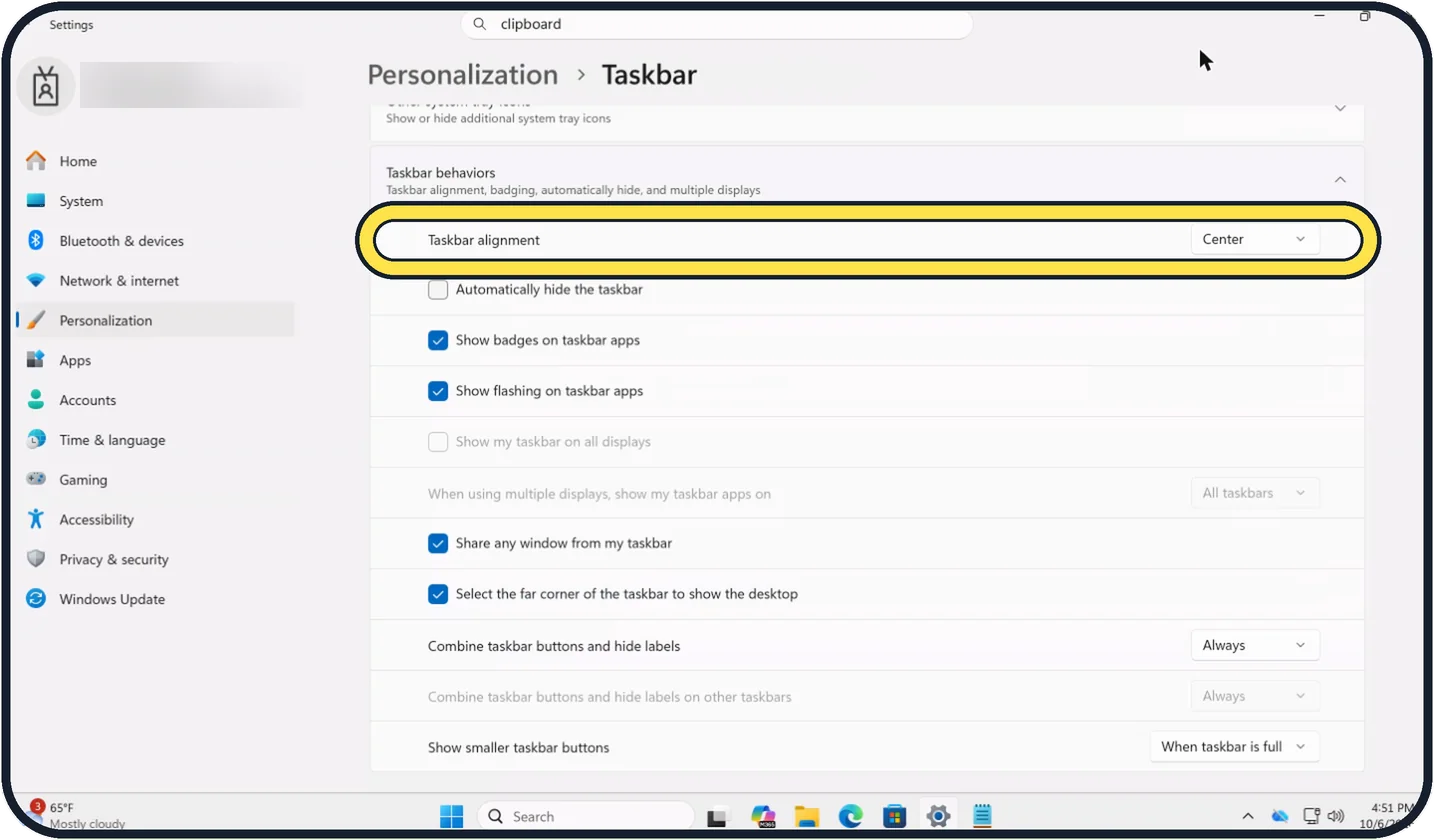
Taskbar alignment sets where the icons sit. Ours is set to Center; Microsoft's taskbar guide says the other choice is Left.
Tap the picture to see it full size App names missing from the buttons
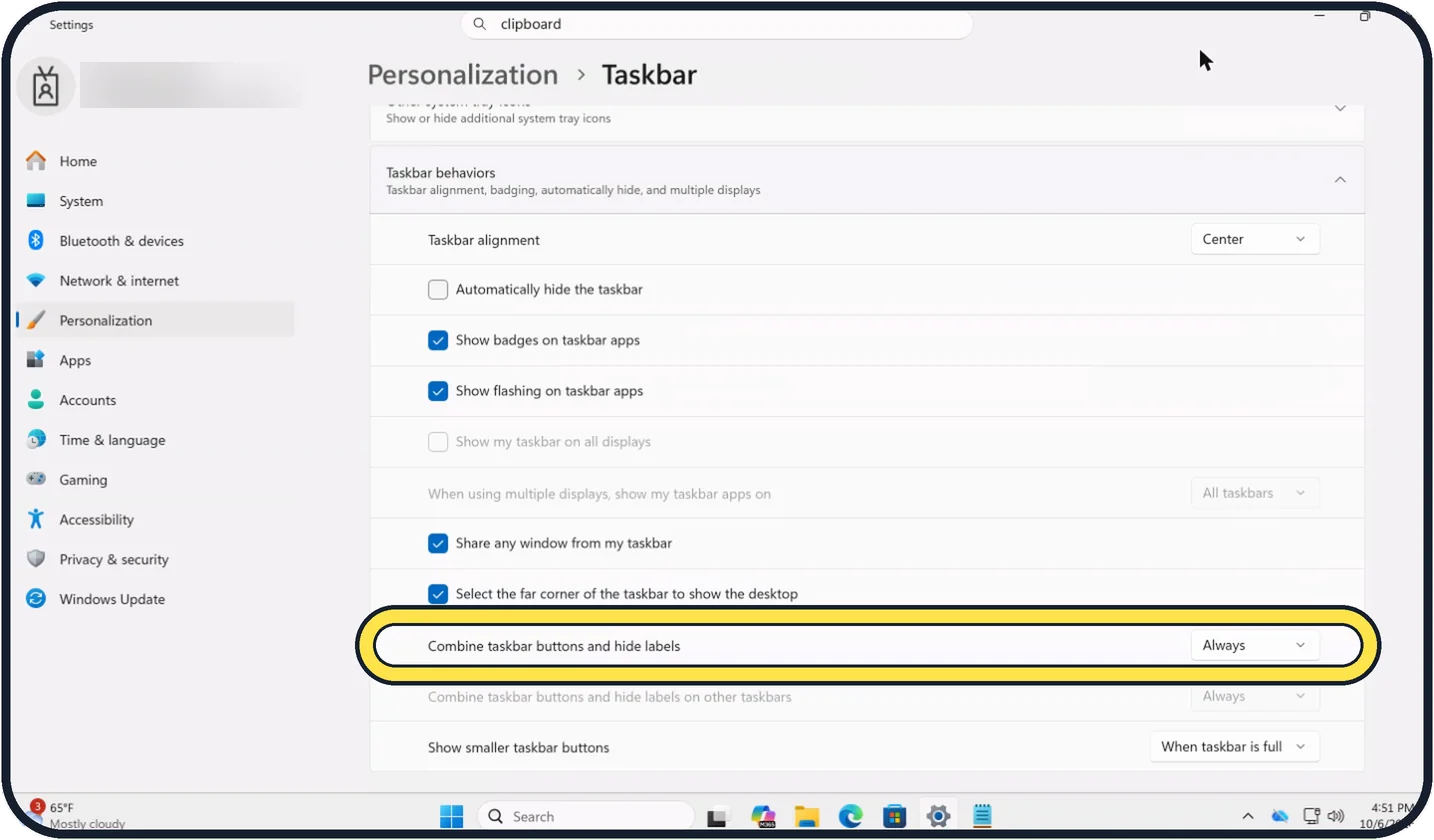
Combine taskbar buttons and hide labels decides whether open windows show their names. Ours is set to Always, which hides the labels. Pick another option in that box to see the names.
If you do not see this option
- Show my taskbar on all displays is grey. On our Cloud PC with one display, the rows for several displays were greyed out. They only apply with a second display connected.
- Taskbar settings is not in the right-click menu Right-click an empty part of the taskbar, not an app icon. On our Cloud PC that menu showed Task Manager and Taskbar settings.
- Pen menu or touch keyboard icon missing On our Cloud PC, Pen Menu, Touch keyboard and Virtual Touchpad each have their own setting under System tray icons in Taskbar settings.
If this does not work
- Only a magnifying glass shows Search is set to Search icon only. Change it to Search box; on our Cloud PC the full box came back straight away.
- Search is hidden but you need it now Microsoft says Windows key + S opens search, and you can also type straight into the Start menu. Source: Customize the Taskbar in Windows
- Task view or Widgets button stays hidden Microsoft says Windows key + Tab opens Task view and Windows key + W opens Widgets, even without their buttons. Source: Customize the Taskbar in Windows
About this guide
Most "missing" taskbar parts are switched off, not broken: the Search box, Task view, Widgets, tray icons and the taskbar itself all have a setting on one page. An update or another person using the PC is often what changed them.
The screenshots are our own, taken on Windows 11 Enterprise 25H2 running as a Microsoft Cloud PC, a Windows PC that runs in the cloud.
Good to know
If the taskbar does not respond at all, restart the PC first. If it still fails after a restart, install updates: how to check for updates on Windows 11.
Organisation PCs can lock some of these settings. If a row is grey and it isn't one of the multiple-display rows, your IT department may have locked it.
In short: Right-click the taskbar, Taskbar settings: Search to Search box, Task view and Widgets on. Taskbar behaviors: untick auto-hide, pick alignment, and choose how buttons combine.
Links checked in October 2026. Menus and features can change after software updates. These steps match the version named at the top.
📷 Camera Lab: the same 6 scenes photographed with 11 phones, side by side.
Did this guide work for you?
Sorry about that. What happened?