
howtosimply.com/guides/how-to-free-up-disk-space-on-windows-11/ · Checked October 2026 · Windows 11 Enterprise 25H2 (build 26200.9457), Microsoft Cloud PC
In this guide
Open Settings, choose System, then Storage. Click Cleanup recommendations to remove temporary files, old downloads and unused apps, and switch on Storage Sense so Windows keeps cleaning by itself.
5 of 5 steps with real screenshots · 2 official sources below
- Device
- Windows
- Shown on
- Windows 11 Enterprise 25H2 (build 26200.9457), Microsoft Cloud PC
- App
- Settings
- Path
- Settings › System › Storage
- Real screenshots
- 5 of 5 steps
- Checked
- October 2026
- Sources
- 2 official, linked below
Step by step
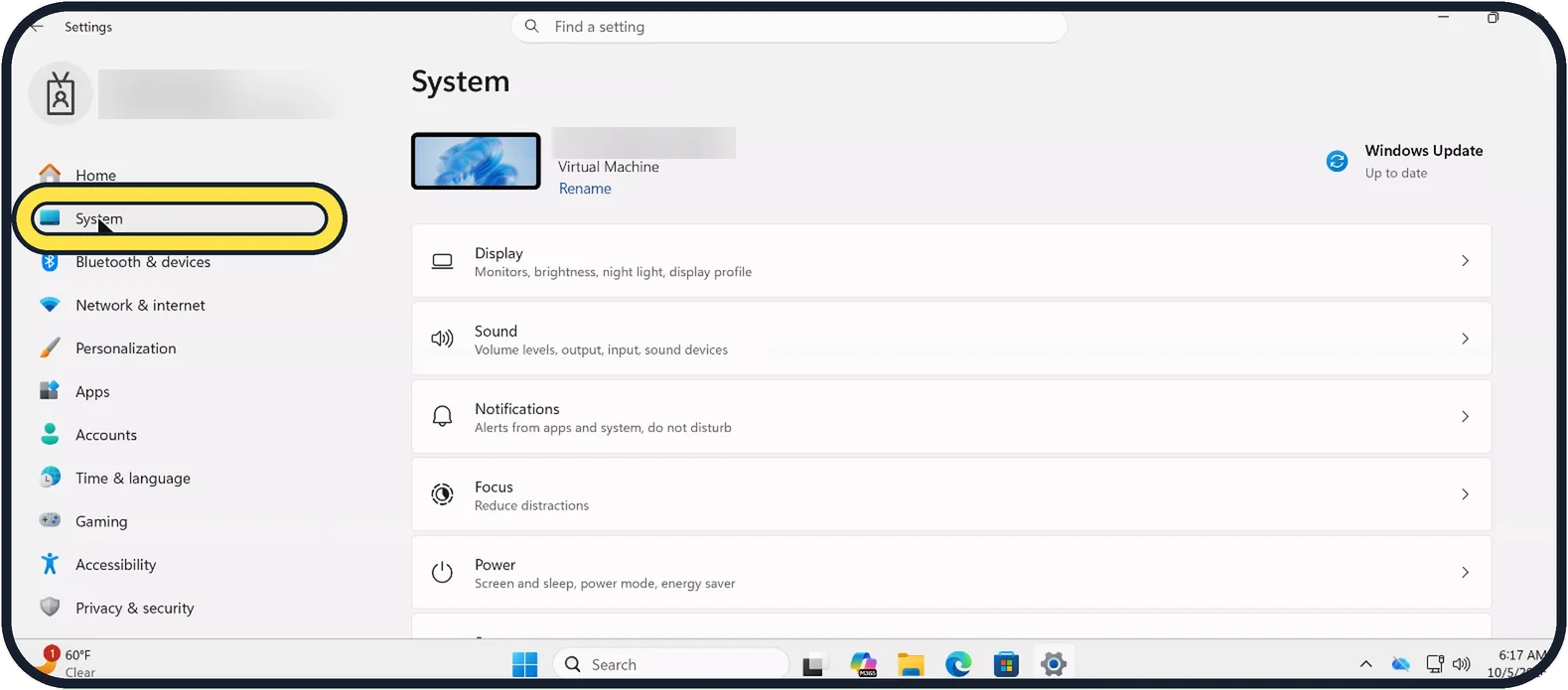
Zoomed in on the setting. Tap to see the whole screenTap the picture to see it full size Open Settings and choose System
Press Windows + I to open Settings. System is near the top of the list on the left.
Watch these steps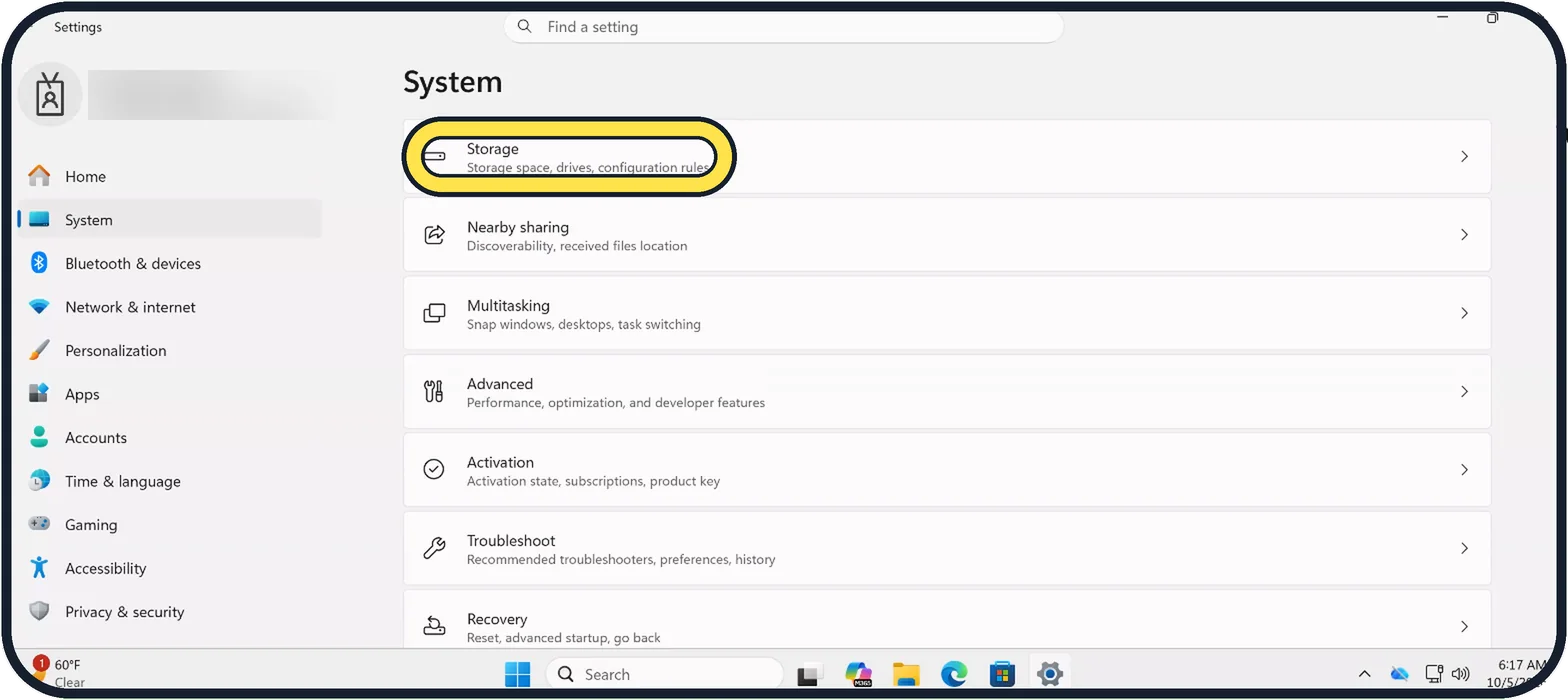
Zoomed in on the setting. Tap to see the whole screenTap the picture to see it full size Click Storage
Scroll down the System page. Windows takes a moment to add up what is on the drive, then shows bars for Installed apps, Temporary files and more.
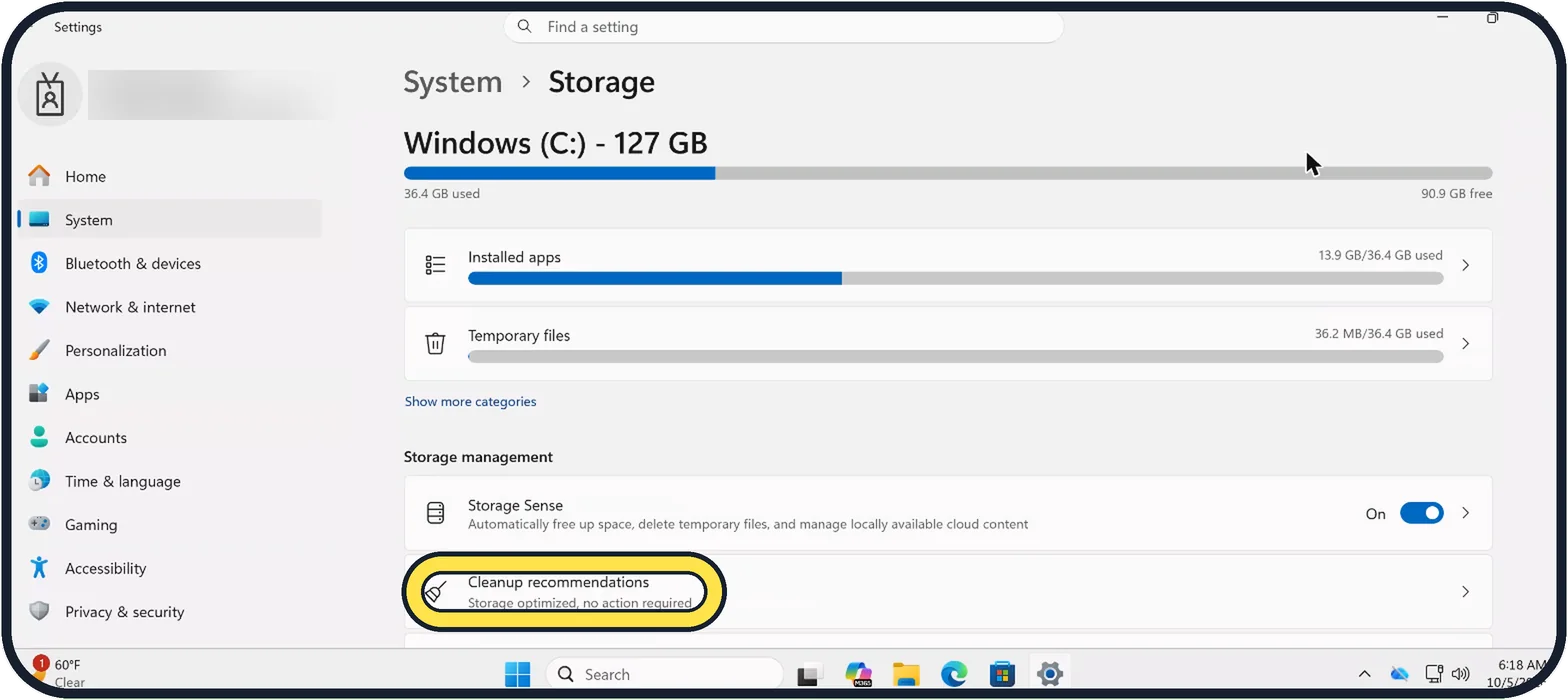
Zoomed in on the setting. Tap to see the whole screenTap the picture to see it full size Open Cleanup recommendations
Tick the items you want to remove: Temporary files, the Recycle Bin, large or unused files and apps you have not opened. Check the Downloads box only if you no longer need what is in that folder. Then click Clean up. When there is nothing to suggest, the row says Storage optimized, no action required, as on our PC.
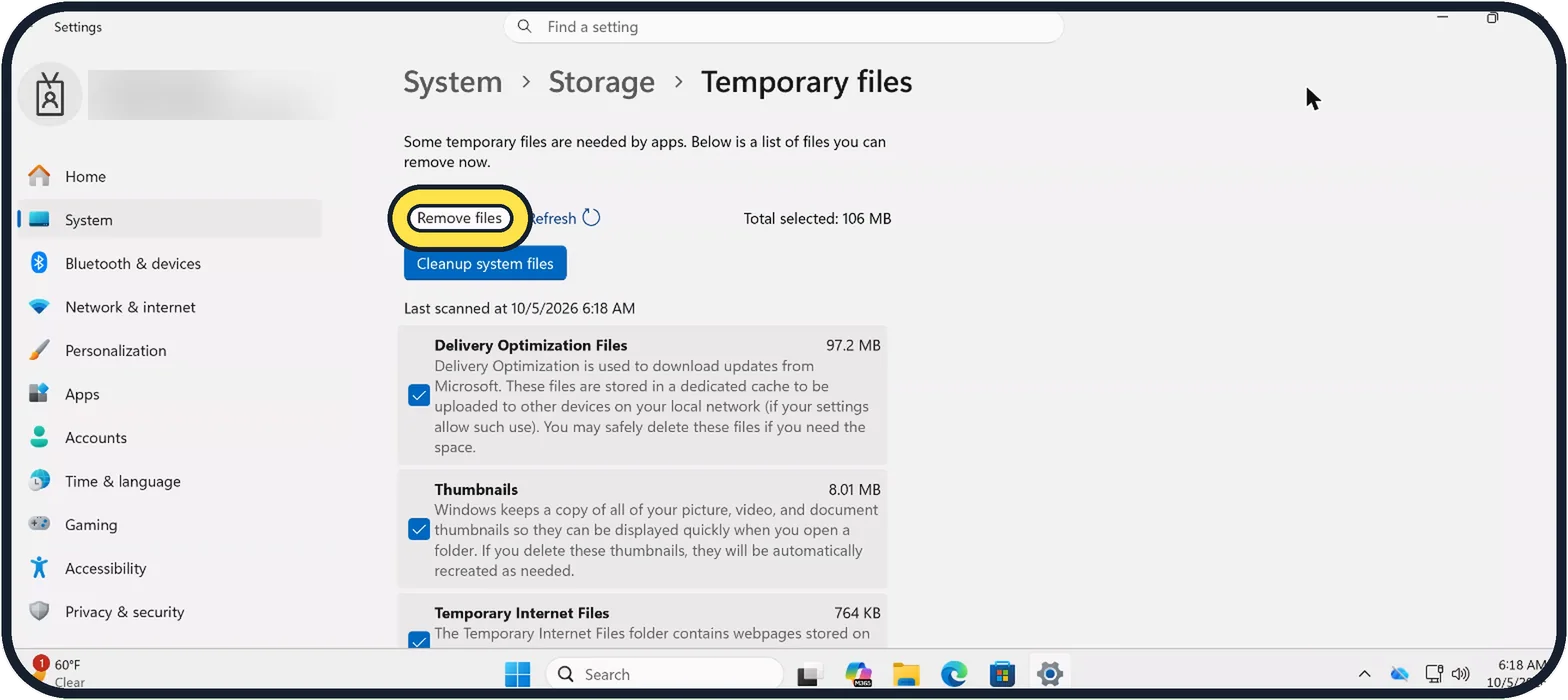
Zoomed in on the setting. Tap to see the whole screenTap the picture to see it full size Remove temporary files
Go back and click Temporary files. Windows lists what it can remove, such as Delivery Optimization Files and Thumbnails, with the size of each. Untick anything you want to keep and click Remove files.
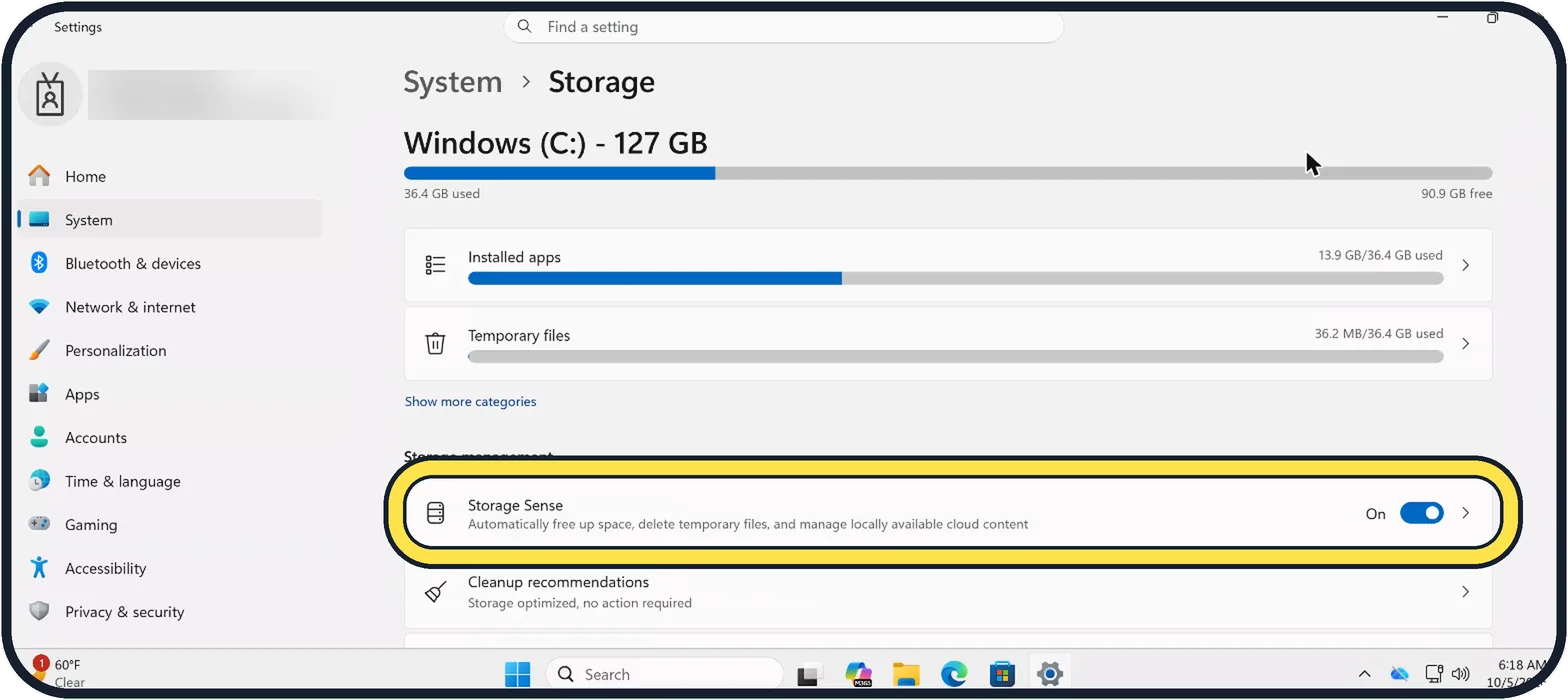
Tap the picture to see it full size Switch on Storage Sense
Storage Sense empties the Recycle Bin and clears temporary files on a schedule. Switch it on with the switch at the right end of its row, then click the row to choose how often it runs. On our Cloud PC it was already on.
Watch these steps
About this guide
When the C: drive is nearly full, Windows slows down and updates fail. The Storage page shows what is using the space and removes the safe-to-delete parts in a few clicks.
Good to know
The biggest savings usually come from apps and games. Click Installed apps, sort by size, and uninstall what you do not use.
If you use OneDrive, right-click a folder and choose Free up space. The files stay online and download again when you open them.
Do not delete files inside the Windows or Program Files folders by hand. Use the tools above.
In short: Settings, System, Storage. Run Cleanup recommendations, clear Temporary files and switch on Storage Sense.
- Microsoft Support: Free up drive space in Windows
- Microsoft Support: Manage drive space with Storage Sense
Links checked in October 2026. Menus and features can change after software updates. These steps match the version named at the top.
Did this guide work for you?
Sorry about that. What happened?