
howtosimply.com/guides/how-to-use-remote-desktop-on-windows-11/ · Checked October 2026 · Windows 11 Enterprise 25H2 (build 26200.9457), Microsoft Cloud PC
In this guide
On the PC you want to reach, open Settings, System, Remote Desktop, switch Remote Desktop on and note the PC name. On the other PC, search for Remote Desktop Connection, enter that name and click Connect. The PC you connect to needs Windows 11 Pro, Enterprise or Education. Home edition cannot be controlled this way.
4 of 7 steps with real screenshots · 1 official source below
- Device
- Windows
- Shown on
- Windows 11 Enterprise 25H2 (build 26200.9457), Microsoft Cloud PC
- App
- Settings
- Real screenshots
- 4 of 7 steps
- Checked
- October 2026
- Sources
- 1 official, linked below
Step by step
Zoomed in on the setting. Tap to see the whole screenTap the picture to see it full size Check the edition
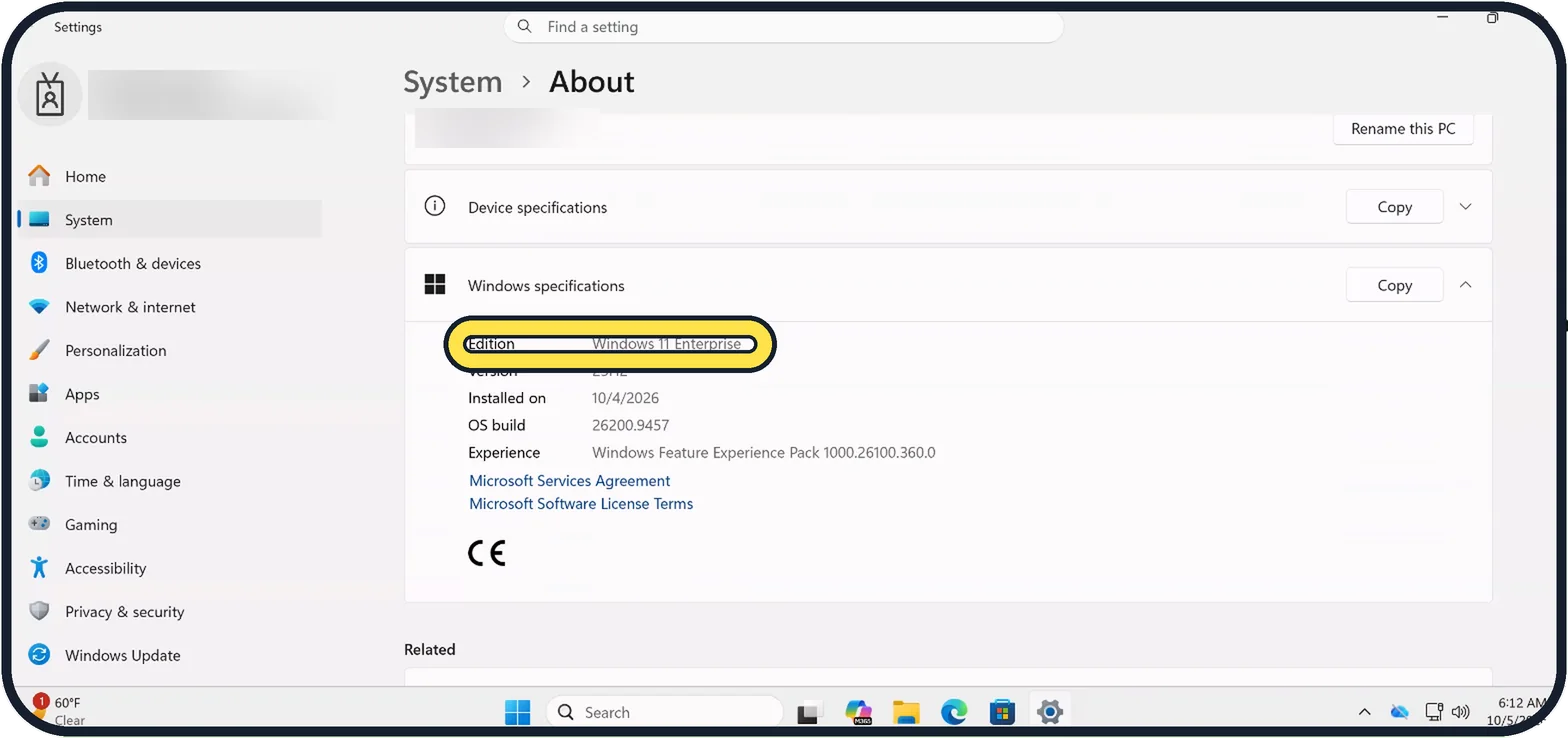
On the PC you want to reach, open Settings, System, About and look at Edition under Windows specifications. It must say Windows 11 Pro (or Enterprise or Education). Ours shows Windows 11 Enterprise.
Zoomed in on the setting. Tap to see the whole screenTap the picture to see it full size Turn on Remote Desktop
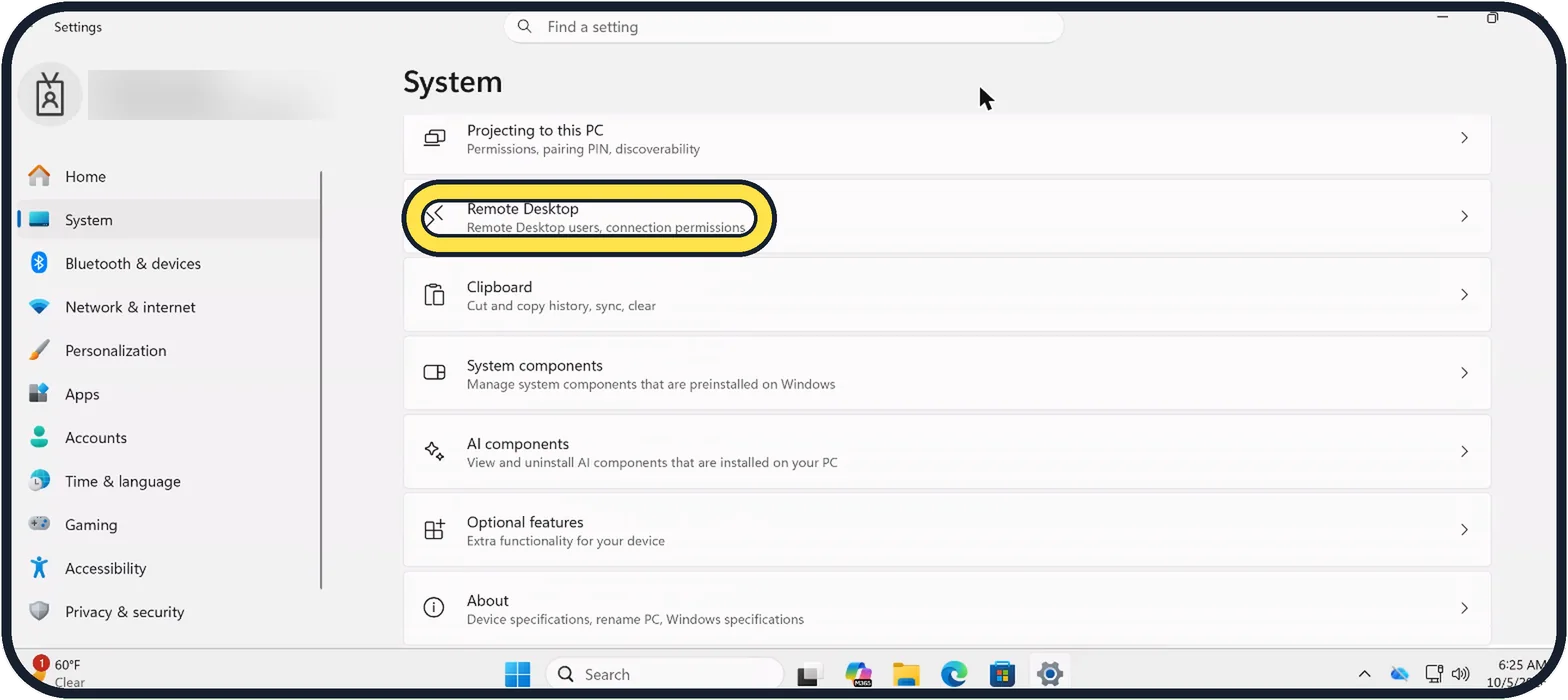
Open Start, Settings, System and scroll down to Remote Desktop. On our Cloud PC it sits between Projecting to this PC and Clipboard. Click it, then on the Remote Desktop page switch Remote Desktop on. Ours was already on.
Zoomed in on the setting. Tap to see the whole screenTap the picture to see it full size Note the PC name
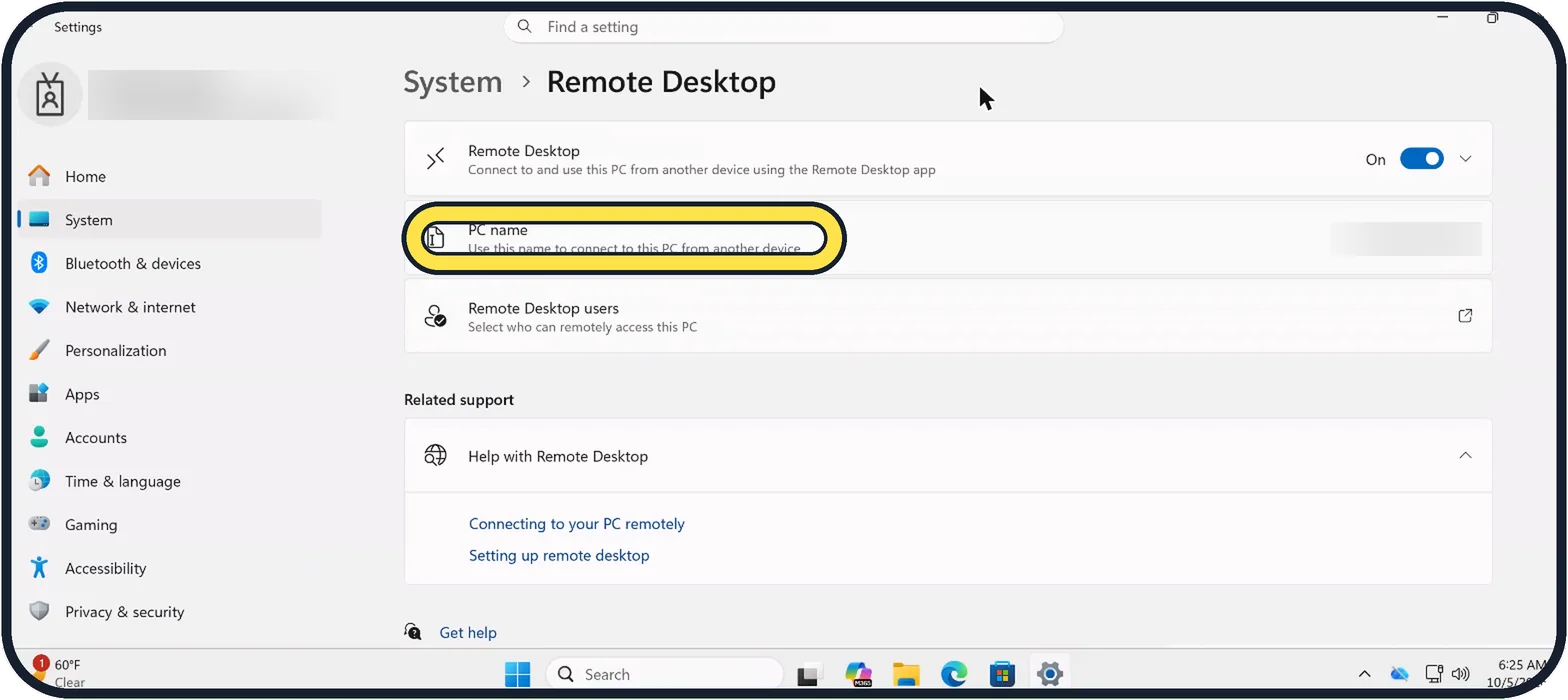
It is shown on the Remote Desktop page, on the PC name row, below the switch. You need it on the other device. (We blurred ours.)
Zoomed in on the setting. Tap to see the whole screenTap the picture to see it full size Check who may connect
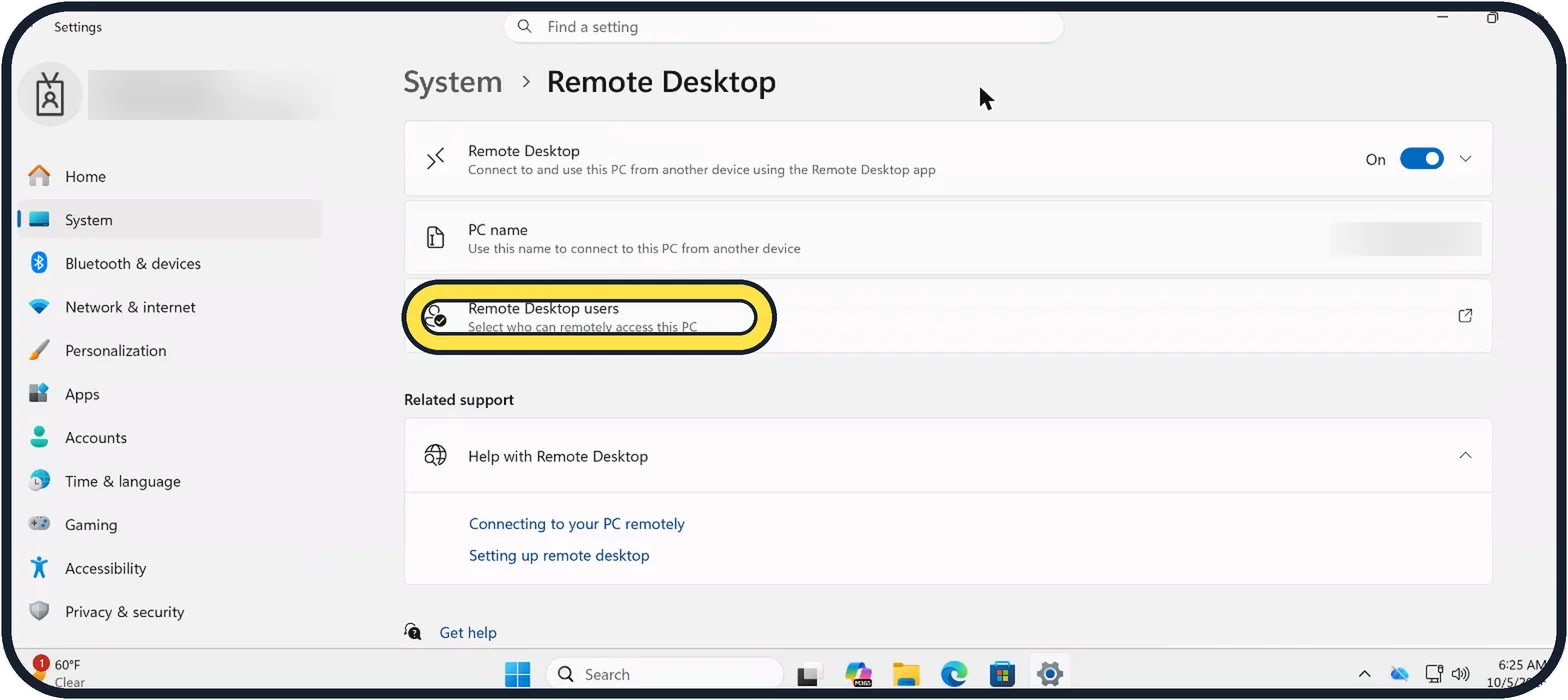
Click Remote Desktop users, below PC name, to select who can remotely access this PC.
Connect from another Windows PC
In the search box on the taskbar, type Remote Desktop Connection and open it. Enter the PC name and click Connect. Sign in with the user name and password of an account on the remote PC.
Connect from a Mac, iPhone or Android device
On a Mac or iPhone, install the free Windows app from the App Store. On Android, install Microsoft's remote desktop app from the Play Store. Add the PC by its name, select it and wait for the connection.
End the session
Close the Remote Desktop window. The remote PC stays locked at its sign-in screen while you are connected and afterwards.
About this guide
Remote Desktop shows the screen of one PC on another device and lets you work on it as if you sat in front of it. It is built into Windows, with one catch: the PC that is controlled must run the Pro, Enterprise or Education edition. The device you connect from can be any PC, Mac, phone or tablet.
A Cloud PC is itself reached over Remote Desktop, so on ours the switch was already on and we left it alone.
Good to know
By name, the connection works inside the same network, for example at home. From outside you need a VPN into that network. Do not open the Remote Desktop port on your router to the internet: it is one of the most attacked services there is.
The remote PC must be switched on and awake. Set it not to go to sleep when plugged in, under Settings, System, Power & battery.
For helping a relative with a Home edition PC, use Quick Assist, which is built into every Windows 11: search for Quick Assist on both PCs and follow the code it gives.
A VPN into a work network: how to set up a VPN connection on Windows 11. Between Macs: how to share your Mac screen with another Mac.
In short: Windows 11 Pro, Enterprise or Education on the PC to reach, Settings, System, Remote Desktop on, note the PC name. Other device: Remote Desktop Connection or the Windows app, enter the name, sign in.
Links checked in October 2026. Menus and features can change after software updates. These steps match the version named at the top.
Did this guide work for you?
Sorry about that. What happened?