
howtosimply.com/guides/how-to-stop-print-screen-opening-snipping-tool-on-windows-11/ · Checked October 2026 · Windows 11 Enterprise 25H2 (build 26200.9457), Microsoft Cloud PC
In this guide
Open Settings, Bluetooth & devices, Keyboard. Under Shortcuts and hotkeys, switch off Use the Print screen key to open screen capture. PrtSc then copies the whole screen to the clipboard, and you paste it with Ctrl + V.
4 of 5 steps with real screenshots · 2 official sources below
- Device
- Windows
- Shown on
- Windows 11 Enterprise 25H2 (build 26200.9457), Microsoft Cloud PC
- App
- Settings
- Path
- Settings › Bluetooth & devices › Keyboard
- Real screenshots
- 4 of 5 steps
- Checked
- October 2026
- Sources
- 2 official, 1 other, linked below
Step by step
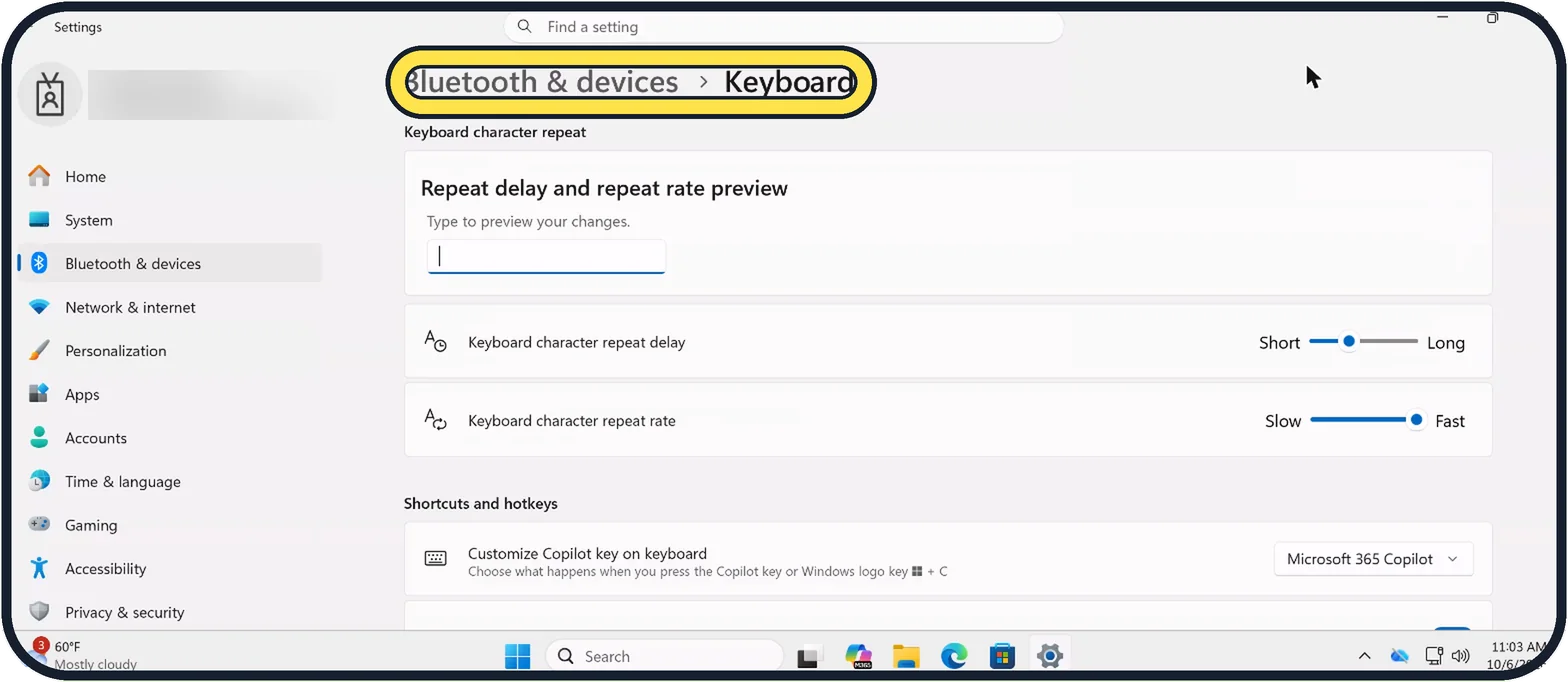
Zoomed in on the setting. Tap to see the whole screenTap the picture to see it full size Open the Keyboard settings
Open Start, Settings, Bluetooth & devices, then Keyboard. Or type keyboard into the search box at the top of Settings.
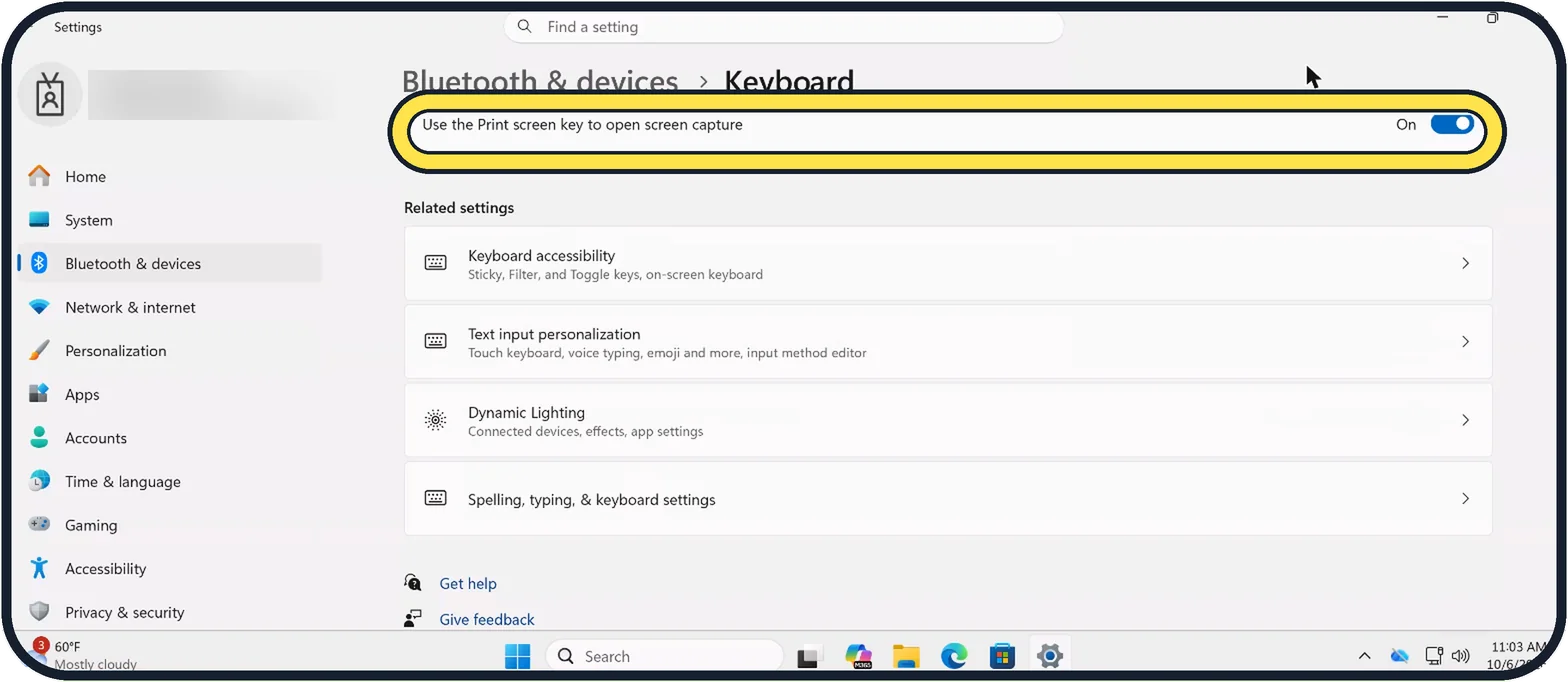
Tap the picture to see it full size Find the Print screen switch
Scroll down to the Shortcuts and hotkeys heading. Use the Print screen key to open screen capture is the last row in that group. In the picture it sits just above Related settings; the step 3 picture shows Customize Copilot key on keyboard directly above it.
On our Cloud PC it was On.
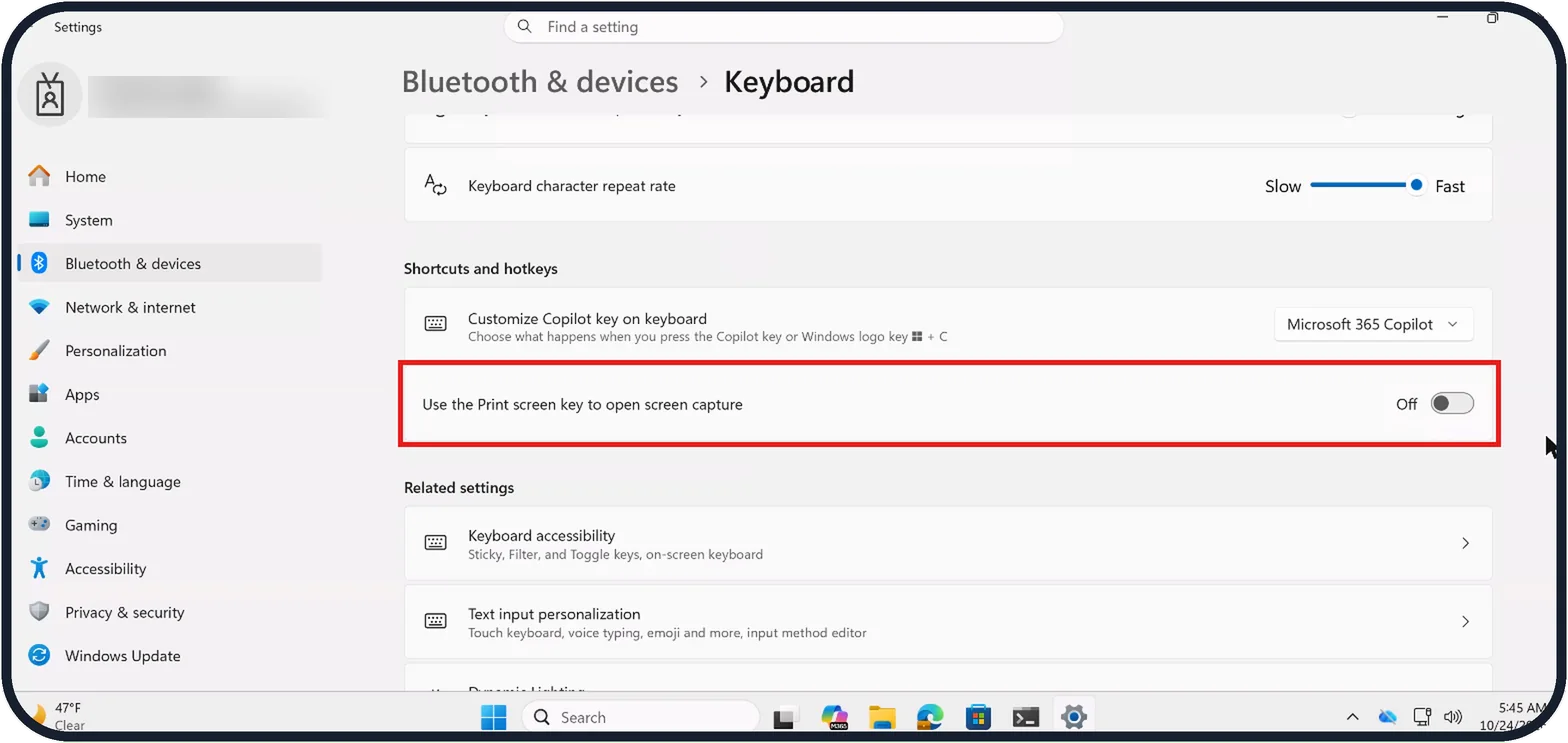
Tap the picture to see it full size Switch it off
Click the switch so it reads Off.
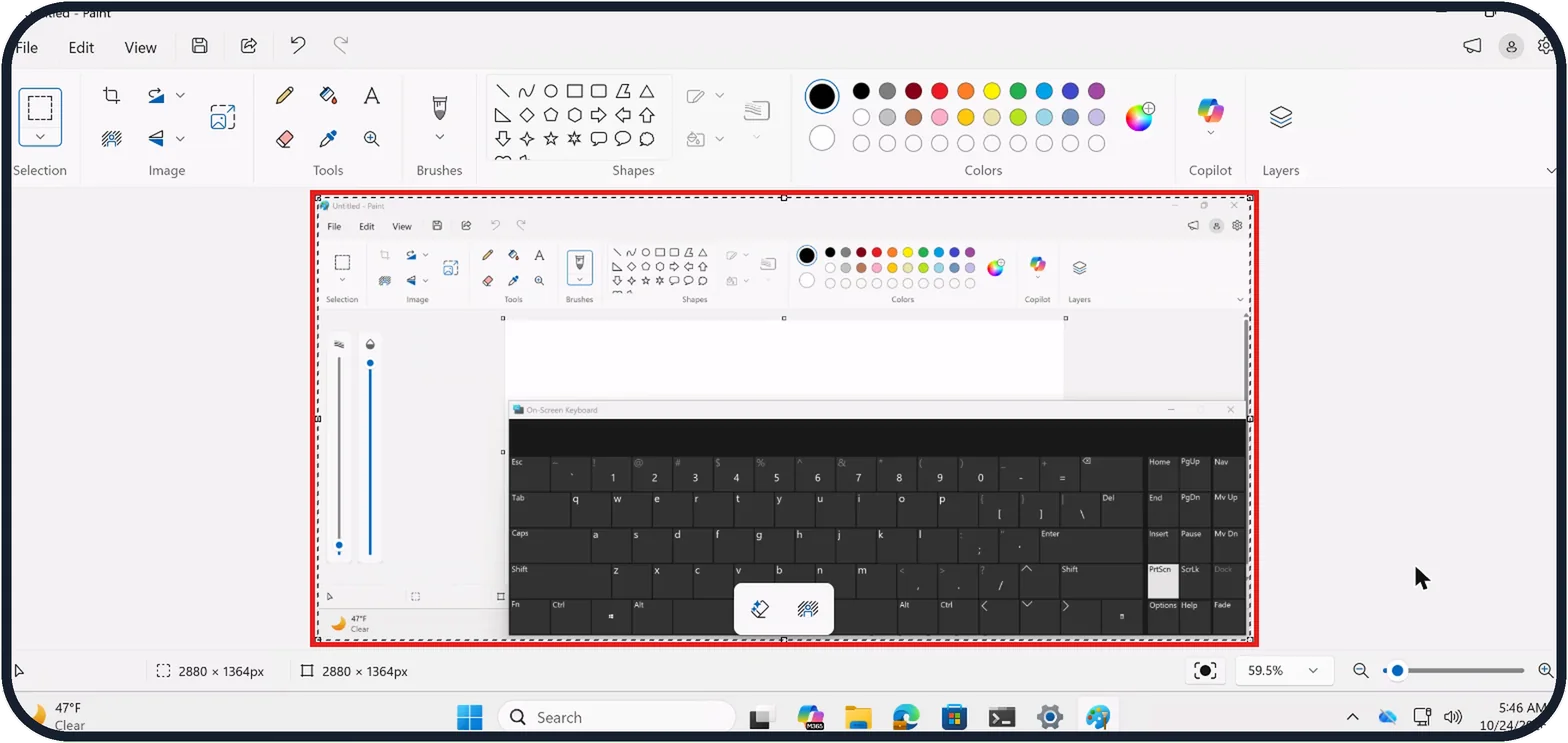
Tap the picture to see it full size Test the key
Press PrtSc. The Snipping Tool bar no longer opens; the whole screen goes to the clipboard instead.
Paste it into Paint, a chat or a document with Ctrl + V. On our Cloud PC it pasted into Paint as a 2880 x 1364px image.
Cannot find it under Bluetooth & devices?
On older versions of Windows 11 the same switch is in Settings, Accessibility, Keyboard. A Microsoft support answer on Microsoft Q&A gives that path.
If you do not see this option
- The switch has a slightly different name Microsoft's keyboard shortcuts page calls it Use the Print Screen button to open screen snipping, under Settings, Accessibility, Keyboard. Ours reads Use the Print screen key to open screen capture. Source: Keyboard shortcuts in Windows
- You only see the repeat delay and repeat rate settings Scroll further down. On our Cloud PC the Shortcuts and hotkeys heading comes after Keyboard character repeat rate, and the Print screen row sits below Customize Copilot key on keyboard.
- Your PC runs Windows 10 Microsoft says there the setting is under Settings, Ease of Access, Keyboard, as the toggle under Print Screen shortcut. PrtScn copies the whole screen unless that toggle is on. Sources: Changing the function of the Print Screen button, Use Snipping Tool to capture screenshots, Keyboard shortcuts in Windows
If this does not work
- You only want one window Microsoft says Alt + PrtScn captures the active window and copies it to the clipboard. Sources: Changing the function of the Print Screen button, Use Snipping Tool to capture screenshots, Keyboard shortcuts in Windows
- You want to pick an area straight away Microsoft's support answer on Q&A suggests Windows + Shift + S, which opens the capture overlay without the PrtSc key. Source: Changing the function of the Print Screen button
- PrtSc still opens Snipping Tool after you switch it off On Microsoft Q&A one user reports exactly this; another says switching off the same option under Settings, Accessibility, Keyboard seemed to fix it. Check both places. Source: Changing the function of the Print Screen button
- Pressing PrtSc seems to do nothing That is expected with the switch off. Microsoft says PrtSc places a snapshot of the entire screen in your clipboard; paste it with Ctrl + V. Sources: Changing the function of the Print Screen button, Use Snipping Tool to capture screenshots, Keyboard shortcuts in Windows
About this guide
On current Windows 11, the PrtSc key opens the Snipping Tool bar instead of copying the screen. If you prefer the old way, or another screenshot app should get the key, one switch changes it back. On our Cloud PC the switch is under Bluetooth & devices; older versions of Windows 11 had it under Accessibility.
The screenshots are our own, taken on Windows 11 Enterprise 25H2 running as a Microsoft Cloud PC, a Windows PC that runs in the cloud.
Good to know
Windows + PrtSc still saves the whole screen as a file in Pictures, Screenshots, whatever this switch says.
All the screenshot shortcuts: how to take a screenshot on Windows 11.
In short: Settings, Bluetooth & devices, Keyboard, switch off Use the Print screen key to open screen capture. PrtSc then copies the screen; paste with Ctrl + V.
- Microsoft Q&A: Changing the function of the Print Screen button
- Microsoft Support: Use Snipping Tool to capture screenshots
- Microsoft Support: Keyboard shortcuts in Windows
Links checked in October 2026. Menus and features can change after software updates. These steps match the version named at the top.
📷 Camera Lab: the same 6 scenes photographed with 11 phones, side by side.
Did this guide work for you?
Sorry about that. What happened?