
howtosimply.com/guides/how-to-uninstall-programs-on-windows-11/ · Checked October 2026 · Windows 11 Enterprise 25H2 (build 26200.9457), Microsoft Cloud PC
In this guide
Open Settings, choose Apps, then Installed apps. Click the three dots next to the program and choose Uninstall. Confirm, and follow the program's own uninstaller if one opens.
4 of 5 steps with real screenshots · 1 official source below
- Device
- Windows
- Shown on
- Windows 11 Enterprise 25H2 (build 26200.9457), Microsoft Cloud PC
- App
- Settings
- Path
- Settings › Apps › Installed apps
- Real screenshots
- 4 of 5 steps
- Checked
- October 2026
- Sources
- 1 official, linked below
Step by step
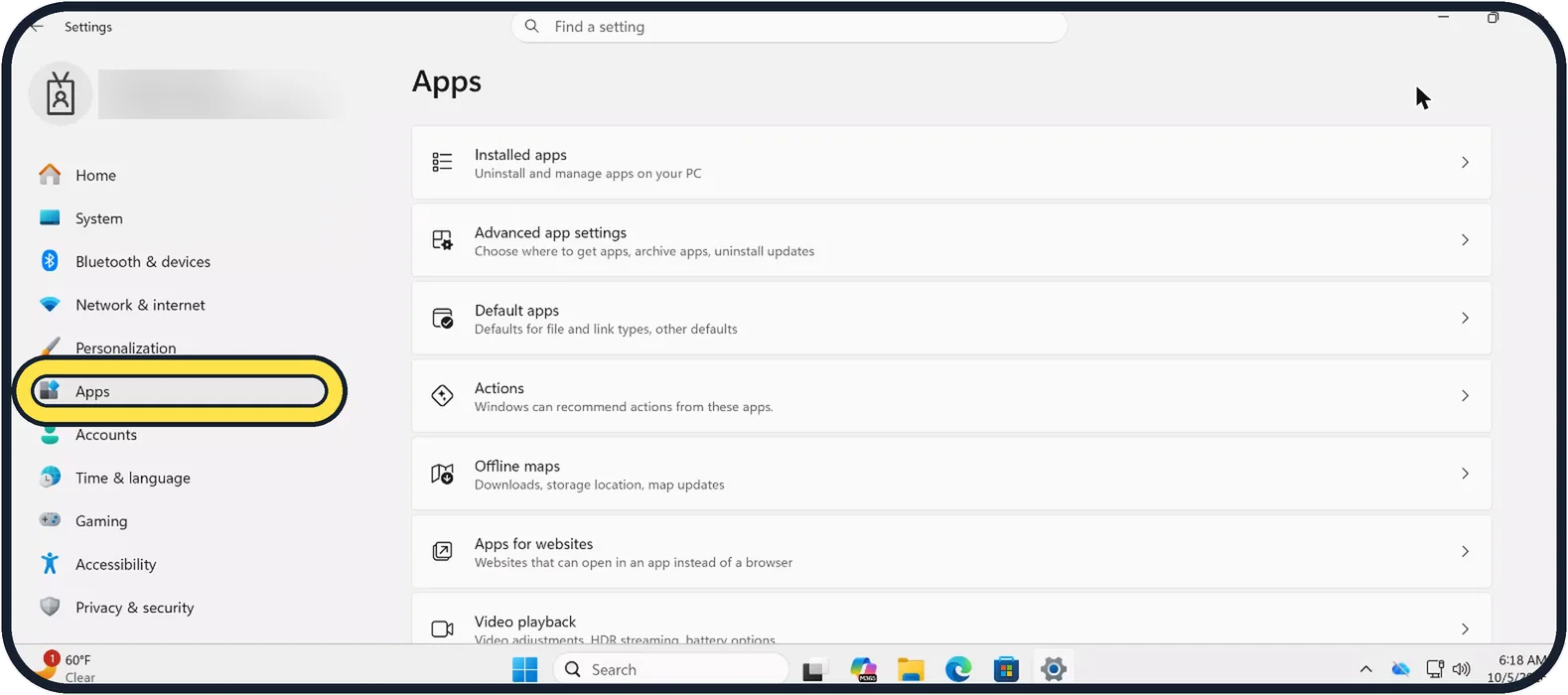
Zoomed in on the setting. Tap to see the whole screenTap the picture to see it full size Open Settings and choose Apps
Press Windows + I and click Apps on the left.
Watch these steps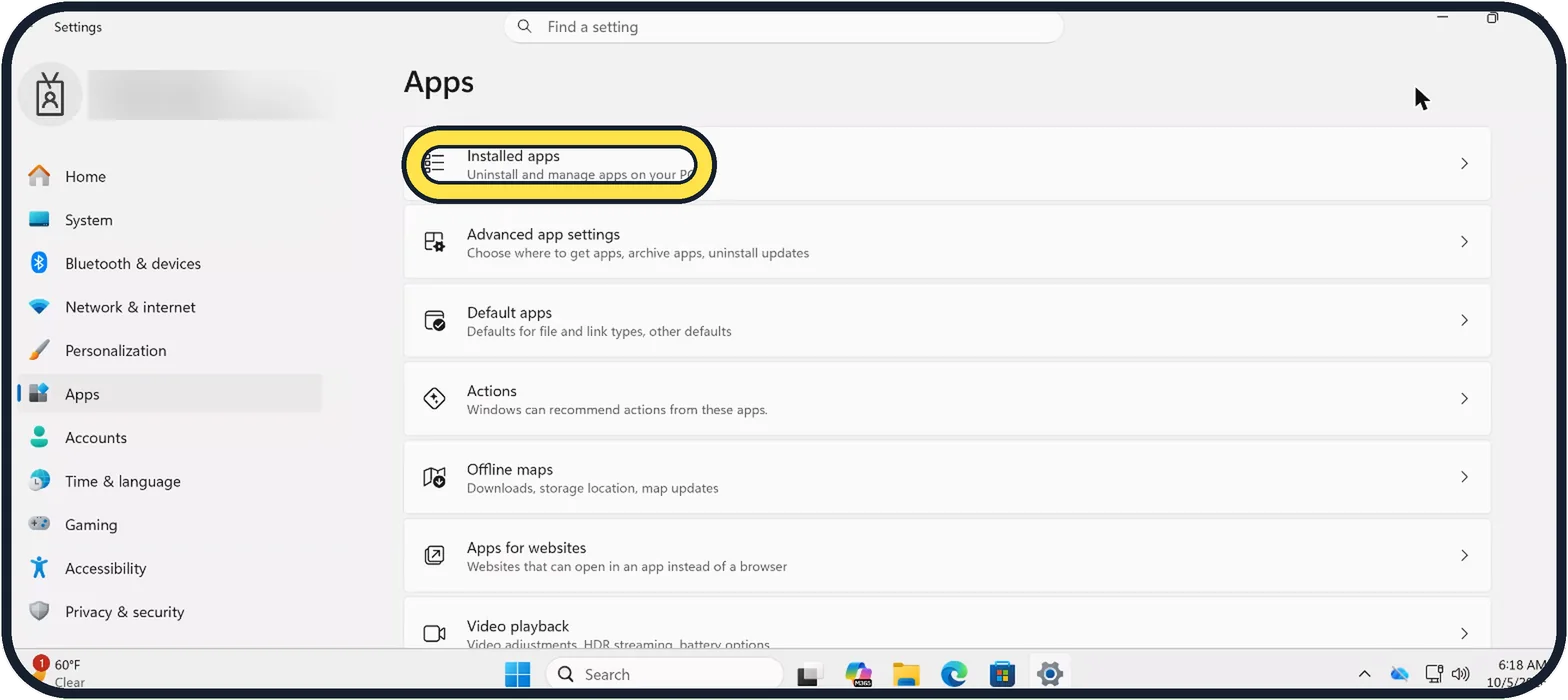
Zoomed in on the setting. Tap to see the whole screenTap the picture to see it full size Click Installed apps
It is the first row. The full list of programs appears.
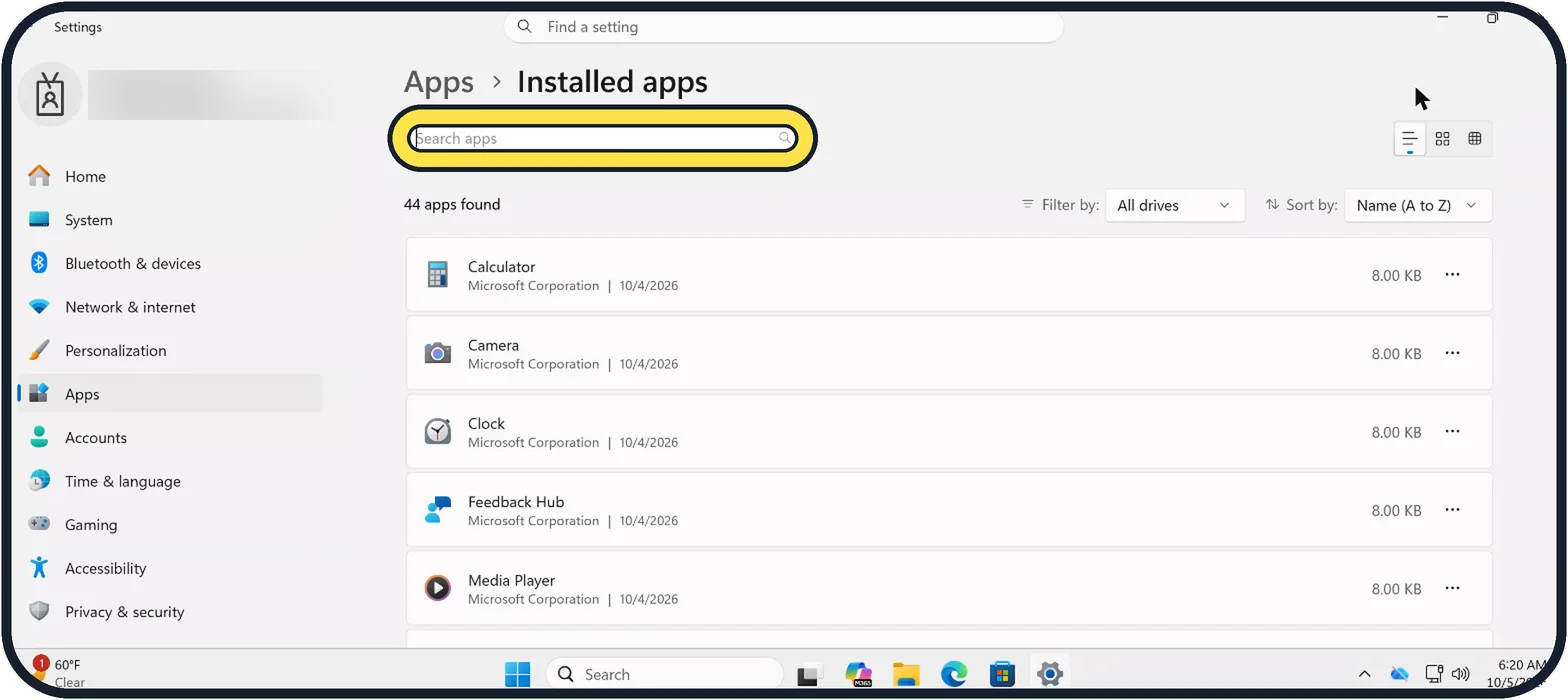
Zoomed in on the setting. Tap to see the whole screenTap the picture to see it full size Find the program
Type its name in the Search apps box, or use Sort by to see the largest ones first.
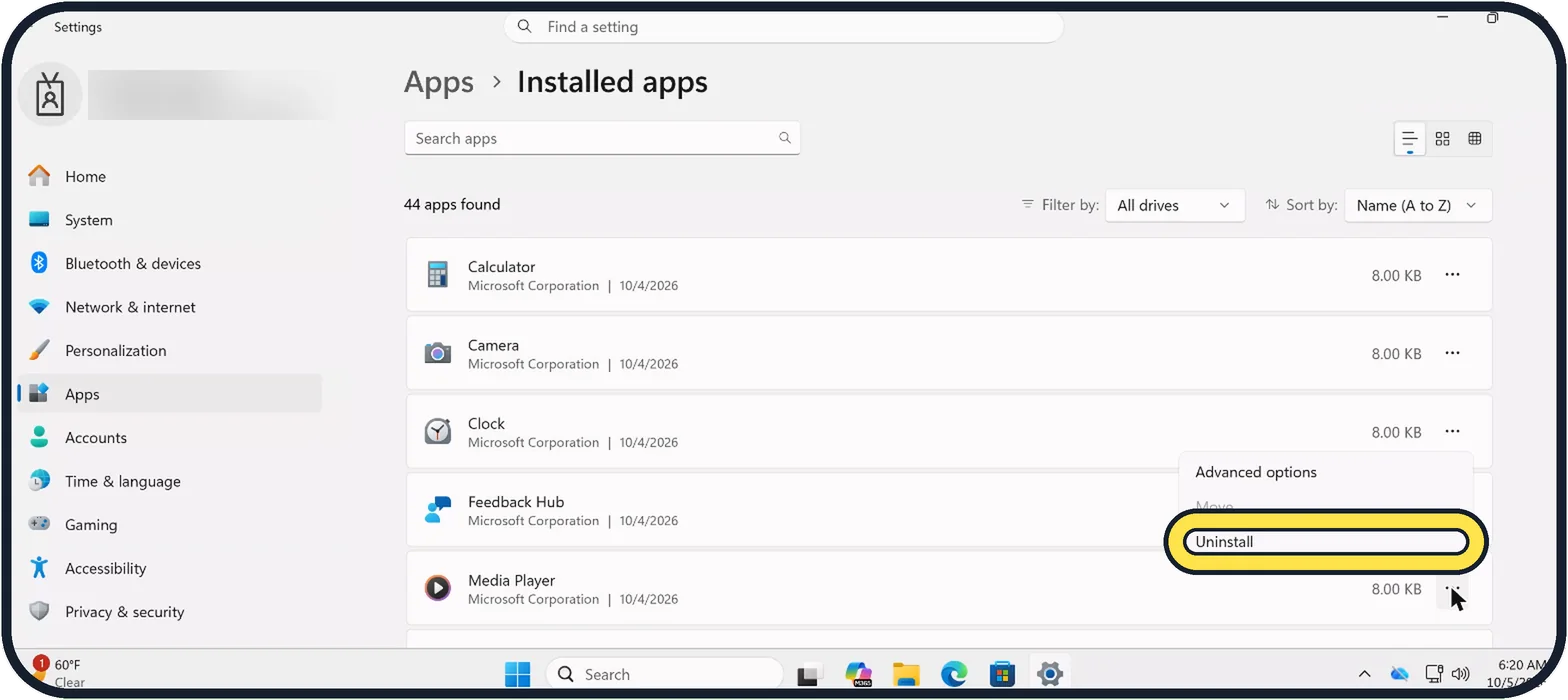
Zoomed in on the setting. Tap to see the whole screenTap the picture to see it full size Click the three dots and choose Uninstall
The dots are at the right end of the program's row. Confirm with Uninstall. Some programs then open their own removal window. Follow it to the end.
Restart if asked
A few programs finish removing their files only after a restart.
Watch these steps
About this guide
Programs you no longer use take up disk space and often run in the background. Removing them properly through Settings also removes their start-up entries.
Good to know
The quick way: open the Start menu, right-click the app and choose Uninstall.
If Uninstall is greyed out, the app is part of Windows and cannot be removed this way.
If you do not recognise a program, search its name online before removing it. Drivers from Intel, AMD, Nvidia or Realtek should stay.
Uninstalling does not cancel a paid subscription. Cancel that with the company or in the Microsoft Store.
In short: Settings, Apps, Installed apps, three dots, Uninstall.
Links checked in October 2026. Menus and features can change after software updates. These steps match the version named at the top.
Did this guide work for you?
Sorry about that. What happened?