
howtosimply.com/guides/how-to-add-settings-file-explorer-and-other-folders-to-the-start-menu-on-windows-11/ · Checked October 2026 · Windows 11 Enterprise 25H2 (build 26200.9457), Microsoft Cloud PC
In this guide
Open Settings, Personalization, Start, Folders and switch on the ones you want: Settings, File Explorer, Documents, Downloads, Music, Pictures, Videos, Network or Personal folder. Their icons then appear at the bottom of Start, next to the Power button.
4 of 4 steps with real screenshots · 1 official source below
- Device
- Windows
- Shown on
- Windows 11 Enterprise 25H2 (build 26200.9457), Microsoft Cloud PC
- App
- Settings
- Path
- Settings › Personalization › Start
- Real screenshots
- 4 of 4 steps
- What we did
- Performed: we made the change on our device and show the result
- Checked
- October 2026
- Sources
- 1 official, linked below
Step by step
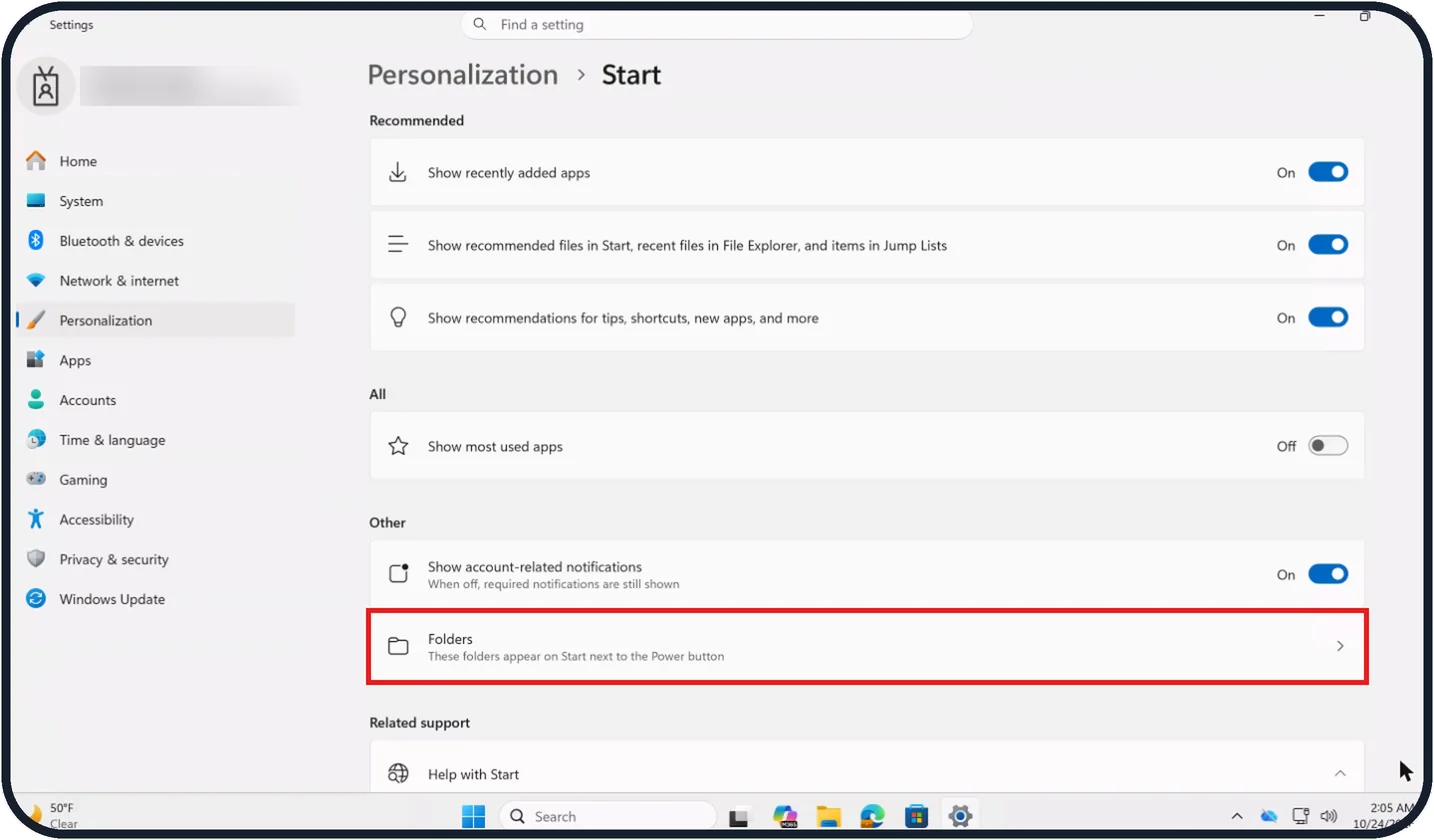
Tap the picture to see it full size Open Start settings
Open Settings, select Personalization, then Start.
Click Folders. On our Cloud PC it is under Other, below Show account-related notifications, with the note "These folders appear on Start next to the Power button".
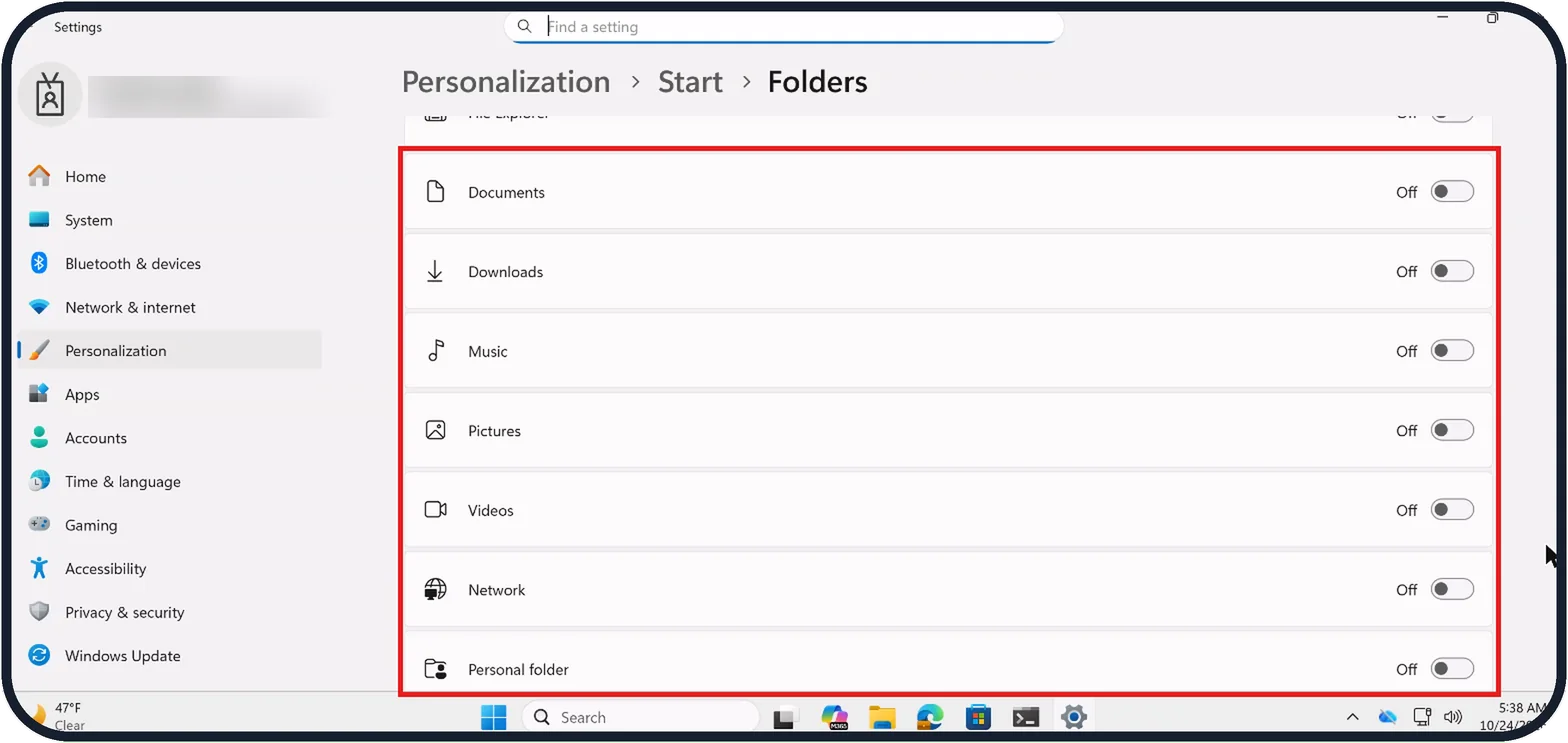
Tap the picture to see it full size Check the Folders page
The page says "Choose which folders appear on Start next to the Power button." You can also reach it by typing folders on start into the Settings search box.
On our Cloud PC it listed nine rows, all Off: Settings, File Explorer, Documents, Downloads, Music, Pictures, Videos, Network and Personal folder. Only the first six fit on screen, so scroll down to see Videos, Network and Personal folder.
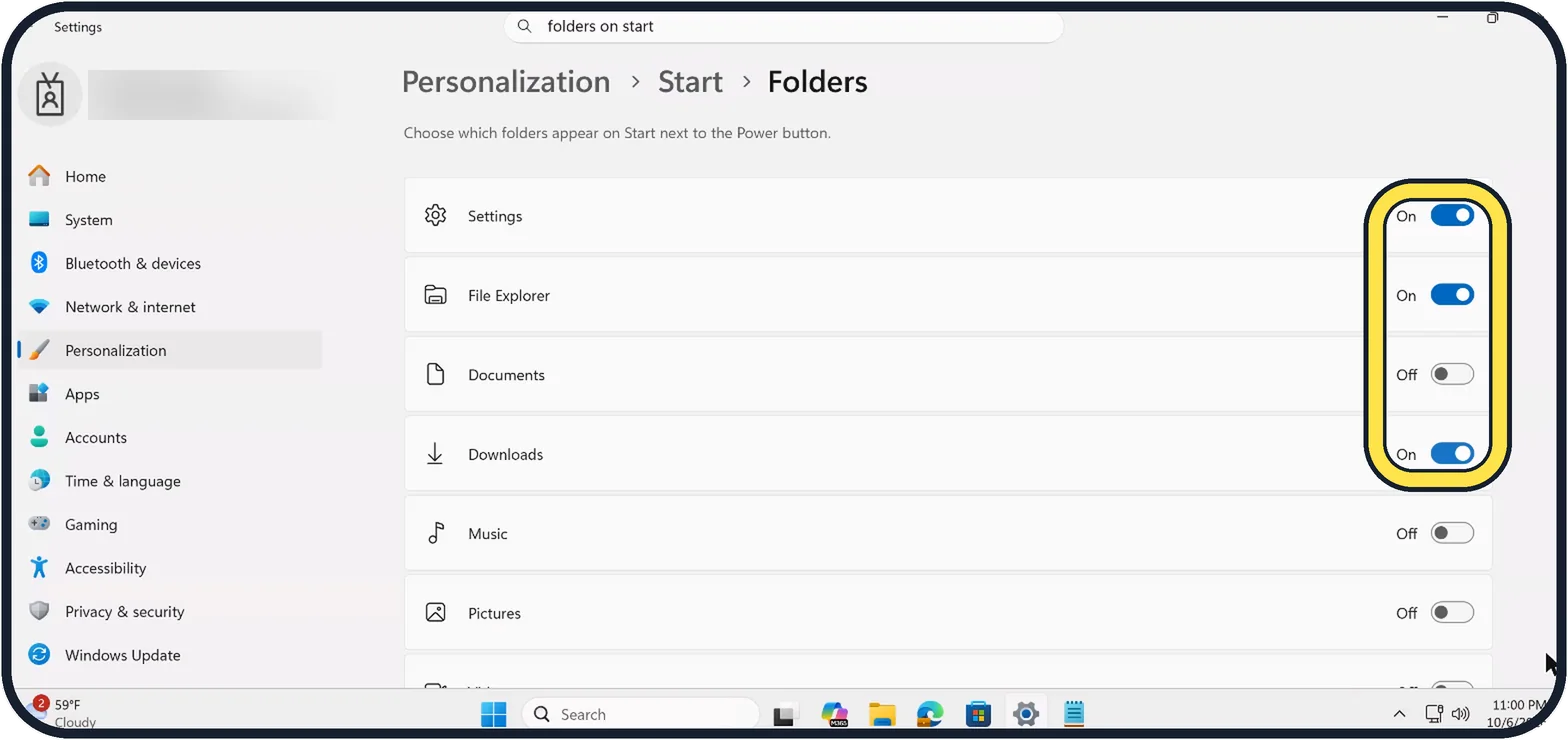
Zoomed in on the setting. Tap to see the whole screenTap the picture to see it full size Switch on what you want
Click the switch for each item you want so it shows On. We switched on Settings, File Explorer and Downloads.
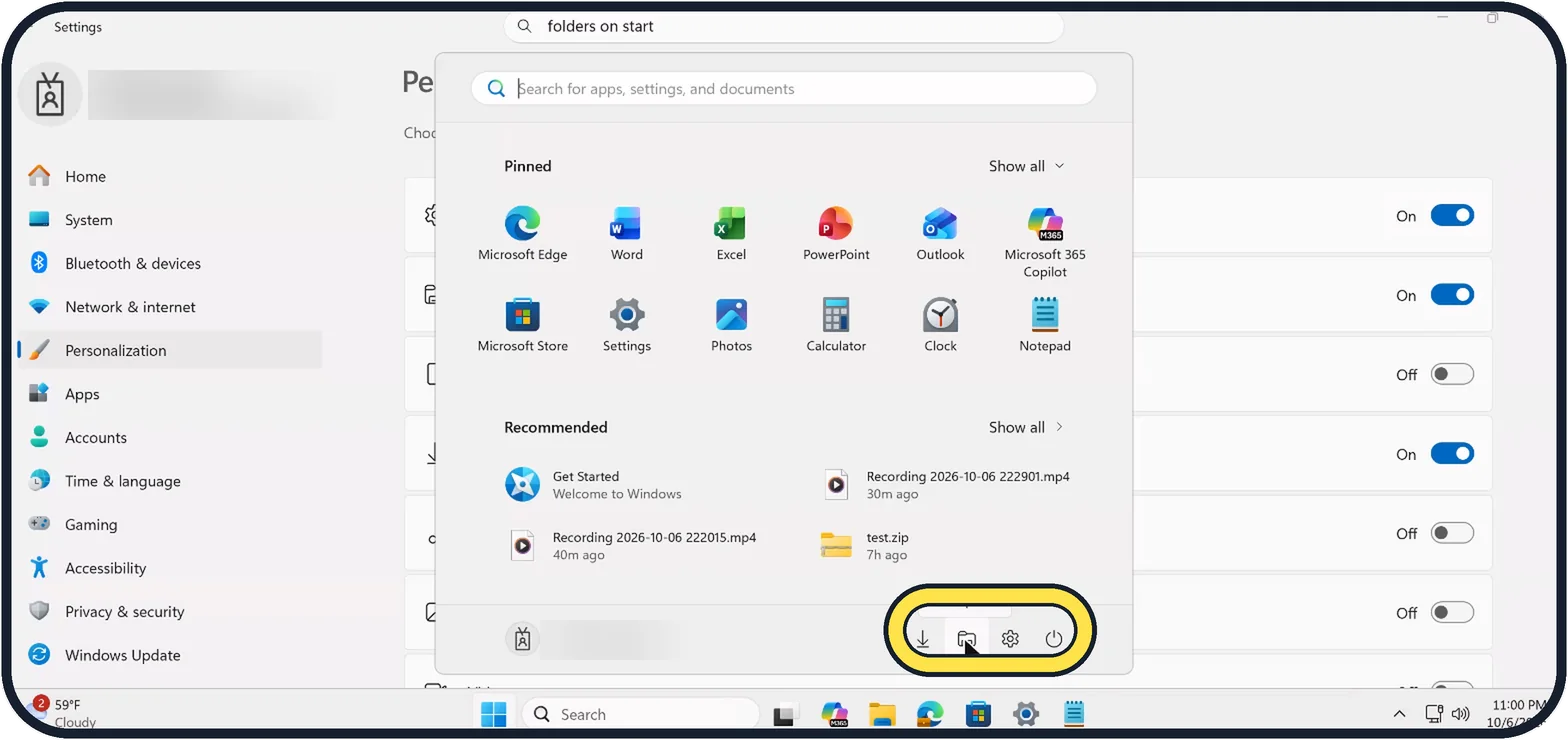
Zoomed in on the setting. Tap to see the whole screenTap the picture to see it full size Open Start
The icons sit next to the Power button. On our Cloud PC they appeared in the order Downloads, File Explorer, Settings, then Power.
If you do not see this option
- You cannot find the Folders page. Microsoft says you can open Start, right-click the bottom of the Start menu and select Start settings, then select Folders. On our Cloud PC the Folders row sat under Other on the Start page. Source: Customize the Windows Start menu
- The folder you want is not in the list. Microsoft says you can right-click any folder in File Explorer and select Pin to Start. It then appears among the pinned items, not next to Power. Source: Customize the Windows Start menu
- You only see some of the folders. On our Cloud PC Videos, Network and Personal folder were below the first six rows, so scroll down the Folders page.
If this does not work
- A folder you pinned instead is in the way. Microsoft says to right-click it in Start and select Unpin from Start. Source: Customize the Windows Start menu
- An icon does not appear on Start. Go back to the Folders page and check its switch shows On rather than Off, then open Start again.
About this guide
The row at the bottom of Start can hold shortcuts to Settings and your main folders, one click away.
The screenshots are our own, taken on Windows 11 Enterprise 25H2 running as a Microsoft Cloud PC, a Windows PC that runs in the cloud.
Good to know
Switch an icon off on the same page to remove it.
In short: Settings, Personalization, Start, Folders: switch on the icons. They appear next to Power on Start.
Links checked in October 2026. Menus and features can change after software updates. These steps match the version named at the top.
📷 Camera Lab: the same 6 scenes photographed with 11 phones, side by side.
Did this guide work for you?
Sorry about that. What happened?