How-to
Charging port not working? Clean it safely, then check these (iPhone, Galaxy, Pixel)
Most "broken" ports are lint, a bad cable or a setting. Turn the phone off, shine a light in and remove lint the way your phone's maker says: Apple says no compressed air, Samsung says blow gently. Still not charging? Try another cable and socket.
By Abu Bakar Saadat · Publisher: Saadat Rafiq · 4 min read · Published 27 October 2026
- Cleaning, iPhone
- Tap it port-down; no compressed air, nothing in the port (Apple)
- Cleaning, Galaxy
- Phone off, torch, blow gently (Samsung)
- Most common cause
- Damaged or incompatible cable or adapter (Samsung)
- Advice from
- Apple, Samsung and Google support pages, read 27 October 2026
- Applies to
- iPhone 17e, iPhone 18 Pro, iPhone 14 Pro, Galaxy S26, Galaxy A57, Pixel 10a
- Checked
- October 2026
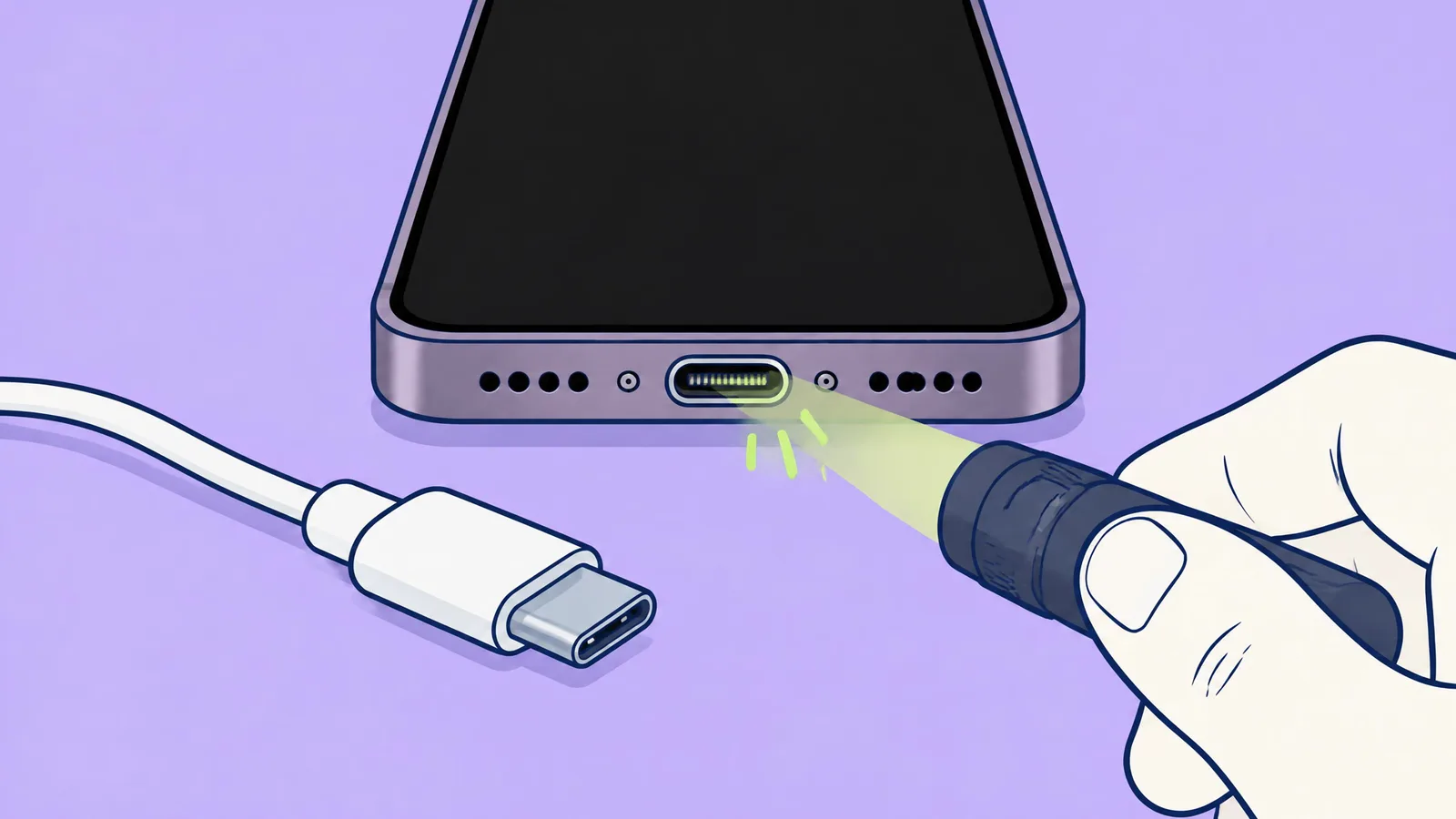
Which port does your phone have?
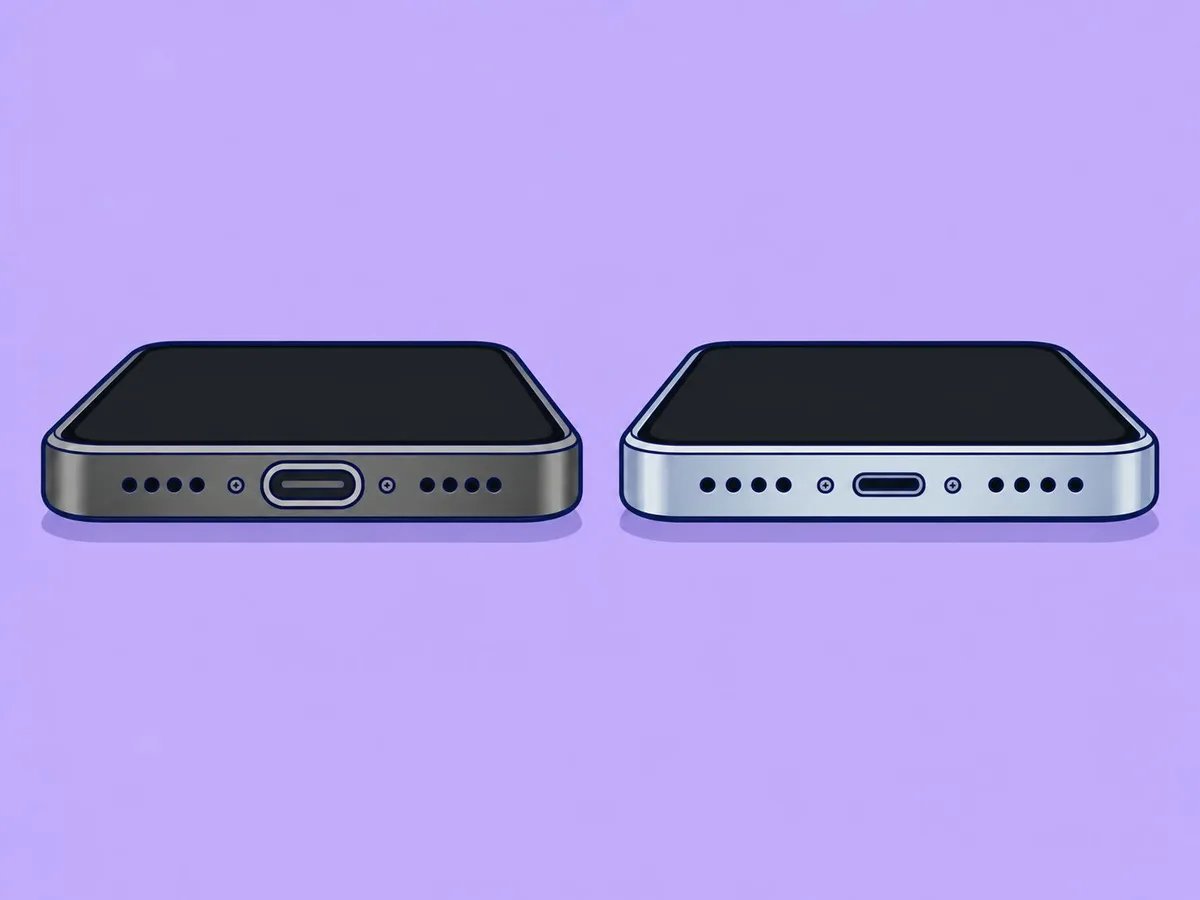
| Phone | Port | Can charge wirelessly instead? |
|---|---|---|
| iPhone 17e | USB-C (USB 2) | Yes: MagSafe and Qi2, up to 15 W (Apple specs) |
| iPhone 18 Pro | USB-C (USB 3) | Yes: MagSafe and Qi2, up to 25 W (Apple specs) |
| iPhone 14 Pro | Lightning | Yes: MagSafe and Qi |
| Galaxy S26 | USB-C | Yes: our S26 has Fast wireless charging and Wireless power sharing |
| Galaxy A57 | USB-C | No: our A57 has no wireless charging setting |
| Pixel 10a | USB-C | Yes: Qi-certified (Google specs) |
1. Turn it off and look inside
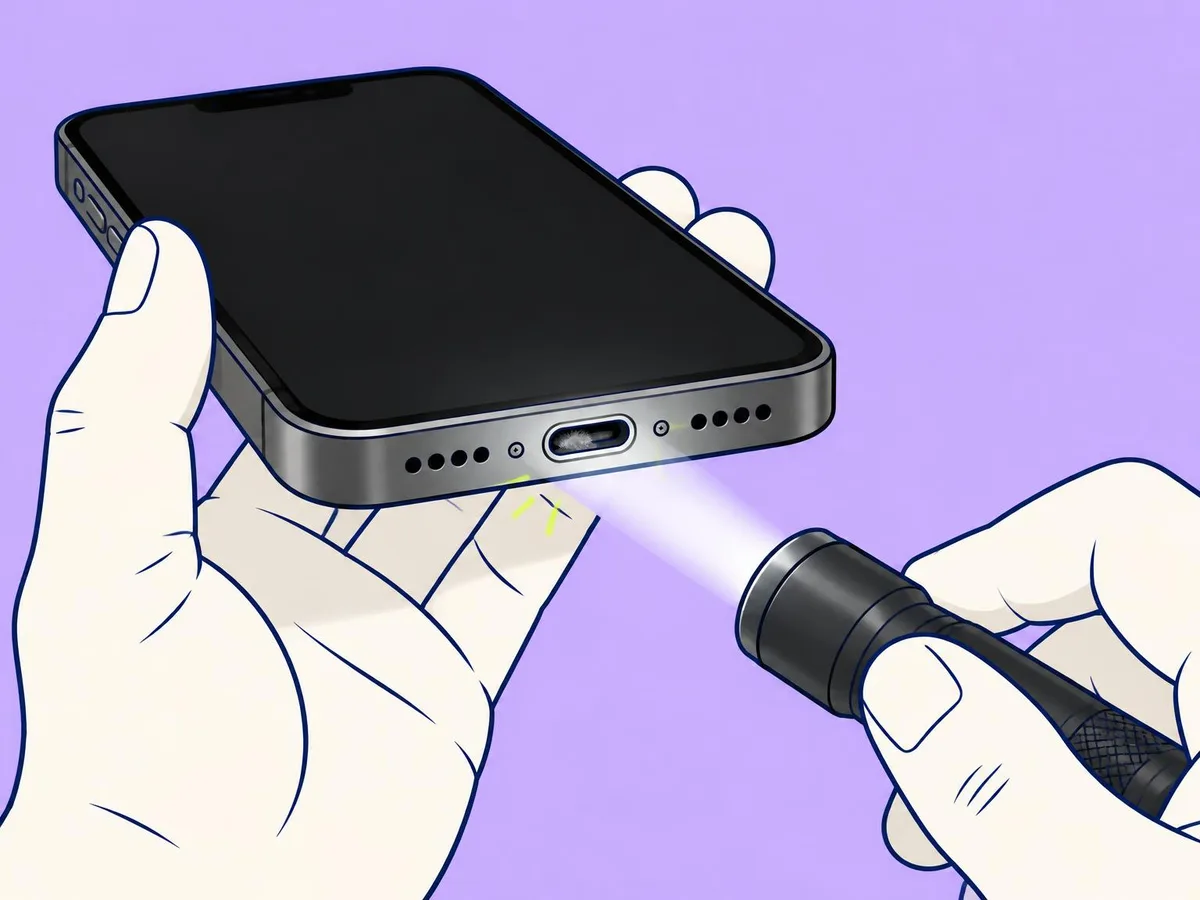
Unplug it, take the case off and turn the phone off. Samsung's own steps start like this, then use a torch to look inside. Look for a grey felt layer at the back of the port: it stops the plug going all the way in. A plug that feels loose or sits slightly proud is the classic sign.
2. Remove lint the way your maker says
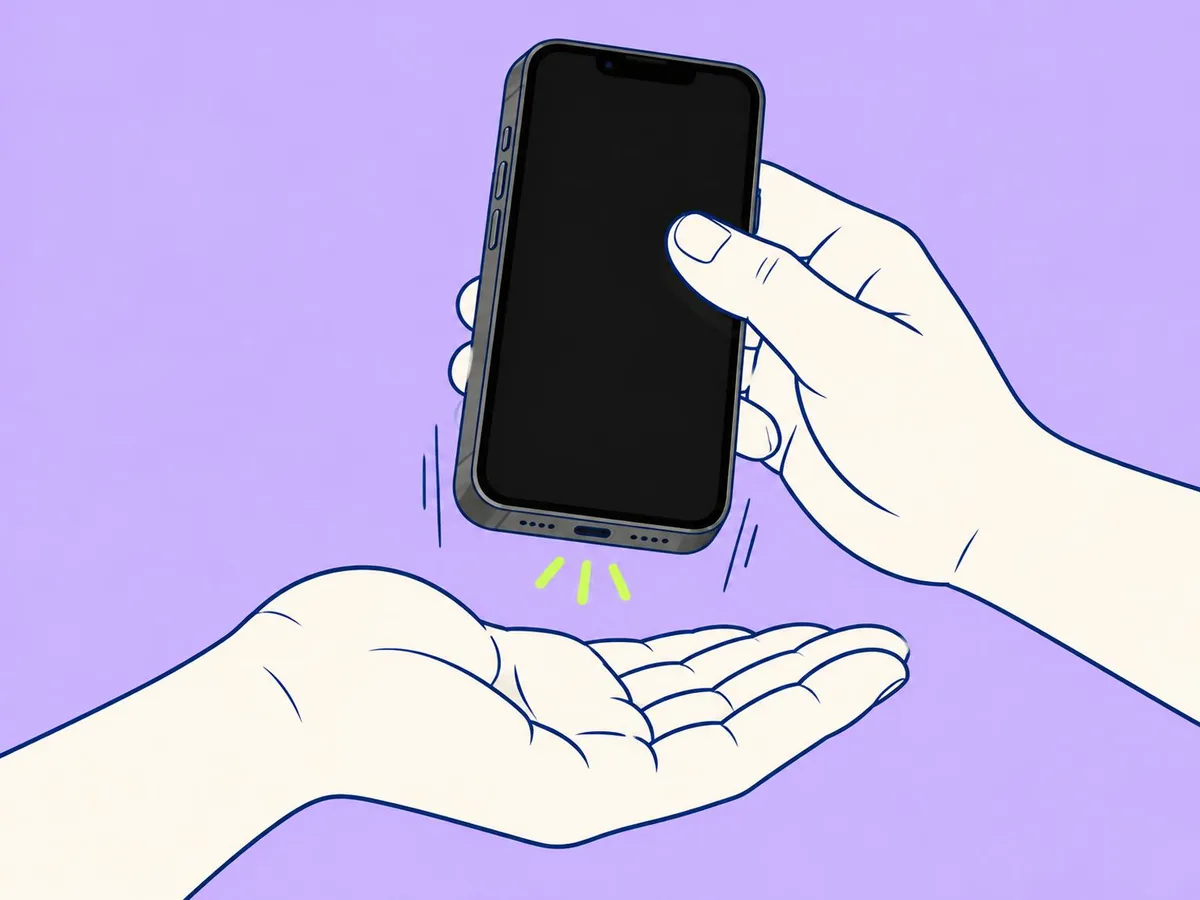
iPhone (Apple): don't use compressed air, and don't put objects such as a cotton swab or paper towel into the port. Hold the iPhone port-down and tap it gently against your palm. If lint is packed in and won't come out, take it to Apple or an authorised repair shop rather than scraping it.
Galaxy (Samsung): with the phone off, gently blow into the port to remove dust. If the port is completely blocked, Samsung says to go to a service centre.
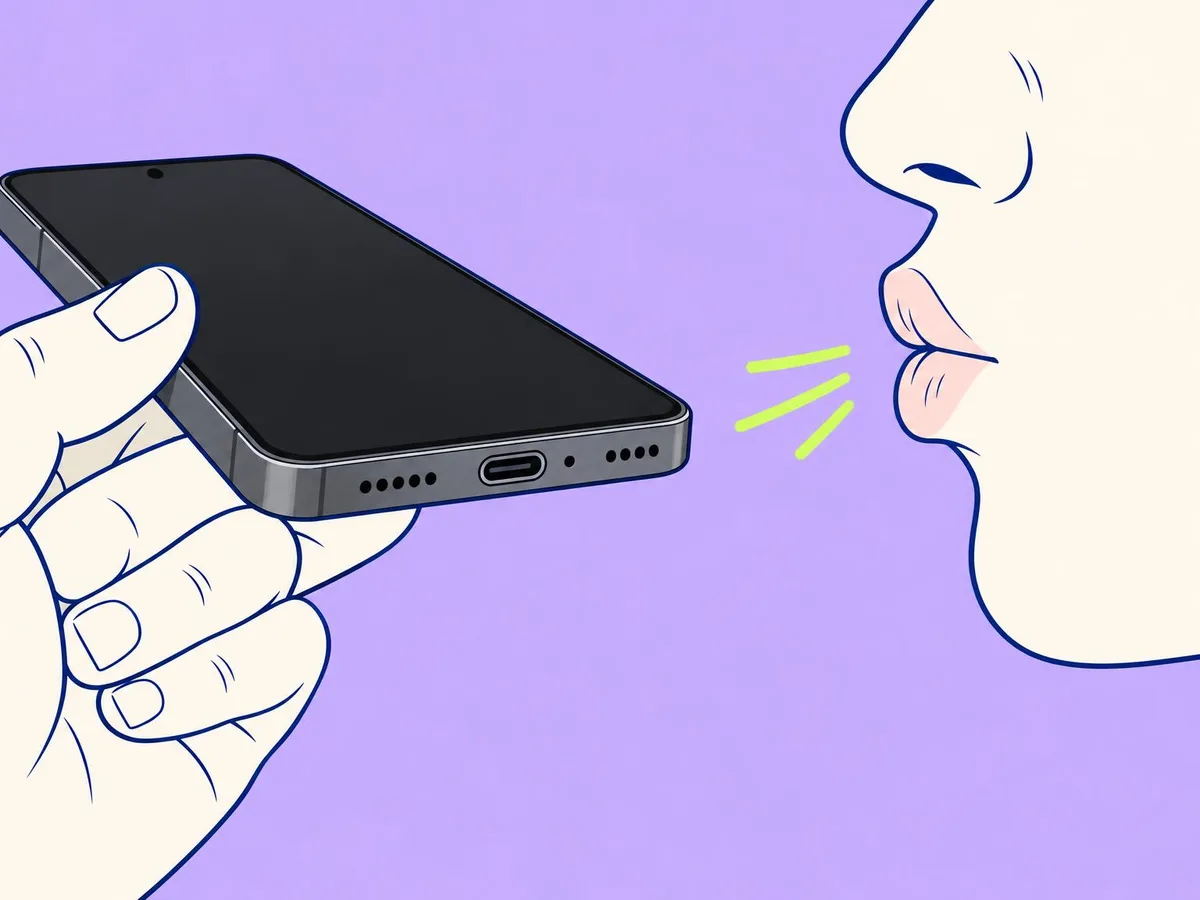
Pixel (Google): Google says to check the port for dust or lint and try another cable. It gives no cleaning method, so tap it port-down and stop there.
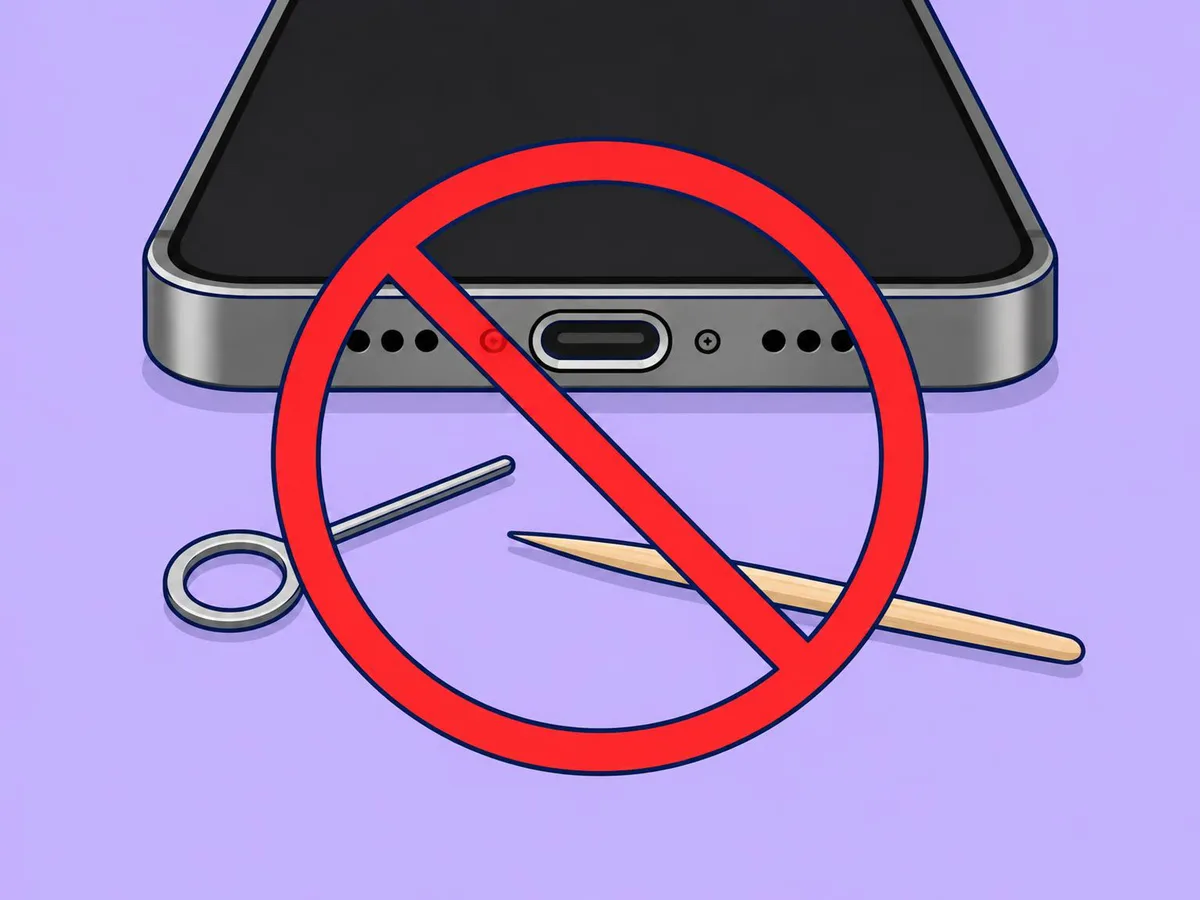
Never: a metal pin, needle or paper clip (it can bend or short the contacts), liquid or heat. Many repair guides use a wooden toothpick; no maker lists it, and it can still scratch the contacts.
3. Rule out the cable, the adapter and the socket
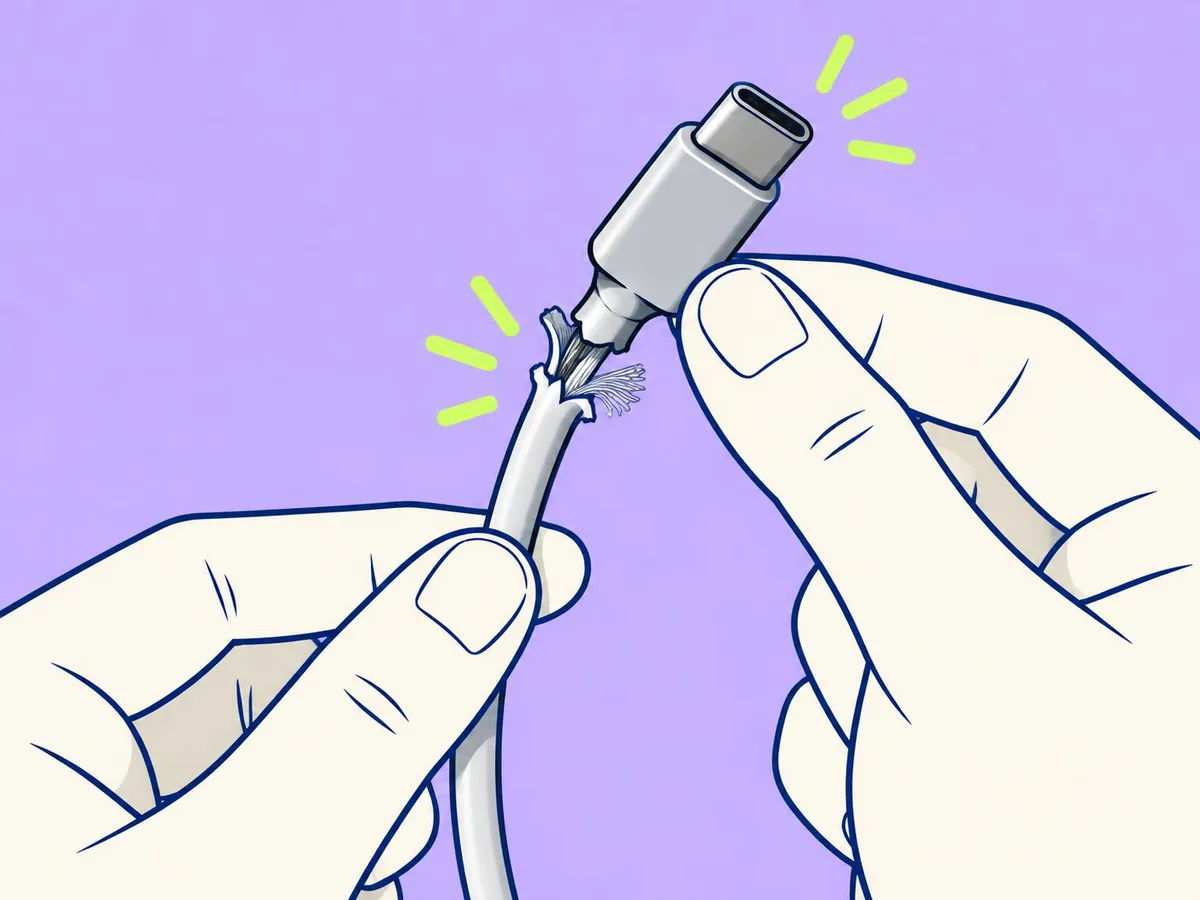
Samsung says damaged or incompatible cables and adapters are the most common cause. Apple says to check for broken or bent prongs.
- Look along the cable for kinks, frays or a bent end.
- Try a different cable and a different adapter. Charge another phone with your old pair: whichever fails is the culprit.
- Use a wall socket, not a computer. Google suggests testing the socket with a lamp.
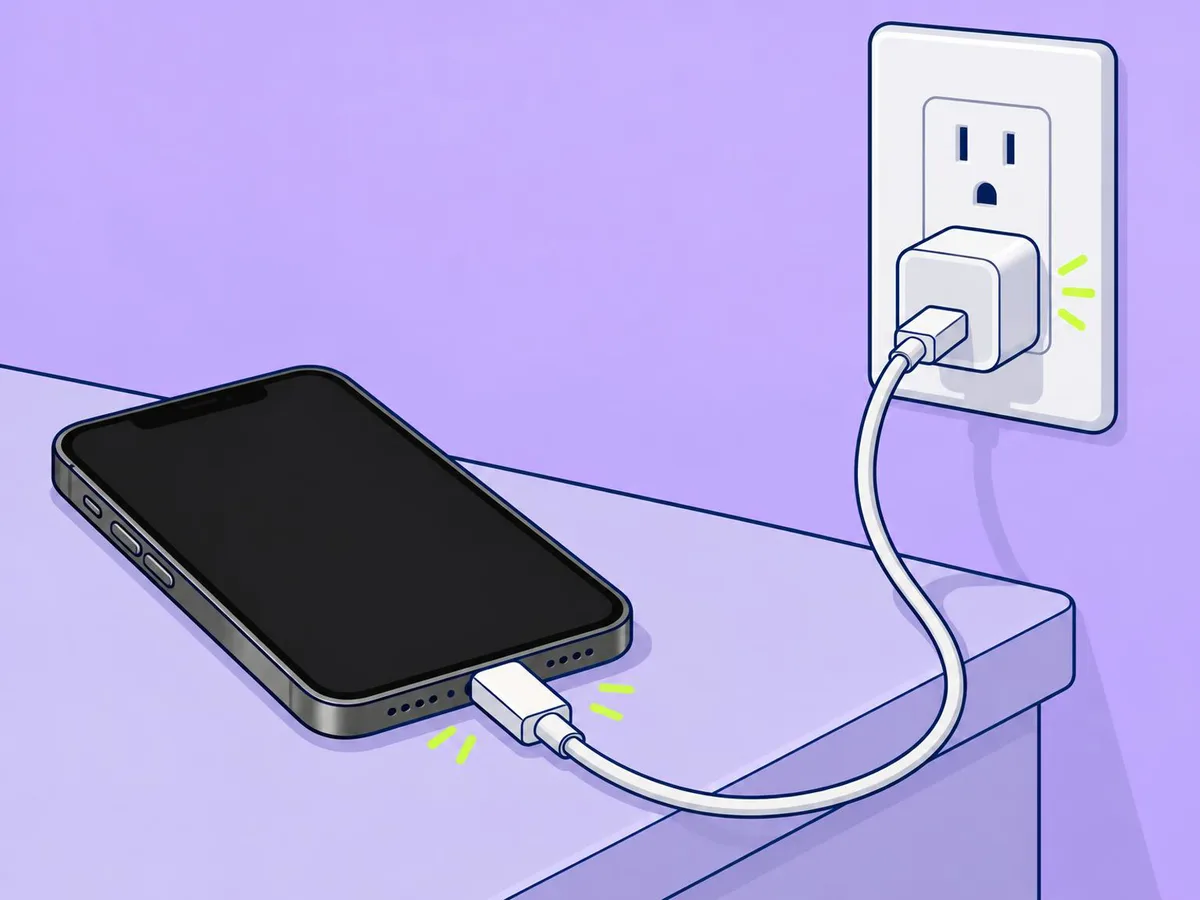
- Plug in firmly and leave it for 30 minutes (Apple) before you decide.
4. Read the message on screen
| You see | Phone | What to do |
|---|---|---|
| "Accessory isn't supported" or "not certified" | iPhone | Plug straight in (no adapter or hub), remove debris from the port, restart, try another cable, update iOS (Apple) |
| Liquid-detection alert | iPhone | Unplug, tap it port-down and wait at least 30 minutes. See wet phone: what to do |
| Water drop, "Moisture detected" | Galaxy | Charging is blocked to protect the port. Shake it gently port-down, wipe it and dry it with cool air. Humidity alone can trigger it (Samsung) |
| "Check charging accessory" | Pixel | Try another cable and charger; Google recommends a 30 W PPS charger, or USB PD at 15 W or more |
| "Liquid or debris in USB port" | Pixel | Unplug and let it dry until it says "OK to use USB port" |
These are the makers' descriptions. We won't stage a wet or blocked port to fake a screenshot.
5. It isn't the port: check these settings
- iPhone stops at 80%: Optimised Battery Charging, heat, or Charge Limit on iPhone 15 and later (Apple). See how to set a charging limit on an iPhone.
- Galaxy stops early: Battery protection limits the charge (Samsung). See how to limit charging to 80% on a Galaxy.
- Galaxy charges slowly: Settings, Battery, Charging settings, turn on Fast charging (Samsung). It doesn't work from a computer.
- Pixel stops at 80%: see how to limit charging to 80% on a Pixel.
- Phone is hot: all three makers pause or slow charging when it's hot. Let it cool down.
6. If the phone looks dead
- iPhone: charge it for 30 minutes. Still nothing? Force restart it, then charge for another 30 minutes (Apple).
- Galaxy: hold the side key and volume down for more than 7 seconds (Samsung).
- Pixel: a fully drained Pixel may show nothing for up to 25 minutes after you plug it in (Google). Wait, then hold Power for 5 to 7 seconds.
Every combination is in how to force restart a frozen phone.
7. Let the phone test itself
- Galaxy: Samsung Members, Support, Phone diagnostics, Battery status and Cable charging.
- Pixel: see how to use battery diagnostics on a Pixel.
- iPhone: see how to check battery health on an iPhone.
Charge without the port
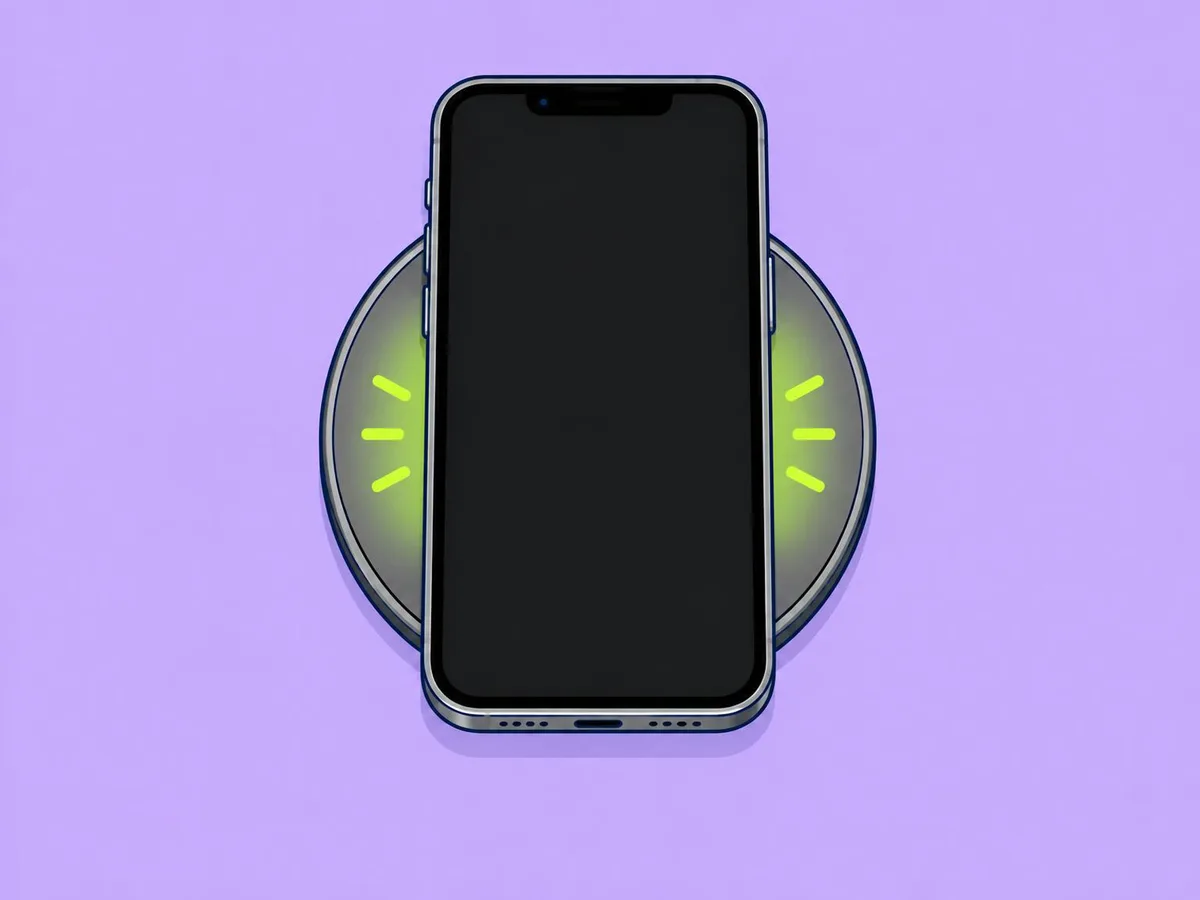
If your phone supports it (see the table above), put it in the centre of a wireless charger, with a thick case off. That keeps you going until the repair. It also narrows things down: if wireless works and every cable fails, the port is the problem.
When it's a repair
Book a repair if the plug is still loose after cleaning, you can see bent or green (corroded) contacts, lint is packed in too hard to tap or blow out, or every cable and charger fails while wireless charging works.
Related
How to clean your iPhone · Wet phone: what to do · Force restart a frozen phone
Questions readers ask
Can I use compressed air?
Not on an iPhone: Apple lists compressed air as something to avoid. Samsung's pages say to blow gently into the port, not to use a can.
Is a toothpick safe?
No maker recommends one. Apple says not to put objects such as a cotton swab or paper towel into the port, and Samsung says to go to a service centre if the port is completely blocked.
Why does my Galaxy say moisture detected when it is dry?
Samsung says humidity can trigger it. Dry the phone, restart it, and if the warning stays, clear the USB Settings cache: Settings, Apps, show system apps, USB Settings, Storage, Clear cache.
Will a fast charger damage my port?
No. A charger the phone does not support just charges more slowly, or shows "Check charging accessory" on a Pixel.
- Apple: If your iPhone won't charge
- Apple: Cleaning your iPhone
- Apple: iPhone 17e Tech Specs
- Apple: iPhone 18 Pro Tech Specs
- Google Pixel Help: Fix a Pixel phone that won't charge
- Google Pixel Help: Fix "Unplug charger" or "Liquid or debris in USB port"
- Google: Pixel 10a tech specs
- Samsung IE: What to do if your Samsung Galaxy device is not charging
- Samsung MY: Why your Galaxy device may be charging slowly or not charging at all
- Samsung UK: My device displays a water drop icon and will not charge
This article is based on the sources above. We have not tested these products ourselves. Prices and availability change; check the maker's website before you buy.