
What changed: the screenshots are now our own iPhone 17e on iOS 27.0.1, dark mode, and the wording is checked against those screens and Apple's iOS 27 guide.
howtosimply.com/guides/how-to-turn-on-screen-time-on-iphone/ · Checked October 2026 · iPhone 17e · iOS 27.0.1
In this guide
Open Settings and tap Screen Time. On our iPhone 17e with iOS 27 there was no App & Website Activity row, so tap Screen Time Schedule or Time Allowances, then tap Turn on App and Website Activity. Your phone starts recording how long you use each app.
6 of 6 steps with real screenshots · 5 official sources below
- Device
- iPhone
- Shown on
- iOS 27.0.1 (iPhone 17e)
- App
- Settings
- Path
- Settings › Screen Time
- Real screenshots
- 6 of 6 steps
- What we did
- Performed: we made the change on our device and show the result
- Checked
- October 2026
- Sources
- 5 official, linked below
Step by step
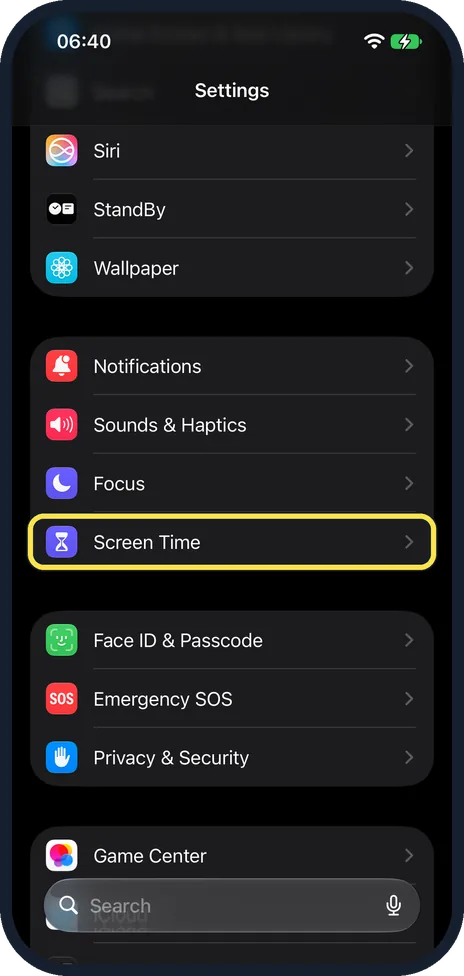
Open Settings and tap Screen Time
Scroll down the main Settings list and tap Screen Time. It has a purple hourglass icon.
Watch these steps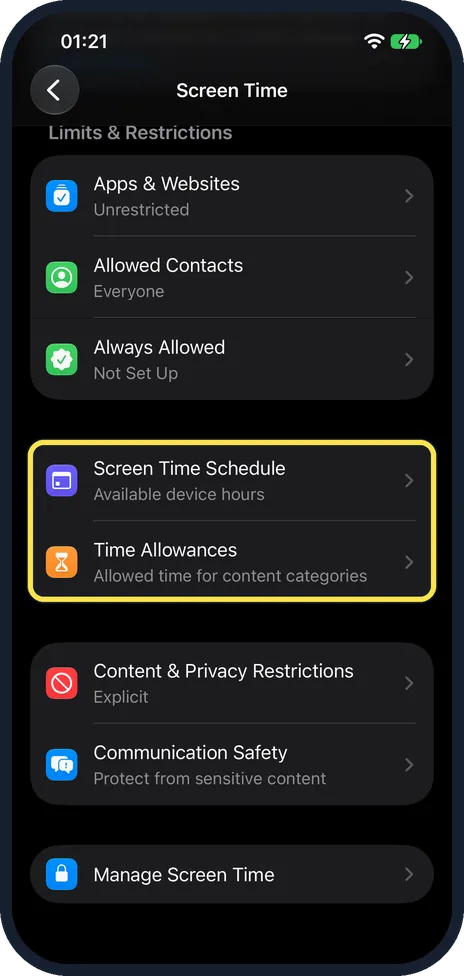
Tap Screen Time Schedule or Time Allowances
On our iPhone 17e with iOS 27 there was no App & Website Activity row. Under Limits & Restrictions you see Apps & Websites, Allowed Contacts and Always Allowed. Below them are Screen Time Schedule and Time Allowances. Tap either of those two. Apple also lists Manage Screen Time as a third way in. It is the last row of the same page. On our iPhone 17e its page has a Turn On App & Website Activity button.
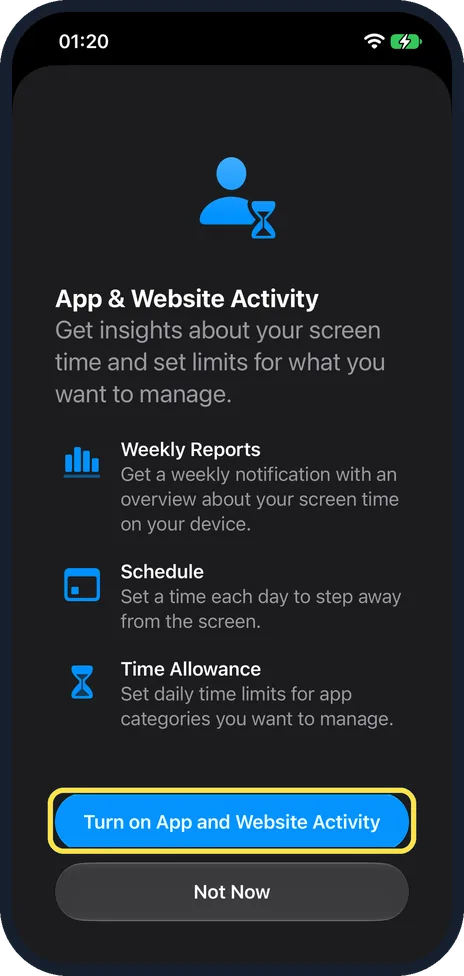
Tap Turn on App and Website Activity
A page called App & Website Activity lists what you get: Weekly Reports, Schedule and Time Allowance. Tap the blue Turn on App and Website Activity button. Not Now leaves it off.
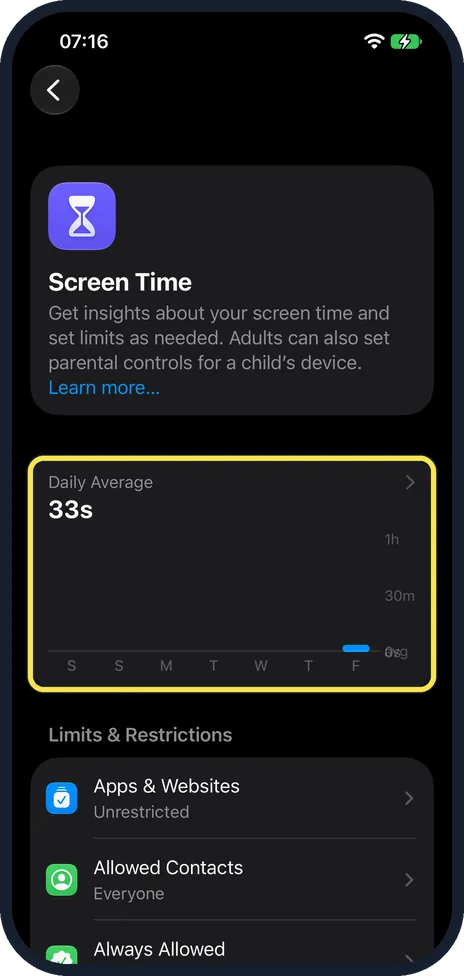
Read your first report
Open Screen Time again. On our iPhone 17e, right after we turned it on, the top of the page showed Daily Average 33s with a bar chart for the week.
Tap Daily Average for the details
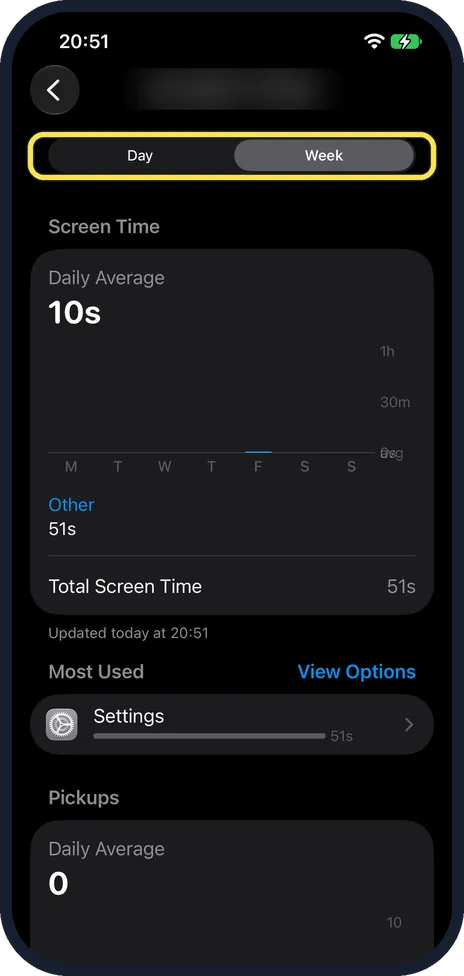
Tap Daily Average at the top of Screen Time. On our iPhone 17e it opened a page with Day and Week tabs. Week showed a Daily Average of 10s with a bar for each day, Total Screen Time 51s and Most Used, with Pickups further down. Apple says Pickups and Notifications show how often you picked up the phone and how many notifications you got. The device name at the top is blurred in the picture.
Scroll down to Limits & Restrictions
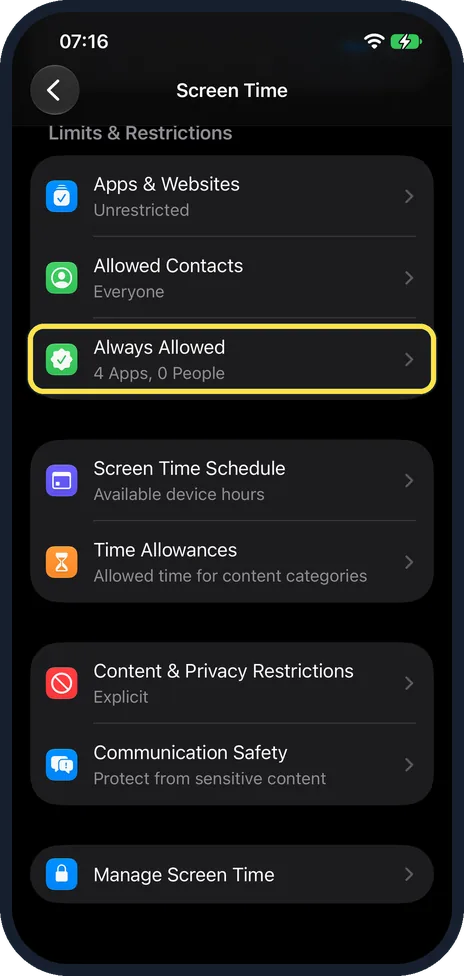
Below the report, Limits & Restrictions lists Apps & Websites, Allowed Contacts and Always Allowed, then Screen Time Schedule and Time Allowances. On our iPhone 17e, with App & Website Activity on, Always Allowed said 4 Apps, 0 People. With Activity off it said Not Set Up.
What changed: the screenshots are now our own iPhone 17e on iOS 27.0.1, dark mode, and the wording is checked against those screens and Apple's iOS 27 guide.
Watch these steps
What we saw on our device
- Tap Screen Time Schedule or Time Allowances: On our iPhone 17e with iOS 27 there was no App & Website Activity row.
- Tap Screen Time Schedule or Time Allowances: On our iPhone 17e its page has a Turn On App & Website Activity button.
- Read your first report: On our iPhone 17e, right after we turned it on, the top of the page showed Daily Average 33s with a bar chart for the week.
- Tap Daily Average for the details: On our iPhone 17e it opened a page with Day and Week tabs.
- Scroll down to Limits & Restrictions: On our iPhone 17e, with App & Website Activity on, Always Allowed said 4 Apps, 0 People.
If you do not see this option
- No App & Website Activity row On iOS 27 Apple turns Screen Time on from Screen Time Schedule, Time Allowances or Manage Screen Time instead. Tap one of those and the turn-on button appears. On iOS 26 the row is still there: tap App & Website Activity, then Turn On App & Website Activity. Source: Set up Screen Time for yourself on iPhone · Source: Get started with Screen Time on iPhone (iOS 26)
- No Downtime or App Limits On our iPhone 17e with iOS 27.0.1 the Screen Time page showed Screen Time Schedule and Time Allowances, both before and after we turned on App & Website Activity. Apple's iOS 27 guide uses those names, and its iOS 26 guide uses Downtime and App Limits. Apple says Screen Time Schedules and Time Allowances need iOS 27, iPadOS 27, macOS 27, watchOS 27, visionOS 27 or later on all your Apple devices. Source: Set Screen Time Schedules and Time Allowances in Screen Time on iPhone · Source: Set schedules with Screen Time on iPhone (iOS 26)
- Settings not shared with your Mac or iPad Share Across Devices is under Manage Screen Time. Apple says it needs iOS 27, iPadOS 27 or macOS 27 or later on all your devices. On our iPhone 17e the Manage Screen Time page showed Share Across Devices, and it was off. Source: Set up Screen Time for yourself on iPhone
If this does not work
- Screen Time asks for a code A Screen Time passcode has been set. Enter it, or change it under Screen Time, Change Screen Time Passcode. Apple says that if you set up Screen Time Passcode Recovery, you can use your Apple Account to reset the code if you forget it. Apple's guide also points to its Support article "If you forgot a Screen Time passcode". Source: Create, change, or remove a Screen Time passcode on iPhone
About this guide
Screen Time shows how many hours you spend on your phone and in which apps. It was off on our iPhone 17e until we turned it on for this guide. On iOS 27 the Screen Time Schedule and Time Allowances rows are there from the start, but until Screen Time is on they only open a page that asks you to turn it on.
Screenshots: iPhone 17e, iOS 27.0.1, dark mode.
Good to know
To stop someone else changing the settings, Apple says to tap Manage Screen Time at the bottom of the Screen Time page, then Lock Screen Time Settings, and enter a four-digit code. Our own tip, not Apple's: pick a code that is different from your phone passcode.
To switch it off again, Apple says to tap Manage Screen Time, then Turn Off App & Website Activity. On our iPhone 17e, with Screen Time off, the Manage Screen Time page showed Share Across Devices, Turn On App & Website Activity and Lock Screen Time Settings. When we turned it off again after our shots, the iPhone asked us to confirm: Screen time will no longer be reported, and all allowances and bedtime settings will be turned off. The choices were Turn Off App & Website Activity, in red, and Cancel.
In short: Settings, Screen Time, Screen Time Schedule or Time Allowances, Turn on App and Website Activity. Weekly reports follow.
- Apple iPhone User Guide: Set up Screen Time for yourself on iPhone
- Apple iPhone User Guide: Get started with Screen Time on iPhone (iOS 26)
- Apple iPhone User Guide: Create, change, or remove a Screen Time passcode on iPhone
- Apple iPhone User Guide: Set Screen Time Schedules and Time Allowances in Screen Time on iPhone
- Apple iPhone User Guide: Set schedules with Screen Time on iPhone (iOS 26)
Links checked in October 2026. Menus and features can change after software updates. These steps match the version named at the top.
Did this guide work for you?
Sorry about that. What happened?