
howtosimply.com/guides/how-to-limit-charging-to-80-on-a-samsung-galaxy-phone/ · Checked October 2026 · Samsung Galaxy A57 5G (SM-A576B), One UI 8.5, Android 16
In this guide
Open Settings, Battery, Battery protection and switch it on. Choose Maximum and drag the slider to the level where charging should stop, for example 80%. Basic instead stops at 100% and only starts charging again when the battery drops to 95%.
5 of 6 steps with real screenshots · 3 official sources below
- Device
- Android
- Shown on
- Samsung Galaxy A57 5G (SM-A576B), One UI 8.5, Android 16
- App
- Settings
- Path
- Settings › Battery › Battery protection
- Real screenshots
- 5 of 6 steps
- Our phone
- Shown on Galaxy A57, One UI 8.5
- Checked
- October 2026
- Sources
- 3 official, linked below
Step by step
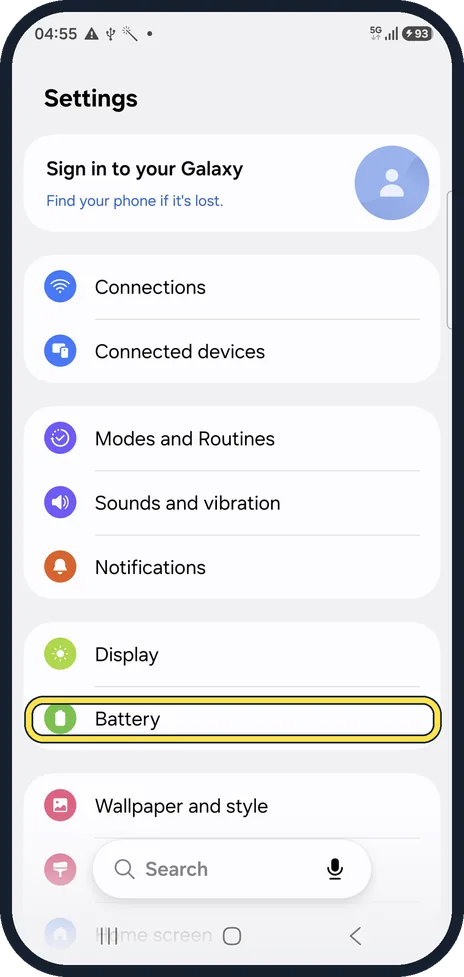
Open Battery
Open Settings and tap Battery.
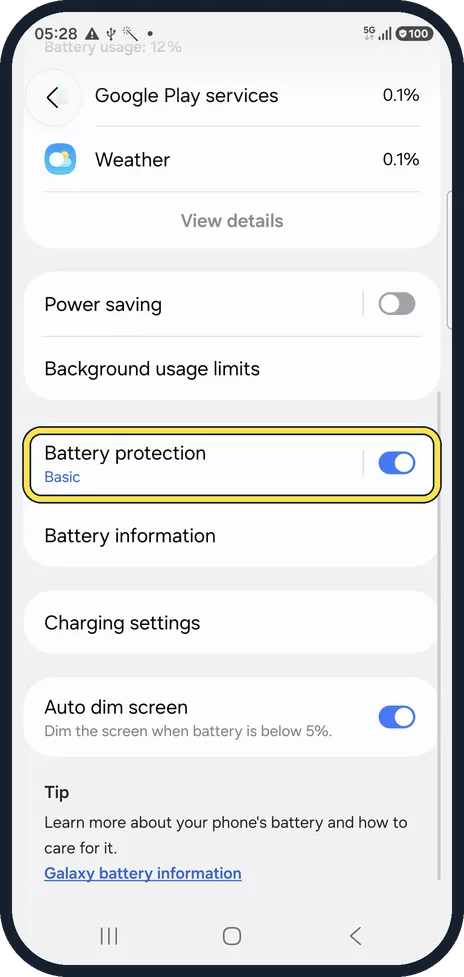
Open Battery protection
Scroll down the Battery page and tap Battery protection. It sits below Power saving and Background usage limits.
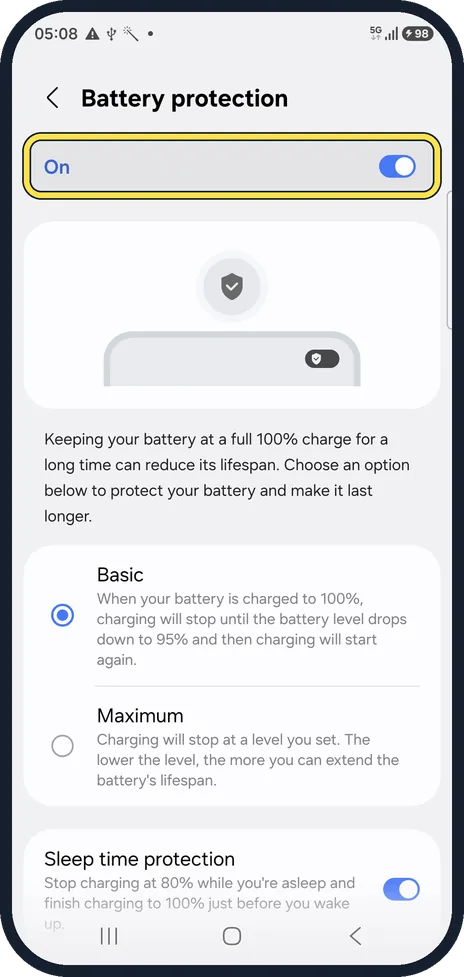
Switch Battery protection on
Tap the switch at the top so it reads On. The options below become available.
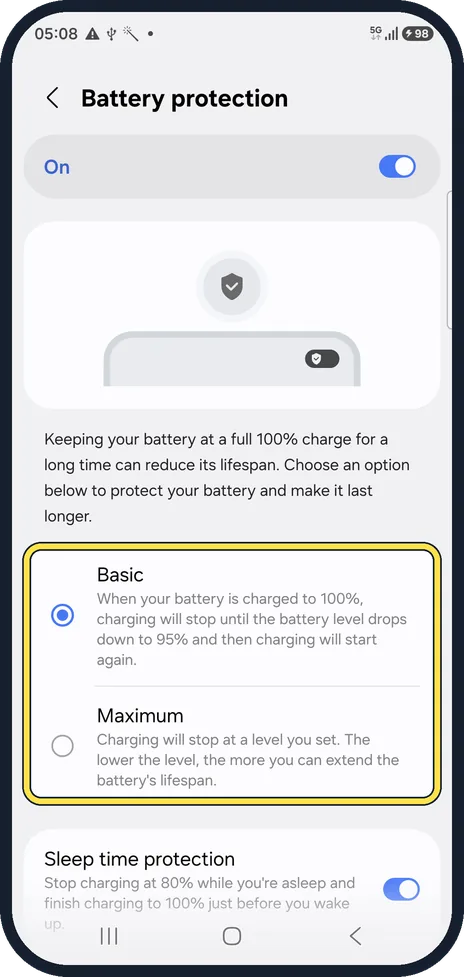
Choose Basic or Maximum
Basic: when the battery reaches 100%, charging stops until the level drops to 95%, then starts again. Maximum: charging stops at a level you set. Pick Maximum for a real limit.
Set the limit
With Maximum selected, drag the slider to the level you want. Samsung names 80%, 85% and 90% as levels that help reduce battery wear.
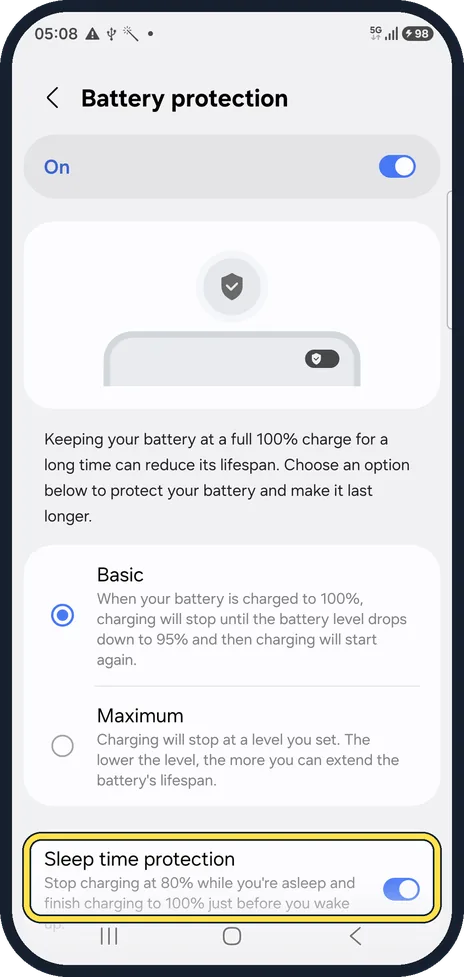
Check Sleep time protection
Further down, Sleep time protection stops charging at 80% while you sleep and finishes to 100% just before you wake up. Leave it on if you need a full battery in the morning; switch it off for a strict limit overnight. Samsung says it learns your sleep times over about 2 weeks.
If you do not see this option
- There is no Maximum or Basic choice Samsung says the three options (Basic, Adaptive and Maximum) came with One UI 6.1. On older software the only option is a fixed limit of 85%. Source: Galaxy Battery protection feature in One UI 6.1
- You also see Adaptive Samsung says Adaptive uses Maximum while you sleep and switches to Basic before you wake, based on your usage. It may not work well with irregular sleep. Source: Galaxy Battery protection feature in One UI 6.1
- You cannot pick the limit Samsung says choosing the Maximum limit (80, 85, 90 or 95%) came with One UI 7.0. Older software only offers a fixed limit. Source: Protect your battery for longer and safer use (Battery protection)
- You want a quick switch for it Samsung says you can add Battery protection to the quick panel: swipe down from the top right, tap the pencil, Add a control, and Battery protection under System apps. Source: Protect your battery for longer and safer use (Battery protection)
If this does not work
- Basic still lets it reach 100% Samsung says Basic stops at 100% and starts again at 95%. Only Maximum stops lower; Samsung names 80%, 85% and 90% as levels that reduce wear. Sources: Galaxy Battery protection feature in One UI 6.1, Set a maximum charge level on your Samsung Galaxy
- It charged to 100% overnight anyway Samsung says Sleep time protection charges to 100% just before you wake up. For a strict limit every night, choose Maximum. Source: Protect your battery for longer and safer use (Battery protection)
- It went back to Basic Samsung says Sleep time protection can switch to Basic if you turn off Customisation Service consent, or in multi-user mode. Source: Protect your battery for longer and safer use (Battery protection)
About this guide
Lithium-ion batteries wear faster when they sit at 100% for hours, for example overnight or on a desk charger all day. One UI can stop charging early so the battery keeps more of its capacity over the years.
Good to know
Before a long day when you need every percent, switch Battery protection off and charge to 100%.
Charging settings, on the same Battery page, holds the Fast charging switch.
If the battery runs down too fast as well: Samsung Galaxy battery draining fast? 6 fixes.
In short: Settings, Battery, Battery protection, switch on, choose Maximum and set the slider to 80%.
- Samsung CA: Set a maximum charge level on your Samsung Galaxy
- Samsung UK: Galaxy Battery protection feature in One UI 6.1
- Samsung UK: Protect your battery for longer and safer use (Battery protection)
Links checked in October 2026. Menus and features can change after software updates. These steps match the version named at the top.
📷 See real photos from the Galaxy A57 in our Camera Lab, next to 10 other phones.
Did this guide work for you?
Sorry about that. What happened?