
What changed: the screenshots are now our own iPhone 17e on iOS 27.0.1, dark mode, and the wording is checked against those screens and Apple's iOS 27 guide.
howtosimply.com/guides/how-to-see-which-apps-can-access-your-contacts-and-location-on-iphone/ · Checked October 2026 · iPhone 17e · iOS 27.0.1
In this guide
- Open Settings and tap Privacy & Security
- Open Location Services
- Go back and open Contacts
- Check how much each app may see
- Repeat for Photos, Camera and Microphone
- If you cannot change an app's access: check Screen Time
- Check the row for the setting
- If you do not see this option
- If this does not work
- Good to know
- Video demo
- Sources
Open Settings and tap Privacy & Security. Tap a category such as Location Services, Contacts or Photos to see every app that asked for it, and tap an app to change its access. For location you choose when, for Contacts how much, and most other categories have an on or off switch per app.
7 of 7 steps with real screenshots · 5 official sources below
- Device
- iPhone
- Shown on
- iOS 27.0.1 (iPhone 17e)
- App
- Settings
- Path
- Settings › Privacy & Security
- Real screenshots
- 7 of 7 steps
- Checked
- October 2026
- Sources
- 5 official, linked below
Step by step
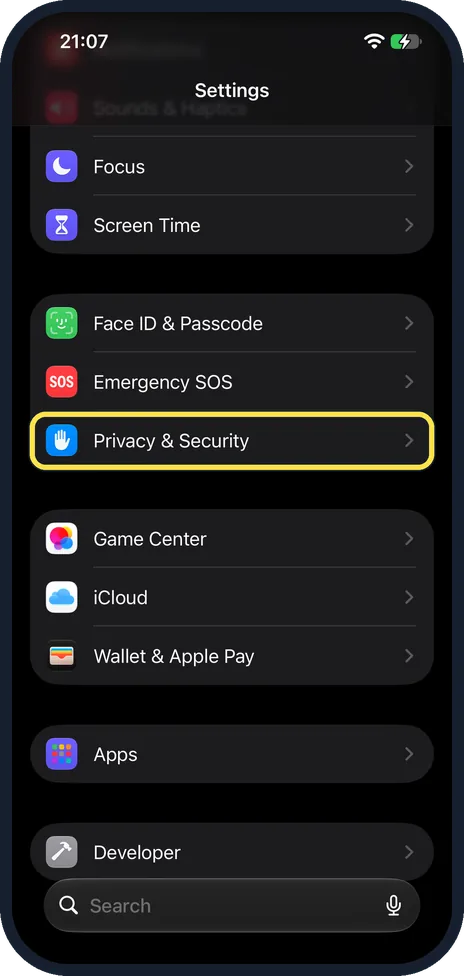
Open Settings and tap Privacy & Security
Scroll down Settings and tap Privacy & Security.
On our iPhone 17e it is below Emergency SOS and above Game Center.
Watch these steps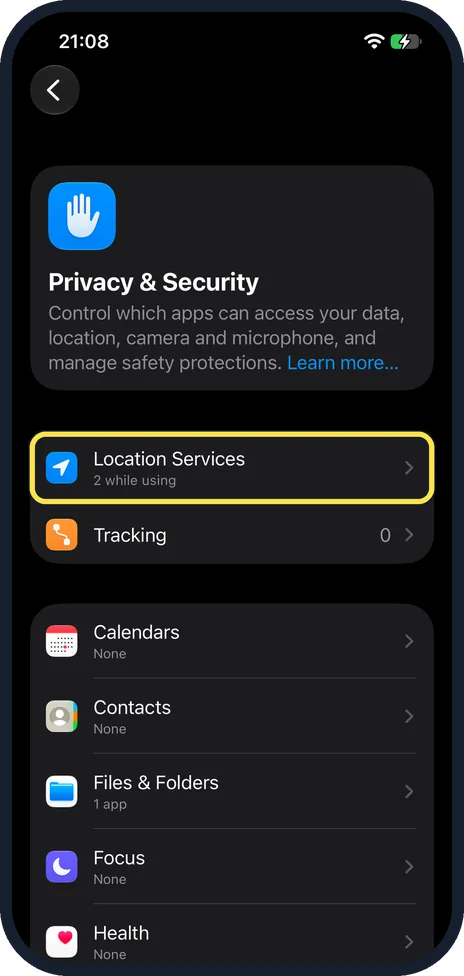
Open Location Services
Tap Location Services, above Tracking, to see the apps that have asked for your location and what each is allowed. On our iPhone 17e the row said 2 while using.
Tap an app to choose when it may use your location. Apple says an approximate location may be sufficient for an app that does not need your exact location: switch off Precise Location for it.
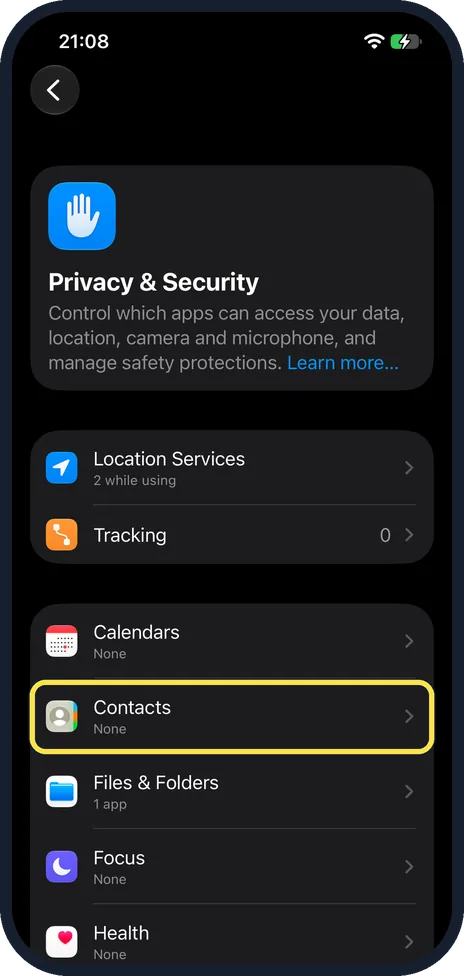
Go back and open Contacts
Each category below works the same way, starting with Calendars, Contacts and Files & Folders.
Tap Contacts to see which apps can read your address book. On our iPhone 17e it said None, while Files & Folders said 1 app.
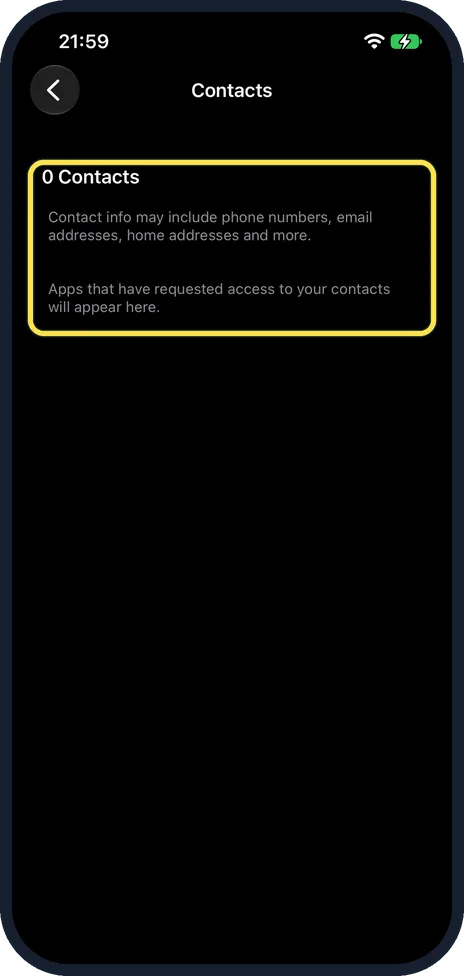
Check how much each app may see
On our iPhone 17e no app had asked, so the page said 0 Contacts and Apps that have requested access to your contacts will appear here.
Once an app has asked, Apple says to tap the app and choose how much access it gets, below Contacts Access.
With Limited Access, Apple says to tap Edit Selected Contacts, pick people and tap Done.
Repeat for Photos, Camera and Microphone
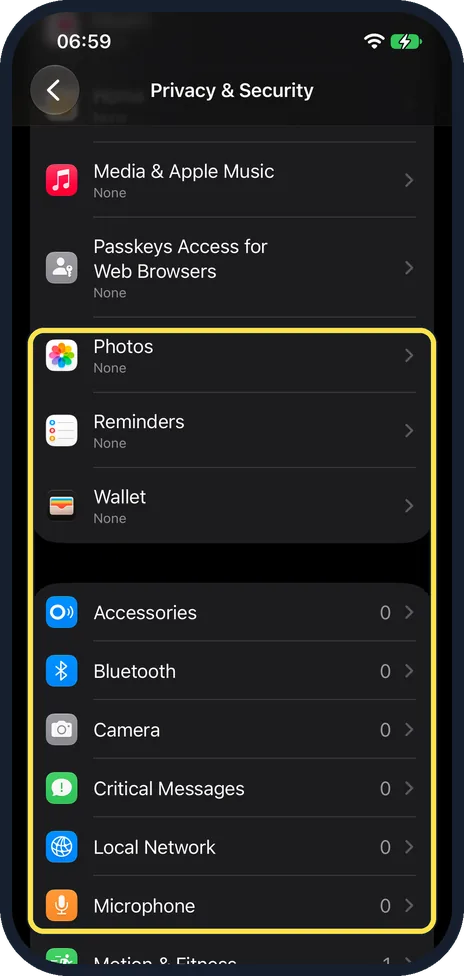
Scroll further down the Privacy & Security page and tap Photos, Camera or Microphone.
On our iPhone 17e Photos said None, and Camera and Microphone each showed 0.
Apple says each category lists the apps that asked, and you can turn access on or off for any of them.
If you cannot change an app's access: check Screen Time
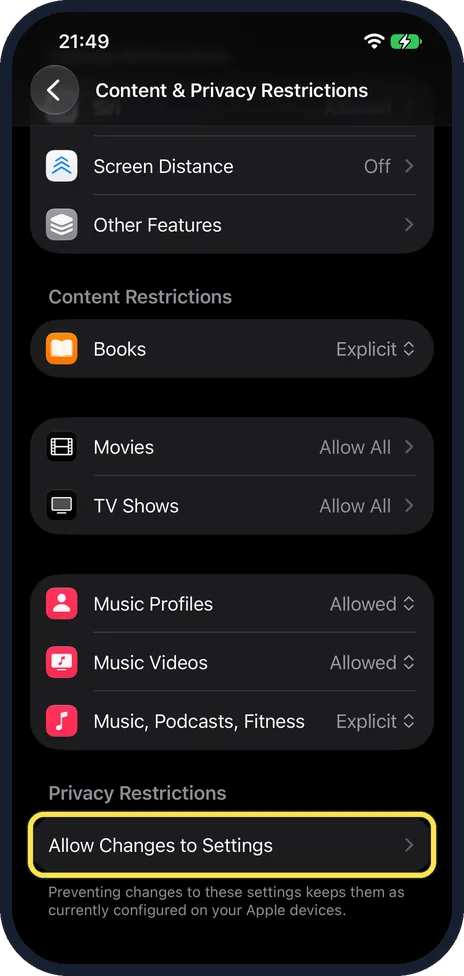
Open Settings, Screen Time, Content & Privacy Restrictions and scroll to the bottom.
On our iPhone 17e, Privacy Restrictions had a single row, Allow Changes to Settings. Tap it.
Check the row for the setting
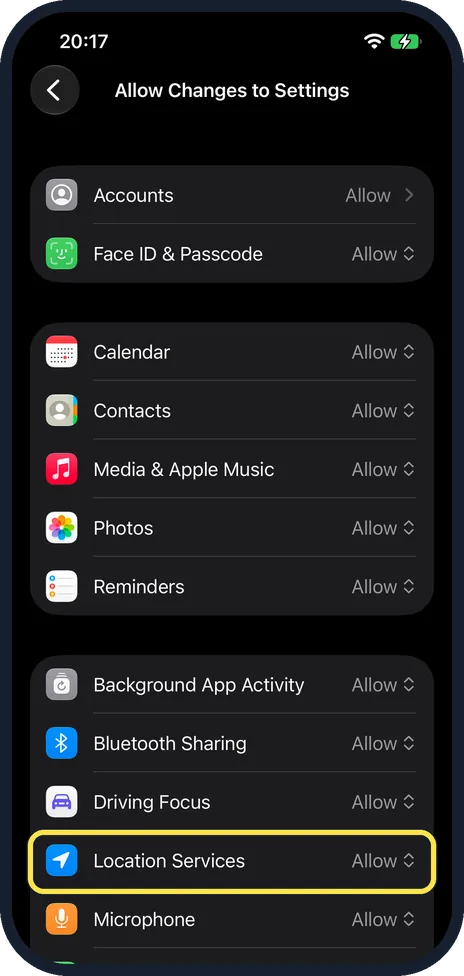
On our iPhone 17e this page listed Accounts, Face ID & Passcode, Calendar, Contacts, Photos, Location Services, Microphone and more, all set to Allow.
Apple's article Set up parental controls to manage your child's iPhone or iPad describes an Allow or Don't Allow choice here. If your setting is set to Don't Allow, ask whoever manages Screen Time on the phone.
What changed: the screenshots are now our own iPhone 17e on iOS 27.0.1, dark mode, and the wording is checked against those screens and Apple's iOS 27 guide.
Watch these steps
What we saw on our device
- Open Settings and tap Privacy & Security: On our iPhone 17e it is below Emergency SOS and above Game Center.
- Open Location Services: On our iPhone 17e the row said 2 while using.
- Go back and open Contacts: On our iPhone 17e it said None, while Files & Folders said 1 app.
- Check how much each app may see: On our iPhone 17e no app had asked, so the page said 0 Contacts and Apps that have requested access to your contacts will appear here.
- Repeat for Photos, Camera and Microphone: On our iPhone 17e Photos said None, and Camera and Microphone each showed 0.
- If you cannot change an app's access: check Screen Time: On our iPhone 17e, Privacy Restrictions had a single row, Allow Changes to Settings.
If you do not see this option
- A category says None. Apple says tapping a category shows a list of the apps that requested access, so None means no app has asked. On our iPhone 17e, Calendars, Contacts, Focus and Health said None, while Files & Folders said 1 app. Source: Control access to information in apps on iPhone · Source: Control the location information you share on iPhone · Source: Control access to your contacts on iPhone · Source: Manage information sharing with Safety Check on iPhone · Source: Block features or content with Screen Time on iPhone (iOS 27)
- You want to check everything at once. Apple says Safety Check, under Settings, Privacy & Security, reviews who and what you share with, and can reset system privacy permissions for apps. Source: Control access to information in apps on iPhone · Source: Control the location information you share on iPhone · Source: Control access to your contacts on iPhone · Source: Manage information sharing with Safety Check on iPhone · Source: Block features or content with Screen Time on iPhone (iOS 27)
If this does not work
- An app stopped working after you removed access. Give access back in the same place: Privacy & Security, the category, then the app. Apple says you can change access later, after you grant or deny it. Source: Control access to information in apps on iPhone · Source: Control the location information you share on iPhone · Source: Control access to your contacts on iPhone · Source: Manage information sharing with Safety Check on iPhone · Source: Block features or content with Screen Time on iPhone (iOS 27)
- You cannot change an app's access. Screen Time may be locking it. Step 6 shows where to check. Apple's article Set up parental controls to manage your child's iPhone or iPad explains these restrictions. Source: Control access to information in apps on iPhone · Source: Control the location information you share on iPhone · Source: Control access to your contacts on iPhone · Source: Manage information sharing with Safety Check on iPhone · Source: Block features or content with Screen Time on iPhone (iOS 27)
About this guide
Every time an app asks to use your location, contacts, photos, camera or microphone, your answer is saved in one place. It is worth looking through that list once in a while and switching off what an app does not need. The screenshots are our own, taken on an iPhone 17e running iOS 27.0.1, in dark mode.
Good to know
Tracking, near the top of the same page, controls whether apps may ask to follow you across other companies' apps and websites. Switch off Allow Apps to Request to Track to refuse all of them at once.
If an app stops working after you remove a permission, give it back in the same place. Nothing is lost by saying no first.
App Privacy Report, on the same page, shows how apps use the permissions you gave them and their network activity.
Safety Check, also on the Privacy & Security page, walks you through what you share with people and apps.
Turn location off completely, or only for system services: How to turn Location Services on or off on iPhone and how to turn off location for system services.
Change one app to While Using or Never: how to change when an app may use your location on an iPhone.
In short: Settings, Privacy & Security, then one category at a time. For location, choose when each app may use it. For other categories, switch off what an app does not need.
- Apple Support: Control access to information in apps on iPhone
- Apple Support: Control the location information you share on iPhone
- Apple iPhone User Guide: Control access to your contacts on iPhone
- Apple iPhone User Guide: Manage information sharing with Safety Check on iPhone
- Apple iPhone User Guide: Block features or content with Screen Time on iPhone (iOS 27)
Links checked in October 2026. Menus and features can change after software updates. These steps match the version named at the top.
Did this guide work for you?
Sorry about that. What happened?