
howtosimply.com/guides/how-to-turn-on-bedtime-mode-on-android/ · Checked October 2026 · Samsung Galaxy A57 5G (SM-A576B), One UI 8.5, Android 16
In this guide
On a Samsung Galaxy, Bedtime mode is called Sleep: open Settings, tap Modes and Routines, tap Sleep and set when it starts under Turn on automatically. On a Google Pixel, open Settings, Digital Wellbeing & parental controls, Bedtime mode (Modes, then Bedtime on newer Pixels), then set a schedule.
4 of 5 steps with real screenshots · 1 official source below
- Device
- Android
- Shown on
- Samsung Galaxy A57 5G (SM-A576B), One UI 8.5, Android 16
- App
- Settings
- Real screenshots
- 4 of 5 steps
- Checked
- October 2026
- Sources
- 1 official, linked below
Step by step
Open Settings and tap Modes and Routines
On a Galaxy it is near the top of the main Settings list. On a Pixel, tap Digital Wellbeing & parental controls instead, then Bedtime mode (on newer Pixels: Modes, then Bedtime).
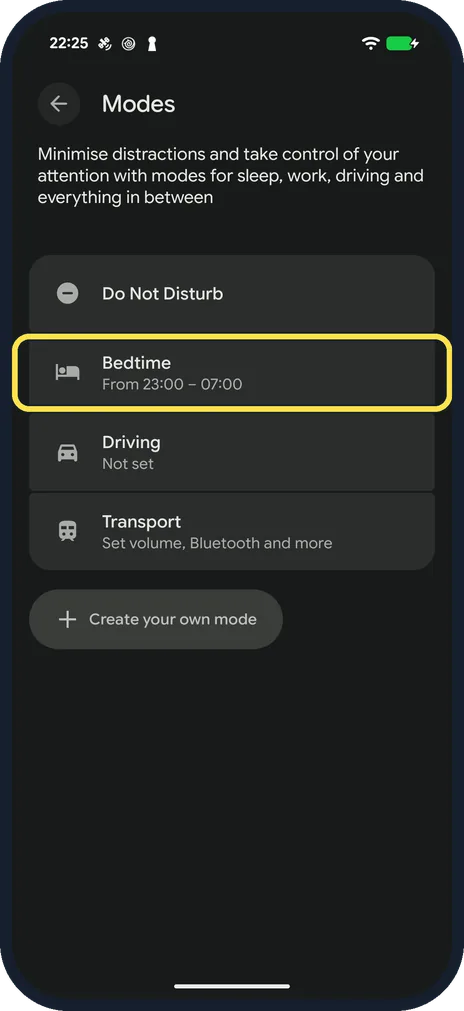
Tap Sleep on the Modes tab
Sleep is the first ready-made mode. A banner at the top may ask you to sign in to a Samsung account; that is only needed for modes that start by themselves based on your activity, so you can tap Not now.
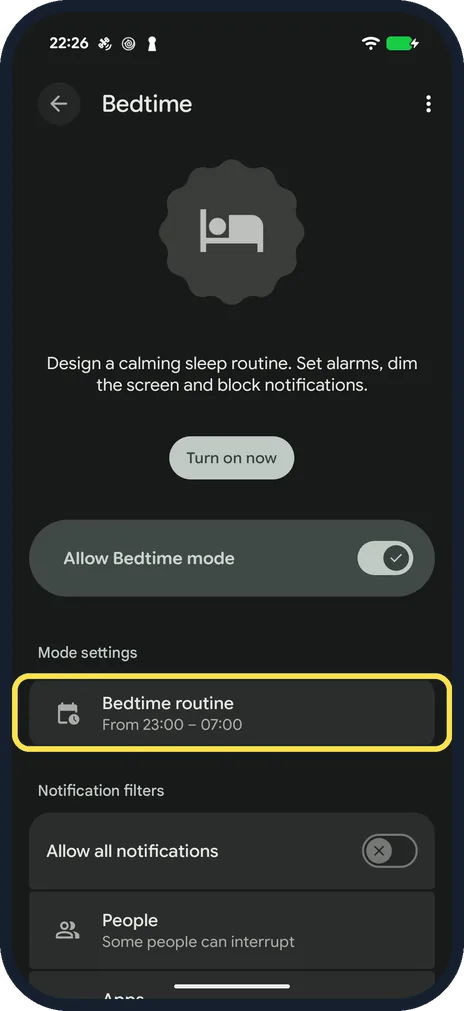
Set when it starts
Under Turn on automatically, tap When to start this mode and set the bedtime and wake-up time. On a Pixel, choose Use a schedule, pick the days and set the hours.
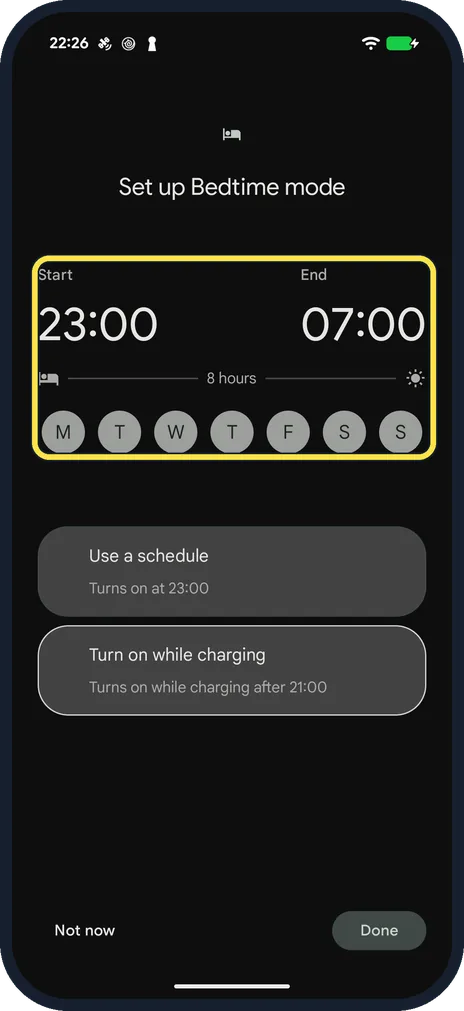
Choose what the mode does
Scroll down. Under Stay focused, tap Ways to avoid distractions to silence calls and notifications. Under Change appearance you can pick a different Lock Screen and Home Screen for the night. On a Pixel, switch on Greyscale and Do Not Disturb.
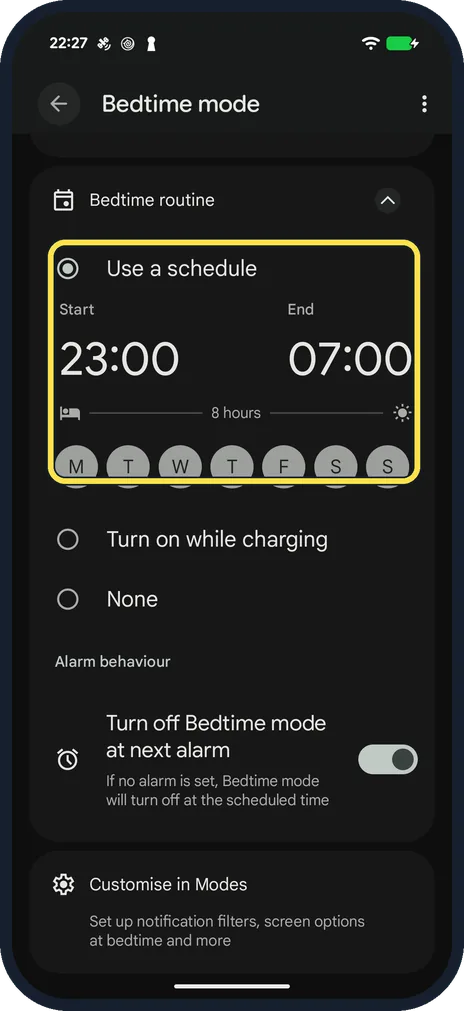
Turn it on now, if you like
Tap Turn on at the top of the Sleep page to start it straight away, for example if you go to bed early.
About this guide
Bedtime mode silences notifications and changes the screen at the hours you sleep, so the phone is less tempting to pick up. Every Android phone has it, under different names.
The screenshots are our own, from a Samsung Galaxy A57 5G with One UI 8.5 and Android 16. On a Google Pixel the same feature is called Bedtime mode; its menu names are given in the steps.
Good to know
If you need more time one evening, pull down the notification shade and pause Bedtime mode from its notification.
Alarms still ring in Bedtime mode.
To let certain people reach you at night, open Do Not Disturb, tap People and add them to the allowed list.
In short: Samsung: Settings, Modes and Routines, Sleep, Turn on automatically. Pixel: Settings, Digital Wellbeing, Bedtime mode, set the hours, switch on Greyscale and Do Not Disturb.
Links checked in October 2026. Menus and features can change after software updates. These steps match the version named at the top.
Did this guide work for you?
Sorry about that. What happened?