
howtosimply.com/guides/how-to-back-up-an-android-phone-to-your-google-account/ · Checked October 2026 · Samsung Galaxy A57 5G (SM-A576B), One UI 8.5, Android 16
In this guide
On a Samsung Galaxy, open Settings, tap Accounts and backup and, under Google Drive, tap Back up data. Then tap Back up now. On a Google Pixel and most other phones, open Settings, System, Backup. Photos are backed up separately in Google Photos.
4 of 5 steps with real screenshots · 1 official source below
- Device
- Android
- Shown on
- Samsung Galaxy A57 5G (SM-A576B), One UI 8.5, Android 16
- App
- Settings
- Real screenshots
- 4 of 5 steps
- Checked
- October 2026
- Sources
- 1 official, linked below
Step by step
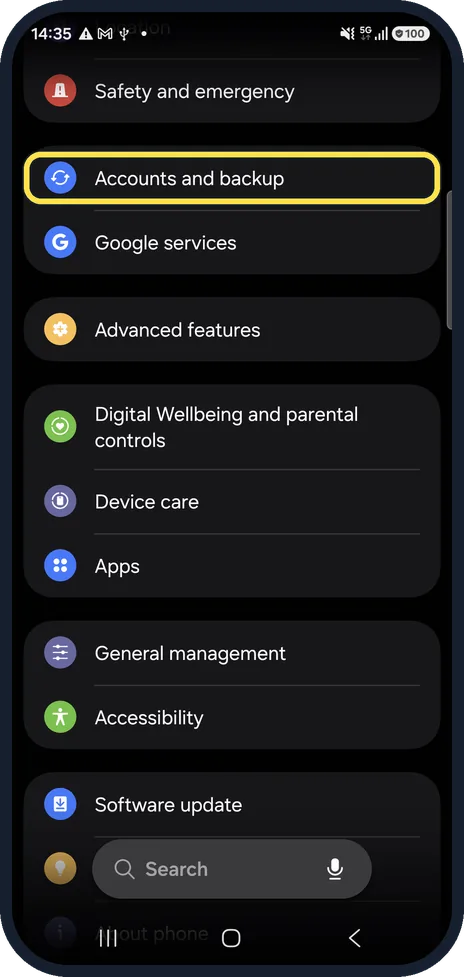
Open Settings and tap Accounts and backup
On a Pixel and most other phones, tap System, then Backup instead. On some phones Backup is under Google.
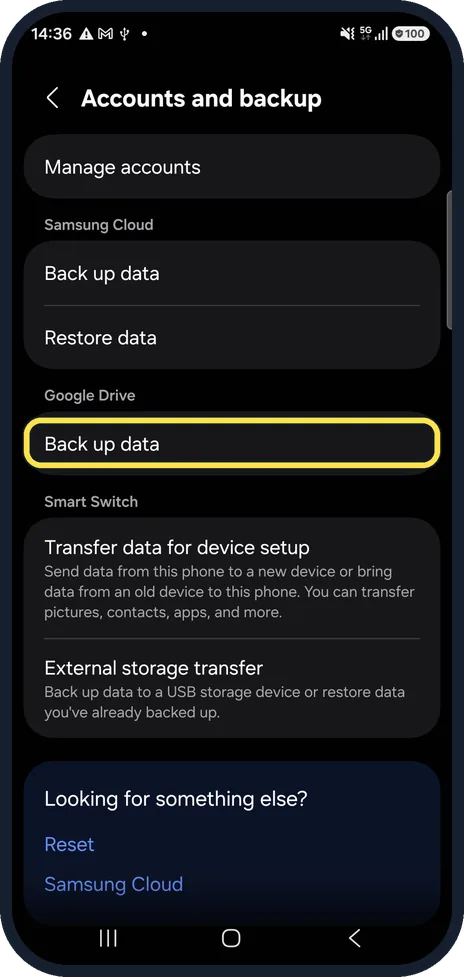
Under Google Drive, tap Back up data
A Galaxy has two backups on this page: Samsung Cloud at the top and Google Drive below it. The Google backup is the one that restores onto any Android phone, including a non-Samsung one.
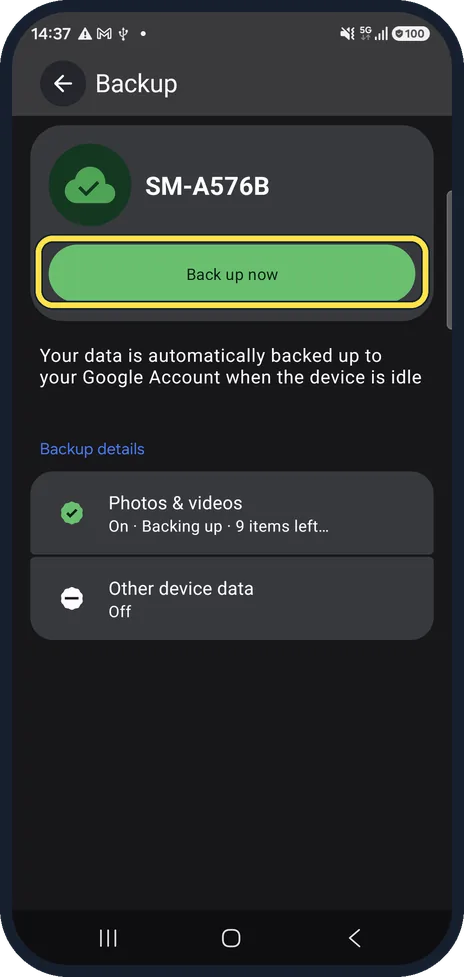
Tap Back up now
Stay on Wi-Fi until it finishes. If backup is switched off, switch it on first. The page says that your data is backed up to your Google Account automatically when the phone is idle. Ours showed that even with Other device data off, so check each part in the next step.
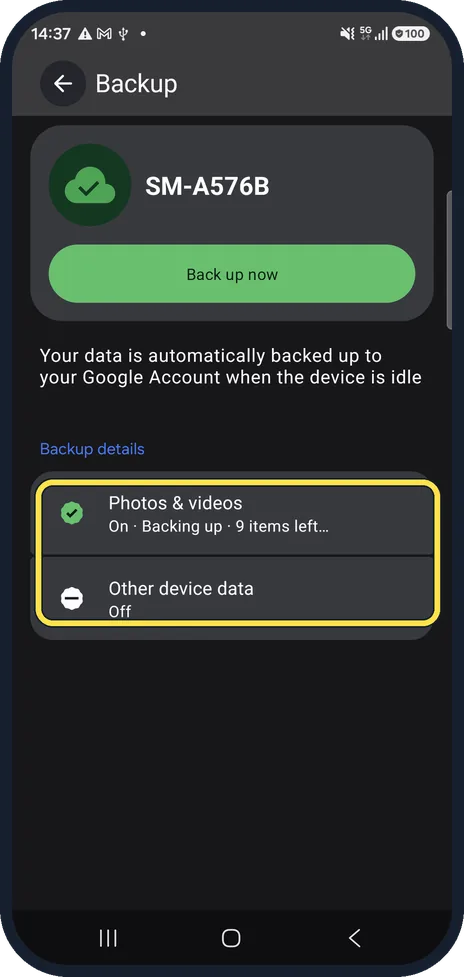
Check what is included
Under Backup details, each part shows whether it is on. On our phone Photos & videos was on and Other device data was off; tap a row to change it.
Turn on photo backup
Tap Photos & videos to open the Google Photos backup settings and switch Backup on. You can also open Google Photos, tap your profile picture and switch on Backup there. Photos usually need the most space.
What we saw on our device
- Tap Back up now: Ours showed that even with Other device data off, so check each part in the next step.
- Check what is included: On our phone Photos & videos was on and Other device data was off; tap a row to change it.
If you do not see this option
- There is no backup option Google says backup cannot be used on a phone set up with a work profile, set up for work only, or owned by a company. Source: Back up or restore data on your Android device
- Backup uses your Google storage Google says you get 15 GB of storage at no charge for your Google Account, shared with Gmail and Photos, and more through Google One. Source: Back up or restore data on your Android device
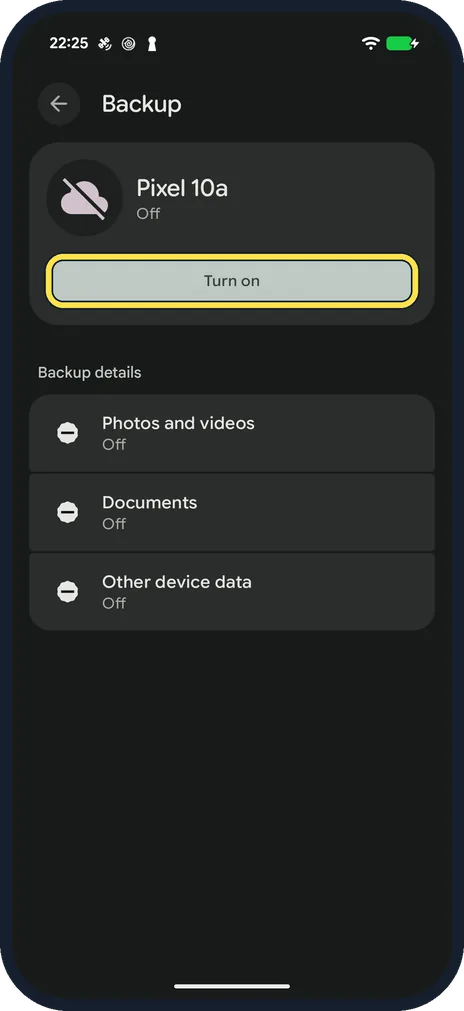
- You have a Google Pixel Open Settings, System, Backup. On our Pixel 10a with Android 17 the page showed Backup Off with a Turn on button, and Photos and videos, Documents and Other device data all Off. We did not turn it on.
If this does not work
- Backup still does not say On Google says a backup can take up to 24 hours, and On then shows under the parts you chose. Source: Back up or restore data on your Android device
- A backup will not restore Google says you cannot restore a backup from a newer Android version onto a phone with an older one. Source: Back up or restore data on your Android device
About this guide
A Google backup saves your apps and their data, call history, contacts, text messages and phone settings. If the phone is lost or replaced, you sign in on the new one and everything comes back.
Every Google Account has 15 GB of free storage, shared between backup, Gmail, Drive and Photos.
The screenshots are our own, from a Samsung Galaxy A57 5G with One UI 8.5 and Android 16. On a Google Pixel the path is Settings, System, Backup; the page itself works the same way.
Good to know
WhatsApp chats are not part of this backup. Open WhatsApp, go to Settings, Chats, Chat backup and back up to your Google Account there.
A backup that is not updated for 57 days is deleted by Google, so use the phone or back up by hand now and then.
Some apps choose not to back up their data. Banking and authenticator apps usually need to be set up again on a new phone.
In short: Samsung: Settings, Accounts and backup, Google Drive, Back up data, Back up now. Pixel: Settings, System, Backup. Then turn on backup in Google Photos.
Links checked in October 2026. Menus and features can change after software updates. These steps match the version named at the top.
Did this guide work for you?
Sorry about that. What happened?