Fix
Phone camera blurry? How to fix it on iPhone, Galaxy and Pixel
Most blurry photos come from a smudged lens, a lens protector or standing too close. Wipe every lens, take the protector off, step back and tap to focus. If one camera is still blurry after a restart and an update, it needs a repair.
By Abu Bakar Saadat · Publisher: Saadat Rafiq · 3 min read · Published 27 October 2026
- First thing to try
- Wipe every lens with a dry microfiber cloth (Apple, Samsung, Google)
- Too close?
- Samsung main lens: 12 in (about 30 cm) or more. iPhone macro: down to 2 cm
- Hardware sign
- One lens stays blurry at every distance after cleaning, restart and update
- Avoid
- Phone mounts on high-power motorcycles (Apple)
- Advice from
- Apple, Samsung and Google pages, read 27 October 2026
- Applies to
- iPhone 17e, iPhone 18 Pro, iPhone 14 Pro, Galaxy S26, Galaxy A57, Pixel 10a
- Checked
- October 2026
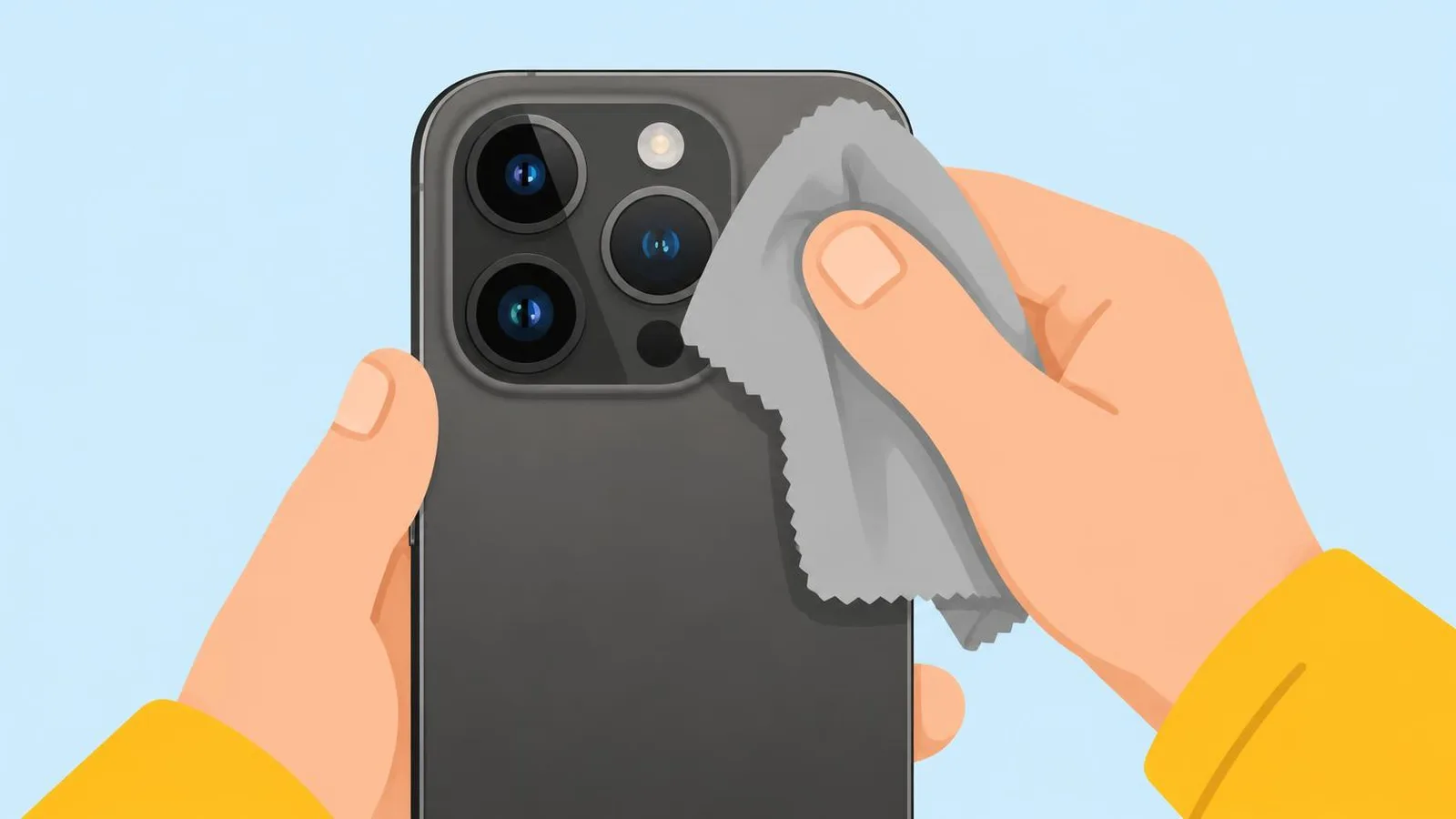
Work through these in order and take a test photo after each one. Most people are done after step 2.
Step 1: clean every lens
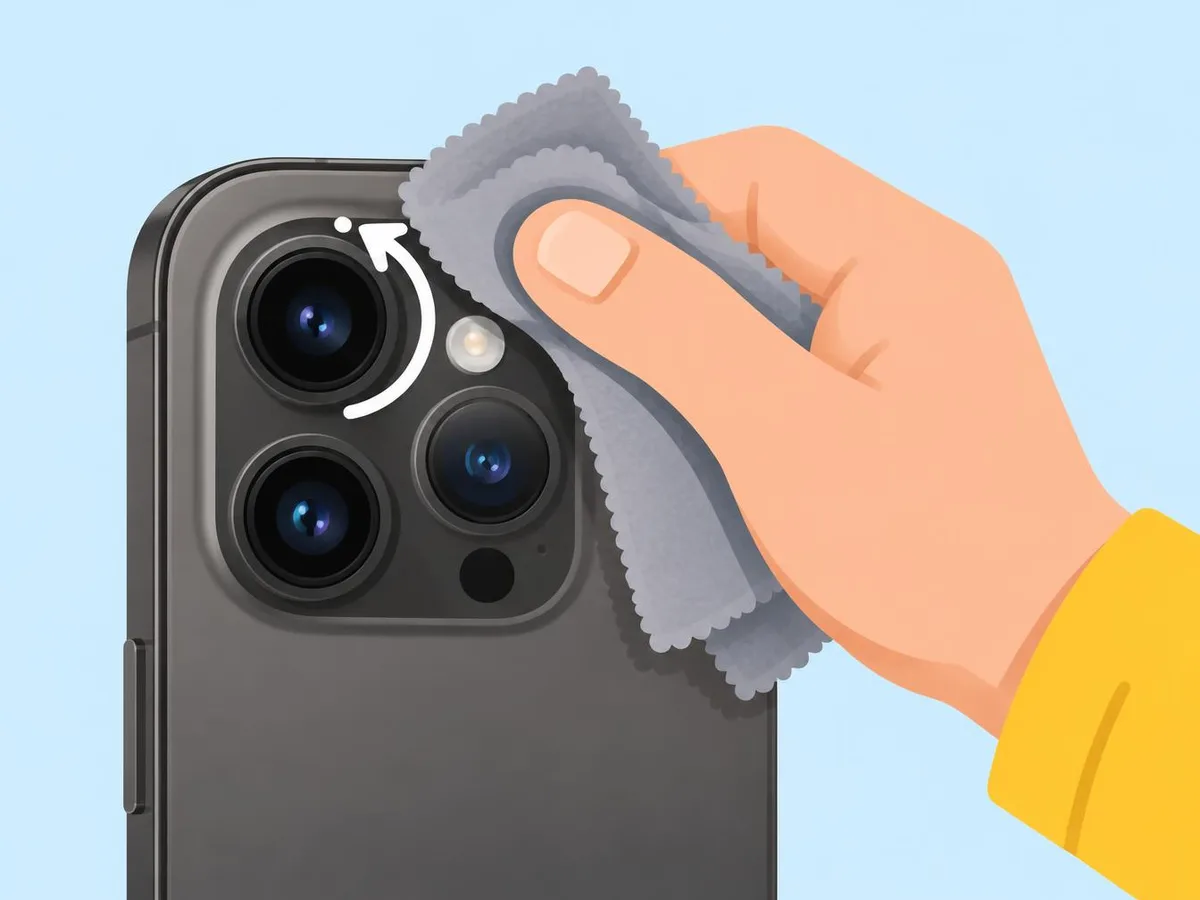
Use a soft, dry microfiber cloth and wipe each rear lens in small circles. Clean the small windows on the camera bump too: Samsung says the extra lenses help with focus, and Google says the same for the Pixel's laser sensor.
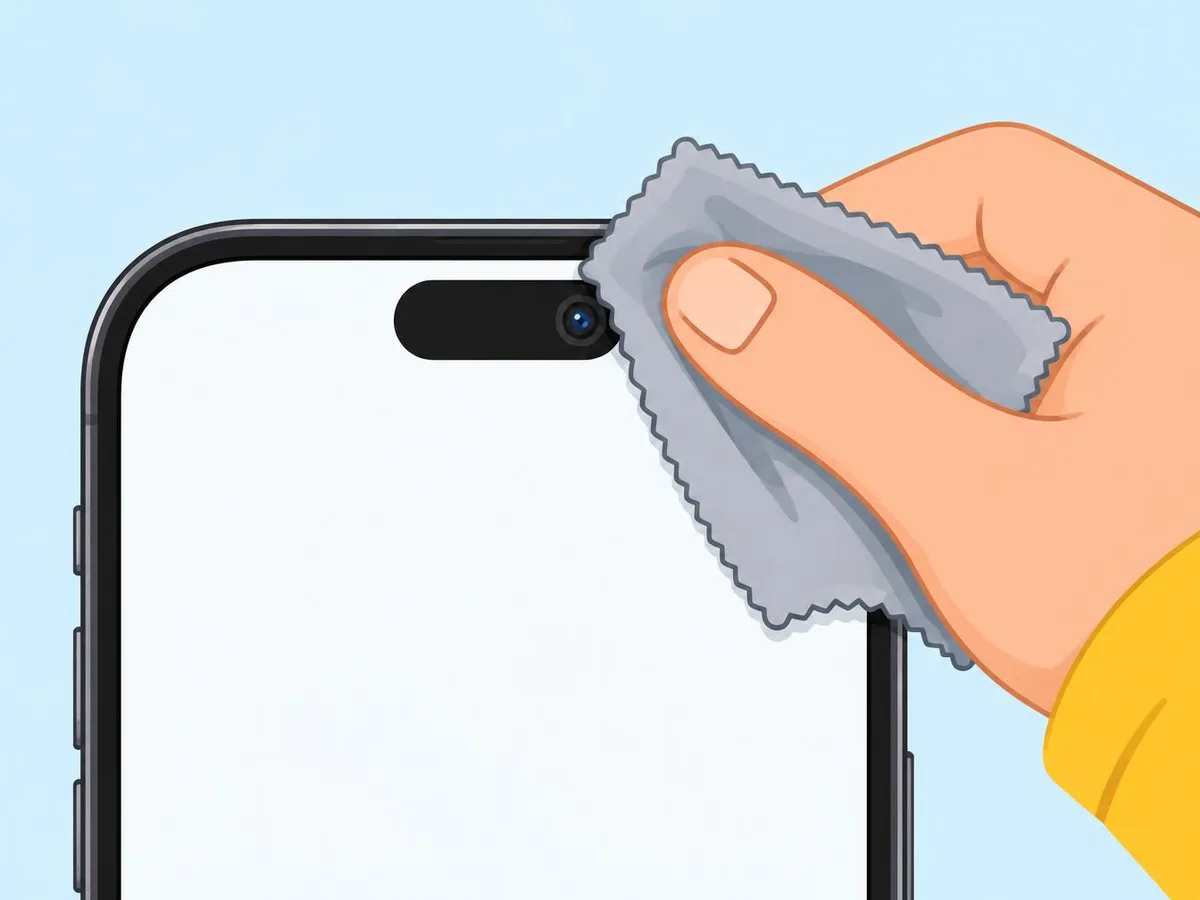
Selfies blurry? Wipe the front camera at the top of the screen as well. More on safe cleaning: How to clean your iPhone.
Step 2: take off the protector, case or magnet
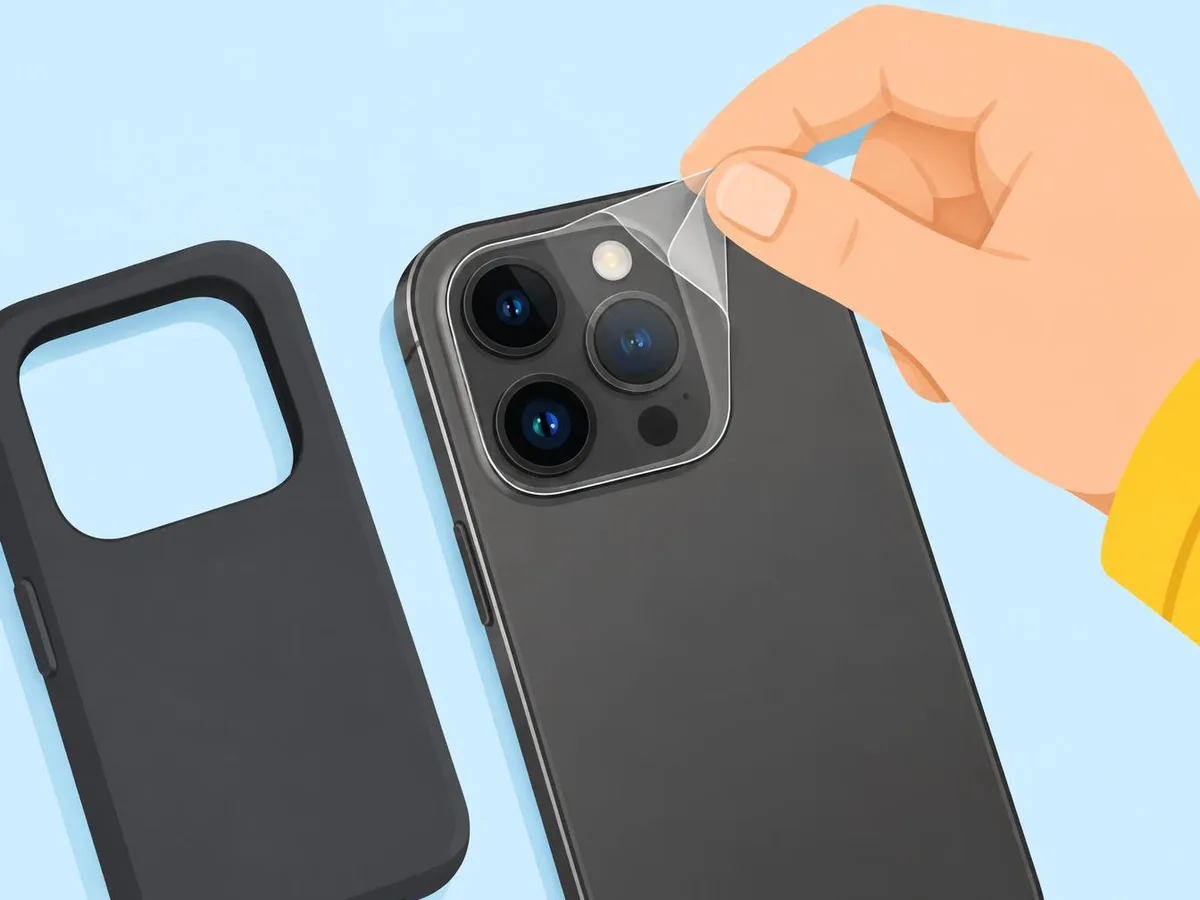
- Lens protector or camera cover: Samsung says these can cause focus problems and light distortion.
- Case and add-ons: Apple says to remove any case, film or accessory that blocks the camera or puts a magnet near it, such as a polariser, extender, magnifier, metal case or magnetic lens mount.
Test again with the phone bare. If the photo is sharp now, the accessory was the cause.
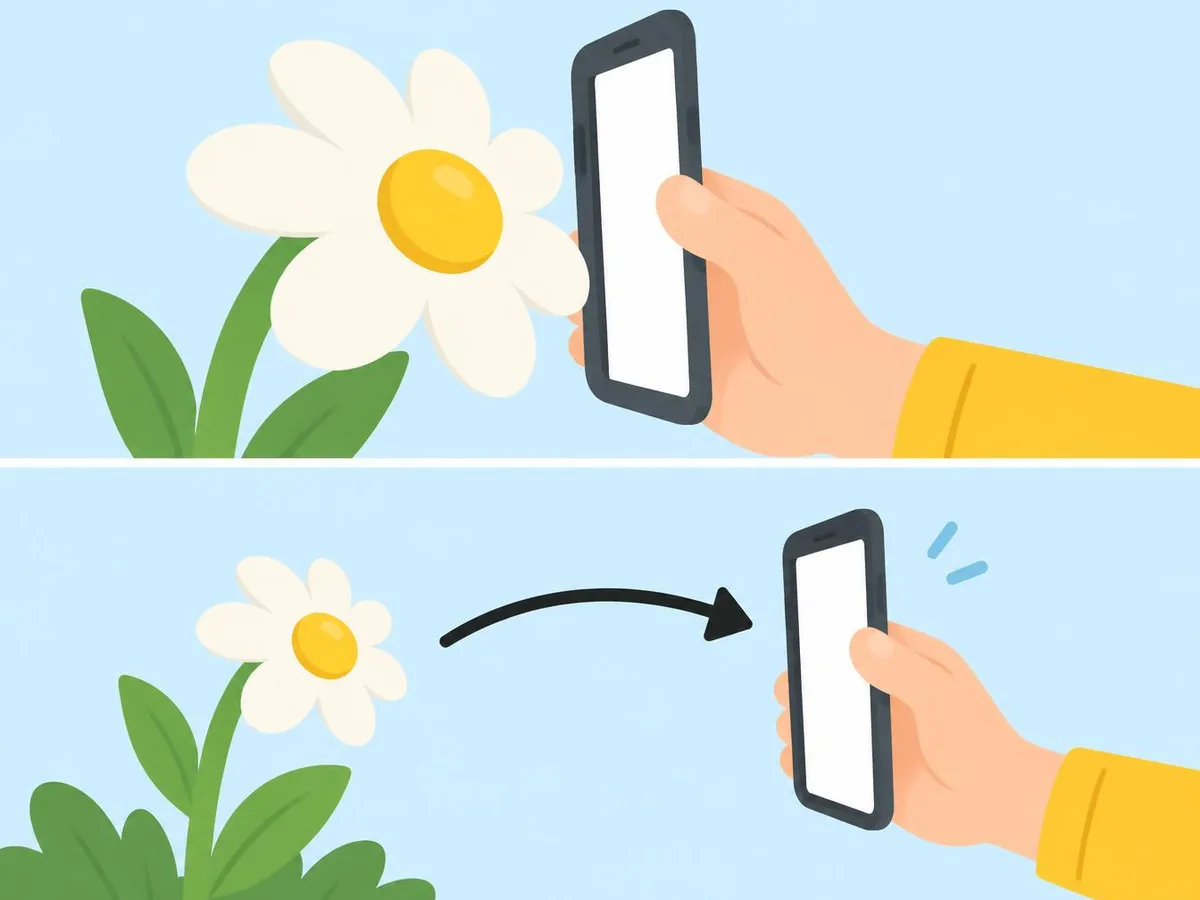
Step 3: step back, you may be too close
| Phone | What to know |
|---|---|
| iPhone with macro (our 14 Pro and 18 Pro) | Camera switches to the Ultra Wide lens when you get close, down to 2 cm. If the picture goes blurry, back up or tap .5x. The Auto Macro button turns the switch off and on; Settings > Camera > Macro Control shows or hides that button. |
| iPhone 17e | One rear camera and no Ultra Wide, so no macro switch. Move back until the subject is sharp. |
| Galaxy | Samsung's figures: the main lens works best from 12 in (about 30 cm), the telephoto from 20 in, the Ultra Wide from 4 in. Where your model has it, tap the flower icon to turn on Focus enhancer. The S26 Ultra's 5x telephoto needs 80 cm. |
| Pixel | Google gives no distance. Move back and tap the subject on the screen. |
Step 4: hold still and give it light
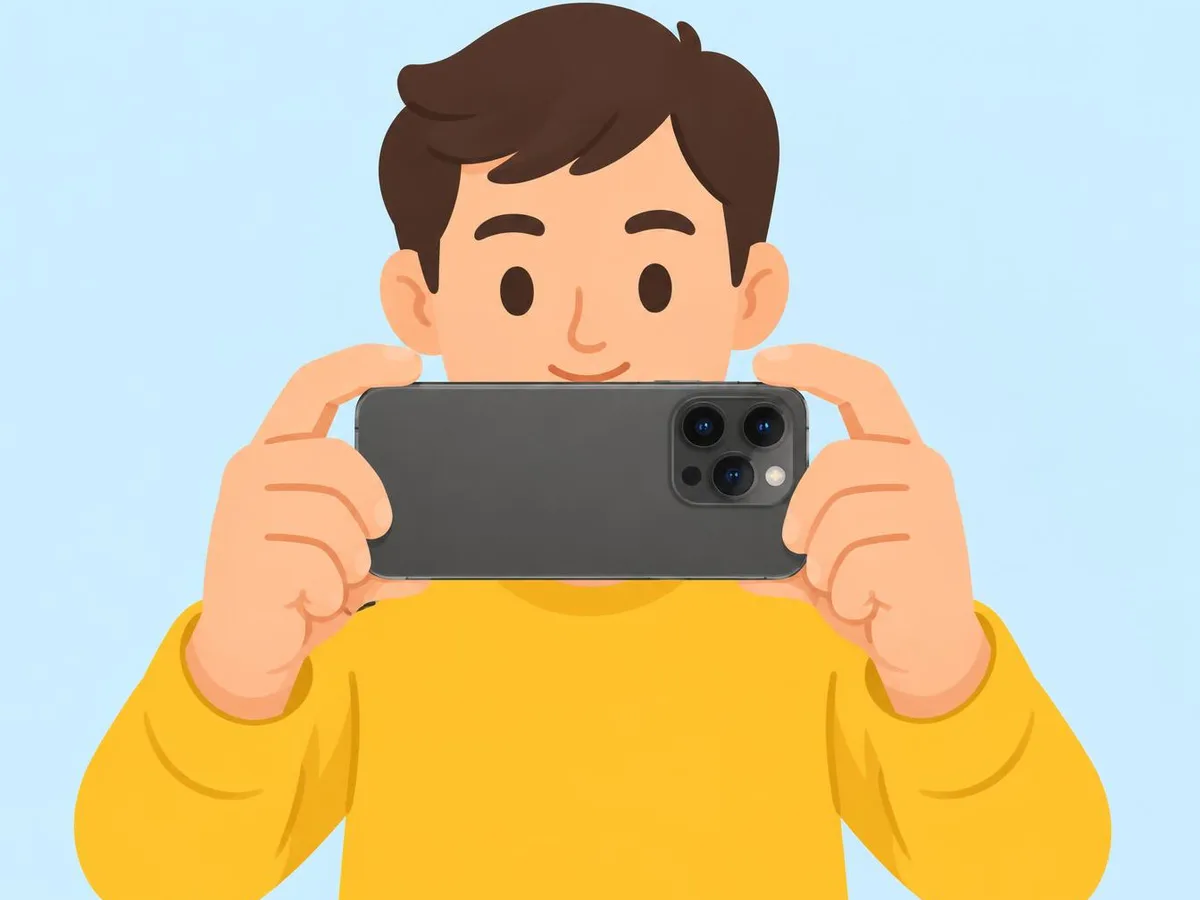
Samsung says moving the phone, or a moving subject, causes blur, and poor light makes focusing harder. Hold the phone with both hands, tap your subject on the screen, and keep still until the shot is taken.
Step 5: foggy or hazy photos
Samsung says haze can be condensation inside the camera after a temperature change, for example coming in from the cold. Leave the phone at room temperature and wait: it clears by itself. If the phone got wet, follow Wet phone: what to do instead.
Step 6: restart, update, clear the Camera app
- Restart the phone. Apple and Google both list this. Frozen? See how to force restart.
- Install the latest software update.
- Android: Settings > Apps > Camera > Storage > Clear cache. Google also lists updating Pixel Camera in the Play Store and testing in safe mode.
Step 7: is it hardware?
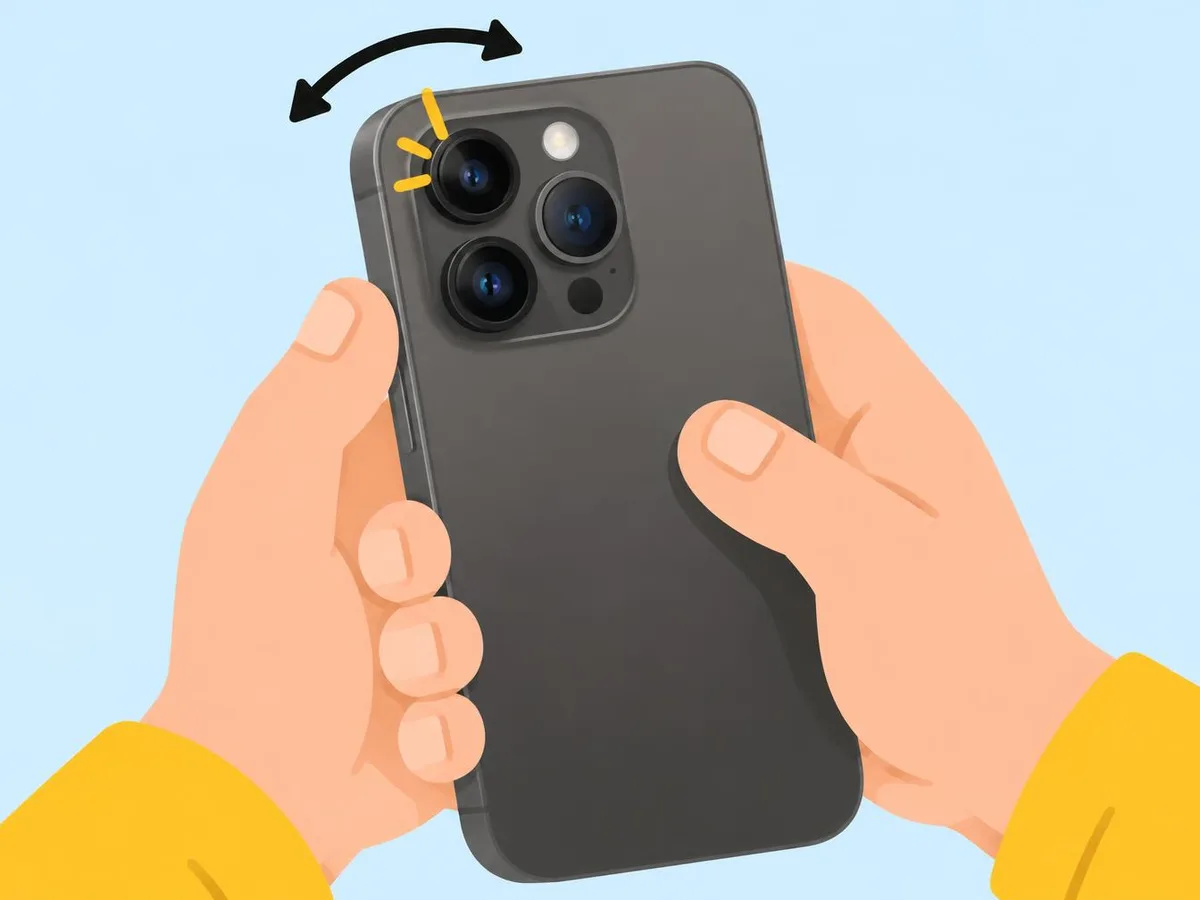
- Switch to the front camera, then to each rear lens (.5x, 1x and zoom).
- If only one lens is blurry at every distance after steps 1 to 6, that camera needs a repair.
- Pixel: if other camera apps also fail, Google says it's likely hardware.
- A slight rattle when you shake a Pixel is normal, Google says: it comes from parts that help the camera focus.
Keep it from coming back: vibration
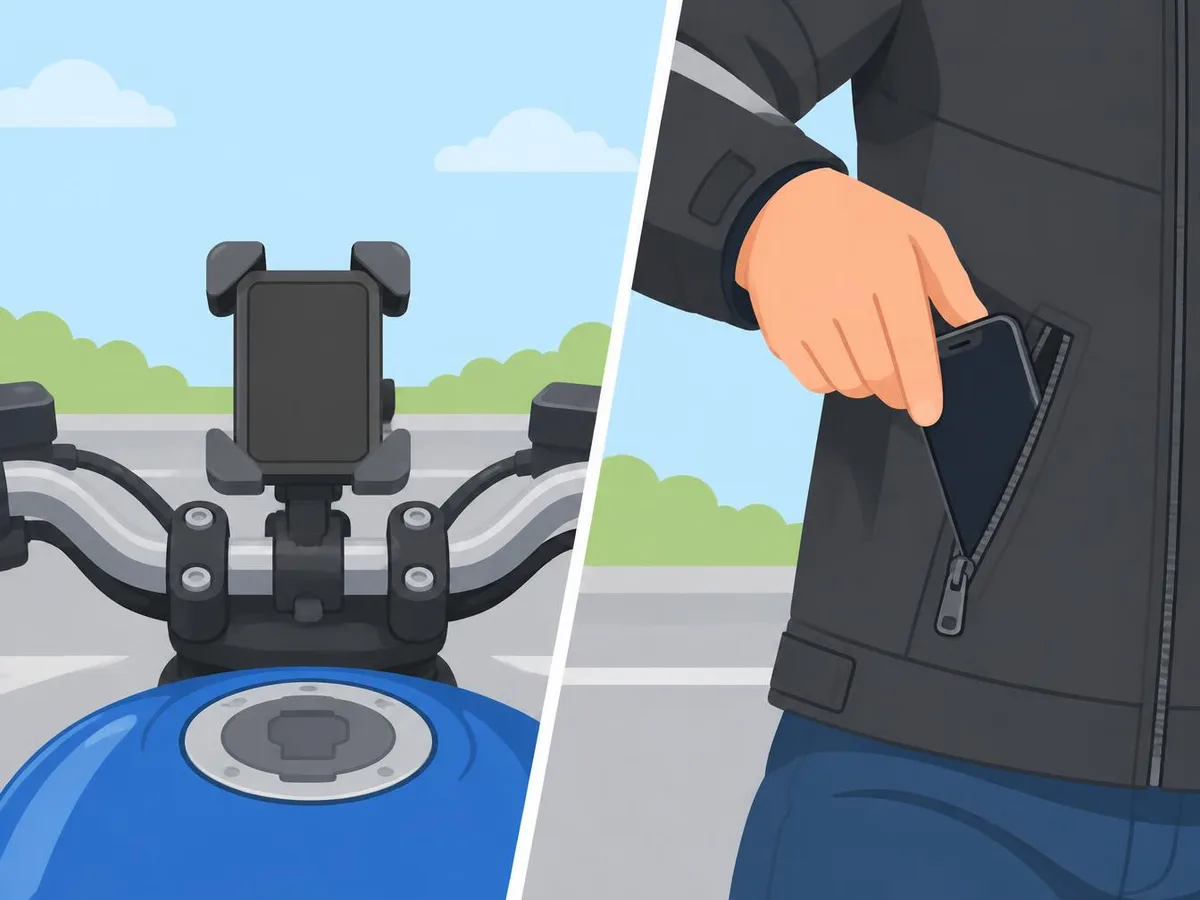
Apple says long exposure to strong vibration, like the handlebars of a high-power motorcycle, can damage the parts that stabilise the image and hold focus, and make photos blurry. On mopeds, scooters and drones, Apple advises a vibration-damping mount or a gimbal. Optical stabilisation is on iPhone 7 and later; closed-loop autofocus on iPhone XS and later.
Related
How to clean your iPhone · Wet phone: what to do · How to force restart a frozen phone
Questions readers ask
Why is my camera blurry only up close?
You are closer than the lens can focus. Step back, or use macro on phones that have it: on our 14 Pro and 18 Pro the Camera app switches to the Ultra Wide lens on its own.
Can a lens protector make photos blurry?
Yes. Samsung says a camera protector or lens cover can cause focus problems and light distortion. Take it off and test again.
Why are my photos foggy or hazy?
Usually a smudge on the lens. If cleaning doesn't help, Samsung says it can be condensation inside the camera after a temperature change, which clears by itself.
My phone was on a motorbike mount. Is the camera damaged?
It can be. Apple says long exposure to strong vibration can degrade the stabilisation and autofocus parts. If one lens stays blurry after every step here, book a repair.
Will a factory reset fix a blurry camera?
Neither Apple nor Google lists it in their camera steps. Work through the steps here first, and back up before any reset.
- Apple: If the camera or flash on your iPhone or iPad isn't working
- Apple: Exposure to vibrations might impact iPhone cameras
- Apple iPhone User Guide: Take macro photos and videos
- Samsung US: Fix blurry or poor photo and video quality on your Galaxy device
- Samsung Latin America: How to fix blurry or poor photo and video quality
- Google Pixel Camera Help: Fix your Camera app on your Pixel phone
This article is based on the sources above. We have not tested these products ourselves. Prices and availability change; check the maker's website before you buy.