How-to
Phone frozen? How to force restart an iPhone, Galaxy, Pixel, Redmi, OnePlus or Nothing
iPhone: tap volume up, tap volume down, then hold the side button. Galaxy: hold side key and volume down. Pixel: hold power for about 60 seconds. Redmi: hold power over 10 seconds. OnePlus and Nothing: hold power and volume up. Nothing is deleted.
By Abu Bakar Saadat · Publisher: Saadat Rafiq · 4 min read · Published 27 October 2026
- Deletes data?
- No
- Longest hold
- Pixel: about 60 seconds (Google)
- Phones covered
- iPhone 17e, 18 Pro, 14 Pro; Galaxy S26; Pixel 10a; Redmi Note 15 Pro 5G; OnePlus Nord 5; Nothing Phone (4a) Pro
- Combinations from
- Each maker's support page, read 27 October 2026
- Applies to
- iPhone 17e, iPhone 18 Pro, iPhone 14 Pro, Galaxy S26, Pixel 10a, Redmi Note 15 Pro 5G, OnePlus Nord 5, Nothing Phone (4a) Pro
- Checked
- October 2026
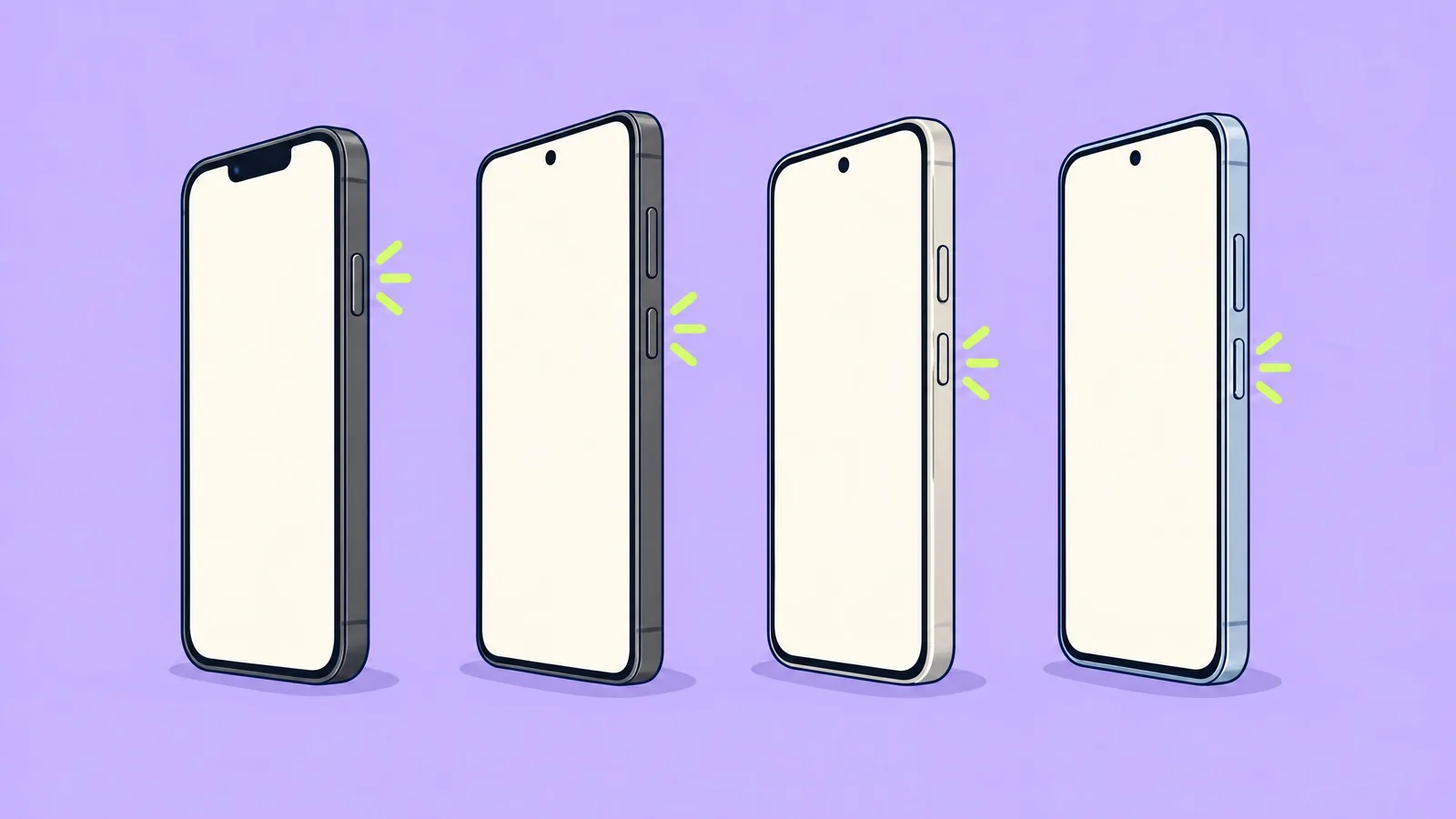
Find your phone
| Phone | Buttons | How long | Let go when |
|---|---|---|---|
| iPhone 17e, 18 Pro, 14 Pro | Tap volume up, tap volume down, then hold the side button | Until the logo | The Apple logo appears |
| Samsung Galaxy (S26) | Side key + volume down together (both on the right) | More than 7 seconds | The Samsung logo appears |
| Google Pixel (10a) | Power button only (the top button on the right) | About 60 seconds | The phone restarts |
| Redmi / Xiaomi (Note 15 Pro 5G) | Power button only (below the volume buttons) | More than 10 seconds | The phone restarts |
| OnePlus (Nord 5) | Power + volume up together (both on the right) | At least 10 seconds | The OnePlus logo appears |
| Nothing Phone (4a) Pro | Power + volume up together (both on the right) | Until the logo, or power alone for 15 seconds | The Nothing logo appears |
Before you start: if the screen is black rather than frozen, plug the phone in first. A flat battery looks exactly like a frozen phone.
iPhone 17e, iPhone 18 Pro and iPhone 14 Pro
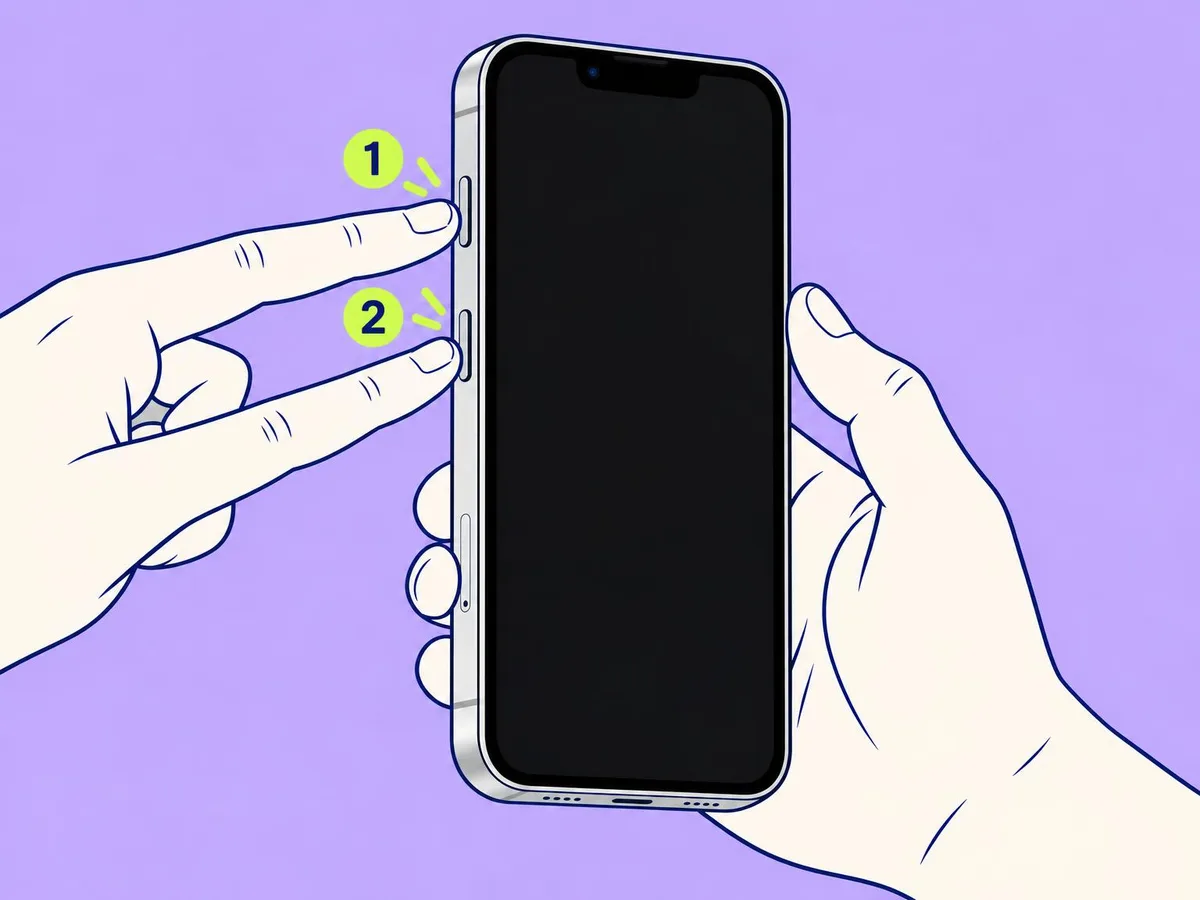
- Press and quickly release volume up (left edge).
- Press and quickly release volume down.
- Press and hold the side button (right edge). Keep holding past the power-off slider.
- Let go when the Apple logo appears. You will need your passcode once before Face ID works again.
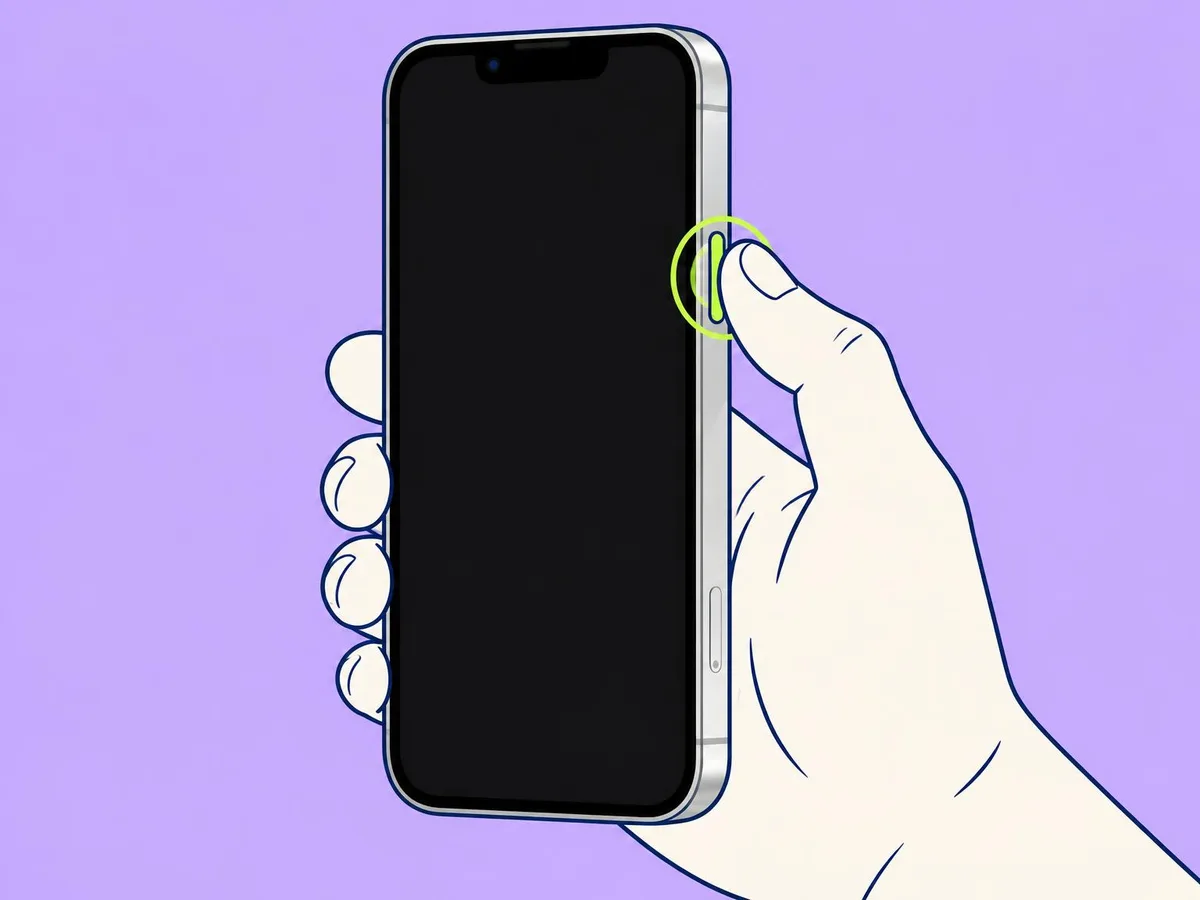
All three use the same steps. On the 17e and 18 Pro, the button above the volume buttons is the Action button: you don't need it here.
Samsung Galaxy (S26)
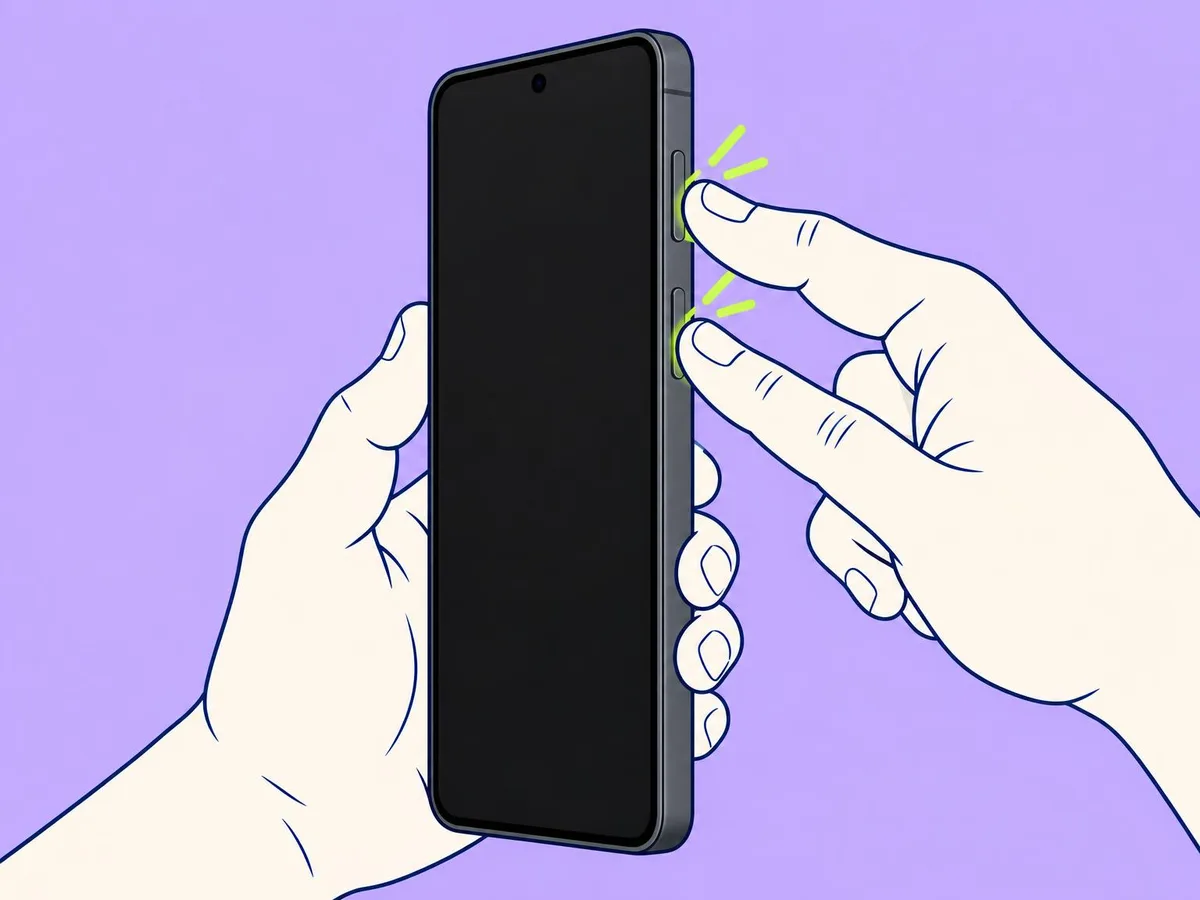
- Press and hold the side key and volume down together. Both are on the right edge: volume down is the lower end of the volume key, just above the side key.
- Keep holding while the screen goes black, and let go when the Samsung logo appears.
Samsung gives the hold time as more than 7 seconds, or "until the device turns off and turns back on". Pressing the same two keys briefly takes a screenshot, so keep holding. On some models you land in Android Recovery instead: use the volume keys to pick Reboot system now and press the side key.
Google Pixel (10a)
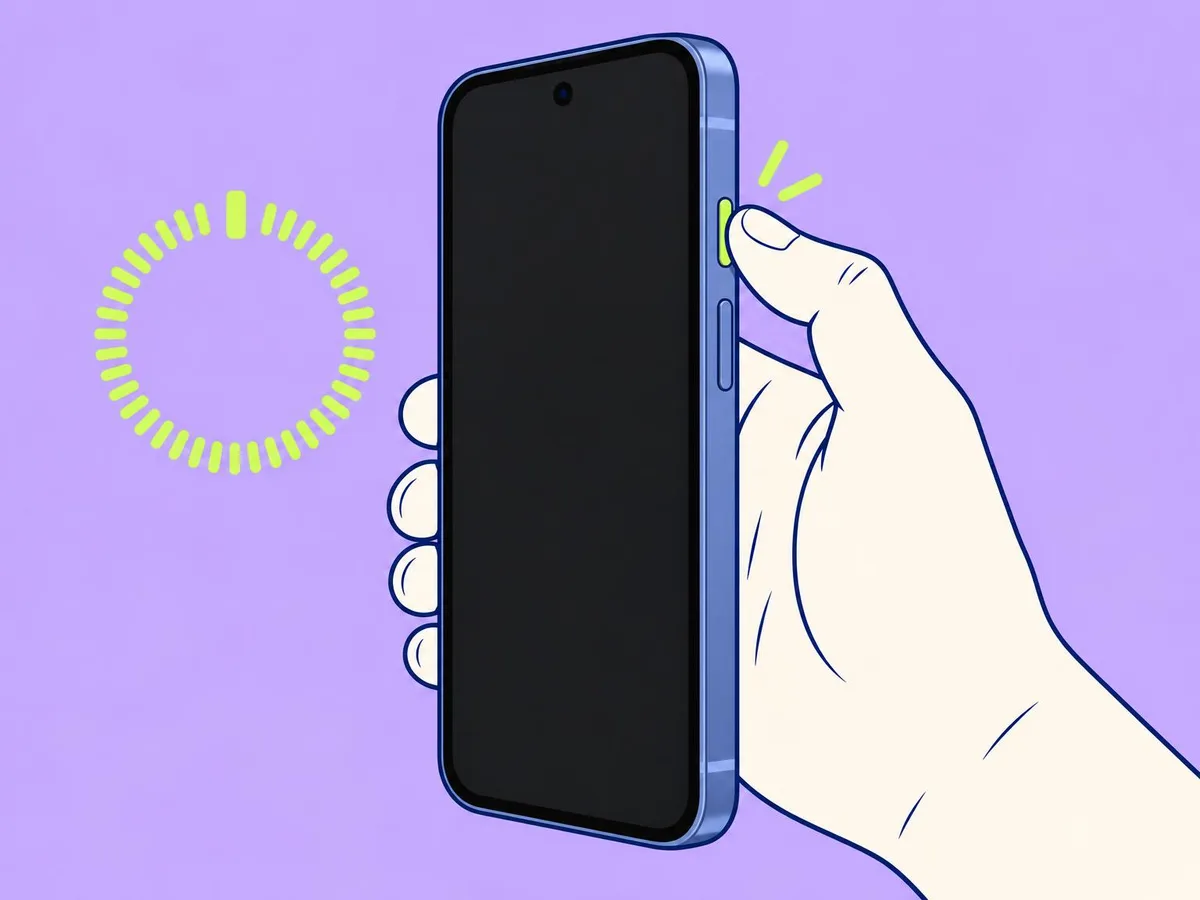
- Press and hold the power button only. On a Pixel it is the top button on the right edge, above the volume buttons.
- Keep holding for about 60 seconds until the phone restarts. Google's current help page says 60 seconds; older advice and most websites still say 30.
Holding power for a second or two on a working Pixel opens the digital assistant, not the power menu. When the phone is frozen, keep holding. See how to turn off or restart a Google Pixel.
Redmi and Xiaomi (Note 15 Pro 5G)
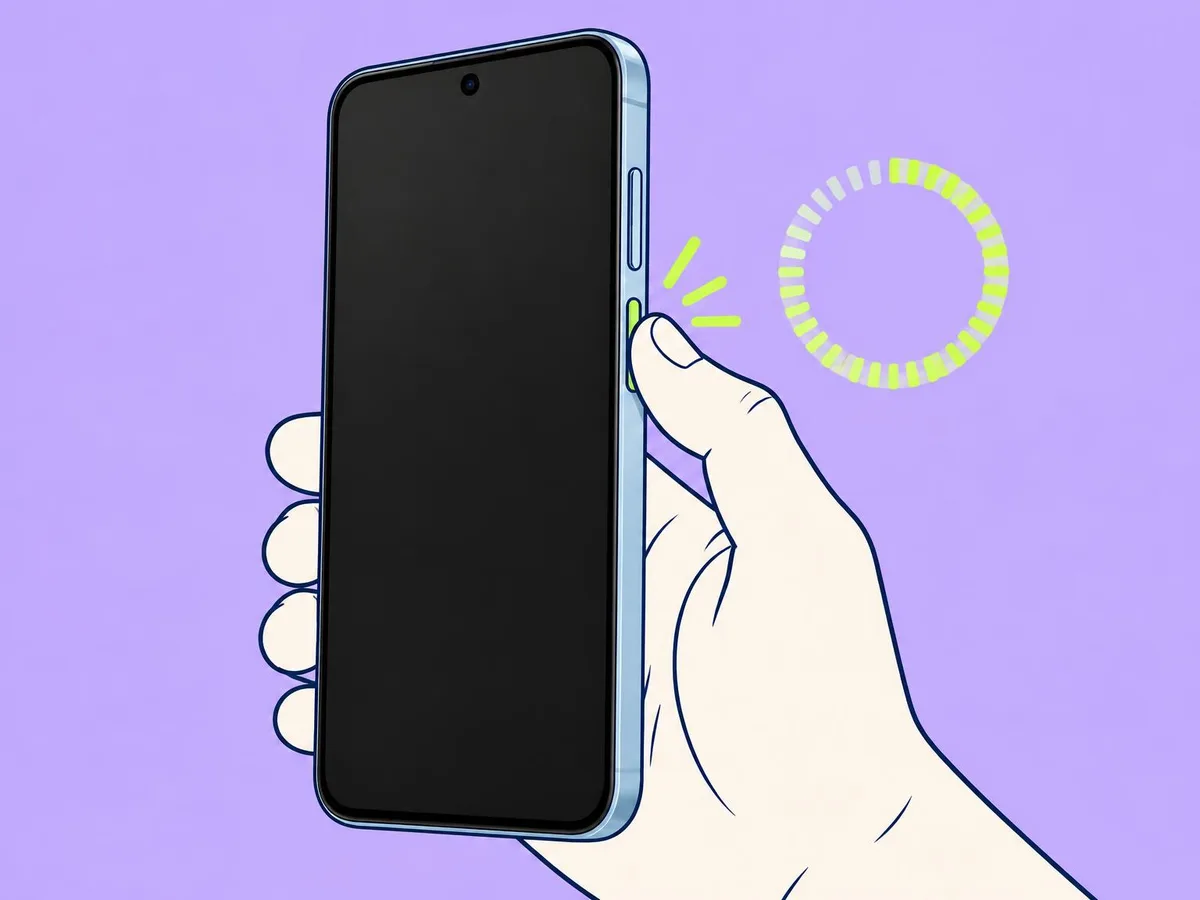
- Press and hold the power button (right edge, below the volume key) for more than 10 seconds.
- If it still won't respond, Xiaomi's next step is Recovery mode or a factory reset. A reset erases everything, so try charging the phone first.
OnePlus (Nord 5)
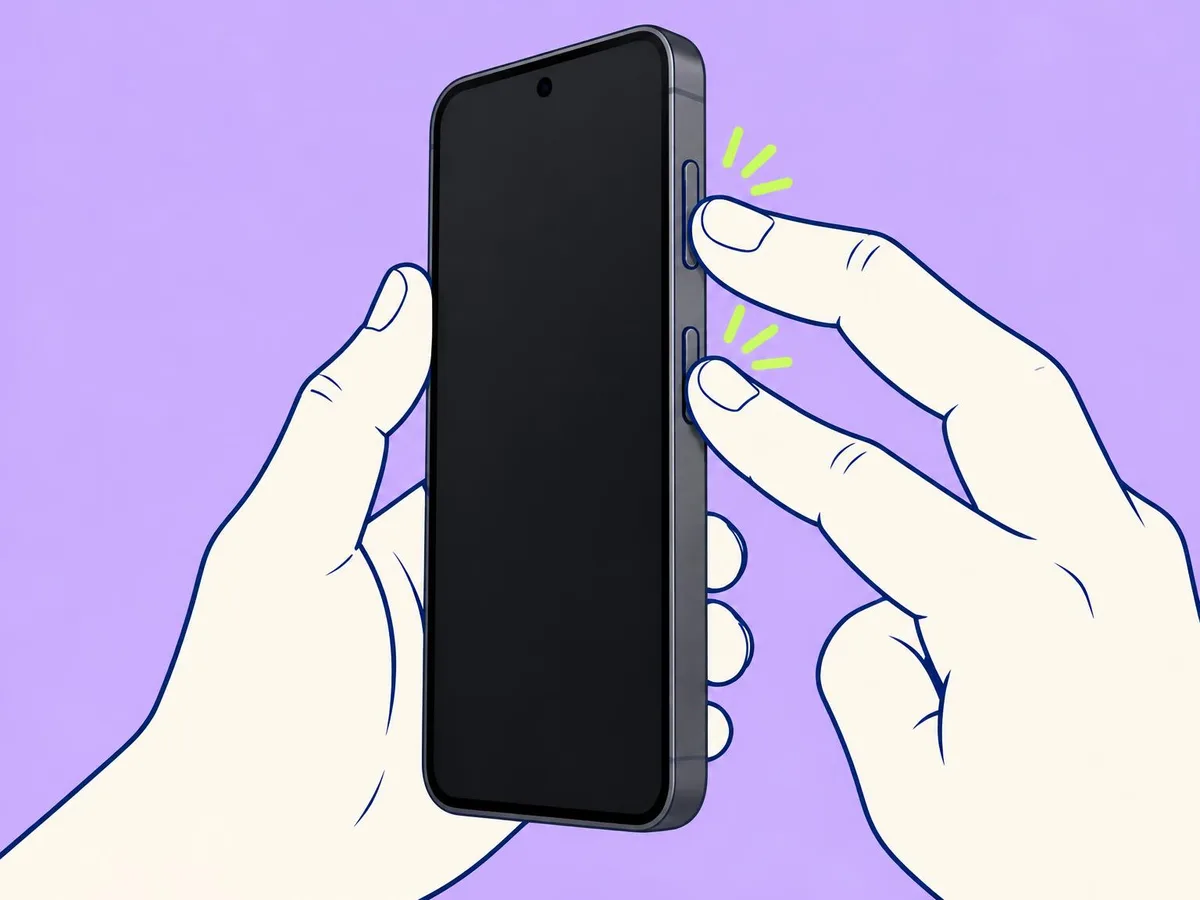
- Press and hold power and volume up together for at least 10 seconds, until the OnePlus logo appears. On the Nord 5 both are on the right edge: volume on top, power below.
- Leave the Plus Key on the left edge alone: it is not part of the restart.
- OnePlus says some models use volume down instead, and some need the power button alone for 10 seconds. If the screen is black, OnePlus suggests charging for 15 minutes first.
Nothing Phone (4a) Pro
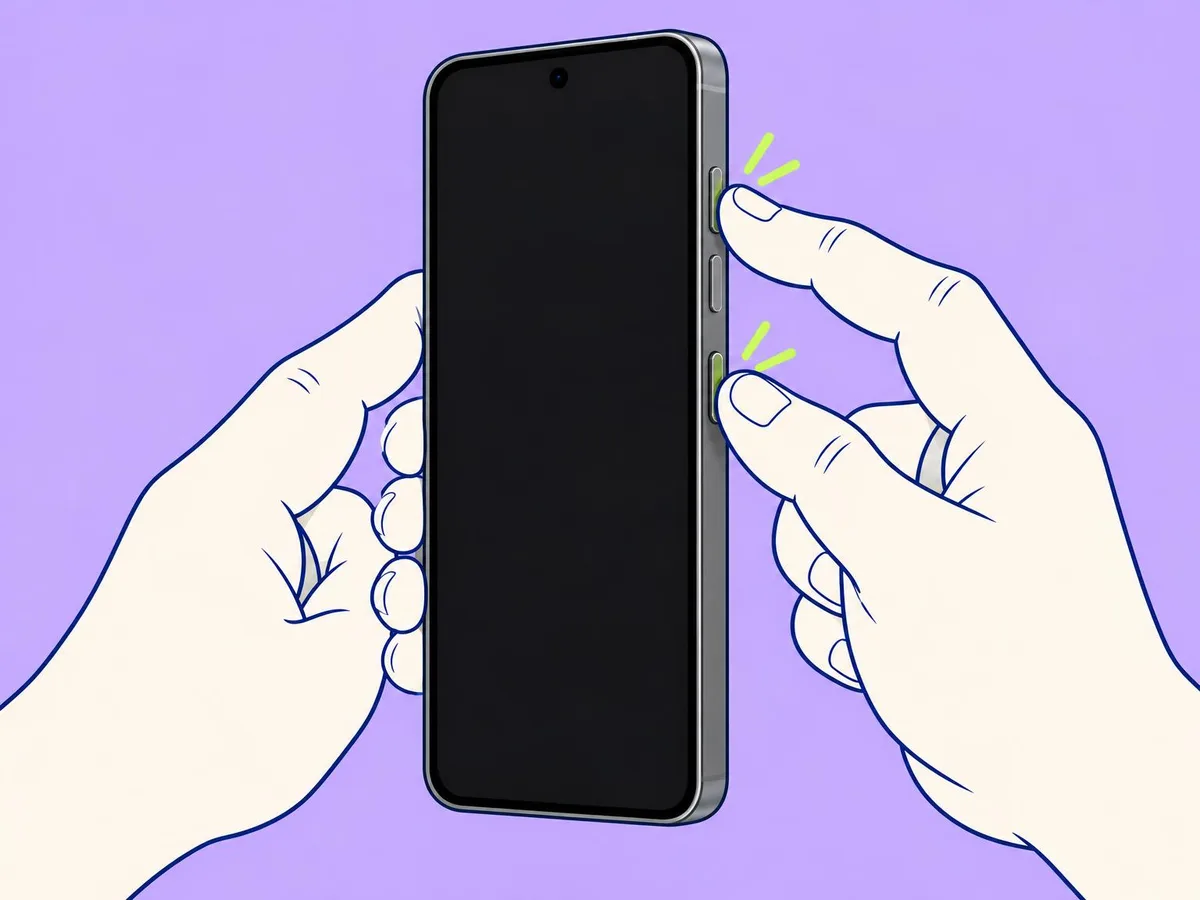
- Press and hold power and volume up together until the Nothing logo appears. On the (4a) Pro both are on the right edge: two volume buttons on top, power below.
- The Essential Key sits alone on the left edge. It is not part of the restart. (Older Nothing phones such as the Phone (3) put the volume buttons on the left.)
- If nothing happens, Nothing says to hold the power button alone for 15 seconds or more.
If it still won't restart
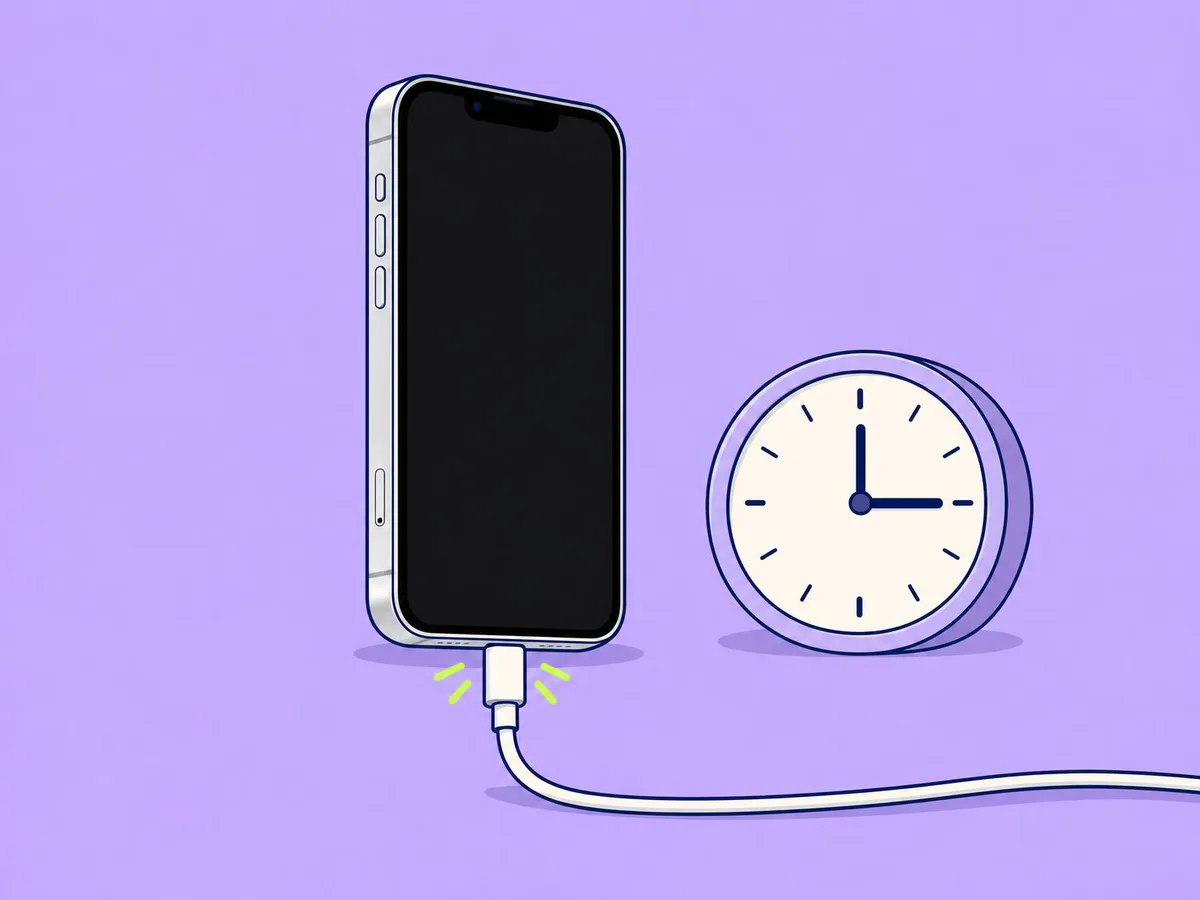
- Charge it first. Plug it in for 15 to 30 minutes, then try the combination again. A fully drained Pixel can show nothing at all for up to 25 minutes after you plug it in (Google).
- The button may be broken. If one button doesn't click, the combination can't work. Apple, Samsung and Google all send you to repair at that point.
- It freezes again soon after: update the system and apps, keep at least 10% of storage free (Google's advice), and use Safe mode to find a bad app (Samsung and Google). See Samsung Galaxy keeps restarting: 7 things to check.
- Don't reach for a factory reset yet. It erases the phone. Use it only after a backup, or when the maker's support tells you to.
We have not timed these restarts on our phones yet. The combinations and hold times above are the makers' own, from their support pages.
Related guides
Turn off or restart a Samsung Galaxy · Google Pixel · Xiaomi · OnePlus · How to clean your iPhone
Questions readers ask
Does a force restart delete my photos?
No. It cuts the power and starts the phone again. Anything unsaved in an open app can be lost, but your photos, messages and apps stay.
Why does my iPhone show the power-off slider instead?
You let go of the side button too early. Keep holding past the slider until the Apple logo appears.
I pressed side key and volume down on my Galaxy and only got a screenshot. Why?
You released too soon. Keep holding both keys until the screen goes black and the Samsung logo appears.
My Pixel did not restart after 30 seconds. What now?
Keep holding. Google's current help page says to hold the power button for about 60 seconds; older advice said 30.
Should I press the Essential Key or Plus Key on my Nothing or OnePlus?
No. On the Nothing Phone (4a) Pro and OnePlus Nord 5 that key sits alone on the left edge. The power and volume buttons for the restart are both on the right edge.
- Apple iPhone User Guide: Force restart iPhone
- Samsung US: Different ways to restart your Galaxy phone or tablet
- Samsung Gulf: How to restart a frozen Galaxy device
- Google Pixel Phone Help: Fix a Pixel phone that freezes
- Google Pixel Phone Help: Fix a Pixel phone that won't charge
- Xiaomi: Why is the screen of the REDMI Note 13 5G frozen and unresponsive?
- OnePlus Support: How to force restart my phone
- Nothing Support: How do I force restart Nothing Phone
- iFixit: Nothing Phone (4a) Pro (button layout)
This article is based on the sources above. We have not tested these products ourselves. Prices and availability change; check the maker's website before you buy.