
What changed: the screenshots are now our own iPhone 17e on iOS 27.0.1, dark mode, and the wording is checked against those screens.
howtosimply.com/guides/how-to-make-your-iphone-read-text-aloud/ · Checked October 2026 · iPhone 17e · iOS 27.0.1
In this guide
Open Settings, tap Accessibility, then Read & Speak (Spoken Content on older iOS versions). Tap Speak Selection and turn it on. After that, select any text, tap Speak in the pop-up menu, and the iPhone reads it to you.
6 of 6 steps with real screenshots · 1 official source below
- Device
- iPhone
- Shown on
- iOS 27.0.1 (iPhone 17e)
- App
- Settings
- Path
- Settings › Accessibility › Read & Speak › Speak Selection
- Real screenshots
- 6 of 6 steps
- Checked
- October 2026
- Sources
- 1 official, linked below
Step by step
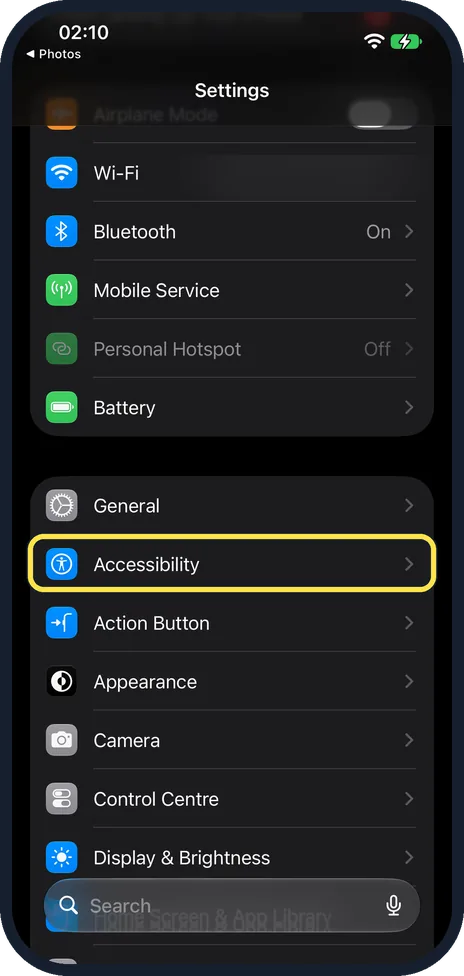
Open Settings and tap Accessibility
Accessibility is in the group below Battery, just under General.
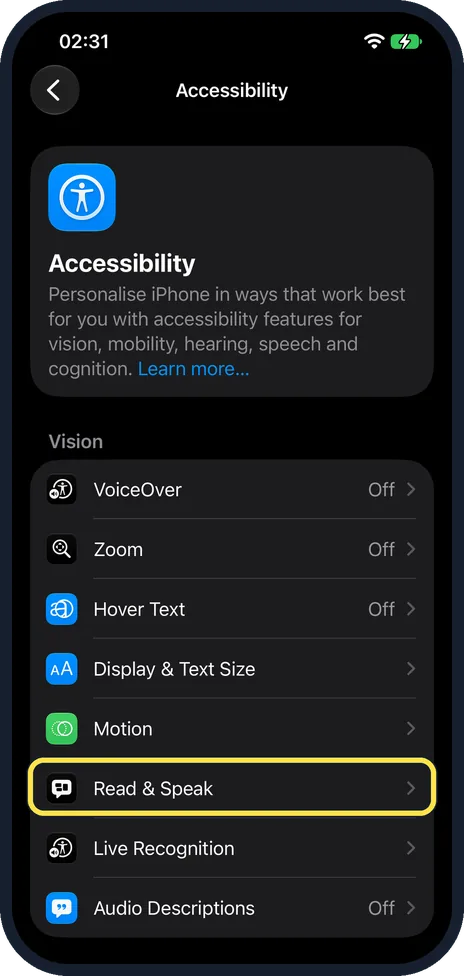
Tap Read & Speak
On older iOS versions this row is called Spoken Content.
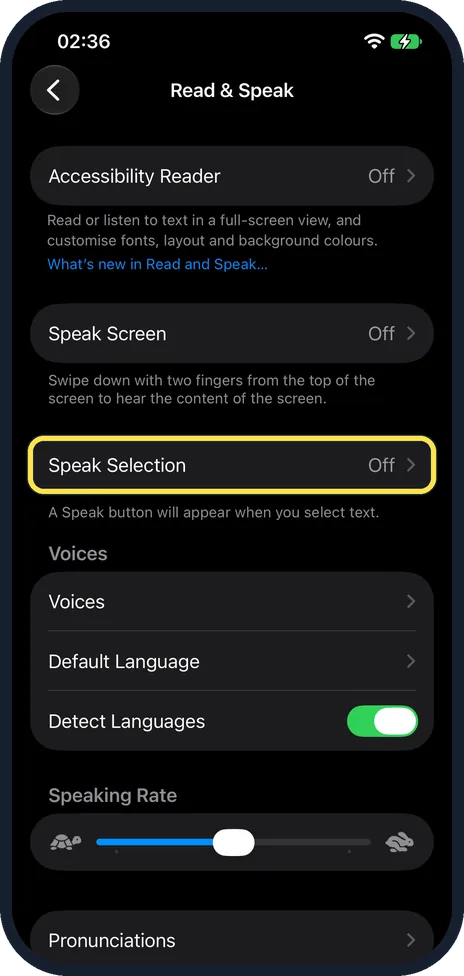
Tap Speak Selection
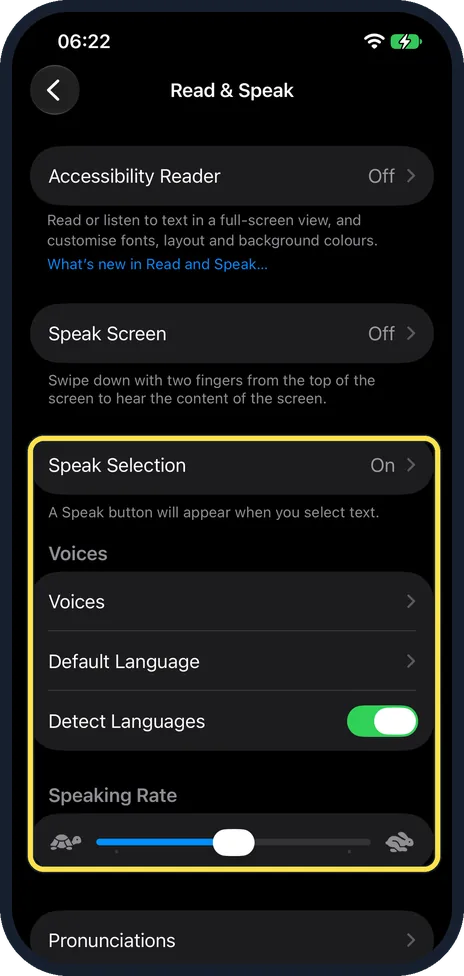
On our iPhone the row read Off. The note below it says: a Speak button will appear when you select text.
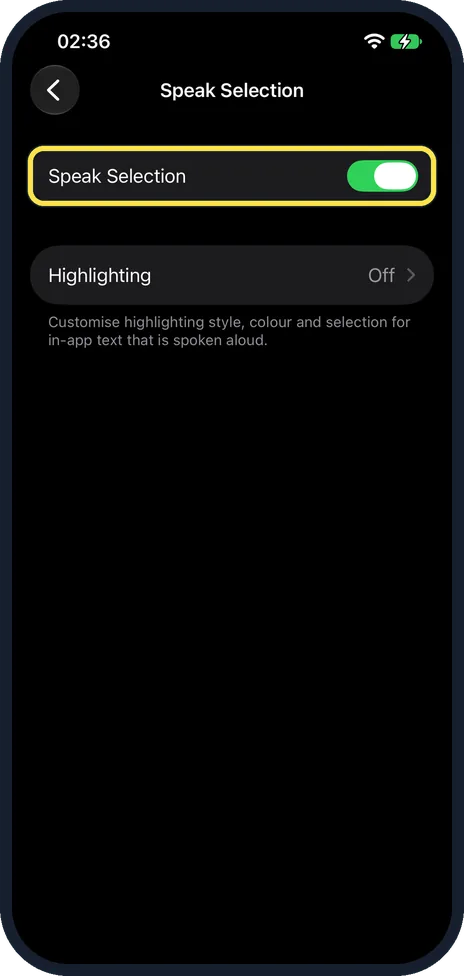
Turn on Speak Selection
Switch on Speak Selection at the top of the new page. Below it, Highlighting (Off on ours) can highlight the words as they are read.
Select text and tap Speak
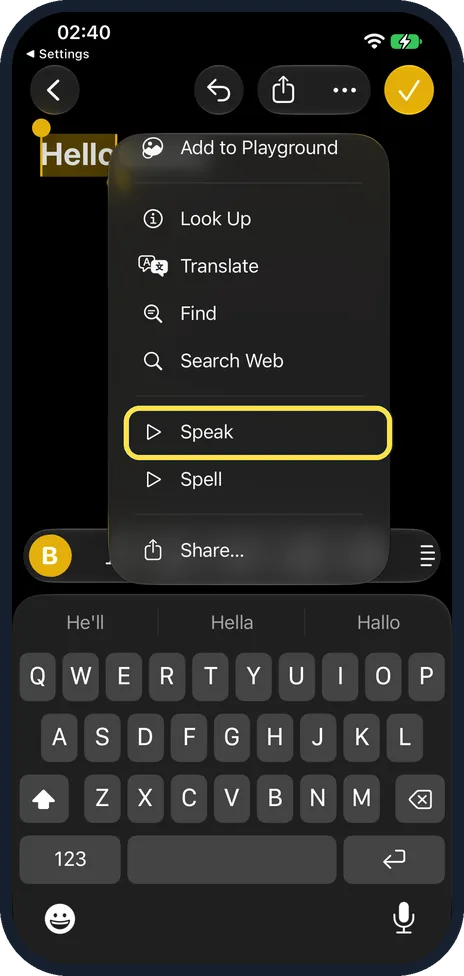
Open a web page, note or message. Press and hold a word, drag the handles to cover what you want to hear, and tap the small arrow at the end of the menu. On iOS 27.0.1 Speak and Spell are near the bottom of the longer menu that opens. Tap Speak.
Choose the voice and speed
Go back to Read & Speak. With Speak Selection on, the row now reads On. Voices lets you download other voices and accents, and Speaking Rate makes the reading faster or slower.
What changed: the screenshots are now our own iPhone 17e on iOS 27.0.1, dark mode, and the wording is checked against those screens.
If you do not see this option
- Your iPhone runs an older iOS version. There the page is called Spoken Content instead of Read & Speak.
- Speak is not in the short menu. On our iPhone 17e with iOS 27.0.1 the first menu after selecting text did not show Speak. Tap the small arrow at the end of the menu: Speak and Spell are near the bottom of the longer menu.
- You want the whole screen read. Turn on Speak Screen on the same page, then swipe down with two fingers from the top of the screen. You can also ask Siri: Speak screen. Source: Hear iPhone speak the screen, selected text and typing feedback
If this does not work
- No Speak button appears. Check that Speak Selection reads On on the Read & Speak page, then select the text again. Source: Hear iPhone speak the screen, selected text and typing feedback
- Words in another language sound wrong. Detect Languages, on on our iPhone, lets the iPhone detect and speak several languages. Default Language sets the language it uses first. Source: Hear iPhone speak the screen, selected text and typing feedback
- A name is always said wrongly. Add it under Pronunciations on the Read & Speak page and dictate or spell out how it should sound. Source: Hear iPhone speak the screen, selected text and typing feedback
About this guide
Your iPhone can read out an article, an email or a message. It helps if your eyes are tired, if small print is hard for you, or if you want to listen while you do something else. The feature is built in and free.
The screenshots are our own, taken on an iPhone 17e running iOS 27.0.1, in dark mode.
Good to know
Speak Screen, on the Read & Speak page, reads everything on the screen. Tap it and turn it on, then swipe down with two fingers from the top of the screen to start.
In Safari you can also tap the page menu in the address bar and choose Listen to Page on articles that support it.
On a Mac the same idea is how to make a Mac read selected text aloud.
Text too small to read yourself? How to make text bigger on an iPhone.
In short: Settings, Accessibility, Read & Speak, Speak Selection, turn it on. Then select text and tap Speak.
Links checked in October 2026. Menus and features can change after software updates. These steps match the version named at the top.
Did this guide work for you?
Sorry about that. What happened?