How-to
How to clean your iPhone: screen, camera, buttons and charging port (17e, 18 Pro, 14 Pro)
Unplug it, turn it off and wipe it with a soft, lint-free cloth that is only slightly damp, or a 70% isopropyl alcohol wipe. Keep liquid out of every opening and push nothing into the port. Each step, for the iPhone 17e, 18 Pro and 14 Pro.
By Abu Bakar Saadat · Publisher: Saadat Rafiq · 4 min read · Published 27 October 2026
- You need
- Microfibre cloth; optional 70% isopropyl alcohol wipes
- Never use
- Bleach, hydrogen peroxide, sprays, household cleaner, paper towel, compressed air
- Charging port
- USB-C on iPhone 17e and 18 Pro, Lightning on iPhone 14 Pro
- Time
- About 5 minutes, plus drying
- Rules from
- Apple Support, read 27 October 2026
- Applies to
- iPhone 17e, iPhone 18 Pro, iPhone 14 Pro
- Checked
- October 2026
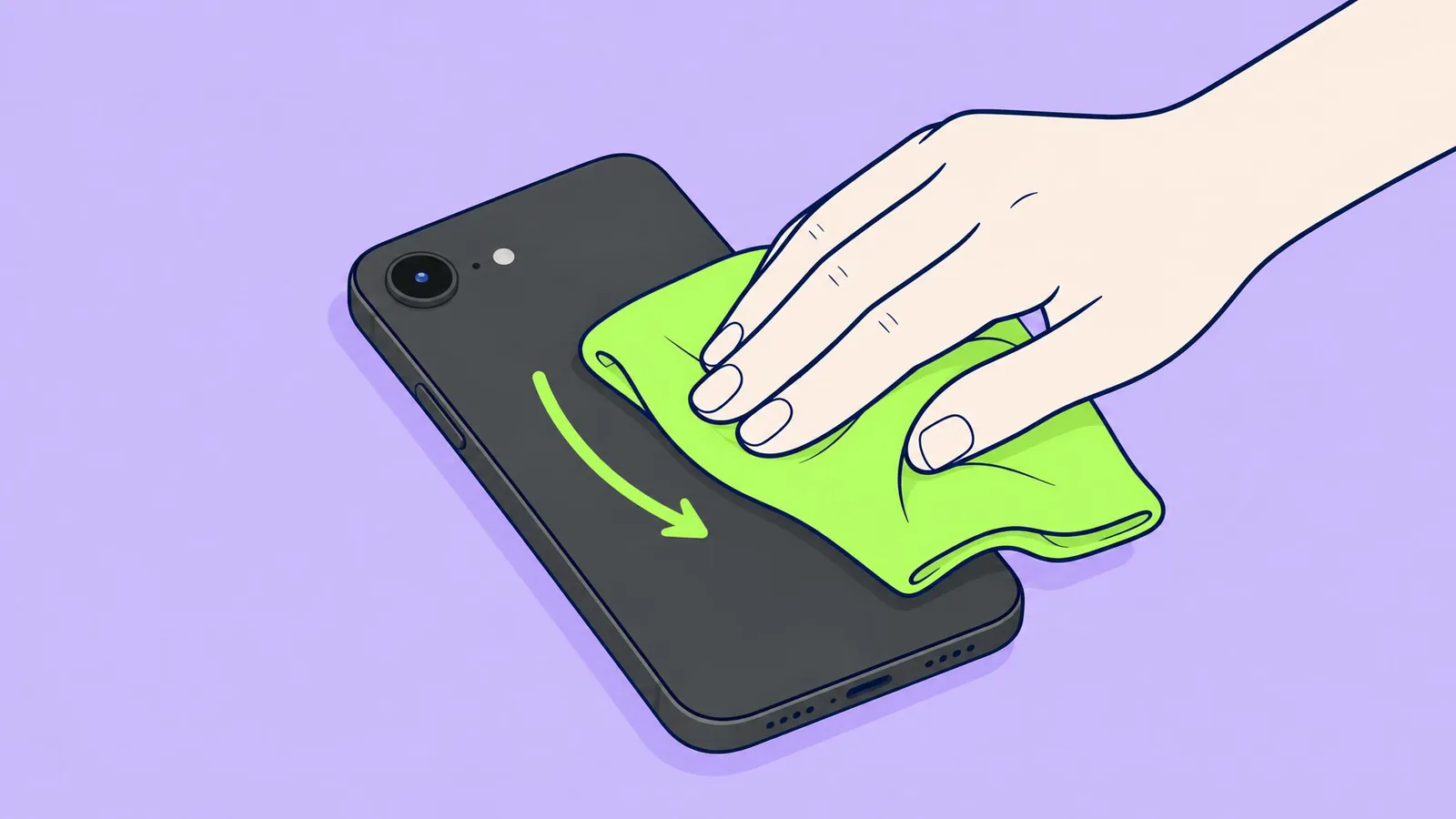
The cleaning rules here come from Apple's support pages, read on 27 October 2026. The pictures are illustrations drawn for this page from the iPhone 17e, iPhone 18 Pro and iPhone 14 Pro; the screens are left blank on purpose. We did not run a cleaning test.
Before you start
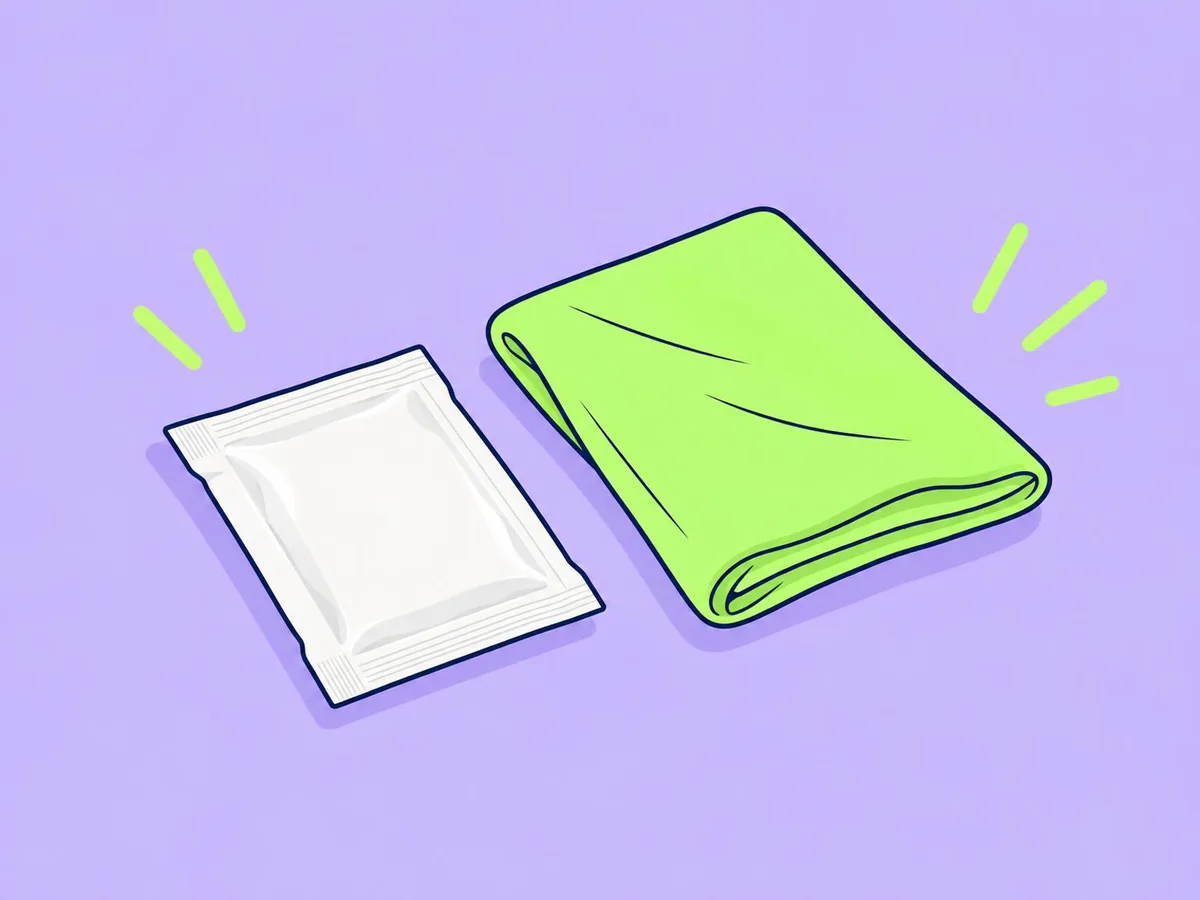
You need: a clean microfibre cloth (a glasses cloth works). If you want to disinfect, Apple lists only 70% isopropyl alcohol wipes, 75% ethyl alcohol wipes and Clorox Disinfecting Wipes.
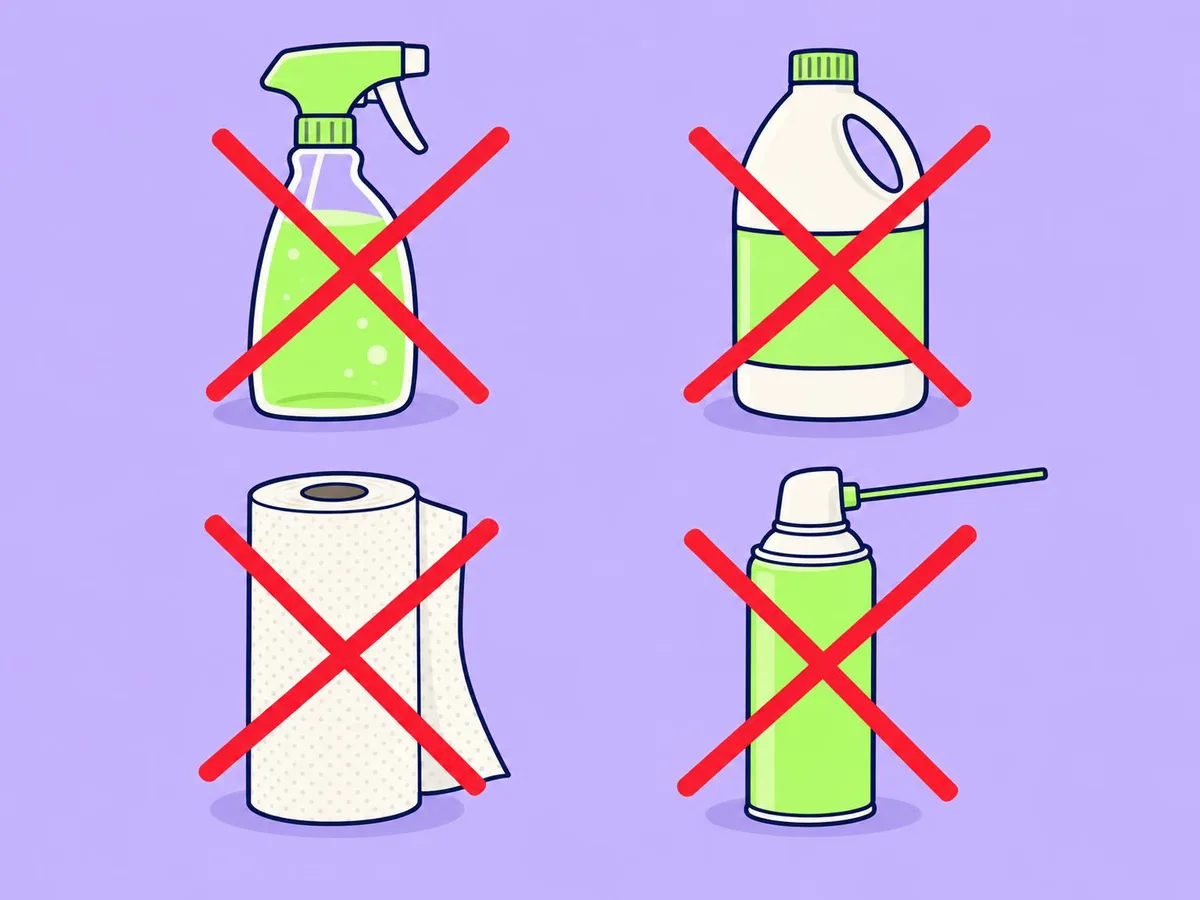
Never use: bleach, hydrogen peroxide, window or household cleaners, aerosol sprays, solvents, ammonia, abrasives, paper towels or compressed air. Apple says cleaning products and rough cloths wear down the oil-repellent coating on the glass and can scratch it.
Water resistance is not a reason to rinse it. The iPhone 17e and 18 Pro are rated IP68, but Apple says not to submerge an iPhone in cleaning agents, and its warranty does not cover liquid damage.
Step by step
1. Take off the case and unplug every cable
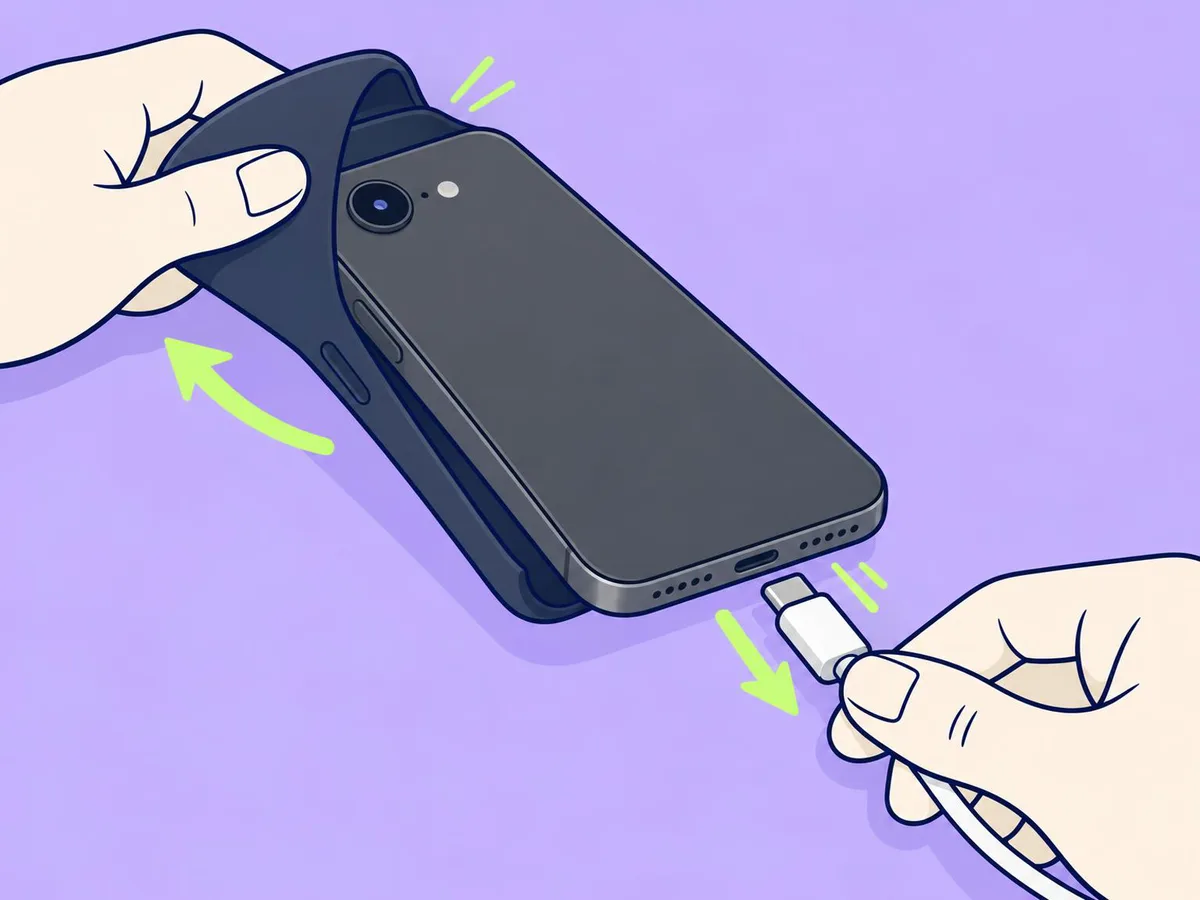
Remove the case and unplug the charging cable, including a MagSafe charger or battery pack.
2. Turn the iPhone off
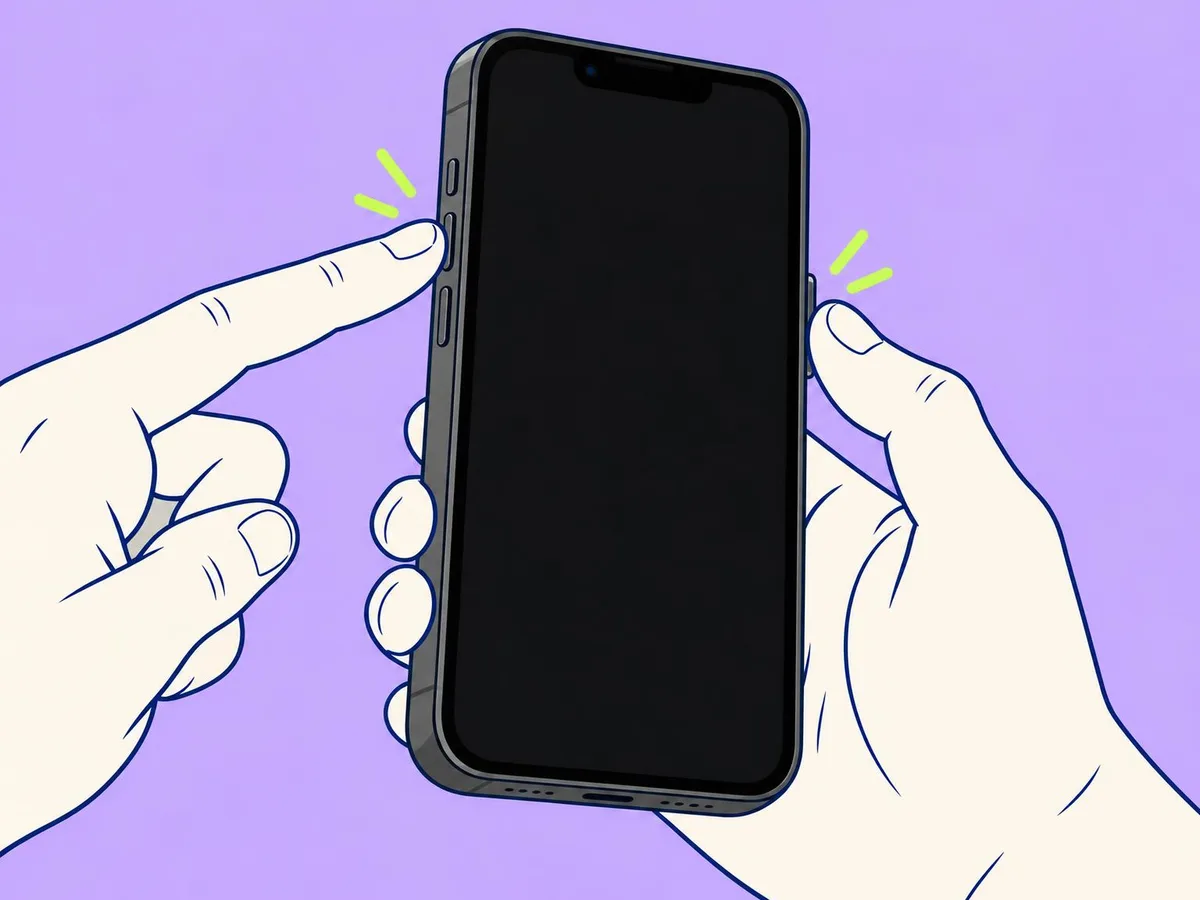
Press and hold the side button (right edge) and either volume button (left edge) together until the slider appears, then drag "slide to power off". You can also go to Settings, General, Shut Down.
3. Wipe the screen
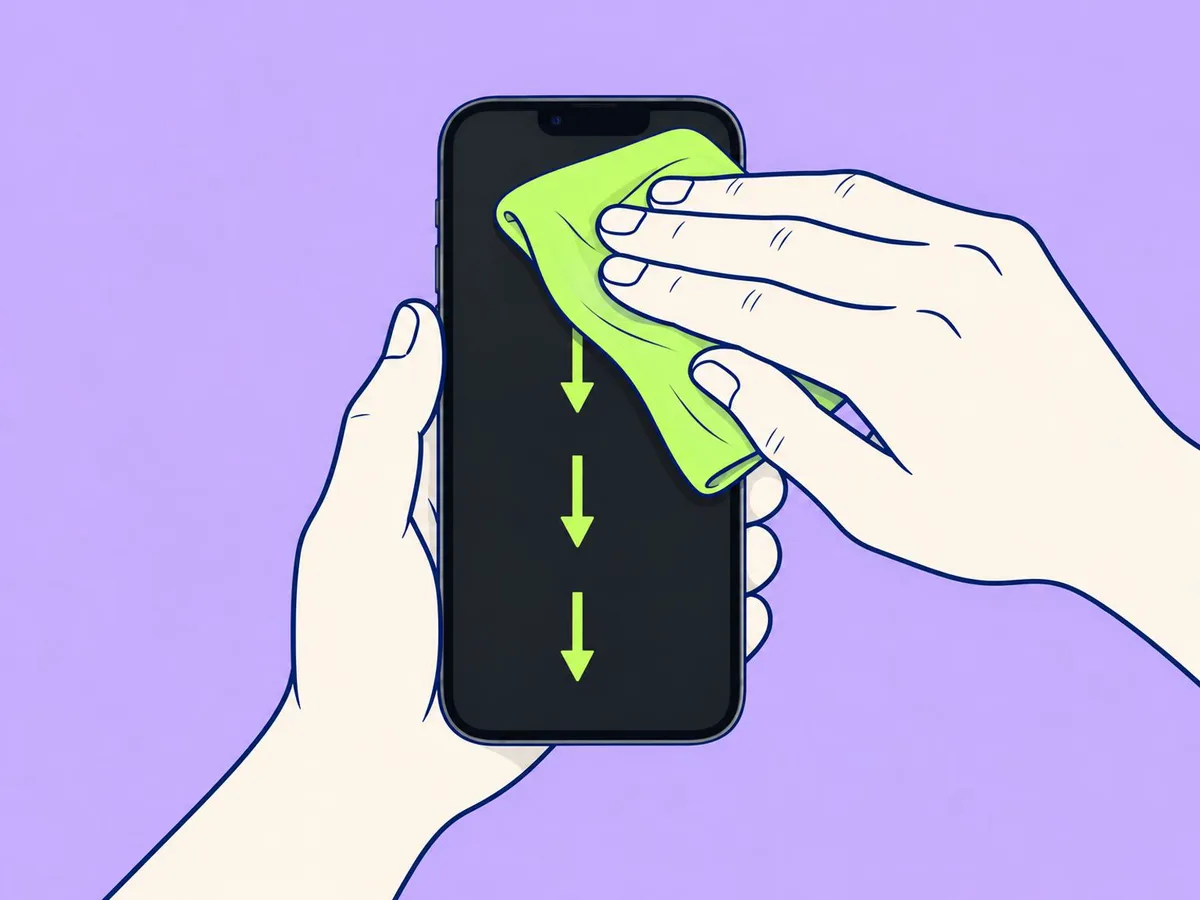
Use the dry cloth in light strokes from top to bottom. For smudges that stay, dampen one corner of the cloth slightly with water. Don't press hard: rubbing wears down the coating.
4. Wipe the back and the camera lenses
Wipe the back glass, then each camera lens with a clean part of the cloth. Fingerprints on a lens make photos look hazy. The iPhone 17e has one rear camera; the 18 Pro has three lenses in a triangle on a camera plateau across the top of the back, with the flash and LiDAR on the right, so wipe each lens on its own.
5. Wipe the frame and the buttons
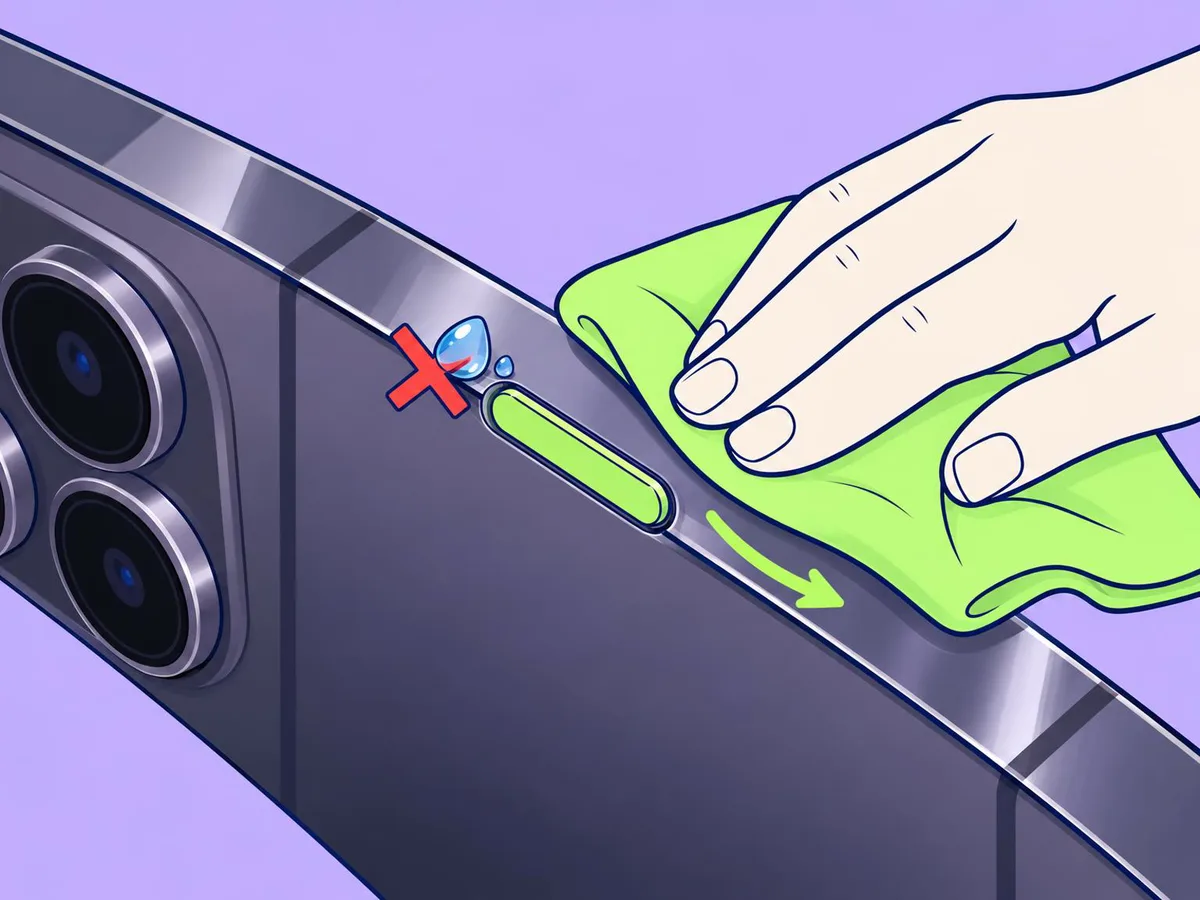
Run the cloth along the frame and over the side button, the volume buttons, the Action button (17e, 18 Pro) or the ring/silent switch (14 Pro), and Camera Control (18 Pro). Don't let liquid run into the gaps around the buttons.
6. Disinfect if you need to (optional)
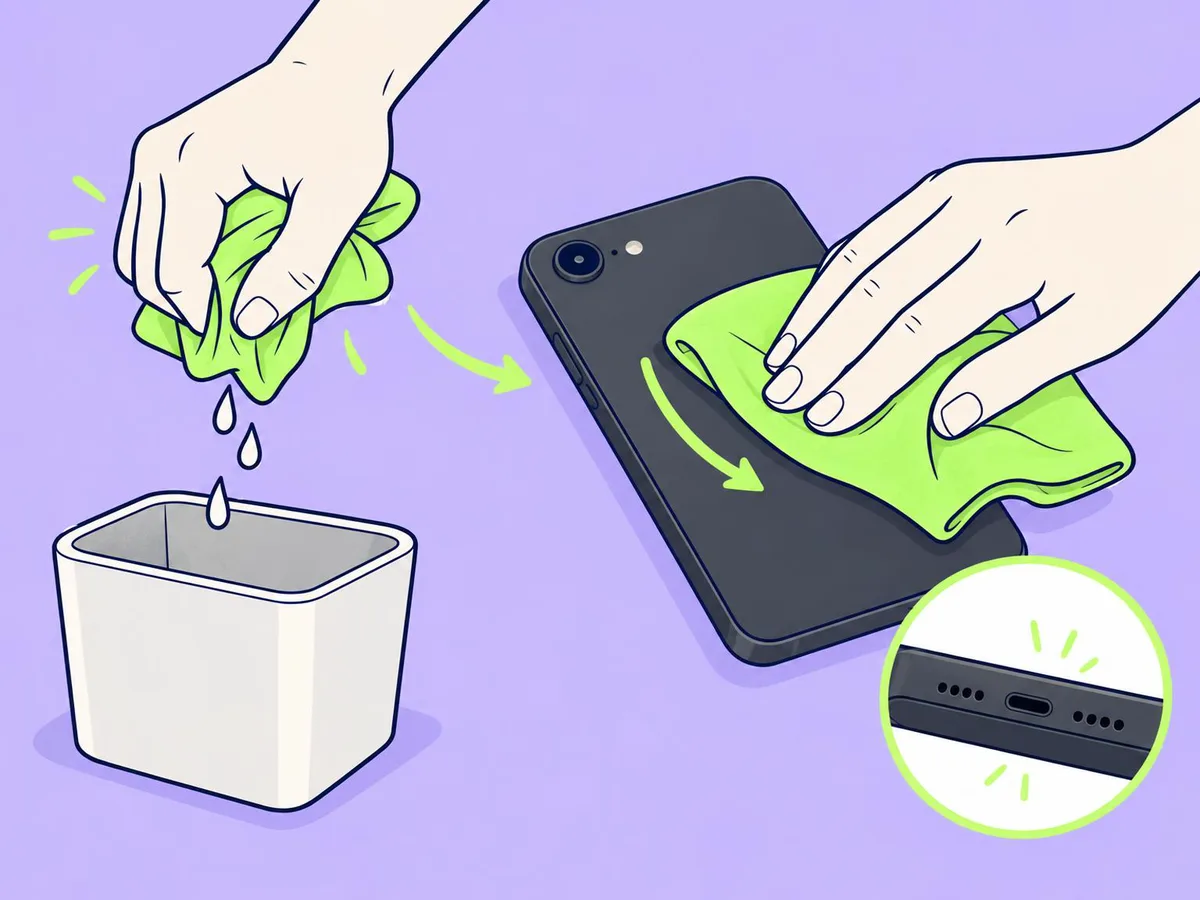
Squeeze extra liquid out of a 70% isopropyl alcohol wipe, then gently wipe the outside. Keep it away from the openings. Finish with a slightly damp, lint-free cloth.
7. Check the charging port, but don't dig in it
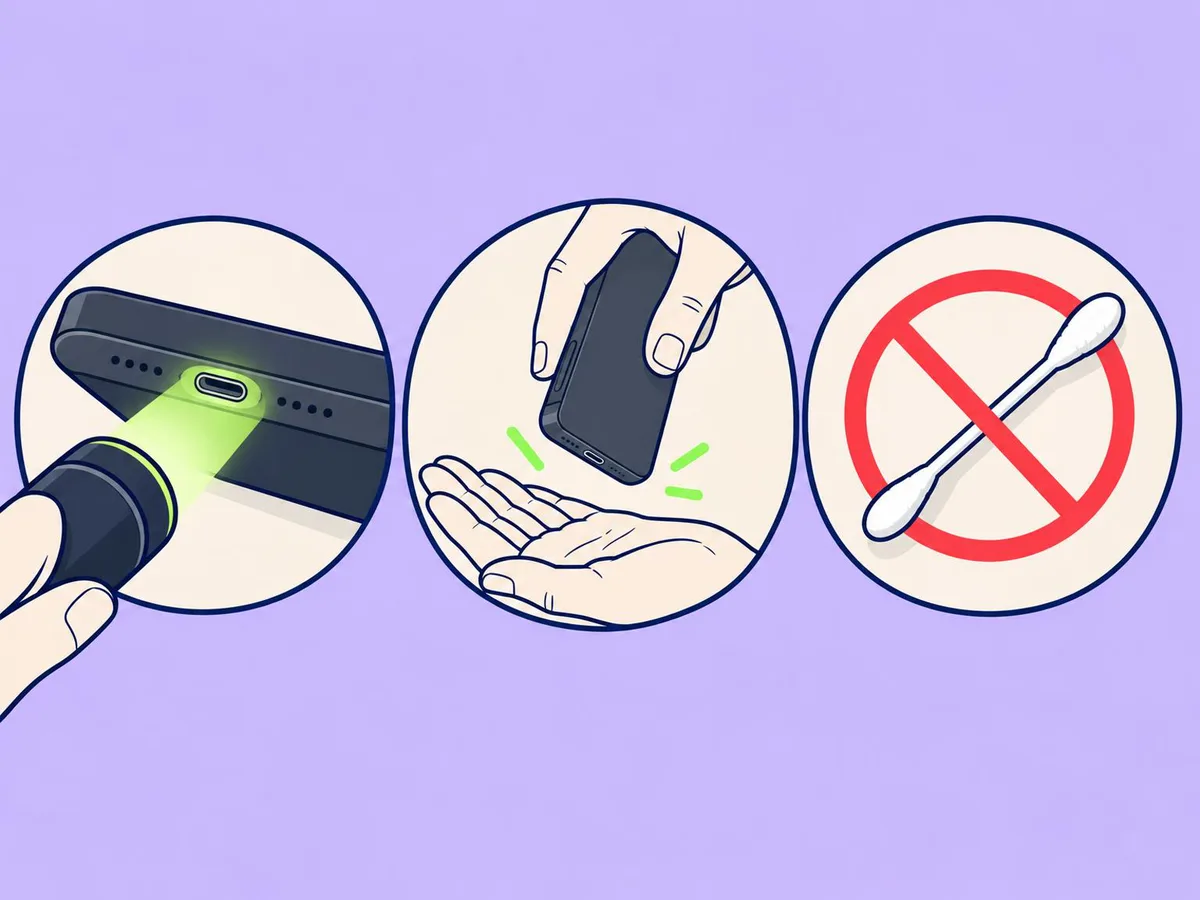
Shine a light into the port. If you see lint, hold the iPhone port-down and tap it gently against your palm. Apple says not to put objects such as a cotton swab or paper towel into the port.
8. Speaker and microphone grilles
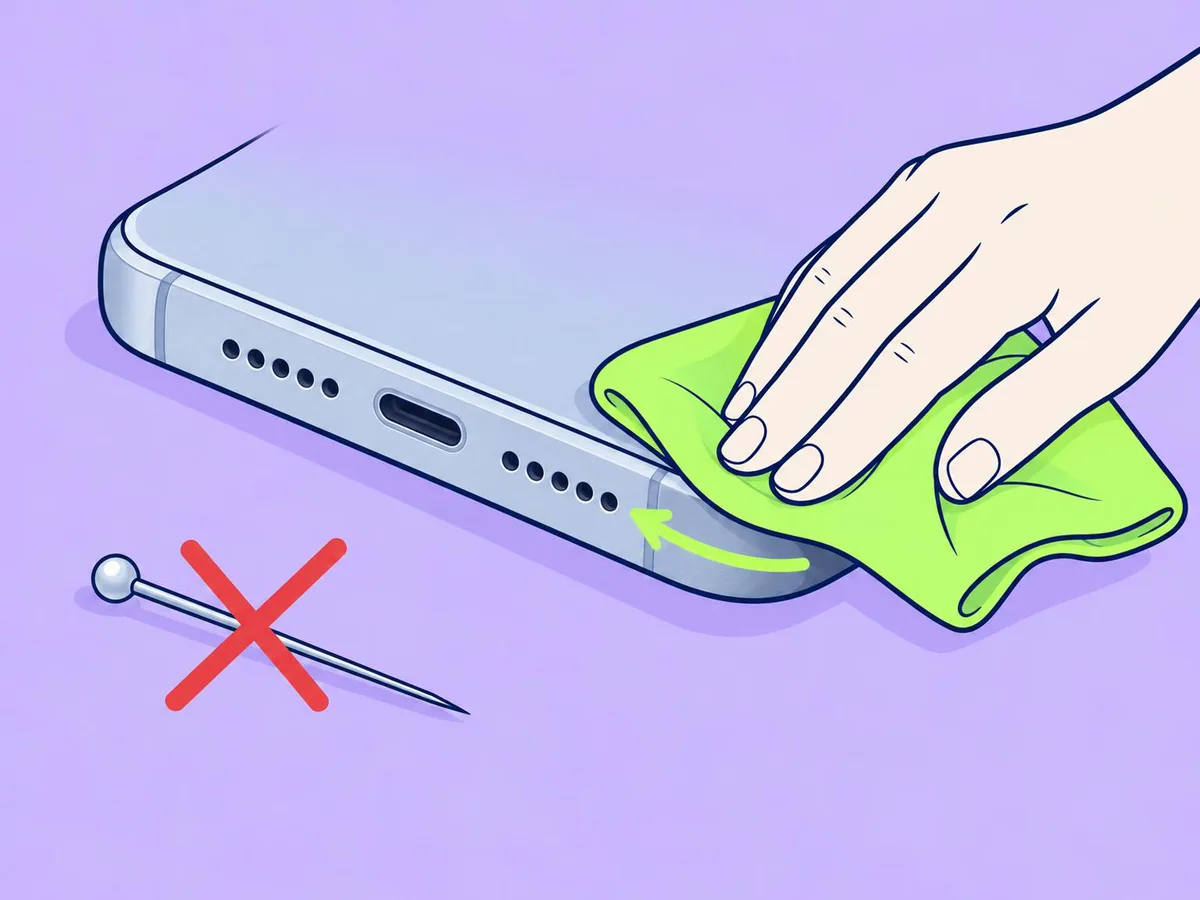
Apple's cleaning pages don't cover the grilles. Wiping across them with the dry cloth is the safe option. A soft, dry, clean brush is a common method but not Apple's advice. Never use a pin or liquid.
9. Clean the case separately
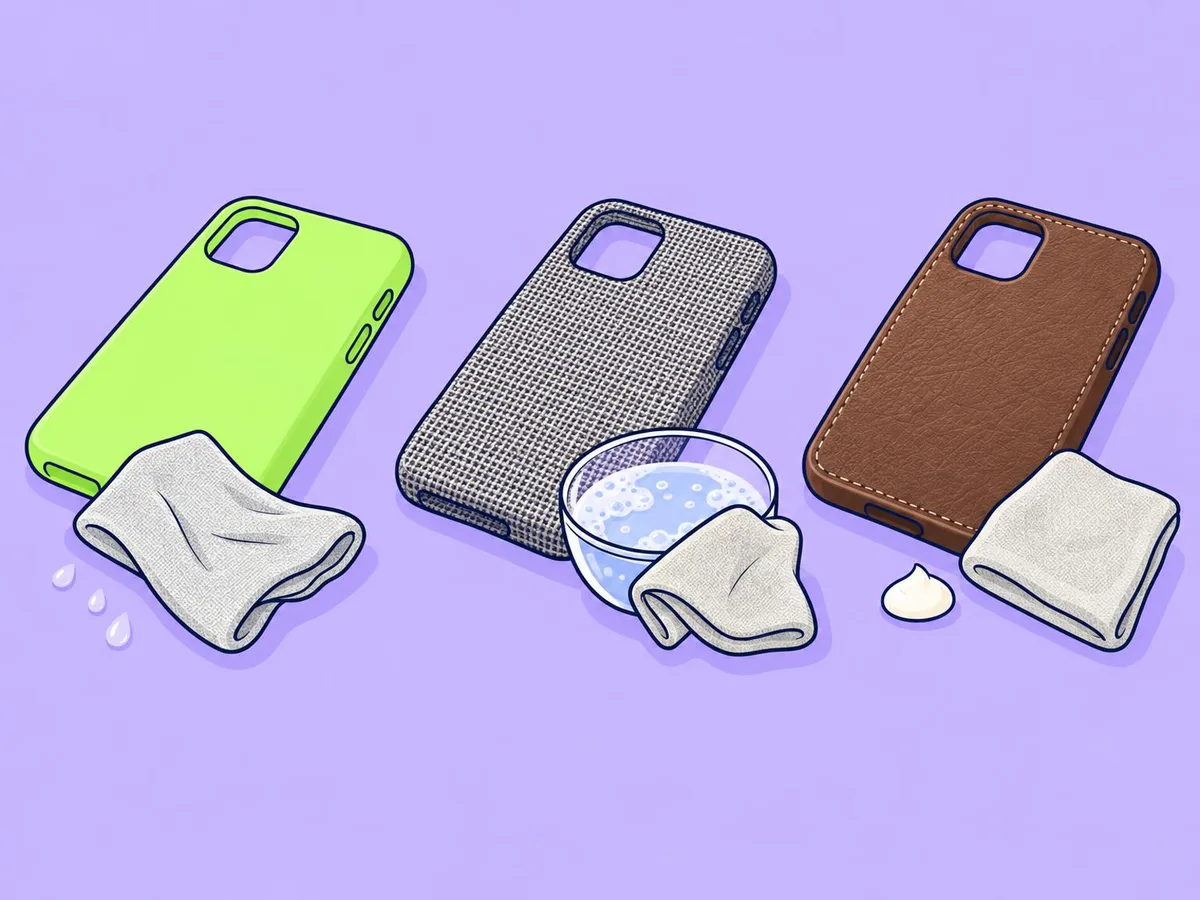
Silicone or clear case: a slightly damp, lint-free cloth. FineWoven or TechWoven: mild soapy water, rinse, dry fully. Leather: warm water and mild hand soap; the colour may change. Let the case dry before you put it back on.
10. Let everything dry, then turn the iPhone on
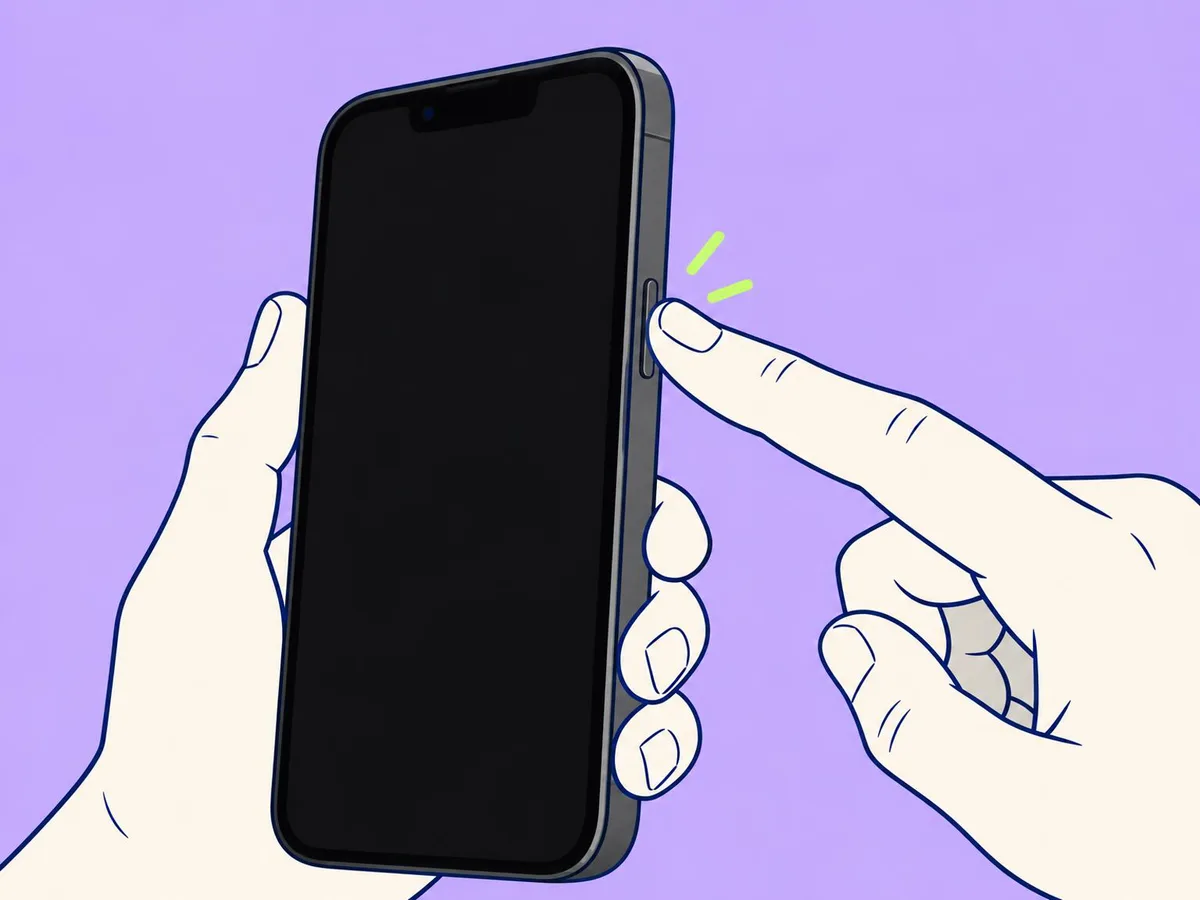
Hold the side button until the Apple logo appears. After a restart you enter your passcode once before Face ID works again.
What's different on your model
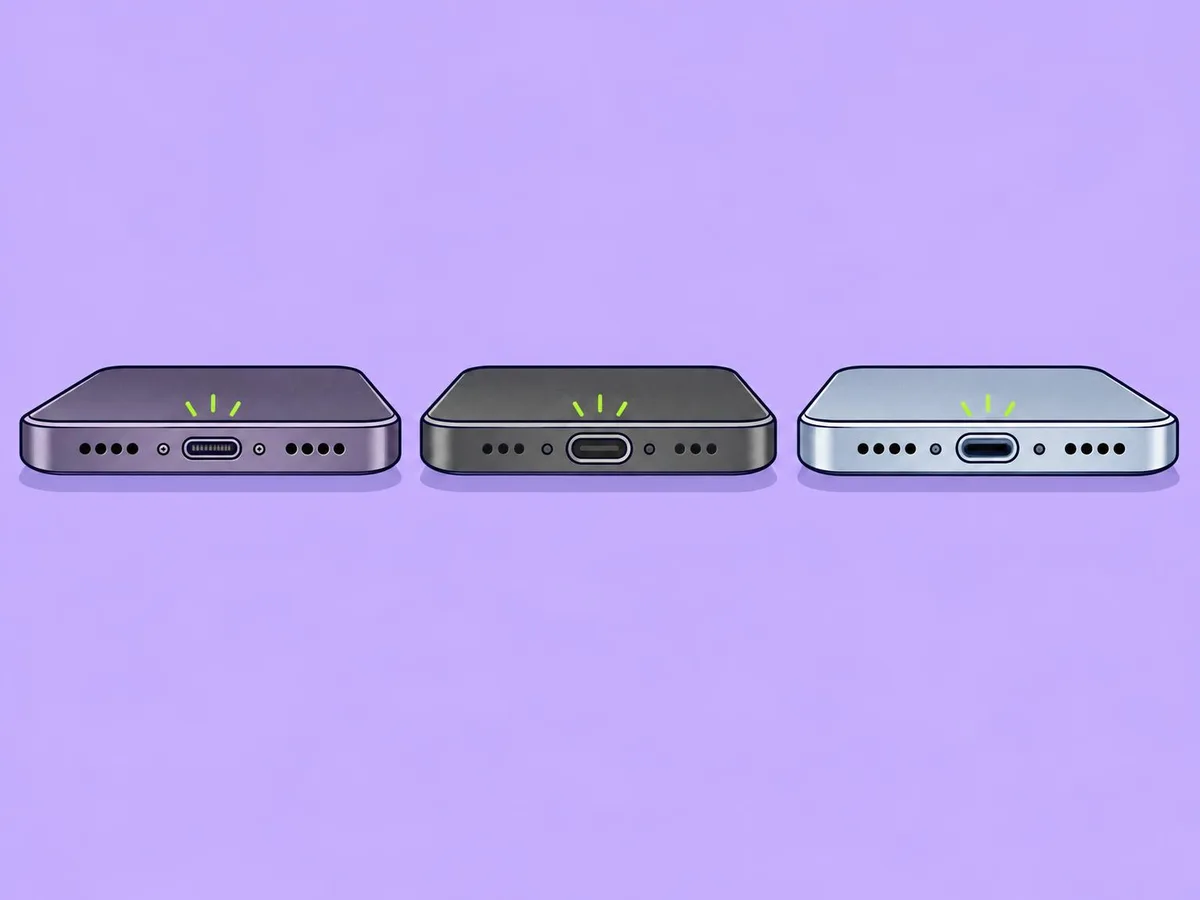
| iPhone 17e | iPhone 18 Pro | iPhone 14 Pro | |
|---|---|---|---|
| Charging port | USB-C | USB-C | Lightning |
| Frame | Aluminium, frosted glass back | Aluminium unibody | Stainless steel |
| Rear camera | One lens | Three lenses on a full-width plateau | Three lenses |
| Buttons to wipe | Side, volume, Action button | Side, volume, Action button, Camera Control | Side, volume, ring/silent switch |
| Water resistance | IP68, up to 6 m for 30 min | IP68 | IP68 |
Stainless steel shows fingerprints most; the 14 Pro's Lightning port collects pocket lint.
If this doesn't work
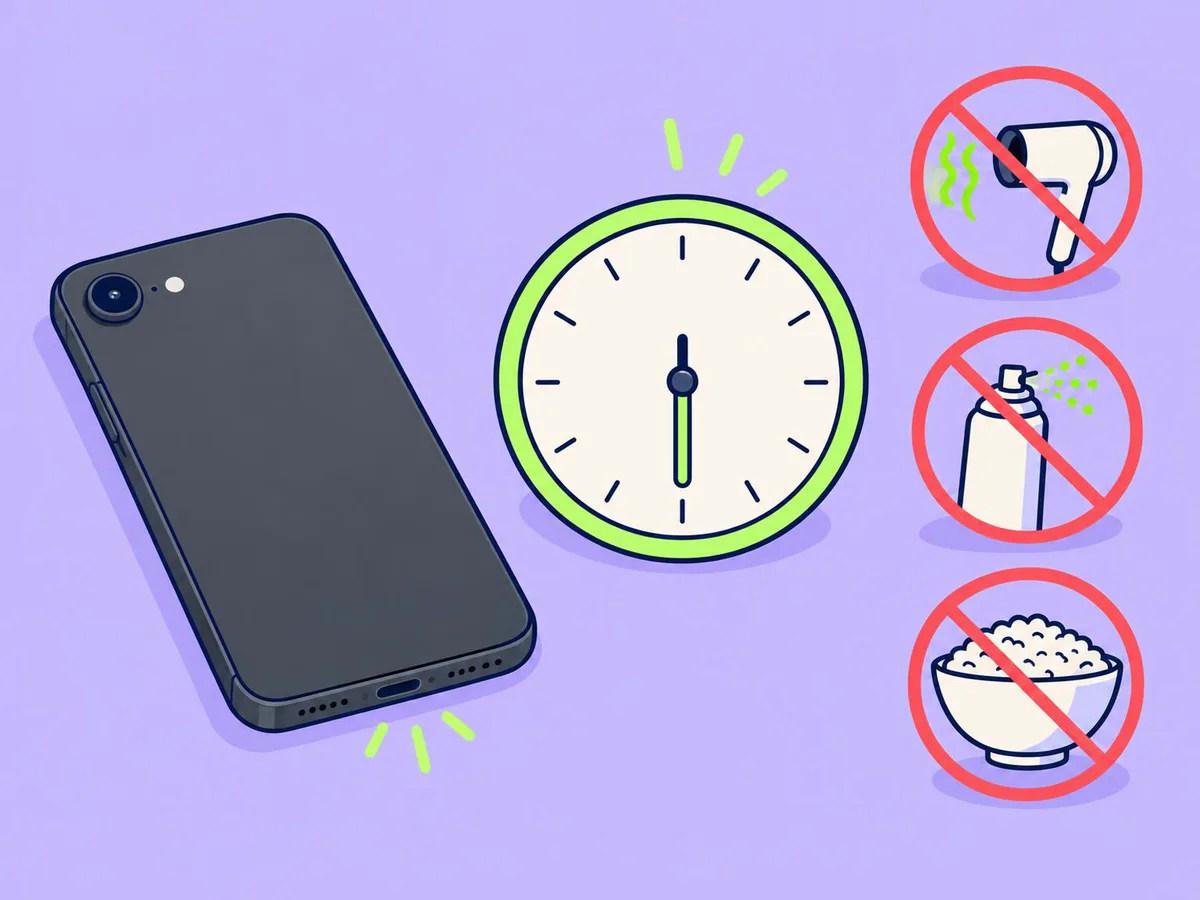
- "Liquid Detected" or "Charging Not Available" after cleaning: unplug the cable straight away. Tap the iPhone gently against your hand with the port facing down, wait at least 30 minutes and try again. If the alert comes back, leave it somewhere dry with some airflow for up to a day. Don't use heat, compressed air or a bag of rice. Wireless or MagSafe charging still works meanwhile. Apple lets you override the alert in an emergency but warns this can corrode the connector.
- It still won't charge and lint is packed in the port: take it to Apple or an authorised repair shop rather than scraping the port.
- A mark that looks like a scratch: Apple says marks on the matte glass and Ceramic Shield are often material rubbed off something else and can usually be wiped away with a slightly damp cloth.
- The screen feels less smooth than it used to: the coating wears with normal use, and cleaning products speed that up. Stick to a dry or slightly damp cloth.
Related: How to check battery health on an iPhone · How to set a charging limit on an iPhone
Questions readers ask
Can I use hand sanitiser or a screen spray?
No. Apple lists only 70% isopropyl alcohol wipes, 75% ethyl alcohol wipes and Clorox Disinfecting Wipes, and says not to spray cleaners directly onto the iPhone.
Can I rinse an iPhone 17e or 18 Pro under the tap because it is water resistant?
No. Both are rated IP68, but Apple says not to submerge an iPhone in cleaning agents, and liquid damage is not covered by the Apple warranty. Water resistance also wears down over time.
Is a toothpick safe for the charging port?
Apple says not to put objects such as a cotton swab or paper towel into the port. Many repair guides use a wooden toothpick, but it can bend the contacts, so we do not recommend it. If lint is packed in and the iPhone will not charge, take it to Apple or an authorised repair shop.
How often should I clean my iPhone?
Whenever it looks dirty, and straight away after contact with make-up, ink, acidic food or dirt, as Apple advises.
- Apple Support: Cleaning your iPhone
- Apple Support: How to clean your Apple products
- Apple Support: If you see a liquid-detection alert on your iPhone
- Apple: iPhone 17e Technical Specifications
- MacRumors: iPhone 18 Pro roundup (design, camera plateau, buttons)
- GSMArena: Apple iPhone 17e review, design and build
This article is based on the sources above. We have not tested these products ourselves. Prices and availability change; check the maker's website before you buy.