
What changed: the screenshots are now our own iPhone 17e on iOS 27.0.1, dark mode, and the wording is checked against those screens and Apple's iOS 27 guide.
howtosimply.com/guides/how-to-stop-apps-from-tracking-you-on-iphone/ · Checked October 2026 · iPhone 17e · iOS 27.0.1
In this guide
Open Settings, tap Privacy & Security, then Tracking, and switch off Allow Apps to Request to Track. New tracking requests are then denied automatically. You can also switch off each app in the list underneath.
4 of 4 steps with real screenshots · 5 official sources below
- Device
- iPhone
- Shown on
- iOS 27.0.1 (iPhone 17e)
- App
- Settings
- Path
- Settings › Privacy & Security › Tracking
- Real screenshots
- 4 of 4 steps
- Checked
- October 2026
- Sources
- 5 official, linked below
Step by step
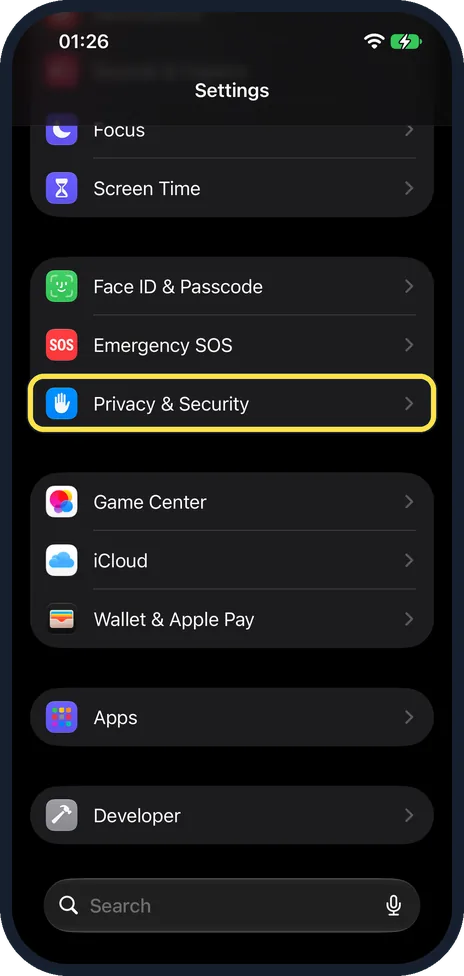
Open Settings and tap Privacy & Security
Scroll down the Settings list to the blue hand icon.
On our iPhone 17e it is below Face ID & Passcode and Emergency SOS, and above Game Center.
Watch these steps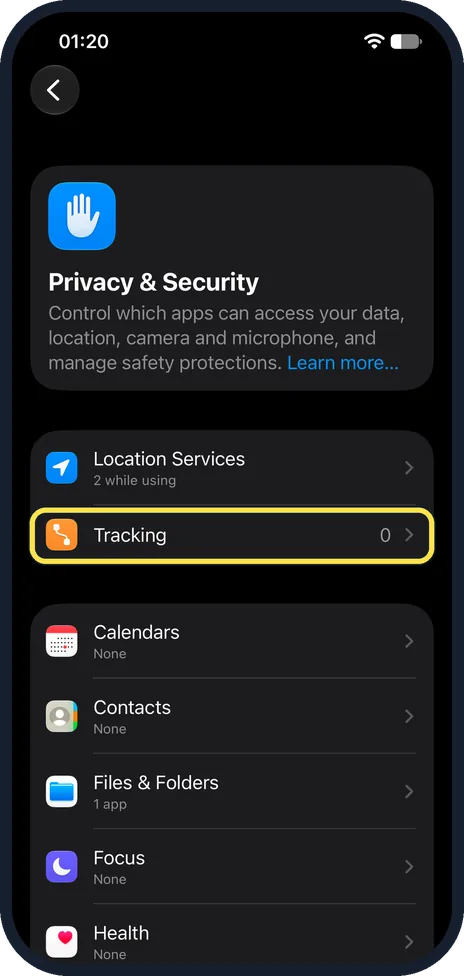
Tap Tracking
It is the second row, under Location Services.
On our iPhone 17e the Tracking row showed 0, and Location Services showed 2 while using.
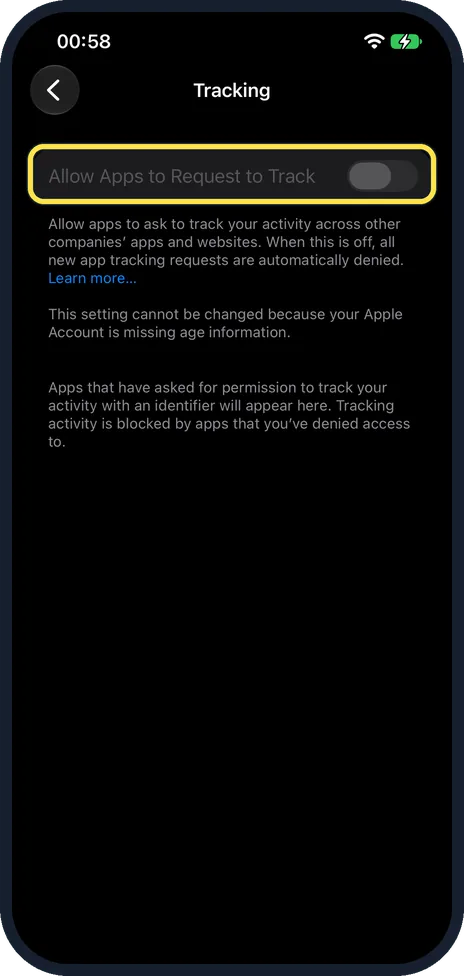
Switch off Allow Apps to Request to Track
The note under the switch reads: When this is off, all new app tracking requests are automatically denied.
On our iPhone 17e the switch was already off and greyed out, with a second note: This setting cannot be changed because your Apple Account is missing age information. Off is the setting you want, so new tracking requests were already denied.
If you see the age note, read the first item under If this does not work.
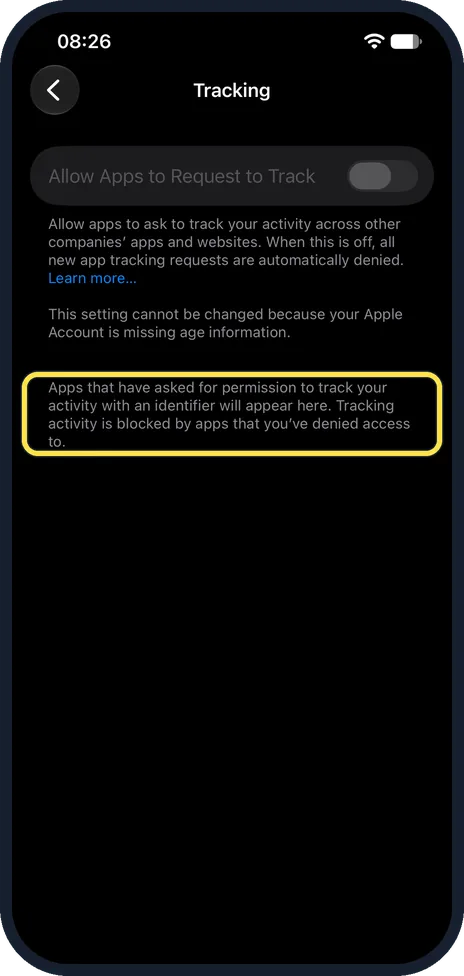
Check the list underneath
Apps that have asked appear below the switch, each with its own switch. Apple says you can turn permission on or off for any app on the list.
On our iPhone 17e no app had asked, so the page only showed this note: Apps that have asked for permission to track your activity with an identifier will appear here. Tracking activity is blocked by apps that you've denied access to.
What changed: the screenshots are now our own iPhone 17e on iOS 27.0.1, dark mode, and the wording is checked against those screens and Apple's iOS 27 guide.
Watch these steps
What we saw on our device
- Open Settings and tap Privacy & Security: On our iPhone 17e it is below Face ID & Passcode and Emergency SOS, and above Game Center.
- Tap Tracking: On our iPhone 17e the Tracking row showed 0, and Location Services showed 2 while using.
- Switch off Allow Apps to Request to Track: On our iPhone 17e the switch was already off and greyed out, with a second note: This setting cannot be changed because your Apple Account is missing age information.
- Check the list underneath: On our iPhone 17e no app had asked, so the page only showed this note: Apps that have asked for permission to track your activity with an identifier will appear here.
If you do not see this option
- The list under the switch is empty It only shows apps that have asked to track you. On our iPhone 17e none had, and the Tracking row on the Privacy & Security page showed 0.
- On iOS 26 Apple's iOS 26 guide gives the same path: Settings, Privacy & Security, Tracking, with Allow Apps to Request to Track at the top of the screen. Source: If an app asks to track your activity · Source: Control app tracking permissions on iPhone · Source: Control app tracking permissions on iPhone (iOS 26) · Source: Browse the web privately in Safari on iPhone · Source: Sign in and manage your Apple Account on iPhone
If this does not work
- Greyed out and already off On our iPhone 17e the switch was off and could not be changed. The note read: This setting cannot be changed because your Apple Account is missing age information. The note above it read: When this is off, all new app tracking requests are automatically denied. So with the switch off there is nothing more to do. Source: If an app asks to track your activity · Source: Control app tracking permissions on iPhone · Source: Control app tracking permissions on iPhone (iOS 26) · Source: Browse the web privately in Safari on iPhone · Source: Sign in and manage your Apple Account on iPhone
- Greyed out and you want it on Our iPhone 17e gave the reason under the switch: missing age information. Apple's iOS 27 guide says you can update the birthdate on your Apple Account: open Settings, tap your name, then Personal Information. Source: If an app asks to track your activity · Source: Control app tracking permissions on iPhone · Source: Control app tracking permissions on iPhone (iOS 26) · Source: Browse the web privately in Safari on iPhone · Source: Sign in and manage your Apple Account on iPhone
About this guide
Apple requires every app to ask your permission before it tracks you across other companies' apps and websites for advertising. One switch stops all apps from asking.
Screenshots: iPhone 17e, iOS 27.0.1, dark mode.
Good to know
Apple requires every app to ask before it tracks you across apps and websites owned by other companies for advertising, or shares your information with data brokers. With the switch off, new requests are refused automatically.
You may see a message that the setting cannot be changed. The page gives the reason under the switch.
For web browsing, Safari has its own protection, Prevent Cross-Site Tracking, under Settings, Apps, Safari. Apple says Safari limits third-party cookies and data by default.
In short: Settings, Privacy & Security, Tracking, switch off Allow Apps to Request to Track.
- Apple Support: If an app asks to track your activity
- Apple iPhone User Guide: Control app tracking permissions on iPhone
- Apple iPhone User Guide: Control app tracking permissions on iPhone (iOS 26)
- Apple iPhone User Guide: Browse the web privately in Safari on iPhone
- Apple iPhone User Guide: Sign in and manage your Apple Account on iPhone
Links checked in October 2026. Menus and features can change after software updates. These steps match the version named at the top.
Did this guide work for you?
Sorry about that. What happened?