How to copy on an iPhone and paste on a Mac
2 min read · 7 steps · Updated 2 October 2026
Sign in to the same Apple Account on both devices, switch on Bluetooth, Wi-Fi and Handoff, and keep them near each other. Copy text or a picture on the iPhone as usual, then press Command + V on the Mac within a short time. It works in both directions.
Apple calls this Universal Clipboard. What you copy on one device is briefly available for pasting on your other Apple devices nearby. There is no app to open and no button to press. It needs only the right settings.
These steps are for recent versions of macOS, where the settings app is called System Settings. The pictures are our own screenshots from macOS Tahoe 26 on a MacBook Pro.
Step by step
Use the same Apple Account
The iPhone, iPad and Mac must all be signed in to the same Apple Account.
Switch on Bluetooth and Wi-Fi
Both must be on, on every device. Keep the devices close together.

Mac: open General, AirDrop & Continuity
Click the Apple menu, System Settings, General, and then AirDrop & Continuity.
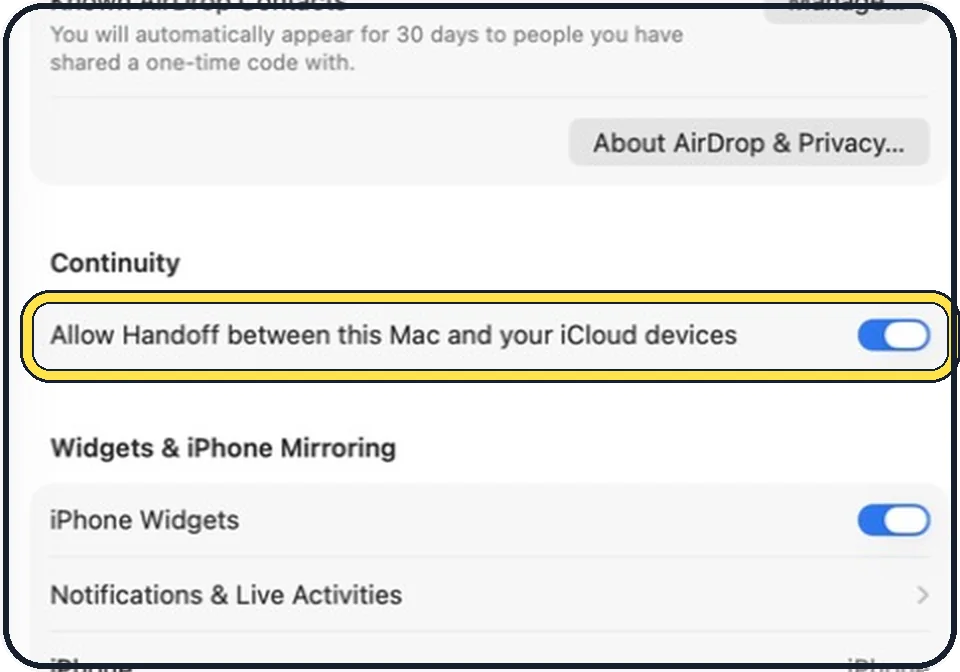
Mac: switch on Handoff
Switch on Allow Handoff between this Mac and your iCloud devices. Handoff is on by default, so this is only a check.
iPhone: switch on Handoff
Open Settings, tap General, then AirPlay & Continuity, and switch on Handoff.
Copy on one device
Select text, a picture or a file and copy it as usual: touch and hold and tap Copy on the iPhone, or press Command + C on the Mac.
Paste on the other
On the other device, paste as usual. The content is available only briefly, or until you copy something else on either device.
Good to know
If nothing arrives, install the latest updates on both devices, restart them and go through the list above again.
For larger things, AirDrop is the better tool: how to use AirDrop on a Mac.
Handoff does more than the clipboard: how to use Handoff between a Mac and an iPhone.
In short: Same Apple Account, Bluetooth, Wi-Fi and Handoff on, devices close together. Copy on one, paste on the other.
- Apple Support: Use Universal Clipboard to copy and paste between your Apple devices
Rules and prices change. Check the official source before you act.