
What changed: the screenshots are now our own iPhone 17e on iOS 27.0.1, dark mode, and the wording is checked against those screens.
howtosimply.com/guides/how-to-set-your-usual-type-of-travel-in-apple-maps-on-an-iphone/ · Checked October 2026 · iPhone 17e · iOS 27.0.1
In this guide
Open Settings, tap Apps, then Maps, and under Preferred Type of Travel tap Walking, Public Transport or Cycling. Driving is selected at first. Maps then uses your choice, when available, to get directions and estimate travel time.
4 of 4 steps with real screenshots · 2 official sources below
- Device
- iPhone
- Shown on
- iOS 27.0.1 (iPhone 17e)
- App
- Settings
- Path
- Settings › Apps › Maps › Preferred Type of Travel
- Real screenshots
- 4 of 4 steps
- What we did
- Performed: we made the change on our device and show the result
- Checked
- October 2026
- Sources
- 2 official, linked below
Step by step
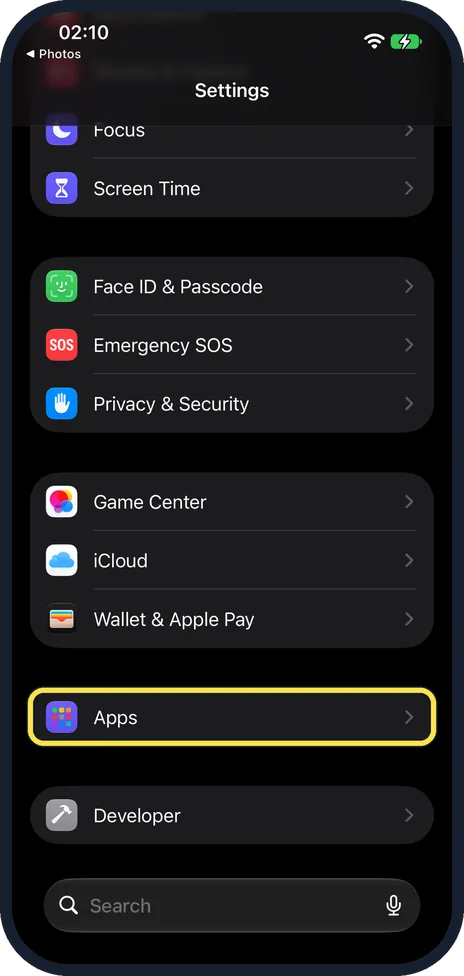
Open Settings and tap Apps
Apps is near the bottom of the main Settings list.
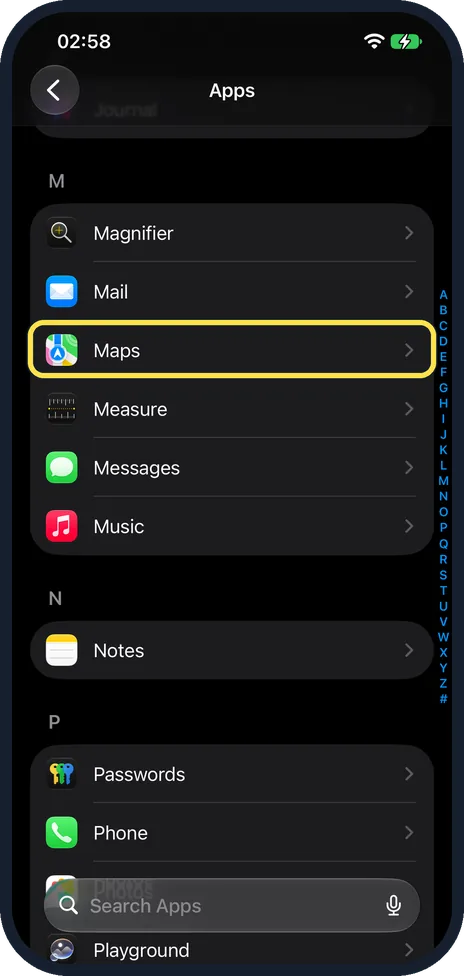
Tap Maps
The apps are in alphabetical order, so Maps is under M.
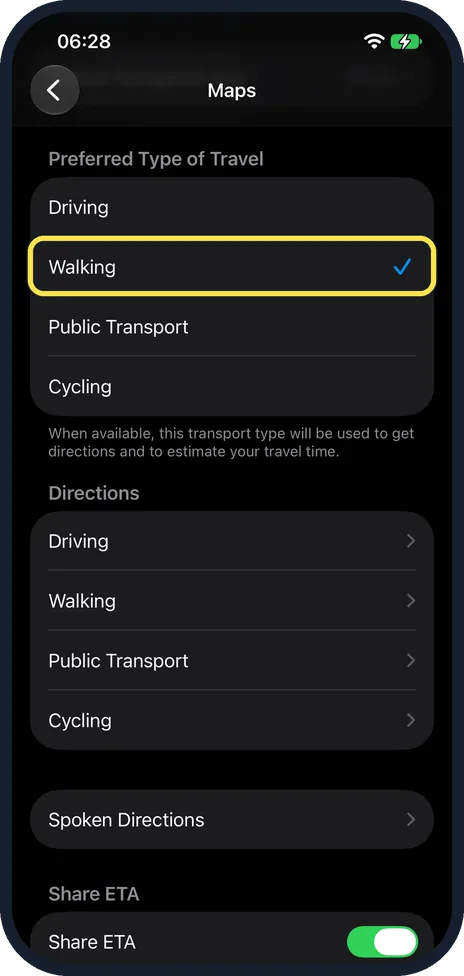
Tap your type of travel
Under Preferred Type of Travel there are four choices: Driving, Walking, Public Transport and Cycling. The tick is on Driving at first; the picture shows ours after we tapped Walking. The note below says that this type is used, when available, to get directions and to estimate your travel time.
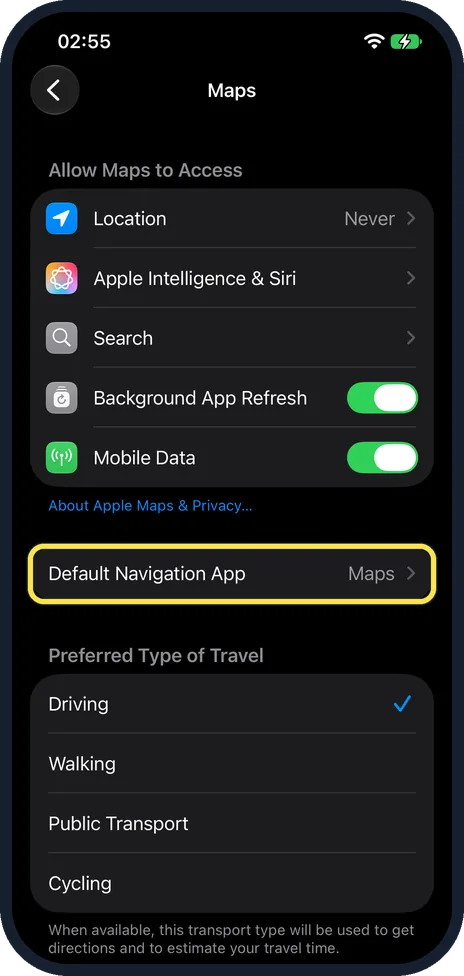
Check the navigation app
Default Navigation App is the row above; ours showed Maps. It decides which app opens when you tap an address.
What changed: the screenshots are now our own iPhone 17e on iOS 27.0.1, dark mode, and the wording is checked against those screens.
If you do not see this option
- It says Transit, not Public Transport. With US English the third choice is called Transit. Our iPhone, set to UK English, says Public Transport. Source: Choose a default travel mode and Maps units on iPhone
- You would rather change it in Maps. Open Maps, tap your picture next to the search field, then Preferences. Ours showed Driving next to Preferences. Source: Choose a default travel mode and Maps units on iPhone
- Some directions are not offered. Apple says turn-by-turn spoken directions and the preferred route option are not available in all countries or regions. Source: Get driving directions in Maps on iPhone
If this does not work
- Directions still open for driving. The note under the choices says the type is used when available. Where it is not, tap the travel type you want on the directions card. Source: Get driving directions in Maps on iPhone
- Addresses open in another app. Check Default Navigation App on the same page; ours was set to Maps. Source: Change your default apps for features on iPhone and iPad
- Distances show in the wrong unit. Maps uses the measurement system set in Settings, General, Language & Region. Source: Choose a default travel mode and Maps units on iPhone
About this guide
Apple Maps assumes that you drive. If you mostly walk, cycle or take the train, every route starts with the wrong kind of directions. One setting changes the starting point.
The screenshots are our own, taken on an iPhone 17e running iOS 27.0.1, in dark mode. With the iPhone set to UK English, the third choice is called Public Transport.
Good to know
To go back, tap Driving on the same page.
Drivers can keep routes off toll roads: how to avoid tolls and highways in Apple Maps on an iPhone.
In short: Settings, Apps, Maps, Preferred Type of Travel, tap your choice.
- Apple Support: Get driving directions in Maps on iPhone
- Apple iPhone User Guide: Choose a default travel mode and Maps units on iPhone
Links checked in October 2026. Menus and features can change after software updates. These steps match the version named at the top.
Did this guide work for you?
Sorry about that. What happened?