
What changed: the screenshots are now our own iPhone 17e on iOS 27.0.1, dark mode, and the wording is checked against those screens.
howtosimply.com/guides/how-to-show-only-capital-letters-on-the-iphone-keyboard/ · Checked October 2026 · iPhone 17e · iOS 27.0.1
In this guide
Open Settings, tap Accessibility, then Keyboards & Typing, and switch off Show Lowercase Keys. The switch is on at first. According to the note on the page, it affects keyboards that use the Shift key to switch between uppercase and lowercase letters.
4 of 4 steps with real screenshots · 1 official source below
- Device
- iPhone
- Shown on
- iOS 27.0.1 (iPhone 17e)
- App
- Settings
- Path
- Settings › Accessibility › Keyboards & Typing
- Real screenshots
- 4 of 4 steps
- Checked
- October 2026
- Sources
- 1 official, linked below
Step by step
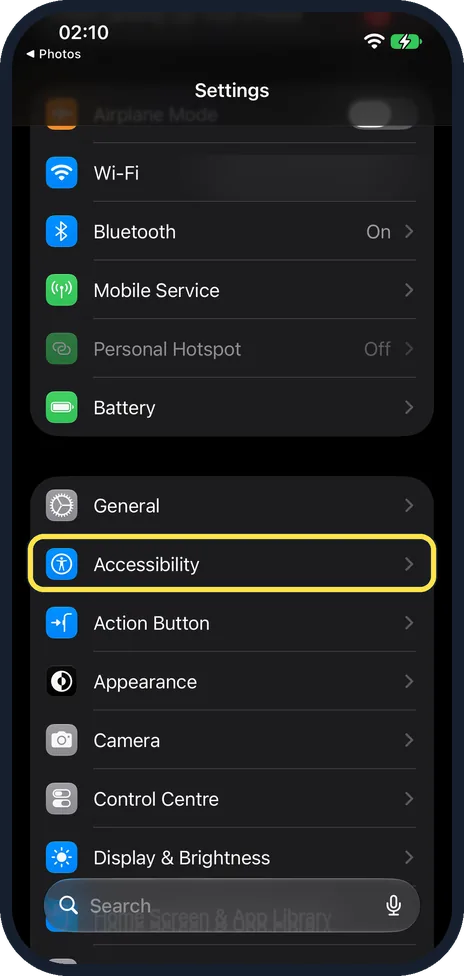
Open Settings and tap Accessibility
Accessibility is in the group below Battery, just under General.
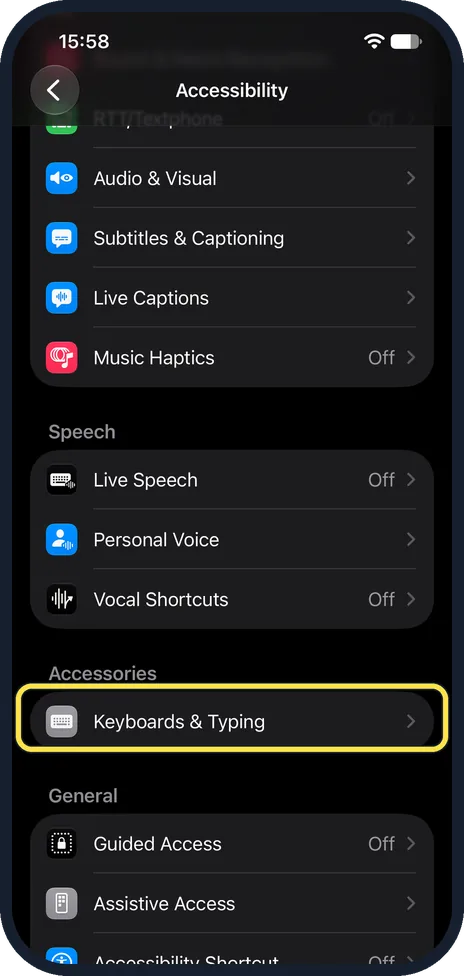
Scroll down and tap Keyboards & Typing
It is under the heading Accessories, near the bottom of the page.
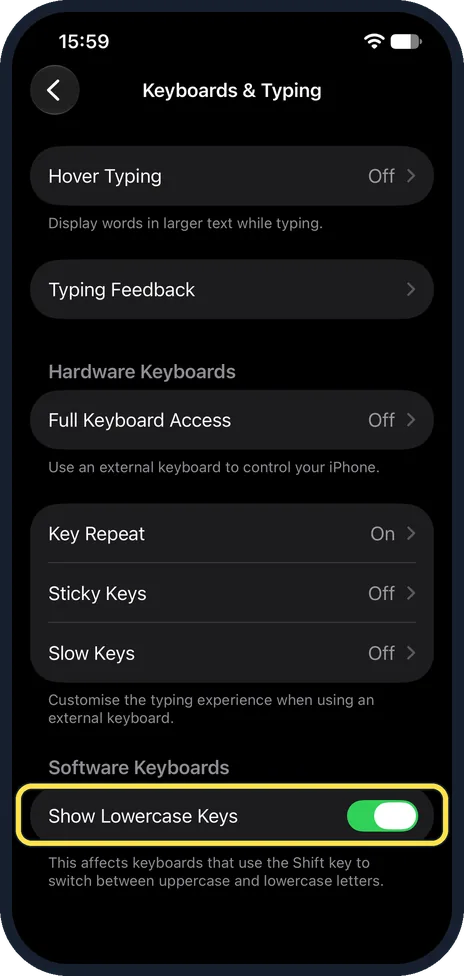
Switch off Show Lowercase Keys
It is under the heading Software Keyboards at the bottom of the page. It was on on our iPhone 17e.
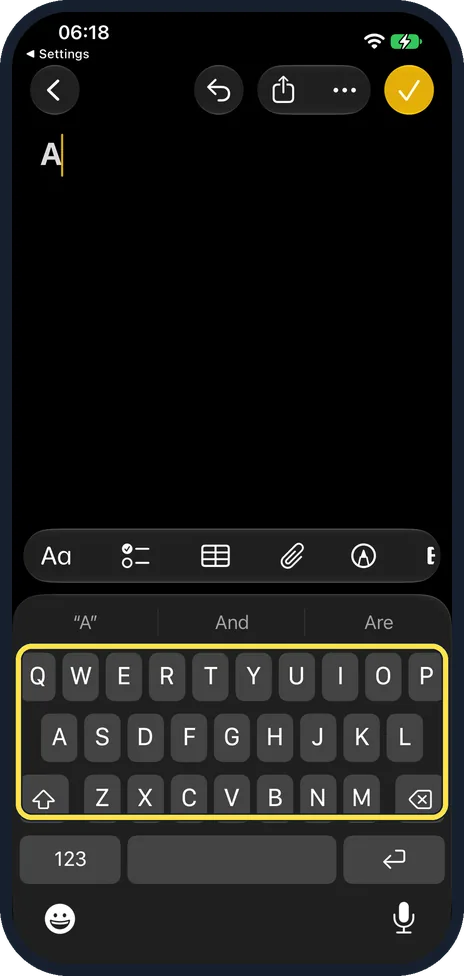
Check the keyboard
The keys now show capital letters all the time. Look at the Shift key to see whether the next letter will be a capital: on ours, after typing one letter, Shift was off and the keys still showed capitals.
What changed: the screenshots are now our own iPhone 17e on iOS 27.0.1, dark mode, and the wording is checked against those screens.
If you do not see this option
- Your keyboard has no Shift key. The note under the switch says it affects keyboards that use the Shift key to switch between uppercase and lowercase letters.
- You want bigger keys instead. Apple's tip: turn the iPhone to landscape for a larger keyboard in many apps, including Mail, Messages, Notes and Safari. Source: Adjust the onscreen and external keyboard settings for accessibility on iPhone
If this does not work
- You still type small letters. The switch only changes what the keys show. Tap Shift for a capital letter, or double-tap it for Caps Lock. Source: Adjust the onscreen and external keyboard settings for accessibility on iPhone · Source: Type with the onscreen keyboard on iPhone
- The letters are still hard to read. Hover Typing, at the top of the same page and Off on ours, displays words in larger text while you type.
About this guide
The keys of the iPhone keyboard change between small and capital letters each time Shift is on or off. Some people find the constant change restless, or read capital letters more easily. One switch decides whether the keys show lowercase letters.
The screenshots are our own, taken on an iPhone 17e running iOS 27.0.1, in dark mode. Ours had Show Lowercase Keys on.
Good to know
More on this page: Hover Typing shows what you type in larger text: how to see what you type in larger text on an iPhone.
In short: Settings, Accessibility, Keyboards & Typing, Show Lowercase Keys off.
Links checked in October 2026. Menus and features can change after software updates. These steps match the version named at the top.
Did this guide work for you?
Sorry about that. What happened?