
What changed: the screenshots are now our own iPhone 17e on iOS 27.0.1, dark mode, and the wording is checked against those screens.
howtosimply.com/guides/how-to-stop-the-iphone-capitalising-the-first-letter/ · Checked October 2026 · iPhone 17e · iOS 27.0.1
In this guide
Open Settings, tap General, then Keyboard, and switch off Auto-Capitalisation (Auto-Capitalization in US English) under All Keyboards. The keyboard then no longer switches to a capital letter by itself, and you tap Shift when you want one.
4 of 4 steps with real screenshots · 1 official source below
- Device
- iPhone
- Shown on
- iOS 27.0.1 (iPhone 17e)
- App
- Settings
- Path
- Settings › General › Keyboard
- Real screenshots
- 4 of 4 steps
- Checked
- October 2026
- Sources
- 1 official, linked below
Step by step
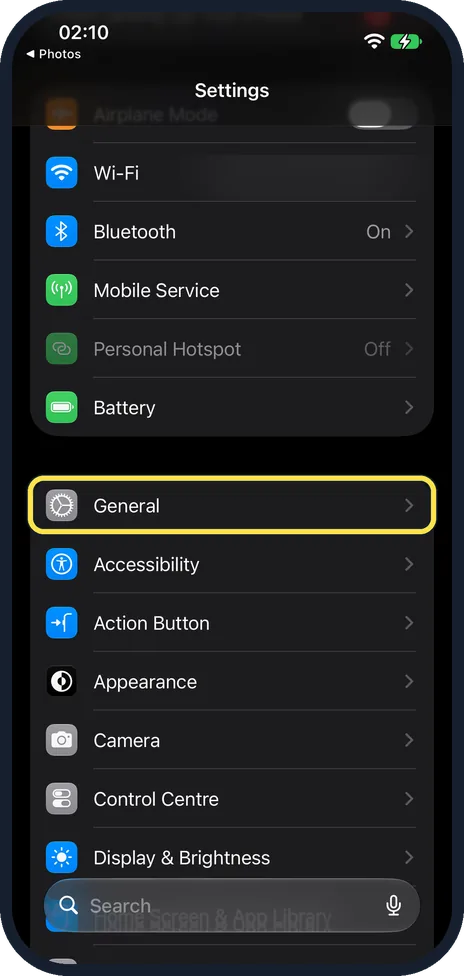
Open Settings and tap General
General is the first row of the group below Battery, after Airplane Mode, Wi-Fi and Bluetooth.
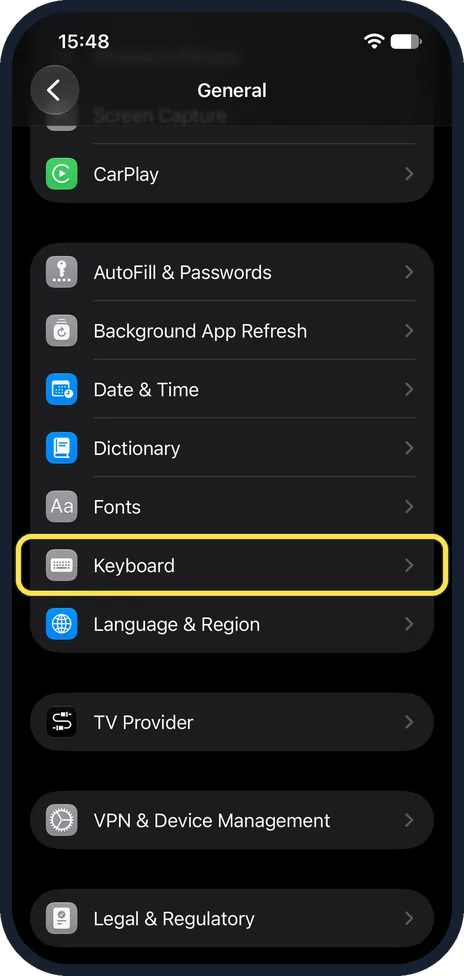
Tap Keyboard
It is just below Fonts, in the group that starts with AutoFill & Passwords.
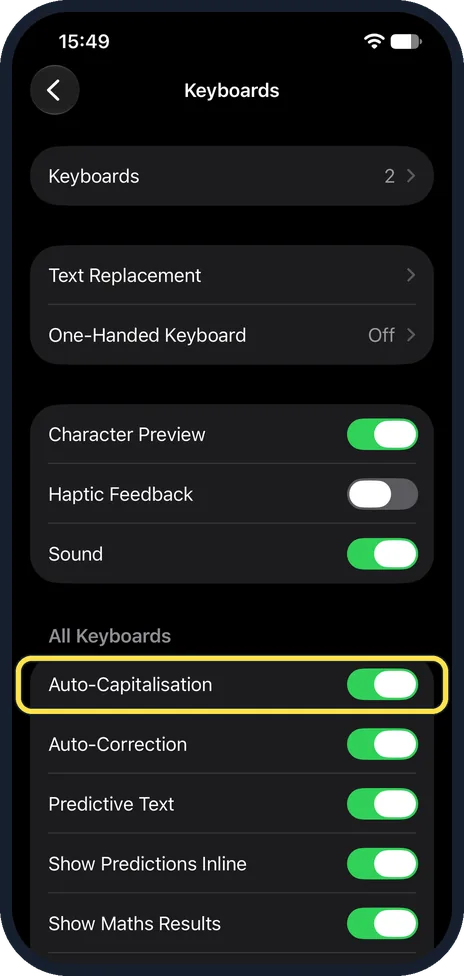
Switch off Auto-Capitalisation
It is the first switch under the heading All Keyboards. With the iPhone set to UK English it is spelt Auto-Capitalisation, in US English Auto-Capitalization. On our iPhone 17e every switch under All Keyboards was on.
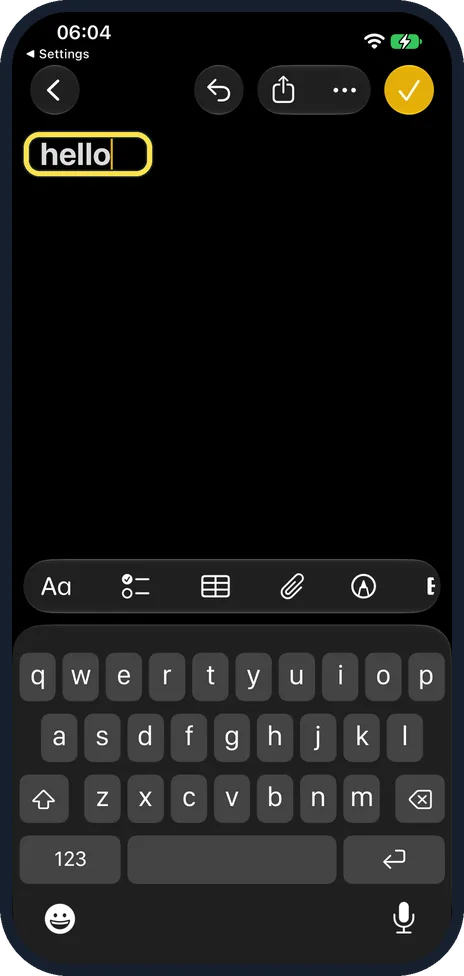
Check it while typing
Start a new sentence. With Auto-Capitalisation off, ours kept hello in small letters at the start of a note.
What changed: the screenshots are now our own iPhone 17e on iOS 27.0.1, dark mode, and the wording is checked against those screens.
If you do not see this option
- Change it from the keyboard. While typing, touch and hold the emoji or globe key and tap Keyboard Settings. On our iPhone 17e the menu listed Keyboard Settings, English (US) and Emoji. Source: Type with the onscreen keyboard on iPhone
- Search for it. Open Settings, tap the search field at the bottom and type Capital. Apple notes that the sections in Settings depend on the iPhone model. Source: Find settings on iPhone
If this does not work
- Some words still get a capital. Check Text Replacement on the Keyboards page: an entry there puts in its phrase exactly as written, capitals included. Source: Save keystrokes with text replacements on iPhone
- Words still change as you type. Auto-Correction, the switch below, can still change words. Switch it off too if you want the keyboard to leave your text alone. Source: Use Auto-Correction and predictive text on your iPhone
About this guide
With Auto-Capitalization on, the iPhone keyboard chooses capital letters by itself. For passwords, usernames, code or a deliberate all-lowercase style that gets in the way. The switch for it is the first one under All Keyboards.
The screenshots are our own, taken on an iPhone 17e running iOS 27.0.1, in dark mode.
Good to know
For a single capital letter, tap Shift once. For several, double-tap Shift to turn on Caps Lock: how to turn on Caps Lock on an iPhone.
In short: Settings, General, Keyboard, Auto-Capitalization off.
Links checked in October 2026. Menus and features can change after software updates. These steps match the version named at the top.
Did this guide work for you?
Sorry about that. What happened?