
What changed: steps that look different now show our own iPhone 14 Pro on iOS 27.0.1, with the wording checked against that screen.
howtosimply.com/guides/how-to-turn-off-swipe-typing-on-an-iphone/ · Checked October 2026 · iPhone 14 Pro · iOS 27.0.1
In this guide
Open Settings, tap General, then Keyboard, scroll down and switch off Slide to Type. The keyboard then only takes single taps, and sliding from letter to letter no longer types a word.
2 of 4 steps with real screenshots · 1 official source below
- Device
- iPhone
- Shown on
- iOS 27.0.1 (iPhone 14 Pro)
- App
- Settings
- Path
- Settings › General › Keyboard
- Real screenshots
- 2 of 4 steps
- Checked
- October 2026
- Sources
- 1 official, linked below
Step by step
Open Settings and tap General
General is in the main Settings list.
Tap Keyboard
It is on the General page.
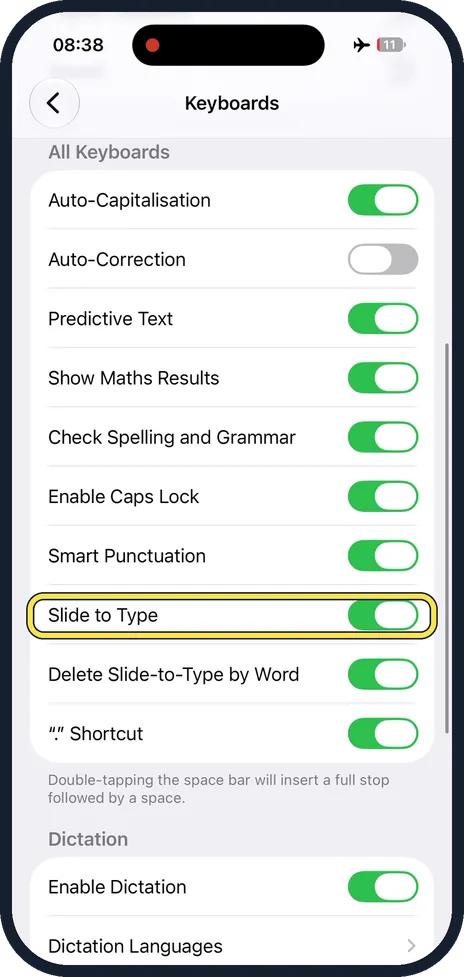
Scroll down and switch off Slide to Type
It is in the list of switches under All Keyboards.
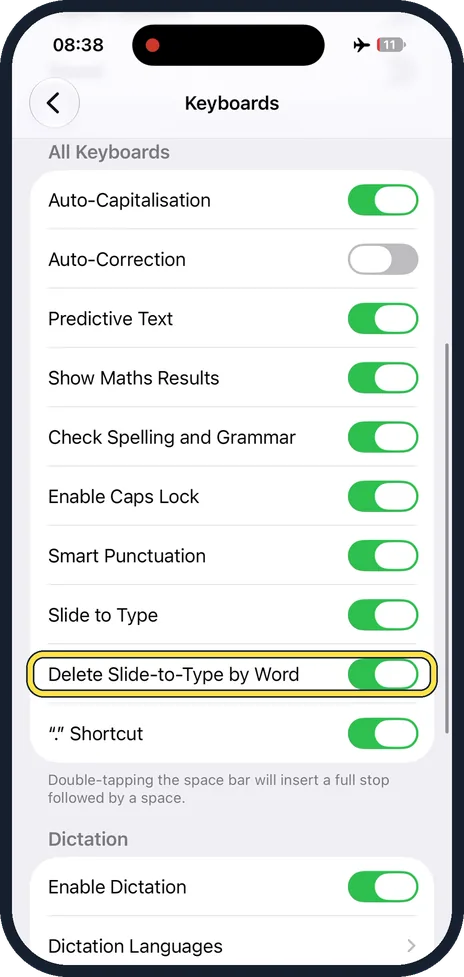
Or keep it and look at the switch below
Delete Slide-to-Type by Word is the next row and is on at first. It only matters while Slide to Type is on.
What changed: steps that look different now show our own iPhone 14 Pro on iOS 27.0.1, with the wording checked against that screen.
About this guide
The iPhone keyboard lets you type a word by sliding from one letter to the next without lifting your finger. If you never type that way, you can switch it off. The feature is on at first and has its own switch.
Good to know
Apple notes that sliding to type is not available for all languages.
With the feature on, you can mix both ways of typing, even in the middle of a sentence.
In short: Settings, General, Keyboard, Slide to Type off.
Links checked in October 2026. Menus and features can change after software updates. These steps match the version named at the top.
Did this guide work for you?
Sorry about that. What happened?