
What changed: the screenshots are now our own iPhone 17e on iOS 27.0.1, dark mode, and the wording is checked against those screens and Apple's iOS 27 guide.
howtosimply.com/guides/how-to-see-what-you-type-in-larger-text-on-an-iphone/ · Checked October 2026 · iPhone 17e · iOS 27.0.1
In this guide
Open Settings, tap Accessibility, then Keyboards & Typing, then Hover Typing, and switch it on. The iPhone then displays the words you type in larger text. On the same page you choose where the large text sits, its font, size and colours.
5 of 5 steps with real screenshots · 1 official source below
- Device
- iPhone
- Shown on
- iOS 27.0.1 (iPhone 17e)
- App
- Settings
- Path
- Settings › Accessibility › Keyboards & Typing
- Real screenshots
- 5 of 5 steps
- Checked
- October 2026
- Sources
- 1 official, linked below
Step by step
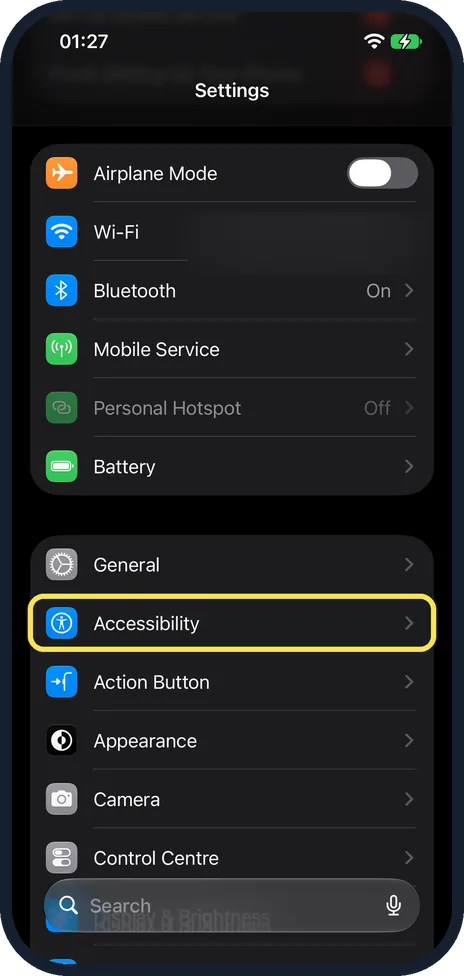
Open Settings and tap Accessibility
On our iPhone 17e with iOS 27, Accessibility was in the second group of the main Settings list, just below General.
Watch these steps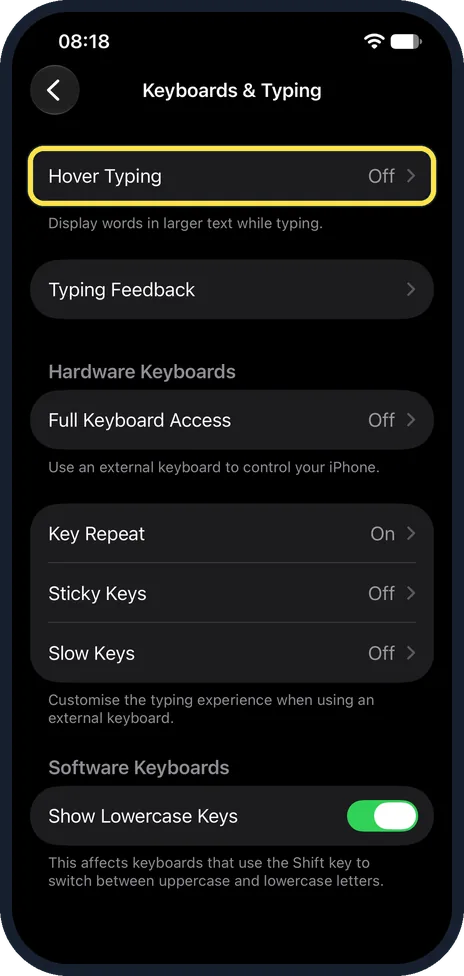
Tap Keyboards & Typing, then Hover Typing
On the Accessibility page, scroll down and tap Keyboards & Typing. Apple's iOS 27 guide says Accessibility, Hover Text, Hover Typing. On our iPhone 17e, Hover Typing was the first row of Keyboards & Typing, showing Off, and the note below it read: Display words in larger text while typing.
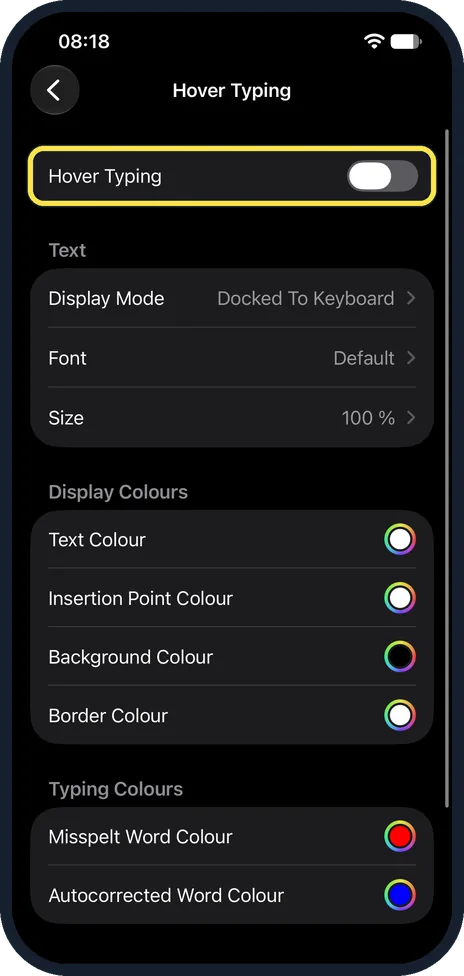
Switch on Hover Typing
The switch is at the top of the page. Apple says that as you type in a text entry field, a larger version of what you are typing is then displayed. On our iPhone 17e with iOS 27, it was off.
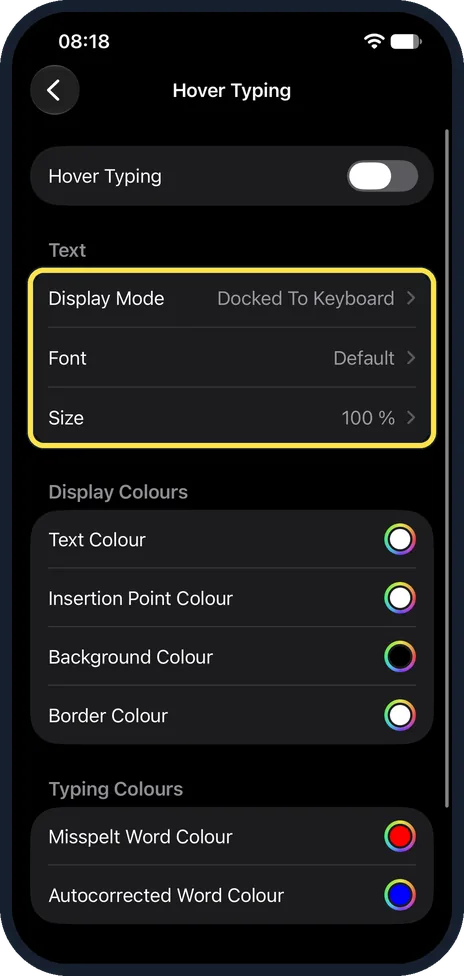
Choose position, font and size
Display Mode chooses where the large text window sits: Apple lists inline (near the cursor), at the top of the screen, or directly above the onscreen keyboard. On our iPhone 17e, Display Mode was set to Docked To Keyboard, Font to Default and Size to 100 %. Tap a row to change it.
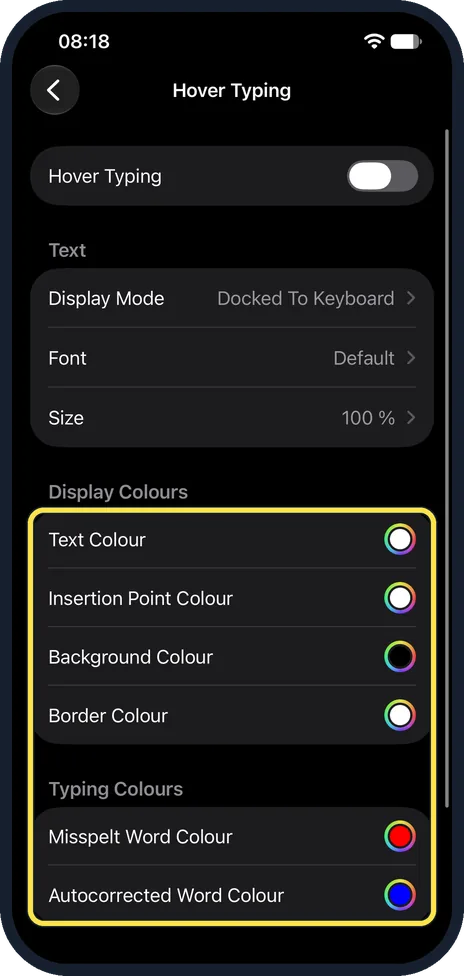
Choose the colours
Under Display Colours you set the colour of the text, the insertion point, the background and the border. Under Typing Colours, Misspelt Word Colour and Autocorrected Word Colour set their own colours. Apple says you pick each colour by Grid, Spectrum or Sliders.
What changed: the screenshots are now our own iPhone 17e on iOS 27.0.1, dark mode, and the wording is checked against those screens and Apple's iOS 27 guide.
Watch these steps
If you do not see this option
- You cannot find Hover Typing. Apple's iOS 27 guide gives the path Accessibility, Hover Text, Hover Typing. On our iPhone 17e with iOS 27.0.1 we found it under Accessibility, Keyboards & Typing, as the first row. If it is not in one place, look in the other. Source: View a larger version of text you're reading or typing on iPhone
- There is no Size slider. Apple describes a slider for Size. On our iPhone 17e Size was a row showing 100 %; tap it to change the size. Source: View a larger version of text you're reading or typing on iPhone
If this does not work
- The large text window is in the way. Apple says you can swipe on the Hover Typing window to hide it for a moment. It comes back when you start typing again. Source: View a larger version of text you're reading or typing on iPhone
- No large text appears when you type. Check the Hover Typing switch at the top of the page. On our iPhone 17e it was off at first. Apple says the larger version is shown as you type in a text entry field. Source: View a larger version of text you're reading or typing on iPhone
- You think you need a mouse or trackpad. Apple says you do not need to connect a pointing device to use Hover Typing. A pointing device is only needed for Hover Text. Source: View a larger version of text you're reading or typing on iPhone
About this guide
The text field of a chat or a form can be small, and typing mistakes are easy to miss. Hover Typing repeats what you type in larger text. It is off at first.
The screenshots are our own, taken on an iPhone 17e running iOS 27.0.1.
Good to know
To hide the large text for a moment, swipe on it. It comes back when you start typing again.
Display Mode offers three places: inline near the cursor, at the top of the screen, or directly above the keyboard.
Apple's user guide reaches the same page by another way: Settings, Accessibility, Hover Text, Hover Typing. On our iPhone with iOS 27.0.1, Hover Typing is listed at the bottom of the Hover Text page. No mouse or trackpad is needed for Hover Typing.
To make all text on the iPhone larger, not only what you type: how to make text bigger on an iPhone.
The iPhone can also say each word aloud while you type: how to make an iPhone speak words as you type.
In short: Settings, Accessibility, Keyboards & Typing, Hover Typing on.
Links checked in October 2026. Menus and features can change after software updates. These steps match the version named at the top.
Did this guide work for you?
Sorry about that. What happened?