
What changed: the screenshots are now our own iPhone 17e on iOS 27.0.1, dark mode, and the wording is checked against those screens and Apple's iOS 27 guide.
howtosimply.com/guides/airdrop-not-working-on-an-iphone-8-fixes-to-try/ · Checked October 2026 · iPhone 17e · iOS 27.0.1
In this guide
Bring the two devices close together, switch on Wi-Fi and Bluetooth on both and turn off Personal Hotspot. On the receiving iPhone, open Control Centre, touch and hold the group with Wi-Fi and Bluetooth, tap AirDrop and choose Everyone for 10 Minutes.
7 of 7 steps with real screenshots · 4 official sources below
- Device
- iPhone
- Shown on
- iOS 27.0.1 (iPhone 17e)
- App
- Settings
- Real screenshots
- 7 of 7 steps
- Checked
- October 2026
- Sources
- 4 official, linked below
Step by step
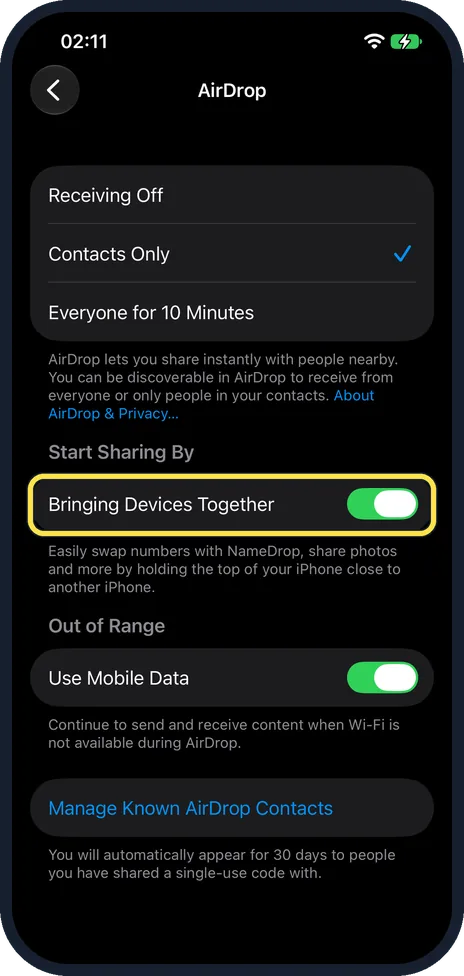
Move the devices close together
Apple says the devices must be within 10 metres (30 feet) of each other. Put them side by side for the test. Under Settings, General, AirDrop, Bringing Devices Together lets you start sharing by holding the top of your iPhone close to another iPhone. On our iPhone 17e it was on.
Watch these steps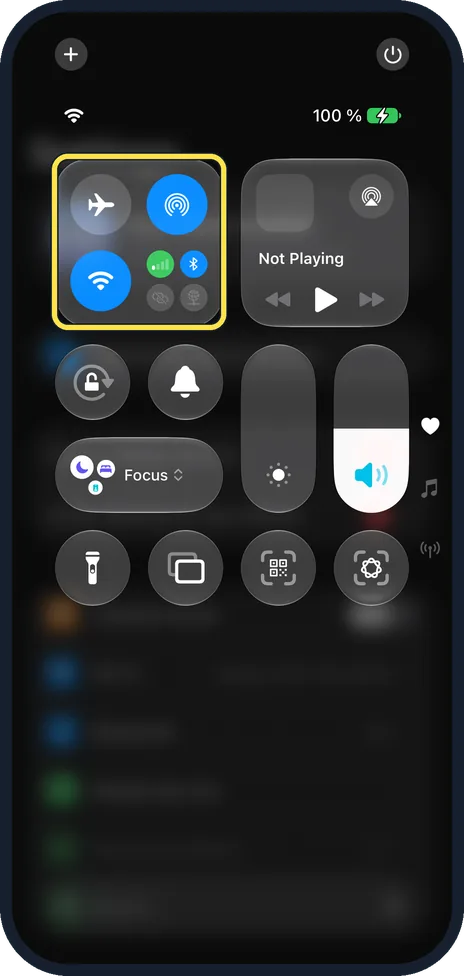
Switch on Wi-Fi and Bluetooth on both
Both devices need both switched on. In Control Centre the Wi-Fi and Bluetooth buttons are blue when on. On our iPhone 17e both were on.
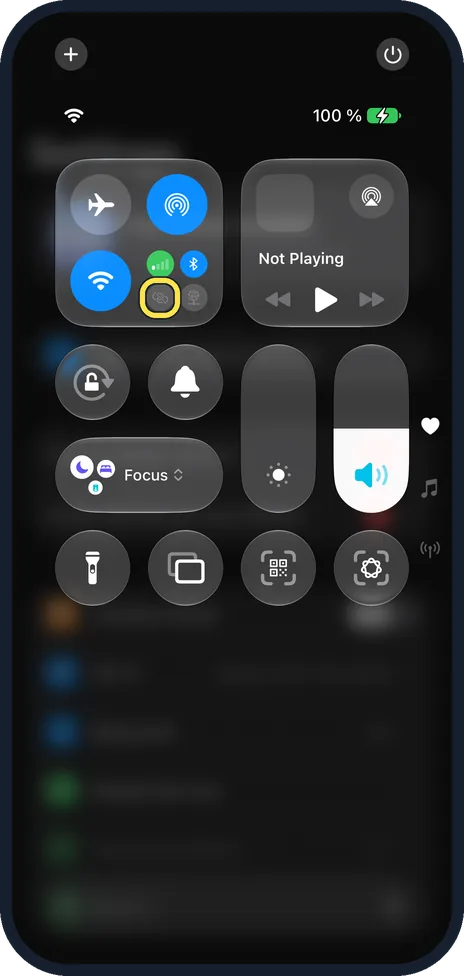
Turn off Personal Hotspot
As a test, turn off Personal Hotspot on either device that is sharing its internet connection. Our iPhone 17e had no SIM card, so the Personal Hotspot button in Control Centre was greyed out.
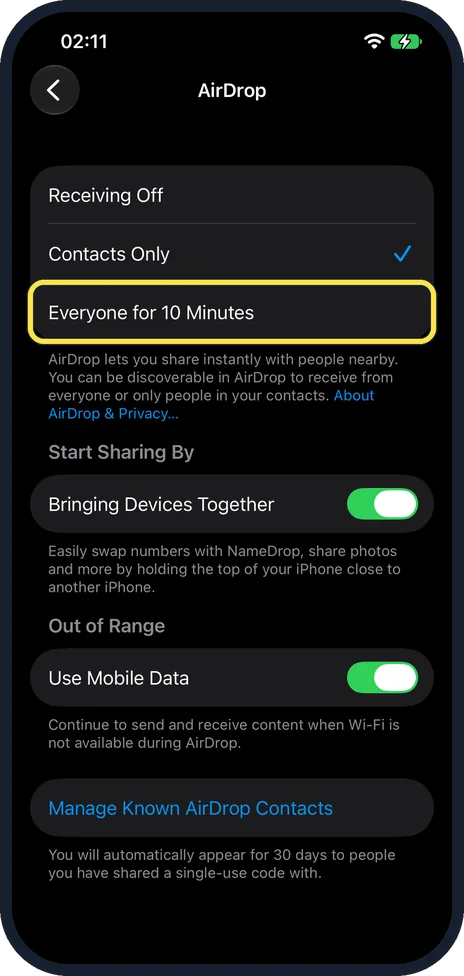
Set receiving to Everyone for 10 Minutes
On the device that should receive, swipe down from the top right corner to open Control Centre. Touch and hold the group with Wi-Fi and Bluetooth, tap AirDrop and tap Everyone for 10 Minutes. The same choice is under Settings, General, AirDrop, shown here. On our iPhone 17e it was set to Contacts Only. The page lists three choices: Receiving Off, Contacts Only and Everyone for 10 Minutes.
Check for a VPN
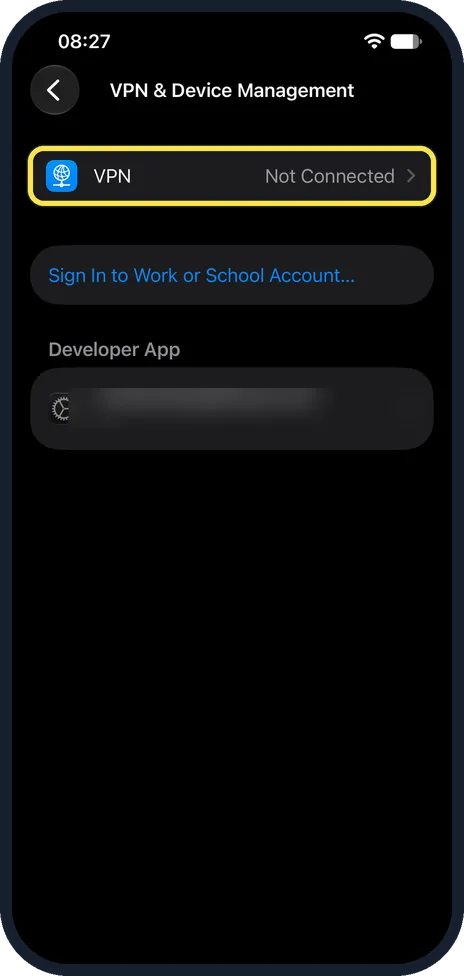
Apple says a VPN set up to block local networking can stop AirDrop. If either device uses a VPN, turn it off for the test or check its settings. On our iPhone 17e with iOS 27, Settings, General, VPN & Device Management showed VPN as Not Connected.
Enter the AirDrop code
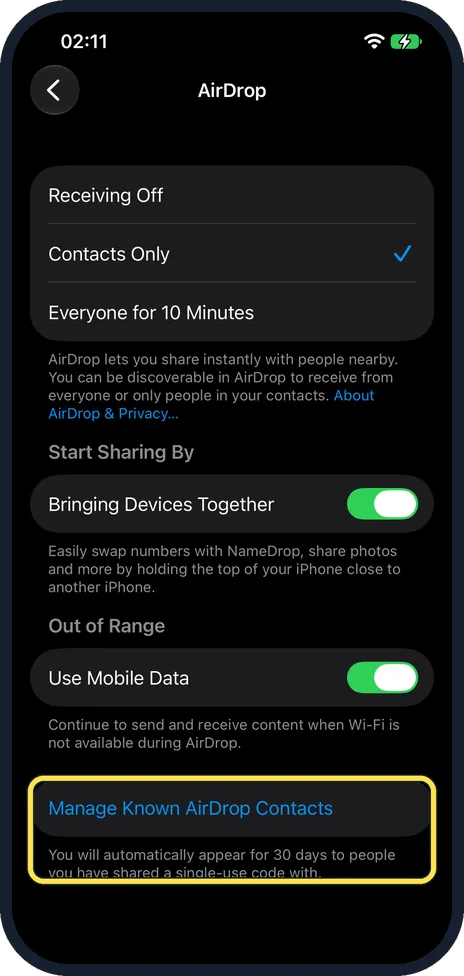
Apple says that when both devices run iOS 26.2 or later, sending to someone who is not in your contacts needs a code. The receiver taps Get AirDrop Code and tells you the code, and you type it on your iPhone. Apple says you can then share with that person for 30 days without a new code. The picture shows Settings, General, AirDrop, which has Manage Known AirDrop Contacts. Under it, our iPhone 17e said: "You will automatically appear for 30 days to people you have shared a single-use code with." To stop early, Apple says to find the person under Other Known in Contacts and tap Forget This Person.
Restart both devices
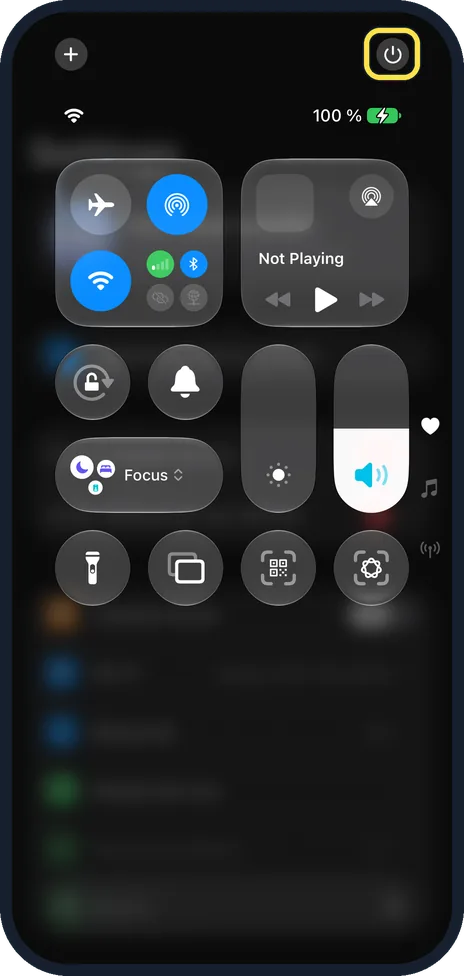
Switch both devices off and on again, then try once more. On an iPhone with Face ID, press and hold the side button and either volume button until the sliders appear, then drag the power off slider. You can also open Control Centre and touch and hold in the top-right corner, where our iPhone 17e showed a power symbol.
What changed: the screenshots are now our own iPhone 17e on iOS 27.0.1, dark mode, and the wording is checked against those screens and Apple's iOS 27 guide.
Watch these steps
If you do not see this option
- No AirDrop code request AirDrop codes need iOS 26.2, iPadOS 26.2, macOS 26.2 or later. Older versions do not ask for one. Source: Use AirDrop to send items to nearby Apple devices
- No Contacts Only or Everyone for 10 Minutes Apple says these options are only on devices that meet the minimum system requirements for AirDrop. Source: Use AirDrop to send items to nearby Apple devices
If this does not work
- You do not appear for someone set to Contacts Only Apple says that to send to someone who only accepts items from contacts, you must be in their contacts list, and they need your Apple Account email address or phone number on your contact card. If you are unsure, ask them to choose Everyone for 10 Minutes. Source: Use AirDrop to send items to nearby Apple devices
- The transfer stops when you walk away Apple says a transfer that has started continues over the internet out of range, using mobile data if Use Mobile Data is on under Settings, General, AirDrop. On our iPhone 17e it was on, with the note "Continue to send and receive content when Wi-Fi is not available during AirDrop." Source: Use AirDrop to send items to nearby Apple devices
- The AirDrop setting is greyed out A Screen Time restriction can block AirDrop. Check Settings, Screen Time, Content & Privacy Restrictions, Other Features, where Apple lists AirDrop in iOS 27. Source: Block features or content with Screen Time on iPhone
About this guide
When the other person does not appear in the AirDrop list, check the receiving device first: is it set to Contacts Only, or is its hotspot on? Check both devices. Screenshots: iPhone 17e, iOS 27.0.1, dark mode.
Good to know
The note on the AirDrop page of our iPhone 17e reads: You can be discoverable in AirDrop to receive from everyone or only people in your contacts.
How sending works: how to use AirDrop on an iPhone.
If the Mac is the device that does not appear: AirDrop not working on a Mac: 7 fixes to try.
In short: Close together, Wi-Fi and Bluetooth on, hotspot off, Everyone for 10 Minutes, VPN off, AirDrop code, restart.
- Apple Support: How to use AirDrop on your iPhone or iPad
- Apple iPhone User Guide: Use AirDrop to send items to nearby Apple devices
- Apple iPhone User Guide: Block features or content with Screen Time on iPhone
- Apple iPhone User Guide: Turn iPhone on or off
Links checked in October 2026. Menus and features can change after software updates. These steps match the version named at the top.
Did this guide work for you?
Sorry about that. What happened?