
howtosimply.com/guides/how-to-show-battery-percentage-on-an-iphone/ · Checked October 2026 · iPhone 17e · iOS 27.0.1
In this guide
Open Settings, tap Battery and turn on Battery Percentage. On an iPhone with Face ID the number then shows inside the battery symbol in the status bar. It was off on our iPhone 17e.
- Device
- iPhone
- Shown on
- iOS 27.0.1 (iPhone 17e)
- App
- Settings
- Path
- Settings › Battery › Battery Percentage
- Real screenshots
- 5 of 5 steps
- Checked
- October 2026
- Sources
- 1 official, linked below
Step by step
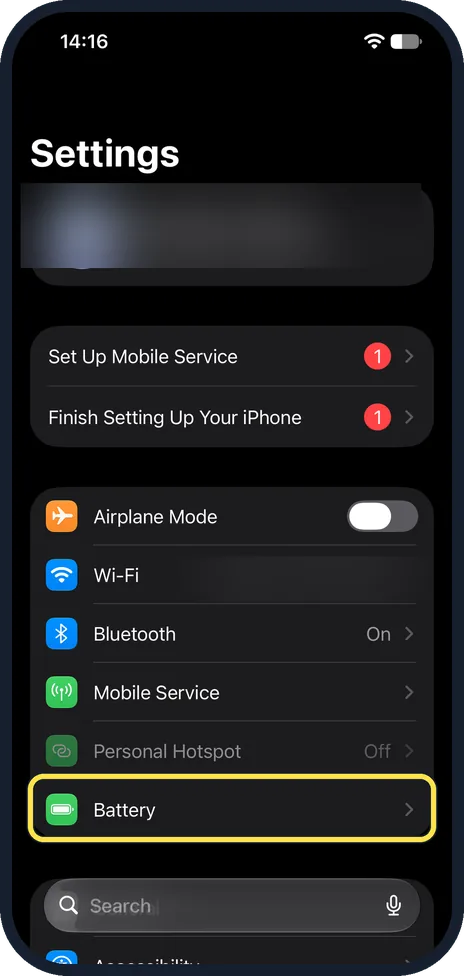
Tap Battery in Settings
Open the Settings app. Battery is in the group with Wi-Fi, Bluetooth and Mobile Service, below Personal Hotspot.
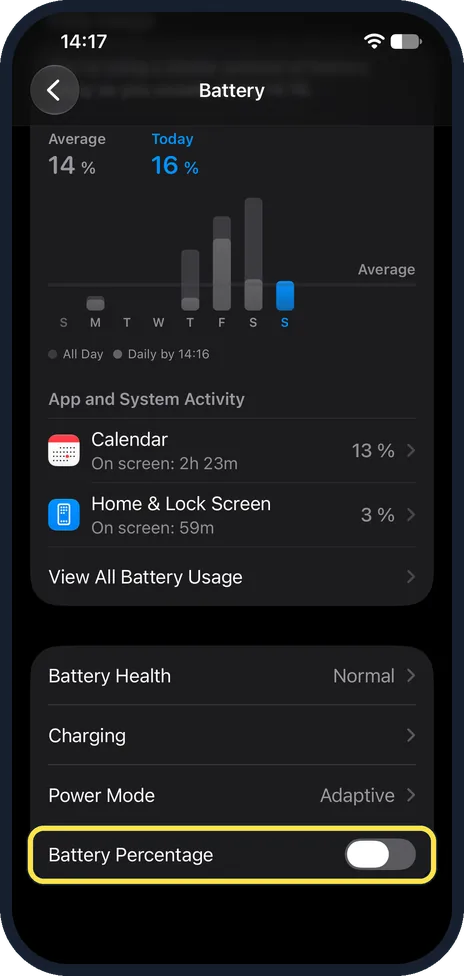
Find Battery Percentage
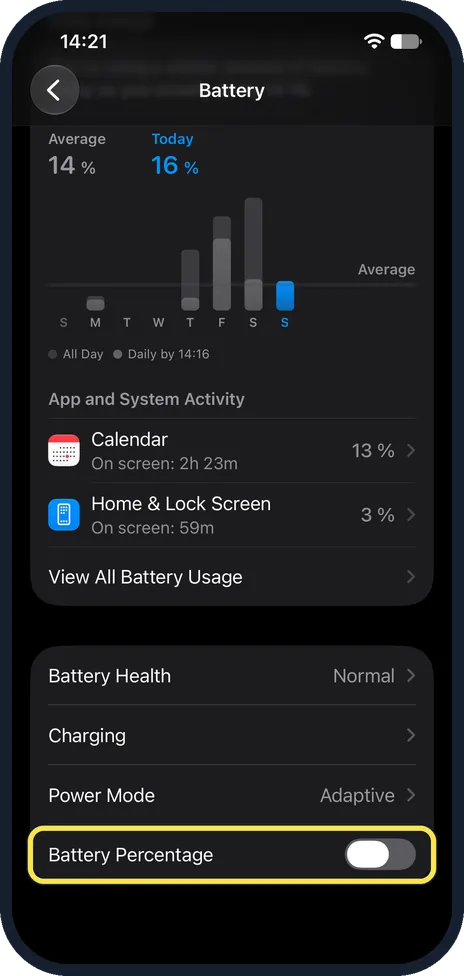
The Battery page opens with the usage chart. Battery Percentage is the last switch, below Battery Health, Charging and Power Mode. On ours it was off.
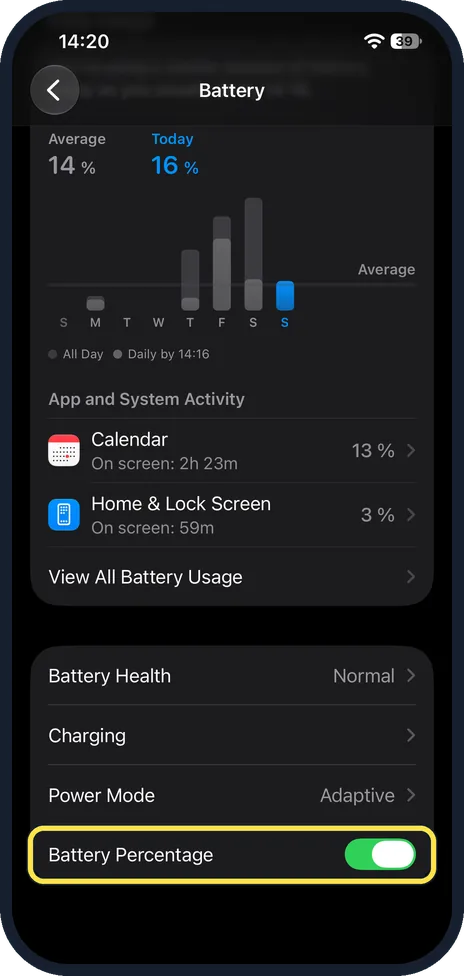
Turn on Battery Percentage
Tap the switch so it turns green.
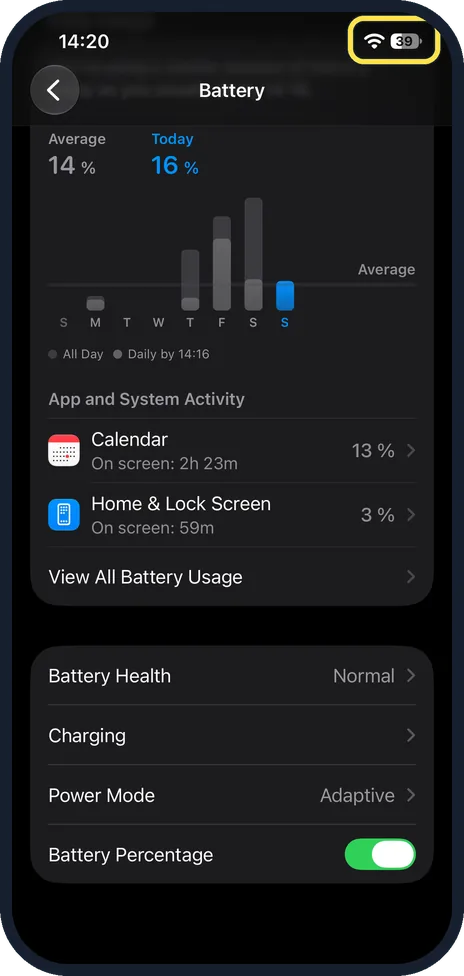
Check the status bar
The number now shows inside the battery symbol at the top right: 39 on ours.
Turn it off again
To hide the number, tap the same switch so it turns grey. The status bar shows the plain battery symbol again.
If you do not see this option
- No percentage in the status bar? Apple says on iPhone models with Face ID you can also swipe down from the top-right corner to see it in Control Centre. Source: Show the iPhone battery percentage
- Want the battery of AirPods too? Apple says a Batteries widget on the Home Screen shows the iPhone and connected accessories. Source: Show the iPhone battery percentage
If this does not work
- The battery symbol turned yellow? That is Low Power Mode. On ours, Power Mode on the Battery page read Adaptive. See how to turn on Low Power Mode on an iPhone.
- The percentage drops fast? Check the battery usage chart on the same page and Battery Health: how to check battery health on an iPhone.
About this guide
Without the percentage, the status bar shows only the battery symbol. One switch adds the number.
The screenshots are from our iPhone 17e with iOS 27.0.1, in Dark mode. Battery Percentage was off; we turned it on to take the pictures and off again.
Good to know
On Android: on a Google Pixel and on a Samsung Galaxy.
In short: Settings, Battery, turn on Battery Percentage. The number shows inside the battery symbol.
Links checked in October 2026. Menus and features can change after software updates. These steps match the version named at the top.
Did this guide work for you?
Sorry about that. What happened?