
What changed: every screenshot is now our own iPhone 17e on iOS 27.0.1, dark mode, and the wording is checked against those screens.
howtosimply.com/guides/how-to-turn-off-ios-beta-updates-on-an-iphone/ · Checked October 2026 · iPhone 17e · iOS 27.0.1
In this guide
Open Settings, General, Software Update, tap Beta Updates and choose Off. The iPhone then stops offering betas. On our iPhone 17e on iOS 27.0.1 there was no Beta Updates row at all. A beta that is already installed stays until you restore the phone.
3 of 4 steps with real screenshots · 2 official sources below
- Device
- iPhone
- Shown on
- iOS 27.0.1 (iPhone 17e)
- App
- Settings
- Path
- Settings › General › Software Update › Beta Updates
- Real screenshots
- 3 of 4 steps
- Checked
- October 2026
- Sources
- 2 official, linked below
Step by step
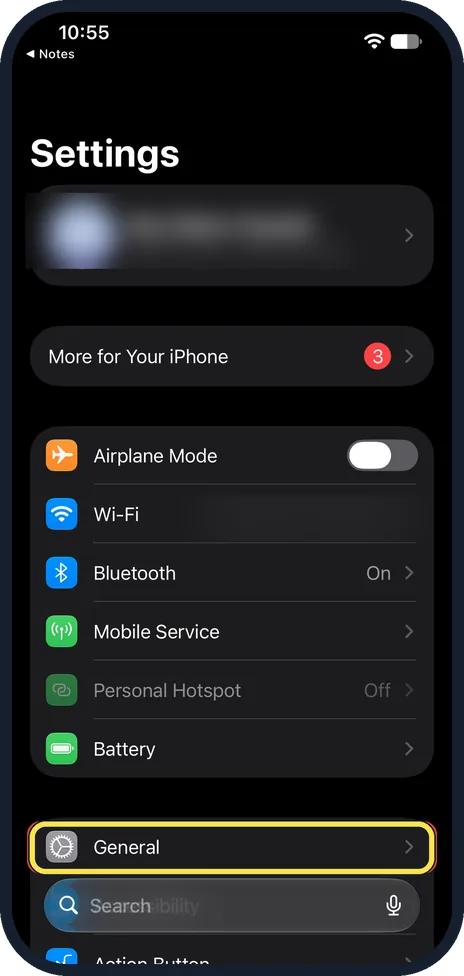
Open Settings and tap General
On our iPhone, General starts the group below the one that ends with Battery.
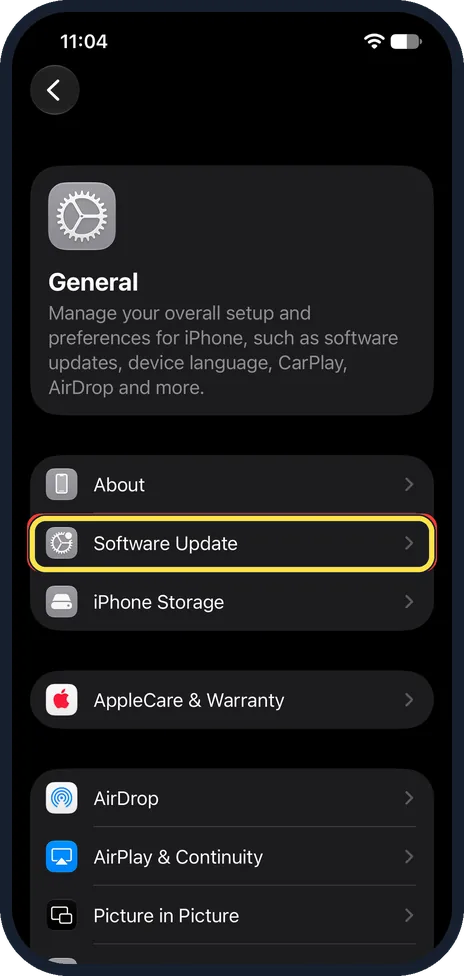
Tap Software Update
It is the second row, just below About.
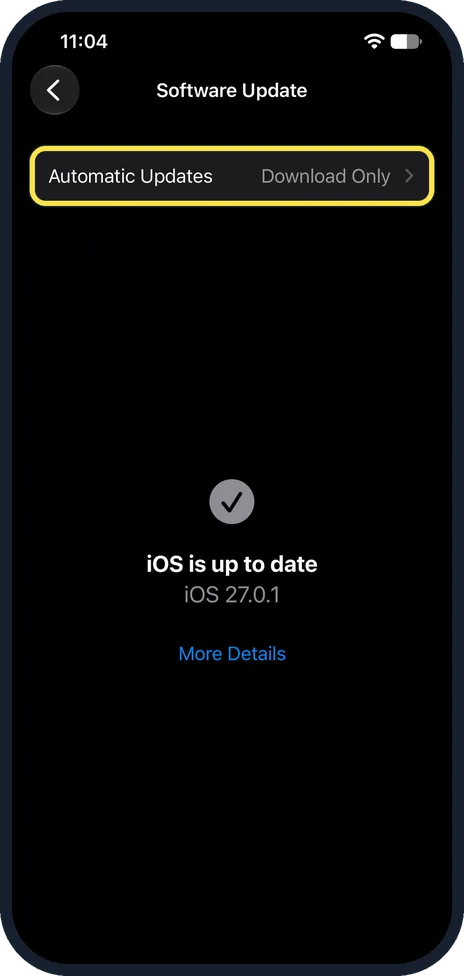
Look for Beta Updates under Automatic Updates
On our iPhone the page showed only Automatic Updates, set to Download Only, with no Beta Updates row, and the message "iOS is up to date", iOS 27.0.1.
If you have no Beta Updates row either, see "If you do not see this option" below.
Tap Beta Updates and choose Off
Apple's steps are to tap Beta Updates, then Off, and go back.
The row should then read Off.
What changed: every screenshot is now our own iPhone 17e on iOS 27.0.1, dark mode, and the wording is checked against those screens.
If you do not see this option
- There is no Beta Updates row. On our iPhone 17e on iOS 27.0.1 there was none either; Software Update listed only Automatic Updates (Download Only). Apple says that on iOS 16.3.1 or earlier you remove the beta profile instead: Settings, General, VPN & Device Management, then the Beta Software Profile and Remove Profile. Sources: How to uninstall iOS or iPadOS beta software, Unenroll your devices
- Beta Updates already reads Off. Apple says betas are for members of the Apple Beta Software Program, Customer Seed Program and Apple Developer Program. If the row reads Off, the iPhone is not set to receive betas. Sources: How to uninstall iOS or iPadOS beta software, Unenroll your devices
- The betas are on your Apple Watch. Apple says watchOS betas are switched off on the paired iPhone: Apple Watch app, My Watch, General, Software Update, Beta updates, then Off. Sources: How to uninstall iOS or iPadOS beta software, Unenroll your devices
- There is no Beta Updates row. Apple says that on iOS 16.3.1 or earlier you remove the beta profile instead: Settings, General, VPN & Device Management, then the Beta Software Profile and Remove Profile. Source: How to uninstall iOS or iPadOS beta software
If this does not work
- The beta was installed with a computer. Apple says a beta installed with a computer can only be removed by restoring the iPhone, which erases it and installs the current public version of iOS. Sources: How to uninstall iOS or iPadOS beta software, Unenroll your devices
- An alert says an update is available. Apple says this means the beta on the phone has expired. Open Settings, General, Software Update and install the update. Sources: How to uninstall iOS or iPadOS beta software, Unenroll your devices
- You want to leave the beta programme altogether. Apple says to sign in on the Apple Beta Software Program website and use the Leave Program link. You then stop getting its emails and can no longer send feedback. Sources: How to uninstall iOS or iPadOS beta software, Unenroll your devices
About this guide
When Beta Updates is set to a beta program, Software Update offers test versions of iOS. Betas can have bugs, so switching the setting off is the safe default for a phone you rely on.
The screenshots are our own, taken on an iPhone 17e running iOS 27.0.1 in dark mode. The phone had not installed a beta.
Good to know
Turning off Beta Updates does not uninstall a beta that is already on the phone. Apple's way to remove it is to erase the iPhone, restore it to the current public version and then restore a backup made before you installed the beta.
A backup made while the phone ran a beta may not restore onto the older public version.
Automatic Updates is a separate setting. How updating works: how to update an iPhone.
In short: Settings, General, Software Update, Beta Updates, Off.
- Apple Support: How to uninstall iOS or iPadOS beta software
- Apple Beta Software Program: Unenroll your devices
Links checked in October 2026. Menus and features can change after software updates. These steps match the version named at the top.
📷 See real photos from the iPhone 17e in our Camera Lab, next to 10 other phones.
Did this guide work for you?
Sorry about that. What happened?