
howtosimply.com/guides/how-to-set-up-a-sleep-schedule-on-an-iphone/ · Checked October 2026 · iPhone 17e · iOS 27.0.1
In this guide
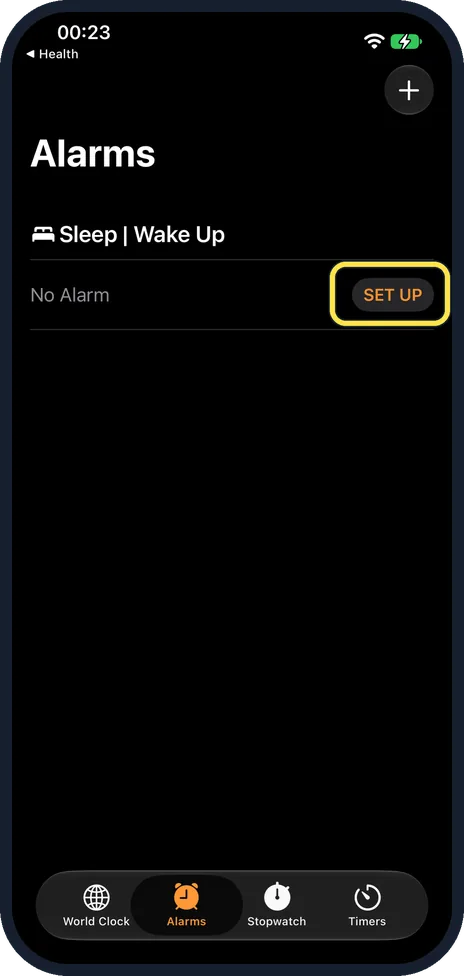
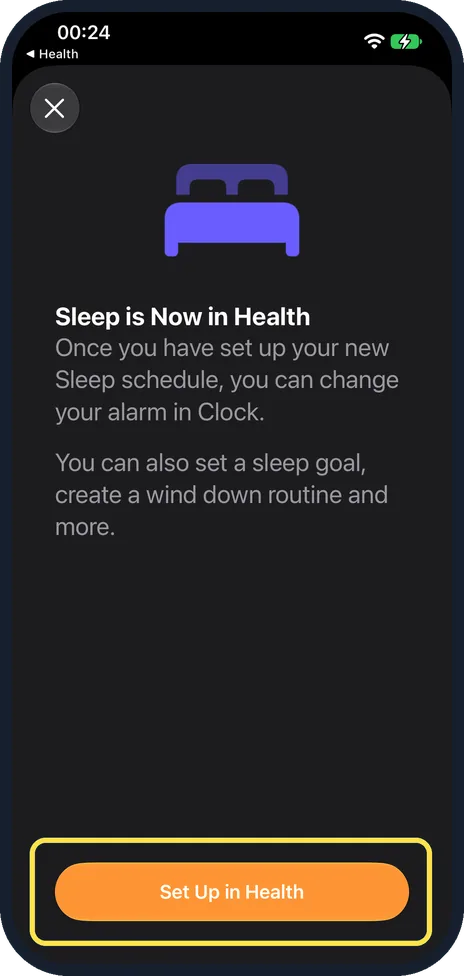
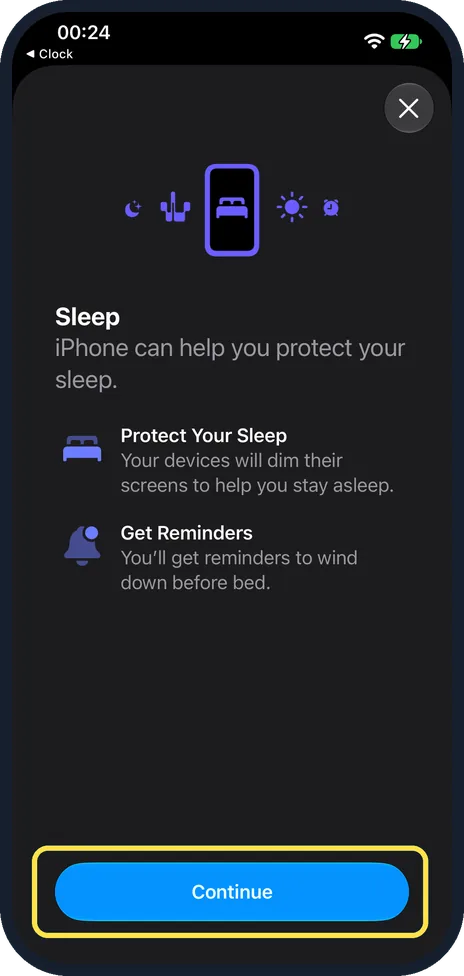
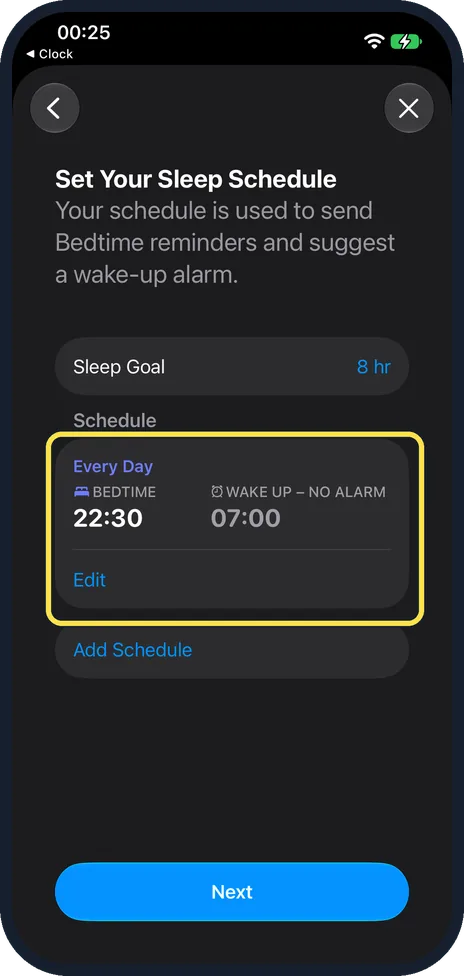
Open Clock, Alarms and tap SET UP next to Sleep | Wake Up. A note says Sleep is now in Health: tap Set Up in Health, Continue, check the goal and times, then Next and Done. Ours suggested 8 hours, every day, 22:30 to 07:00 with no alarm. Turn the Schedule switch off to pause it.
- Device
- iPhone
- Shown on
- iOS 27.0.1 (iPhone 17e)
- App
- Clock
- Path
- Clock › Alarms › Sleep | Wake Up › Set Up
- Real screenshots
- 7 of 7 steps
- Checked
- October 2026
- Sources
- 2 official, linked below
Step by step
Tap SET UP in Clock
Open Clock and tap Alarms. Under Sleep | Wake Up, ours said No Alarm with a SET UP button.
Tap Set Up in Health
A note says Sleep is Now in Health and that you can change your alarm in Clock later.
Tap Continue
Health explains that your devices will dim and remind you to wind down.
Check your goal and times
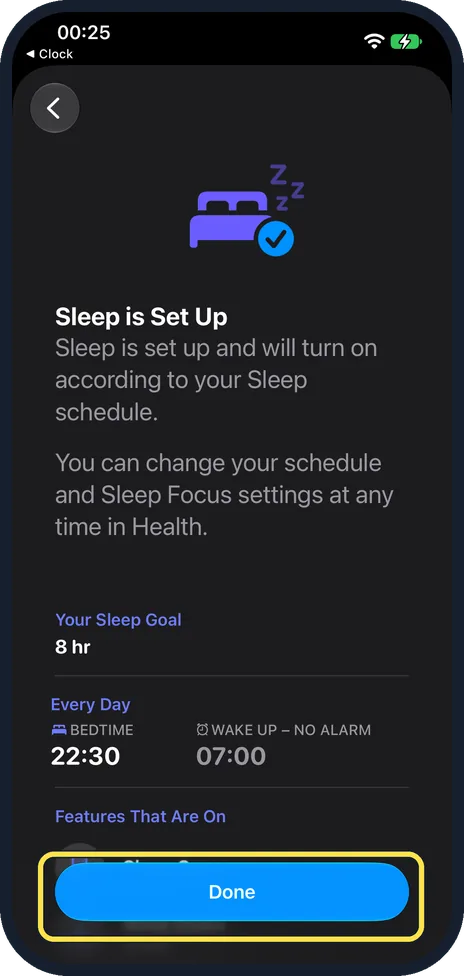
Ours suggested an 8 hr Sleep Goal and Every Day, bedtime 22:30, wake up 07:00, no alarm. Tap Edit to change them, then tap Next.
Tap Done
Sleep is Set Up lists your goal and schedule, and the features that are now on.
Change it later from Clock
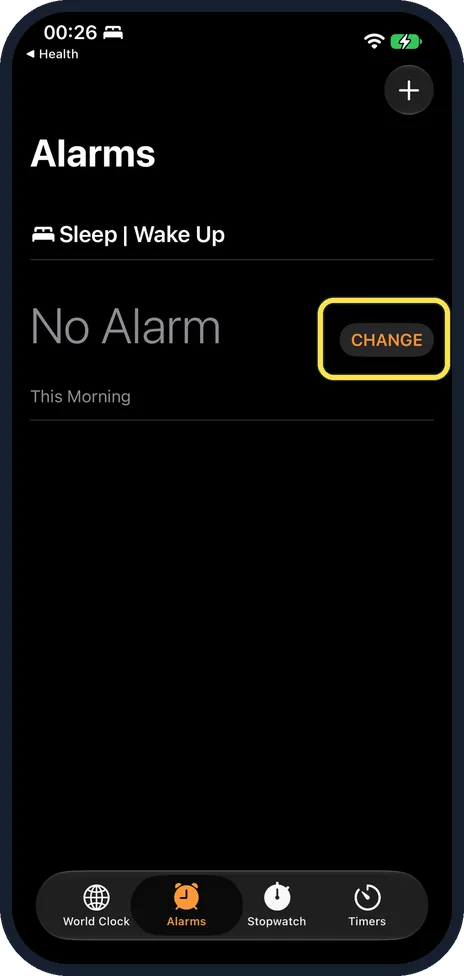
Sleep | Wake Up in Alarms now shows CHANGE.
Pause the schedule
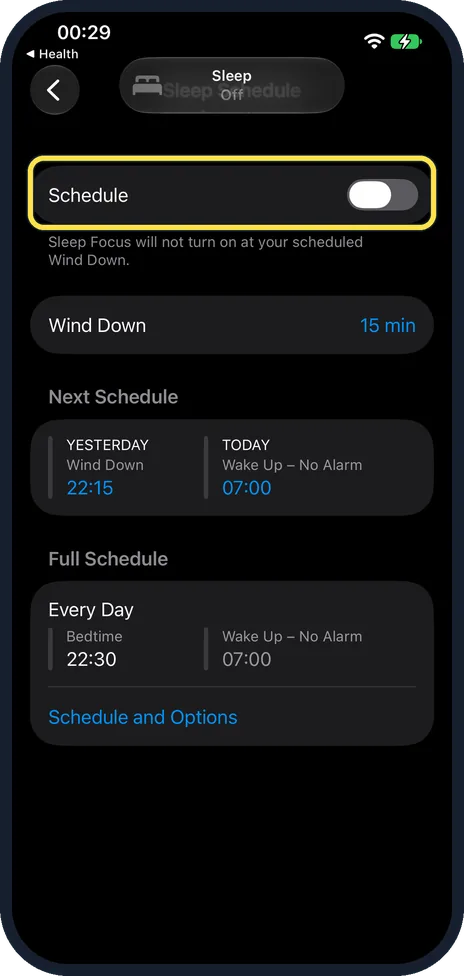
On the Sleep Schedule page in Health, turn off Schedule. The note changes to say Sleep Focus will not turn on at your scheduled Wind Down.
If you do not see this option
- How to reach the Sleep Schedule page? Apple says: Health, Browse, Sleep, Sleep again, scroll to Your Schedule and tap Full Schedule & Options. Source: Turn off alarms and delete sleep schedules in Health on iPhone
- Want an alarm? Apple says to turn on Alarm when you edit the schedule and pick a sound. Source: Set up sleep in Health on iPhone
If this does not work
- No Set Up button in Health? There was none on ours under Browse, Sleep. Start from Clock, Alarms, Sleep | Wake Up instead.
- Phone went quiet at 22:15? Wind Down was 15 min on ours, and the Sleep Focus starts then. Source: Set up sleep in Health on iPhone
About this guide
A sleep schedule sets a bedtime, a wake-up time and a Sleep Focus that quietens the phone at night.
The screenshots are from our iPhone 17e with iOS 27.0.1, in Dark mode. Health, Browse, Sleep showed no Set Up button on ours, so we started from Clock. We turned the schedule off afterwards.
Good to know
If an alarm does not ring, see iPhone alarm not going off: 8 things to check.
In short: Clock, Alarms, Sleep | Wake Up SET UP, Set Up in Health, Continue, Next, Done.
- Apple iPhone User Guide: Set up sleep in Health on iPhone
- Apple iPhone User Guide: Turn off alarms and delete sleep schedules in Health on iPhone
Links checked in October 2026. Menus and features can change after software updates. These steps match the version named at the top.
Did this guide work for you?
Sorry about that. What happened?